For the complete documentation index, see llms.txt. This page is also available as Markdown.

New Scan

Use this page to start a new scan. A single scan can cover Active Directory, Azure, GCP, AWS and GitHub environments together.

New Scan form with the five policy selectors
New Scan

Mandatory Fields

Scan Name: Name of the scan.

Start Time: Date and time the scan starts. Set a later time to schedule the scan.

Environments: Add at least one environment to the scan (see Environments). Otherwise the scan does not start and the message At least one environment information must be added for scanning. is shown.

Policy Fields

Each provider has its own policy selector. The selected policy applies to the environments of that provider in the scan. (See Policies)

Policy: Scan policy for the Active Directory environments. (See AD Policies)

Azure Policy: Scan policy for the Azure environments. (See Azure Policies)

GCP Policy: Scan policy for the GCP environments. (See GCP Policies)

AWS Policy: Scan policy for the AWS environments. (See AWS Policies)

GitHub Policy: Scan policy for the GitHub environments. (See GitHub Policies)

A policy selector is enabled only after you add an environment of that provider to the scan. For the cloud selectors, the information icon next to the field reads Azure Configuration is required (or GCP, AWS, GitHub Configuration is required).

Optional Fields

Description: Description of the scan.

Current Scan: Selected by default. A one-time scan started with this option becomes the selected scan of the interface.

Continuous Assessment

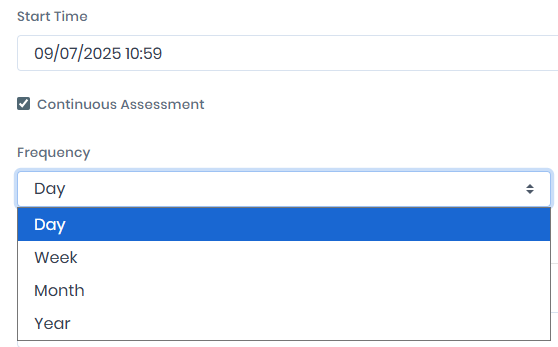
Select Continuous Assessment to repeat the scan daily, weekly, monthly or yearly. No scan runs before the Start Time. For Day, Week and Month, the Every field sets the interval (1 to 99), and the Schedule Description line shows the resulting schedule.

Continuous Assessment

Frequency Day

Frequency set to Day, every 3 days
Frequency - Day: every 3 days

With Frequency set to Day, the scan runs every given number of days at the start time.

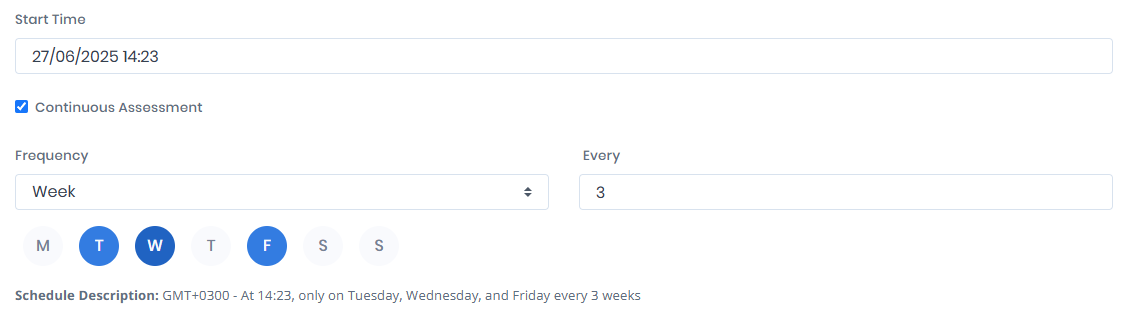
Frequency Week

Frequency - Week: every 3 weeks

With Frequency set to Week, the scan runs every given number of weeks on the selected days at the start time. At least one day stays selected.

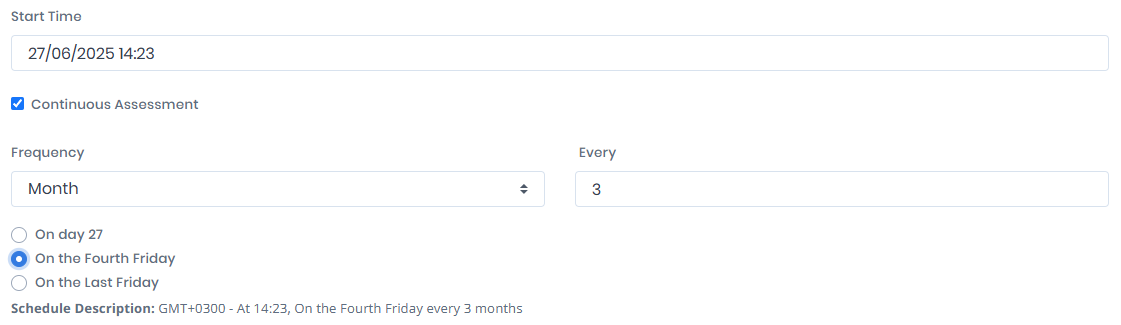
Frequency Month

Frequency set to Month, every 3 months
Frequency Month: every 3 months

With Frequency set to Month, the scan runs every given number of months. Choose one of the options calculated from the start time: - the day of the month, for example On day 15, - the weekday and its week in the month, for example On the Third Monday, - On the Last <weekday>, offered when the start time falls in the fourth or last week of the month.

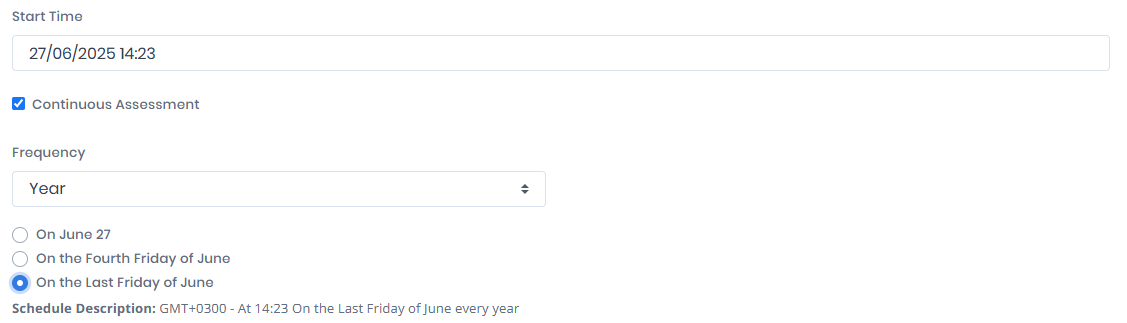
Frequency Year

Frequency Year

With Frequency set to Year, the scan runs once a year. The options are the same as for Month, in the month of the start time, for example On March 15 or On the Third Monday of March.

Environments

Each environment row selects a saved configuration from the Configuration Center. The form starts with one Active Directory Configuration row.

Adding an Environment

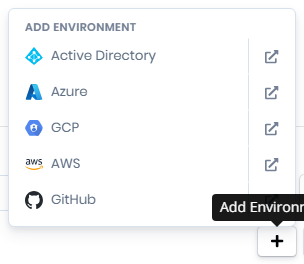
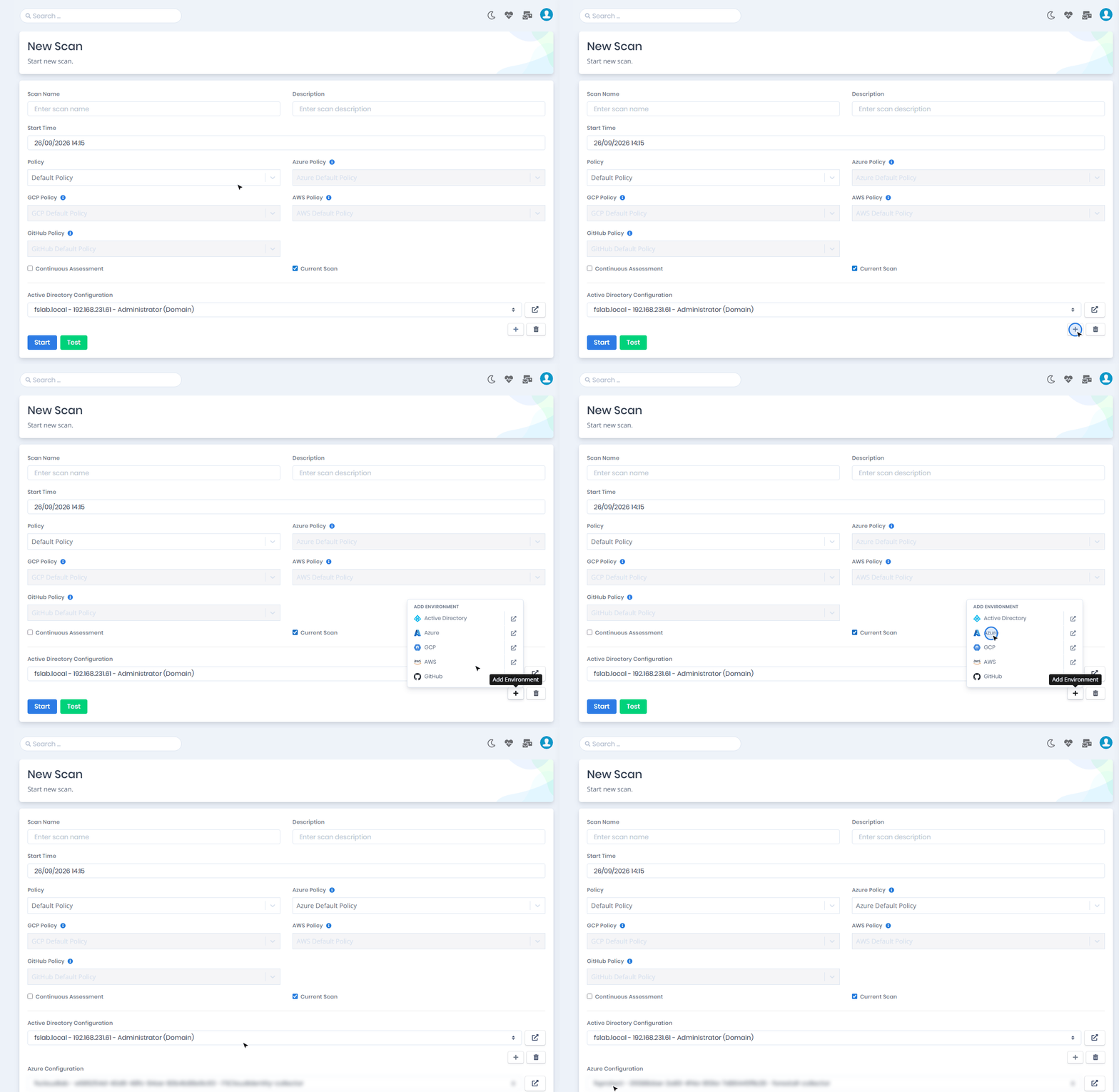
Add environments with the + (Add Environment) button. Its menu lists Active Directory, Azure, GCP, AWS and GitHub. A provider is marked not configured when it has no configuration, and all in use when all of its configurations are already on the form. The external-link button next to a provider opens the new configuration page of that provider in a new browser tab.

Add Environment menu listing Active Directory, Azure, GCP, AWS and GitHub
Add Environment

When no Active Directory configuration exists yet, the Active Directory Configuration row shows No Active Directory configuration yet. with an Add configuration link.

Active Directory Configuration

The Active Directory Configuration list shows each configuration as <forest> - <server> - <username> (<authentication type>). The authentication type comes from the AD Configuration. It is (Domain) for a configuration with domain credentials and (CyberArk) for one whose credentials come from CyberArk. To scan with CyberArk credentials, select such a configuration here.

Azure Policy Selection

Adding an Azure environment with the + button enables the Azure Policy selector. The GCP, AWS and GitHub policy selectors work the same way.

New Scan with the cloud policy selectors and Azure configurations
Azure environments with the Azure Policy selector enabled
Multiple Environment

To scan several forests or cloud environments in one scan, add more environments with the + (Add Environment) button.

Remove an environment with its trash (Delete Environment) button.

Adding a second environment (Azure) to a New Scan that already has an Active Directory environment
Adding a second environment to a scan

Click the external-link button next to an environment to manage its selected configuration. The configuration page opens in a new browser tab. When you return to the New Scan tab, the configuration lists are refreshed and you can continue with the scan.

Buttons

Start: Starts the scan, or schedules it for the selected Start Time.

Test: Checks the connection to the added environments without starting a scan. The results are listed per environment in the Connection Test Results window.

When the license has expired, both buttons are disabled with the License Expired tooltip.

Last updated

Was this helpful?