> For the complete documentation index, see [llms.txt](https://docs.forestall.io/forestall/llms.txt). Markdown versions of documentation pages are available by appending `.md` to page URLs; this page is available as [Markdown](https://docs.forestall.io/forestall/configuration-center/sso/onelogin-configuration.md).
# OneLogin Configuration
You can integrate OneLogin to simplify authentication. The following configurations must be completed for integration:
## SAML Connection Configuration
The OneLogin administrator dashboard must be accessed. Under **Applications → Applications**, the **Add App** option must be selected.
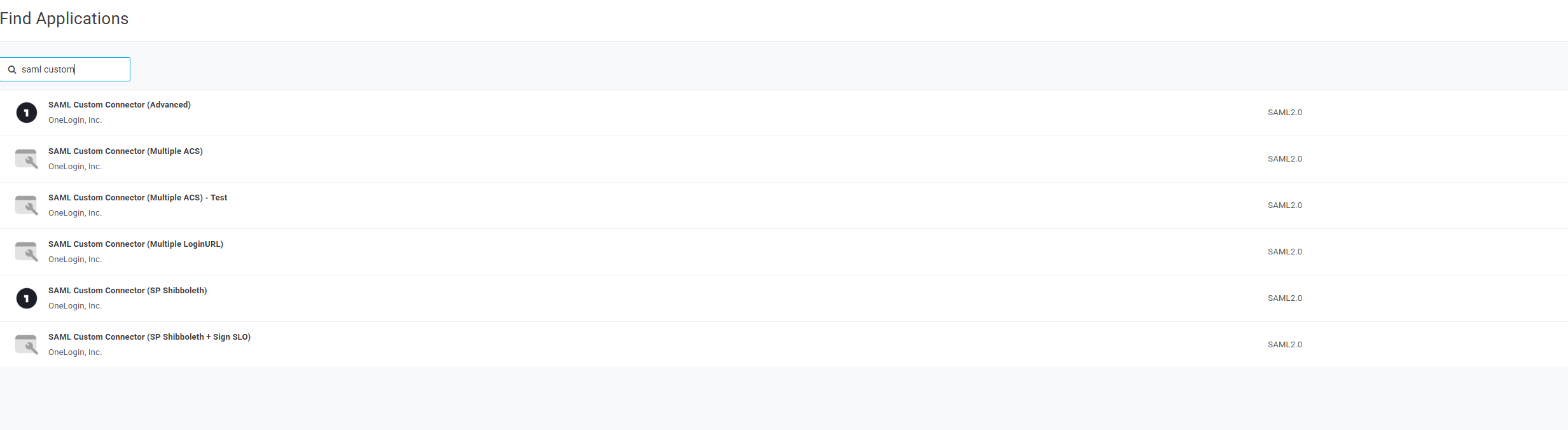
New Application Page
In the **Find applications** box, *SAML Custom Connector (Advanced)* must be searched and selected. A display name must be provided, and the configuration saved.
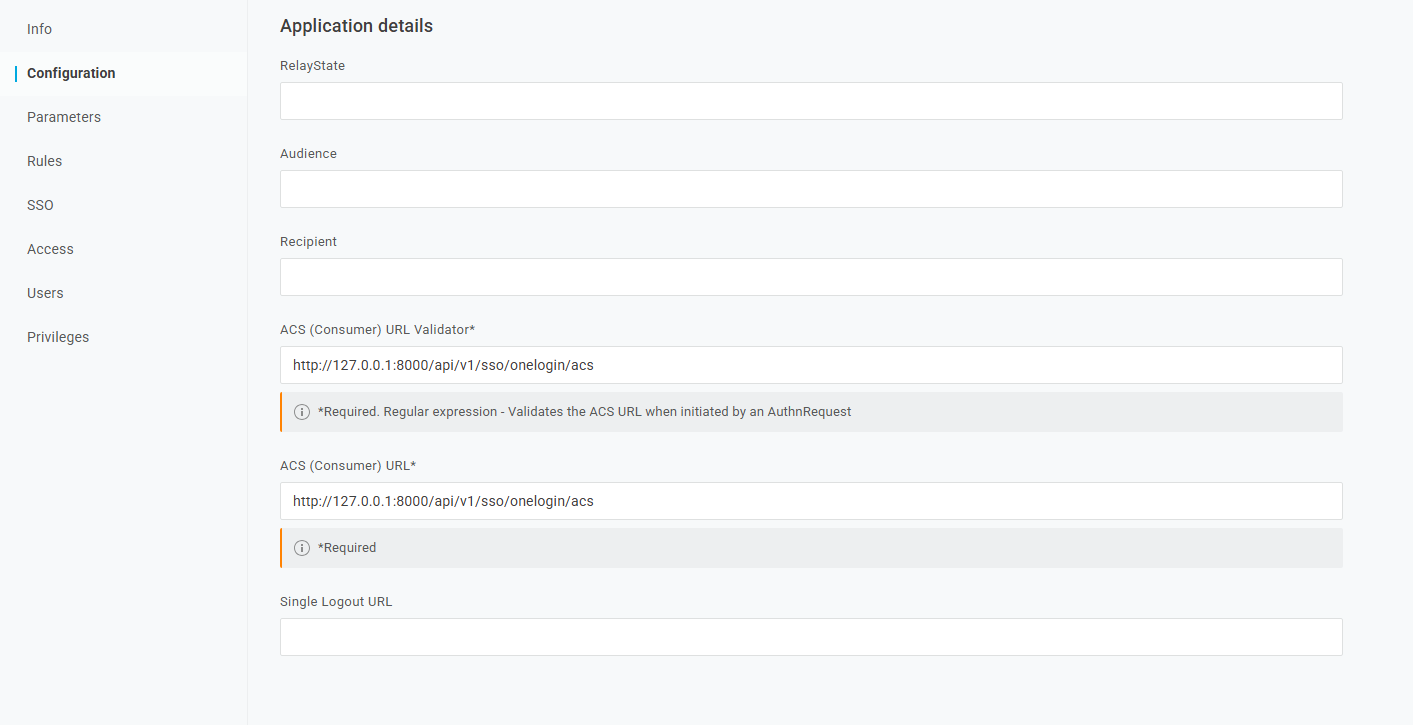
After saving, the **Configuration** tab of the new app must be opened. A SAML connection must be configured in OneLogin with the following parameters:
* **ACS URL**: Copied from the **ACS Url** field of Forestall's **New SAML Provider** page. The field is filled in as soon as you type the Provider Name, so it can be copied before the provider is saved. The value must exactly match Forestall’s ACS URL. If you rename the provider in Forestall later, update it here as well.
* **ACS (Consumer) URL Validator**: The same value as the ACS URL.
Application Configuration Page
In the top-right **More Actions** dropdown, **SAML Metadata** must be selected to download the XML file. The file must be saved and uploaded to Forestall, where it will be parsed to pull in OneLogin’s endpoints and certificates.
## Role and Username Mapping Settings:
In OneLogin’s **Parameters** tab, the following assertion attributes must be added so Forestall can read them:
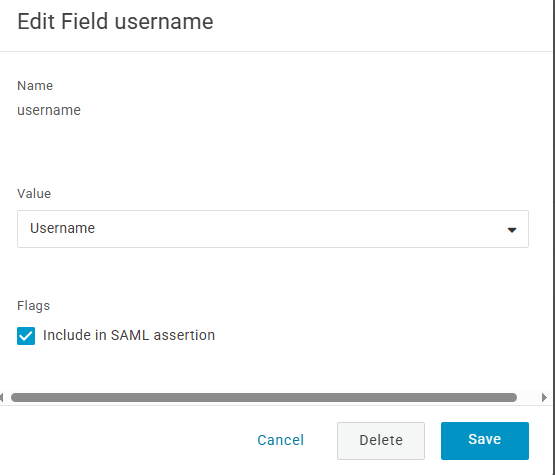
**Username Attribute Key**
* Name: `username`
* SAML Field Name: Exactly the value entered in Forestall’s Username Attribute Key field (e.g., `username`)
* Include in SAML Assertion: Checked
Username Attribute Configuration Page
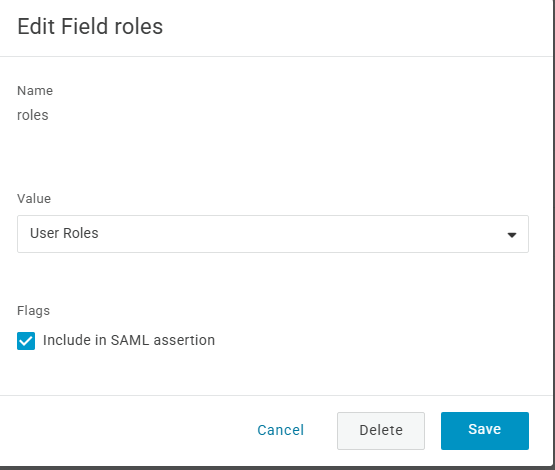
**Role Attribute Key**
* Name: `role`
* SAML Field Name: Exactly the value entered in Forestall’s Role Attribute Key field (e.g., `role`)
* Include in SAML Assertion: Checked
Role Attribute Configuration Page
Once the OneLogin app configuration has been saved:
1. The IdP Metadata XML must be downloaded with **More Actions → SAML Metadata** (see above).
2. In Forestall’s **New SAML Provider** page (**Configuration Center > SSO > New Provider**), the XML must be uploaded in the **XML File** field.
3. The configuration must be saved in Forestall.
4. OneLogin users or groups must then be assigned to the app.
After these steps, Forestall SSO Login will function with correct username and role mappings.