> For the complete documentation index, see [llms.txt](https://docs.forestall.io/forestall/llms.txt). Markdown versions of documentation pages are available by appending `.md` to page URLs; this page is available as [Markdown](https://docs.forestall.io/forestall/settings/authentication.md).
# Authentication
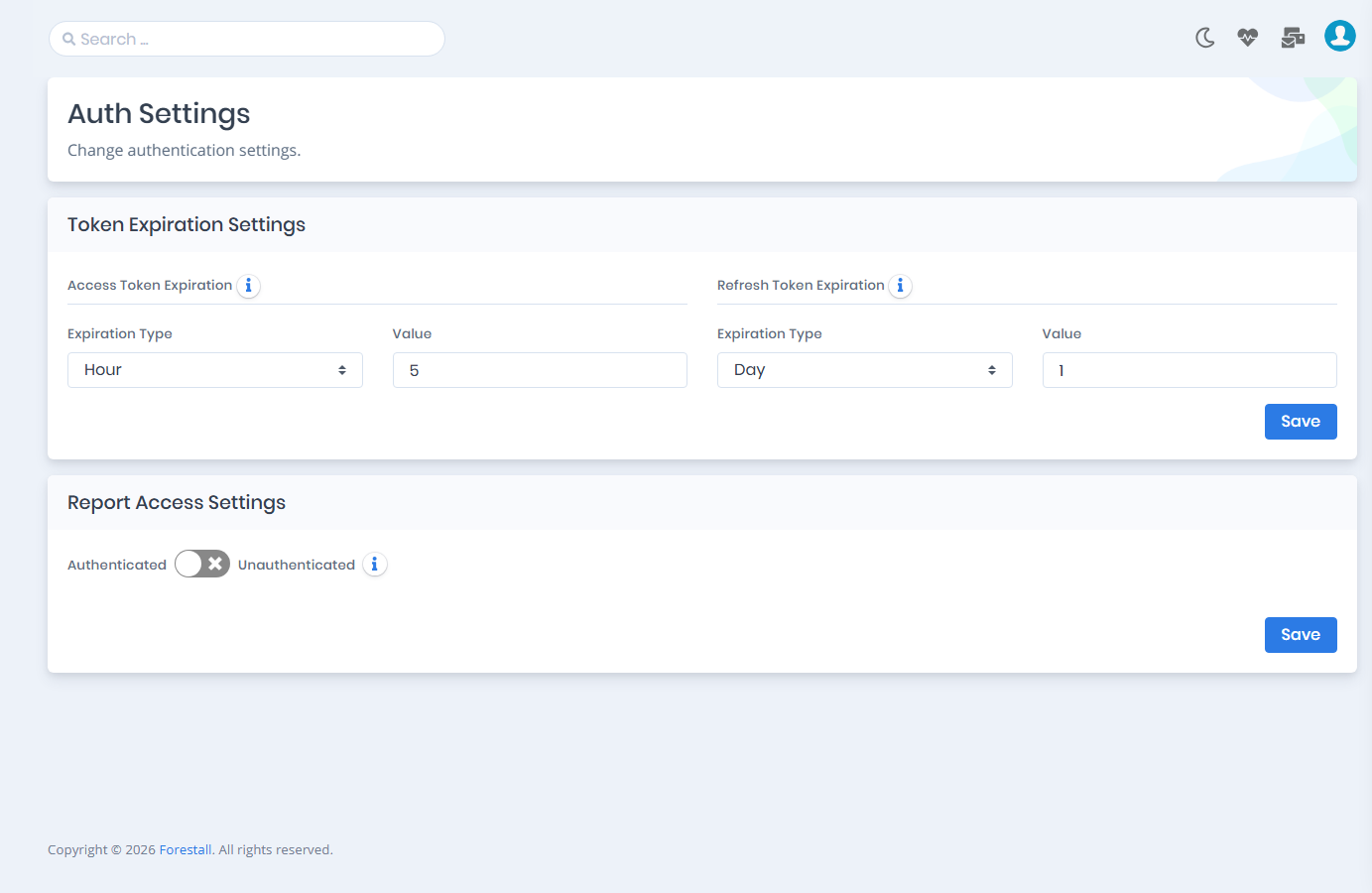
The **Auth Settings** page controls how long sign-in sessions last and whether scan reports can be opened without signing in. Open it from **Settings > Authentication**. Viewing the page requires the `ReadAuthSettings` permission. Changing it requires `WriteAuthSettings`.
Auth Settings
The page has two cards, **Token Expiration Settings** and **Report Access Settings**. Each card has its own **Save** button and is saved separately.
## Token Expiration Settings
You can define the expiration timeout of `JSON Web Tokens (JWT)` to limit the session duration. There are two types of tokens in the JWT authentication process.
**Access Token:** An access token functions as a credentials document that validates a user's or client's entitlement to reach specific resources. The server generates this token upon successful user authentication or authorization. The access token remains valid for a restricted duration, during which the client can utilize it to gain entry to designated resources.
**Refresh Token:** A refresh token is used to obtain a new access token when the current one expires. It remains valid longer than the access token, so the user can keep working without signing in again until the refresh token itself expires.
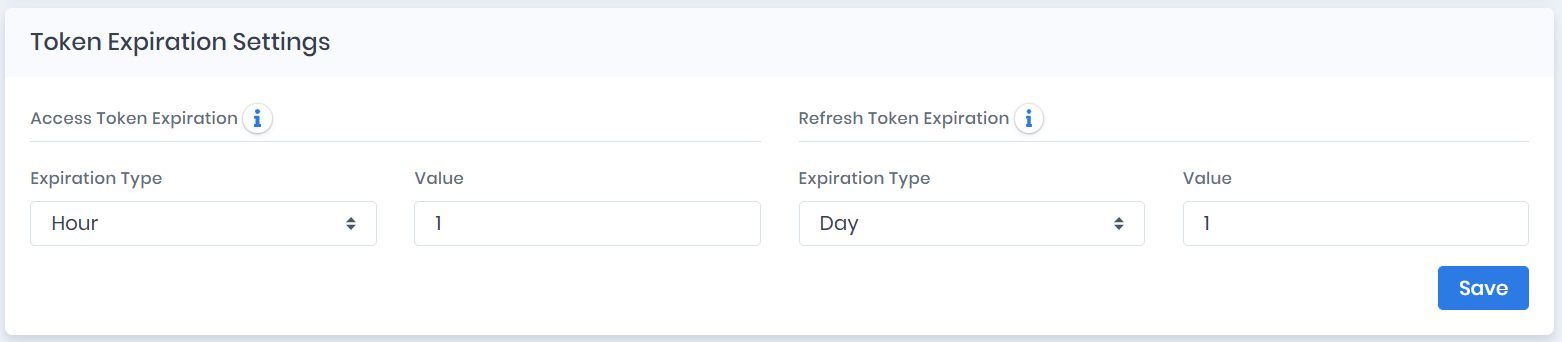
For **Access Token Expiration** and **Refresh Token Expiration**, select an **Expiration Type** (`Minute`, `Hour` or `Day`) and enter a **Value**, then click **Save** on the card.
Token Expiration Settings
## Report Access Settings
This setting decides whether report links can be opened without signing in. It is a single switch between **Authenticated** (off) and **Unauthenticated** (on).
* **Off (Authenticated):** A user must be signed in and have the `ReadScanReport` permission to open a report. Opening a report link without a session redirects to the login page.
* **On (Unauthenticated):** Anyone who has a report link can open it without signing in. This covers the PDF reports linked from scan notification e-mails and Jira tickets (full, summary and per-issue reports) and the affected-entity and saved-query exports served through the same links.
{% hint style="warning" %}
The switch is **on (Unauthenticated) by default**. If report links must not be readable by anyone who receives or forwards them, turn it off and click **Save**.
{% endhint %}
The offline report packages (ZIP) are not affected by this setting. Downloading a package always requires a signed-in user with the `DownloadReportPackage` permission.