For the complete documentation index, see llms.txt. This page is also available as Markdown.

Requirements

Prepare the server, the network and the scan account before the installation. Each requirement has a number that the checklist at the end of the page refers to. Use the scripts in Verifying the Requirements to check the network and the scan account from the server.

Server

1. Operating system

It is recommended to use a server with Windows Server 2016 64 Bit, Windows Server 2019 64 Bit, Windows Server 2022 64 Bit or Windows Server 2025 64 Bit operating system with English Language Pack (en-US) for installation.

2. Hardware

Size the server by the total object count (Users, Groups and Computers) in the Active Directory inventory. Run the script below for every domain to be scanned and add up the object counts it prints.

# You need to install ActiveDirectory Powershell module or run this script on Domain Controller
Import-Module ActiveDirectory;

$domain = Get-ADDomain;
$users = Get-ADUser -Filter * | Measure-Object;
$computers = Get-ADComputer -Filter * | Measure-Object;
$groups = Get-ADGroup -Filter * | Measure-Object;

Write-Host "Users: $($users.count), Computers: $($computers.count), Groups: $($groups.count)" -ForegroundColor Green;
Write-Host "$($domain.DistinguishedName) - Total Object Count: $($users.count + $computers.count + $groups.count)" -ForegroundColor Green;
Total Object Count
Minimum RAM
Minimum Free Disk Space
CPU Core Count

0-5.000

24 GB

100 GB

4

5.000-25.000

32 GB

300 GB

8

25.000-50.000

64 GB

500 GB

12

50.000-250.000

128 GB

2 TB

16

Network Access

3. Outbound access

Scans open connections from the server to the scanned environments, never in the other direction. Allow the outbound connections below on the firewalls between the server and the targets.

Active Directory

Target Computers
Protocol
Port
Description

DC or DNS Servers

TCP/UDP

53 (DNS)

To resolve names in the AD environment.

DC Servers

TCP/UDP

88 (Kerberos)

To authenticate in the domain with Kerberos.

DC or NTP Server

UDP

123 (NTP)

To keep the server clock in sync with the domain. Kerberos fails when the clocks differ by more than 5 minutes.

DC Servers

TCP/UDP

389 (LDAP)

To collect the data with LDAP queries.

DC Servers

TCP

636 (LDAPS)

To collect the data with LDAP queries when LDAP on 389 cannot be used.

DC and CA Servers

TCP

80 (HTTP), 443 (HTTPS)

To perform Certificate Services related vulnerability checks.

All Computers in Domain

TCP

445 (SMB)

To collect local assets (Local Users, Local Groups, sessions, shares) and to perform SMB and RPC related vulnerability checks.

All Computers in Domain

TCP

135 (RPC Endpoint Mapper)

To collect local assets (Local Users, Local Groups, etc.)

All Computers in Domain

UDP

137 (NetBIOS)

To resolve computer names that are not in DNS.

DC Servers

TCP

49152–65535 (RPC dynamic ports)

To perform LSARPC, NETLOGON and Spool Service related checks.

WSUS Servers

TCP

8530 (HTTP), 8531 (HTTPS)

To perform WSUS related vulnerability checks.

Azure / Entra ID

Target Domain
Protocol
Port
Purpose / Description

login.microsoftonline.com

HTTPS

443/TCP

Microsoft Entra ID / Azure authentication

graph.microsoft.com

HTTPS

443/TCP

To collect identity data from Entra ID

management.azure.com

HTTPS

443/TCP

To collect resource data from Azure Resource Manager

api.interfaces.records.teams.microsoft.com

HTTPS

443/TCP

To collect data from Microsoft 365 Teams Admin Center

{tenantName}-admin.sharepoint.com

HTTPS

443/TCP

To collect data from Microsoft 365 SharePoint Admin Center ({tenantName} must be changed with target tenant name)

For integration and configuration requirements, please visit the Azure Configurations section.

GCP

If your firewall rules require explicit Full Qualified Domain Names (FQDNs), configure the following outbound rules:

Target Domain
Protocol
Port
Purpose / Description

admin.googleapis.com

HTTPS

443/TCP

To collect identity and admin data from Google Workspace Admin SDK

cloudidentity.googleapis.com

HTTPS

443/TCP

To collect data from Google Cloud Identity

cloudresourcemanager.googleapis.com

HTTPS

443/TCP

To collect resource hierarchy data from GCP Resource Manager

iam.googleapis.com

HTTPS

443/TCP

To collect identity, service account, and IAM data from GCP

www.googleapis.com

HTTPS

443/TCP

Google Groups Settings API and legacy endpoints used for discovery and tokens

logging.googleapis.com

HTTPS

443/TCP

To analyze Cloud Logging configurations and audit trail status

cloudasset.googleapis.com

HTTPS

443/TCP

To collect Compute, Cloud KMS and other resource data through Cloud Asset Inventory

policyanalyzer.googleapis.com

HTTPS

443/TCP

To find unused service accounts from their last authentication activity

serviceusage.googleapis.com

HTTPS

443/TCP

To check which APIs are enabled in the projects

oauth2.googleapis.com

HTTPS

443/TCP

To obtain access tokens for the service account

If your network firewall or secure web gateway supports domain wildcards, two rules can replace the whole list above:

Target Domain
Protocol
Port
Purpose / Description

*.googleapis.com

HTTPS

443/TCP

Consolidates all core GCP services, Resource Manager, IAM, Logging, and Workspace APIs.

www.googleapis.com

HTTPS

443/TCP

Covers the explicit global root endpoint required for legacy service discovery and token validation.

For integration and configuration requirements, please visit the GCP Configurations section.

AWS

Scans call the IAM, STS, Organizations, IAM Identity Center (SSO Admin) and Identity Store APIs. <region> is the region selected in the AWS configuration (us-east-1 for the Commercial partition).

Target Domain
Protocol
Port
Purpose / Description

iam.amazonaws.com

HTTPS

443/TCP

To collect IAM users, groups, roles and policies

sts.<region>.amazonaws.com

HTTPS

443/TCP

To validate the credentials and assume the member scan roles

organizations.us-east-1.amazonaws.com

HTTPS

443/TCP

To collect the organization, organizational units and accounts

sso.<region>.amazonaws.com

HTTPS

443/TCP

To collect IAM Identity Center instances, permission sets and assignments

identitystore.<region>.amazonaws.com

HTTPS

443/TCP

To collect IAM Identity Center (SSO) users and groups

If your firewall supports domain wildcards, a single *.amazonaws.com rule on 443/TCP covers all of them. AWS GovCloud and China partitions use their own endpoints (for example *.amazonaws.com.cn in China).

For integration and configuration requirements, please visit the AWS Configurations section.

GitHub

Target Domain
Protocol
Port
Purpose / Description

api.github.com

HTTPS

443/TCP

GitHub Enterprise Cloud

<your GHES host>

HTTPS

443/TCP

GitHub Enterprise Server; Forestall calls https://<host>/api/v3/

For integration and configuration requirements, please visit the GitHub Configurations section.

Integrations and proxy

Optional integrations connect to the endpoints you configure for them: Jira, Splunk, the mail (SMTP) server, CyberArk and a cloud AI provider used by the AI Assistant. Allow outbound access to these endpoints if you use them.

If outbound access has to go through a proxy, see Configuring a Proxy.

4. Inbound access

To access the Forestall web application, inbound network connections must be allowed on the server where Forestall is deployed. Configure the firewall according to the following table. These ports are set by the installer and cannot be changed during installation. Core on 5443/TCP needs no inbound rule, because only the REST API on the same server calls it.

Target Computers
Protocol
Protocol2
Port
Description

Forestall Deployed Server

TCP

HTTPS

443

Web App. UI

Forestall Deployed Server

TCP

HTTPS

8443

REST API Access (also used by the web interface)

Forestall Deployed Server

TCP

HTTP

80

Redirects to the web interface on 443 (optional)

Server Software

5. Security software

For the installation and security scans to be performed properly, the security software on the server should be removed or the necessary exclusions should be applied. See Requirement 13 for the exclusions.

6. Web browser

In order to access the web interface during installation, one of the Google Chrome, Mozilla Firefox, or Microsoft Edge browsers must be installed.

7. Domain membership

Forestall must be deployed on a domain-joined server, because some checks require domain membership. A user with local Administrator privileges (Built-in local Administrator or Domain User with Local Admin privilege can be used) on the Forestall deployed server is required to perform the product installation.

Scan Account and Permissions

8. Scan account

In order to perform scans, a user with read permission must be created for each Active Directory Forest. By default, unprivileged user who is member of Domain Users group is enough for this task. But if this permission is not allowed or blocked in your AD environment, such user with this right must be created. This user can be created using the following Powershell script.

Requirements 9 to 12 and 15 grant this account the extra rights some checks need.

9. Remote SAM access for local inventory

With an update released by Microsoft, non-privileged users are prevented from making SAM calls on servers and clients. If it is desired to obtain local user and local group information (This is required to perform full check and it is recommended), a Group Policy object should be created by the following steps below for the domain user which will be used during the scans.

  1. Open the Group Policy Management.

  2. Choose the Forest and the Domain which Forestall will be used.

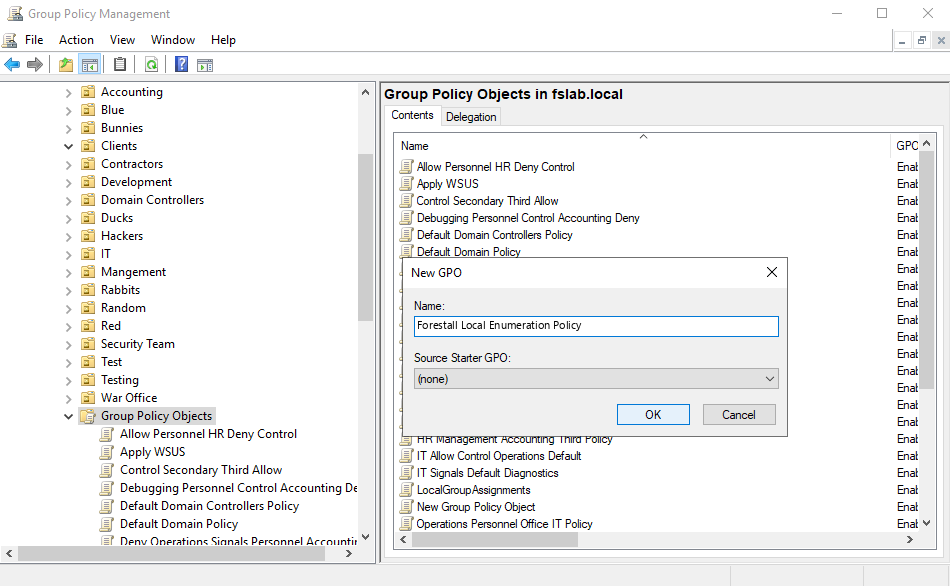
  3. Right click to Group Policy Objects and select New.

  4. Write down any name to the Name section and click to the OK button.

    Creating new Group Policy Object
  5. Right click to the newly created Group Policy object and click to the Edit button.

  6. In popped up page, click to these items in order.

    1. Computer Configuration

    2. Policies

    3. Windows Settings

    4. Security Settings

    5. Local Policies

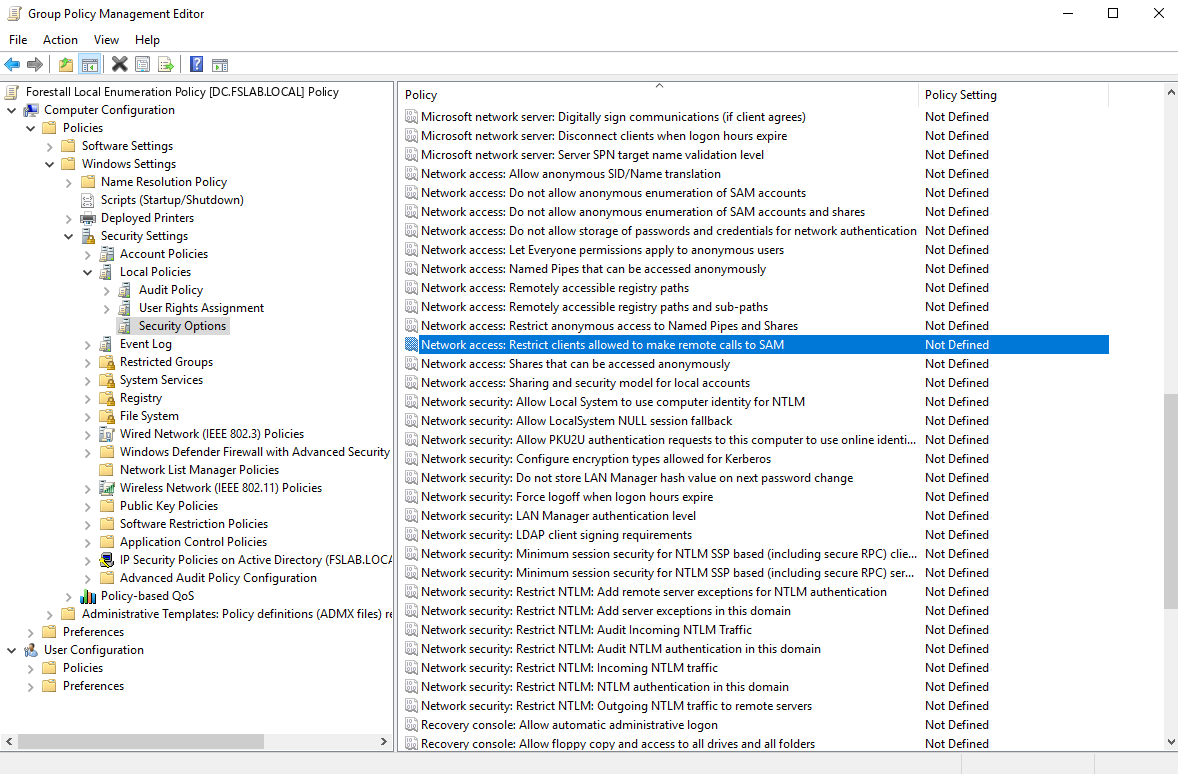
    6. Security Options

      1. Network Access: Restrict clients allowed to make remote calls to SAM

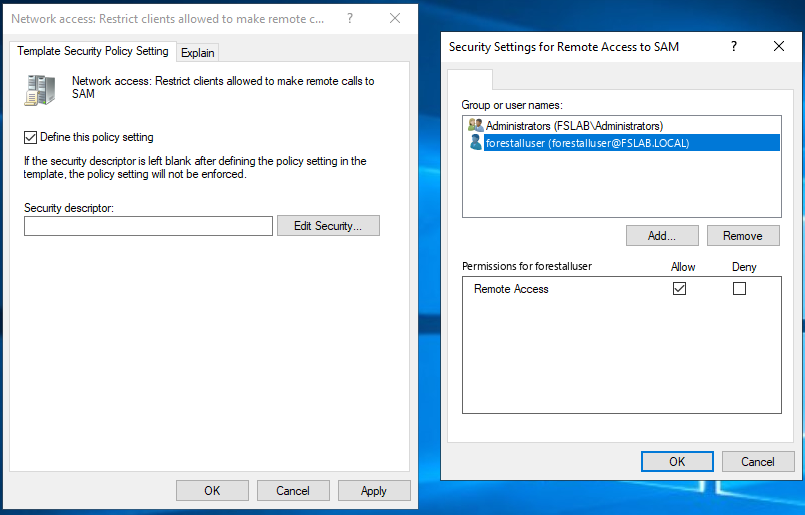
      2. Enable the Define this policy setting option.

      3. Click Edit Security. Select the Forestall user, then set Remote Access to Allow. Click OK, then Apply to save the policy.

    Navigating to the related Setting
    Granting Permission for Forestall User
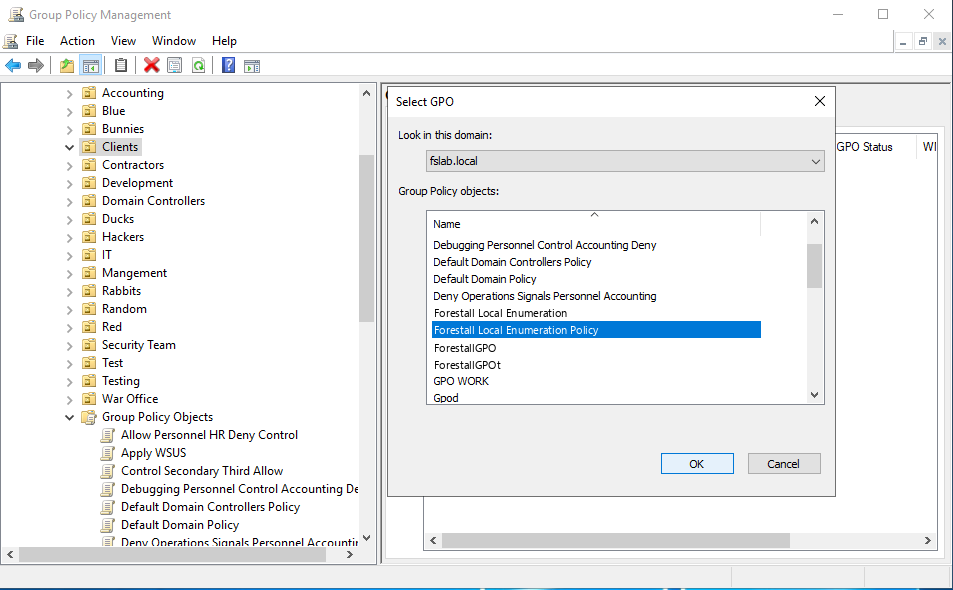
  7. Link the Group Policy object to the Organizational Units of the computers whose local inventory Forestall should collect. (By default, linking this GPO to the Organizational Units except Domain Controllers is recommended to find all attack paths.)

    Linking a Group Policy Object to an Organizational Unit
10. Remote registry paths on Domain Controllers

To allow Forestall to access the necessary registry paths, you need to modify the Network Access: Remotely accessible registry paths policy setting using a Group Policy Object (GPO). This involves adding two registry paths to this GPO through the Group Policy Management Console interface.

  1. Open the Group Policy Management Console (GPMC).

  2. In the left pane, expand the Forest: <your domain name> node and find your domain under the Domains section.

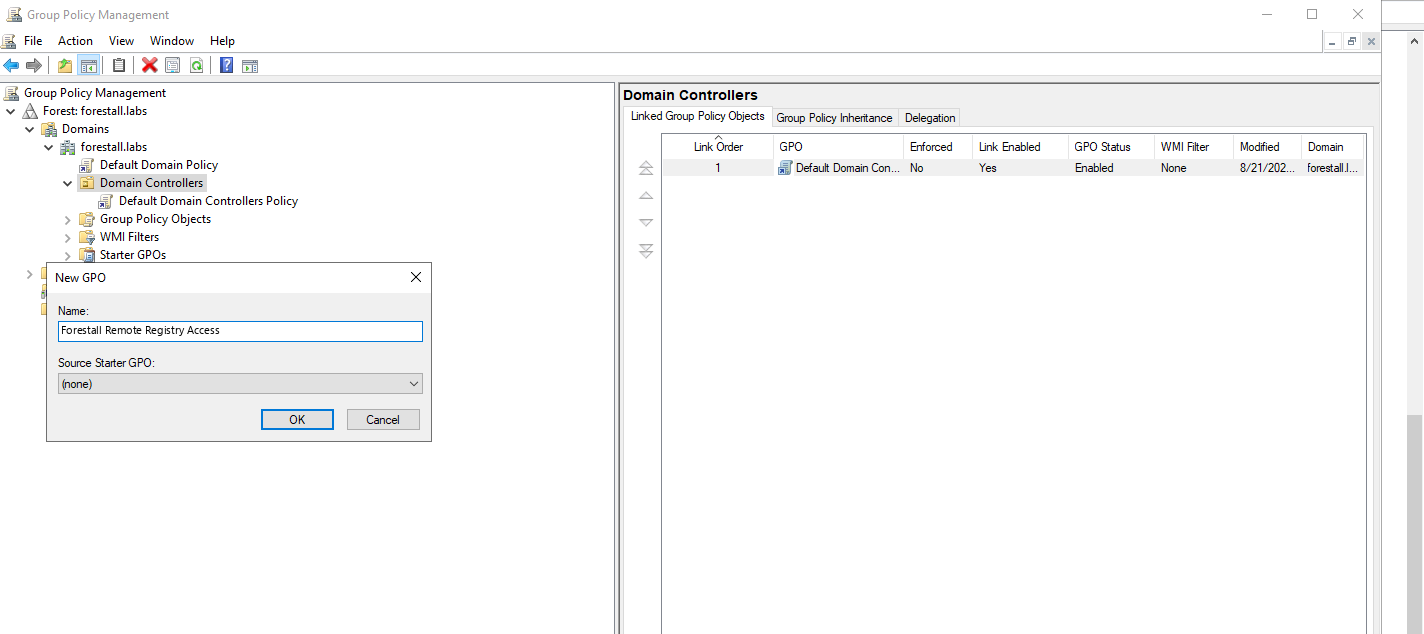
  3. Right-click on the Domain Controllers container and select Create a GPO in this domain, and Link it here

  4. Name the new GPO, for example, Forestall Remote Registry Access and click OK.

    Creating new Group Policy Object
  5. Right-click on the newly created GPO and select Edit.

  6. When the Group Policy Management Editor opens, navigate to:

    1. Computer Configuration > Policies > Windows Settings > Security Settings > Local Policies > Security Options.

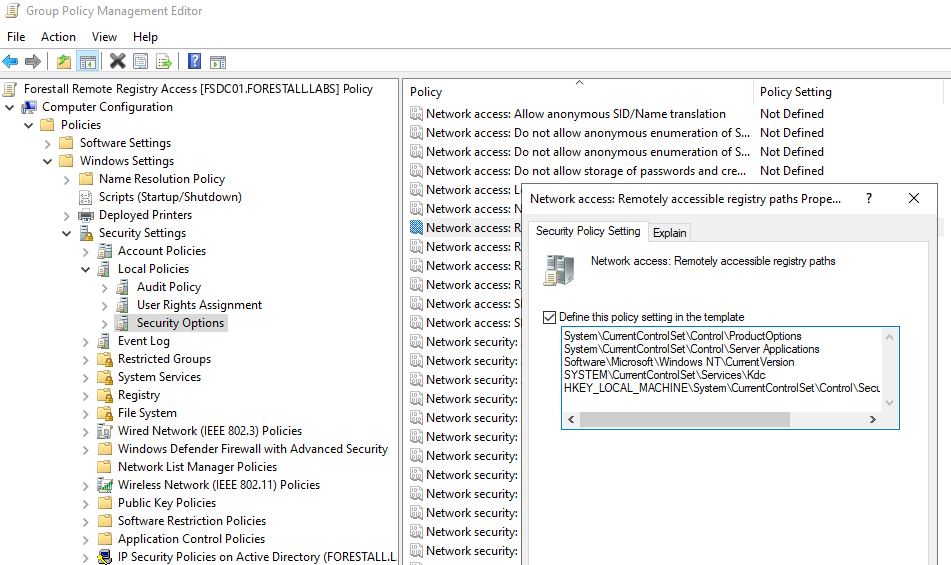
  7. Find and double-click on Network access: Remotely accessible registry paths.

  8. In the dialog that opens, check the Define this policy setting in the template box.

  9. Click on the Local Policy Setting tab.

  10. Add the following registry paths to allow remote access:

    • SYSTEM\CurrentControlSet\Services\Kdc

    • HKEY_LOCAL_MACHINE\System\CurrentControlSet\Control\SecurityProviders\Schannel

  11. Click Apply and then OK to save the changes.

Granting Registry Read Permission for Domain Controllers

11. Read access on dMSA objects

In order to provide Forestall with read access on all DMSA (msDS-DelegatedManagedServiceAccount) objects, configure an allow ACE that applies to Descendant msDS-DelegatedManagedServiceAccount objects in the domain. You can do this with PowerShell or manually with the GUI.

  1. Using PowerShell

  2. Using the GUI

    1. Open Active Directory Users and Computers, enable View → Advanced Features.

    2. Right-click the domain root (e.g., contoso.com) → Properties → Security → Advanced.

    3. Click Add → Select a principal → choose the Forestall account (e.g., forestalluser).

    4. Type: Allow.

    5. Applies to: Descendant msDS-DelegatedManagedServiceAccount objects.

    6. Check the read-related permissions: Read, Read all properties, List contents/List object, and Read permissions.

    7. Confirm with OK until all dialogs close.

12. Read access on DNS nodes

In order to provide Forestall with read access on DNS Node objects, configure an allow ACE on each MicrosoftDNS container so that it applies to This object and all descendant objects. You can do this with PowerShell or manually with the GUI.

  1. Using PowerShell

  2. Using the GUI

    1. Open ADSI Edit → Connect to…

    2. Under Connection Point, choose Select or type a Distinguished Name or Naming Context.

    3. In the Distinguished Name box, paste DC=DomainDnsZones,<your domain DN> (e.g., DC=DomainDnsZones,DC=contoso,DC=com).

    4. Expand the new connection → expand CN=MicrosoftDNS.

    5. Right-click CN=MicrosoftDNS → Properties → Security → Advanced.

    6. Click Add.

    7. Click Select a principal → choose the Forestall account.

    8. Grant Generic Read.

    9. Click Apply then OK.

    10. Repeat Connect to… and the same permission steps for DC=ForestDnsZones,<your forest root DN> (e.g., DC=ForestDnsZones,DC=contoso,DC=com).

    11. For the System container:

      1. Connect to… again and select Default naming context.

      2. Expand to CN=System → CN=MicrosoftDNS.

      3. Open Properties → Security → Advanced, Add the Forestall account, Applies to = This object and all descendant objects, grant Generic Read, and confirm with OK on all dialogs.

Antivirus and Updates

13. Antivirus exclusions

Exclude the installation directory and the IIS worker process from antivirus scans. Otherwise, antivirus programs may block essential application operations.

  1. C:\Forestall\FSProtect\ (default installation directory)

  2. C:\Windows\System32\inetsrv\w3wp.exe

This directory contains the Neo4j and PostgreSQL databases, the Python environment (venv) and the core\temp folder, where the scanner extracts the CloudCollector and FSShareEnum collectors during cloud and Credential Discovery scans. If your antivirus excludes processes rather than folders, also exclude java.exe (Neo4j), postgres.exe and the Python installation folder C:\Python\.

14. Update access

To perform update operations using the "Check for Updates" on the desktop, systems with restricted internet access must allow outbound access to the license.forestall.io host over port 443 (HTTPS).

Optional

15. Audit right for Over-Privilege Analysis

In order to measure object-level audit coverage with the Over-Privilege Analysis (Beta) module, the Forestall user must have the Manage auditing and security log user right on the Domain Controllers of each domain. Without this right the scan still completes, but the Over-privilege audit logging card shows no object-level coverage for these domains, and Scan Health lists them. You do not need a Splunk integration. This right also lets the account clear the Security log and change SACLs. Give it only to the Forestall user.

  1. Open the Group Policy Management Console (GPMC).

  2. In each domain, right-click Default Domain Controllers Policy under Group Policy Objects and select Edit. If another GPO linked to the Domain Controllers OU already defines this right, edit that GPO instead.

  3. Navigate to Computer Configuration > Policies > Windows Settings > Security Settings > Local Policies > User Rights Assignment.

  4. Double-click Manage auditing and security log.

  5. Click Add User or Group and select the Forestall user. Do not remove the existing entries. Click OK, then Apply to save the policy.

  6. Run gpupdate /force on the Domain Controllers or wait for the next policy refresh.

User rights defined in different GPOs are not merged. A GPO with higher precedence overrides the others, so a new GPO must also contain the existing members such as Administrators.

License

16. License information

A license covers the environments it names. When you request a license, give your Forestall contact the identifier of every environment to be scanned:

Platform
Identifier

Active Directory

Forest name as entered in the Active Directory configuration, for example contoso.com. The domains under it are covered too.

Azure / Entra ID

Tenant ID

AWS

Account ID of the organization's management account, or of the account itself if it is not in an organization

GCP

Google Customer ID (for example C01abc2de), shown in the Google Admin console under Account settings and in the GCP configuration after a successful Test

GitHub

ID of each organization to be scanned, the numeric id field at https://api.github.com/orgs/<organization>

Verifying the Requirements

Run these scripts in Windows PowerShell on the Forestall server, the computer the scans run from.

Ports

Use the script below to check the TCP ports of Requirement 3 on one or more targets. Select the role of the targets with -Role: DC (default), Computer, CA or WSUS. Each port waits at most 2 seconds.

On a CA server, 80 and 443 are open only when Web Enrollment is installed. On a WSUS server that uses 80 and 443 instead of 8530 and 8531, test it with -Role CA.

UDP ports and the dynamic RPC range (49152–65535) are not tested, because a TCP test cannot show their state. To check name resolution and time synchronization, run Resolve-DnsName dc01.contoso.com and w32tm /stripchart /computer:dc01.contoso.com /samples:1.

Active Directory connection

Use the script below to sign in to a Domain Controller with the scan account, as the Test button of the Active Directory configuration does, and to compare the server clock with the PDC. Enter the same Forest and Server as in the configuration.

A FAIL line shows the reason as reported by Windows, for example a wrong password, a locked account or a Domain Controller that cannot be contacted.

SACL read access

Run the script below for each domain to check whether the scan account can read SACLs (Requirement 15).

Installation Requirements Checklist

No
Checklist Item
Status (Yes/No)

1

Has the server been set up according to the requirements specified for the installation of Forestall? (Requirement 1 and Requirement 2)

2

Have the specified firewall rules been created for the network access? (Requirement 3 and Requirement 4)

3

Can the server resolve all FQDNs and server IP addresses in Active Directory domains to be scanned?

4

Are the security software on the server disabled or are necessary exclusions implemented? (Requirement 5)

5

Is one of the Google Chrome, Mozilla Firefox or Microsoft Edge browsers installed on the server to access the Forestall web interface? (Requirement 6)

6

Is the server joined to a domain, and do you have a local Administrator account for the installation? (Requirement 7)

7

Have domain users with the specified requirements been created in all Forests to perform Active Directory scans? (Requirement 8)

8

Has the required Group Policy object been created to perform local inventory enumeration? (Requirement 9)

9

Has the Network access: Remotely accessible registry paths policy been configured for the Domain Controllers? (Requirement 10)

10

Has the Forestall user been given read access on DMSA objects? (Requirement 11)

11

Has the Forestall user been given read access on the MicrosoftDNS containers? (Requirement 12)

12

Have the installation directory and w3wp.exe been excluded from antivirus scans? (Requirement 13)

13

If the server uses Check for Updates, is outbound access to license.forestall.io on 443/TCP allowed? (Requirement 14)

14

If cloud environments will be scanned, are the outbound Azure, AWS, GCP and GitHub endpoints reachable and the provider configurations prepared? (Requirement 3)

15

(Optional) Has the Manage auditing and security log right been given to the Forestall user on the Domain Controllers? (Requirement 15)

16

Does the license cover the identifier of every environment to be scanned? (Requirement 16)

Last updated

Was this helpful?