> For the complete documentation index, see [llms.txt](https://docs.forestall.io/forestall/llms.txt). Markdown versions of documentation pages are available by appending `.md` to page URLs; this page is available as [Markdown](https://docs.forestall.io/forestall/unified-identities/azure-identities/entra-id/conditional-access-policies.md).
# Conditional Access Policies
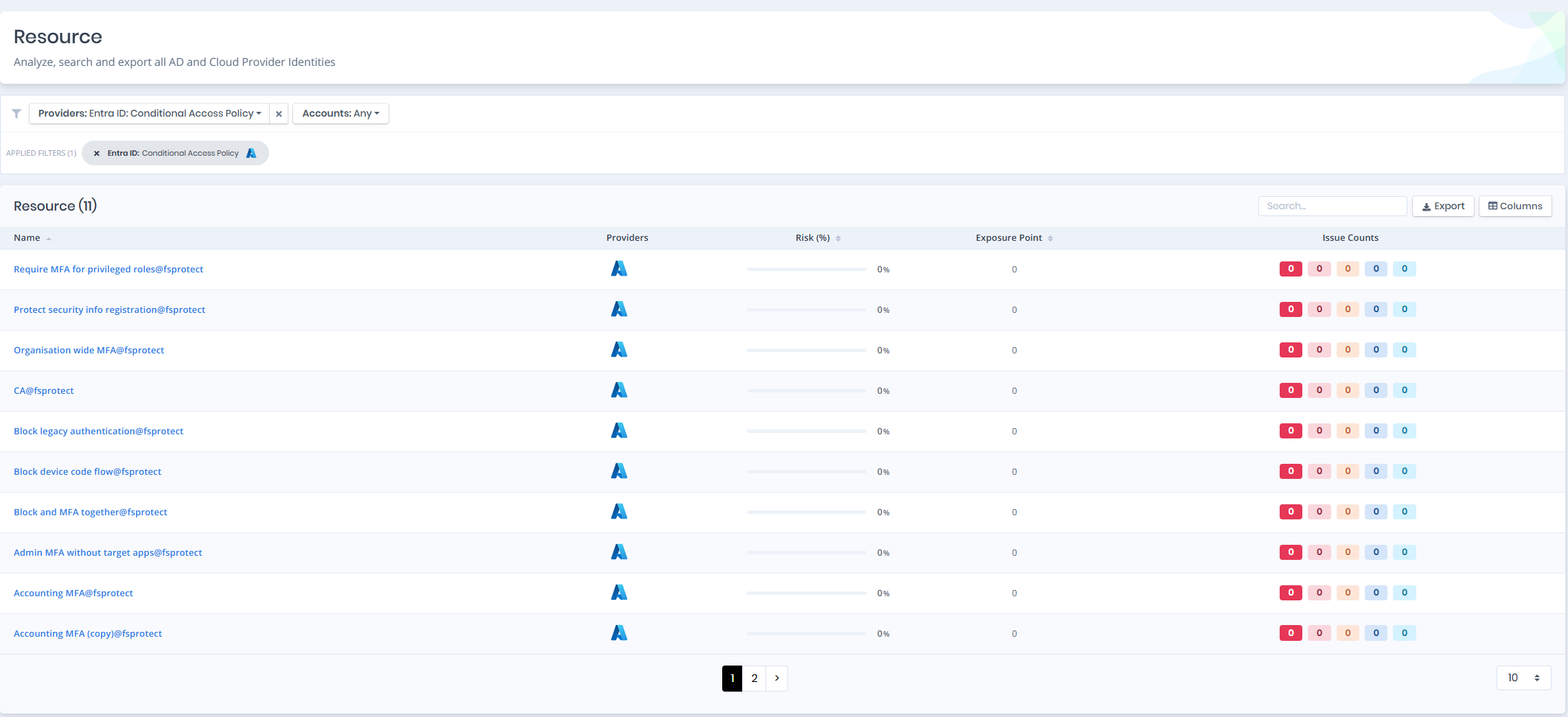
Open **Unified Identities › Resources**, filter **Providers** to **Entra ID › Conditional Access Policy**, then select a row to open its details.
Conditional Access Policies
{% hint style="info" %}
The health of the policy set as a whole - which baseline protections are missing, which policies protect nobody, which policies duplicate each other and which users are left without MFA - is reported by [CAP Audit](/forestall/cap-audit.md).
{% endhint %}
## Conditional Access Policy Details
The details page reads the policy back in plain language rather than as a list of raw settings, so it can be checked without knowing how each Entra ID field is spelled. You can analyze the policy in the [Graph](/forestall/visualize/visualize.md) by clicking the **Graph »** button next to the `Information` title.
Conditional Access Policy Details
The page has five tabs; `Details`, `Applies to`, `Protects`, `Excludes` and `Duplicates`. Each of the last four carries the number of objects it holds in its label.
When a policy has no effect, a warning banner sits at the top of the `Details` tab stating why in plain language, for example that the policy is in report-only mode and that every group or role it targets is also excluded.
The **Show every setting, including the ones this policy does not use** toggle switches between the settings the policy actually sets, which is the default, and the full set of conditional access settings including the ones left at their defaults.
## Details
The `Details` tab groups the policy into sections that follow the order in which Entra ID evaluates it.
**Policy:** The display name, the `State` - `Enabled`, `Disabled` or `Report-only` - and the dates the policy was created (`Created`) and last changed (`Last modified`).
**Who it applies to:** The users, groups and roles the policy targets, and the ones it excludes, with a count for each.
**What it protects:** The cloud apps or resources the policy covers, for example whether it applies to all cloud apps.
**When it applies:** The conditions that narrow the policy, such as client apps, locations, platforms, or sign-in and user risk levels. A policy with no conditions applies to every sign-in by the people it targets.
**What it demands (grant controls):** The controls access is granted on, for example multifactor authentication, a compliant device, or a block.
**What it does to the session:** The session controls the policy applies, such as a sign-in frequency or a persistent browser session, when it sets any.
**Summary:** The four questions most often asked of a policy, answered yes or no - `Blocks access`, `Requires MFA`, `Requires a managed device` and `Currently enforced`.
### Policy Description
Below the settings, the **Policy Description** panel restates the same policy as prose, one paragraph per question:
**What this policy is for**, **Who it applies to**, **Who is left out**, **What it protects**, **When it applies**, **What it demands**, **What it does to the session**, **What this means for the business**, **What this means for security** and **What could go wrong**. The last one points out risks such as a missing break-glass exclusion.
The counts in the prose are resolved against the scan, so a group is described by how many members it currently has rather than by name alone. A report-only policy is described as affecting nobody yet, with Entra ID recording what would have happened.
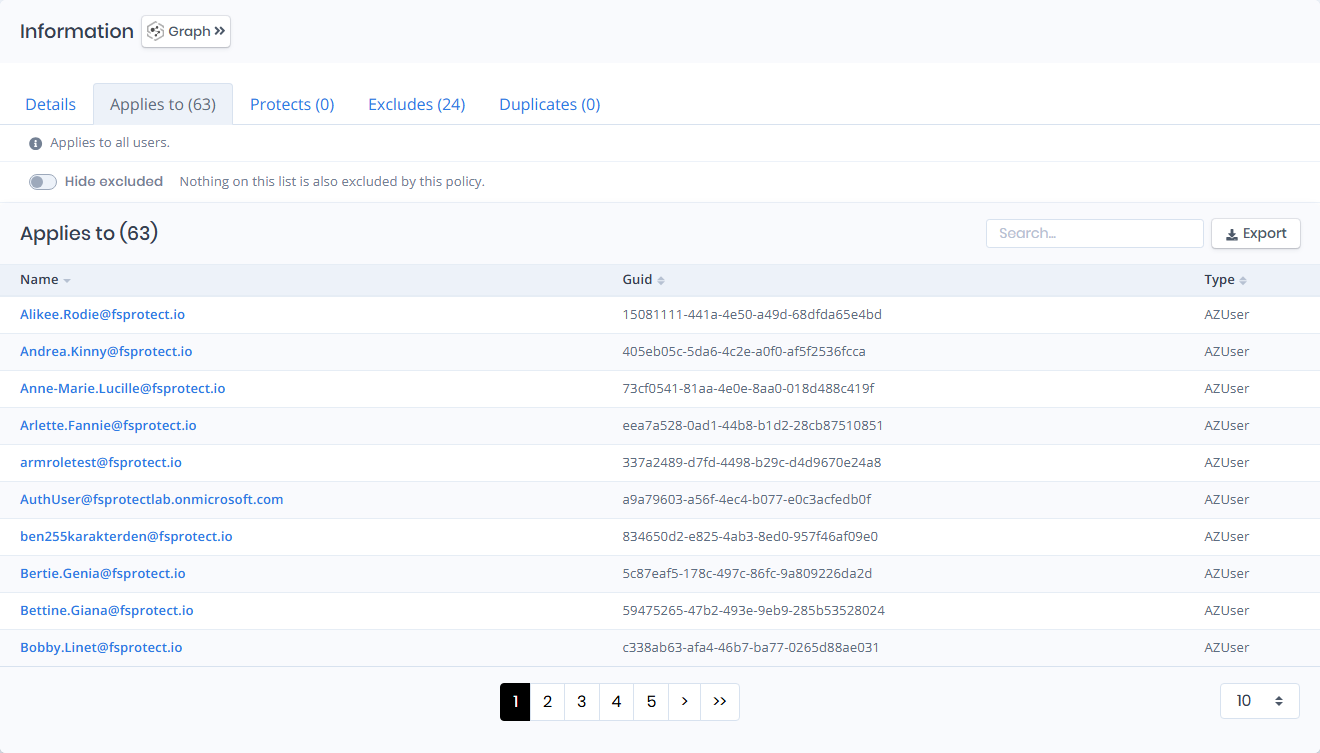
## Applies to
`Applies to` lists the objects the policy targets, with `Guid` and `Type` columns to identify them. A policy whose assignment resolves to nothing shows an empty list, which is what makes it ineffective.
Applies to
## Protects
`Protects` lists the users the policy currently protects, meaning the objects that are in scope and are not excluded.
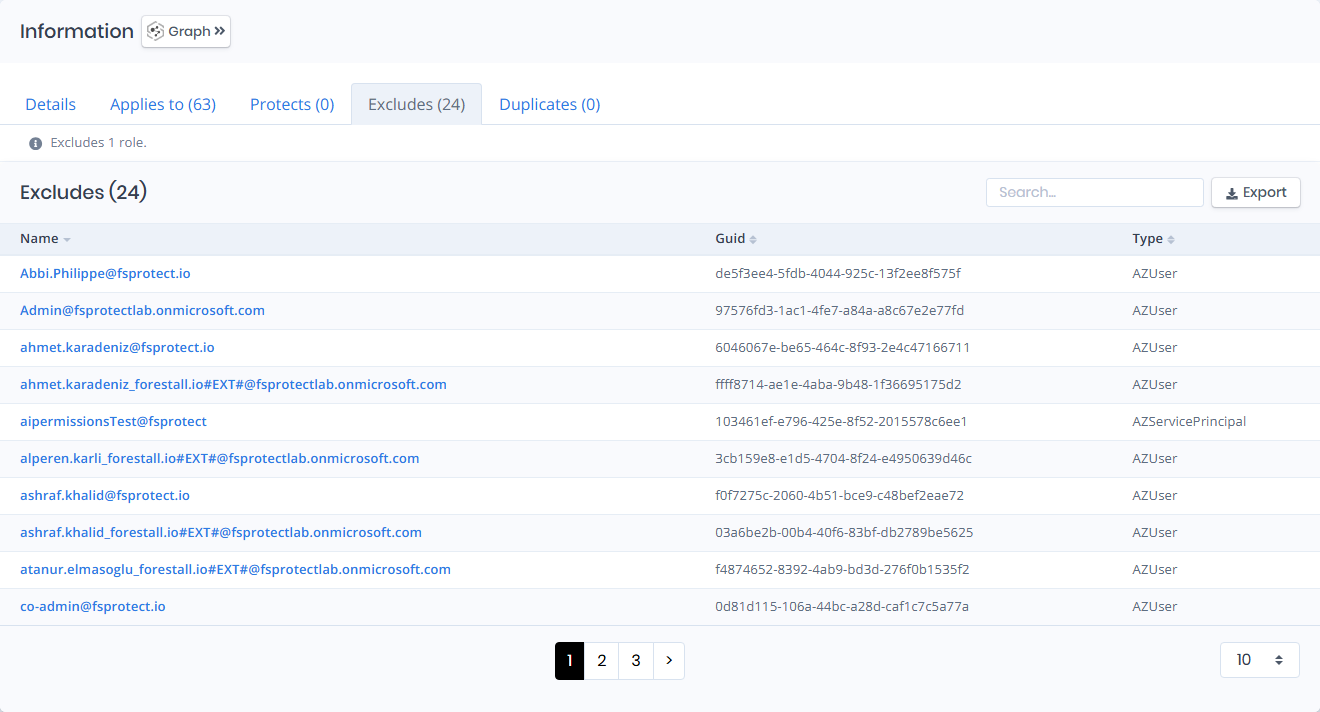
## Excludes
`Excludes` lists the objects the policy excludes, with `Guid` and `Type` columns to identify them.
Excludes
## Duplicates
`Duplicates` lists the other policies that are identical to this one. Duplicates make the policy set harder to reason about, because a change has to be made in more than one place to take effect.