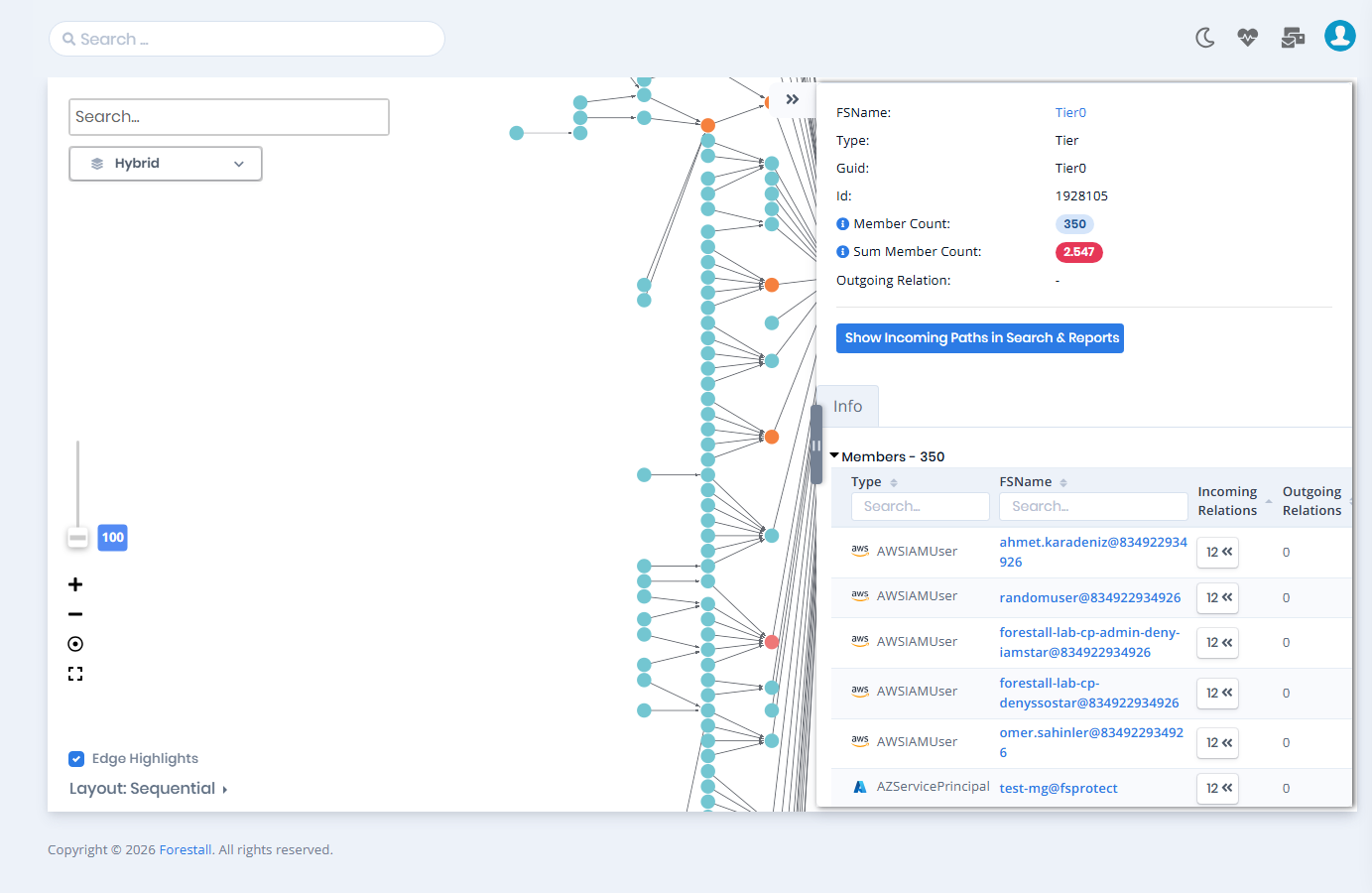
Tier0 Analysis
Accessing the Tier0 Analysis Module
Navigate to the Visualize section in the application menu.
Select the Tier0 Analysis option.


Platform Selection
The selector above the graph chooses which platform the Tier 0 analysis is drawn for. It lists only the platforms whose Tier0 Analysis module was enabled in the scan policy of the selected scan:
Hybrid is listed first, separated from the others by a line, when both the Active Directory and the Azure Tier0 Analysis modules were enabled. It spans every platform at once.
Active Directory, Azure, AWS, GCP and GitHub show the analysis of a single platform.
The selection is remembered in the browser. The graph, the Info panel and the Members table all follow the selection, and each member row carries the provider logo next to its entity type.
Graph View
The central area displays an interactive graph where nodes represent object groups, and edges represent relationships.
The number on a node is its member count, and the label under the node is its name (for example
Tier0orGroup14).Different colors indicate the sum member count of the nodes (see Color-Coded Risk Levels).
Hovering over a node provides additional details about the object.
The graph visualizes relationships between Tier0 (red node) and Tier2 (other nodes) objects.
Edges represent different types of relationships (e.g., IN_GROUP, GenericAll).
The canvas controls are the same as on the Graph page: the Search... box, the result limit slider, Zoom In / Zoom Out / Reset / Full Screen, Edge Highlights and the Layout menu. The Show Outgoing edges from Cluster Nodes option is not available here.
Tier2 to Tier0 Relationships
Direct or indirect relationships between Tier2 and Tier0 objects can indicate potential privilege escalation vectors.
Tier2 to Tier2 Relationships
Analyze relationships among Tier2 objects to identify lateral movement paths. For example, a user in one group may have access to another group due to nested memberships.
Info Panel
On the right side, the Info panel shows detailed information about the selected node, including:
FSName: Forestall name of the node.
Type: Object type (e.g., Tier, User, Group, Computer).
Guid: Globally Unique Identifier.
Id: Object ID.
Member Count: Number of direct members (tooltip: "Count of members").
Sum Member Count: Total number of members, including the members of child nodes (tooltip: "Sum of all member counts including child nodes"). The badge has the color of the node.
Outgoing Relation: Name of relationship originating from that group.
When the node has relations, the panel also offers:
Show Outgoing Paths in Search & Reports: opens the paths that start from the selected node in Search & Reports.
Show Incoming Paths in Search & Reports: opens the paths that reach the selected node in Search & Reports, where they can be filtered and exported.
Members Table
Below the Info panel, the Members table lists all members of the selected group, along with their types, incoming and outgoing relation counts to parent group's members.
Each of the
TypeandFSNamecolumns has its own search box, so a large member list can be narrowed to one entity type or one name.The
Incoming RelationsandOutgoing Relationscounts are buttons when the count is not zero. Clicking one opens that member's paths in Search & Reports (tooltip: "Show paths in Search & Reports").A page size selector and pagination at the bottom of the table navigate large member lists.

Color-Coded Risk Levels
Tier nodes are colored by their sum member count, which includes both direct and indirect members (e.g., nested group memberships). The color is relative, not an absolute score: it depends on where the node's sum member count ranks among the distinct sum member counts of the nodes currently drawn on the graph.
The distinct sum member counts on the graph are sorted from lowest to highest, and each node is assigned one of four color-coded risk levels:
The highest value
![]()
Tier0 (High Risk)
From the 75th percentile up to, but not including, the highest value
![]()
Tier2 (Moderate Risk)
From the median up to the 75th percentile
![]()
Tier2 (Potential Risk)
Below the median, or 0
![]()
Tier2 (Info Risk)
Because the Tier0 node collects the members of every node that reaches it, it normally has the highest sum member count and is drawn red. The same node can change color when the set of nodes on the graph changes.
Last updated
Was this helpful?