Custom Baselines
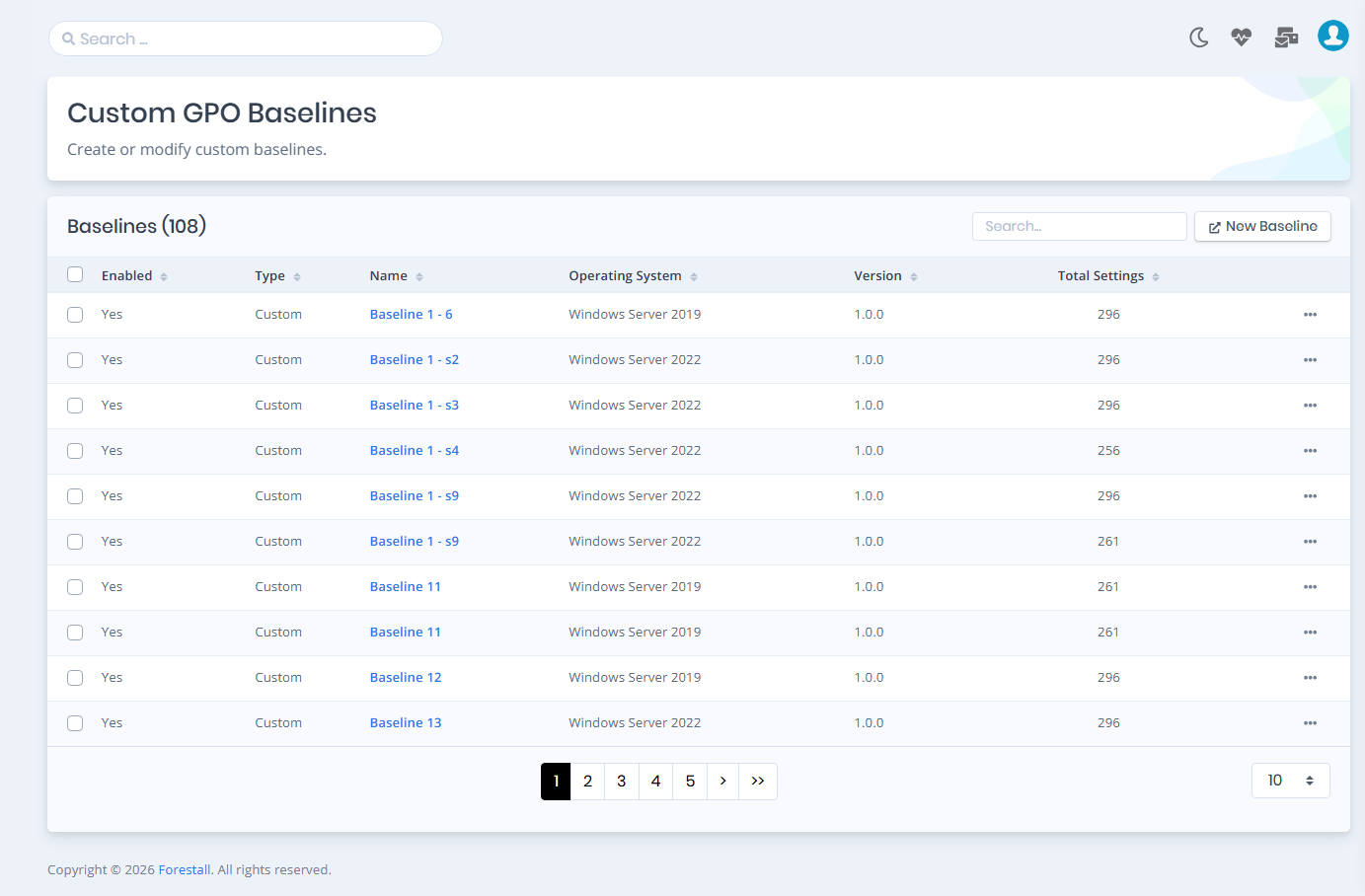
The Custom GPO Baselines page lists the existing GPO baselines and allows you to create custom baselines from a baseline template, from an existing Group Policy Object, or by importing a baseline file.

The widgets in the upper-right side of the table allow us to;
Search: Search the GPO baselines table across all table columns.
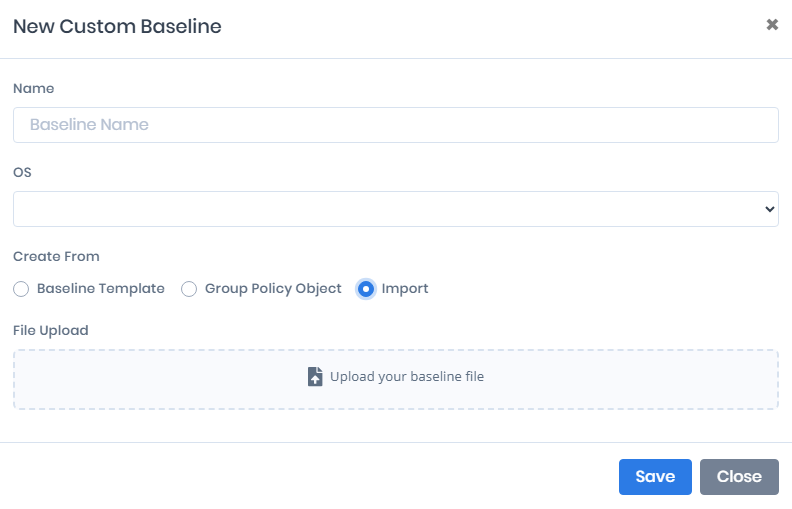
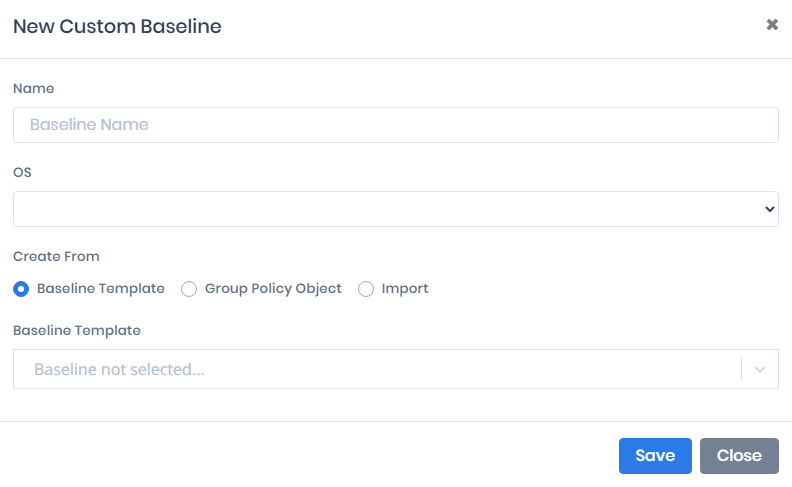
New Baseline: Opens the New Custom Baseline window. Enter a Name and an OS, and choose one of the three Create From options:
Baseline Template: Copy the settings of an existing baseline.
Group Policy Object: Copy the settings configured by a Group Policy Object in the selected scan.
Import: Upload a baseline file (
.json), for example one exported from this page.

The table contains relevant information about the baselines and allows us to perform operations on them using the three-dot button.

The Import option allows users to create a custom GPO baseline by uploading an existing baseline file. This enables reusing previously exported baselines or importing baselines prepared externally without creating them manually.
General Information
Enabled: Current status of the baseline.
Type: Name of the organization that created the baseline, for example
CIS,MicrosoftorCustom.Name: Name of the baseline.
Operating System: Appropriate Operating System for the baseline.
Version: Version of the baseline.
Total Settings: Total settings count of the baseline.

Three-dot button on each row allows us to perform the following operations on a baseline;
Edit: Redirects the user to the Edit GPO Baseline page. This page allows to modify all configurations and specifications related to the GPO baseline.
Clone: Opens the New Custom Baseline window with the selected baseline as the template.
Enable/Disable: Change the status of the selected baseline. Disabled baselines are not offered for comparison.
Export: Download the baseline as a
.jsonfile named<Type>_<Name>_<Version>.json. The file can be imported again with the Import option.Delete: Delete the selected baseline.
The checkboxes that can be found on the left side of the list can be used to perform bulk operations on the selected custom baselines.
Allowed operations are;
Delete: Delete the selected custom baselines
Delete All: Delete all custom baselines from the table

Baseline Settings
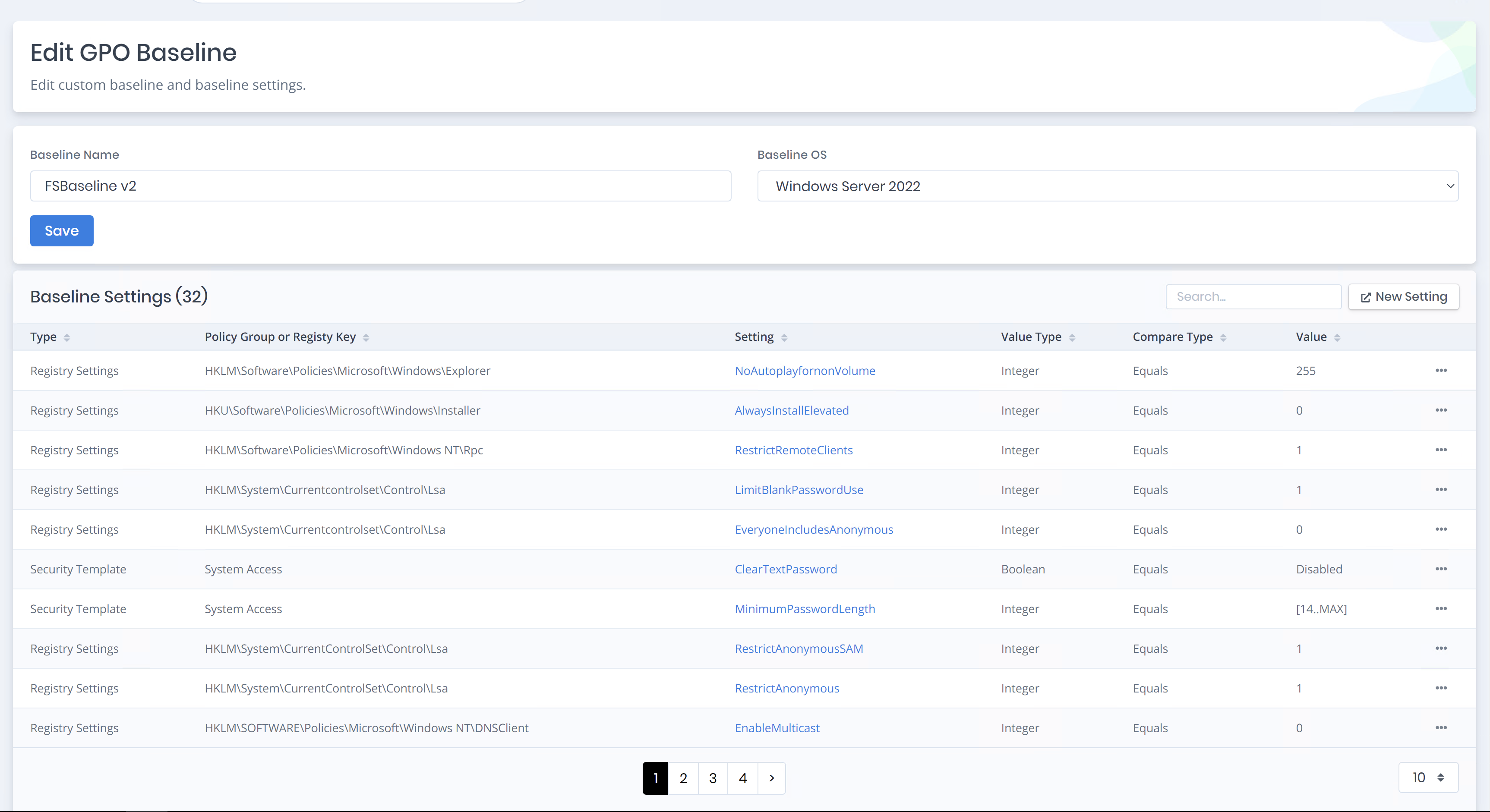
Edit baseline operations over the data table redirects the user to the Edit GPO Baseline page seen below;

The GPO baseline edit page consists of two different configurations, edit baseline name/OS and add/edit setting.

Audit Policy
This setting type checks for value defined in Computer Configuration > Windows Settings > Security Settings > Local Policies > Audit Policy.
User Rights
This setting type checks for value defined in Computer Configuration > Windows Settings > Security Settings > Local Policies > User Rights Assignment.
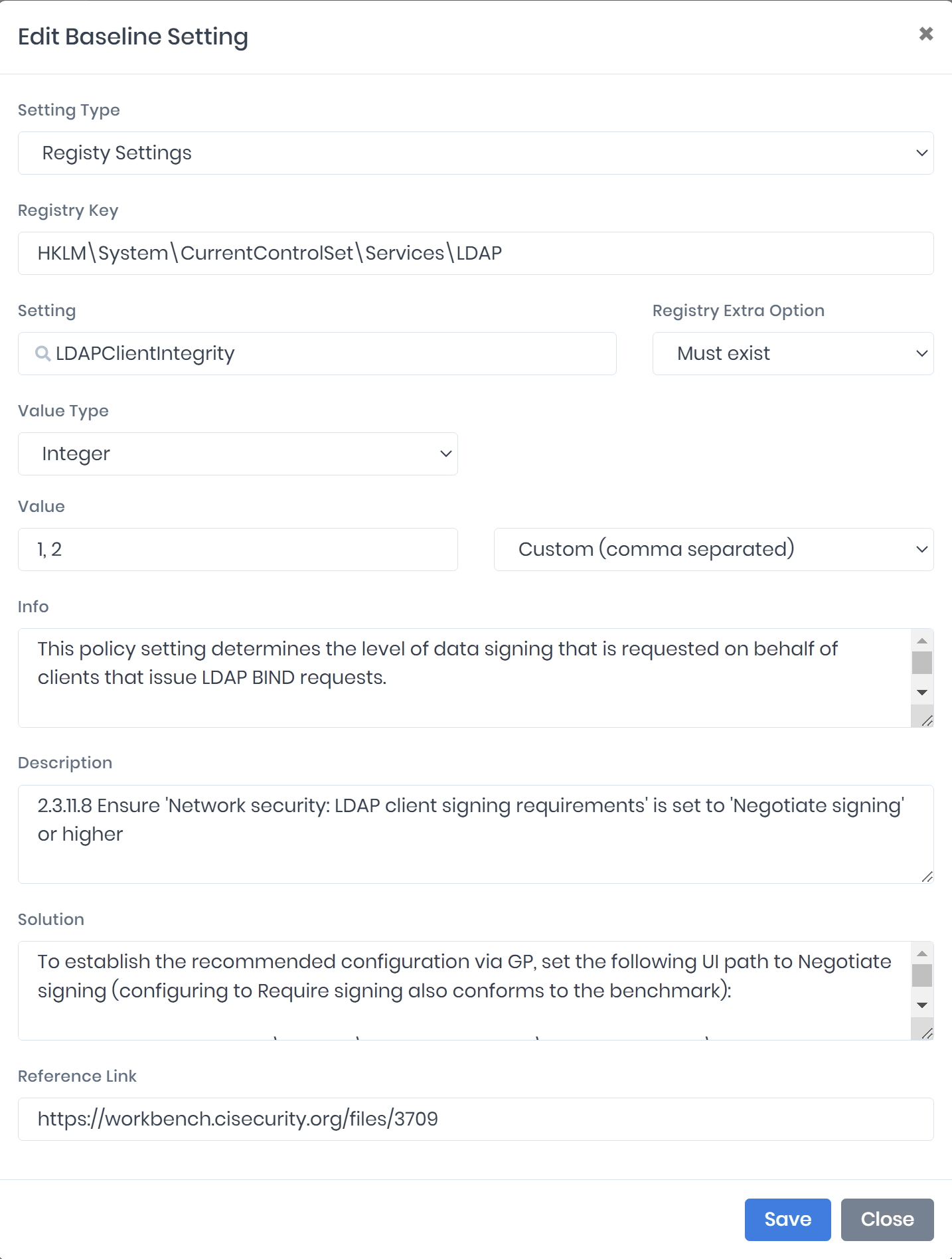
Registry Settings
This setting type is used to check the value of a registry key.
Check Registry Setting Exists
This setting type is used to exist check the value of a registry key.
Check Account
This setting type start with "Account:" for value defined in Computer Configuration > Windows Settings > Security Settings > Security Options.
Anonymous SID
This setting type checks for value defined in Computer Configuration > Windows Settings > Security Settings > Security Options > Network access: Allow anonymous SID/Name translation.
Kerberos Policy
This setting type checks for value defined in Computer Configuration > Windows Settings > Security Settings > Account Policies > Kerberos Policy.
Lockout Policy
This setting type checks for value defined in Computer Configuration > Windows Settings > Security Settings > Account Policies > Account Lockout Policy.
Password Policy
This setting type checks for value defined in Computer Configuration > Windows Settings > Security Settings > Account Policies > Password Policy.
Example
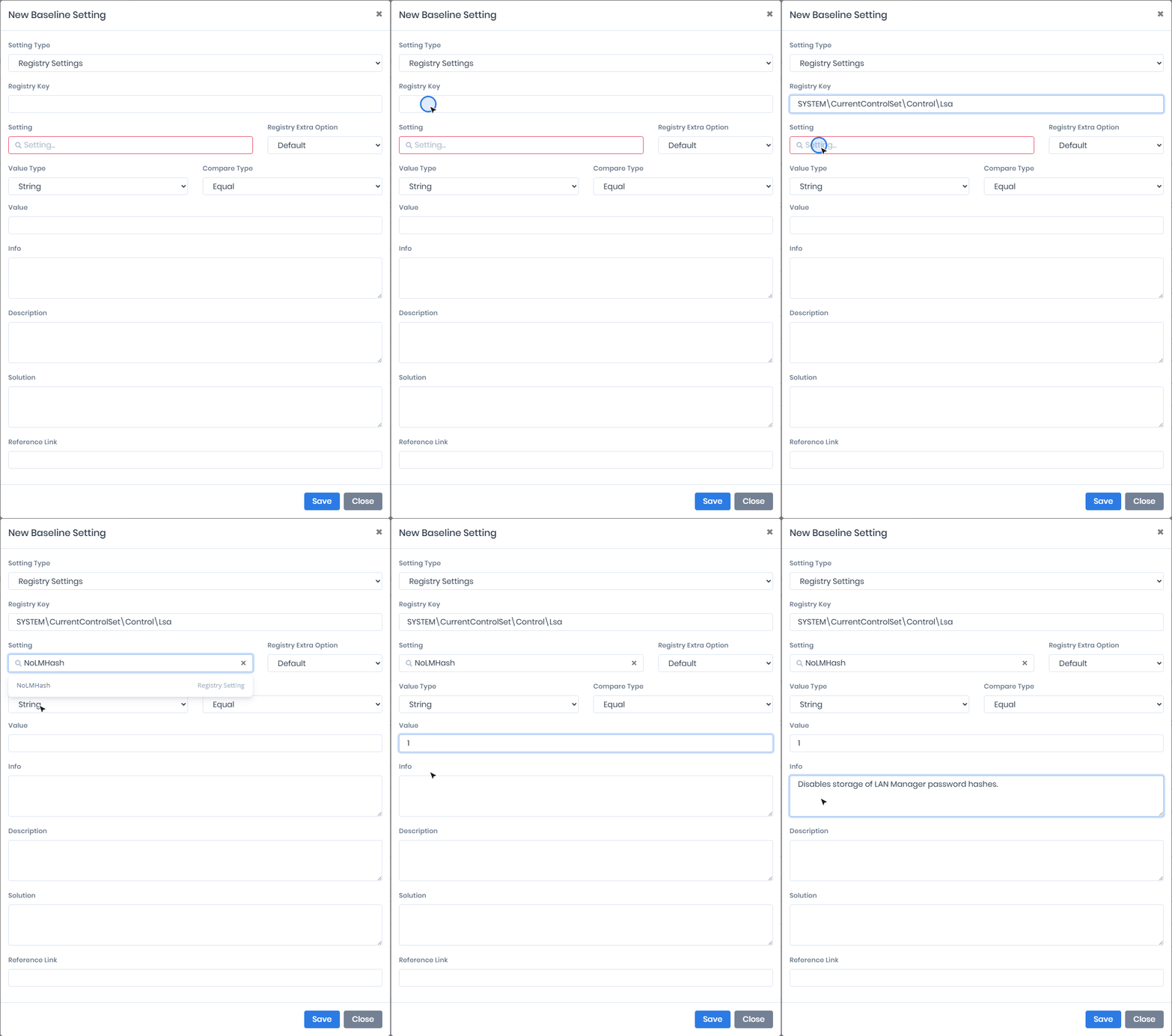
For example, the following figure shows the New Baseline Setting window with the Registry Settings type selected.

Last updated
Was this helpful?