> For the complete documentation index, see [llms.txt](https://docs.forestall.io/forestall/llms.txt). Markdown versions of documentation pages are available by appending `.md` to page URLs; this page is available as [Markdown](https://docs.forestall.io/forestall/configuration-center/ai-model-configuration.md).

# AI Model Configuration

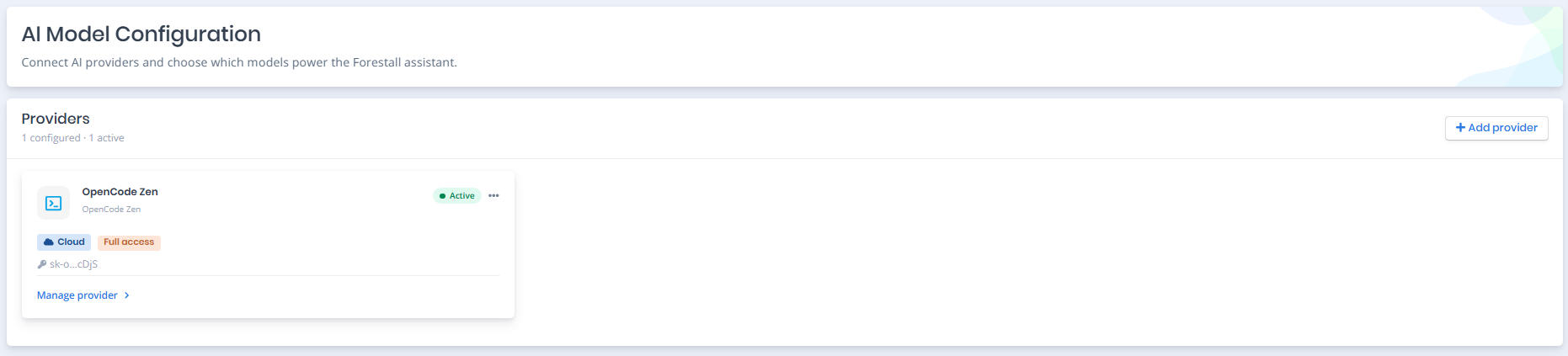
AI Model Configuration allows you to connect and manage the AI providers and models used by the AI Assistant.

You can add cloud-based or self-hosted AI providers, select which models are available to the Assistant, and control what Forestall ISPM data each provider is allowed to access.

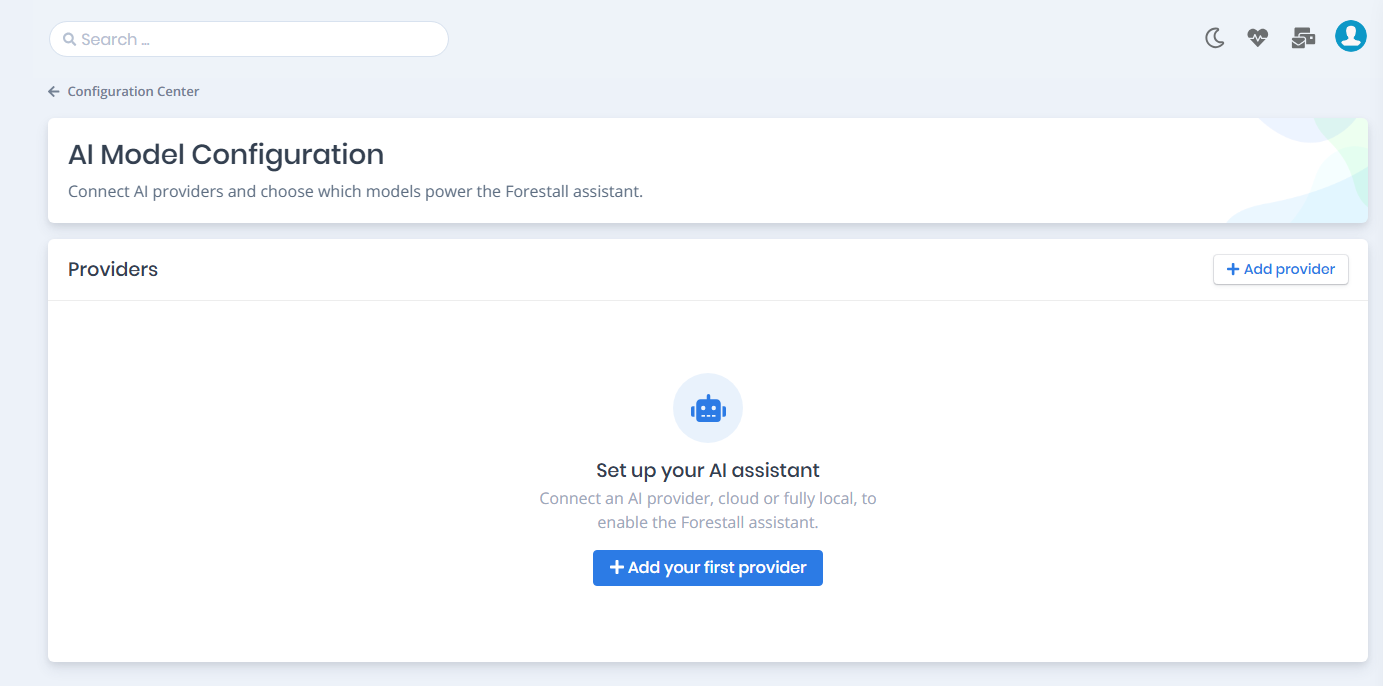
<figure><img src="https://3408039743-files.gitbook.io/~/files/v0/b/gitbook-x-prod.appspot.com/o/spaces%2FObpV44hoVkNmo5bFuVVL%2Fuploads%2Fgit-blob-733e45a3b3ce9c1a9e8943f3881e72b2ce3a6075%2Fconfiguration-center-ai-model-configuration-image-1.png?alt=media" alt=""><figcaption><p>AI Model Configuration Page</p></figcaption></figure>

### Adding an AI Provider

To use the AI Assistant, at least one AI provider and model must be configured.

Click **Add provider** to start the configuration wizard. The setup process guides you through choosing a provider, connecting to it, selecting available models, and defining its data access level.

#### 1. Choose a provider

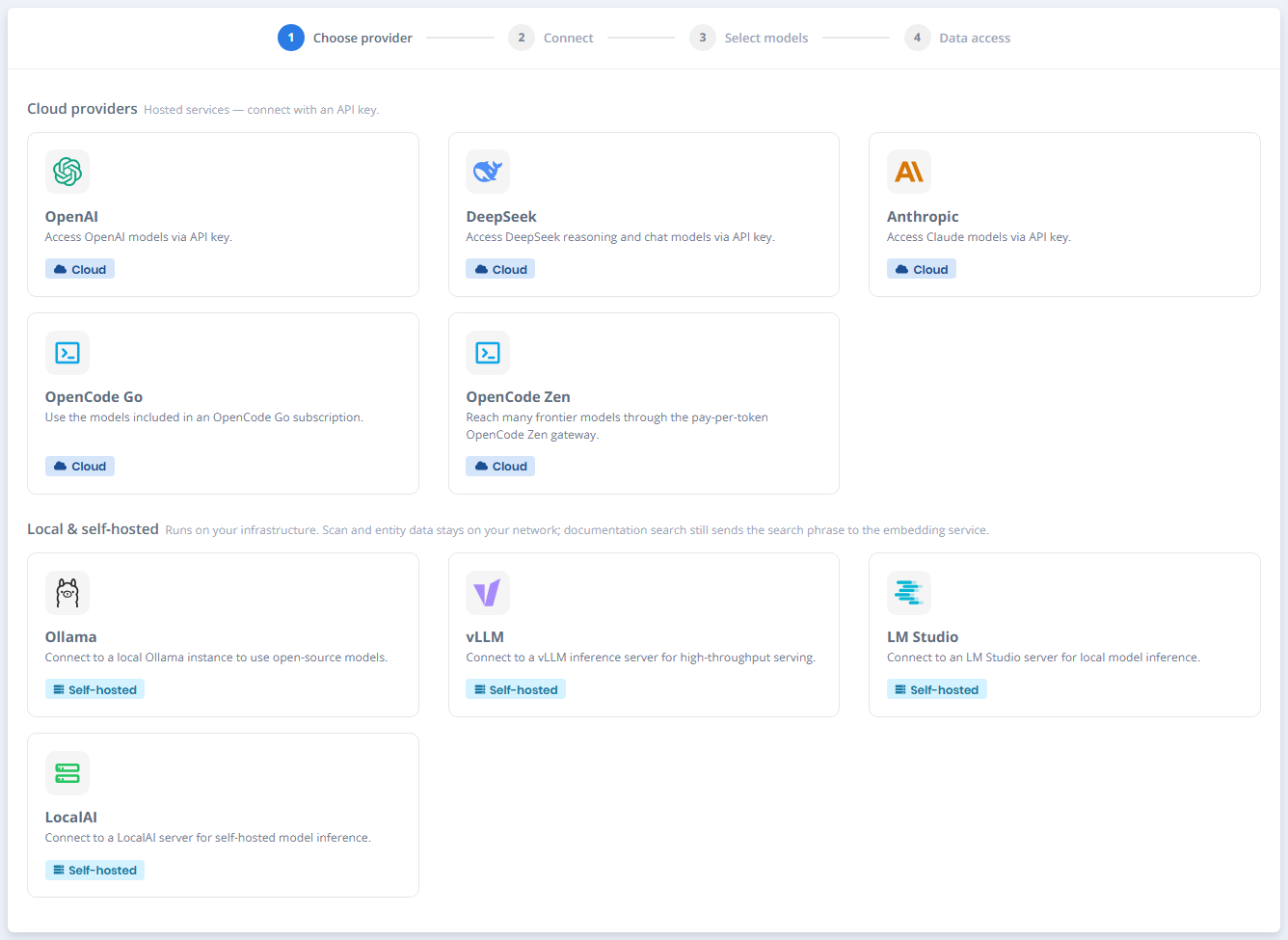
Select the AI provider you want to connect.

Forestall supports both cloud-based and self-hosted providers.

<table data-search="false"><thead><tr><th>Provider</th><th>Type</th></tr></thead><tbody><tr><td>OpenAI</td><td>Cloud</td></tr><tr><td>DeepSeek</td><td>Cloud</td></tr><tr><td>Anthropic</td><td>Cloud</td></tr><tr><td>OpenCode Go</td><td>Cloud</td></tr><tr><td>OpenCode Zen</td><td>Cloud</td></tr><tr><td>Ollama</td><td>Self-hosted</td></tr><tr><td>vLLM</td><td>Self-hosted</td></tr><tr><td>LM Studio</td><td>Self-hosted</td></tr><tr><td>LocalAI</td><td>Self-hosted</td></tr></tbody></table>

<figure><img src="https://3408039743-files.gitbook.io/~/files/v0/b/gitbook-x-prod.appspot.com/o/spaces%2FObpV44hoVkNmo5bFuVVL%2Fuploads%2Fgit-blob-6b18707287d98b87347203fb81d34ebb0898d441%2Fconfiguration-center-ai-model-configuration-image-2.png?alt=media" alt=""><figcaption><p>Choose a provider</p></figcaption></figure>

Cloud providers use an external service to process AI requests, while self-hosted providers allow models to run on infrastructure managed by your organization.

### Connect to the Provider

After selecting a provider, enter the information required to establish the connection.

For cloud providers, this typically includes an **API key**. For self-hosted providers, enter the **server URL** where the AI service is running.

You can also specify a name for the provider configuration to make it easier to identify when multiple providers are configured.

<figure><img src="https://3408039743-files.gitbook.io/~/files/v0/b/gitbook-x-prod.appspot.com/o/spaces%2FObpV44hoVkNmo5bFuVVL%2Fuploads%2Fgit-blob-6f5cdd4c88edcf921617205125ac124cc9a45602%2Fconfiguration-center-ai-model-configuration-image-3.png?alt=media" alt=""><figcaption><p>Connect to the Provider</p></figcaption></figure>

Click **Connect & discover models** to validate the connection and retrieve the models available from the selected provider.

The connection is validated before the provider is saved. If the credentials or server address are invalid, Forestall displays an error and allows you to update the connection information before continuing.

### Select Models

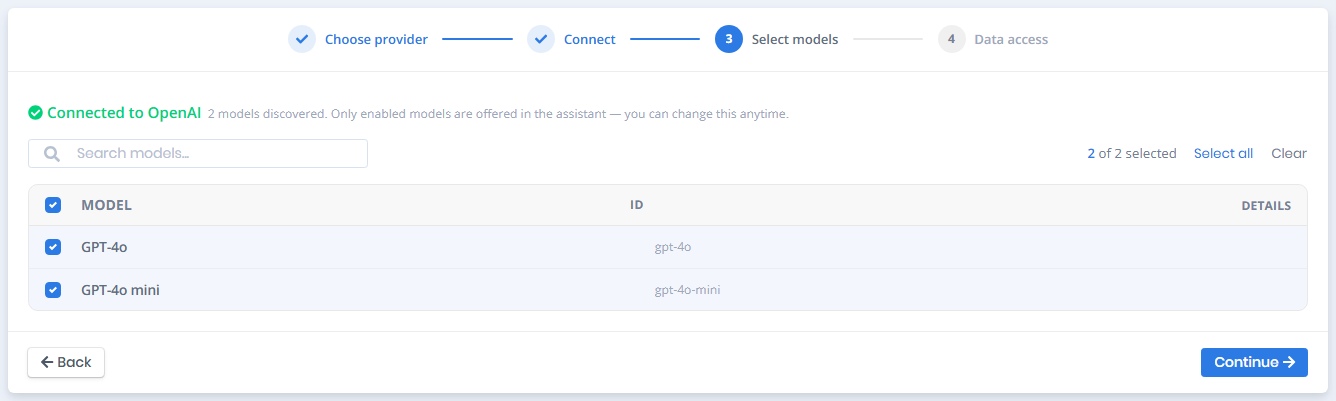
After a successful connection, Forestall displays the models discovered from the provider.

Choose which models should be available to users in the AI Assistant.

<figure><img src="https://3408039743-files.gitbook.io/~/files/v0/b/gitbook-x-prod.appspot.com/o/spaces%2FObpV44hoVkNmo5bFuVVL%2Fuploads%2Fgit-blob-cfa7cf4340d335e2df6b6c62d3cd35ae0da4c6a5%2Fconfiguration-center-ai-model-configuration-image-4.png?alt=media" alt=""><figcaption><p>Select Models</p></figcaption></figure>

Discovered models are initially available for selection. You can enable only the models you want to expose through Forestall.

The enabled models appear in the AI Assistant model selector after the provider configuration is saved.

### Configure Data Access

The Data Access step determines what information the selected AI provider can use when answering questions.

<figure><img src="https://3408039743-files.gitbook.io/~/files/v0/b/gitbook-x-prod.appspot.com/o/spaces%2FObpV44hoVkNmo5bFuVVL%2Fuploads%2Fgit-blob-303d6c5703cdb65081b47a10437b69f305873092%2Fconfiguration-center-ai-model-configuration-image-5.png?alt=media" alt=""><figcaption></figcaption></figure>

Forestall provides two main access levels:

| Data access                        | Description                                                                                                                                     |
| ---------------------------------- | ----------------------------------------------------------------------------------------------------------------------------------------------- |
| **Documentation only**             | Allows the model to use Forestall documentation and finding-related information without access to live environment data.                        |
| **Documentation + live scan data** | Allows the model to use documentation together with available scan, entity, vulnerability, and other security data from the user's environment. |

The selected access level is enforced by Forestall when the AI Assistant determines which data and tools are available to the model.

#### Documentation Only

Use **Documentation only** when the provider should be limited to product documentation and general finding information.

With this option, the Assistant can still answer questions such as how a feature works, explain a finding, or provide general remediation information, but it cannot retrieve live scan or entity data from the environment.

<figure><img src="https://3408039743-files.gitbook.io/~/files/v0/b/gitbook-x-prod.appspot.com/o/spaces%2FObpV44hoVkNmo5bFuVVL%2Fuploads%2Fgit-blob-0dc693de371536f1168edb9f009ae1e13d198b5e%2Fconfiguration-center-ai-model-configuration-image-6.png?alt=media" alt=""><figcaption><p><strong>Documentation only</strong></p></figcaption></figure>

#### Documentation + Live Scan Data

Use **Documentation + live scan data** when the Assistant should be able to answer questions using information from the current Forestall environment.

Depending on the question, this may include scan information, vulnerabilities, users, groups, computers, cloud resources, attack paths, and other security-related data available to the user.

<figure><img src="https://3408039743-files.gitbook.io/~/files/v0/b/gitbook-x-prod.appspot.com/o/spaces%2FObpV44hoVkNmo5bFuVVL%2Fuploads%2Fgit-blob-b6d5ccdcd27f790b2558d35d7b25a26f9471843d%2Fconfiguration-center-ai-model-configuration-image-7.png?alt=media" alt=""><figcaption><p><strong>live scan data</strong></p></figcaption></figure>

When live data access is enabled for a cloud provider, information from the Forestall environment may be sent to that provider as part of the AI request. Forestall displays a confirmation before enabling this type of access.

#### Custom Data Access

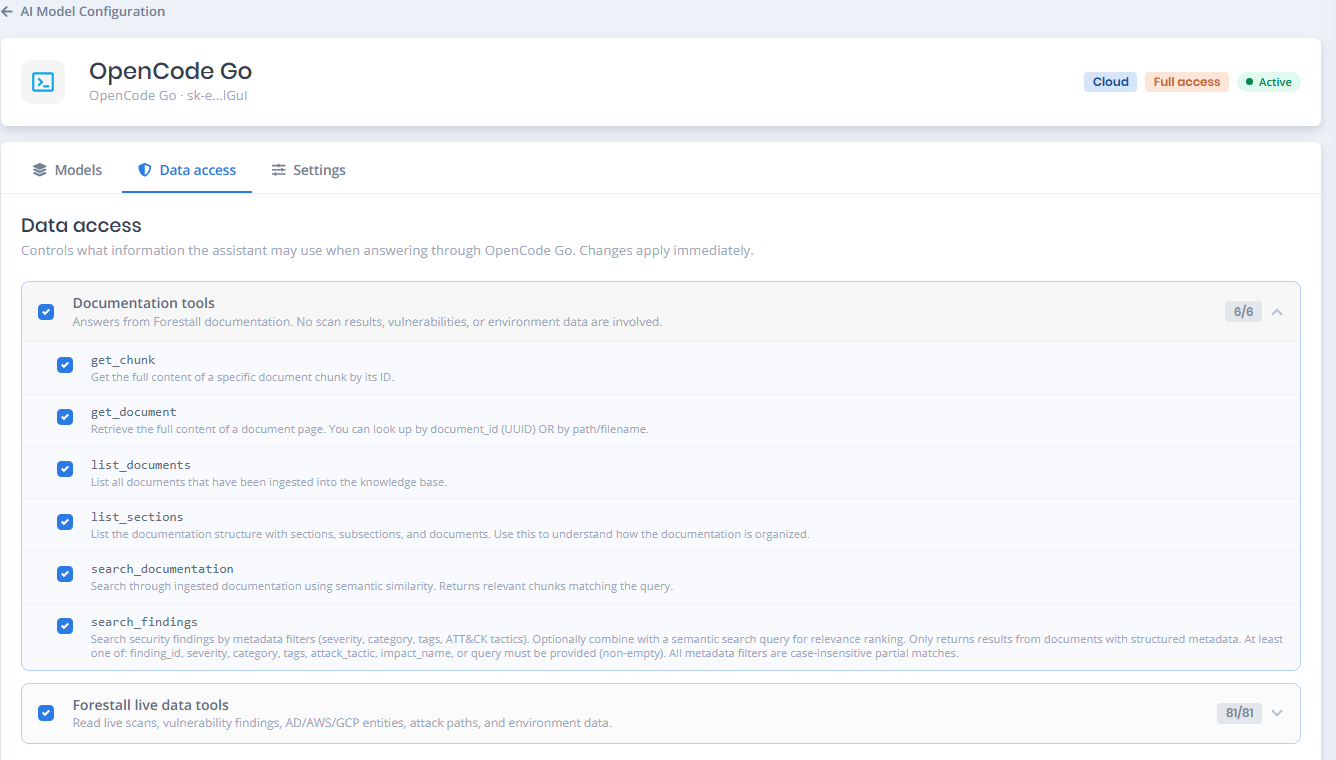
You can also configure access at a more granular level instead of granting access to all live data.

The Data Access screen allows individual capabilities to be enabled or disabled, providing more control over which types of Forestall information the provider can use.

<figure><img src="https://3408039743-files.gitbook.io/~/files/v0/b/gitbook-x-prod.appspot.com/o/spaces%2FObpV44hoVkNmo5bFuVVL%2Fuploads%2Fgit-blob-813c087afade45ef3744a7b0f48dc44d67d716b0%2Fconfiguration-center-ai-model-configuration-image-8.png?alt=media" alt=""><figcaption><p>Custom data access</p></figcaption></figure>

This can be useful when a provider needs access to specific areas of Forestall without being allowed to use the complete set of live security data.

### Save the Provider

After selecting the data access level, complete the wizard to save the provider.

The configured provider is then displayed on the **AI Model Configuration** page and its enabled models become available in the AI Assistant.

<figure><img src="https://3408039743-files.gitbook.io/~/files/v0/b/gitbook-x-prod.appspot.com/o/spaces%2FObpV44hoVkNmo5bFuVVL%2Fuploads%2Fgit-blob-8c6f391097d53484d5fd3420adc9438392808858%2Fconfiguration-center-ai-model-configuration-image-9.png?alt=media" alt=""><figcaption></figcaption></figure>

Multiple providers can be configured for the same user. This allows different models or providers to be used for different purposes and with different data access settings.

## Managing an AI Provider

Existing providers can be managed from the AI Model Configuration page.

Open a configured provider to update its models, data access settings, connection information, or availability.

### Models

The **Models** section shows the models currently available from the provider.

You can refresh the available models and change which models are enabled for use in the AI Assistant.

Disabling a model removes it from the Assistant model selector without removing the provider configuration.

### Data Access

The **Data Access** section allows you to change what information the provider is permitted to use.

You can switch between documentation-only access, live scan data access, or a custom selection of available capabilities.

Changes to data access affect future AI Assistant requests made with models from that provider.

### Provider Settings

The **Settings** section contains the connection and configuration options for the provider.

Depending on the provider type, you can update information such as the provider name, API credentials, or server address.

Stored API keys are not displayed in full after they have been saved. If credentials need to be changed, enter the new credentials and save the provider configuration again.

### Enabling or Disabling a Provider

A provider can be disabled without deleting its configuration.

When a provider is disabled, its models are no longer available for selection in the AI Assistant. The provider can be enabled again later without recreating the configuration.

### Deleting a Provider

Providers that are no longer required can be removed from AI Model Configuration.

Deleting a provider removes its configuration and prevents its models from being used in future AI Assistant conversations.

## Data Privacy and External Providers

The data sent by the AI Assistant depends on the data access level configured for the selected provider.

With **Documentation only**, live environment data is restricted before it is made available to the model. With **Documentation + live scan data**, information retrieved from the Forestall environment may be sent to the selected AI provider when it is required to answer a question.

For cloud providers, this means that permitted data may leave the Forestall environment and be processed by the external AI service. Self-hosted providers can keep model processing within infrastructure controlled by your organization.

> **Note:** Documentation and finding searches may use a separate embedding service to process the search phrase, including when a self-hosted model is selected.