AWS Configurations
The scan reads AWS through two identities: one collector IAM user in a hub account, and a read-only scan role in every scanned account. A CloudFormation stack creates both. You do not build either by hand.
The AWS Configuration page gives you a launch link that already carries your scope and External ID. This guide follows the form from top to bottom: the shape of your AWS estate, the External ID, the scan scope, the stack, and the Setup verification panel that checks the result. The access key comes last on the form, because it exists only after the stack.

The AWS Configurations list
Open Configuration Center > Amazon Web Services > Manage. The AWS Configurations list shows one row per configuration with the columns Account Display Name, Account ID, Region (the AWS partition, for example Commercial) and Authentication Method (Access Key). Click New Configuration to add one, or click a row to open it.

Step 1: Choose what you are connecting
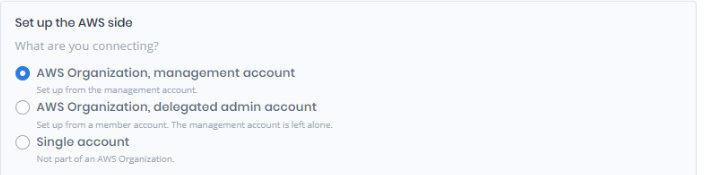
In the AWS Configurations list, click New Configuration. The box on the right, What are you connecting?, lists three shapes. Pick the one that matches your AWS estate.
AWS Organization, management account
You can sign in to the organization's management account.
The collector user in the management account, then a read-only scan role in every member account you chose.
AWS Organization, delegated admin account
You want the management account left alone.
The collector user in a member account that you register as a delegated administrator, then the scan role in the member accounts you chose. The management account is not touched, so it is not scanned unless you add its role separately.
Single account
The account is not part of an AWS Organization.
The collector user in this one account. There is no root or OU to fill in.
The numbered steps under the choice change with it. Everything runs in the AWS Console, plus one CloudShell command when a delegated administrator needs a root or OU ID. The delegated administrator shape also expects one prerequisite already done in AWS Organizations, covered below.
A saved configuration reopens with the shape and scope it was saved with.

Step 2: External ID
Forestall fills in the External ID field when you add a configuration. The launch link carries the same value, and every scan role trusts exactly this value. Both organization shapes use it. The single-account stack does not, because nothing assumes a role across accounts there.
You can replace the generated value. Do that before you create the stack. A change afterwards breaks the trust in every scan role until you update the stack with the new value.
Use 2 to 256 characters: letters, digits, and + = , . @ : / _ -.
Step 3: Choose what should be scanned
The two organization shapes show a What should be scanned? list on the left. The single-account shape hides it.
The whole organization
Every account under the organization root, including accounts that join later.
Organization root ID, for example r-749d.
One organizational unit
Only the accounts under that OU. An account that joins the OU later is picked up on its own.
Organizational unit ID, for example ou-749d-p6c2hzjh.
Specific accounts
Only the accounts you list, and only they receive the scan role.
Organization root or OU ID: the root, or the OU the listed accounts sit under. Plus Account IDs: 12-digit IDs separated by commas.
Only this account
No member account receives the scan role, so Forestall has no way into any of them.
Nothing. The ID field is hidden.
The scope is saved with the configuration and written into the launch link. The scan role lands in the accounts the scan will read, and in no others.
In the whole-organization and Specific accounts scopes, the root or OU ID only builds the link. It is not stored: when you reopen a configuration and need the link again, type it again.
New accounts are the other difference between scopes. Under the whole organization or one OU, a new account receives the role on its own. Under Specific accounts it does not: add the account to the list, save, and update the stack.
To change the scope later, save the form, then update the ForestallOnboarding stack in CloudFormation with the parameter values the link now carries. Roles disappear from accounts that left the scope and appear in accounts that joined it.

Where the IDs come from
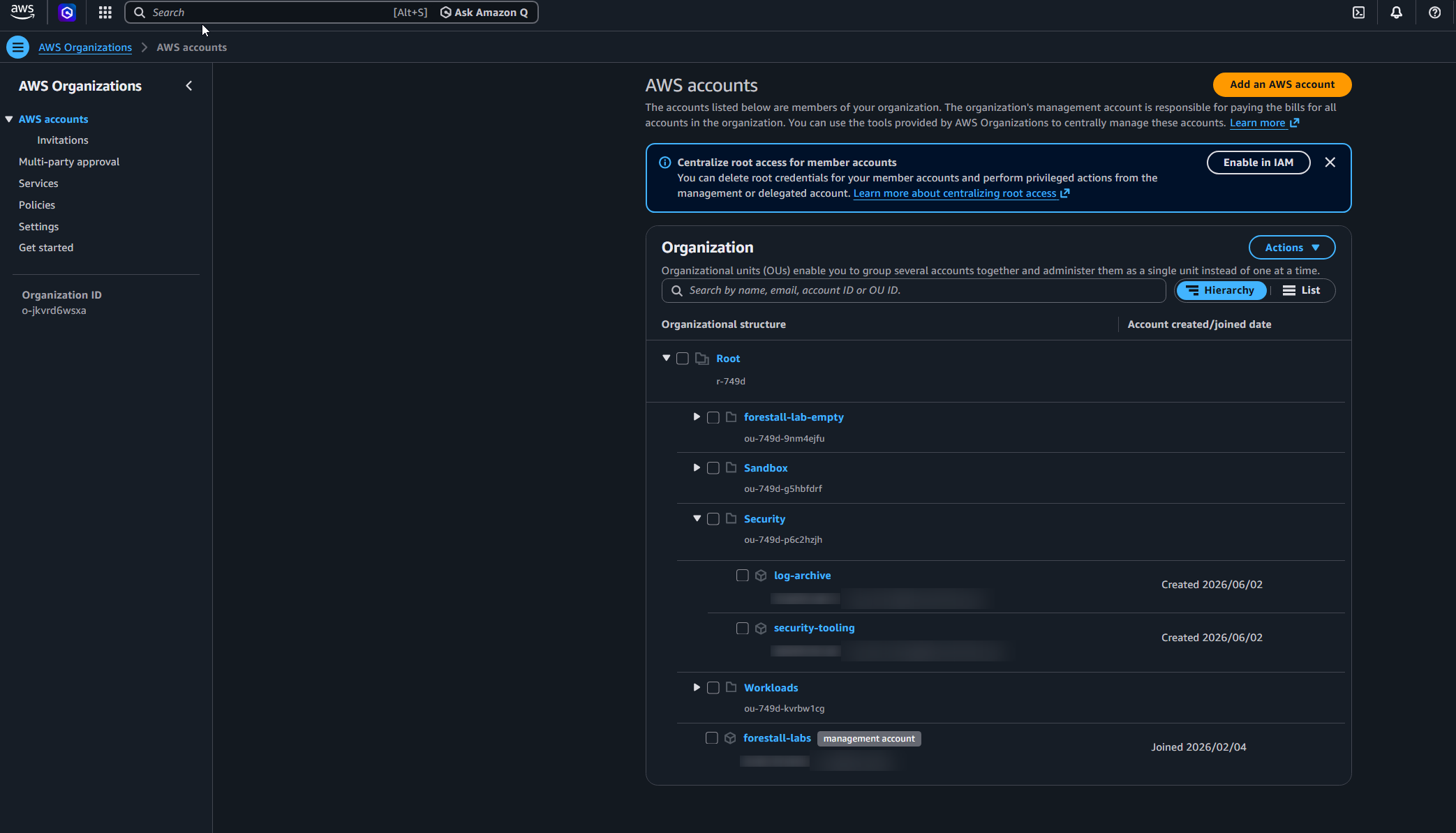
The root ID and the OU IDs live in AWS Organizations, and the console shows the account tree only in the management account. A delegated administrator account can read the same structure through the API, but its Organizations console page stays empty: no root, no OUs, no accounts. That is how AWS works, not a sign that the registration failed.
So there are two ways to get an ID.
Organization root ID (r-xxxx)
AWS Organizations > AWS accounts. Click Root at the top of the tree; the details pane shows the ID.
aws organizations list-roots
Organizational unit ID (ou-xxxx-yyyyyyyy)
Same page. Click the OU; the details pane shows the ID.
aws organizations list-organizational-units-for-parent --parent-id <root-id>
Account IDs
Same page, next to each account name.
aws organizations list-accounts. After Test, the Member scan roles row also names up to five of the accounts outside the scope, with their IDs, and counts the rest.
The CLI column works from the management account and from a registered delegated administrator account. It needs no installation: CloudShell, the terminal icon in the top bar of the AWS Console, has the CLI ready and signed in as you.
This is what the commands return in our lab, run from the delegated administrator account 808999395340:
The second command lists one level. For an OU nested inside another, run it again with the parent OU's ID.
To see which accounts an OU scope would cover before you create the stack:
And the whole account list, for the Specific accounts scope:
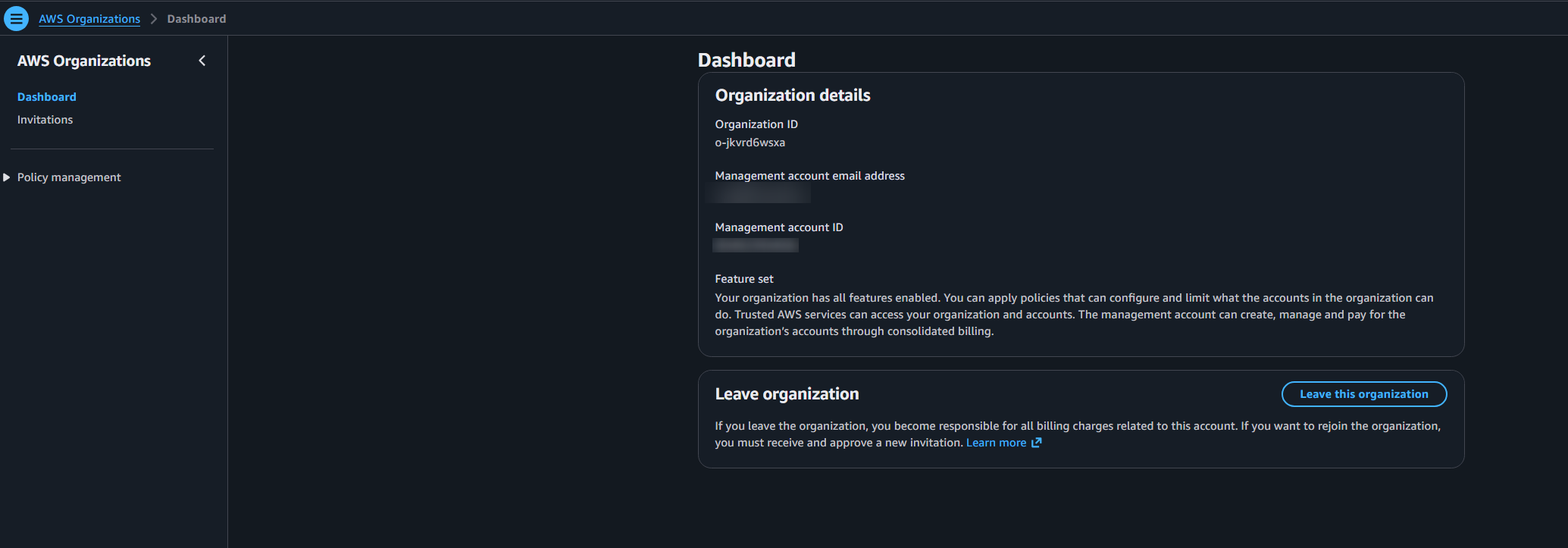
describe-organization tells you which account is the management account, useful when you are in a delegated administrator account and need to know where the management scan-role stack goes:


Step 4: Create the stack in AWS
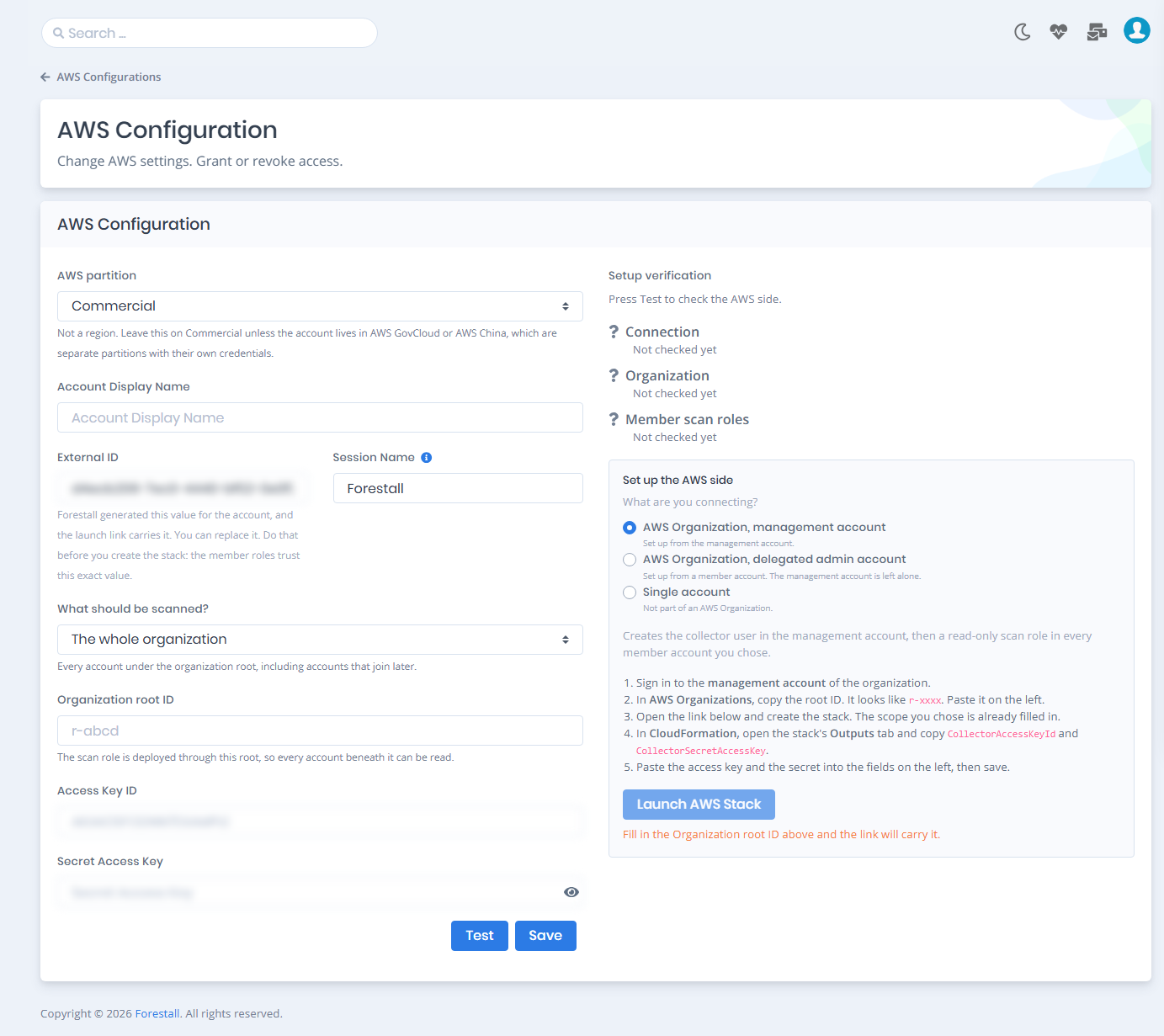
Fill in the fields your shape needs, then click Launch AWS Stack. The button stays disabled until the External ID and the root or OU ID it needs are on the form, and the line under it says what is missing.
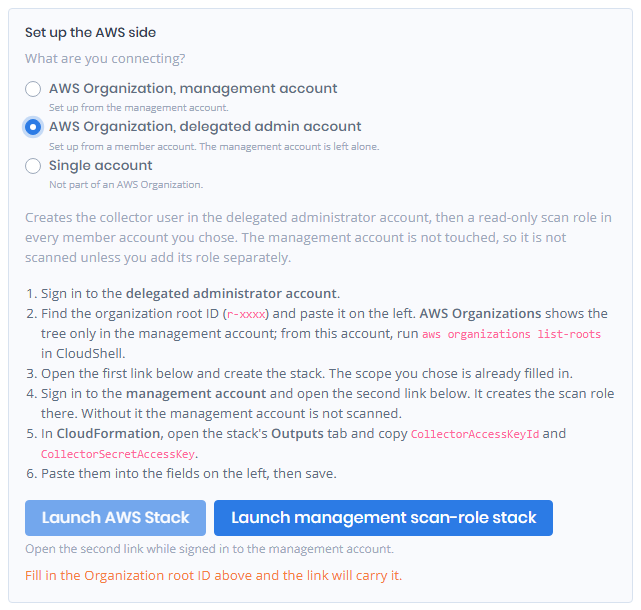
The delegated administrator shape adds a second button beside it, Launch management scan-role stack, as soon as you pick the shape, with the note "Open the second link while signed in to the management account." under both. It launches the stack that gives the management account its own scan role, the one account a StackSet cannot reach. The link carries your External ID; while that field is empty, both buttons stay disabled. It also carries the hub account ID and the collector's ARN once Forestall knows them, from a saved configuration or from Test. Until then, fill those two fields in on the CloudFormation page yourself.

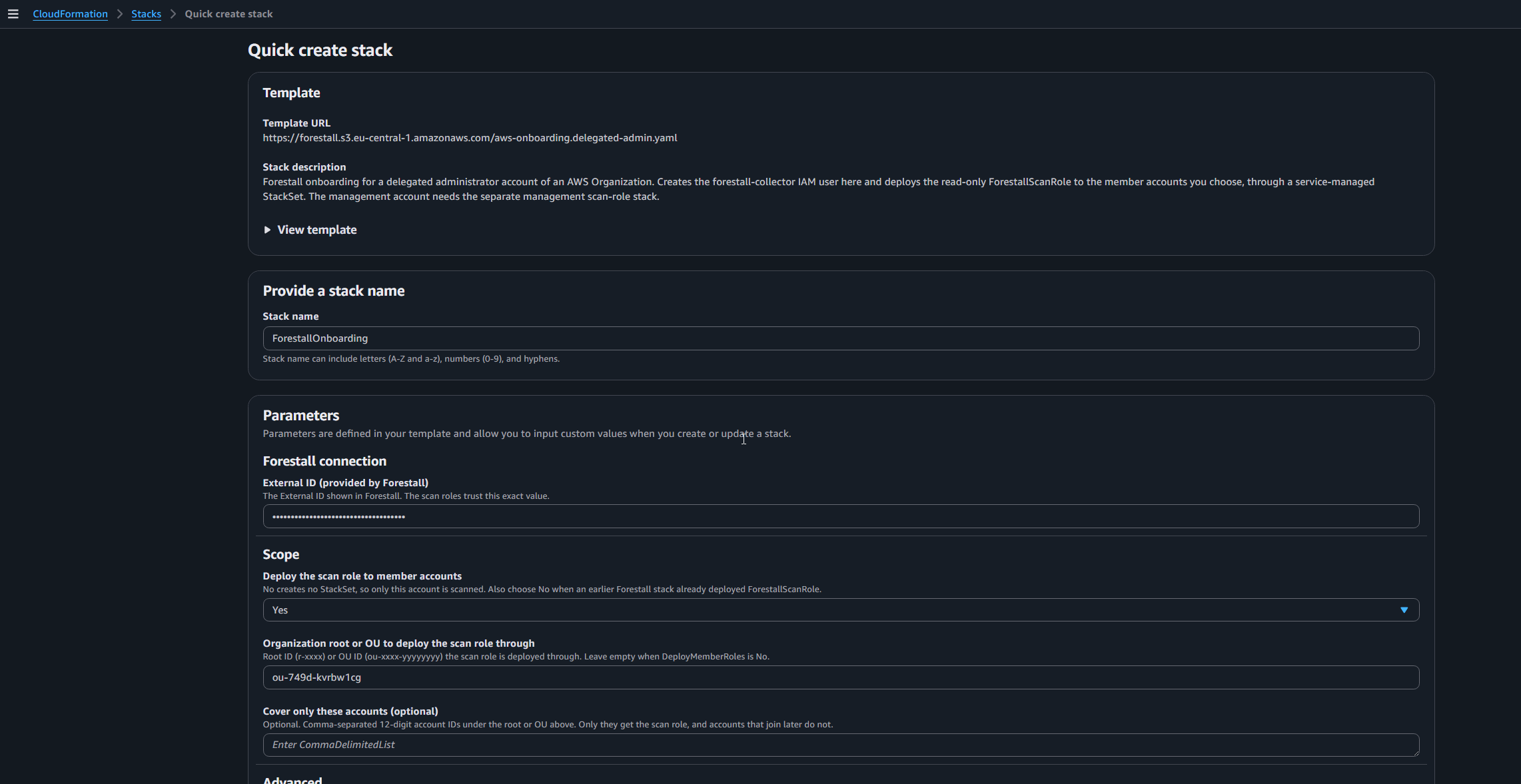
The CloudFormation quick-create page opens with the template, the stack name ForestallOnboarding, and these parameters:
External ID (provided by Forestall)
The form
Hidden on the AWS side. Leave it as it is.
Deploy the scan role to member accounts
The scope
Yes for the first three scopes, No for Only this account. With No no StackSet is created.
Organization root or OU to deploy the scan role through
The scope
The root or OU ID you typed. Required when Deploy is Yes; the stack refuses to start without it.
Cover only these accounts (optional)
The scope
The account list from Specific accounts. Automatic deployment is switched off while a list is in use.
CollectorUserName
Default forestall-collector
Advanced.
MemberDeploymentRegion
Default us-east-1
Advanced. IAM is global, so one region is enough.
StoreSecretInSecretsManager
The link
Store the access key in Secrets Manager. The link sets it to false, so the key is shown in the stack Outputs.
The single-account stack has no scope and no External ID; only the two Advanced parameters remain.

Management account
Sign in to the management account of the organization.
In AWS Organizations > AWS accounts, click Root or the OU and copy its ID (
r-xxxxorou-xxxx-yyyyyyyy). Paste it on the left.Click Launch AWS Stack and create the stack. The scope you chose is already filled in. Wait for
CREATE_COMPLETE: the member roles go out through a StackSet. In our lab an eight-account organization took about four minutes.In CloudFormation, open the stack's Outputs tab and copy
CollectorAccessKeyIdandCollectorSecretAccessKey.Paste them into the fields on the left, then save.

Delegated administrator account
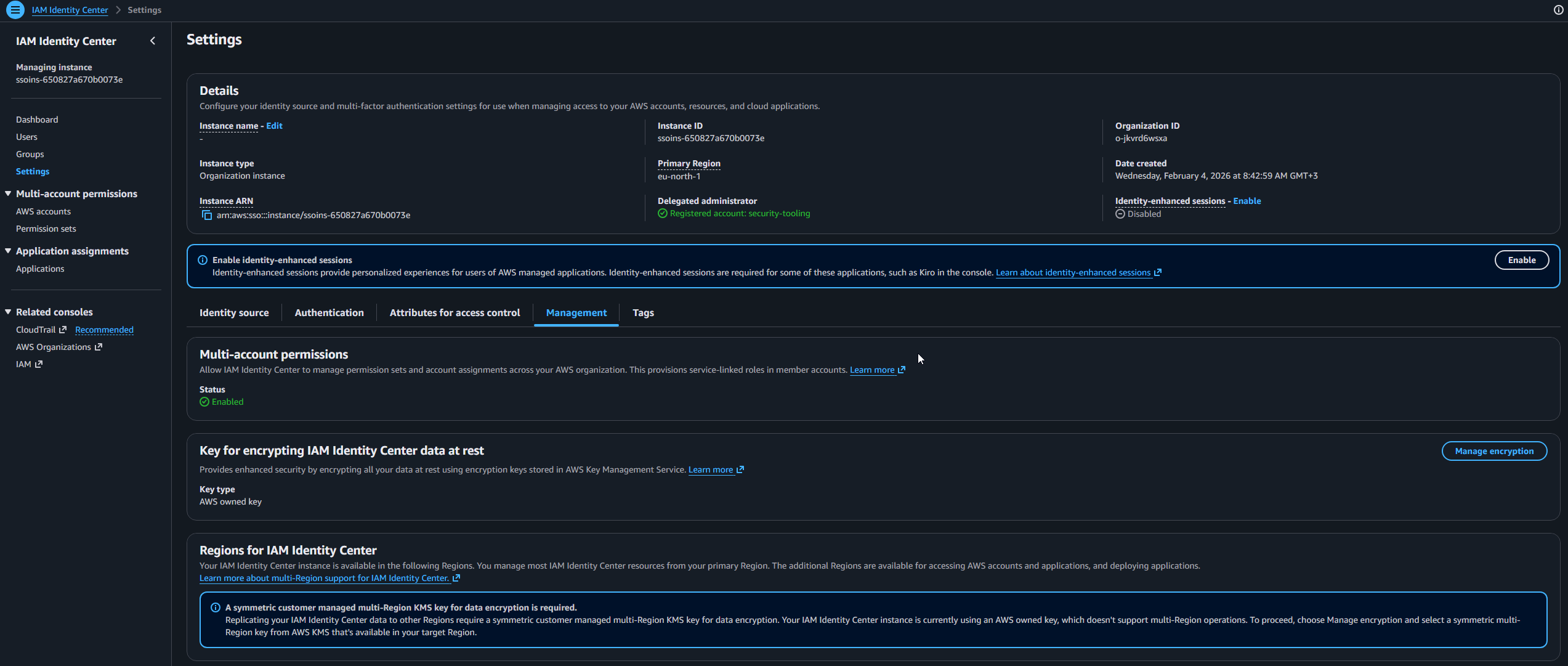
Prerequisite: register the account as a delegated administrator. You do this once, from the management account, and it takes two registrations. The first lets the stack deploy the scan role into member accounts. The second gives the collector read access to IAM Identity Center. The member account cannot register itself.
CloudFormation StackSets
CloudFormation > StackSets, then under Delegated administrators choose Register delegated administrator and pick the account.
aws organizations register-delegated-administrator --account-id <hub-account-id> --service-principal member.org.stacksets.cloudformation.amazonaws.com
IAM Identity Center
IAM Identity Center > Settings > Management tab, then under Delegated administrator choose Register account and pick the account. One account at a time.
aws organizations register-delegated-administrator --account-id <hub-account-id> --service-principal sso.amazonaws.com
StackSets also needs trusted access with AWS Organizations switched on; the StackSets page in the management account offers Activate trusted access when it is not.
You can check both registrations from the delegated administrator account itself, without a management sign-in:
The Organization delegation row in Setup verification makes the same check after Test, and prints the missing command when one registration is absent.

Sign in to the delegated administrator account.
Find the root ID or the OU ID and paste it on the left. AWS Organizations in this account shows no tree, so read the ID from the management account's console, or run
aws organizations list-roots(orlist-organizational-units-for-parent) here in CloudShell, as shown under Where the IDs come from.Click Launch AWS Stack and create the stack. Wait for
CREATE_COMPLETE.Sign in to the management account, then click Launch management scan-role stack and create that stack too. Without it, the management account is not scanned. This is the one step that needs management-account access. If that account belongs to another team, hand them the link, or the CLI command under The AWS side from the CLI.
In CloudFormation, open the stack's Outputs tab and copy
CollectorAccessKeyIdandCollectorSecretAccessKey.Paste them into the fields on the left, then save.
The management link creates a stack named ForestallManagementScanRole. It holds the same read-only scan role the member accounts have, and trusts only your collector user with your External ID. IAM takes a moment to settle: if Test still says the account will not be scanned, wait half a minute and press Test again.


⚠️ Service control policies still apply to a delegated administrator account and to every member account; only the management account is exempt. If an SCP denies calls made without MFA, paste the two ARNs from the stack output
ScpMfaExceptioninto that SCP'sArnNotLikecondition.
Single account
Sign in to the account you want to scan.
Click Launch AWS Stack and create the stack. There is no scope and no External ID to fill in.
In CloudFormation, open the stack's Outputs tab and copy
CollectorAccessKeyIdandCollectorSecretAccessKey.Paste them into the fields on the left, then save.

For the two organization stacks, the Outputs tab also lists ExternalId, the value the scan roles trust. When a stack was created by hand, check it against the External ID on the form. The single-account stack has no External ID and no such row.
The Outputs tab shows the secret in plain text, so restrict who can read the stack. The Secret Access Key is shown only while you type it, so keep the AWS-side copy.
Step 5: Test and read the Setup verification panel
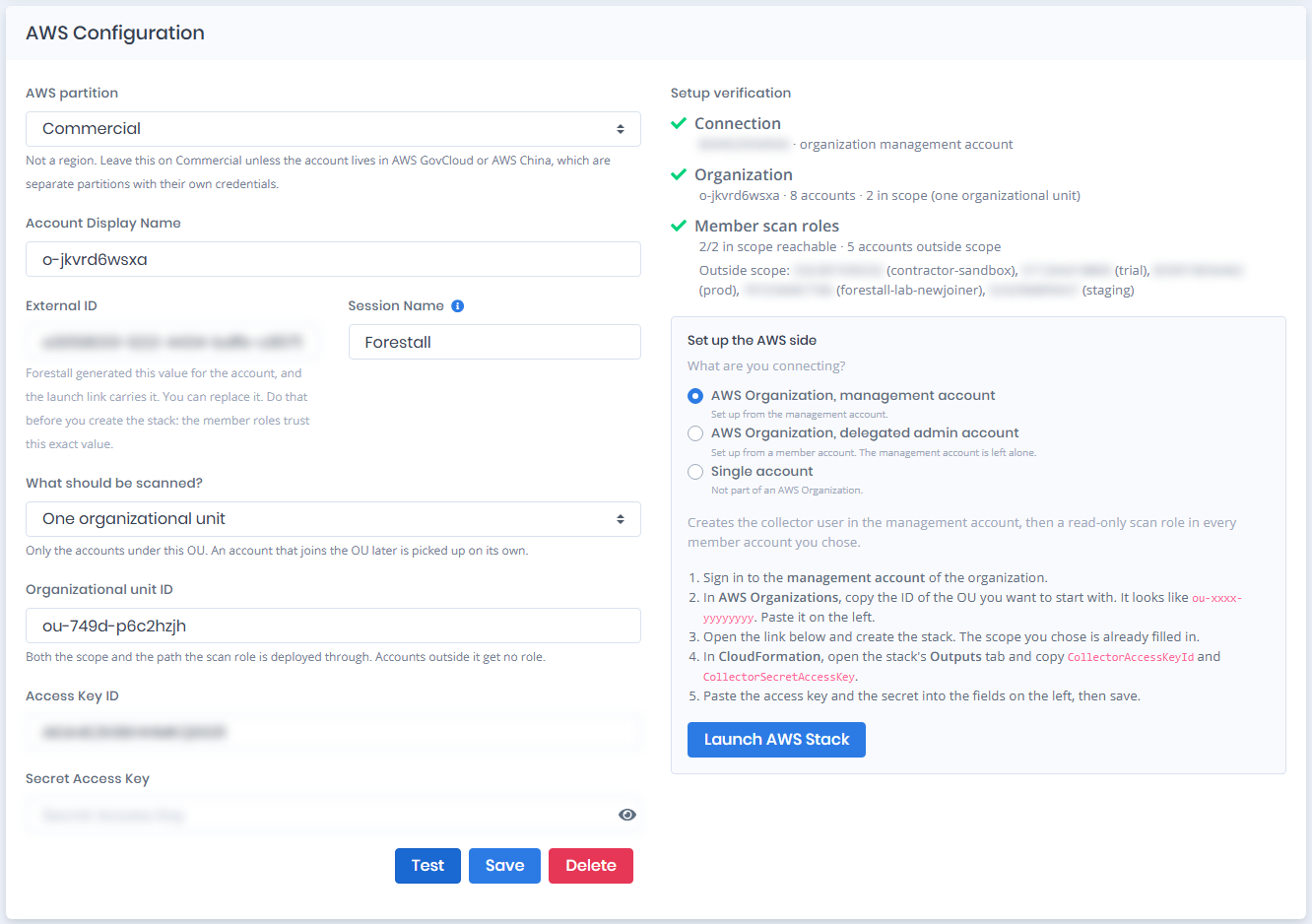
Click Test. Forestall signs in with the key, reads the organization, and tries the scan role in every account in scope. The Setup verification panel on the right fills in row by row. Until then it reads "Press Test to check the AWS side."
Test uses the scope currently on the form, not the saved one, so you can preview a change before you save it.
Each row carries a colour. Green check: in place. Yellow triangle: the scan runs, but covers less than you may expect. Red cross: the scan would be missing data. Grey: not checked, or nothing to check.
Connection
The account ID the key belongs to and its role: organization management account, delegated administrator account, or standalone account.
Organization
The organization ID and its account count, for example o-xxxx · 8 accounts. With a narrowed scope it adds the in-scope count: 1 in scope (one organizational unit). A standalone account reads "This account is not part of an AWS Organization, so only this account is scanned." A yellow line appears under it when an ID in your account list does not exist in the organization.
Member scan roles
How many in-scope accounts the collector could reach: 6/6 accounts reachable, or 2/2 in scope reachable · 5 accounts outside scope with a sample of the accounts left out. Red, with an Unreachable: list and a reason per account, when an in-scope account could not be reached. Yellow when the scope covers no member account: "scans will cover only this account". Grey for a standalone account.
Management account
Delegated administrator hubs only. Green with <id> · scan role reachable once the management scan role exists. Grey with "outside the scan scope, so it was not probed" when the scope excludes it. Otherwise it explains that the account is not scanned and points at the Launch management scan-role stack button under the steps. This row is never red: leaving the management account out is a choice.
Organization delegation
Delegated administrator hubs only. StackSets: registered · IAM Identity Center: registered in green. Red when the Identity Center registration is missing: the scan would return an organization with no permission sets and no assignments. Yellow when only the StackSets registration is missing: existing roles keep working, but you can no longer deploy or update them. The row prints the register-delegated-administrator command for the missing service.
Fix anything red, press Test again, then Save.


AWS Configuration Fields
AWS partition
The AWS partition of the account: Commercial, GovCloud, or China.
Account Display Name
A friendly name for this account inside Forestall.
External ID
The value the scan roles trust. Generated by Forestall; replace it only before the stack exists.
Session Name
Becomes the RoleSessionName when Forestall assumes a scan role. Forestall appends the account ID and a timestamp, so CloudTrail shows Forestall-123456789012-20260824153011. Defaults to Forestall.
What should be scanned?
The scan scope: whole organization, one OU, specific accounts, or only this account. Organization shapes only.
Organization root ID / Organizational unit ID / Organization root or OU ID
The root or OU the scan role is deployed through. Root only for the whole organization, OU only for one OU, either for Specific accounts. Hidden for Only this account.
Account IDs
The comma-separated list for Specific accounts.
Access Key ID
The access key ID of the collector user, copied from the stack's Outputs tab. Last on the form, because the key exists only after the stack.
Secret Access Key
The secret half of the same key.
You do not type the account ID. Test reads it from the key and shows it in the Connection row.
Actions
Test signs in with the key, reads the organization, and probes the scan roles for the scope on the form. Nothing is saved.
Save stores the configuration, including the scope.
Delete appears when you open a saved configuration. It asks for confirmation (Confirm Delete Operation, Delete Configuration / Cancel) and removes the configuration.
Scan policy note
The scan collects Identity Center data (permission sets, SSO users and groups, account assignments) only when the Identity Center Assessment module is enabled in the AWS scan policy. It is on by default. See AWS Policies.
The AWS side from the CLI
The AWS CLI can do everything the launch links do. Use it when the console is out of reach, when a change ticket has to carry the exact command, or when the management-account step belongs to another team. The templates are the ones the links open.
Management account hub
https://forestall.s3.eu-central-1.amazonaws.com/aws-onboarding.master.yaml
Delegated administrator hub
https://forestall.s3.eu-central-1.amazonaws.com/aws-onboarding.delegated-admin.yaml
Single account
https://forestall.s3.eu-central-1.amazonaws.com/aws-onboarding.single-account.yaml
Management scan role, delegated hubs
https://forestall.s3.eu-central-1.amazonaws.com/aws-onboarding.management-scan-role.yaml
The parameter values are the ones the launch link carries. Open the link once to read them, or take them from the scope table in Step 3.
Create the hub stack. Run this in the hub account: the management account, the delegated administrator account, or the single account.
For One organizational unit, put the OU ID in TargetOuId. For Specific accounts, put the root ID, or the ID of the OU the accounts sit under, in TargetOuId. Pass the account list through a parameter file, because commas inside a value are awkward on the command line:
For Only this account, set DeployMemberRoles=No and leave TargetOuId out. The single-account template takes only StoreSecretInSecretsManager=false.
Read the credentials, instead of the Outputs tab:
Create the management scan role for a delegated administrator hub. Run this in the management account; the three values are the ones the second launch button carries.
Change the scope later. Save the form, then update the stack with the new value. Every parameter you do not name falls back to its template default, so keep the others with UsePreviousValue:
See which accounts hold the scan role. Run this in the hub account; on a delegated administrator hub add --call-as DELEGATED_ADMIN.
Test's Member scan roles row shows the same from Forestall's side, and also whether the collector can actually assume each role.
Best Practices
Let the stack create the identities. It grants exactly what Forestall needs and denies the content reads it must never make.
Keep the External ID. Do not change it after the stack exists unless you also update the stack.
Rotate the collector key. Every 90 days, or per your policy. Update the configuration and press Test.
Test before Save. A broken delegation or a missing role shows up in Setup verification before the first scan runs.
Delegated hubs: add the management role. Without it the management account and its Tier 0 findings are missing from every scan.
Update the stack when the scope changes. The scan reads only accounts that have the role. The stack is what puts it there.
Troubleshooting
Authentication fails
Check that the Access Key ID and Secret Access Key match the values in the stack's Outputs tab and that the key is still active.
Check that an SCP is not denying the collector. The stack output
ScpMfaExceptionlists the ARNs to exempt.
Launch AWS Stack is disabled
The button needs the External ID, the root or OU ID, and for Specific accounts the account list. The line under the button says which one is missing. A configuration saved before External IDs were editable opens with that field empty: enter one, then the links open.
Stack creation fails and rolls back
A StackSet named
ForestallScanRolealready exists in the organization, usually from an earlier Forestall stack. CloudFormation returnsNameAlreadyExistsExceptionand the rollback removes the collector user too. Either delete the earlier stack first, or set Deploy the scan role to member accounts toNo. WithNothe existing roles are left alone; they still have to trust the new collector.
Member scan roles shows accounts as unreachable
The stack was created with a different scope or External ID than the form. Open the link again and update the stack.
On a delegated administrator hub, check the Organization delegation row. The StackSets registration is what lets the stack reach member accounts.
The row prints a reason per unreachable account. An SCP that denies the role in that account shows up there.
The Management account row still says the account will not be scanned right after you created its stack
IAM changes take a moment to spread. Wait about 30 seconds and press Test again.
Identity Center data is missing from a scan
On a delegated administrator hub the account must be registered for
sso.amazonaws.com. The Organization delegation row shows this in red when it is missing.Check that the Identity Center Assessment module is enabled in the scan policy.
An account in the list is not scanned
The Organization row shows a yellow line naming account IDs that AWS could not find in the organization. Check the IDs, or drop them from the list.
AWS Organizations shows no accounts in the delegated administrator account
Expected. The console draws the tree only in the management account. Read the IDs there, or run the commands under Where the IDs come from in CloudShell from the delegated administrator account. The registration is not broken: the Organization delegation row after Test would say so.
Configuration won't save
Every required field must be filled, and the External ID must use the allowed characters.
A root ID belongs in the root field and an OU ID in the OU field; the message under the field shows the expected form.
Press Test and clear anything red first.
Required AWS IAM Permissions
The stack grants these; you do not paste a policy. Two identities receive them: the collector user in the hub account, and ForestallScanRole in every scanned member account (and in the management account, when you add that stack).
Collector user
SecurityAudit (AWS managed policy)
Read-only access across AWS services. It covers every IAM read Forestall makes (iam:Get*, iam:List*), the Organizations reads that list the accounts and OUs, and the Identity Center reads that list instances, permission sets and assignments. AWS extends it as new services appear, so the stack needs no redeploy for them.
sso:DescribeRegisteredRegions
Finds the region the Identity Center instance lives in.
identitystore:DescribeUser, identitystore:DescribeGroup
Reads a single SSO user or group by ID, to resolve the identities behind account assignments.
sts:AssumeRole on arn:aws:iam::*:role/ForestallScanRole
Lets the collector step into member accounts through the scan role, and into nothing else. Organization shapes only.
lambda:GetFunctionUrlConfig, opensearch:ListDomainNames, opensearch:DescribeDomain, opensearch:DescribeDomains, glue:GetResourcePolicies, kafka:GetClusterPolicy, memorydb:DescribeAcls, memorydb:DescribeUsers
Reads that SecurityAudit does not include: Lambda function URL settings, OpenSearch domains, Glue and MSK resource policies, MemoryDB ACLs and users.
apigateway:GET on /restapis, /apis, /domainnames and their children, and on /vpclinks
API Gateway configuration reads. The paths that return API key values are denied below.
SecurityAudit includes the IAM reads Forestall depends on:
IAM reads (inside SecurityAudit)
Why Forestall needs them
iam:ListUsers, iam:GetUser
Enumerates users and their attributes for identity analysis.
iam:ListGroups, iam:GetGroup, iam:ListGroupsForUser
Maps group memberships and group-level access control.
iam:ListRoles, iam:GetRole
Enumerates roles and their trust policies to assess privilege escalation paths.
iam:ListPolicies, iam:GetPolicy, iam:GetPolicyVersion, iam:ListPolicyVersions
Reads managed policies and their documents to compute effective permissions.
iam:ListAttachedUserPolicies, iam:ListAttachedGroupPolicies, iam:ListAttachedRolePolicies
Lists the managed policies attached to users, groups, and roles.
iam:ListUserPolicies, iam:ListGroupPolicies, iam:ListRolePolicies, iam:GetUserPolicy, iam:GetGroupPolicy, iam:GetRolePolicy
Reads inline policies, where non-standard permission grants hide.
iam:ListAccessKeys, iam:GetAccessKeyLastUsed
Finds inactive, unused, or aged access keys.
iam:ListUserTags, iam:ListRoleTags
Reads the tags on users and roles.
Scan role (ForestallScanRole)
SecurityAudit (AWS managed policy)
The same read-only baseline, inside the member account.
The eight extra reads above (lambda:GetFunctionUrlConfig … memorydb:DescribeUsers) and apigateway:GET
The same gaps, inside the member account.
Trust policy
Only the hub account's collector user may assume it (aws:PrincipalArn), and only with your External ID (sts:ExternalId). No wildcards.
The scan role has no sts:AssumeRole and no sso: or identitystore: grant. Identity Center is read from the hub.
What both identities are denied
The scan reads configuration, never content. An explicit Deny sits on top of every allow and stays in force however SecurityAudit grows. It blocks these content reads:
S3 objects
Secrets Manager values
SSM parameters, sessions and commands
KMS decrypt and data keys
DynamoDB items and queries
Lambda code and invocation
EC2 password data, console output, screenshots and instance user data; EC2 Instance Connect; launch templates and launch configurations
Batch job definitions, CodeBuild projects, Data Pipeline definitions, Elastic Beanstalk configuration settings
CloudFormation templates and stack parameters
SQS messages
CloudWatch log events and query results
ECR images and tokens, CodeCommit files, Athena query results
STS federation and session tokens
It also blocks the API Gateway paths that return API key values: /apikeys and /usageplans/*/keys.
Last updated
Was this helpful?