> For the complete documentation index, see [llms.txt](https://docs.forestall.io/forestall/llms.txt). Markdown versions of documentation pages are available by appending `.md` to page URLs; this page is available as [Markdown](https://docs.forestall.io/forestall/configuration-center/ldap.md).
# LDAP
You can connect your `Active Directory` or other `LDAP` server so that users sign in with their directory accounts.
Open **Configuration Center > LDAP > Manage**. The **LDAP Configurations (N)** list shows every configuration with its **Domain Controller**, whether it is **Enabled**, and the number of **Access Control** entries. Click **New Configuration** to add one, or click a row to edit it. You can add more than one LDAP configuration, for example one per domain. Every enabled configuration can be used to sign in.
LDAP Configurations list
Each LDAP configuration consists of two parts:
* **LDAP Connection Configuration**
* **Access Control Settings**
LDAP Authentication Settings
## **Configuring the LDAP Connection**
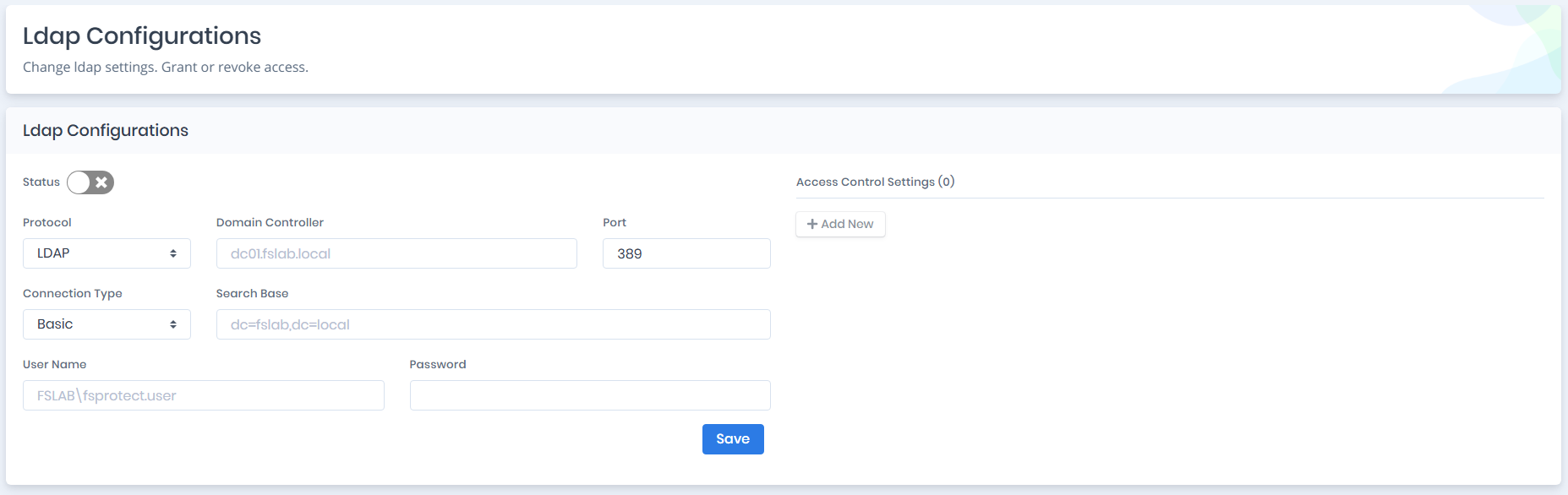
You need to configure an LDAP connection with the parameters below.
**Status:** Enables or disables the configuration.
**Protocol:** LDAP protocol type, `LDAP` or `LDAPS`.
**Domain Controller:** Host name (FQDN) or IP address of the domain controller or LDAP server, for example `dc01.fslab.local`.
**Port:** Port number of the LDAP protocol, `389` or `636` by default.
**Connection Type:** How Forestall binds to the server. `Basic` uses a simple bind. `LDAP signing` uses an NTLM bind with signing and sealing, for domain controllers that require LDAP signing.
**Search Base:** Distinguished name of the base container object, `Domain`, `Organizational Unit` or `Container`, for example `dc=fslab,dc=local`.
**User Name:** NetBIOS-formatted user name (`DOMAIN\user`) used to test the LDAP connection.
**Password:** Password of that user.
Click **Save** to store the connection. When editing an existing configuration, **Delete** removes it after a **Confirm Delete Operation** prompt.
Configuring the LDAP Connection
## **Configuring Access Control Settings**
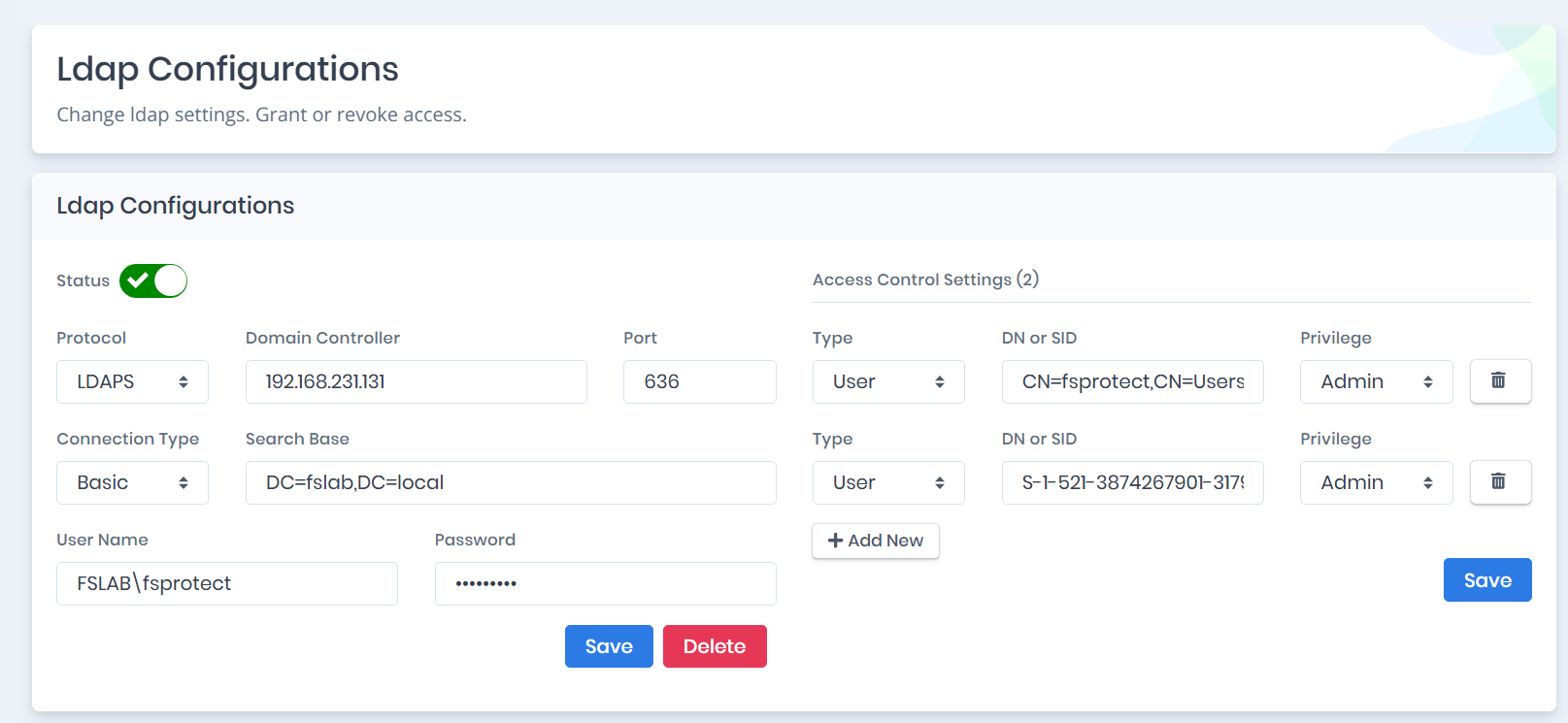
After the connection is saved, define the `Users` and `Groups` that can sign in to Forestall with LDAP. Open the saved configuration from the list. **Add New** in **Access Control Settings** is available only for a saved configuration.
Click **Add New** for each entry and fill in the parameters below.
**Type:** `Group` or `User`. If `Group` is selected, recursive members of the group can sign in.
**DN or SID:** Distinguished name (for example `CN=FSGroup,CN=Users,DC=fslab,DC=local`) or security identifier (objectSid) of the account.
**Privilege:** The role given to the account when it signs in. The list contains the roles defined in [Roles and Permissions](/forestall/settings/roles-and-permissions.md).
Click the trash icon to remove an entry, then click the **Save** button under **Access Control Settings**. Access control entries are saved separately from the connection settings.
Configuring the Access Control Settings
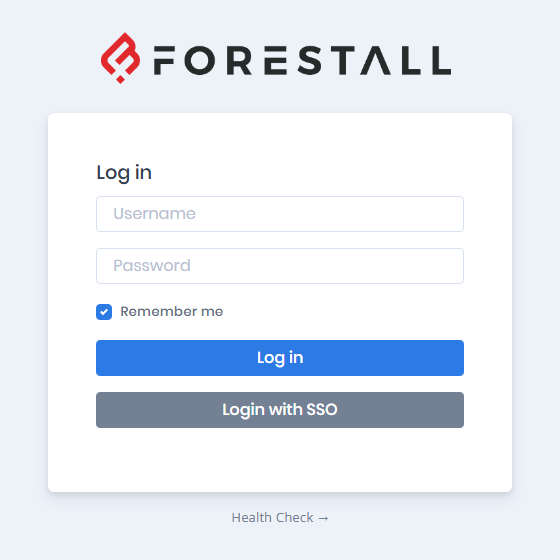
After these configurations, you can sign in to Forestall with a NetBIOS-formatted user name (`DOMAIN\user`) and password on the login page.