> For the complete documentation index, see [llms.txt](https://docs.forestall.io/forestall/llms.txt). Markdown versions of documentation pages are available by appending `.md` to page URLs; this page is available as [Markdown](https://docs.forestall.io/forestall/configuration-center/azure-configurations/login-with-certificate.md).
# Login With Certificate
This guide covers certificate generation across different OS environments and the subsequent deployment to Azure.
{% hint style="info" %}
The setup script behind **Copy PS** on the Azure Configuration page does all of this for you: with its default `$useCertificate = $true` it creates the certificate, uploads the public key to the app registration, and saves the `.pfx` file and its password for Forestall. See [Setup Script (Copy PS)](/forestall/configuration-center/azure-configurations.md#setup-script-copy-ps). Use the manual steps below only if you want to create the certificate yourself.
{% endhint %}
### **1. Generating Certificates**
**Windows (using PowerShell)**
Windows users can use the native New-SelfSignedCertificate cmdlet. This is the easiest way to generate a certificate compatible with Azure without installing third-party tools.
```powershell
# --- Configuration Variables ---
$CN = "MyCertificateName"
$Password = "YourPassword123"
# 1. Create the certificate
$cert = New-SelfSignedCertificate -Subject "CN=$CN" -CertStoreLocation "Cert:\CurrentUser\My" -NotAfter (Get-Date).AddYears(2)
# 2. Export the Public key
Export-Certificate -Cert $cert -FilePath ".\$CN.cer" | Out-Null
# 3. Export the Private key
Export-PfxCertificate -Cert $cert -FilePath ".\$CN.pfx" -Password (ConvertTo-SecureString $Password -AsPlainText -Force) | Out-Null
```
**macOS & Linux (using OpenSSL)**
Most macOS and Linux distributions come with OpenSSL pre-installed. This method creates a standard RSA key pair.
```bash
# 1. Define your variables (Change these if needed)
CN="MyCertificateName"
PASSWORD="YourPassword123"
# 2. Generate the Key and Certificate using the variables
openssl req -x509 -newkey rsa:2048 -nodes -keyout "${CN}-key.pem" -out "${CN}-cert.pem" -days 730 -subj "/CN=$CN"
# 3. Create the PFX Bundle using the variables
openssl pkcs12 -export -out "${CN}-identity.pfx" -inkey "${CN}-key.pem" -in "${CN}-cert.pem" -passout "pass:$PASSWORD"
```
### **2. Uploading to Azure**
This guide walks you through the process of uploading a certificate to an Azure App Registration for authentication purposes.
#### Prerequisites
* Access to Azure Portal
* An existing App Registration or permissions to create one
* A certificate file (.cer, .pem, or .crt format)
**Step 1: Access Microsoft Entra ID**
1. Navigate to the Azure Portal (portal.azure.com)
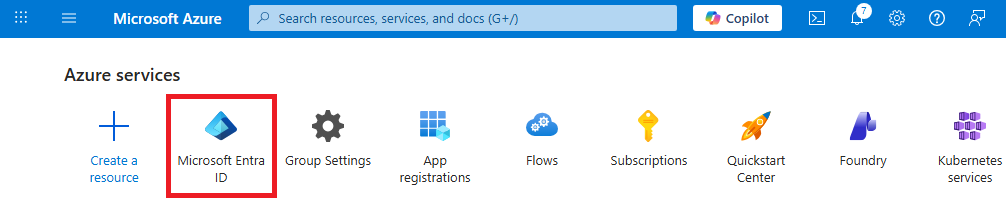
2. From the **Azure services** section on the homepage, click on **Microsoft Entra ID**
Microsoft Entra ID
**Step 2: Navigate to App Registrations**
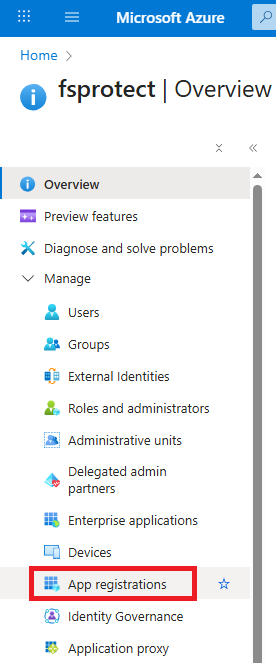
1. In the Microsoft Entra ID overview page, locate the left navigation menu
2. Under the **Manage** section, click on **App registrations**
App registrations
**Step 3: Select Your Application**
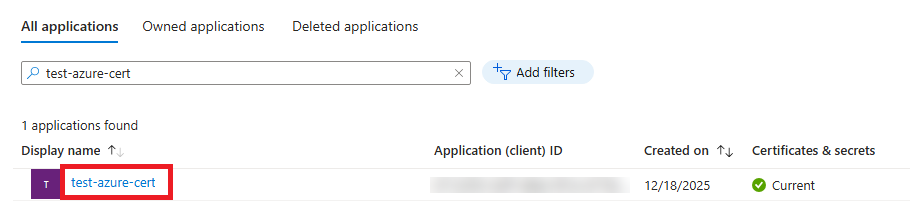
1. In the App registrations page, you'll see three tabs:
* All applications
* Owned applications
* Deleted applications
2. Use the search box to find your application (e.g., "test-azure-cert")
3. Click on the application name from the search results
Applications
**Step 4: Access Certificates & Secrets**
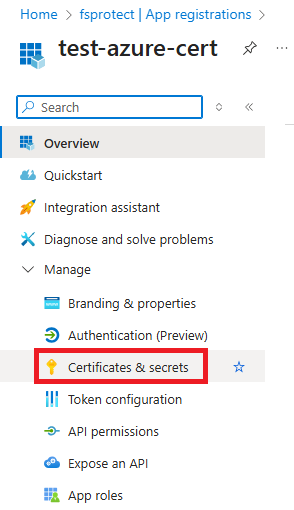
1. Once in the application details page, locate the left navigation menu
2. Under the **Manage** section, click on **Certificates & secrets**
Certificates & Secrets
**Step 5: Upload the Certificate**
1. In the Certificates & secrets page, you'll see three tabs:
* Certificates
* Client secrets
* Federated credentials
2. Ensure you're on the **Certificates** tab
3. Click the **Upload certificate** button
Certificates Panel
**Step 6: Complete the Upload Form**
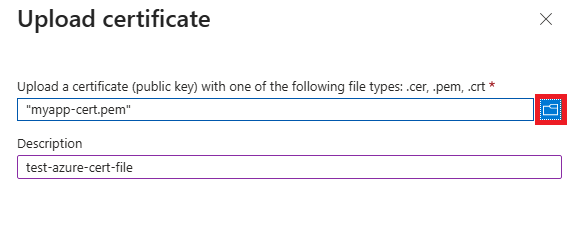
1. In the "Upload certificate" dialog box:
* Click the folder icon to browse and select your certificate file
* Supported file types: .cer, .pem, .crt
* Enter a **Description** for the certificate (e.g., "test-azure-cert-file")
2. Click **Add** to complete the upload
Upload certificate
#### Important Notes
* Certificates can be used as secrets to prove the application's identity when requesting a token
* Certificates can also be referred to as public keys
* The certificate count is displayed in parentheses on the Certificates tab (e.g., "Certificates (3)")
* Ensure your certificate is in the correct format before uploading
#### Verification
After successful upload, your certificate will appear in the certificates list with:
* Certificate name
* Expiration date
* Thumbprint
* Status indicator
### 3. Azure Configuration - Certificate Upload
This guide explains step by step how to configure Azure with certificate-based authentication.
#### Prerequisites
* Azure tenant credentials (Directory/Tenant ID)
* Azure application credentials (Application/Client ID)
* Certificate file (.pfx or .p12 format)
* Certificate password
* Appropriate Azure permissions (as listed in the Permissions section)
#### Required Azure Permissions
The following permissions are required for Azure configuration:
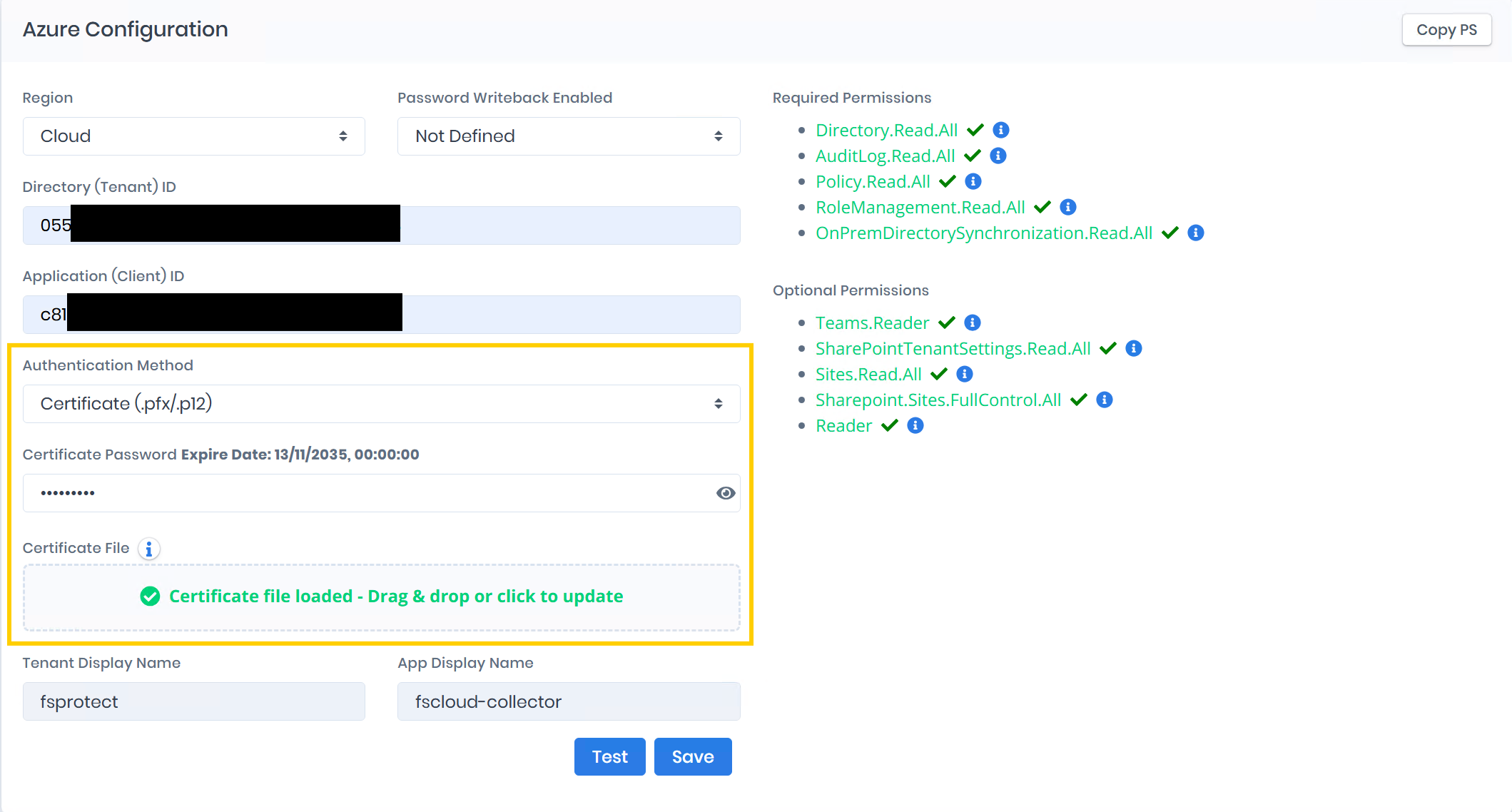
* **Directory.Read.All** ✓
* **AuditLog.Read.All** ✓
* **Policy.Read.All** ✓
* **RoleManagement.Read.All** ✓
* **OnPremDirectorySynchronization.Read.All** ✓
The optional permissions for Teams, SharePoint and Azure Resource Manager (`Teams.Reader`, `SharePointTenantSettings.Read.All`, `Sites.Read.All`, `Sharepoint.Sites.FullControl.All`, `Reader`) are described in [Azure Configurations](/forestall/configuration-center/azure-configurations.md#optional-microsoft-azure-permissions-for-enhanced-functionality).
#### Configuration Steps
**Step 1: Select Region**
1. Locate the **Region** dropdown field
2. Select your Azure region (e.g., "Cloud")
**Step 2: Enter Directory (Tenant) ID**
1. Navigate to the **Directory (Tenant) ID** field
2. Enter your Microsoft Entra ID Tenant ID
* This can be found in your Azure Portal under Microsoft Entra ID → Overview
**Step 3: Enter Application (Client) ID**
1. Locate the **Application (Client) ID** field
2. Enter your Azure App Registration Client ID
* This can be found in your Azure Portal under App registrations → \[Your App] → Overview
**Step 4: Select Authentication Method**
1. Click on the **Authentication Method** dropdown
2. You will see the following options:
* Client Secret (selected by default)
* Certificate (.pfx/.p12)
3. **Select "Certificate (.pfx/.p12)"** from the dropdown menu
**Step 5: Enter Certificate Password**
1. After selecting the certificate authentication method, a new field will appear: **Certificate Password**
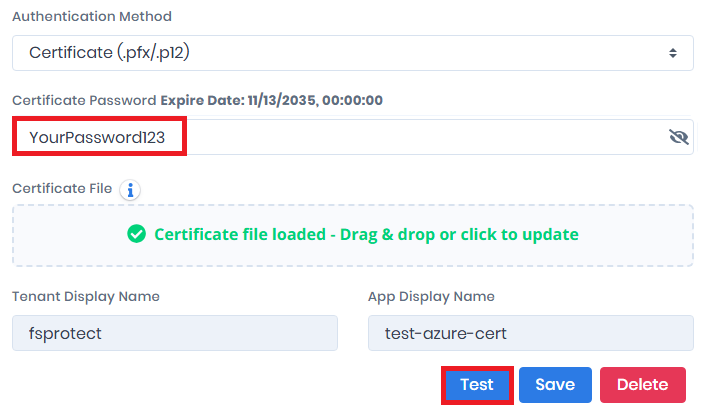
2. Enter your certificate password in the **Certificate Password** field
* Example: "YourPassword123"
3. You can toggle password visibility using the eye icon
4. When you edit a saved configuration, the field label also shows the certificate expiration date (e.g., "Expire Date: 11/13/2035, 00:00:00")
**Step 6: Upload Certificate File**
Certificate File Upload
1. Locate the **Certificate File** upload section
2. You can upload your certificate in two ways:
* **Drag and drop**: Drag your certificate file (.pfx or .p12) into the designated area
* **Click to select**: Click on the upload area to browse and select your certificate file
3. Once uploaded successfully, you will see a confirmation message:
* **"Certificate file loaded - Drag & drop or click to update"** (displayed in green with a checkmark)
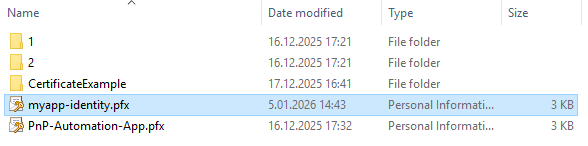
**Certificate File Example**
Example Certificate File
Ensure your certificate file has the following characteristics:
* **File format**: .pfx or .p12
* **File type**: Personal Information Exchange
* **Example filename**: myapp-identity.pfx or PnP-Automation-App.pfx
**Step 7: Test and Save Configuration**
Password Example and Test Configuration
1. Click the **Test** button to validate your configuration
* This will verify connectivity and authentication with Azure
2. Check the read-only display names that the test fills in:
* **Tenant Display Name**: the tenant name (e.g., "Forestall")
* **App Display Name**: the application name (e.g., "test-azure-cert")
3. If the test is successful, click the **Save** button to save your configuration
### Troubleshooting Tips
* Ensure your certificate has not expired (check the expiration date)
* Verify the certificate password is correct
* Confirm the certificate file format is .pfx or .p12
* Make sure all required permissions are granted in Azure
* Test the configuration before saving
### Security Best Practices
* Store certificate passwords securely
* Use certificates with appropriate expiration dates
* Regularly rotate certificates before expiration
* Limit permissions to only what is required
* Monitor authentication logs in Azure
### Additional Notes
* Certificate authentication is more secure than client secret authentication
* The `.pfx` file and its password are uploaded with the configuration and stored on the Forestall server, which uses them to authenticate to Azure. Keep your own copy secure and upload a new file here when you rotate the certificate
* Always test your configuration before deploying to production