> For the complete documentation index, see [llms.txt](https://docs.forestall.io/forestall/llms.txt). Markdown versions of documentation pages are available by appending `.md` to page URLs; this page is available as [Markdown](https://docs.forestall.io/forestall/configuration-center/sso/fsprotect-configuration.md).
# Forestall Configuration
Any SAML-based SSO system can be integrated. The configuration has two parts: **SAML Configuration** and **Role Mapping**.
## **SAML Connection Configuration:**
SSO List Page
Open **Configuration Center > SSO > Manage**. The **SSO Providers** page lists the existing providers. Use the ⋯ menu of a row to **Edit** or **Delete** one. Click **New Provider** to add a new integration.
New SAML Provider Page
Clicking **New Provider** opens the **New SAML Provider** page.
**Step-by-step (Create a SAML Provider):**
1. Click **New Provider**.
2. Fill in the **Provider Name** and enable/disable the provider using **Status**.
3. Select a **Default Role** (fallback role if no role mapping matches).
4. Enter **Username Attribute Key** (required).
5. Enter **Role Attribute Key** (optional but recommended for role-based authorization).
6. Copy the **ACS Url** and **Audience (Entity ID)** into your identity provider's SAML application.
7. Upload the IdP metadata XML file in the **XML File** field.
8. Click **Save**. The page returns to the SSO Providers list.
9. (Optional) Open the provider again with ⋯ > **Edit** and add role mappings (see [Role Mapping](#role-mapping)). Role mappings cannot be added before the provider is saved: **Add New** and the **Save** button of the Role Mapping panel are disabled on the New SAML Provider page.
You need to configure a SAML IdP connection with the parameters below.
* **Status:** Status of the SAML connection (Enabled or Disabled).
* **Provider Name:** The provider name displayed in the system and on the login button. The ACS Url and Audience are derived from this name.
* **Default Role:** If a logged-in user doesn't have any of the mapped roles in their assertion, the selected default role is assigned to that user. The list contains the roles defined in [Roles and Permissions](/forestall/settings/roles-and-permissions.md).
**Default Role is only used when role-based assignment cannot be completed. Examples:**
1. Role Attribute Key is empty or not provided in the assertion.
2. Role Attribute Key exists but returns an empty list.
3. Role values exist but none match the configured Role Mappings.\
In all these cases, the user still logs in successfully, but receives the Default Role.
* **Username Attribute Key:** The SAML attribute name that maps to the username in your system, to get or create a user with that username. It is used to find the user's username in the SAML assertion. It usually looks like this:
```xml
forestall
```
* The IdP must be configured to send this attribute. `nameId` formats are not compatible.
* **Role Attribute Key:** The SAML attribute name that maps to the user’s role(s) in your system. It is used to assign the correct role to the user based on the value received in the SAML assertion. Typically, this attribute contains values like "admin", "user", or custom roles defined in the organisation. Identity Providers must be configured to include this role information as an attribute in the SAML response. It usually looks like this:
```xml
admin
```
* If a user has multiple roles that map to different Forestall roles, the user is assigned the first role that the SAML assertion includes. To avoid unforeseen authorization behaviors, user roles and mappings must be reviewed in the Forestall SAML configuration.
* **ACS Url:** The endpoint where the Identity Provider (IdP) sends the SAML authentication response after a user successfully logs in. Forestall receives the assertion, validates its signature and contents, and then establishes a local session for the authenticated user. The field is read-only and is filled in as you type the Provider Name, in the form `/sso//acs` (for example `https://forestall.example.com:8443/api/v1/sso/azure-saml/acs`). Use the copy button next to it. If you rename the provider later, the URL changes and must be updated in the IdP as well.
* **Audience (Entity ID):** The unique identifier of Forestall as a Service Provider, in the form `/sso//metadata`. The IdP compares the “Audience” value inside the SAML assertion with this Entity ID to confirm the response is intended for Forestall. It is also read-only and has a copy button.
* **XML File:** Upload the Identity Provider metadata in XML format (drag & drop or click to select the file). The metadata contains the entity ID, SSO URLs and certificate information that Forestall uses to establish the trust relationship with the IdP. You can usually download this file from your IdP’s admin portal. The metadata cannot be pasted as text. A file that is not valid SAML IdP metadata is rejected with the message "This XML is not valid SAML IdP metadata." The XML file is required when creating a provider.
When you edit a saved provider, the **Certificate expiration** date of the IdP signing certificate is shown under the XML File field, and a **Delete** button removes the provider.
## Role Mapping
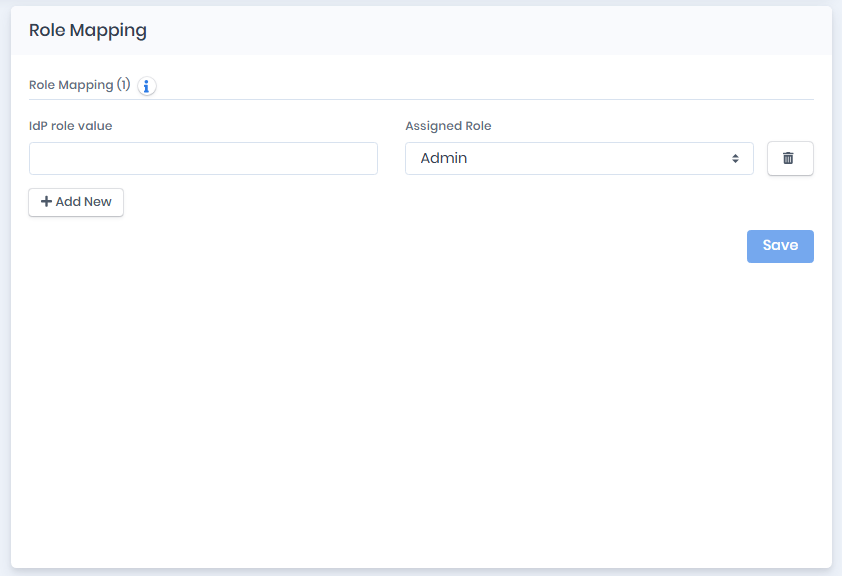
Role Mapping
Follow the steps below to configure role based access control:
1. Open the relevant provider from the **SSO Providers** list with ⋯ > **Edit**.
2. Navigate to the **Role Mapping** panel on the provider page.
3. Ensure **Role Attribute Key** is set to the attribute name that your IdP uses to send role or group information\
(for example: `role`, `roles`, `groups`, `memberOf`).
4. Click **Add New** to create a new role mapping entry.
5. In **IdP role value**, enter the exact role or group value sent by the IdP. This value is case sensitive.
6. From the **Assigned Role** dropdown, select the corresponding Forestall role.
7. Click the **Save** button of the Role Mapping panel to apply the role mappings.