> For the complete documentation index, see [llms.txt](https://docs.forestall.io/forestall/llms.txt). Markdown versions of documentation pages are available by appending `.md` to page URLs; this page is available as [Markdown](https://docs.forestall.io/forestall/ai-assistant.md).

# AI Assistant

Ask the AI Assistant questions in natural language. It answers questions about Forestall, the page you are viewing and, depending on the data access of the selected model, your live security and scan data.

{% hint style="info" %}
**Prerequisite:** at least one AI provider with at least one enabled model must be configured in [Configuration Center > AI Model Configuration](/forestall/configuration-center/ai-model-configuration.md). Provider configurations are per user, so each user adds their own. To use Forestall tools from an external MCP client instead, see [API Tokens](/forestall/profile-menu/api-tokens.md).
{% endhint %}

<figure><img src="https://3408039743-files.gitbook.io/~/files/v0/b/gitbook-x-prod.appspot.com/o/spaces%2FObpV44hoVkNmo5bFuVVL%2Fuploads%2Fgit-blob-fe68d5defa7fccccb7ddf8a23cb3aba0996296b3%2Fai-assistant-panel.png?alt=media" alt="AI Assistant panel open on the About page with suggested questions"><figcaption><p>AI Assistant panel</p></figcaption></figure>

### Opening the Assistant

Click the robot button (**Open AI assistant**) in the lower-right corner of any page. The Assistant panel opens on the right side. The buttons in the panel header are:

* **Expand** / **Collapse**: widens the panel or returns it to its normal width.
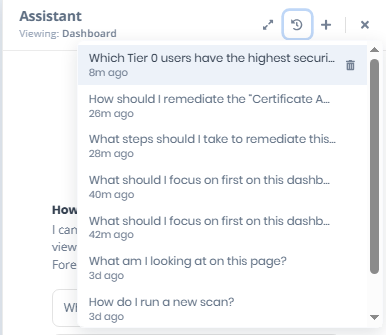
* **Conversation history**: lists your previous conversations.
* **New conversation**: starts an empty conversation.
* **Close**: hides the panel. The conversation is kept.

If no provider is configured, the panel shows **Connect an AI provider first** with an **Open AI Model Configuration** button. If providers exist but none has an enabled model, it shows **No models available right now**. If the model list cannot be loaded, it shows **Could not load models** with a **Retry** button.

### Using the AI Assistant

The Assistant knows which page you are viewing and shows it at the top of the panel, such as **Viewing: Dashboard**. **· context active** is added when the page has shared its data with the Assistant.

In an empty conversation the panel shows **How can I help?** and three suggested questions: **What am I looking at on this page?**, **Summarize the visible findings** and **How do I run a new scan?**. You can click one of them or type your own question in the **Ask a question...** field and press **Enter** (**Shift+Enter** adds a new line).

While an answer is being generated, the send button changes to **Stop generating**. A stopped answer is marked **Stopped**. When the Assistant calls a Forestall tool to read data, the tool call is shown in the answer.

If the provider rejects the request, the answer shows an error such as **Incorrect API key**, **Provider authentication failed** or **Provider unreachable**, with a link to the AI Model Configuration page.

### Conversation History

AI Assistant keeps your conversations, so you can go back to an earlier one and continue it.

Open **Conversation history** from the panel header to switch between previous conversations or delete conversations you no longer need. Switching or starting a new conversation while an answer is being generated stops that answer.

<figure><img src="https://3408039743-files.gitbook.io/~/files/v0/b/gitbook-x-prod.appspot.com/o/spaces%2FObpV44hoVkNmo5bFuVVL%2Fuploads%2Fgit-blob-b389e7a50073cf5b6cd542e68cb2ddca0b6e625a%2Freadme-image-1.png?alt=media" alt="Conversation history list"><figcaption><p>Conversation history</p></figcaption></figure>

### Selecting an AI Model

The model selector below the message field shows the selected model and its provider (for example `glm-5.3-flash · OpenCode Go`). The model is chosen per conversation: open the selector to switch to any enabled model of your configured providers.

Each model shows its data access: **Docs only** (documentation tools only) or **Full data access** (live scans, issues, entities and attack paths). Cloud providers and self-hosted providers are marked with different icons. Data access is set per provider in the **Data access** step of [AI Model Configuration](/forestall/configuration-center/ai-model-configuration.md).

<figure><img src="https://3408039743-files.gitbook.io/~/files/v0/b/gitbook-x-prod.appspot.com/o/spaces%2FObpV44hoVkNmo5bFuVVL%2Fuploads%2Fgit-blob-8d28e7ea72327a41347a9ca95f765cb11d779ab2%2Fai-assistant-model-picker.png?alt=media" alt="Model selector open, showing models with their provider and Full access badge"><figcaption><p>Selecting an AI Model</p></figcaption></figure>

{% hint style="warning" %}
If you switch models in the middle of a conversation and the new model is a cloud provider, or has a different data access level, the Assistant shows a warning (**Switching to a cloud provider** or **Data-access scope change**). The entire conversation history, including any live scan data it already contains, is sent to the new provider to generate the next answer. Choose **Accept risk & continue**, **New conversation** (so no earlier messages carry over) or **Cancel**.
{% endhint %}

### **Asking questions about the current page**

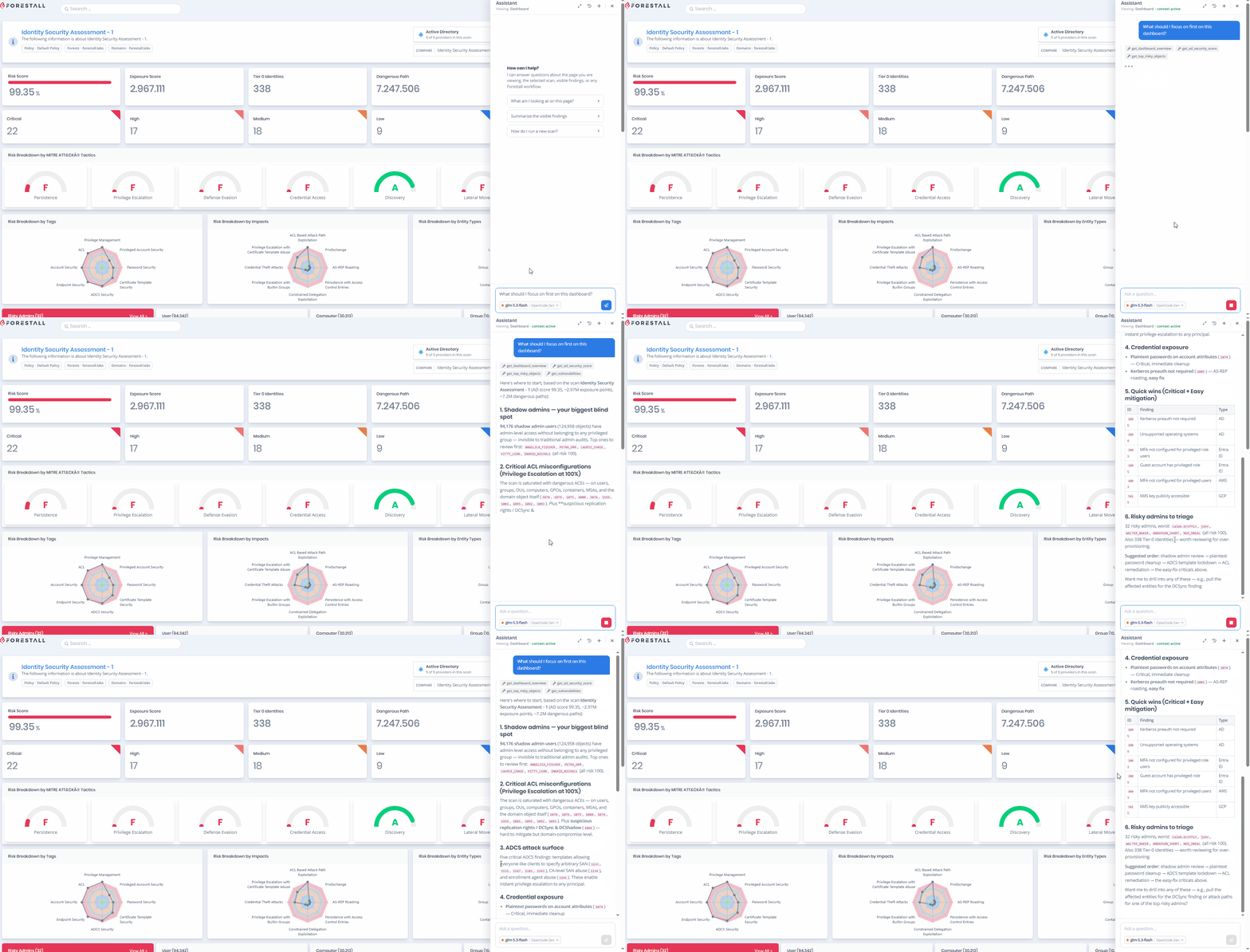
<figure><img src="https://3408039743-files.gitbook.io/~/files/v0/b/gitbook-x-prod.appspot.com/o/spaces%2FObpV44hoVkNmo5bFuVVL%2Fuploads%2Fgit-blob-01b4a631b7c22f20d8945704feca0b021c3d1829%2Faigif%203.gif?alt=media" alt="The AI Assistant answering a question about the Dashboard"><figcaption><p>The AI Assistant answering a question about the Dashboard</p></figcaption></figure>

On the Dashboard, ask the Assistant to explain what the page shows and which areas need attention.

In this example, the Assistant reviews the Dashboard context and suggests the highest-priority areas to focus on first.

### Getting remediation guidance

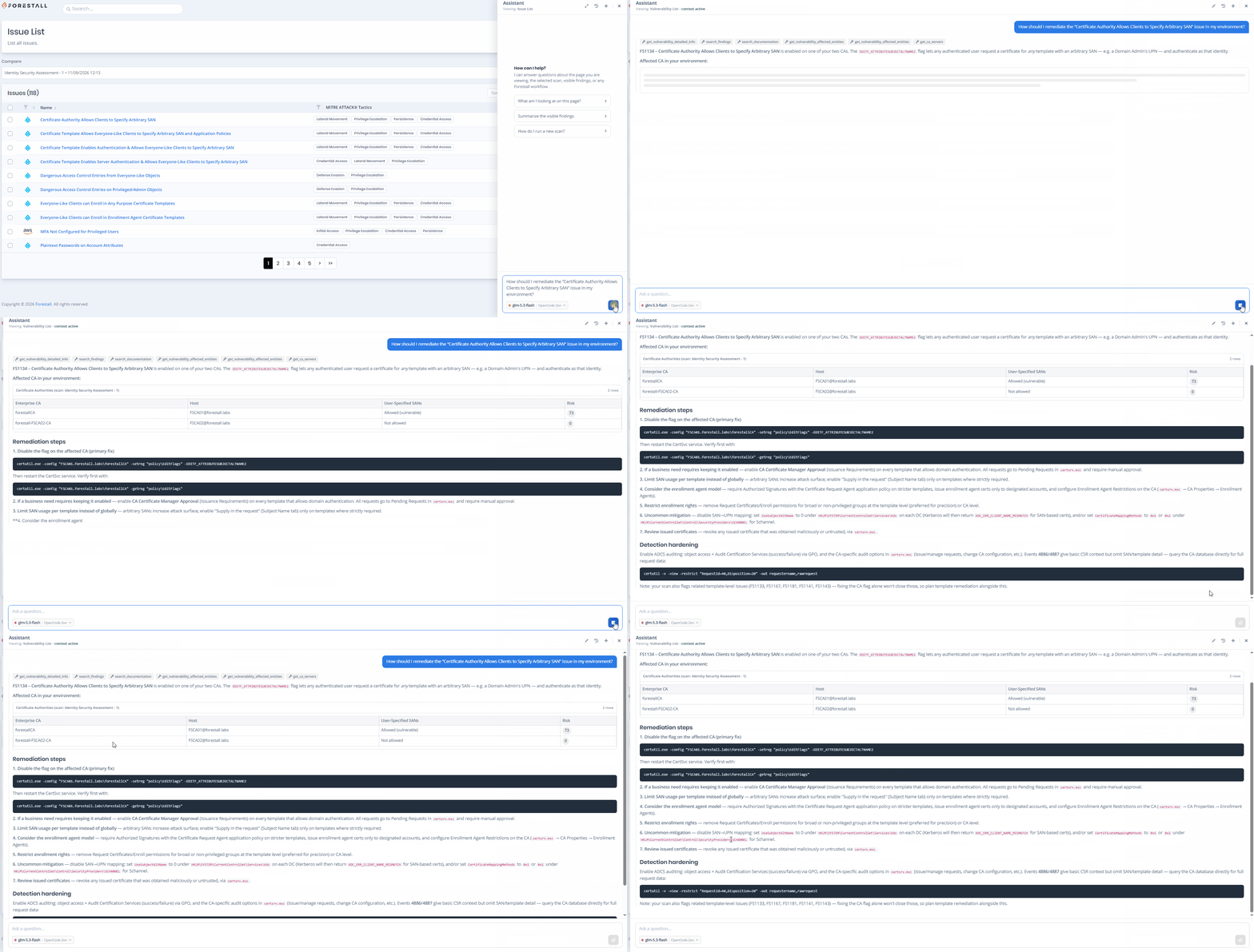
When an issue is selected, ask the Assistant how to remediate it. The answer is based on the issue details and the affected assets available to the Assistant.

In this example, the user asks how to remediate the **“Certificate Authority Allows Clients to Specify Arbitrary SAN”** issue. The Assistant uses the issue context and gives remediation steps for the affected environment.

<figure><img src="https://3408039743-files.gitbook.io/~/files/v0/b/gitbook-x-prod.appspot.com/o/spaces%2FObpV44hoVkNmo5bFuVVL%2Fuploads%2Fgit-blob-9c0d686dc37758263af12ce99fc089752c627819%2Faigif%204.gif?alt=media" alt="The AI Assistant providing remediation guidance for a detected issue"><figcaption><p><strong>The AI Assistant providing remediation guidance for a detected issue</strong></p></figcaption></figure>

Depending on the issue and the data access of the selected model, the Assistant can also use affected entities, related documentation and other security data.

### Finding high-risk users

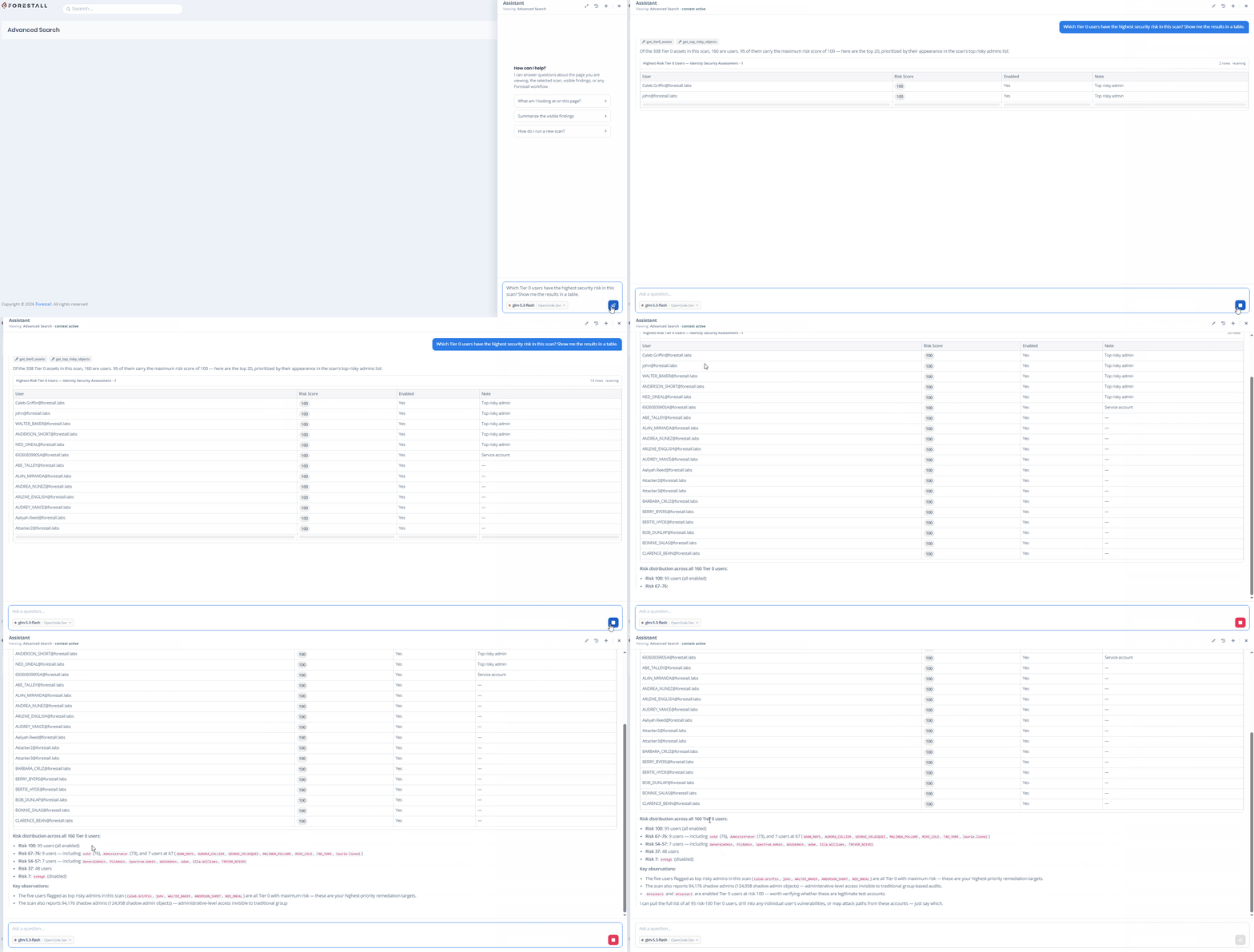
AI Assistant can also search the selected scan. On pages such as **Search & Reports**, ask it to find specific users, assets or other data and show the results in a table.

In this example, the user asks **“Which Tier 0 users have the highest security risk in this scan? Show me the results in a table.”** The Assistant finds the matching users in the scan and returns them in a table.

<figure><img src="https://3408039743-files.gitbook.io/~/files/v0/b/gitbook-x-prod.appspot.com/o/spaces%2FObpV44hoVkNmo5bFuVVL%2Fuploads%2Fgit-blob-7a1a02a8e9a91372cdfff35a1f5410c2fce96e37%2Faigif%205.gif?alt=media" alt="The AI Assistant returning a table of high-risk Tier 0 users"><figcaption><p>The AI Assistant returning a table of high-risk Tier 0 users</p></figcaption></figure>

Depending on the question and the data access of the selected model, the Assistant can find users, groups, devices, findings and other scan data. Answers that need live data require a model with **Full data access**.