> For the complete documentation index, see [llms.txt](https://docs.forestall.io/forestall/llms.txt). Markdown versions of documentation pages are available by appending `.md` to page URLs; this page is available as [Markdown](https://docs.forestall.io/forestall/configuration-center/gcp-configurations/domain-wide-delegation.md).
# Domain-Wide Delegation
This guide details how to authorize your Service Account to access Google Workspace data by setting up Domain-Wide Delegation (DwD). This process allows the service account to "impersonate" your Admin Email to read users, groups, devices, organizational units, admin roles and group settings.
Domain-Wide Delegation is required whether you prepared the service account with the [Copy PS script](/forestall/configuration-center/gcp-configurations/configuration-with-google-cli.md) or in the [Google Cloud Console](/forestall/configuration-center/gcp-configurations/configuration-with-google-cloud-platform.md).
***
### 🔐 Prerequisites
Before starting, ensure you have:
1. The Client ID: This is the numeric OAuth2 Client ID of your Service Account. The Copy PS script prints it at the end of its run (`Client ID (DWD)`). You can also find it in the `client_id` field of the JSON key file, or in the GCP Console under IAM & Admin > Service Accounts.
2. Super Admin Access: You must be a Super Admin in the [Google Admin Console](https://admin.google.com/).
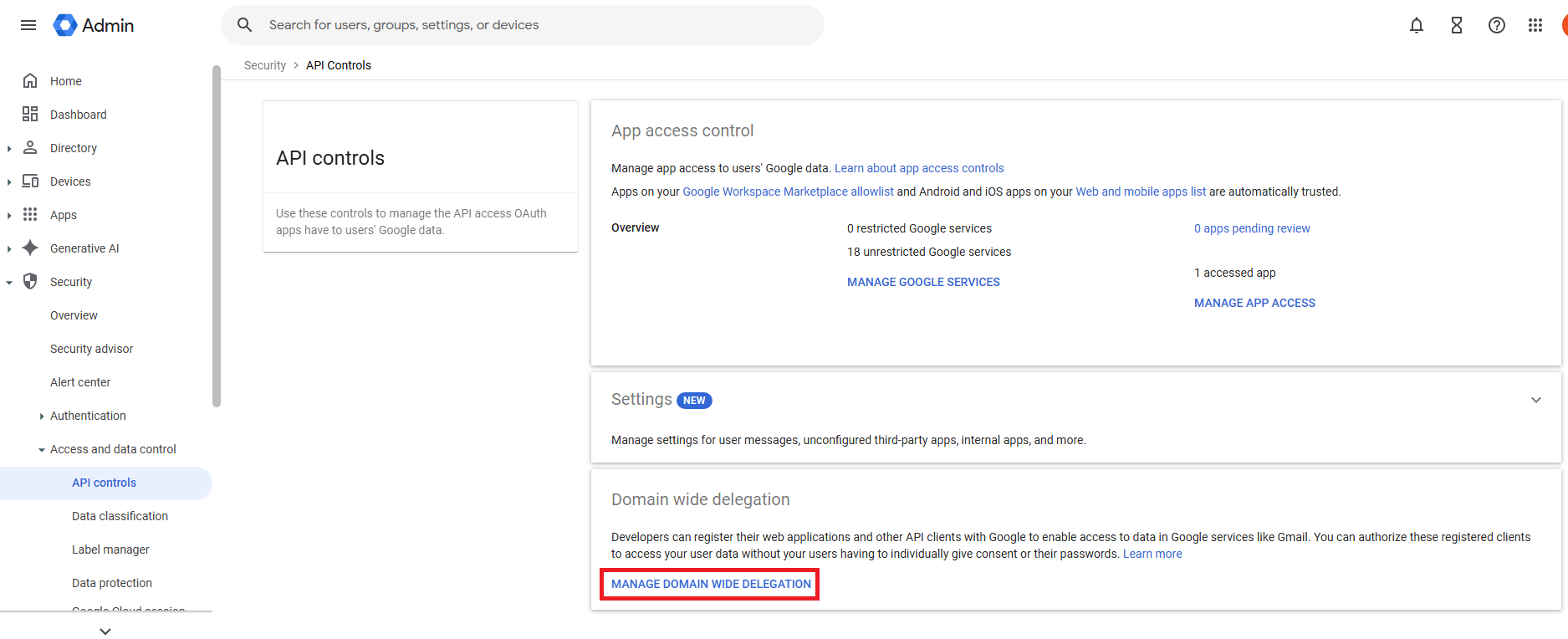
Manage Domain Wide Delegation
***
### Step 1: Navigate to API Controls
1. Log in to the Google Admin Console.
2. In the left-hand menu, navigate to Security > Access and data control > API controls.
3. Scroll down to the Domain-wide delegation section at the bottom.
4. Click MANAGE DOMAIN WIDE DELEGATION.
***
### Step 2: Register the API Client
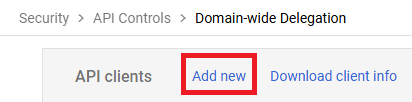
DWD Add New Button
1. On the Domain-wide Delegation page, click the Add new button next to the "API clients" list.
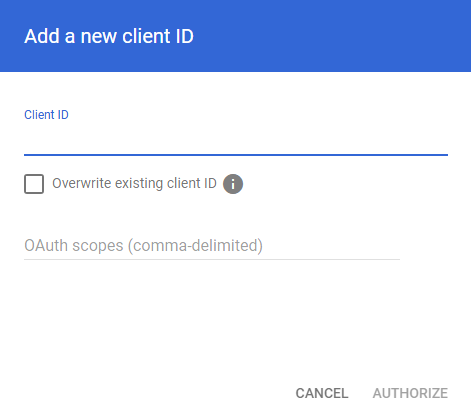
2. A dialog box will appear. Enter the following information:
* Client ID: Paste the numeric Client ID for your Service Account.
* OAuth Scopes: Copy and paste the following comma-separated list into the field:
Add a new Client ID and OAuth Scopes
```
https://www.googleapis.com/auth/admin.directory.user.readonly,https://www.googleapis.com/auth/admin.directory.group.readonly,https://www.googleapis.com/auth/admin.directory.customer.readonly,https://www.googleapis.com/auth/cloud-identity.devices.readonly,https://www.googleapis.com/auth/admin.directory.orgunit.readonly,https://www.googleapis.com/auth/admin.directory.rolemanagement.readonly,https://www.googleapis.com/auth/admin.directory.user.security,https://www.googleapis.com/auth/apps.groups.settings
```
3. Click Authorize.
***
### 📋 Authorized Scopes Reference
Once authorized, your Service Account will be able to perform the following functions:
| **Scope** | **Shown in the Forestall panel as** | **Purpose** |
| ----------------------------------------- | -------------------------------------- | ------------------------------------------------------------- |
| `admin.directory.user.readonly` | `AdminDirectoryUserReadonly` | Read user accounts. |
| `admin.directory.group.readonly` | `AdminDirectoryGroupReadonly` | Read groups and their memberships. |
| `admin.directory.customer.readonly` | `AdminDirectoryCustomerReadonly` | Read organization-level (customer) information. |
| `cloud-identity.devices.readonly` | `CloudIdentityDevicesReadonly` | Read managed devices. |
| `admin.directory.orgunit.readonly` | `AdminDirectoryOrgunitReadonly` | Read the organizational unit structure. |
| `admin.directory.rolemanagement.readonly` | `AdminDirectoryRolemanagementReadonly` | Read admin roles and their assignments. |
| `apps.groups.settings` | `AppsGroupsSettings` | Read group settings, such as who may join or post to a group. |
| `admin.directory.user.security` | `AdminDirectoryUserSecurity` | Read the third-party OAuth tokens users have granted. |
The **Test** on the GCP Configuration page checks all eight scopes. Each one appears in the **Required Permissions** panel.
***
### ✅ Verification
1. Check the list of API Clients to ensure your Client ID appears with the correct scopes.
2. Return to the [GCP Configuration](/forestall/configuration-center/gcp-configurations.md) page in Forestall.
3. Enter the Admin Email (the person being impersonated) and click Test.
4. If the test passes, every entry under Required Permissions turns green and the Service Account is authorized to "act as" the admin for these tasks.
> Domain-Wide Delegation is extremely powerful. Grant only the scopes listed above and nothing more. All of them are read-only except `admin.directory.user.security`, which Forestall uses only to read OAuth tokens.