Policies
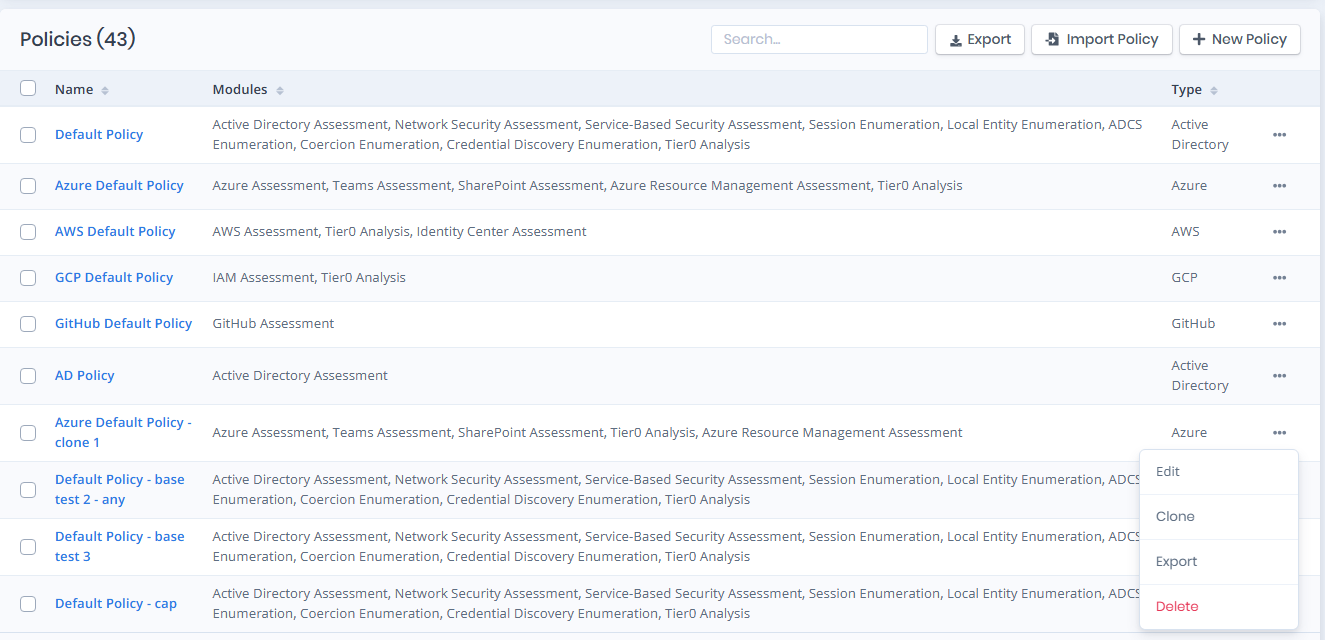
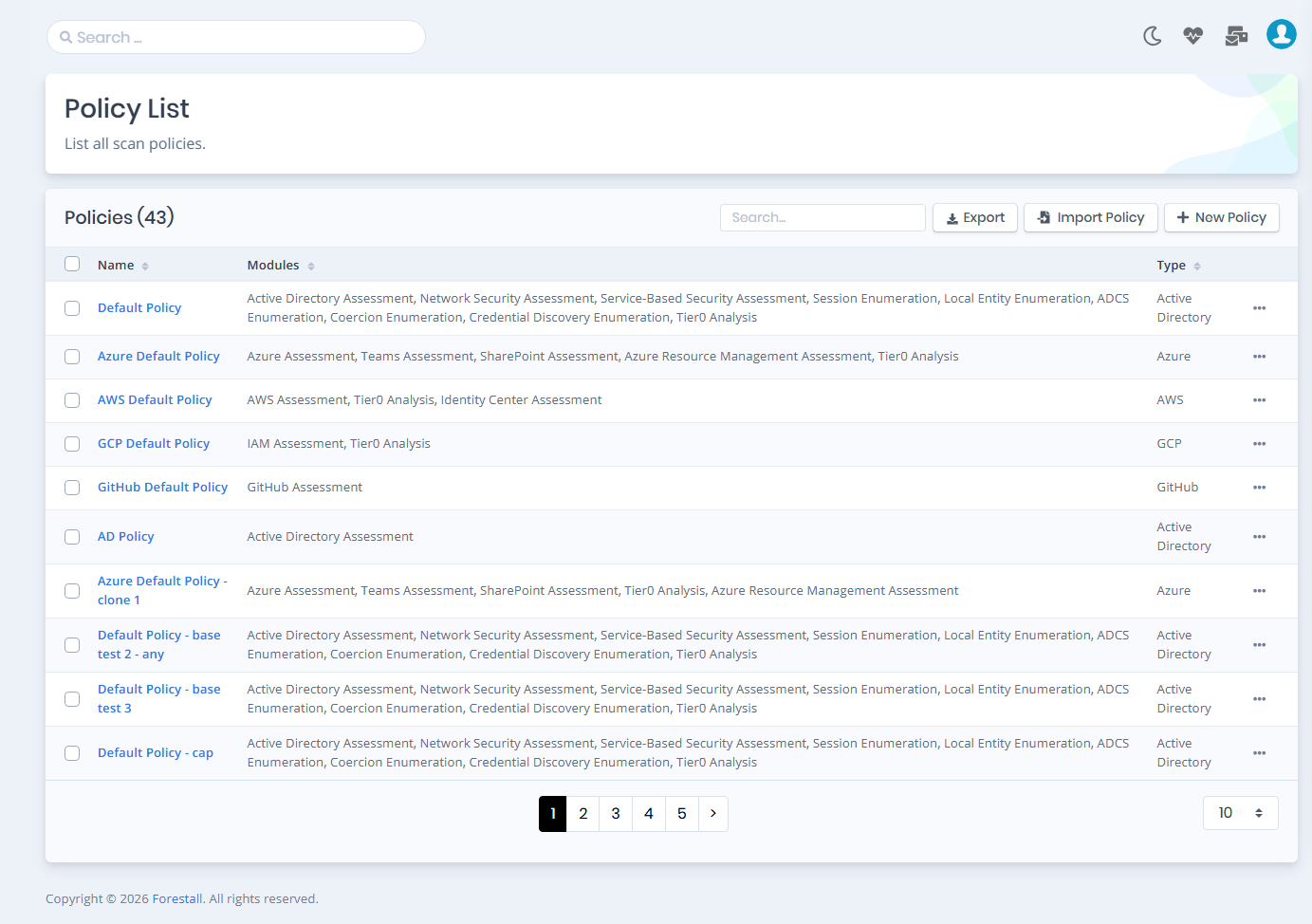
This page lists the scan policies. A scan policy holds the settings that decide what a scan collects and checks.
Each scan policy has a type (Active Directory, Azure, GCP, AWS or GitHub) and applies to the environments of that provider in a scan.
There are five built-in scan policies, one for each type: Default Policy (Active Directory), Azure Default Policy, GCP Default Policy, AWS Default Policy and GitHub Default Policy. You can edit the built-in policies but not delete them. To keep the default settings, create a copy with New Policy or Clone and change the copy.
In a scan policy you can:
Enable or disable the scan modules.
Define exclusions for the scan.
Enable or disable each vulnerability check.
Define thresholds for the vulnerabilities that support them.
Define exclusions for each vulnerability.

The controls above the table are:
Search: Searches the scan policies by name.
Export: Exports the scan policies in the table as a CSV file.
Import Policy: Imports scan policies from a file. (See Importing Policies)
New Policy: Creates a new scan policy.
New Policy (Active Directory / Azure / GCP / AWS / GitHub)
Click New Policy and select the type of the policy: Active Directory, Azure, GCP, AWS or GitHub. In the window that opens, enter a Name and pick the policy to copy in Create From.

Select policies with the checkboxes on the left to run a bulk operation from the Bulk Actions list:
Export (N): Exports the selected scan policies.
Export All (N): Exports all scan policies.
Delete (N): Deletes the selected scan policies. Built-in policies are skipped and not counted.
Create From also offers Base Policy. It has the default modules, no general exclusions, every vulnerability enabled and no vulnerability exclusions.
Export/Import
You can export scan policies to JSON files and import them back.
Exporting Policies
Bulk Export
Open the Policies page.
Select the policies to export with the checkboxes.
In the Bulk Actions list, select Export (N) for the selected policies or Export All (N) for every policy.
Confirm with Export Scan Policies.
The policies are downloaded as ZIP files of JSON files, one ZIP per policy type.

Individual Policy Export
Find the policy in the Policies list.
Open the three-dot menu of the policy.
Select Export.
The policy is downloaded as a JSON file.

Importing Policies
Open the Import Policy window:
Open the Policies page.
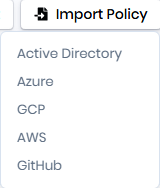
Click Import Policy at the top right and select the type of the policy to import: Active Directory, Azure, GCP, AWS or GitHub. The Import Policy window opens for that type.

Upload the Policy File:

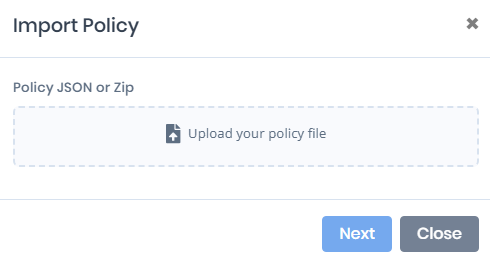
In the Import Policy window:
Click the Upload your policy file area and select one ZIP file or one or more JSON files. Every policy in them must be of the selected type.
Click Next.
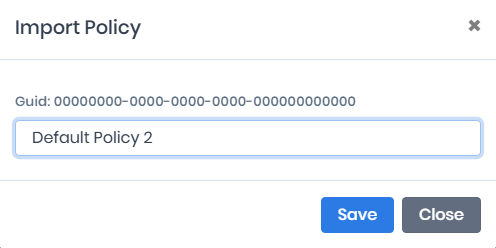
In the next step:

Each policy is listed with its GUID and name. Change the name if needed.
Click Save to import.
The imported policy gets a new random GUID.
General Information
Name: Name of the scan policy.
Modules: The modules enabled in the scan policy.
Type: The provider the scan policy applies to: Active Directory, Azure, AWS, GCP or GitHub.
General Operation

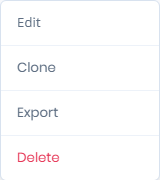
The three-dot menu of each row has these operations:
Edit: Opens the Edit Scan Policy page, where you change the settings of the policy. The page has the General, Vulnerability, Tier 0 Assets and Compliance tabs for every policy type.
Clone: Opens the New Policy window with the selected policy in Create From. Save it under a new name to create the copy.
Export: Downloads the selected scan policy as a JSON file. (See Exporting Policies)
Delete: Deletes the selected scan policy. The option is not shown for built-in policies. A policy that has been used by a scan cannot be deleted.
General Exclusions
Exclusions remove specific entities from the scan scope.
Each exclusion can have an optional description and supporting files such as PDF and image documents.

The entity types you can exclude depend on the type of the policy. For most types the identifier is the FSName of the entity, the unique name Forestall gives to each entity. The field searches the entities found in existing scans. You can also find the FSName of an entity in the FSName field in Search & Reports.
Identifiers for the Active Directory entity types:
Domain
FSName
Computer
FSName
User
FSName
Group
FSName
GPO
FSName
MSA
FSName
GMSA
FSName
DMSA
FSName
LocalUser
FSName
LocalGroup
FSName
OU
FSName
Certificate Authority
FSName
Certificate Template
FSName
DNS Zone
FSName
DNS Node
FSName
Display Specifier
FSName
Hostname
DNS Hostname of the target client/server
IP
IP address of the target client/server
IP Range
IP address range of the target clients/servers
Identifiers for the Azure entity types:
Tenant
FSName
User
FSName
Group
FSName
Device
FSName
Application
FSName
Service Principal
FSName
Role
FSName
Administrative Unit
FSName
Teams Settings
FSName
Teams Meeting Policy
FSName
Teams Messaging Policy
FSName
Teams External Access Settings
FSName
SharePoint Settings
FSName
SharePoint Site
FSName
Subscription
FSName
Resource Group
FSName
ARM Role
FSName
VM
FSName
Key Vault
FSName
SQL Server
FSName
Logic App
FSName
Function App
FSName
Automation Account
FSName
Managed Cluster
FSName
Web App
FSName
VM Scale Set
FSName
Container Registry
FSName
User Assigned Identity
FSName
Storage Account
FSName
Identifiers for the GCP entity types:
User
FSName
Group
FSName
Role
FSName
Organization
FSName
Folder
FSName
Project
FSName
Service Account
FSName
Service Account Key
FSName
VM
FSName
Device
FSName
Organizational Unit
FSName
Principal
FSName
Workforce Identity Pool
FSName
Workforce Provider
FSName
Workload Identity Pool
FSName
Workload Provider
FSName
KMS Key
FSName
Identifiers for the AWS entity types:
Account
Account ID of the AWS account (e.g. 123456789012)
User
FSName (e.g. username@accountId)
Group
FSName (e.g. groupname@accountId)
Role
FSName (e.g. rolename@accountId)
Policy
FSName (e.g. policyname@accountId)
Identifiers for the GitHub entity types:
Organization
FSName
User
FSName
Team
FSName
Repository
FSName
Vulnerability Policies
On the Vulnerability tab you can:
Enable or disable each vulnerability check.
Set threshold values for the vulnerabilities that support them.
Define exclusions that ignore a vulnerability on a specific entity or relation.

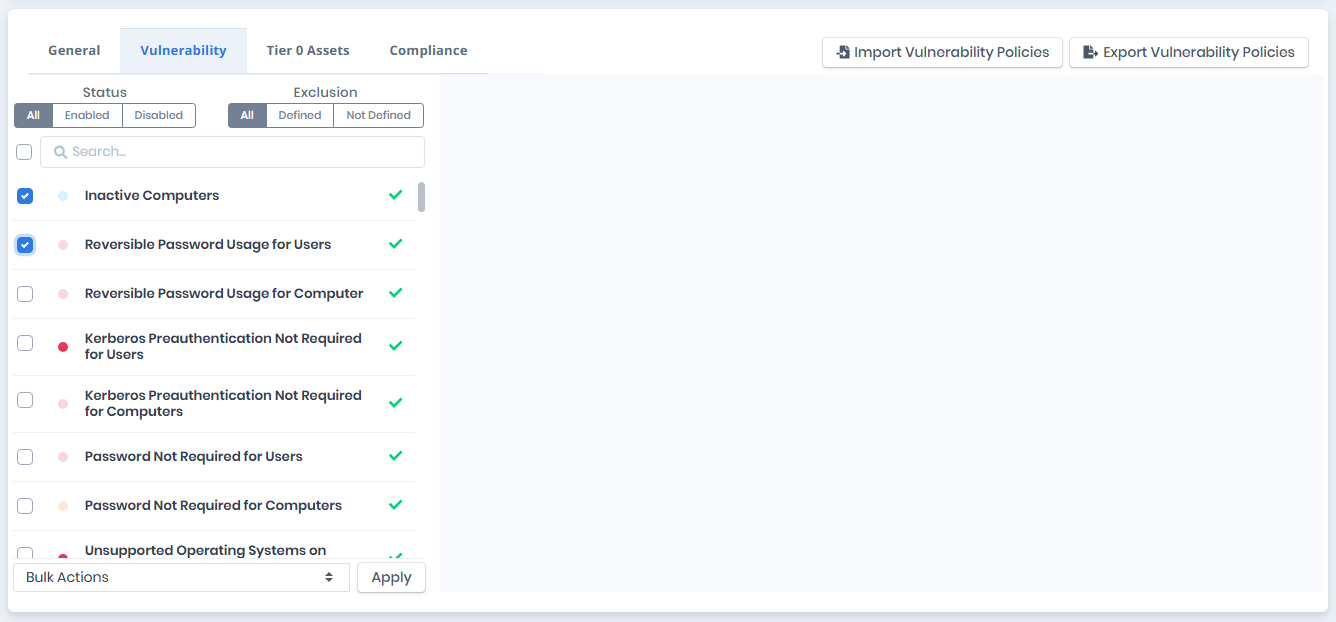
Filter the list with the search box, the Status buttons (All, Enabled, Disabled) and the Exclusion buttons (All, Defined, Not Defined).
Select vulnerabilities with the checkboxes on the left to run a bulk operation:
Enable All: Enables the selected vulnerability checks.
Disable All: Disables the selected vulnerability checks.
Clear Exclusions: Deletes all exclusions of the selected vulnerabilities.

Vulnerability Exclusions
Vulnerability exclusions ignore a vulnerability on specific entities or relations. The exclusion type depends on the vulnerability:
Object Exclusions
Object To Object Exclusions
Object Relation Object Exclusions
Object Exclusions
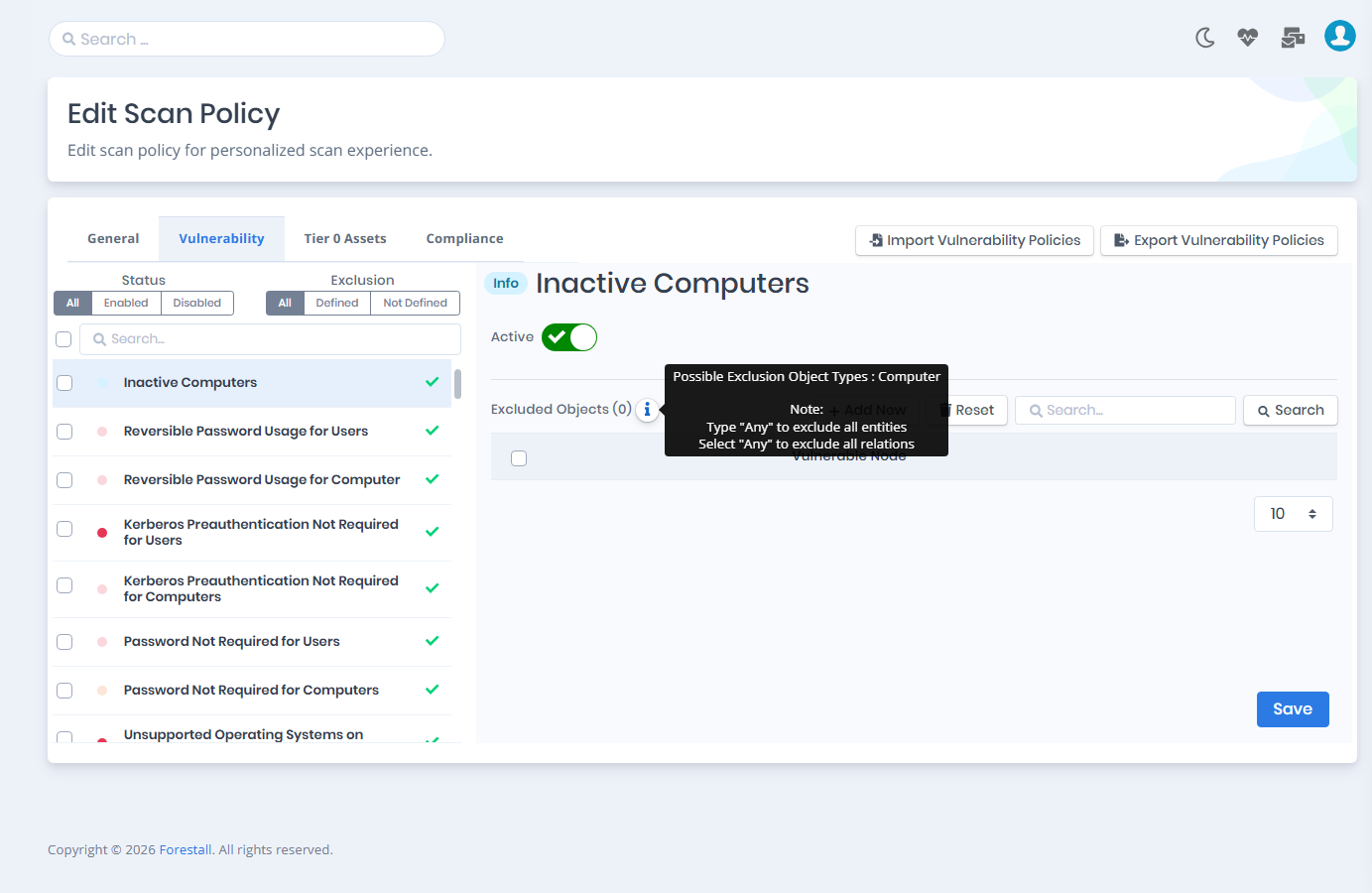
Object exclusions apply to vulnerabilities caused by a single entity, for example Inactive Users.
Enter the FSName of the entity. If the entity has not been found by a scan yet, type its FSName and click Save. Enter Any to exclude all entities from the vulnerability.
The information tooltip lists the entity types you can enter.
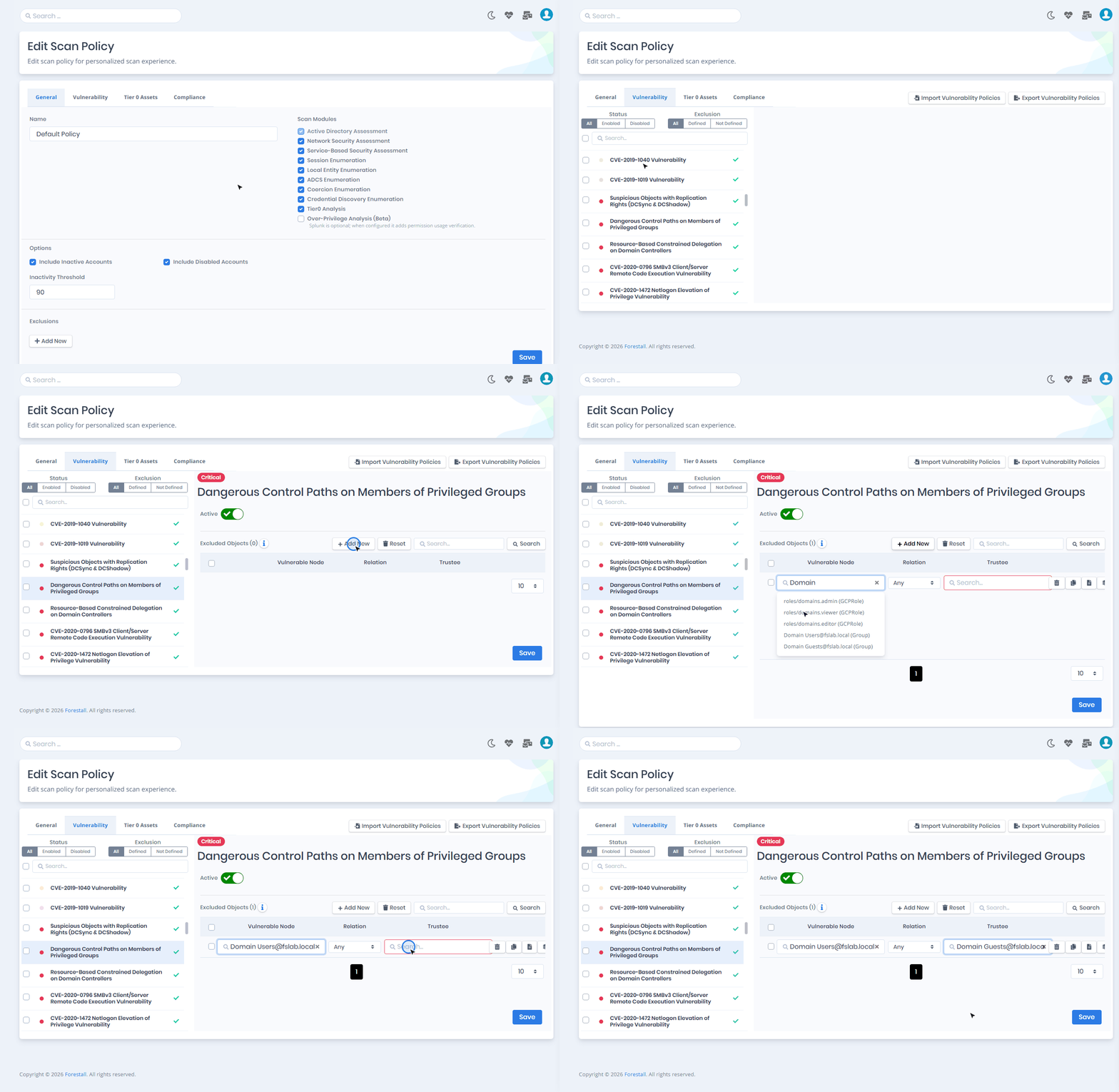
Defining an object exclusion:

Each exclusion row has these actions:
Delete: Deletes the exclusion from the vulnerability.
Clone: Adds a copy of the exclusion to the same vulnerability.
Description: Adds an optional description and supporting files to the exclusion.
Apply to Others: Adds the exclusion to other vulnerabilities, or deletes it from them. (See Apply To Others)
Object To Object Exclusions
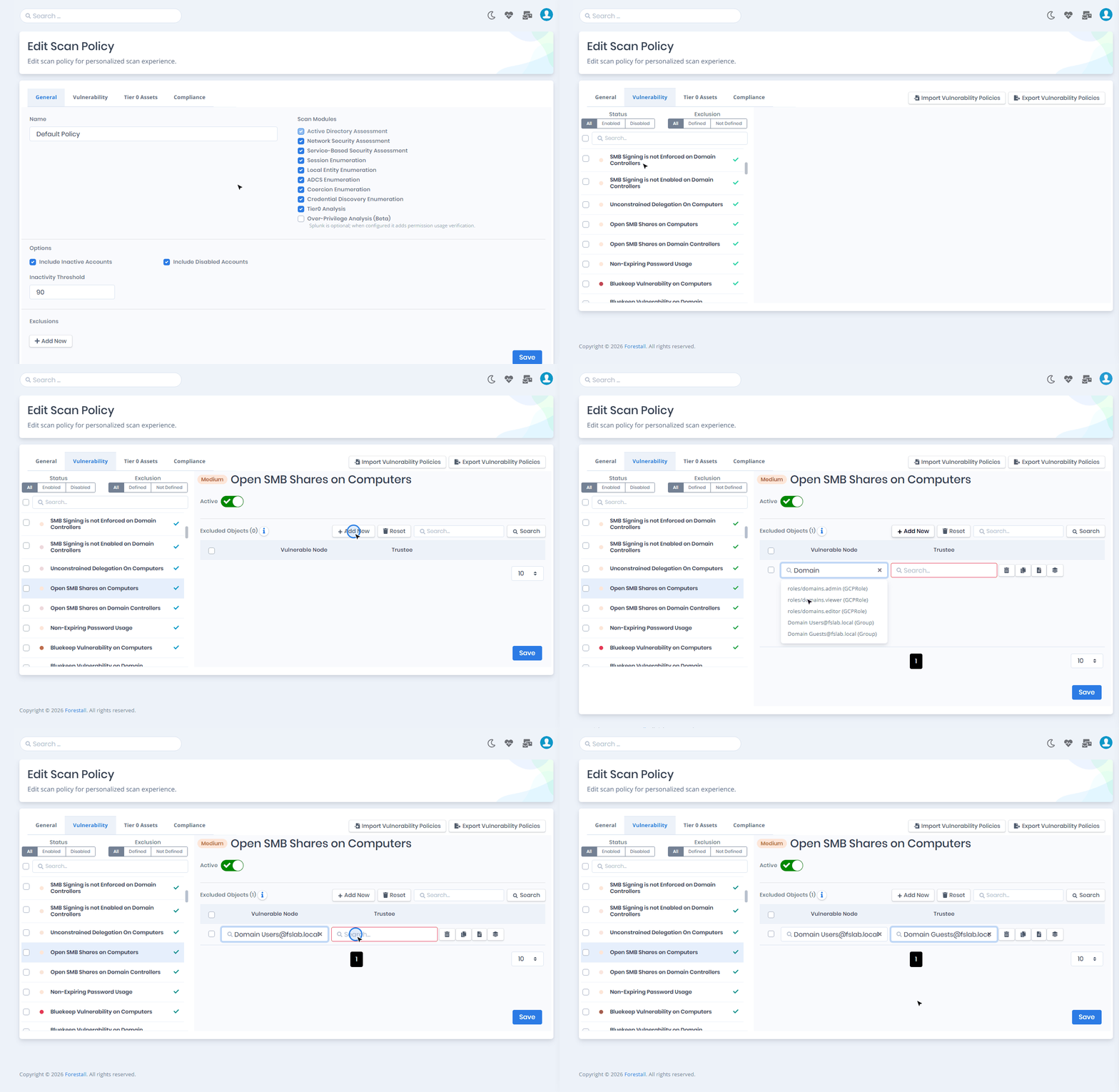
Object to object exclusions apply to vulnerabilities caused by a fixed relation between two entities, for example Admin Sessions on Non-Domain Controller Servers.
Enter the FSName of both entities. If an entity has not been found by a scan yet, type its FSName and click Save. Enter Any to match all entities in that field.
The information tooltip lists the entity types you can enter as the vulnerable node and the trustee.
Defining an object to object exclusion:

The row actions are the same as for object exclusions.
Object-Relation-Object Exclusions
Object-relation-object exclusions apply to vulnerabilities caused by one of several possible relations between two entities, for example Dangerous Access Control Entries on Users. (See Relations)
Enter the FSName of both entities and select the relation from the list. If an entity has not been found by a scan yet, type its FSName and click Save. Enter Any in an entity field to match all entities, or select Any as the relation to match all relations.
The information tooltip lists the entity types you can enter as the vulnerable node and the trustee, and the possible relation types.
The row actions are the same as for object exclusions.
Defining an object-relation-object exclusion:

Apply To Others
The Apply to Others menu of an exclusion row has Add to Others and Delete from Others. They add the exclusion to, or delete it from, other vulnerabilities with the same exclusion type.
Save your changes on the current vulnerability first. With unsaved changes, the operation stops with an error.
The description and supporting files of the exclusion are copied to the target vulnerabilities as well.
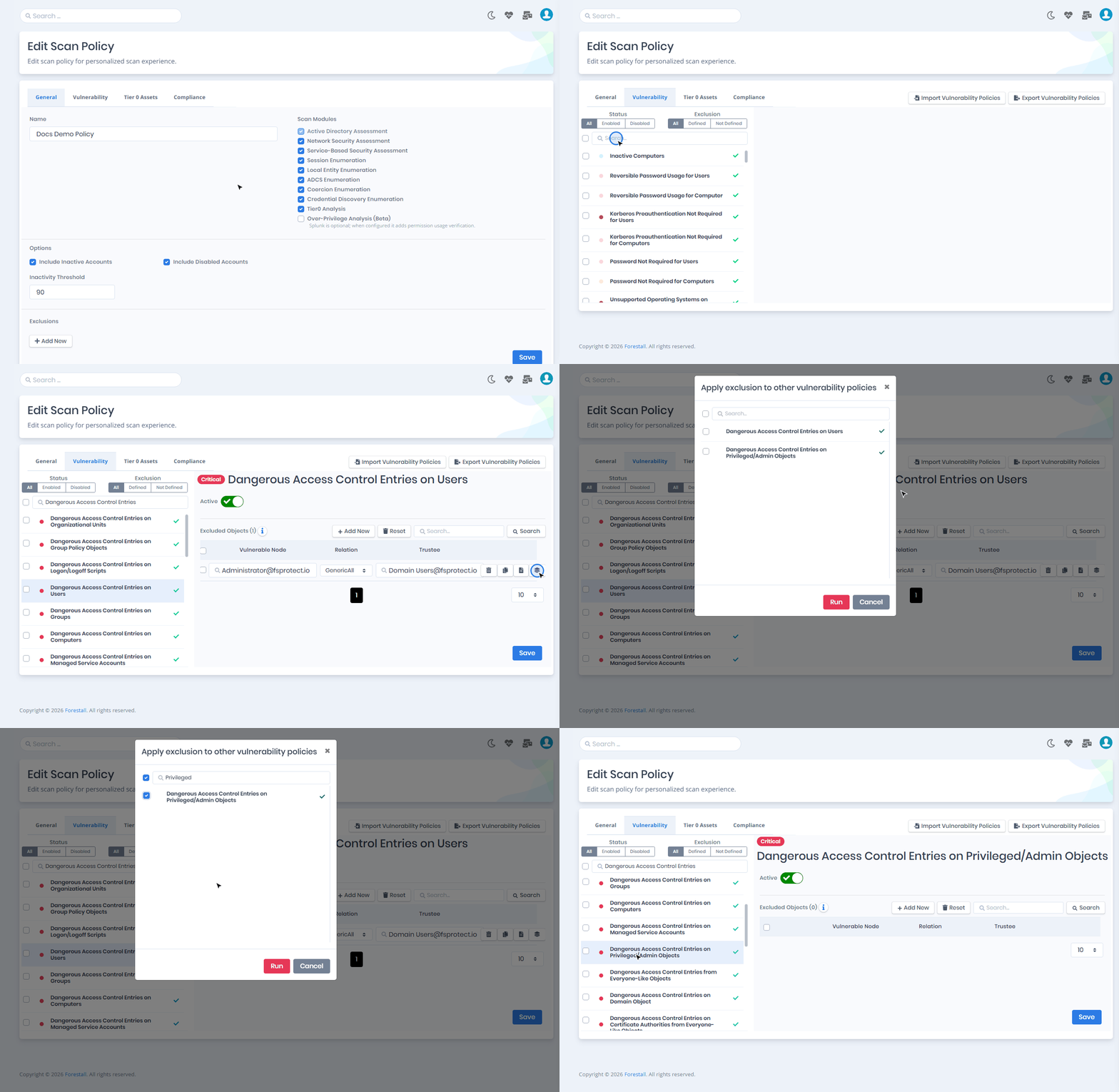
The following example adds an exclusion of "Dangerous Access Control Entries on Users" to "Dangerous Access Control Entries on Privileged/Admin Objects":

The following example deletes the exclusion from "Dangerous Access Control Entries on Privileged/Admin Objects":

Vulnerability Policy Export/Import
You can export and import only the vulnerability settings of a policy, such as which vulnerabilities are enabled and their exclusions.

Exporting Vulnerability Policies
Open the policy and go to the Vulnerability tab.
Click Export Vulnerability Policies at the top right.
The settings are downloaded as a JSON file named
<policy name>-vulnerability-policies.json, for exampleDefault Policy-vulnerability-policies.json.
Importing Vulnerability Policies
Click Import Vulnerability Policies at the top right of the Vulnerability tab.
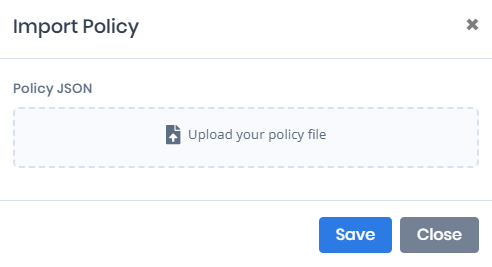
In the Import Policy window, click the Upload your policy file area and select the JSON file.
Click Save.

Compliance Frameworks
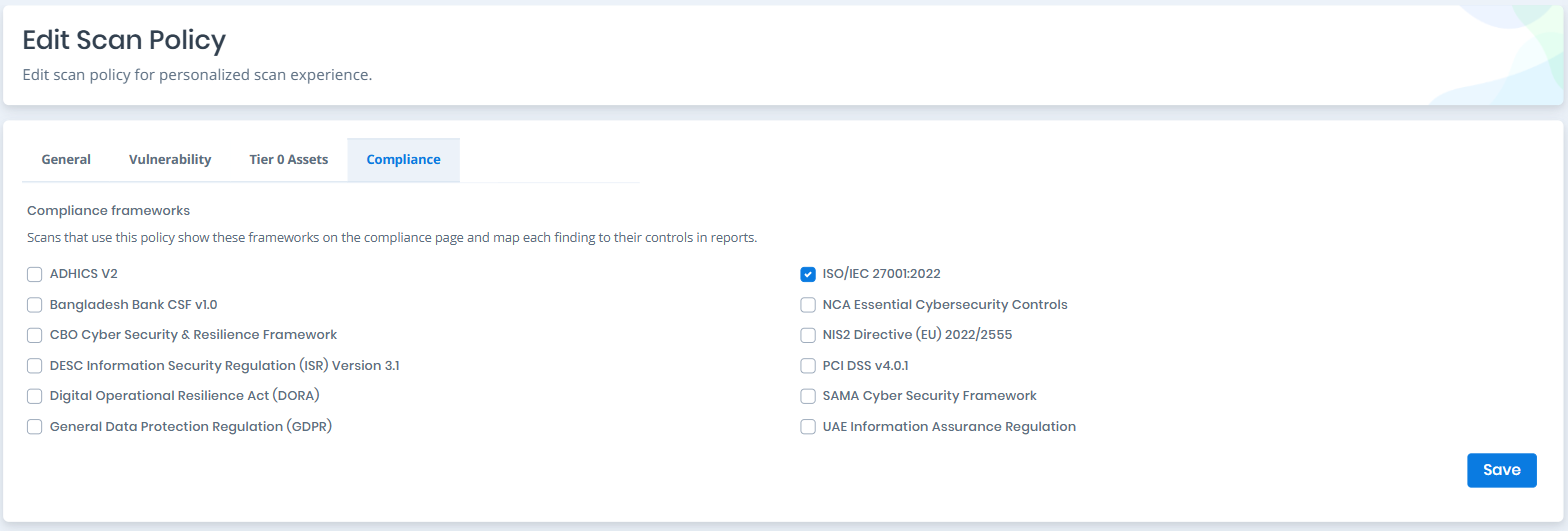
On the Compliance tab of the Edit Scan Policy page, select the compliance frameworks the policy reports against. Scans that use the policy show these frameworks on the Compliance page, and reports map each finding to their controls.

The following frameworks are available:
ADHICS V2
Abu Dhabi Healthcare Information and Cyber Security standard.
Bangladesh Bank CSF v1.0
Cyber Security Framework published by Bangladesh Bank for the financial sector.
CBO Cyber Security & Resilience Framework
Framework issued by the Central Bank of Oman.
DESC Information Security Regulation (ISR) Version 3.1
Dubai Electronic Security Center information security regulation.
Digital Operational Resilience Act (DORA)
European Union regulation on operational resilience for the financial sector.
General Data Protection Regulation (GDPR)
European Union regulation on personal data protection.
ISO/IEC 27001:2022
International information security management standard.
NCA Essential Cybersecurity Controls
Control framework published by the Saudi National Cybersecurity Authority.
NIS2 Directive (EU) 2022/2555
European Union directive on network and information security.
PCI DSS v4.0.1
Payment Card Industry Data Security Standard.
SAMA Cyber Security Framework
Framework for organizations regulated by the Saudi Central Bank.
UAE Information Assurance Regulation
Information assurance regulation of the United Arab Emirates.
Every policy type has the Compliance tab. Each policy can select its own set of frameworks.
AD PoliciesAzure PoliciesAWS PoliciesGCP PoliciesGitHub PoliciesLast updated
Was this helpful?