> For the complete documentation index, see [llms.txt](https://docs.forestall.io/forestall/llms.txt). Markdown versions of documentation pages are available by appending `.md` to page URLs; this page is available as [Markdown](https://docs.forestall.io/forestall/issues.md).

# Issues

The Issues page lists the issues found in the selected scan, sorted by severity.

{% hint style="info" %}
This documentation does not include an issue catalogue. The full content of each issue (description, impact, identification, mitigation, detection and references) is available in the product, on the issue's [Issue Details](#issue-details) page.
{% endhint %}

<figure><img src="https://3408039743-files.gitbook.io/~/files/v0/b/gitbook-x-prod.appspot.com/o/spaces%2FObpV44hoVkNmo5bFuVVL%2Fuploads%2Fgit-blob-7d041fe74a1c3110501e1476a0a9e76b8ae200e1%2Fissues-image-1.png?alt=media" alt=""><figcaption><p>Issues</p></figcaption></figure>

Two selectors sit above the table. **Remediation** picks a remediation scan whose re-verified results you want to see. It is shown only after at least one [remediation scan](#remediation-scan) has been run for the selected scan. **Compare** picks another scan to compare the current one against. While comparing, issues found only in the current scan carry a `New` badge and issues found only in the compared scan carry a `Fixed` badge.

The issues table provides the following functionalities.

**Sort**: Issues can be sorted by `Status`, `Name`, `Ease of Mitigation`, `Severity`, `Exploitation Certainty`, `Exploitation Privilege`, and `Affected Objects` columns.

**Search**: Issues can be searched and filtered by `Name` column using the `Search input` on the upper-right side.

**Export**: Issues can be exported as CSV using the `Export button` on the upper-right side.

**Limit and Pagination**: Issue table limit can be defined with input on the bottom-right side. Result pages can be navigated through a widget at the bottom.

<figure><img src="https://3408039743-files.gitbook.io/~/files/v0/b/gitbook-x-prod.appspot.com/o/spaces%2FObpV44hoVkNmo5bFuVVL%2Fuploads%2Fgit-blob-226fe4ecf6cfc1377c767ea01403ca97dfd3f91b%2Fissues-image-2.png?alt=media" alt=""><figcaption></figcaption></figure>

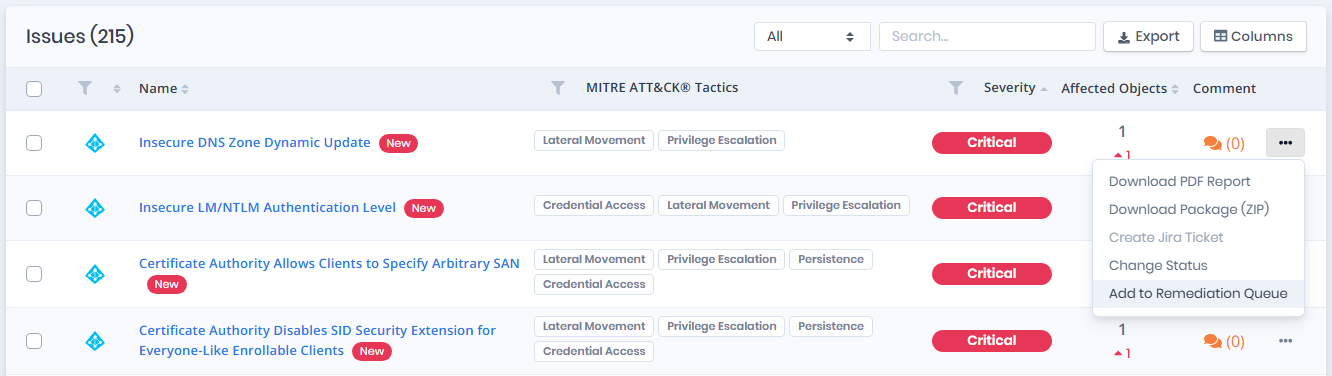
The actions below are in the **⋯** menu on the right side of each row.

**Download PDF Report**: Issues can be exported as PDF separately using `Download PDF Report`.

**Download Package (ZIP)**: Downloads an archive with the finding report and the evidence for every affected entity. The action requires the `DownloadReportPackage` permission and the offline report package to be enabled in [Report Settings](/forestall/settings/report.md).

**Create Jira Ticket**: Issues can be imported to Jira as separate tickets using `Create Jira Ticket`. The item stays disabled until a cloud or on-prem Jira instance is integrated. See [`Configuration Center > Jira`](/forestall/configuration-center/jira.md) to set up the integration.

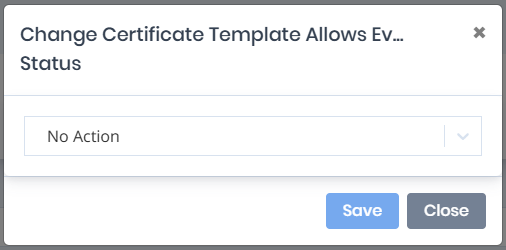
**Change Status:** The actions taken regarding the vulnerabilities found are changed in this section. Actions that can be taken: `No Action`, `In Progress`, `Done` and `Accepted Risk`. Column is turned off by default. Status filter shows vulnerabilities with no action and in progress selected by default. Vulnerabilities selected as `Done` or `Accepted Risk` will be hidden on issues table unless filter manually enabled.

<figure><img src="https://3408039743-files.gitbook.io/~/files/v0/b/gitbook-x-prod.appspot.com/o/spaces%2FObpV44hoVkNmo5bFuVVL%2Fuploads%2Fgit-blob-c7696f9cd490639de21273bff646cc306778d77b%2Fissues-image-3.png?alt=media" alt="Change Issue Status"><figcaption><p>Change Issue Status</p></figcaption></figure>

### Remediation Scan

A Remediation Scan checks issues again after you have fixed them. It reuses the access information and scan policy of the original scan and verifies only the issues or affected entities in the **Remediation Queue**.

#### Adding Issues to the Remediation Queue

To verify an issue again, open the **⋯** menu for the issue and select **Add to Remediation Queue**. This adds all affected entities of the issue.

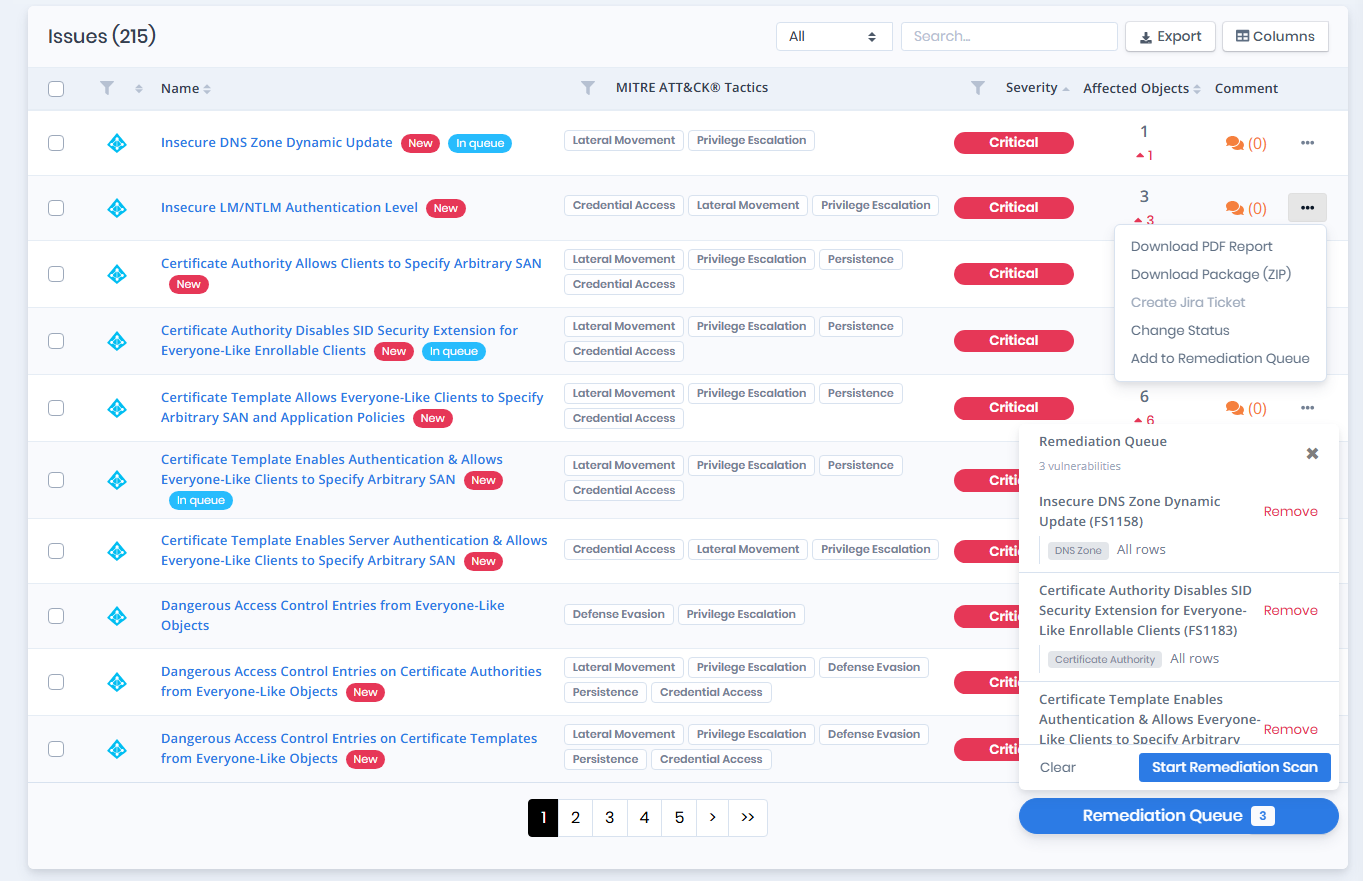
An issue that is already in the queue carries an `In queue` badge in the list, and its menu item reads **Already in Remediation Queue**.

To re-verify only some affected entities, select their rows in the issue's [Affected Objects](#affected-objects) tables and use **Bulk Actions > Add to Remediation Queue (N)**, or **Add All to Remediation Queue (N)** for every row of the table.

Multiple issues can be added to the same queue. The queue holds findings from one scan only. Adding findings from another scan fails with `The remediation queue already contains findings from another scan. Clear it first.` The **Remediation Queue** button at the bottom of the page shows the number of queued issues and opens the queue, which lists the issues and affected entity types currently selected for verification.

Items can be removed individually with **Remove**, or the entire queue can be cleared with **Clear** before starting the scan.

<figure><img src="https://3408039743-files.gitbook.io/~/files/v0/b/gitbook-x-prod.appspot.com/o/spaces%2FObpV44hoVkNmo5bFuVVL%2Fuploads%2Fgit-blob-90d1c4a8ef22a98fc74b91628fe01c1b81723e0f%2Fissues-image-4.png?alt=media" alt=""><figcaption><p><strong>Add to Remediation Queue</strong></p></figcaption></figure>

#### **Adding Multiple Issues**

To verify several issues in one remediation scan, select their rows in the Issues list and choose **Add to Remediation Queue (N)** from **Bulk Actions**.

**Bulk Actions** also offers **Change Status (N)** and **Create Jira Ticket (N)** for the selected issues. These require the corresponding permissions, and Jira tickets require a Jira configuration.

<figure><img src="https://3408039743-files.gitbook.io/~/files/v0/b/gitbook-x-prod.appspot.com/o/spaces%2FObpV44hoVkNmo5bFuVVL%2Fuploads%2Fgit-blob-8e83839c40b93a5d535572fd103b3048f1a6271f%2Fissues-image-12.png?alt=media" alt=""><figcaption><p>Bulk Actions</p></figcaption></figure>

#### Starting a Remediation Scan

After adding the required issues or affected entities, open the **Remediation Queue** and click **Start Remediation Scan**.

In the **Start Remediation Scan** window, enter a name and a description for the scan.

<figure><img src="https://3408039743-files.gitbook.io/~/files/v0/b/gitbook-x-prod.appspot.com/o/spaces%2FObpV44hoVkNmo5bFuVVL%2Fuploads%2Fgit-blob-19e03418901050d91619fc1b72cc52a4c70e2769%2Fissues-image-6.png?alt=media" alt=""><figcaption><p>Adding issues to the Remediation Queue</p></figcaption></figure>

The following options are available:

| Option                                                   | Description                                                                                                                                                                                                                                                                       |
| -------------------------------------------------------- | --------------------------------------------------------------------------------------------------------------------------------------------------------------------------------------------------------------------------------------------------------------------------------- |
| **Name**                                                 | Specifies the name of the remediation scan.                                                                                                                                                                                                                                       |
| **Description**                                          | Optional information describing the purpose of the scan.                                                                                                                                                                                                                          |
| **Full network scan for accurate local-admin detection** | Scans every computer so that findings depending on local administrator status can be verified. This option is displayed only when some selected findings depend on it. When it is left off, the scan is faster but those findings come back as `Unverified` instead of a verdict. |

The access information and scan policy are inherited from the original scan and do not need to be configured again.

Click **Start Scan** to begin the verification. The remediation scan then appears in the **Remediation** selector above the issue list.

<figure><img src="https://3408039743-files.gitbook.io/~/files/v0/b/gitbook-x-prod.appspot.com/o/spaces%2FObpV44hoVkNmo5bFuVVL%2Fuploads%2Fgit-blob-e948a30822e7df9939f4aab7a3a24d7f575a0747%2Fissues-image-7.png?alt=media" alt="Start Remediation Scan window with the full network scan option"><figcaption><p><strong>Start Scan</strong></p></figcaption></figure>

#### Reviewing Remediation Scan Results

Remediation scans are listed in the **Remediation** selector on the original scan's Issues page. Select a remediation scan to open its results in a panel on the right side of the page. The same selector switches between the remediation runs of the original scan. A run that is still in progress shows its status, and its results appear when it finishes.

Once a remediation scan is selected, the selector row shows a badge for each status that has results (for example `1.475 unresolved` and `17 unverified`), a **Show results** / **Hide results** button that reopens or closes the panel, and a **⋯** (Scan actions) menu.

<figure><img src="https://3408039743-files.gitbook.io/~/files/v0/b/gitbook-x-prod.appspot.com/o/spaces%2FObpV44hoVkNmo5bFuVVL%2Fuploads%2Fgit-blob-7610b1b42d0f6c91a27a4e381809a024286ce7df%2Fissues-image-8.png?alt=media" alt="Remediation results panel with all four status cards and the finding list"><figcaption><p><strong>Remediation results panel</strong></p></figcaption></figure>

The panel header shows the remediation scan's name and start time, the same **⋯** menu, and a close button (**Esc** also closes it). The panel can be resized from its left edge.

Results are reported for each verified affected entity as:

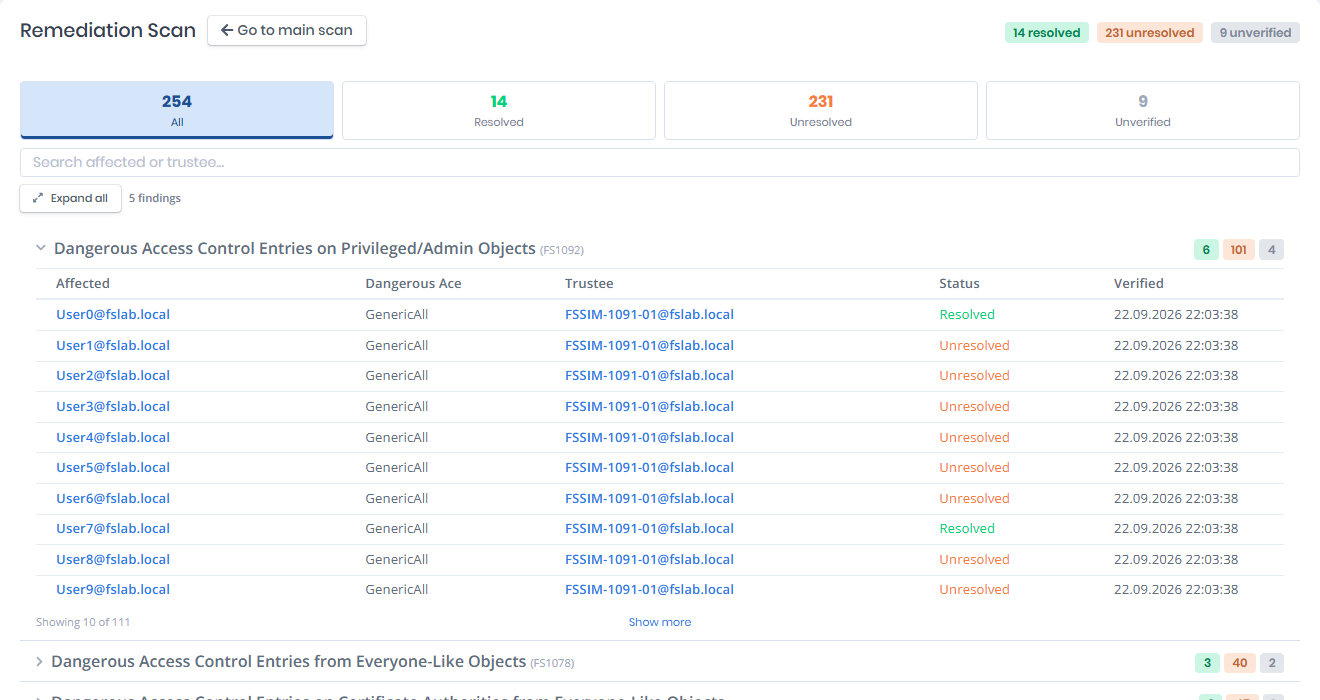
* **Resolved**: the condition detected in the original scan is no longer present.
* **Unresolved**: the condition is still present.
* **Unverified**: the scan could not collect what the check needs, so no verdict was given. For example, findings that depend on local administrator status are reported as Unverified when **Full network scan for accurate local-admin detection** was left off.

Four counters at the top of the panel, **All**, **Resolved**, **Unresolved** and **Unverified**, show the number of results in each status and also act as the status filter. Below them, **Search affected or trustee…** filters the results by entity name, and **Expand all** / **Collapse all** opens or closes every issue at once.

Each issue is listed with its name, FS number and a count badge per status. Expanding an issue shows each affected entity with its type, its status, the trustee and relation when the finding involves one, and the date it was verified.

The **⋯** menu offers:

* **Go to scan**: opens the Issues page of the selected remediation scan.
* **Clone**: opens the **Clone Remediation Scan** window with the same selection, name and description, to run the verification again.
* **Delete**: removes the selected remediation scan after confirmation.

**Go to scan** opens the Issues page of the remediation scan. There, a **Remediation Scan** card above the issue list has the same counters and filters, a results table with the `Affected`, `Dangerous Ace` (for findings on access control entries), `Trustee`, `Status` and `Verified` columns, and a **Go to main scan** button that returns to the original scan.

<figure><img src="https://3408039743-files.gitbook.io/~/files/v0/b/gitbook-x-prod.appspot.com/o/spaces%2FObpV44hoVkNmo5bFuVVL%2Fuploads%2Fgit-blob-0ab4d3abe9cd875ed001e61db895c4a656fb5ce4%2Fissues-remediation-scan-card.png?alt=media" alt="Remediation Scan card on the Issues page of a remediation scan"><figcaption><p>Remediation Scan card</p></figcaption></figure>

You manage remediation scans from the **Remediation** selector on the original scan's Issues page, not from the Scans list. In the Scans list, the original scan carries a remediation badge with the number of its remediation scans.

### Columns

<figure><img src="https://3408039743-files.gitbook.io/~/files/v0/b/gitbook-x-prod.appspot.com/o/spaces%2FObpV44hoVkNmo5bFuVVL%2Fuploads%2Fgit-blob-bd4f9a322156ede2e2497e8cbfd021ec0cb8069b%2Fissues-image-9.png?alt=media" alt=""><figcaption><p>list of columns</p></figcaption></figure>

**FSID:** Unique identifier of the issue within the system.

**Platform:** The provider of the issue (Active Directory, Azure, AWS, GCP or GitHub), shown as a logo. The column filter lists the same logos.

**Status:** Shows the current status of the issue (e.g. open, resolved).

**Name:** The name and short description of the detected issue.

**Tags:** Additional labels used to categorize or group issues.

**Ease of Mitigation:** Indicates how easily the issue can be mitigated.

**MITRE ATT\&CK® Tactics:** Shows the MITRE ATT\&CK tactics associated with the issue.

**Severity:** Indicates the risk level of the issue (e.g. Critical, High).

**Exploitation Certainty:** Shows how likely the issue can be exploited.

**Exploitation Privilege:** Indicates the privilege level required to exploit the issue.

**Affected Objects:** Shows the number of objects impacted by the issue.

**Comment:** Displays comments added to the issue.

**Jira Ticket:** Shows the Jira ticket associated with the issue, if available.

### Column-Based Filtering

You can filter the issue list by column values, such as severity, MITRE ATT\&CK® tactics or affected objects.

***

### Affected Objects Filter

The **Affected Objects** filter shows only the issues that affect a given **number of objects** or range. Use it to find the issues with the widest impact.

## Issue Details

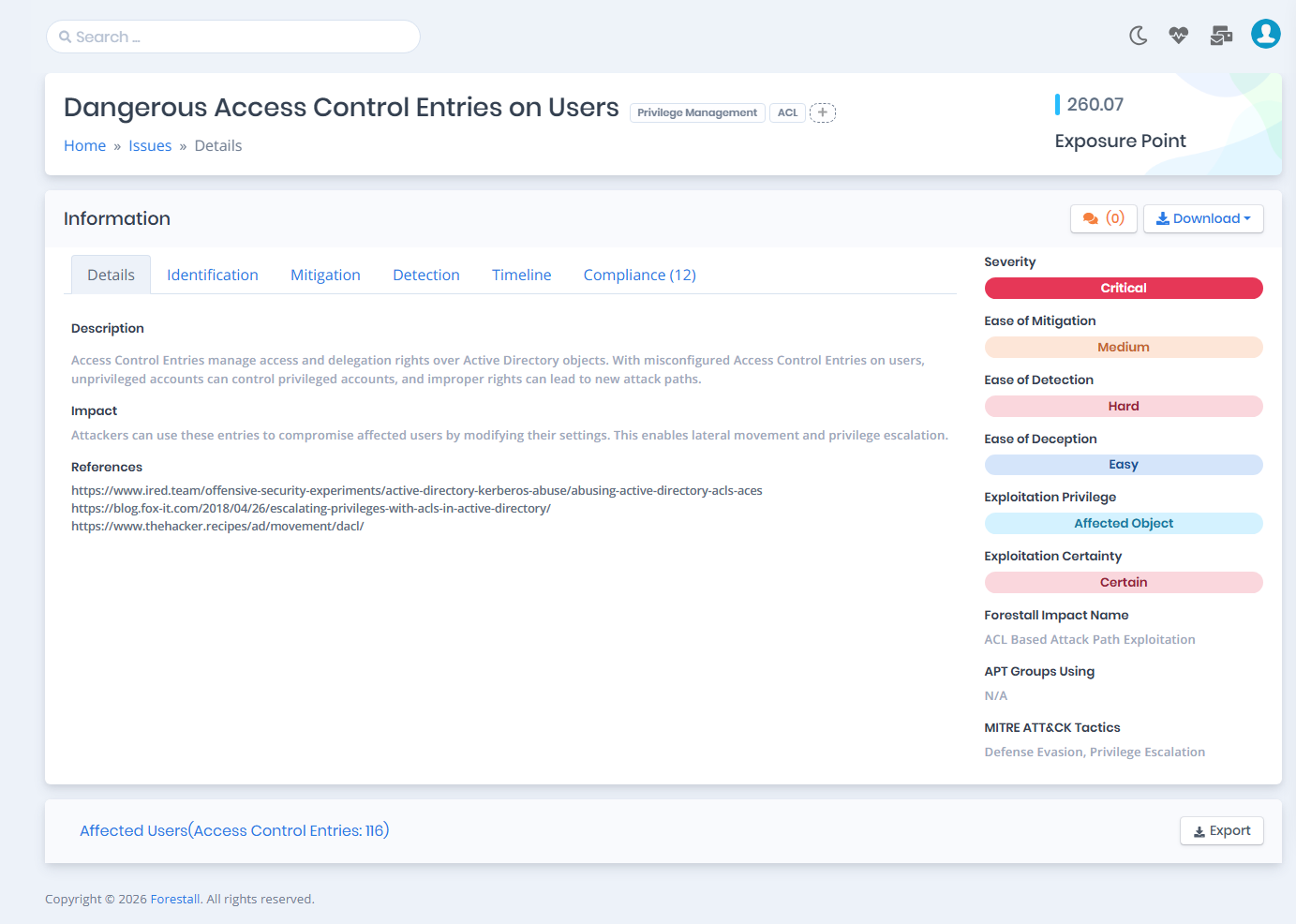
The Issue Details page shows all information and metrics for an issue.

<figure><img src="https://3408039743-files.gitbook.io/~/files/v0/b/gitbook-x-prod.appspot.com/o/spaces%2FObpV44hoVkNmo5bFuVVL%2Fuploads%2Fgit-blob-b616c20dc6b5cff488b6ff4ddff339f50ab557df%2Fissue-details-1.png?alt=media" alt=""><figcaption><p>Issue Details</p></figcaption></figure>

The first pane contains `Issue Name` , `Tags`, `Global Custom Tags`, `Custom Tags`, and `Exposure Point`.

**Tags:** Custom tags are added with the **+** button next to the tags, which opens the **Add a new Tag** window. With the `Global Tag` switch on, the tag is a global custom tag and shows up on the same issue in future scans. With it off, the tag only appears on the issue in the selected scan.

<figure><img src="https://3408039743-files.gitbook.io/~/files/v0/b/gitbook-x-prod.appspot.com/o/spaces%2FObpV44hoVkNmo5bFuVVL%2Fuploads%2Fgit-blob-3424a68468a11b8f5d45d406fd5a6d9bd1b6bb7b%2Fadd%20tag.png?alt=media" alt="Add a new Tag window with the Global Tag switch"><figcaption><p>Add Issue Tag</p></figcaption></figure>

The `Information` pane contains 6 tabs: `Details`, `Identification`, `Mitigation`, `Detection`, `Timeline` and `Compliance`. A summary pane on the right shows the issue's metrics.

The comment button next to the `Information` title shows the number of comments on the issue and opens the **Comments** panel. A comment can be applied to all scans (`Apply for all scans`) or kept private (`Just for me`).

The `Download` button on the upper-right side of this pane offers two options. `Finding (PDF)` exports the issue as a PDF report. `Finding Package (ZIP)` exports an archive with the report and its affected-entity evidence. The package option requires the `DownloadReportPackage` permission.

Details tab contains `Description`, `Impact` and `References`.

**Exposure Point**: vulnerabilities are assessed based on their risk level. A higher Exposure Point indicates a more critical security flaw, while a lower Exposure Point represents a less risky vulnerability.

**Description**: Description contains detailed information about the root cause of the issue and how to exploit it. Also, explanations about related technologies, services, protocols, and inventory types reside here.

**Impact**: Impact explains, how attackers can exploit this issue and what is the effect of this process on Active Directory.

**References**: References contain multiple articles and blog posts for further reading about this issue.

### Identification

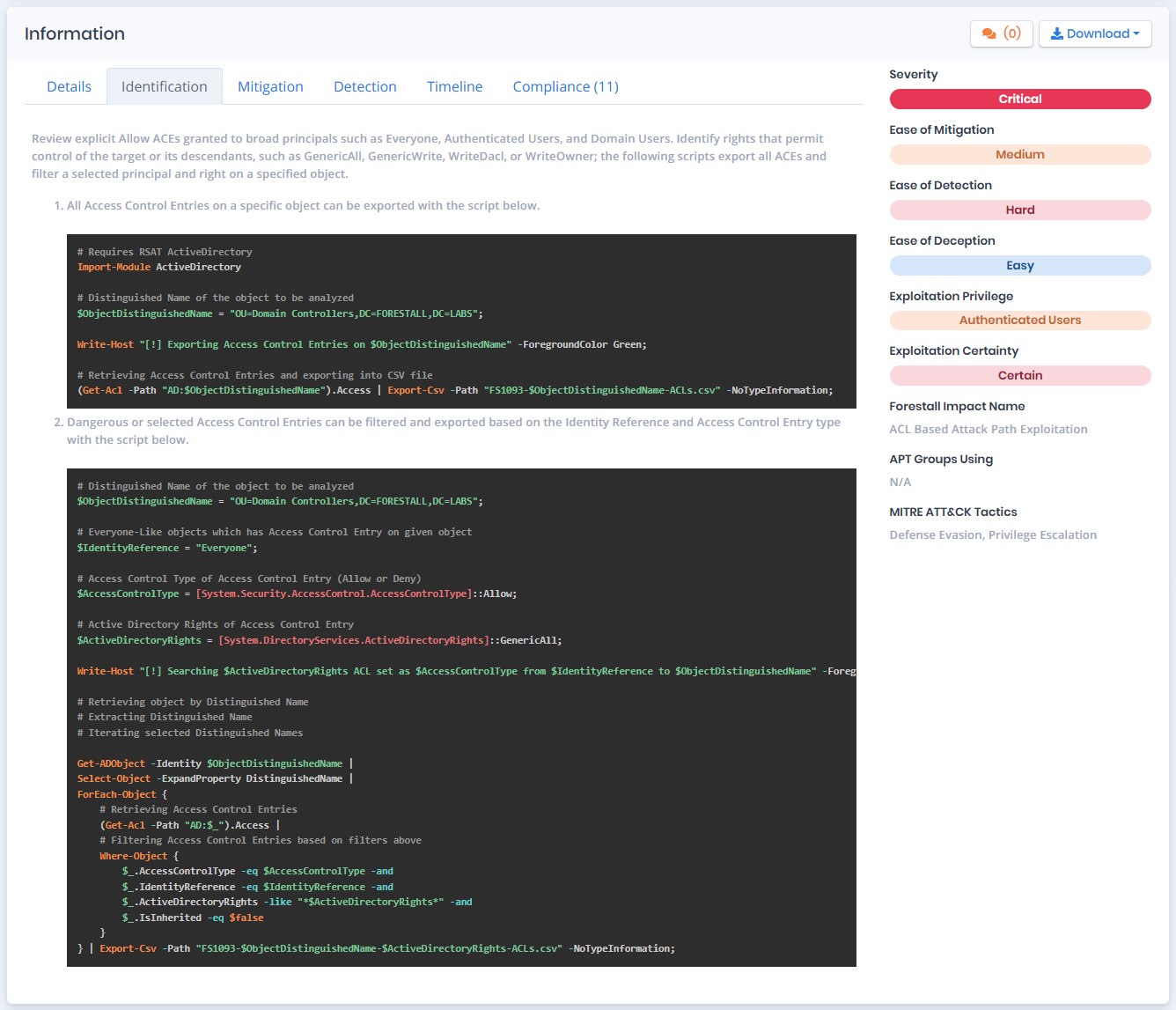
Identification tab contains a detailed step-by-step walkthrough about how to identify and verify this issue manually. This walkthrough contains screenshots, manuals, and Powershell or Batch scripts to automatize the identification process. With this roadmap, analysts can manually identify and verify the issue for eliminating false positives.

<figure><img src="https://3408039743-files.gitbook.io/~/files/v0/b/gitbook-x-prod.appspot.com/o/spaces%2FObpV44hoVkNmo5bFuVVL%2Fuploads%2Fgit-blob-d0c18353402eb8e51a729d73bd504c58936e9f56%2Fissue-identification-1.png?alt=media" alt=""><figcaption><p>Identification</p></figcaption></figure>

### Mitigation

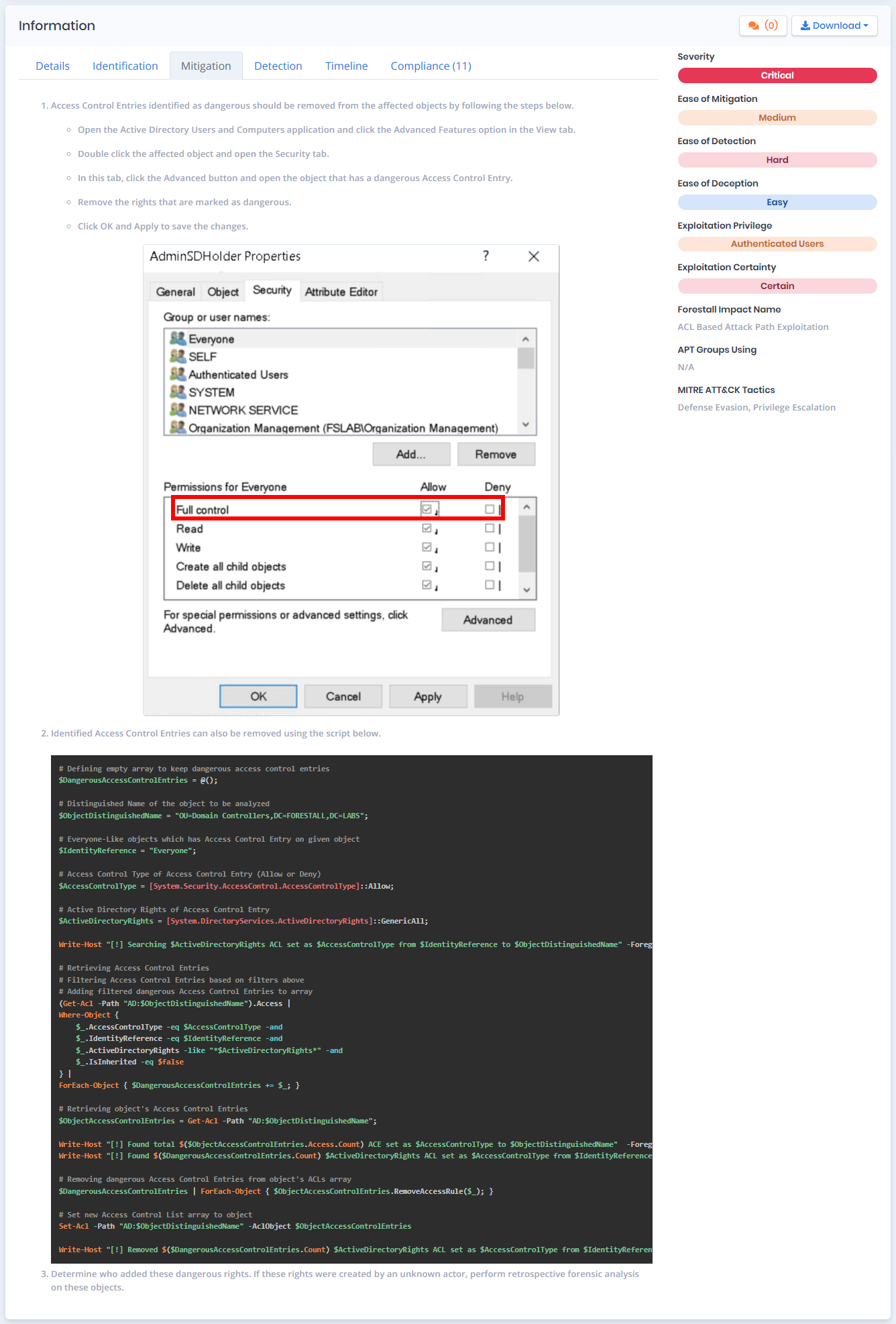
Mitigation tab also contains a detailed step-by-step walkthrough about how to mitigate/remediate issues or implement a workaround with minimum effort. This walkthrough contains manuals and Powershell or Batch scripts to automatize the mitigation process. System administrators can follow these steps to remediate the issue.

<figure><img src="https://3408039743-files.gitbook.io/~/files/v0/b/gitbook-x-prod.appspot.com/o/spaces%2FObpV44hoVkNmo5bFuVVL%2Fuploads%2Fgit-blob-72cdf4b90f64818444c60efe9c664db0093cf7ac%2Fissue-mitigation-1.png?alt=media" alt=""><figcaption><p>Mitigation</p></figcaption></figure>

### Detection

Detection tab contains methods, log sources, and Event Log IDs to detect possible exploitations of this issue. With this information, analysts can speed up their process to create detection rules for SIEM or different security products.

<figure><img src="https://3408039743-files.gitbook.io/~/files/v0/b/gitbook-x-prod.appspot.com/o/spaces%2FObpV44hoVkNmo5bFuVVL%2Fuploads%2Fgit-blob-0776ba09aa37c2daa66ac912527bdb25c3f158b0%2Fissue-detection-1.png?alt=media" alt=""><figcaption><p>Detection</p></figcaption></figure>

### Timeline

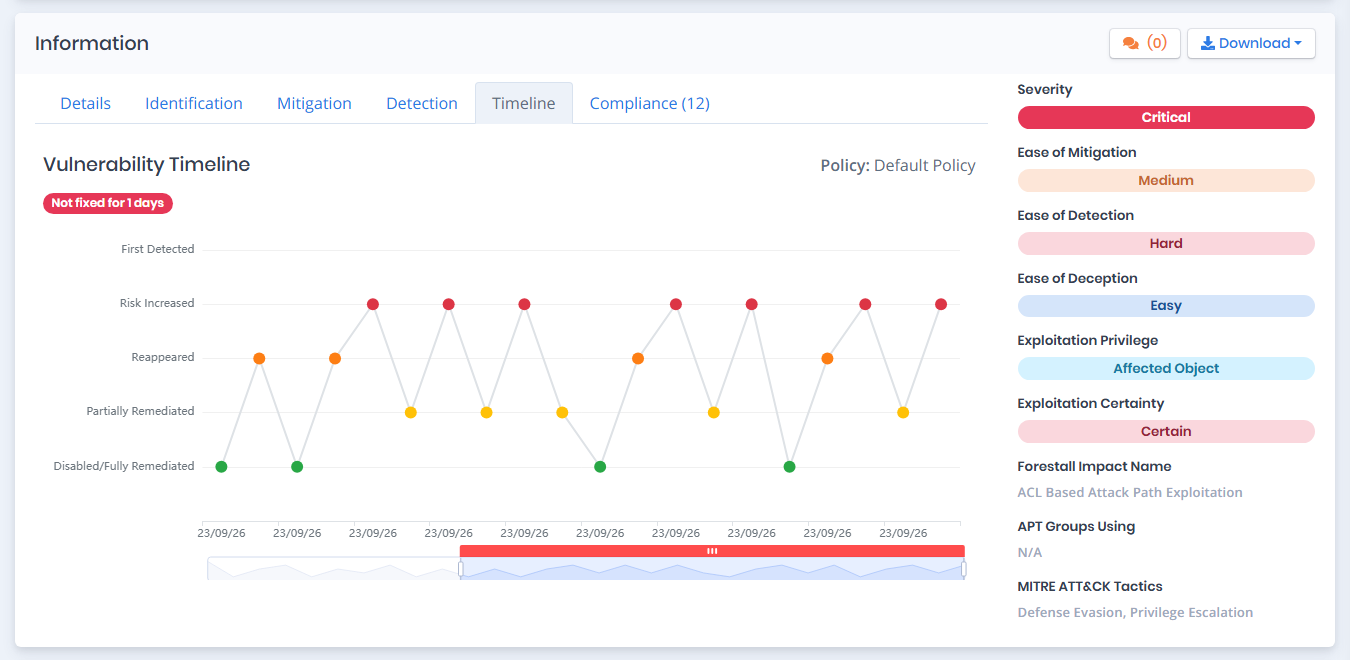
Timeline tab contains a Timeline chart. This chart displays the distribution of issue statuses over time, along with other scans that share the same policy as the selected scan. The tab also shows the policy used in the scan and the number of days the vulnerability has remained unresolved.

Five status changes are shown in the chart: `First Detected`**,** `Risk Increased`**,** `Reappeared`**,** `Partially Remediated` and `Disabled` or `Fully Remediated`.

<figure><img src="https://3408039743-files.gitbook.io/~/files/v0/b/gitbook-x-prod.appspot.com/o/spaces%2FObpV44hoVkNmo5bFuVVL%2Fuploads%2Fgit-blob-218c23b5da5f0654f2e423a37a8c03c134a01ebe%2Fissues-timeline-1.png?alt=media" alt="Vulnerability Timeline chart"><figcaption><p>Timeline Chart</p></figcaption></figure>

Each data point in the chart represents a scan. Hovering over a data point provides detailed information about the corresponding scan. Fields such as `Scan Name`, `Date`, `Affected Entity Count,` and `Exposure Point` are displayed. In addition, a badge is displayed when the status is Disabled or Fully Remediated.

Click a data point to compare its affected entities with the current scan.

<figure><img src="https://3408039743-files.gitbook.io/~/files/v0/b/gitbook-x-prod.appspot.com/o/spaces%2FObpV44hoVkNmo5bFuVVL%2Fuploads%2Fgit-blob-8a85974deccaacd61d59e72b82b4c57eea57004e%2Fissues-timeline-2.png?alt=media" alt="Timeline chart with a data point tooltip"><figcaption><p>Data Point Hovered Timeline Chart</p></figcaption></figure>

The chart can also be resized from the bottom to control how many scans are displayed and can be navigated across different dates.

<figure><img src="https://3408039743-files.gitbook.io/~/files/v0/b/gitbook-x-prod.appspot.com/o/spaces%2FObpV44hoVkNmo5bFuVVL%2Fuploads%2Fgit-blob-09411ef0c25a7766b6a4d1427880c5ffc30df1c5%2Fscan-timeline-3.png?alt=media" alt=""><figcaption><p>Resized Timeline Chart</p></figcaption></figure>

### Compliance

The Compliance tab lists the compliance frameworks and controls this issue is mapped to, and the tab label shows how many controls are affected. Each control links to its details on the [Compliance](/forestall/compliance.md) page and shows the rationale for the mapping below its name. Each framework heading has an **Open in Compliance »** link to that framework's compliance page.

Only the frameworks selected on the scan policy are listed. See [Compliance Frameworks](/forestall/scans/policies.md#compliance-frameworks). When no control of the selected frameworks maps to the issue, the tab says so and links to the scan policies.

### Affected Objects

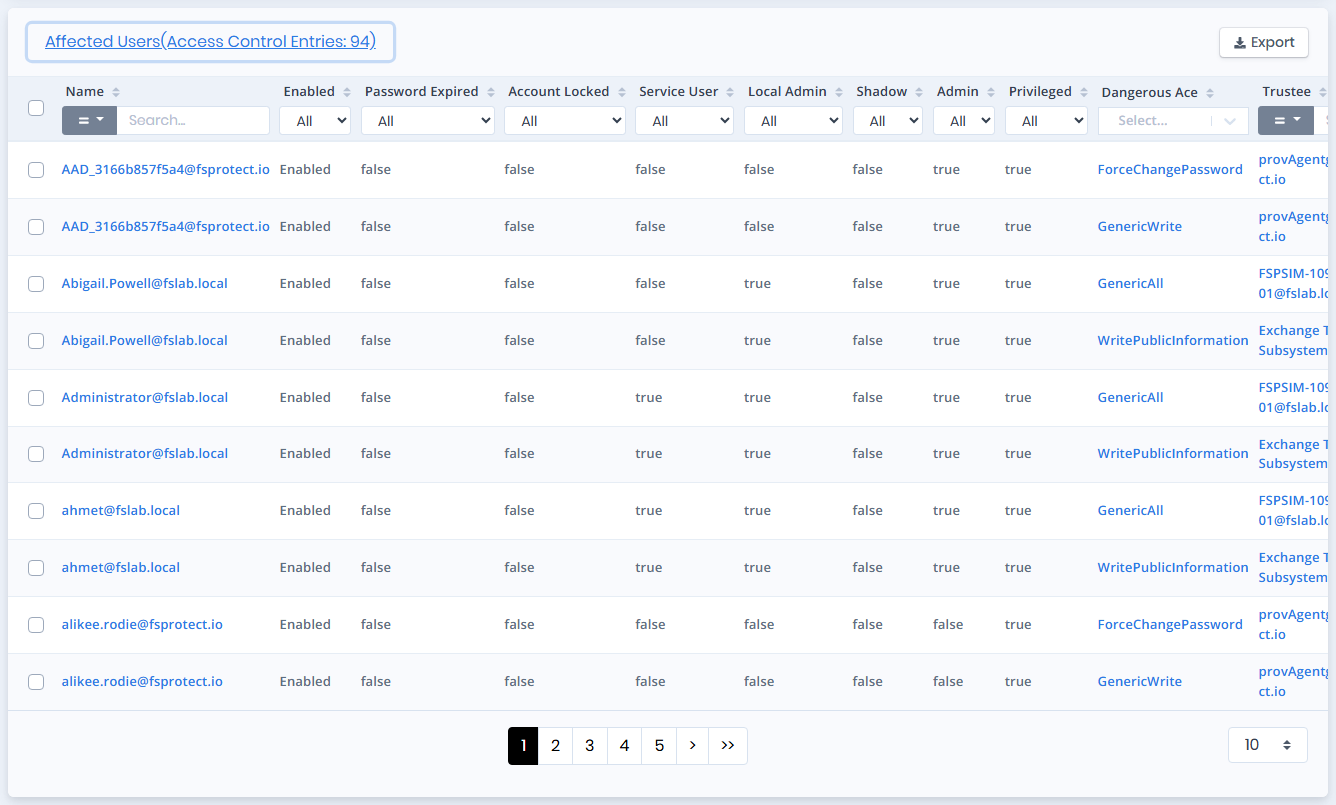
This area can contain multiple tables for each entity type that is affected by this issue. Each table is a collapsible card whose title shows the entity type and the number of affected objects, for example `Affected Users(Access Control Entries: 1.916)`. Click the title to open the table. The tables list the affected entities with issue-specific columns, and offer `Sort`, `Search`, `Export`, `Limit`, and `Pagination` like other tables in the web interface. Click the `Name` to open the affected object's details page.

Selected rows can be handled with **Bulk Actions**: **Define Exclusion (N)** and **Define Exclusion All (N)** create [row-based exclusions](#row-based-exclusion), and **Add to Remediation Queue (N)** and **Add All to Remediation Queue (N)** queue the rows for a [Remediation Scan](#remediation-scan).

Once a [Remediation Scan](#remediation-scan) has run for the issue, the tables also contain a `Remediation` column showing whether each object was verified as `Resolved`, `Unresolved` or `Unverified`, together with the date of the last check. The column can be filtered by remediation status.

Tables of access control entry findings have a `Stale Reason` column that explains why an entry may no longer be exploitable:

* `Affected is inactive` / `Affected is disabled`: the affected object is inactive or disabled.
* `Trustee is inactive` / `Trustee is disabled`: the trustee holding the permission is inactive or disabled.
* `Affected is unpublished`: the affected object, such as a certificate template, is not published.

When the Splunk integration is configured, permission usage is also checked. `No recent activity` means the audit logs show no recent use of the permission. `SACL is disabled` means the object's SACL does not audit that access, so its use cannot be observed. The cell reads `Actively in use` with a date for a permission that recent activity confirms is still being used. If a stale reason also applies, it is followed by `, actively in use - <date>`.

<figure><img src="https://3408039743-files.gitbook.io/~/files/v0/b/gitbook-x-prod.appspot.com/o/spaces%2FObpV44hoVkNmo5bFuVVL%2Fuploads%2Fgit-blob-9bf7c80826d57a803399cefee11ca1f5a40ebb32%2Fissues-image-10.png?alt=media" alt=""><figcaption><p>Affected Objects</p></figcaption></figure>

### Row Based Exclusion

Row-based exclusions add an exclusion to a scan policy directly from a result row, one row at a time or in bulk. Each exclusion is defined by its exclusion type and the relevant criteria. You can change these exclusions later in the policy settings. In bulk, use **Bulk Actions > Define Exclusion (N)** for the selected rows or **Define Exclusion All (N)** for every row of the table.

<figure><img src="https://3408039743-files.gitbook.io/~/files/v0/b/gitbook-x-prod.appspot.com/o/spaces%2FObpV44hoVkNmo5bFuVVL%2Fuploads%2Fgit-blob-ade635c8db9ae5681ae7673e2a920bb5e0c5fb26%2Fissues-affected-row-selection.gif?alt=media" alt="Affected AWSIAMRoles table with three rows selected and the Bulk Actions dropdown open"><figcaption></figcaption></figure>

#### Row Based Exclusion Description and Files

Each row-based exclusion can include an optional description and supporting files such as PDF and image documents.

Existing descriptions and supporting files will be overwritten when the same exclusion is added again.

<figure><img src="https://3408039743-files.gitbook.io/~/files/v0/b/gitbook-x-prod.appspot.com/o/spaces%2FObpV44hoVkNmo5bFuVVL%2Fuploads%2Fgit-blob-48babfb500d442fb6e261eba48274c6265d7eb02%2Frow_based_exclusion_description.gif?alt=media" alt=""><figcaption></figcaption></figure>

### **Summary Pane**

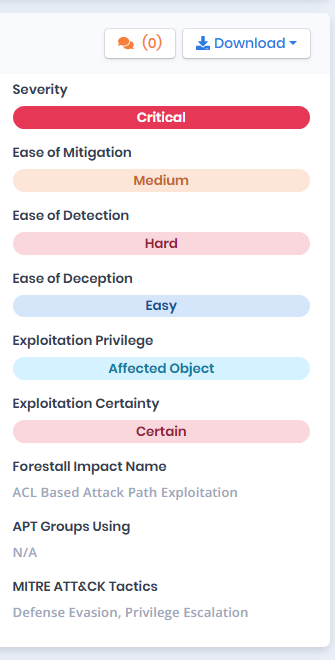
Summary pane on the right-upper side contains `Severity`, `Ease of Mitigation`, `Ease of Detection`, `Ease of Deception`,`Exploitation Privilege`, `Exploitation Certainty`, `Forestall Impact Name`, `APT Groups Using`, and `MITRE ATT&CK Tactics`.

<figure><img src="https://3408039743-files.gitbook.io/~/files/v0/b/gitbook-x-prod.appspot.com/o/spaces%2FObpV44hoVkNmo5bFuVVL%2Fuploads%2Fgit-blob-f55cceea17dda546ba0b65ec3fffa1ec4a2e5818%2Fissues-image-11.png?alt=media" alt=""><figcaption></figcaption></figure>

**APT Groups Using**: APT groups that exploit this issue to compromise Active Directory.

**MITRE ATT\&CK Tactics**: MITRE ATT\&CK Tactics related to this issue.

Details about `Severity`, `Ease of Mitigation`, `Ease of Detection`, `Ease of Deception`,`Exploitation Privilege`, `Exploitation Certainty` and `Forestall Impact Name` metrics can be found on the [Glossary](/forestall/introduction/glossary/glossary.md).