> For the complete documentation index, see [llms.txt](https://docs.forestall.io/forestall/llms.txt). Markdown versions of documentation pages are available by appending `.md` to page URLs; this page is available as [Markdown](https://docs.forestall.io/forestall/configuration-center/azure-configurations.md).

# Azure Configurations

## Microsoft Azure Integration: Step-by-Step Requirements

To integrate Forestall with Microsoft Azure, specific permissions must be granted to the application. This guide outlines how to grant these permissions using the **Azure Portal**, as well as an **optional PowerShell script** alternative.

{% hint style="success" %}
The quickest route is the **Copy PS** button on the Azure Configuration page itself, which shows a ready-made setup script that performs every step below in one run. See [Setup Script (Copy PS)](#setup-script-copy-ps).
{% endhint %}

## The Azure Configuration Page

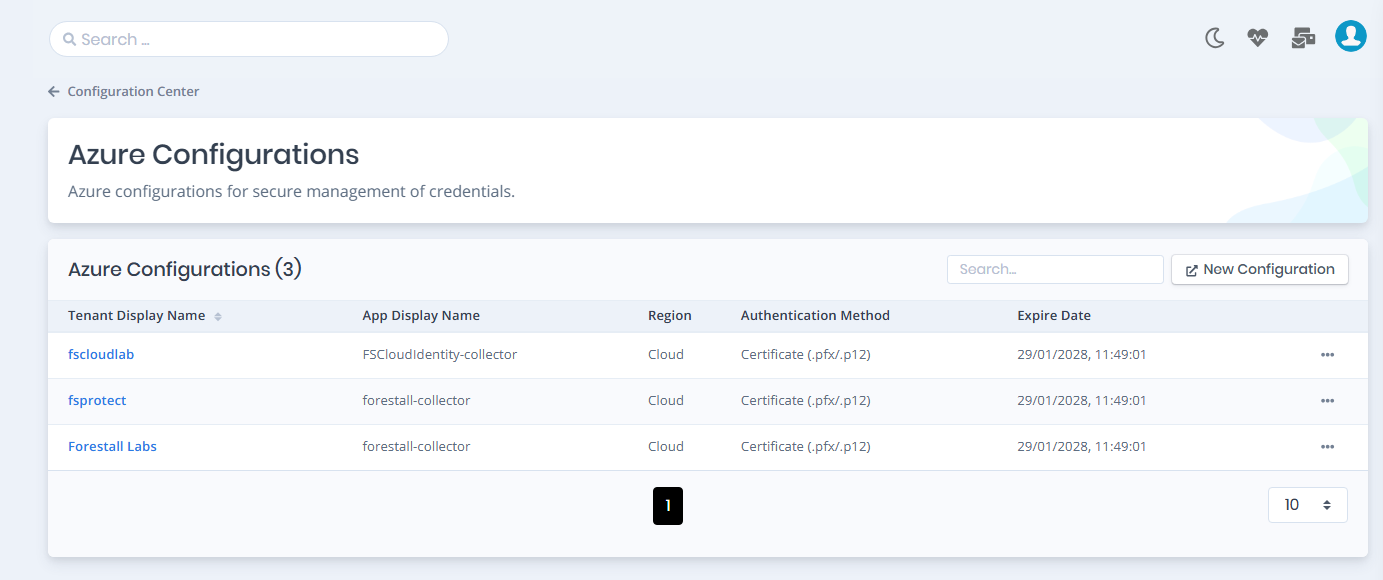
Open [Configuration Center](/forestall/configuration-center.md) > **Microsoft Azure** > **Manage**. The **Azure Configurations** list shows every configured tenant with the columns **Tenant Display Name**, **App Display Name**, **Region**, **Authentication Method** and **Expire Date** (the expiry of the client secret or certificate). Click **New Configuration** to add a tenant, or click a row to edit it.

<figure><img src="https://3408039743-files.gitbook.io/~/files/v0/b/gitbook-x-prod.appspot.com/o/spaces%2FObpV44hoVkNmo5bFuVVL%2Fuploads%2Fgit-blob-00ce53023cf7392b5a18c530f1592ed99ee00af4%2Fazure-configurations-list.png?alt=media" alt="Azure Configurations list"><figcaption><p>Azure Configurations list</p></figcaption></figure>

<figure><img src="https://3408039743-files.gitbook.io/~/files/v0/b/gitbook-x-prod.appspot.com/o/spaces%2FObpV44hoVkNmo5bFuVVL%2Fuploads%2Fgit-blob-2f70b3da92607f540707ecc2ee876e4e37cbfbea%2Fazure-configuration-form.png?alt=media" alt="Azure Configuration form with the Required and Optional Permissions panel"><figcaption></figcaption></figure>

{% hint style="info" %}
If Forestall must reach Azure/Entra ID through a proxy, that is configured server-side, not on this form. See [Configuring a Proxy](/forestall/introduction/maintenance/proxy.md).
{% endhint %}

### Configuration Fields

The form on the left holds the credentials:

**Region:** The Azure cloud the tenant lives in: `Cloud` (Azure public cloud, the default), `USGovernment`, `USGovernmentL5`, `Germany` or `China` (operated by 21Vianet).

**Password Writeback Enabled:** Whether password changes made in Microsoft Entra ID are written back to on-premises Active Directory: `Not Defined` (the default; use it when this is not known), `Enabled` or `Disabled`.

**Directory (Tenant) ID:** The tenant GUID (for example `05588dae-2a80-4f4d-...`), shown in the Azure Portal under **Microsoft Entra ID** > **Overview** > **Tenant ID**.

**Application (Client) ID:** The GUID of the app registration (for example `07122f25-82ff-496d-...`), shown under **App registrations** > \[Your App] > **Overview**.

**Authentication Method:** `Client Secret` (selected by default) or `Certificate (.pfx/.p12)`. A certificate is recommended, and is required for the app-only Teams PowerShell calls.

* With **Client Secret**, enter the secret value in the **Client Secret** field. It is created in the Azure Portal under **App registrations** > \[Your App] > **Certificates & secrets**. See [Login With Client Secret](/forestall/configuration-center/azure-configurations/login-with-client-secret.md).
* With **Certificate (.pfx/.p12)**, enter the **Certificate Password** and upload the `.pfx` or `.p12` file to the **Certificate File** drop zone. See [Login With Certificate](/forestall/configuration-center/azure-configurations/login-with-certificate.md).

For a saved configuration, the label of the Client Secret or Certificate Password field shows **Expire Date:** followed by the date the secret or certificate expires.

**Tenant Display Name** and **App Display Name:** Read-only. Filled in by the product once the connection has been tested, and used to label the configuration.

**Test** checks the credentials against the tenant without saving. **Save** stores the configuration. When you edit a saved configuration, **Delete** removes it after a confirmation (**Delete Configuration** / **Cancel**).

The panel on the right lists the permissions the application needs. Hover over the ⓘ icon next to a name to see what it is used for. **Required Permissions** must all be granted for a scan to complete: `Directory.Read.All`, `AuditLog.Read.All`, `Policy.Read.All`, `RoleManagement.Read.All`, `OnPremDirectorySynchronization.Read.All`. **Optional Permissions** extend the scan into Teams, SharePoint and Azure Resource Manager, and can be left ungranted if those modules are not needed: `Teams.Reader`, `SharePointTenantSettings.Read.All`, `Sites.Read.All`, `Sharepoint.Sites.FullControl.All`, `Reader`.

The icon next to each permission shows its state:

* Orange **?**: not checked yet. Click **Test** to check the permissions.
* Green **✓**: granted.
* Red **✗**: a required permission is missing.
* Grey **–**: an optional permission is not granted.

### Setup Script (Copy PS)

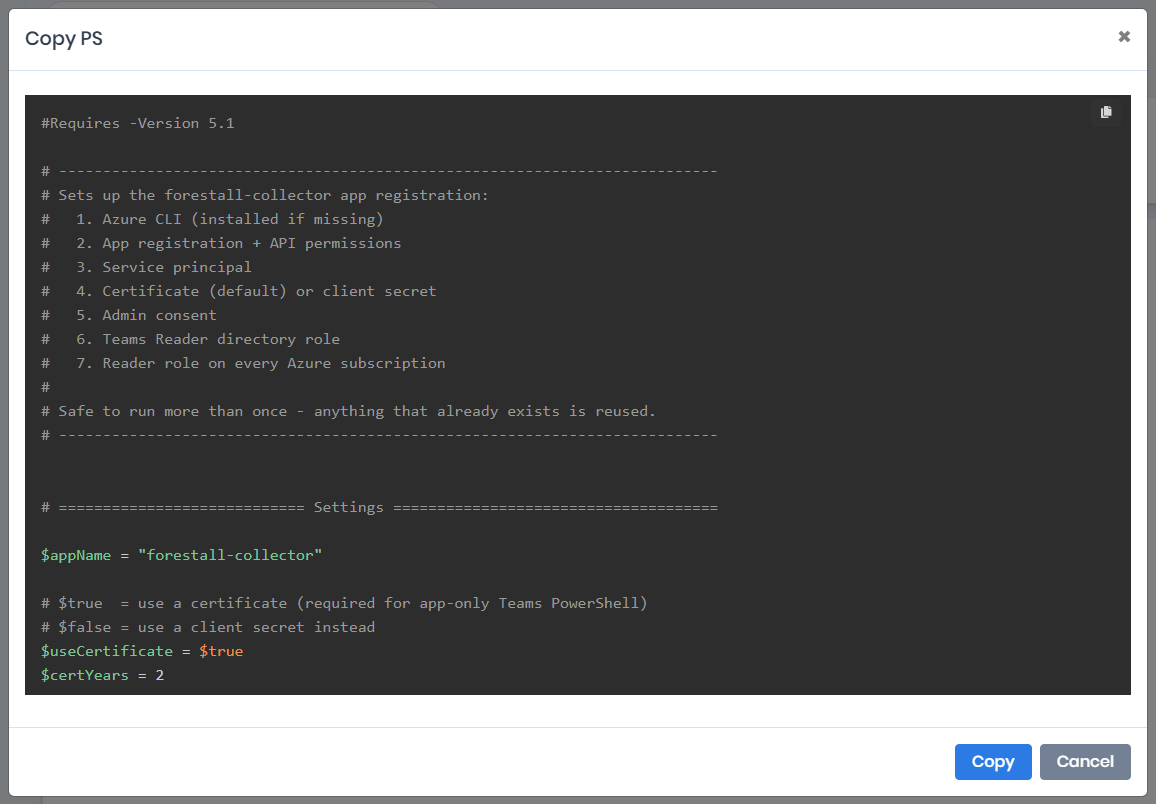
**Copy PS** opens a modal with the setup script, a copy icon in its corner and **Copy** / **Cancel** buttons. The script is the same for every tenant: it is not filled in from the form. It works on the tenant that the Azure CLI is signed in to (`az login`). Run it as a Global Administrator in Azure Cloud Shell (PowerShell), which is already signed in, or in a local PowerShell session after `az login`. It uses the Azure CLI, not the AzureAD or Microsoft Graph PowerShell modules, and creates the app registration itself. It performs the whole registration in one pass:

<figure><img src="https://3408039743-files.gitbook.io/~/files/v0/b/gitbook-x-prod.appspot.com/o/spaces%2FObpV44hoVkNmo5bFuVVL%2Fuploads%2Fgit-blob-42d5aa487540b21cb65976e7e25f9cdce57c3ccd%2Fazure-copy-ps-modal.png?alt=media" alt="Copy PS modal with the Azure setup script"><figcaption><p>Copy PS modal</p></figcaption></figure>

1. Installs the Azure CLI if it is missing.
2. Creates the app registration and adds the API permissions.
3. Creates the service principal.
4. Creates a certificate, or a client secret if one was chosen instead.
5. Grants admin consent.
6. Assigns the Teams Reader directory role (this needs Privileged Role Administrator or Global Administrator).
7. Assigns the Reader role on every Azure subscription.

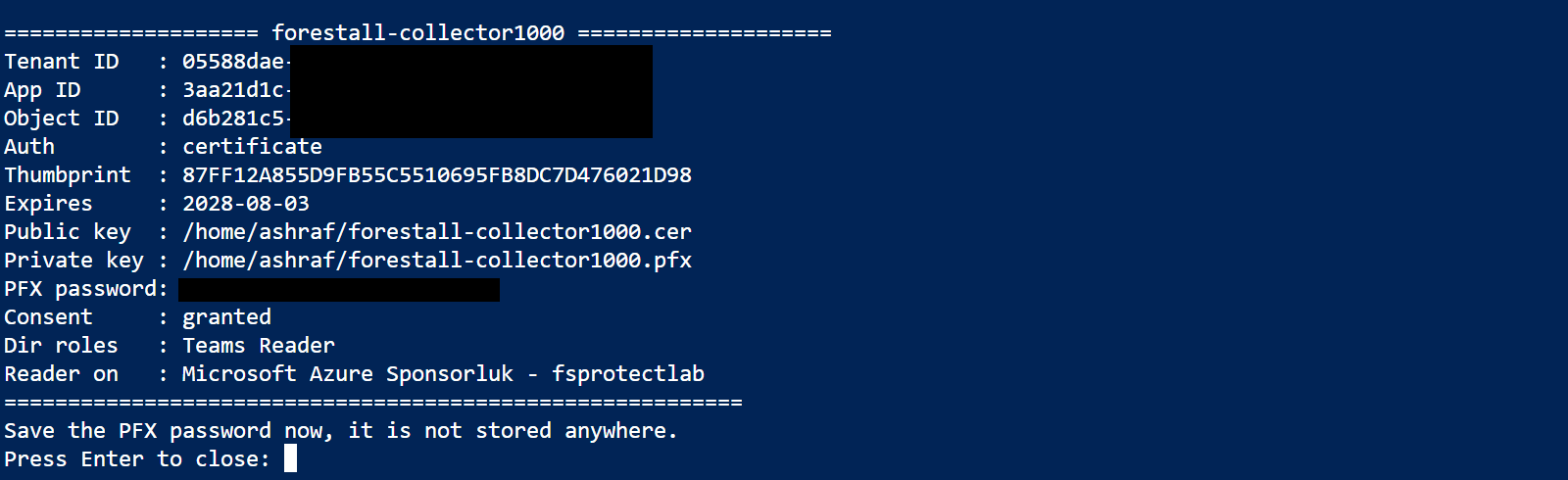
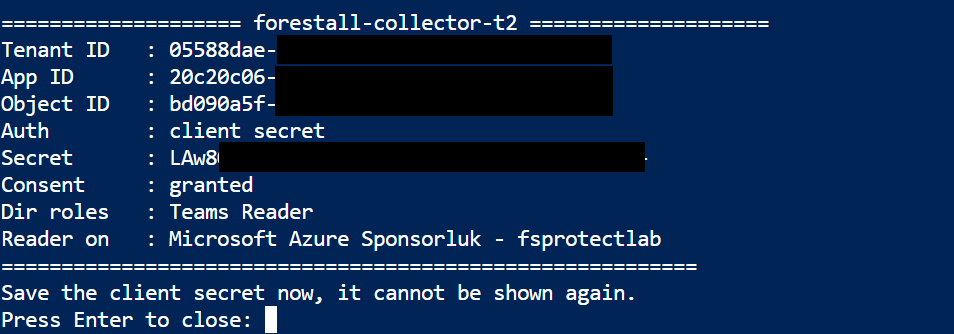
At the end it prints a summary with the Tenant ID, App ID, the certificate files and PFX password (or the client secret), and the result of each step. Copy these values into the Azure Configuration form. The script is safe to run more than once: anything that already exists is reused rather than recreated. The settings at the top can be edited before running it, notably `$appName` (default `forestall-collector`), `$useCertificate` (`$true` for a certificate, `$false` for a client secret) and `$certYears`, `$teamsReader`, `$assignSubscriptionReader`, and `$subId`, which limits the Reader assignment to a single subscription instead of every subscription the signed-in account can see.

### Step 1: Register the Application in Microsoft Entra ID (if not already registered)

* [ ] Sign in to the Azure Portal.
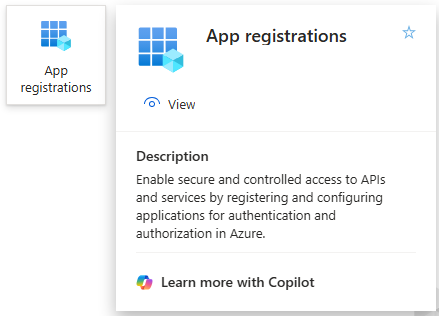
* [ ] Navigate to **Microsoft Entra ID** > **App registrations**.

<figure><img src="https://3408039743-files.gitbook.io/~/files/v0/b/gitbook-x-prod.appspot.com/o/spaces%2FObpV44hoVkNmo5bFuVVL%2Fuploads%2Fgit-blob-33b7f038de8e656ded0915e18b7094292456a3a4%2Fapp-registrations.png?alt=media" alt=""><figcaption><p>App registrations</p></figcaption></figure>

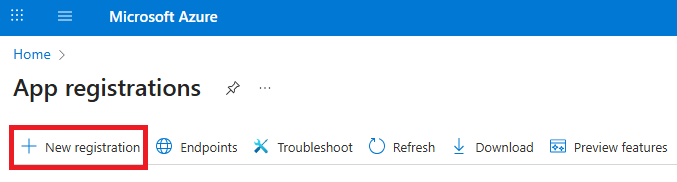
* [ ] Click **New registration**.

<figure><img src="https://3408039743-files.gitbook.io/~/files/v0/b/gitbook-x-prod.appspot.com/o/spaces%2FObpV44hoVkNmo5bFuVVL%2Fuploads%2Fgit-blob-1aa87a1312480173eeae068481b20234a1def906%2Fnew-registration.png?alt=media" alt=""><figcaption><p>New Registration</p></figcaption></figure>

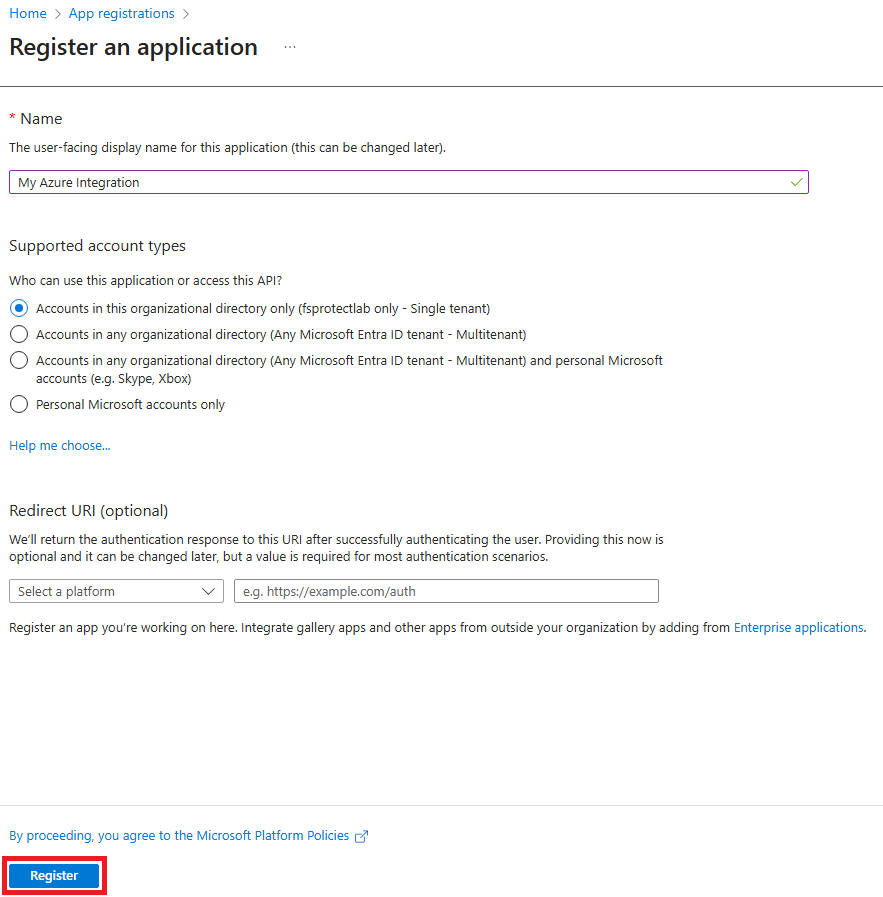
* [ ] Provide a **name** for the app (e.g., `My Azure Integration`).
* [ ] Set **Supported account types** to *Accounts in this organizational directory only* (unless you require multi-tenant).
* [ ] Set a **Redirect URI** if needed (optional).
* [ ] Click **Register**.

<figure><img src="https://3408039743-files.gitbook.io/~/files/v0/b/gitbook-x-prod.appspot.com/o/spaces%2FObpV44hoVkNmo5bFuVVL%2Fuploads%2Fgit-blob-c0c520fed065eb1196de99a80ba2f79479001c97%2Fregister.png?alt=media" alt=""><figcaption><p>Register</p></figcaption></figure>

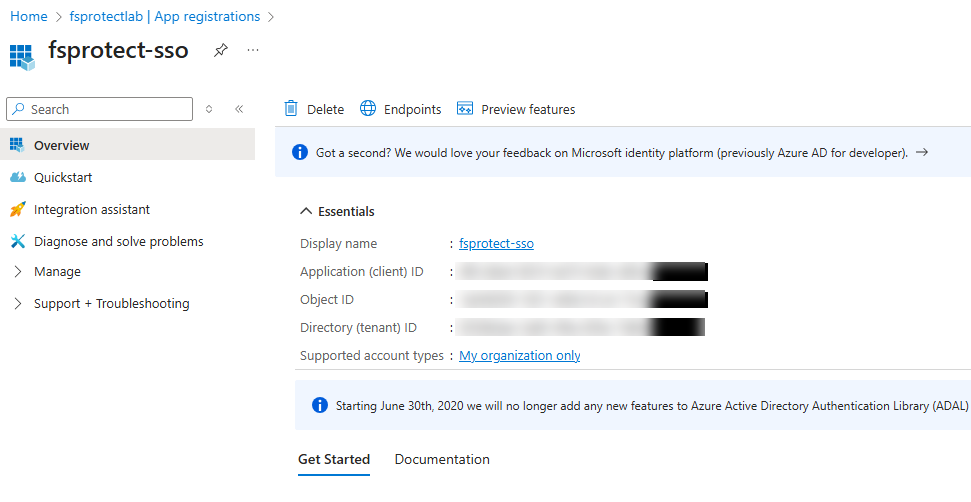
* [ ] After App Registration you must copy the Application (client) ID and Directory (tenant) ID

<figure><img src="https://3408039743-files.gitbook.io/~/files/v0/b/gitbook-x-prod.appspot.com/o/spaces%2FObpV44hoVkNmo5bFuVVL%2Fuploads%2Fgit-blob-0d6a099744bb66a8ba5c1e9ef3c6ece4a4e1783b%2Fafter-app-registration.png?alt=media" alt=""><figcaption><p>After App Registration</p></figcaption></figure>

* [ ] Create the credential the application will sign in with. We recommend [Login With Certificate](/forestall/configuration-center/azure-configurations/login-with-certificate.md). You can also use [Login With Client Secret](/forestall/configuration-center/azure-configurations/login-with-client-secret.md).

### Step 2: Assign Required API Permissions

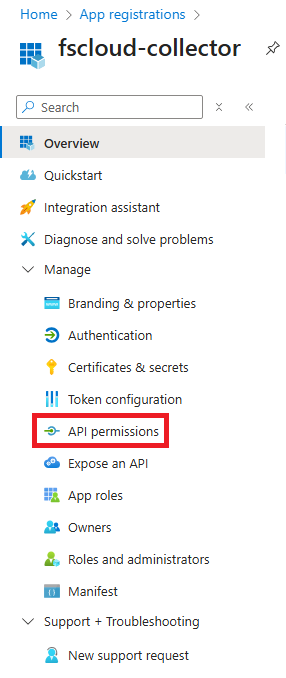
* [ ] Open the **App Registration** you just created.

<figure><img src="https://3408039743-files.gitbook.io/~/files/v0/b/gitbook-x-prod.appspot.com/o/spaces%2FObpV44hoVkNmo5bFuVVL%2Fuploads%2Fgit-blob-b0f2d2ba8e1921274fd64394bbd429363562be60%2Fapi-permissions.png?alt=media" alt=""><figcaption><p>API Permissions</p></figcaption></figure>

* [ ] Go to **API permissions** > Click **+ Add a permission**.

<figure><img src="https://3408039743-files.gitbook.io/~/files/v0/b/gitbook-x-prod.appspot.com/o/spaces%2FObpV44hoVkNmo5bFuVVL%2Fuploads%2Fgit-blob-9014a4f7fdee0d2397fedec2e5632daf95288402%2Fadd-a-permission.png?alt=media" alt=""><figcaption></figcaption></figure>

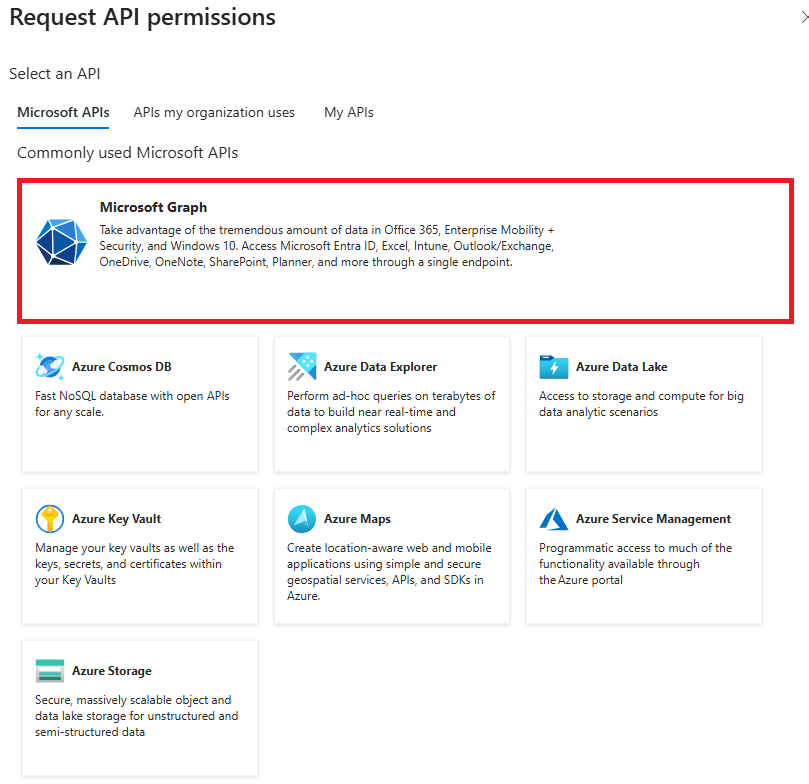
* [ ] Choose **Microsoft Graph**.

<figure><img src="https://3408039743-files.gitbook.io/~/files/v0/b/gitbook-x-prod.appspot.com/o/spaces%2FObpV44hoVkNmo5bFuVVL%2Fuploads%2Fgit-blob-5f9545a7d23511cfe8869e6006582a45f3f53241%2Fmicrosoft-graph.png?alt=media" alt=""><figcaption><p>Microsoft Graph</p></figcaption></figure>

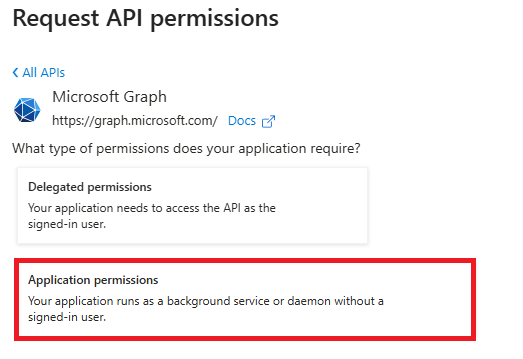
* [ ] Select **Application permissions**.

<figure><img src="https://3408039743-files.gitbook.io/~/files/v0/b/gitbook-x-prod.appspot.com/o/spaces%2FObpV44hoVkNmo5bFuVVL%2Fuploads%2Fgit-blob-30bd04f4630ac82e07cf5aff91672ce2aa8dae92%2Fapplication-permissions.png?alt=media" alt=""><figcaption><p>Application permissions</p></figcaption></figure>

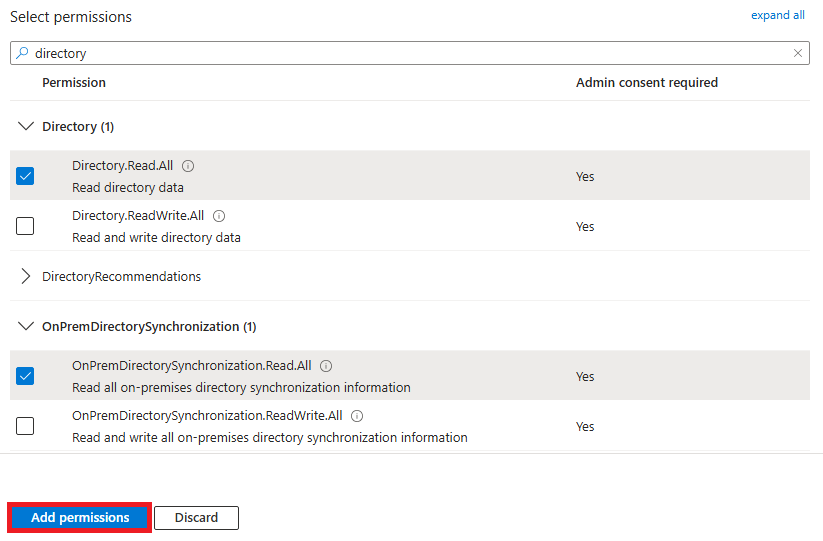
* [ ] Add the following permissions:
  * `Directory.Read.All`
  * `AuditLog.Read.All`
  * `Policy.Read.All`
  * `RoleManagement.Read.All`
  * `OnPremDirectorySynchronization.Read.All`
* [ ] The following permissions are required if you scan SharePoint:
  * `SharePointTenantSettings.Read.All`
  * `Sites.Read.All`
  * `Sharepoint.Sites.FullControl.All` (SharePoint API, see below)
* [ ] Click **Add permissions**.

<figure><img src="https://3408039743-files.gitbook.io/~/files/v0/b/gitbook-x-prod.appspot.com/o/spaces%2FObpV44hoVkNmo5bFuVVL%2Fuploads%2Fgit-blob-242cf348397b6c2a9b2edfb0999030166589d7da%2Fadd-permission.png?alt=media" alt=""><figcaption><p>Add Permissions</p></figcaption></figure>

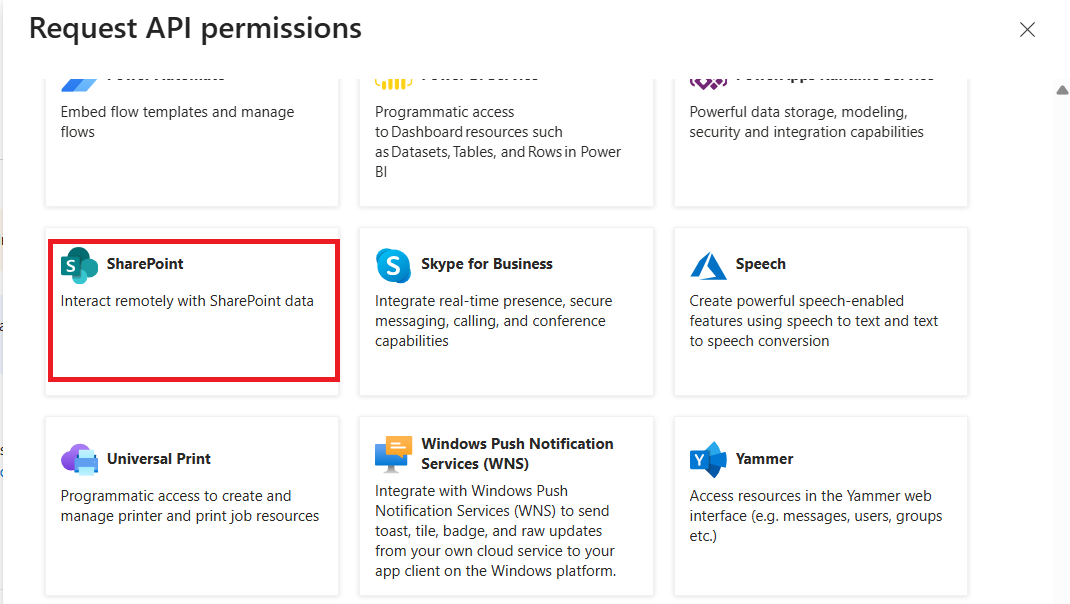
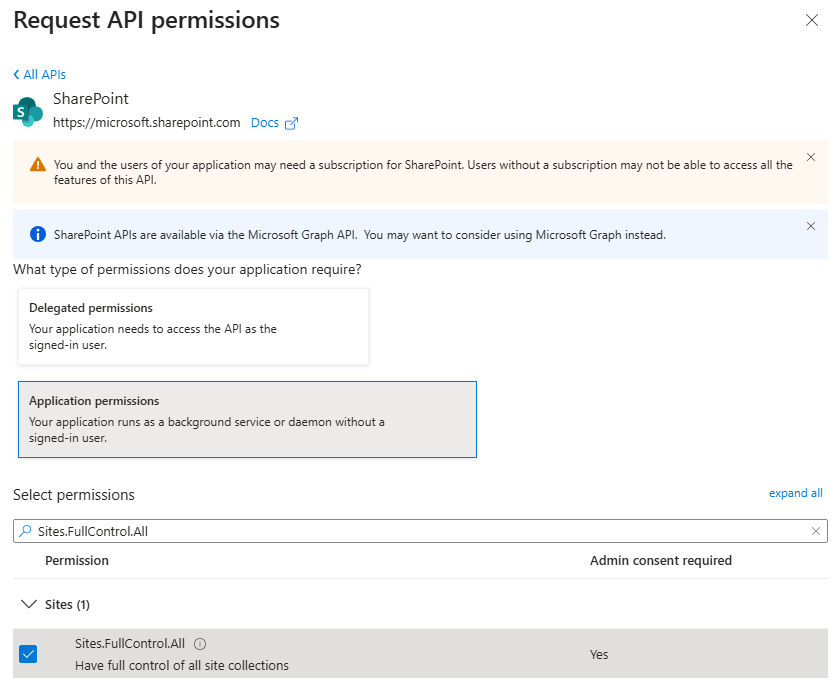
* To add `Sharepoint.Sites.FullControl.All` permission, select SharePoint instead of Microsoft Graph at Microsoft APIs tab and choose application permissions.

<figure><img src="https://3408039743-files.gitbook.io/~/files/v0/b/gitbook-x-prod.appspot.com/o/spaces%2FObpV44hoVkNmo5bFuVVL%2Fuploads%2Fgit-blob-4fbf6f7d2de2fb31856519c313574c4912aef03c%2Fsettings-azure-configurations-image-1.png?alt=media" alt=""><figcaption><p>Sharepoint API Selection</p></figcaption></figure>

* Type `Sites.FullControl.All` to find permission.

<figure><img src="https://3408039743-files.gitbook.io/~/files/v0/b/gitbook-x-prod.appspot.com/o/spaces%2FObpV44hoVkNmo5bFuVVL%2Fuploads%2Fgit-blob-73cd89fd46dce6e1ffbe8ba948051f71eafd9c73%2Fsettings-azure-configurations-image-2.png?alt=media" alt=""><figcaption><p>Add Permissions</p></figcaption></figure>

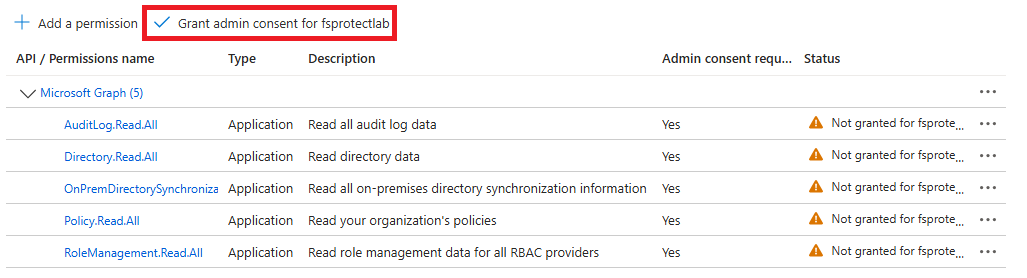
* [ ] After adding, click **Grant admin consent for \[Your Tenant Name]**.

<figure><img src="https://3408039743-files.gitbook.io/~/files/v0/b/gitbook-x-prod.appspot.com/o/spaces%2FObpV44hoVkNmo5bFuVVL%2Fuploads%2Fgit-blob-3467a3723d79191290383aa6f77591b3c4317b40%2Fgrant-admin-consent.png?alt=media" alt=""><figcaption><p>Grant admin consent</p></figcaption></figure>

* [ ] Confirm the prompt to grant consent.

<figure><img src="https://3408039743-files.gitbook.io/~/files/v0/b/gitbook-x-prod.appspot.com/o/spaces%2FObpV44hoVkNmo5bFuVVL%2Fuploads%2Fgit-blob-64530dbac65a92c7c4f4f92a33a15011f6a53d64%2Fgrant-admin-consent-confirmation.png?alt=media" alt=""><figcaption><p>Grant admin consent confirmation</p></figcaption></figure>

These permissions allow the integration to securely access directory, audit, policy, role, and hybrid sync data.

Two optional scan areas need roles rather than API permissions. They are assigned separately:

* **Teams:** the **Teams Reader** Microsoft Entra directory role. See [#what-is-teams-reader-role](#what-is-teams-reader-role "mention").
* **Azure Resource Manager:** the **Reader** Azure RBAC role on your subscriptions. See [#what-is-reader-role-in-azure-resource-manager-arm](#what-is-reader-role-in-azure-resource-manager-arm "mention").

***

### What is Reader Role in Azure Resource Manager (ARM)?

Reader role in Azure Resource Manager (ARM) lets users view all Azure resources and their configurations without being able to make any changes. This is a built-in Azure RBAC (Role-Based Access Control) role that grants read-only access to subscription-level resources such as virtual machines, storage accounts, networking, and resource groups, so the application can scan and inventory your Azure infrastructure without modifying anything.

The following permission is required if you scan Azure Resource Manager:

* `Reader` role assigned at the **Subscription** scope

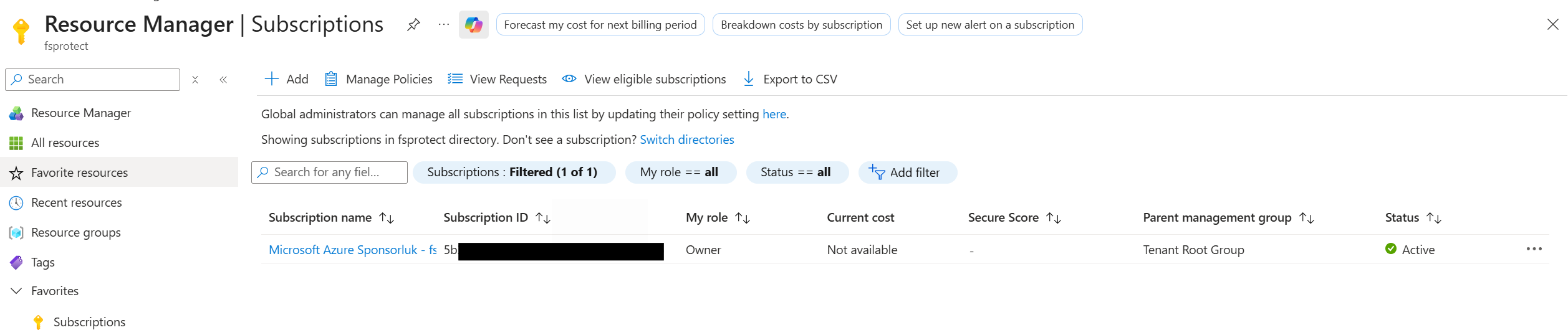
**Step 1: Navigate to Your Subscription**

1. Sign in to the [Azure Portal](https://portal.azure.com/).
2. In the search bar at the top, type **Subscriptions** and select **Subscriptions** from the results.
3. Click on the **Subscription** you want to grant access to.

<figure><img src="https://3408039743-files.gitbook.io/~/files/v0/b/gitbook-x-prod.appspot.com/o/spaces%2FObpV44hoVkNmo5bFuVVL%2Fuploads%2Fgit-blob-6710ead49d9f95936dda675b479a272f6362a5c2%2FAzure-Subscription-Page.png?alt=media" alt=""><figcaption></figcaption></figure>

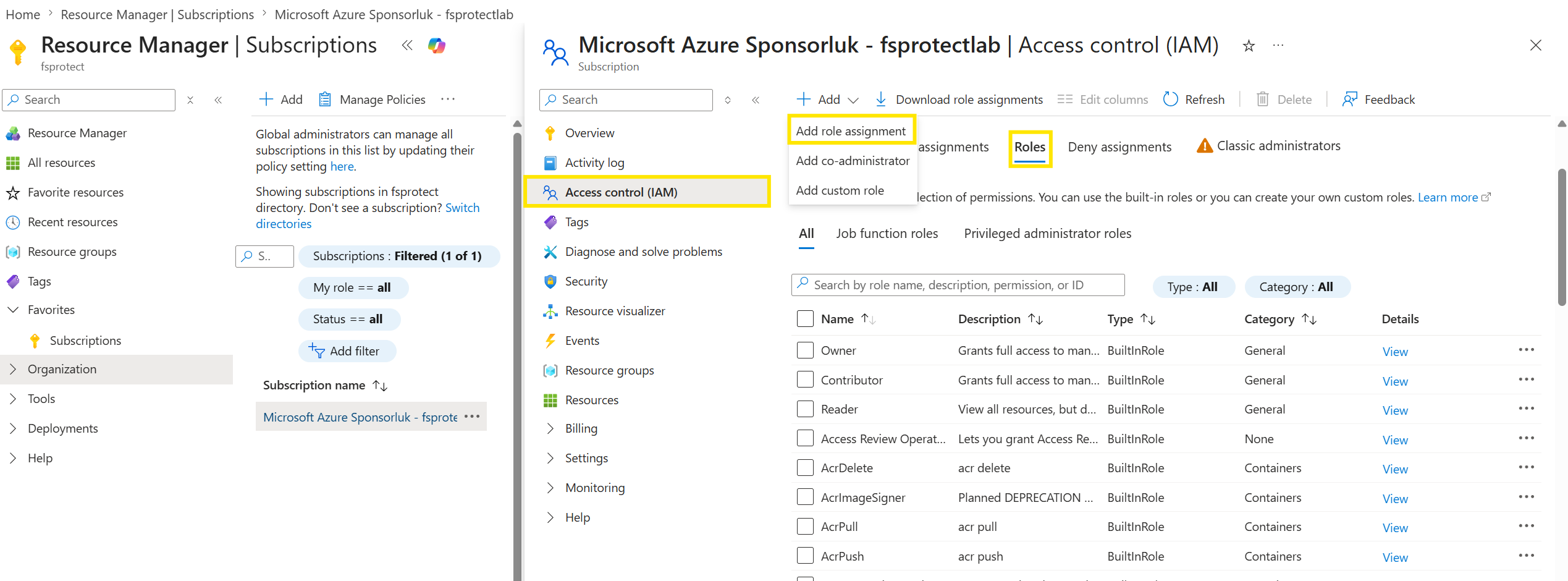
**Step 2: Open Access Control (IAM)**

1. In the left-hand menu of your subscription, click **Access control (IAM)**.
2. Click **+ Add** and select **Add role assignment** from the dropdown.

<figure><img src="https://3408039743-files.gitbook.io/~/files/v0/b/gitbook-x-prod.appspot.com/o/spaces%2FObpV44hoVkNmo5bFuVVL%2Fuploads%2Fgit-blob-dccb60288bb7d1b629aa630db7e611373dbd5563%2FAzure-Subscription-Page-Add-Role.png?alt=media" alt=""><figcaption></figcaption></figure>

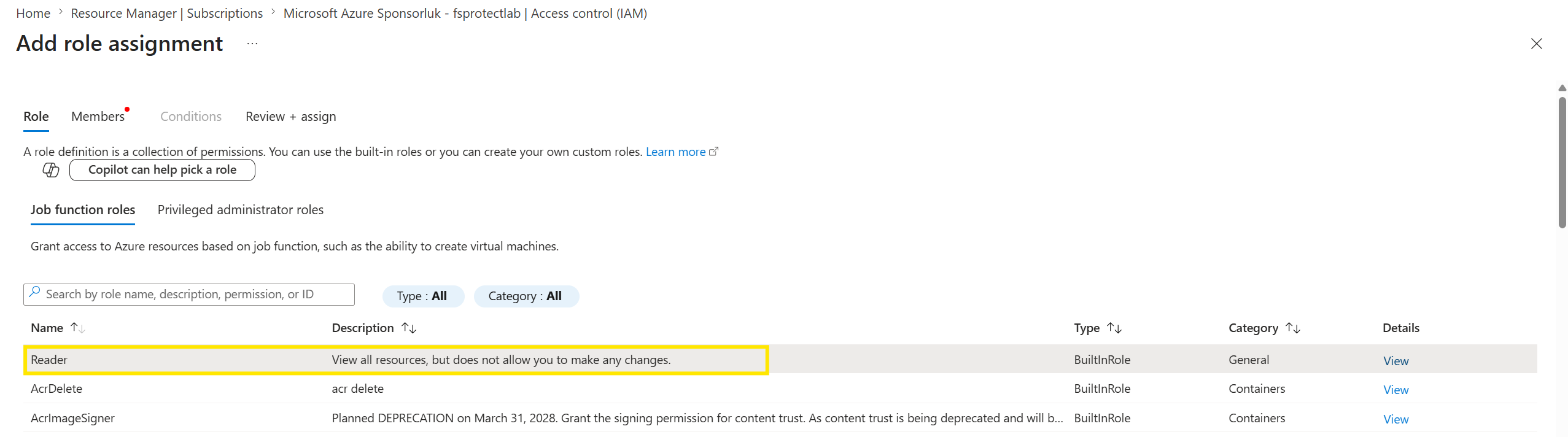
**Step 3: Select the Reader Role**

1. In the **Role** tab, search for **Reader** in the search box.
2. Select the **Reader** role from the list. The description says: *"View all resources, but does not allow you to make any changes."*
3. Click **Next**.

<figure><img src="https://3408039743-files.gitbook.io/~/files/v0/b/gitbook-x-prod.appspot.com/o/spaces%2FObpV44hoVkNmo5bFuVVL%2Fuploads%2Fgit-blob-c7a36e5498e1fb533f896887ce6f239f3bc3a950%2FAzure-Subscription-Page-Add-Role-Reader-Role-Selection.png?alt=media" alt=""><figcaption></figcaption></figure>

**Step 4: Assign Access to the Application**

1. In the **Members** tab, set **Assign access to** → **User, group, or service principal**.
2. Click **+ Select members**.
3. In the search box, type the name of your registered application (e.g., `forestall-collector`) and select it from the results.
4. Click **Select**, then click **Next**.

<figure><img src="https://3408039743-files.gitbook.io/~/files/v0/b/gitbook-x-prod.appspot.com/o/spaces%2FObpV44hoVkNmo5bFuVVL%2Fuploads%2Fgit-blob-7bd4e7db50c582ed9c1013c79a85fbb730fa7401%2FAzure-Subscription-Page-Add-Role-Reader-ServicePrincipal-Selection%20(1).png?alt=media" alt=""><figcaption></figcaption></figure>

**Step 5: Review and Assign**

1. In the **Review + assign** tab, verify the following:
   * **Role**: Reader
   * **Scope**: The selected subscription
   * **Members**: Your application (service principal)
2. Click **Review + assign** to complete the assignment.

<figure><img src="https://3408039743-files.gitbook.io/~/files/v0/b/gitbook-x-prod.appspot.com/o/spaces%2FObpV44hoVkNmo5bFuVVL%2Fuploads%2Fgit-blob-3a9ea973a7887fa27df4bb5076936caf3887576b%2Fazure-subscription-add-role-reader-review-and-assign.png?alt=media" alt=""><figcaption></figcaption></figure>

**Verify the Role Assignment**

1. Go back to **Access control (IAM)** on the subscription.
2. Click the **Role assignments** tab.
3. Search for your application name to confirm the **Reader** role is listed.

**Note:** If you need to scan resources across multiple subscriptions, repeat these steps for each subscription. Alternatively, you can assign the Reader role at the **Management Group** level to cover all subscriptions under that group.

***

### What is Teams Reader Role?

Teams Reader role lets users view Teams settings and information without being able to change anything.

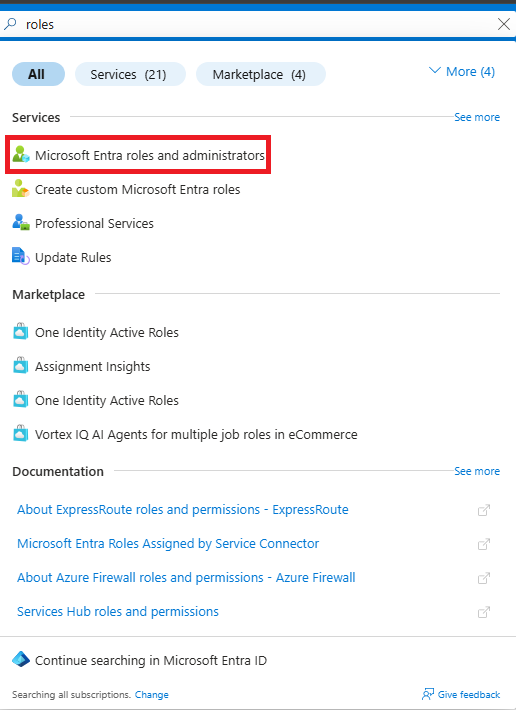
#### Step 1: Search for Roles

Go to the Microsoft Entra admin center and type "roles" in the search box at the top.

<figure><img src="https://3408039743-files.gitbook.io/~/files/v0/b/gitbook-x-prod.appspot.com/o/spaces%2FObpV44hoVkNmo5bFuVVL%2Fuploads%2Fgit-blob-0a7bd398e40e078f6d68cc9e7331bd0e7f4fbb68%2Fsettings-azure-configurations-image-3.png?alt=media" alt=""><figcaption><p>Search roles</p></figcaption></figure>

Click on **Microsoft Entra roles and administrators** from the Services section.

#### Step 2: Find Teams Reader Role

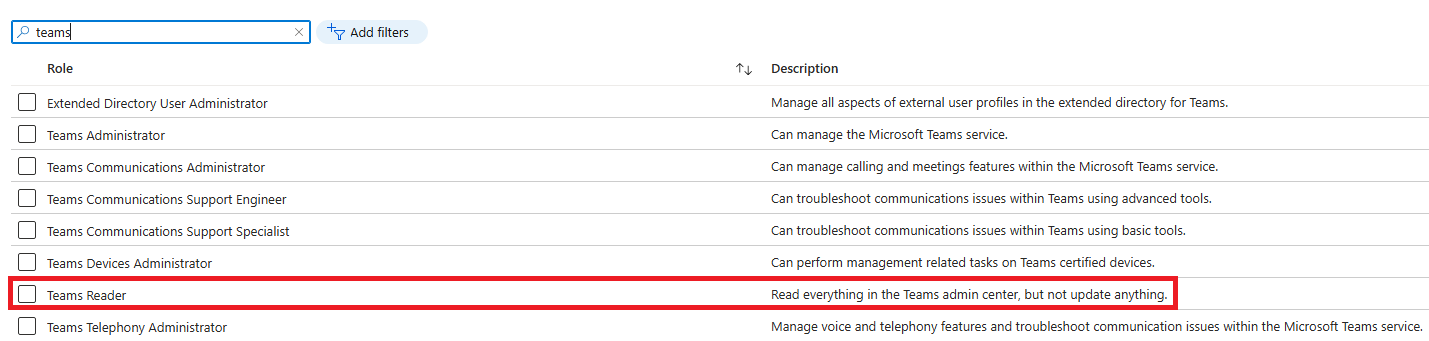
In the roles page, search for "teams" to find Teams-related roles.

<figure><img src="https://3408039743-files.gitbook.io/~/files/v0/b/gitbook-x-prod.appspot.com/o/spaces%2FObpV44hoVkNmo5bFuVVL%2Fuploads%2Fgit-blob-13c5d1b274856e922974f36c8f70410d19481fb5%2Fsettings-azure-configurations-image-4.png?alt=media" alt=""><figcaption><p>Teams Reader Role</p></figcaption></figure>

Look for **Teams Reader** role. The description says: "Read everything in the Teams admin center, but not update anything."

#### Step 3: Add Users or Groups

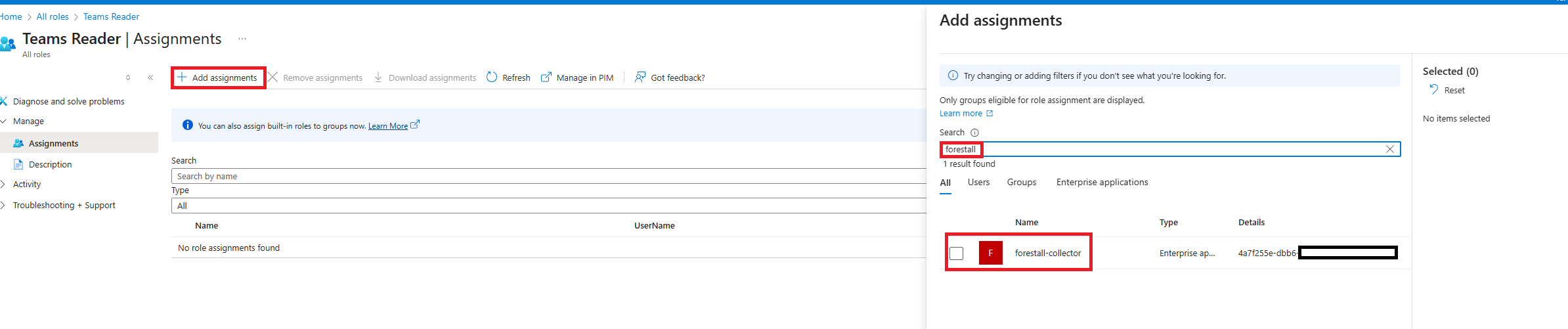
Click on the Teams Reader role, then go to **Assignments** and click **Add assignments**.

<figure><img src="https://3408039743-files.gitbook.io/~/files/v0/b/gitbook-x-prod.appspot.com/o/spaces%2FObpV44hoVkNmo5bFuVVL%2Fuploads%2Fgit-blob-094d1c61f0b48ac89223023c401edbabf8c812ab%2Fsettings-azure-configurations-image-5.png?alt=media" alt=""><figcaption><p>Team Reader Assignments</p></figcaption></figure>

Search for the user, group, or application you want to give this role to. In this example, we searched for "forestall" and found the "forestall-collector" enterprise application.

Select the item from the search results and add it.

***

### (Optional Step 1): Use PowerShell Script to Automate Permission Assignment

If you prefer to automate the process or deploy across multiple tenants, you can use the following PowerShell script. It is the same script that **Copy PS** shows on the Azure Configuration page (see [Setup Script (Copy PS)](#setup-script-copy-ps)). It uses the Azure CLI and installs it on Windows if it is missing. The AzureAD and Microsoft Graph PowerShell modules are not needed.

#### PowerShell Script: Create the App Registration and Assign Permissions

**Preconditions:**

* You must be a **Global Administrator** (admin consent), with **Privileged Role Administrator** rights to assign the Teams Reader role.
* The application does not need to exist: the script creates the `forestall-collector` app registration (or reuses one with the name in `$appName`).
* Outside Azure Cloud Shell, sign in with `az login` first.

**Steps:**

* [ ] Open Cloud Shell from navbar

<figure><img src="https://3408039743-files.gitbook.io/~/files/v0/b/gitbook-x-prod.appspot.com/o/spaces%2FObpV44hoVkNmo5bFuVVL%2Fuploads%2Fgit-blob-7c068d058f43234d84544a15bf2c7619918855bf%2Fcloud-shell.png?alt=media" alt=""><figcaption><p>Cloud Shell</p></figcaption></figure>

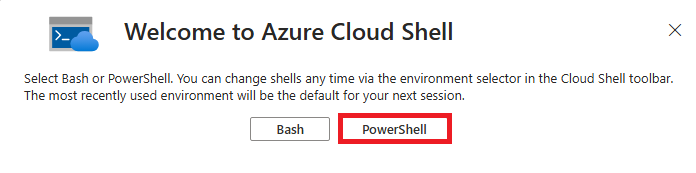
* [ ] Select PowerShell from modal

<figure><img src="https://3408039743-files.gitbook.io/~/files/v0/b/gitbook-x-prod.appspot.com/o/spaces%2FObpV44hoVkNmo5bFuVVL%2Fuploads%2Fgit-blob-47a63a14fc1ec502d2fcb63e2322151881af325d%2Fpowershell.png?alt=media" alt=""><figcaption><p>PowerShell</p></figcaption></figure>

* [ ] Save powershell script below as permissions.ps1

```
    #Requires -Version 5.1

    # ---------------------------------------------------------------------------
    # Sets up the forestall-collector app registration:
    #   1. Azure CLI (installed if missing)
    #   2. App registration + API permissions
    #   3. Service principal
    #   4. Certificate (default) or client secret
    #   5. Admin consent
    #   6. Teams Reader directory role
    #   7. Reader role on every Azure subscription
    #
    # Safe to run more than once - anything that already exists is reused.
    # ---------------------------------------------------------------------------


    # ============================ Settings =====================================

    $appName = "forestall-collector"

    # $true  = use a certificate (required for app-only Teams PowerShell)
    # $false = use a client secret instead
    $useCertificate = $true
    $certYears = 2

    $assignSubscriptionReader = $true   # give the app the Reader role on Azure subscriptions
    $pauseWhenDone = $true              # keep the window open so you can copy the output

    # Which subscription gets the Reader role.
    # The empty GUID below means "every subscription the signed-in account can see".
    # Put a single subscription id here to limit it to that one.
    $subId = "00000000-0000-0000-0000-000000000000"

    # Where the .cer and .pfx files are saved
    $outputDir = if ($PSScriptRoot) { $PSScriptRoot } else { (Get-Location).Path }

    # Microsoft Graph API
    $graphApiId = "00000003-0000-0000-c000-000000000000"
    $graphPermissions = @{
        "Directory.Read.All"                      = "7ab1d382-f21e-4acd-a863-ba3e13f7da61"
        "AuditLog.Read.All"                       = "b0afded3-3588-46d8-8b3d-9842eff778da"
        "Policy.Read.All"                         = "246dd0d5-5bd0-4def-940b-0421030a5b68"
        "RoleManagement.Read.All"                 = "c7fbd983-d9aa-4fa7-84b8-17382c103bc4"
        "OnPremDirectorySynchronization.Read.All" = "bb70e231-92dc-4729-aff5-697b3f04be95"
        "SharePointTenantSettings.Read.All"       = "83d4163d-a2d8-4d3b-9695-4ae3ca98f888"
        "Sites.Read.All"                          = "332a536c-c7ef-4017-ab91-336970924f0d"
    }

    # SharePoint Online API
    $sharepointApiId = "00000003-0000-0ff1-ce00-000000000000"
    $sharepointPermissions = @{
        "Sites.FullControl.All" = "678536fe-1083-478a-9c59-b99265e6b0d3"
    }

    # Teams Reader = read everything in the Teams admin center. Optional, so it has
    # its own switch. Assigning it needs Privileged Role Administrator.
    $teamsReader = $true

    # Entra directory roles given to the service principal
    $directoryRoles = @{}
    if ($teamsReader) {
        $directoryRoles["Teams Reader"] = "1076ac91-f3d9-41a7-a339-dcdf5f480acc"
    }

    # Stop as soon as something goes wrong
    $ErrorActionPreference = "Stop"

    # Some Windows builds still default to old TLS, which Graph refuses
    [Net.ServicePointManager]::SecurityProtocol = [Net.SecurityProtocolType]::Tls12


    # ====================== Helper for the Graph calls =========================

    # Azure CLI has no command for directory roles, so those few calls go to
    # Microsoft Graph through "az rest". It reuses the CLI login, its proxy
    # settings and its network stack, which PowerShell's own web cmdlets do not.
    function Invoke-Graph {
        param($Method, $Url, $Body)

        if ($Body) {
            # Passing JSON on the command line gets mangled by PowerShell, so the
            # body goes through a temp file instead.
            $bodyFile = Join-Path ([IO.Path]::GetTempPath()) "graph-body.json"
            $Body | ConvertTo-Json -Compress | Set-Content $bodyFile -Encoding Ascii

            $result = az rest --method $Method --url $Url --headers "Content-Type=application/json" --body "@$bodyFile" --only-show-errors
            $azFailed = $LASTEXITCODE -ne 0
            Remove-Item $bodyFile -Force
        }
        else {
            $result = az rest --method $Method --url $Url --only-show-errors
            $azFailed = $LASTEXITCODE -ne 0
        }

        if ($azFailed) { throw "Graph call failed: $Method $Url" }

        # Empty answer for calls that return nothing, such as adding a member
        if ($result) { return ($result -join "`n" | ConvertFrom-Json) }
    }


    # ============================== Main =======================================

    $failed = $false
    $consentNote = "NOT granted - do it in the Azure Portal"
    $roleNotes = @()
    $subNotes = @()

    try {

        # ----- 1. Azure CLI ----------------------------------------------------

        if (-not (Get-Command az -ErrorAction SilentlyContinue)) {

            # The installer below is Windows only. Cloud Shell already has the CLI.
            if ($env:OS -ne "Windows_NT") {
                throw "Azure CLI is missing. Install it from https://aka.ms/installazurecli and run the script again."
            }

            Write-Host "Azure CLI not found, installing it..."

            if (Get-Command winget -ErrorAction SilentlyContinue) {
                winget install --exact --id Microsoft.AzureCLI --silent --accept-package-agreements --accept-source-agreements | Out-Null
            }
            else {
                $msi = Join-Path $env:TEMP "azure-cli.msi"
                Invoke-WebRequest "https://aka.ms/installazurecliwindows" -OutFile $msi -UseBasicParsing
                Start-Process msiexec.exe -ArgumentList "/i `"$msi`" /qn /norestart" -Wait -Verb RunAs
                Remove-Item $msi -Force
            }

            # Pick up the new PATH without opening a new window
            $env:Path = [Environment]::GetEnvironmentVariable("Path", "Machine") + ";" +
                        [Environment]::GetEnvironmentVariable("Path", "User")

            if (-not (Get-Command az -ErrorAction SilentlyContinue)) {
                throw "Could not install the Azure CLI. Install it from https://aka.ms/installazurecli and run this script again."
            }
            Write-Host "Azure CLI installed."
        }


        # ----- 2. Signed in tenant ---------------------------------------------

        $tenantId = az account show --query tenantId -o tsv --only-show-errors
        if ($LASTEXITCODE -ne 0) { throw "Not logged in to Azure CLI. Run 'az login' and start the script again." }


        # ----- 3. App registration ---------------------------------------------

        $appId = az ad app list --display-name $appName --query "[0].appId" -o tsv --only-show-errors
        if ($appId) {
            Write-Host "App registration '$appName' already exists, reusing it."
        }
        else {
            Write-Host "Creating app registration '$appName'..."
            $appId = az ad app create --display-name $appName --query appId -o tsv --only-show-errors
            if ($LASTEXITCODE -ne 0) { throw "App registration failed." }
        }


        # ----- 4. API permissions ----------------------------------------------

        foreach ($name in $graphPermissions.Keys) {
            Write-Host "Adding Graph permission $name"
            az ad app permission add --id $appId --api $graphApiId --api-permissions "$($graphPermissions[$name])=Role" --only-show-errors | Out-Null
            if ($LASTEXITCODE -ne 0) { throw "Failed to add $name" }
        }

        foreach ($name in $sharepointPermissions.Keys) {
            Write-Host "Adding SharePoint permission $name"
            az ad app permission add --id $appId --api $sharepointApiId --api-permissions "$($sharepointPermissions[$name])=Role" --only-show-errors | Out-Null
            if ($LASTEXITCODE -ne 0) { throw "Failed to add $name" }
        }


        # ----- 5. Service principal --------------------------------------------

        $spId = az ad sp list --filter "appId eq '$appId'" --query "[0].id" -o tsv --only-show-errors
        if ($spId) {
            Write-Host "Service principal already exists."
        }
        else {
            Write-Host "Creating service principal..."
            $spId = az ad sp create --id $appId --query id -o tsv --only-show-errors
            if ($LASTEXITCODE -ne 0) { throw "Service principal creation failed." }
        }


        # ----- 6. Certificate or client secret ---------------------------------

        if ($useCertificate) {

            $cerPath = Join-Path $outputDir "$appName.cer"   # public key, goes to Entra ID
            $pfxPath = Join-Path $outputDir "$appName.pfx"   # private key, goes to the collector

            # The certificate lives in these two files only. Nothing touches the
            # Windows certificate store, so this also works in Azure Cloud Shell
            # and on Linux.
            $cert = $null
            if (Test-Path $cerPath) {
                try {
                    $cert = New-Object System.Security.Cryptography.X509Certificates.X509Certificate2 $cerPath
                    if ($cert.NotAfter -lt (Get-Date).AddDays(30)) { $cert = $null }   # too close to expiry
                }
                catch { $cert = $null }   # unreadable file, make a new one
            }

            if ($cert) {
                Write-Host "Reusing certificate $($cert.Thumbprint) from $cerPath"
            }
            else {
                Write-Host "Creating certificate CN=$appName..."
                $rsa = [System.Security.Cryptography.RSA]::Create(2048)
                $request = [System.Security.Cryptography.X509Certificates.CertificateRequest]::new(
                    "CN=$appName", $rsa,
                    [System.Security.Cryptography.HashAlgorithmName]::SHA256,
                    [System.Security.Cryptography.RSASignaturePadding]::Pkcs1)

                $cert = $request.CreateSelfSigned(
                    [DateTimeOffset]::UtcNow.AddMinutes(-10),
                    [DateTimeOffset]::UtcNow.AddYears($certYears))

                # Private key file, protected with a random password
                $chars = "abcdefghijkmnopqrstuvwxyzABCDEFGHJKLMNPQRSTUVWXYZ23456789"
                $pfxPassword = -join (1..24 | ForEach-Object { $chars[(Get-Random -Maximum $chars.Length)] })
                $pfxBytes = $cert.Export([System.Security.Cryptography.X509Certificates.X509ContentType]::Pfx, $pfxPassword)
                [IO.File]::WriteAllBytes($pfxPath, $pfxBytes)

                # Public key file, the format the CLI uploads
                $base64 = [Convert]::ToBase64String($cert.RawData, "InsertLineBreaks")
                Set-Content $cerPath "-----BEGIN CERTIFICATE-----`r`n$base64`r`n-----END CERTIFICATE-----" -Encoding Ascii

                Write-Host "Saved $cerPath and $pfxPath"
            }

            # Entra ID lists certificates by thumbprint, base64 encoded
            $thumbprint64 = [Convert]::ToBase64String($cert.GetCertHash())
            $onApp = az ad app show --id $appId --query "keyCredentials[].customKeyIdentifier" -o tsv --only-show-errors

            if (($onApp -split "\s+") -contains $thumbprint64) {
                Write-Host "Certificate is already on the app registration."
            }
            else {
                Write-Host "Uploading the certificate..."
                $endDate = $cert.NotAfter.ToUniversalTime().ToString("yyyy-MM-ddTHH:mm:ssZ")
                az ad app credential reset --id $appId --append --cert "@$cerPath" --display-name "$appName-cert" --end-date $endDate -o none --only-show-errors
                if ($LASTEXITCODE -ne 0) { throw "Certificate upload failed." }
            }
        }
        else {
            Write-Host "Generating client secret..."
            $clientSecret = az ad app credential reset --id $appId --append --display-name "$appName-secret" --query password -o tsv --only-show-errors
            if ($LASTEXITCODE -ne 0) { throw "Client secret creation failed." }
        }


        # ----- 7. Admin consent ------------------------------------------------

        Start-Sleep -Seconds 10   # a new app needs a few seconds before consent works

        Write-Host "Granting admin consent (needs a Global Admin)..."
        az ad app permission admin-consent --id $appId --only-show-errors

        if ($LASTEXITCODE -eq 0) {
            $consentNote = "granted"
        }
        else {
            Write-Warning "Admin consent failed."
            if ((Read-Host "Sign in as a Global Admin now and retry? (Y/N)") -match "^[Yy]") {
                az login --use-device-code --only-show-errors | Out-Null
                if ($LASTEXITCODE -eq 0) {
                    az ad app permission admin-consent --id $appId --only-show-errors
                    if ($LASTEXITCODE -eq 0) { $consentNote = "granted" }
                }
            }
        }
        if ($consentNote -ne "granted") { Write-Warning "Grant admin consent manually in the Azure Portal." }


        # ----- 8. Directory roles (Teams Reader) -------------------------------

        if (-not $teamsReader) { Write-Host "Teams Reader role is switched off, skipping it." }

        foreach ($roleName in $directoryRoles.Keys) {
            $templateId = $directoryRoles[$roleName]
            Write-Host "Assigning directory role $roleName..."

            try {
                # A role must be activated in the tenant before it can have members
                $roles = Invoke-Graph GET "https://graph.microsoft.com/v1.0/directoryRoles"
                $role = $roles.value | Where-Object { $_.roleTemplateId -eq $templateId }

                if (-not $role) {
                    Write-Host "  activating the role in this tenant first"
                    $role = Invoke-Graph POST "https://graph.microsoft.com/v1.0/directoryRoles" @{ roleTemplateId = $templateId }
                }

                $members = Invoke-Graph GET "https://graph.microsoft.com/v1.0/directoryRoles/$($role.id)/members"

                if ($members.value.id -contains $spId) {
                    Write-Host "  already assigned"
                    $roleNotes += "$roleName (already assigned)"
                }
                else {
                    Invoke-Graph POST "https://graph.microsoft.com/v1.0/directoryRoles/$($role.id)/members/`$ref" `
                        @{ "@odata.id" = "https://graph.microsoft.com/v1.0/directoryObjects/$spId" } | Out-Null
                    Write-Host "  assigned"
                    $roleNotes += $roleName
                }
            }
            catch {
                Write-Warning "Could not assign $roleName. $($_.Exception.Message)"
                Write-Warning "The error above from az shows why. Assigning a role needs Privileged Role Administrator or Global Administrator."
                $roleNotes += "$roleName FAILED"
            }
        }


        # ----- 9. Reader on the subscriptions ----------------------------------

        if ($assignSubscriptionReader) {
            $subsJson = az account list --all --query "[?state=='Enabled'].{id:id,name:name}" -o json --only-show-errors
            $subs = if ($LASTEXITCODE -eq 0 -and $subsJson) { @($subsJson | ConvertFrom-Json) } else { @() }

            # Anything other than the empty GUID means "only this subscription"
            if ($subId -and $subId -ne "00000000-0000-0000-0000-000000000000") {
                $subs = @($subs | Where-Object { $_.id -eq $subId })
                if ($subs.Count -eq 0) {
                    Write-Warning "Subscription $subId was not found on the signed-in account."
                    $subNotes += "$subId NOT FOUND"
                }
            }
            elseif ($subs.Count -eq 0) {
                Write-Warning "No subscriptions visible to the signed-in account."
            }

            foreach ($sub in $subs) {
                $scope = "/subscriptions/$($sub.id)"

                $existing = az role assignment list --assignee $spId --role Reader --scope $scope --query "[0].id" -o tsv --only-show-errors
                if ($existing) {
                    Write-Host "Reader already assigned on $($sub.name)"
                    $subNotes += "$($sub.name) (already assigned)"
                    continue
                }

                Write-Host "Assigning Reader on $($sub.name)..."
                az role assignment create --assignee-object-id $spId --assignee-principal-type ServicePrincipal --role Reader --scope $scope -o none --only-show-errors
                if ($LASTEXITCODE -eq 0) {
                    $subNotes += $sub.name
                }
                else {
                    Write-Warning "Reader assignment failed on $($sub.name)"
                    $subNotes += "$($sub.name) FAILED"
                }
            }
        }

    }
    catch {
        Write-Host ""
        Write-Host "ERROR: $($_.Exception.Message)" -ForegroundColor Red
        $failed = $true
    }


    # ============================= Summary =====================================
    # Printed even after an error, so a credential that was already created is
    # never lost.

    if ($appId) {
        Write-Host ""
        Write-Host "==================== $appName ===================="
        Write-Host "Tenant ID   : $tenantId"
        Write-Host "App ID      : $appId"
        Write-Host "Object ID   : $spId"

        if ($useCertificate -and $cert) {
            Write-Host "Auth        : certificate"
            Write-Host "Thumbprint  : $($cert.Thumbprint)"
            Write-Host "Expires     : $($cert.NotAfter.ToString('yyyy-MM-dd'))"
            Write-Host "Public key  : $cerPath"
            Write-Host "Private key : $pfxPath"
            if ($pfxPassword) { Write-Host "PFX password: $pfxPassword" }
        }
        if ($clientSecret) {
            Write-Host "Auth        : client secret"
            Write-Host "Secret      : $clientSecret"
        }

        $roleText = if ($roleNotes) { $roleNotes -join ", " } else { "none" }
        $subText = if ($subNotes) { $subNotes -join ", " } else { "none" }

        Write-Host "Consent     : $consentNote"
        Write-Host "Dir roles   : $roleText"
        Write-Host "Reader on   : $subText"
        Write-Host "=========================================================="

        if ($pfxPassword) { Write-Host "Save the PFX password now, it is not stored anywhere." }
        if ($clientSecret) { Write-Host "Save the client secret now, it cannot be shown again." }
    }

    if ($failed) {
        Write-Host ""
        Write-Host "Setup did not finish. Fix the error above and run the script again." -ForegroundColor Red
    }

    if ($pauseWhenDone -and [Environment]::UserInteractive) {
        Read-Host "Press Enter to close"
    }

    # "exit" closes the whole PowerShell session when this file is dot-sourced or
    # piped into Invoke-Expression, so only use it for a normal script run.
    if ($MyInvocation.MyCommand.CommandType -eq "ExternalScript" -and $MyInvocation.InvocationName -ne ".") {
        if ($failed) { exit 1 } else { exit 0 }
    }

```

* [ ] Upload the file to the PowerShell session

<figure><img src="https://3408039743-files.gitbook.io/~/files/v0/b/gitbook-x-prod.appspot.com/o/spaces%2FObpV44hoVkNmo5bFuVVL%2Fuploads%2Fgit-blob-22044ff60719cabf00fbd425b807e01b1faff6df%2Fupload_ps_create_app_script_azure_web_shell.PNG?alt=media" alt=""><figcaption></figcaption></figure>

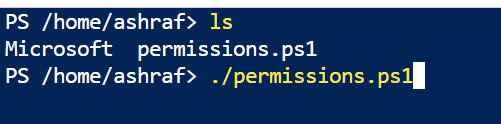
* [ ] After uploading the file, run it via console `./permissions.ps1`

<figure><img src="https://3408039743-files.gitbook.io/~/files/v0/b/gitbook-x-prod.appspot.com/o/spaces%2FObpV44hoVkNmo5bFuVVL%2Fuploads%2Fgit-blob-b982037609a8500674d0895d693df3891f39bca5%2Frun-script.PNG?alt=media" alt=""><figcaption></figcaption></figure>

#### Notes:

* You can find your App ID in **App registrations** > \[Your App] > **Overview**.
* By default the script generates a certificate for authentication.
* To use a client secret instead, set the script variable `$useCertificate` to `$false`.
* In certificate mode the script saves `forestall-collector.cer` (public key, uploaded to Entra ID) and `forestall-collector.pfx` (private key) in the folder it runs from, and prints the PFX password. Download the `.pfx` file and save the password: it is not stored anywhere. The `.pfx` file and its password are what you upload to Forestall.

<div align="right"><figure><img src="https://3408039743-files.gitbook.io/~/files/v0/b/gitbook-x-prod.appspot.com/o/spaces%2FObpV44hoVkNmo5bFuVVL%2Fuploads%2Fgit-blob-4c4b71a2718f280ad081a9db6d46603702986dbd%2Fcreate-app-script.png?alt=media" alt=""><figcaption><p>Application Certificate Password</p></figcaption></figure></div>

* If a secret is used instead you need to copy **Secret Value**.

<figure><img src="https://3408039743-files.gitbook.io/~/files/v0/b/gitbook-x-prod.appspot.com/o/spaces%2FObpV44hoVkNmo5bFuVVL%2Fuploads%2Fgit-blob-b85be8d1d7be679a01dd35846004352172863a63%2Fclient_secret_app_creation.PNG?alt=media" alt=""><figcaption><p>Copy the client secret value</p></figcaption></figure>

* If the script runs without a **Global Administrator** account, admin consent still needs to be granted manually in the portal (see Optional Step 2). The summary line `Consent : NOT granted` shows this.
* The script assigns the Teams Reader role itself. If the signed-in account lacks Privileged Role Administrator rights, the summary shows `Teams Reader FAILED` and the role must be assigned manually.

### (Optional Step 2): Finish Manually What the Script Could Not Do

1. If consent was not granted, go back to **App registrations** > \[Your App] > **API permissions** and click **Grant admin consent**.
2. If the Teams Reader assignment failed, assign the role manually. See [#what-is-teams-reader-role](#what-is-teams-reader-role "mention").

## Step 3: Azure Configuration in Forestall

1. Open **Configuration Center** > **Microsoft Azure** > **Manage** and click **New Configuration**.
2. Fill in the form as described in [Configuration Fields](#configuration-fields): Region, Password Writeback Enabled, Directory (Tenant) ID, Application (Client) ID and the credential for the chosen Authentication Method.
3. Click **Test**. The permission panel on the right turns green for every granted permission, and Tenant Display Name and App Display Name are filled in.
4. Click **Save**.

Removing a configuration with **Delete** stops Forestall from scanning that tenant.

### Best Practices

1. **Least Privilege Principle** - Only grant the minimum permissions required for application to function
2. **Secret Rotation** - Regularly rotate client secrets (recommended every 90 days or per your security policy)
3. **Permission Review** - Periodically review granted permissions and remove any that are no longer needed
4. **Testing** - Always use the "Test" button to validate configuration before saving changes

### Troubleshooting

**Authentication Fails**

* Verify the Client ID and Client Secret are correct
* Ensure the secret hasn't expired
* Check that the application is registered in the correct tenant

**Permission Denied Errors**

* Confirm all required permissions are granted
* Verify an admin has consented to the permissions
* Check that users have appropriate licenses in Microsoft Entra ID

**Configuration Won't Save**

* Ensure all required fields are filled
* Verify the Tenant ID and Client ID formats are valid UUIDs
* Check that the Test passes successfully before saving

## Required Microsoft Azure Permissions for Integration <a href="#integration" id="integration"></a>

The following permissions are required for Forestall to work with Microsoft Azure (Microsoft Entra ID):

### **1. Directory.Read.All**

**What it does:**\
Grants read-only access to all directory objects in Microsoft Azure, including users, groups, devices, and administrative units.

**Why it's needed:**\
This permission allows the integration to retrieve essential identity data, enabling user mapping, group membership evaluation, and device information access for reporting or policy decisions.

***

### **2. AuditLog.Read.All**

**What it does:**\
Provides read access to the directory’s audit logs, which record configuration changes and administrative actions across the tenant.

**Why it's needed:**\
Required to track configuration changes and user activity for auditing, compliance, and forensic analysis within the integration.

***

### **3. Policy.Read.All**

**What it does:**\
Allows the application to read conditional access policies, authentication policies, and other security-related configurations.

**Why it's needed:**\
Essential for understanding and visualizing how security policies are configured across the tenant, helping administrators identify risks or configuration issues.

***

### **4. RoleManagement.Read.All**

**What it does:**\
Grants read-only access to directory roles, role assignments, and role eligibility settings.

**Why it's needed:**\
Enables the integration to provide visibility into privileged roles, who holds them, and how administrative permissions are structured. This is critical for role governance and least-privilege assessments.

***

### **5. OnPremDirectorySynchronization.Read.All**

**What it does:**\
Allows reading of the on-premises directory synchronization configuration and related metadata.

**Why it's needed:**\
Required to understand hybrid identity configurations, sync status, and directory health, so on-prem AD and Azure stay fully visible to administrators.

## Optional Microsoft Azure Permissions for Enhanced Functionality

These permissions enhance functionality but are not required for basic operation. Grant these based on your application's specific needs and use cases.

### 1. Teams Reader Role

**What it does:**

Grants read-only access to Microsoft Teams administration data and settings, including team configurations, user assignments, policies, and administrative information without the ability to make any changes.

**Why it's needed:**

Required when users or applications need to view Teams administrative settings for monitoring, reporting, compliance audits, or troubleshooting purposes without risking accidental modifications to the Teams environment.

### 2. Reader

**What it does:**

Grants read-only access to all Azure Resource Manager (ARM) resources and their configurations, including virtual machines, storage accounts, networking components, resource groups, subscriptions, and other infrastructure objects without the ability to make any changes.

**Why it's needed:**

Required when users or applications need to scan, inventory, and assess Azure infrastructure for security monitoring, compliance reporting, resource audits, or configuration analysis purposes without risking accidental modifications to the Azure environment.

### 3. SharePointTenantSettings.Read.All

**What it does:**

Provides read access to SharePoint tenant-level settings, including external sharing policies, site creation settings, and tenant-wide configurations.

**Why it's needed:**

Essential for understanding the global SharePoint configuration across your organization, helping administrators audit tenant settings, identify security risks, or ensure compliance with organizational policies.

### 4. Sites.Read.All

**What it does:**

Enables the application to read SharePoint site collections, lists, libraries, and their content across the entire organization without user delegation.

**Why it's needed:**

Required when your integration needs to analyze SharePoint content, generate reports on site usage, perform content audits, or provide visibility into document repositories for compliance purposes.

### 5. Sharepoint.Sites.FullControl.All

**What it does:**

Provides full control over all SharePoint sites, allowing the application to create, read, update, and delete sites, site collections, lists, libraries, and their content.

**Why it's needed:**

Necessary for integrations that actively manage SharePoint environments, such as automated site provisioning, content migration tools, backup solutions, or applications that modify site structures and permissions on behalf of administrators.

**⚠️ Security Note:** This is a highly privileged permission that grants extensive control over SharePoint data. Only grant this permission if your application absolutely requires write/modify capabilities, and ensure proper governance and monitoring are in place.