> For the complete documentation index, see [llms.txt](https://docs.forestall.io/forestall/llms.txt). Markdown versions of documentation pages are available by appending `.md` to page URLs; this page is available as [Markdown](https://docs.forestall.io/forestall/configuration-center/jira.md).
# Jira
With the Jira integration, you can open Jira tickets for the `Issues` found in a scan and assign them to your team members.
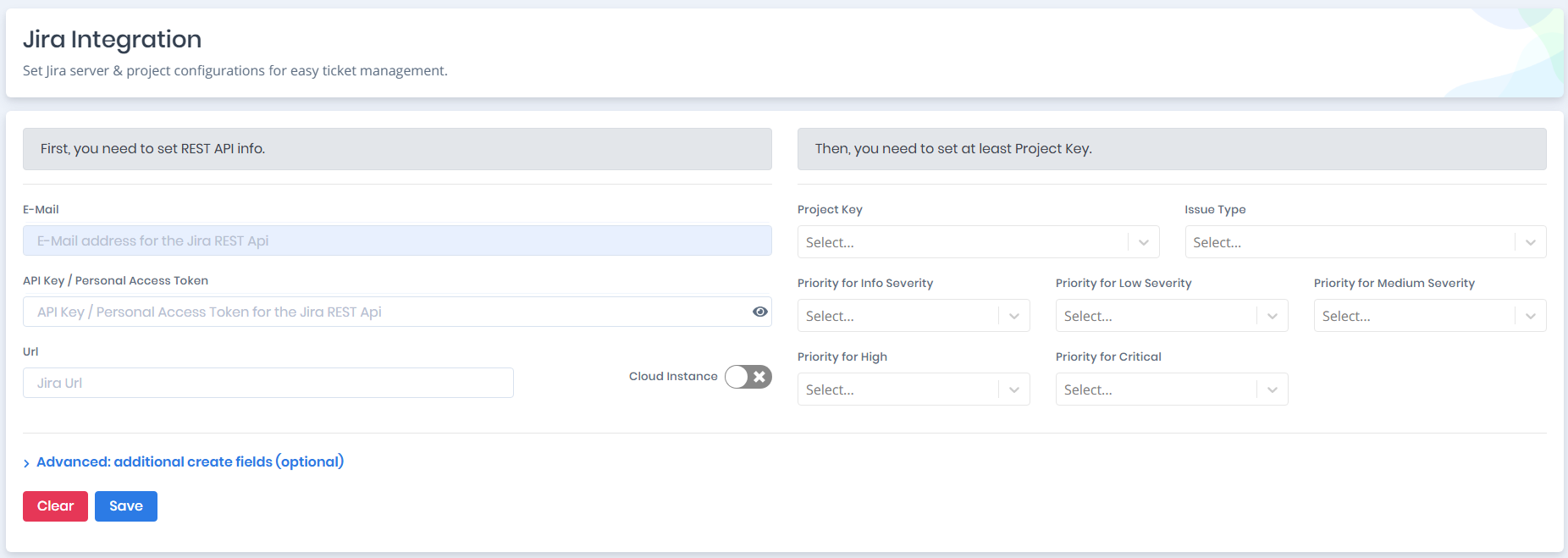
Open **Configuration Center > Jira > Manage** to reach the **Jira Integration** page. It is a single page with two panels:
* The left panel, "First, you need to set REST API info.", holds the **REST API connection information**.
* The right panel, "Then, you need to set at least Project Key.", holds the **data binding fields between Jira and Forestall**. It stays disabled until the REST API information has been saved.
Jira Integration
## **Configuring the REST API Connection**
Set the REST API connection before the project settings.
Both on-prem and cloud Jira instances are supported.
The following input fields must be supplied according to the Jira instance:

**E-Mail**: The e-mail address of the Jira API user.
**API Key / Personal Access Token**:
* The generated API Key for cloud Jira instances to authenticate over REST API. ()
* The generated Personal Access Token for on-premise Jira instances to authenticate over REST API. ()
**Url**: The URL of the Jira server.
**Cloud Instance**: Jira instance type. Switch on for cloud instances, switch off for on-premise instances.
Click `Save` to validate the connection information.
If the connection information is correct, the right panel ("Then, you need to set at least Project Key.") is enabled.

## Updating the Jira Address
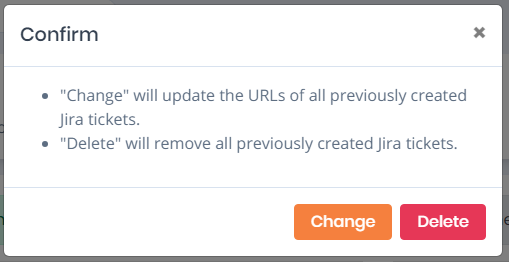
If you change the Jira URL of a saved configuration, a **Confirm** window asks how to handle the tickets that were already created:
* "Change" will update the URLs of all previously created Jira tickets.
* "Delete" will remove all previously created Jira tickets.
## **Data Binding between Jira and Forestall**
In the right panel, set the project details and the data binding between Forestall and Jira.

**Project Key**: Name of the project that is created in Jira for the found `Issues` by Forestall.
**Issue Type**: The type of issues to bind the created tickets in a specified category.
**Priority for Info Severity**: The severity mapping for the Information level `Issues` found by Forestall to the Jira priority.
**Priority for Low Severity**: The severity mapping for the Low level `Issues` found by Forestall to the Jira priority.
**Priority for Medium Severity**: The severity mapping for the Medium level `Issues` found by Forestall to the Jira priority.
**Priority for High**: The severity mapping for the High level `Issues` found by Forestall to the Jira priority.
**Priority for Critical**: The severity mapping for the Critical level `Issues` found by Forestall to the Jira priority.
Click `Save` to save the binding and priority mapping.
{% hint style="warning" %}
The **Clear** button next to **Save** deletes the whole Jira configuration. A **Confirm Clear Operation** window asks you to confirm before it is removed.
{% endhint %}
## Advanced: Additional Create Fields
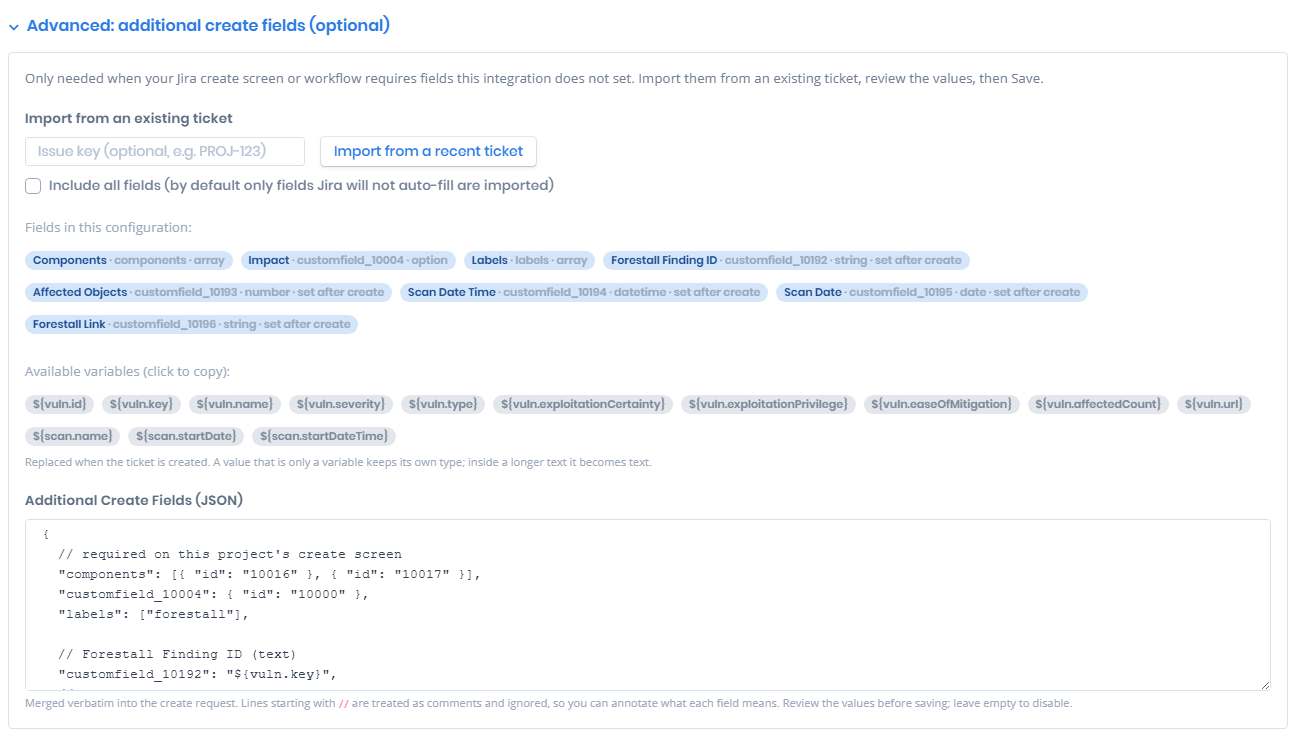
Some Jira projects require fields on their create screen or in their workflow that the integration does not set by itself. The **Advanced: additional create fields (optional)** section of the Jira configuration supplies those fields.
Advanced: additional create fields
**Import from an existing ticket**: Enter an issue key, for example `PROJ-123`, or use **Import from a recent ticket** to read the field values from a ticket that already satisfies the project's requirements. By default only the fields Jira will not auto-fill are imported; select **Include all fields** to import every field.
**Fields in this configuration**: After an import, or when the configuration already has additional fields, each field is shown as a badge with its name, id and type, in the form ` · · `. Fields marked **set after create** are not on the Jira create screen. They are set after the ticket is created. Right after an import the heading reads **Fields (imported from PROJ-123)**.
**Additional Create Fields (JSON)**: The imported values, which are merged verbatim into the Jira create request. Lines beginning with `//` are comments, so you can annotate each field. Leaving the box empty disables the feature.
### Variables
A field value can contain a variable that is replaced when the ticket is created. Clicking a variable in the **Available variables** list copies it.
| Variable | Value |
| ------------------------------- | ---------------------------------------------- |
| `${vuln.id}` | Identifier of the issue. |
| `${vuln.key}` | Key of the issue. |
| `${vuln.name}` | Name of the issue. |
| `${vuln.severity}` | Severity of the issue. |
| `${vuln.type}` | Type of the issue. |
| `${vuln.exploitationCertainty}` | How likely the issue can be exploited. |
| `${vuln.exploitationPrivilege}` | Privilege level required to exploit the issue. |
| `${vuln.easeOfMitigation}` | How easily the issue can be mitigated. |
| `${vuln.affectedCount}` | Number of objects affected by the issue. |
| `${vuln.url}` | Link to the issue in Forestall. |
| `${scan.name}` | Name of the scan the issue was detected in. |
| `${scan.startDate}` | Start date of the scan. |
| `${scan.startDateTime}` | Start date and time of the scan. |
A value that is only a variable keeps its own type, so a numeric variable stays a number. A variable used inside a longer text becomes text.
{% hint style="warning" %}
The JSON is merged into the create request exactly as written. Review the imported values before saving, because a field Jira rejects will prevent tickets from being created.
{% endhint %}
## **Assign Issues to Users**
After a successful Jira configuration, go to the `Issues` page and choose `Create Jira Ticket` from the three-dot button of an issue. The **Create Jira Ticket** window has the following fields:
* **Jira Ticket Key**: leave empty to open a new ticket, or enter the key of a ticket that already exists in Jira to link the issue to it. If the issue is already linked, the linked ticket is shown with an **Unlink** button (confirmed in **Confirm Unlink Operation**). After unlinking, saving opens a new ticket. If you instead change this field to a **different** existing ticket key and save, Forestall relinks the issue to that ticket. The previous ticket is left untouched in Jira. The new key must not already be linked to another issue, and relinking moves the link for every scan of this issue.
* **Issue Type**
* **Issue Priority**
* **Issue Assignee**
* **Reporter**
* **Labels**: select existing labels or create new ones.
* **Ticket Policy**: `Global` (default) links the ticket to the issue in scans of every policy. Selecting the current scan's policy links it only to scans that use that policy.
* **Advanced: additional create fields (optional)**: extra JSON fields for this ticket only, in the same format as the configuration's [additional create fields](#advanced-additional-create-fields).

To create tickets for multiple vulnerabilities at once, go to the `Issues` page and select vulnerabilities with the checkboxes in the leftmost column of the table. Choose `Create Jira Ticket (N)` from the bulk action menu and click `Apply`. The **Bulk Jira Operations** window opens. Supply the necessary information and click **Create Jira Tickets**. The button at the right end of a row applies that row's assignee to all tickets.
Assigning issues in bulk
You can then review the created tickets in Jira.
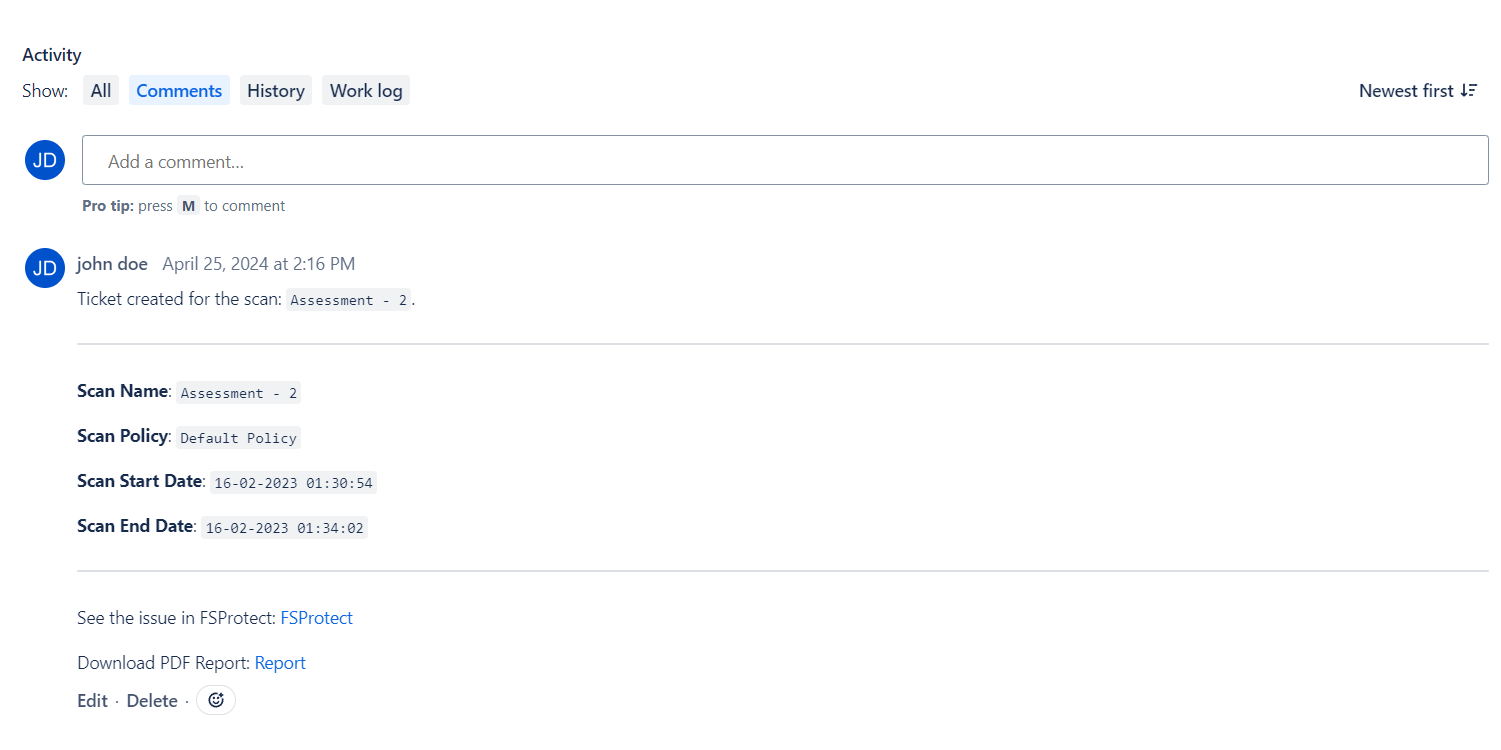
Ticket created in Jira
Tickets created for the scan will appear in the comment section of the respective ticket in Jira, accompanied by relevant information and reports.