Azure Configuration
You can integrate Azure SSO to simplify authentication. The following configurations must be completed for integration:
1. Create an Enterprise Application
Go to https://portal.azure.com and log in.

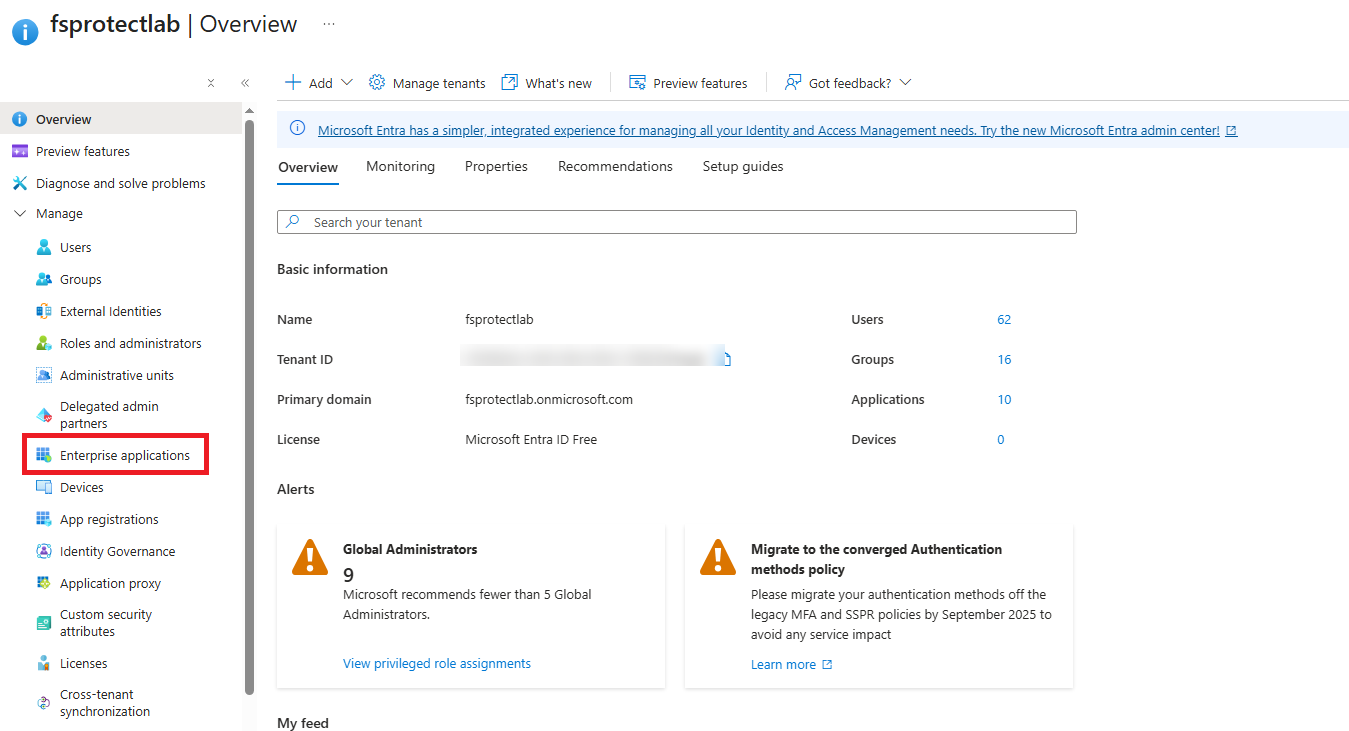
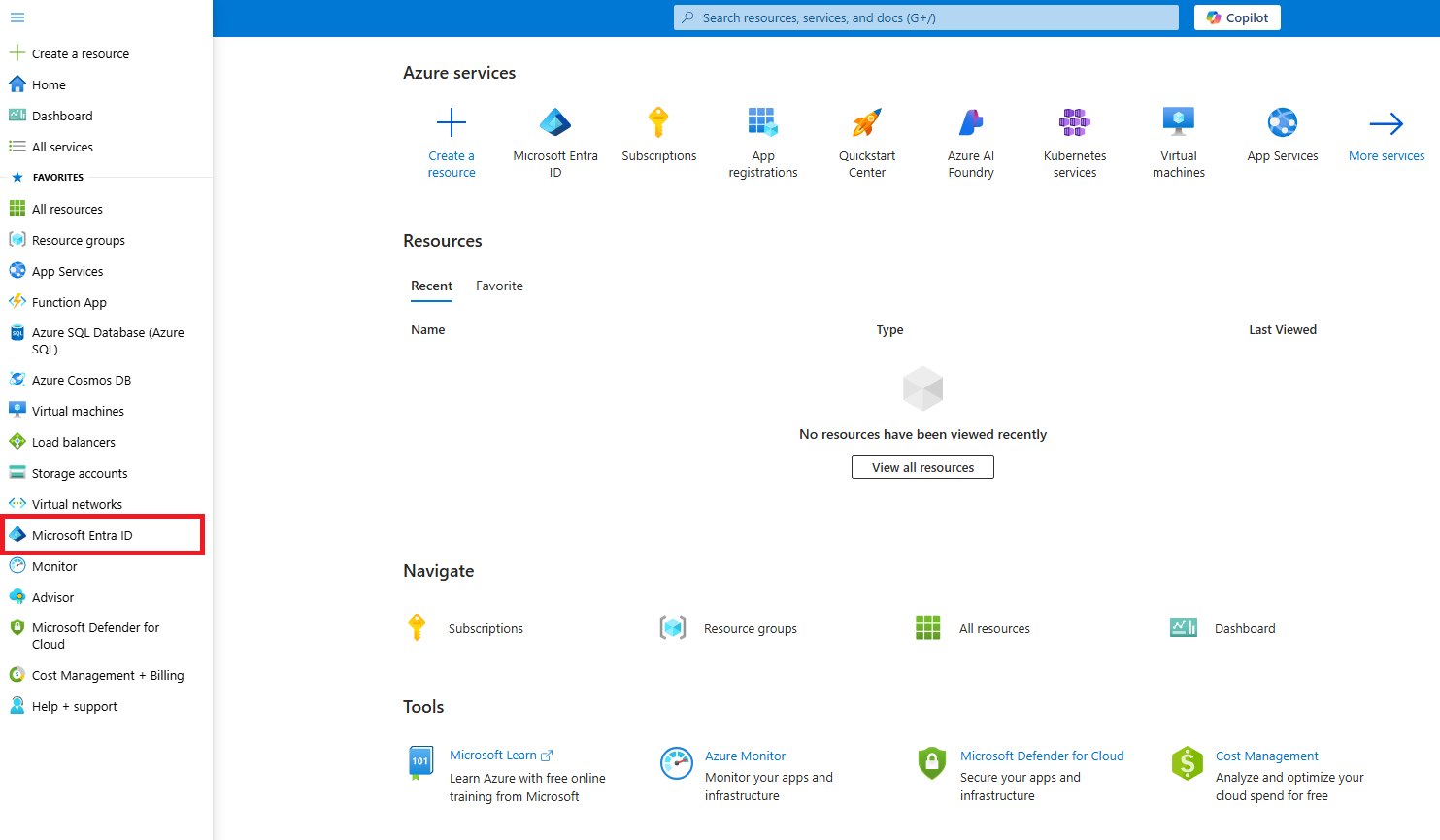
Navigate to Microsoft Entra ID > Enterprise applications.

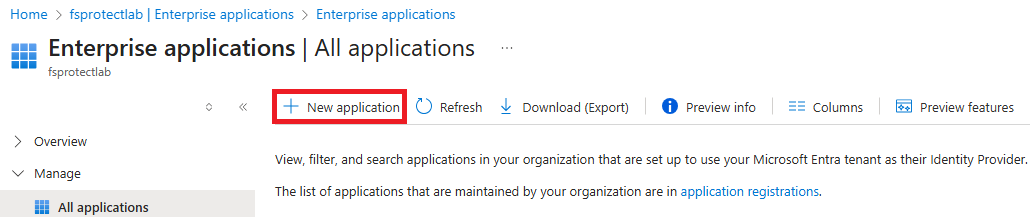
Click on "New application".

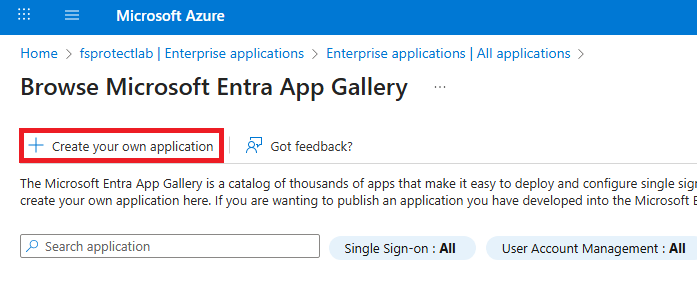
Select "Create your own application".

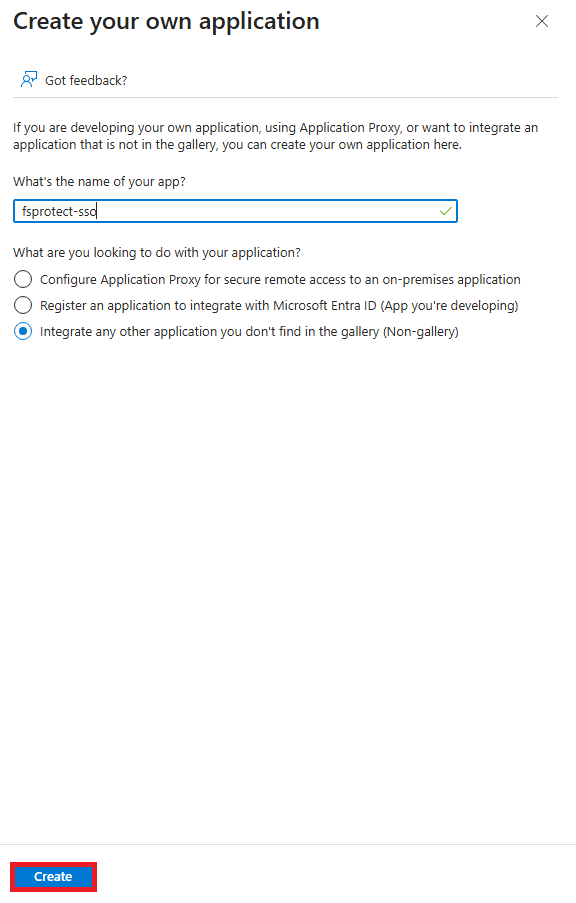
Provide a name for your app (e.g.,
forestall-SSO).Choose the option: "Integrate any other application you don’t find in the gallery (Non-gallery)"
Click Create.

2. Set Up Single Sign-On (SAML)
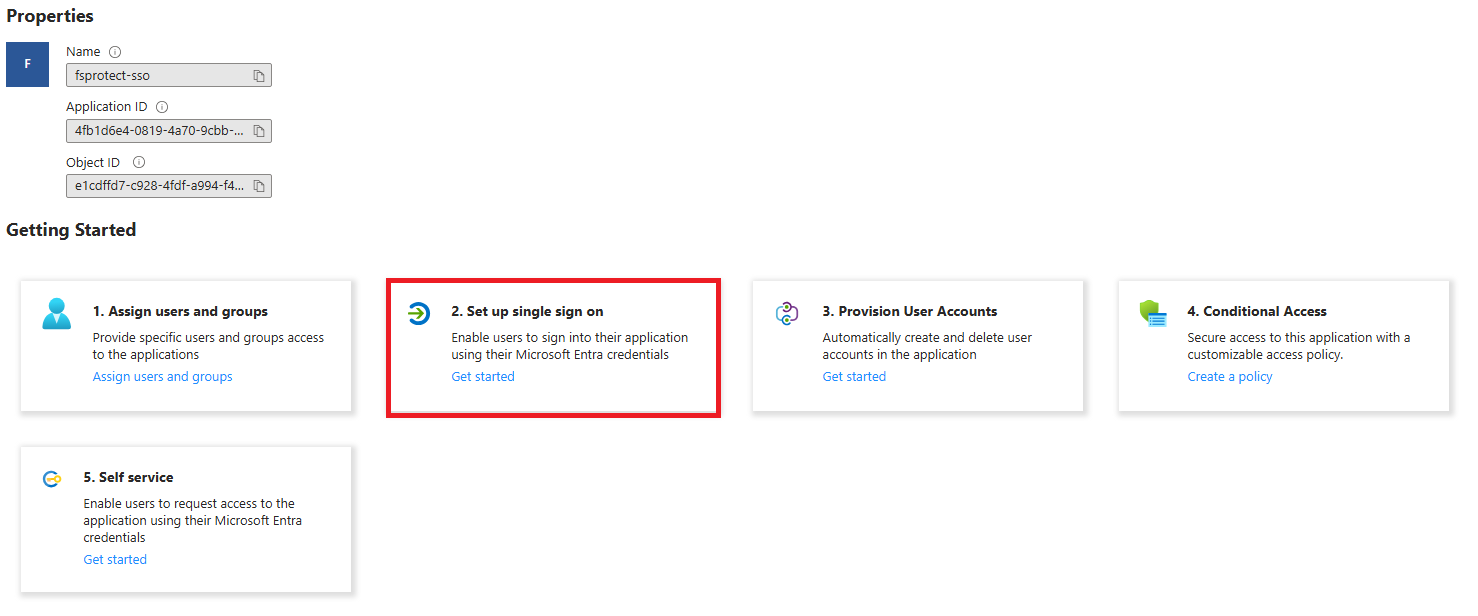
In the left menu of the application page, select Single sign-on or select Set up single sign-on after creating app.

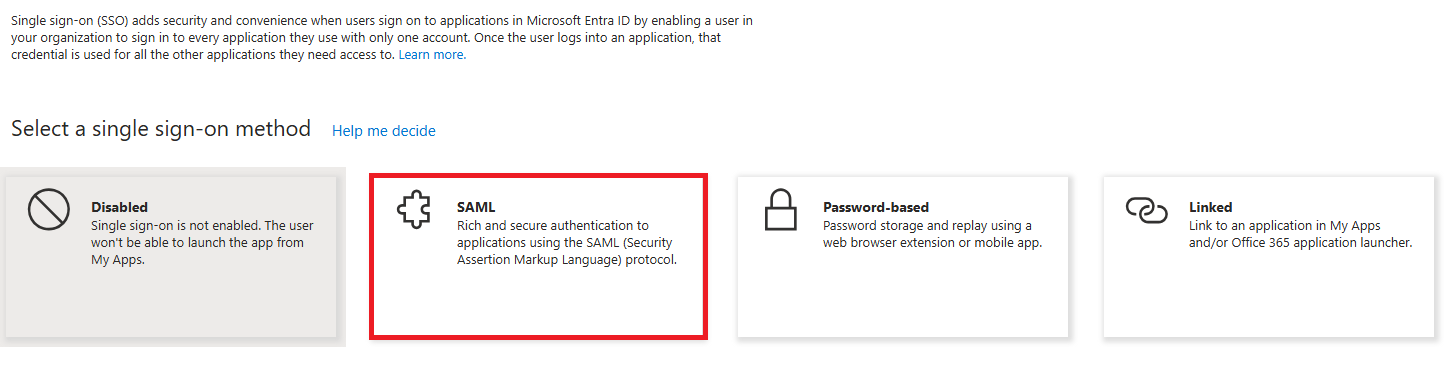
Choose SAML as the single sign-on method.

You will now see multiple sections, including:
Basic SAML Configuration
Attributes & Claims
SAML Signing Certificate
Set up [App Name]
3. Configure Attributes & Claims
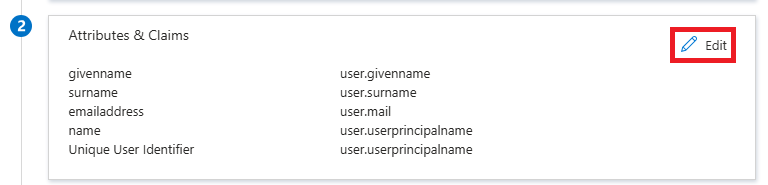
In the Attributes & Claims section, click Edit.

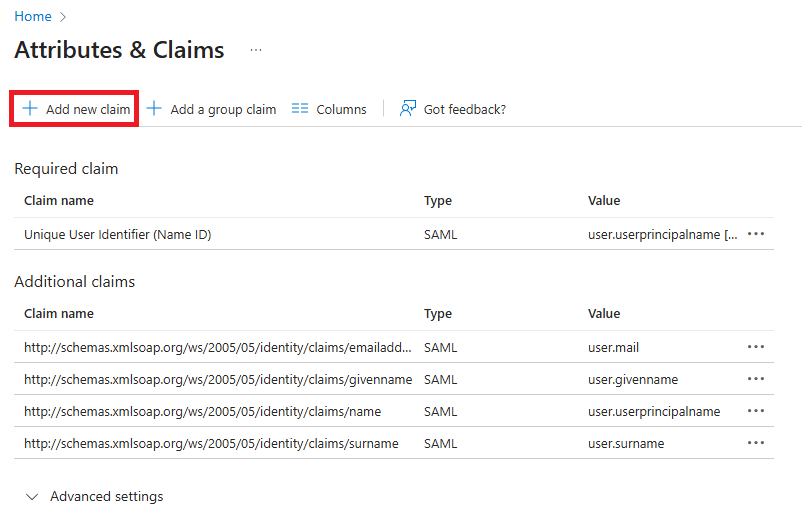
Review the default claims (such as
email,givenname,surname, etc.).To add a custom claim:
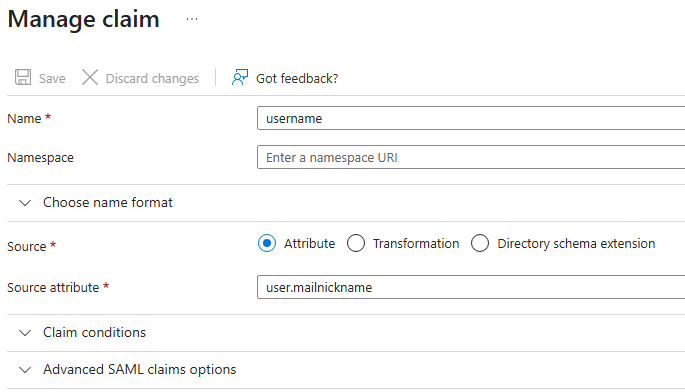
Click Add new claim
Enter a Name (e.g.,
username)Choose the appropriate Source (e.g., user attribute or transformation)
For user attributes, select from available directory attributes like
user.mailnicknameetc.Click Save


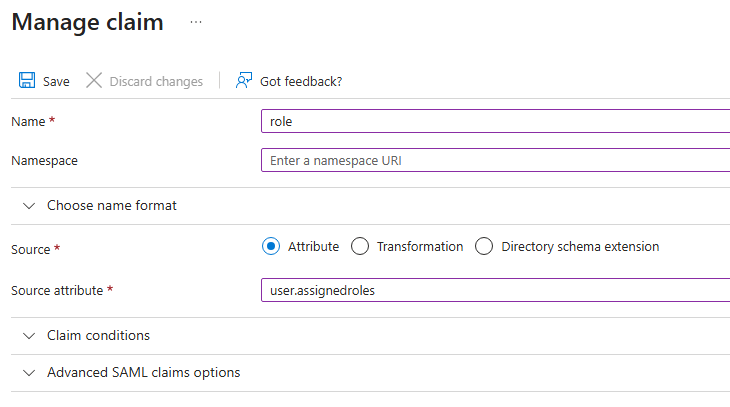
Do the same things for the
role:Enter a Name (e.g.,
role)Choose the appropriate Source (e.g., user attribute or transformation)
For user attributes, select from available directory attributes like
user.assignedrolesetc.

4. Configure Basic SAML Settings
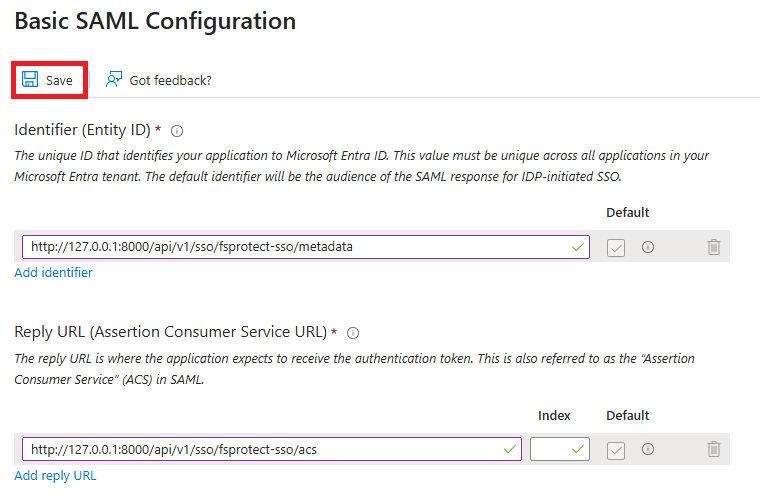
Click Edit in the Basic SAML Configuration section.

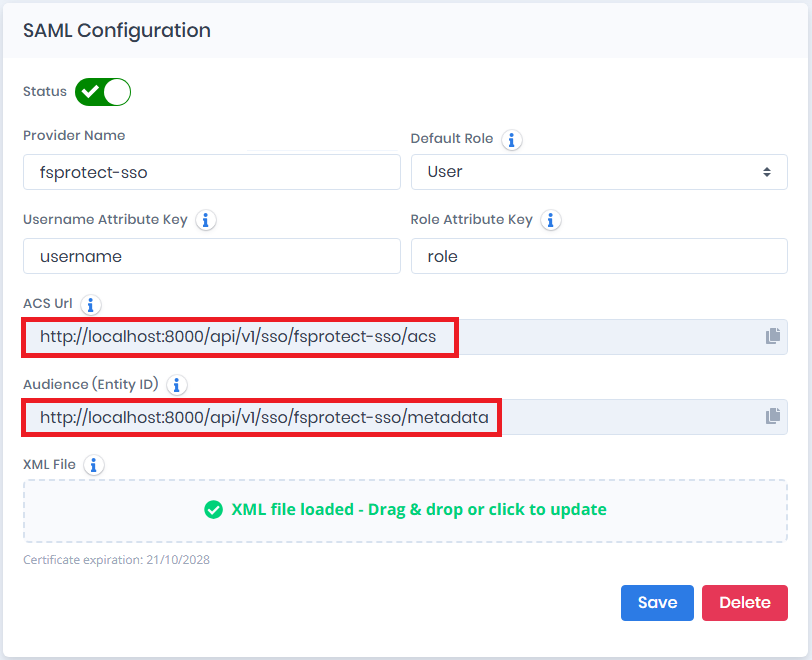
Fill in the required fields of the Basic SAML Configuration with the ACS Url and Audience (Entity ID) values shown on Forestall's New SAML Provider page (Configuration Center > SSO > New Provider, or ⋯ > Edit for an existing provider). Both values are filled in as soon as you type the Provider Name and can be copied with the button next to them.


Identifier (Entity ID)
Unique URI identifying your SP
http://{baseURL}/api/v1/sso/{ssoProviderName}/metadata
Reply URL (ACS URL)
Endpoint where SAML assertions are sent (POST binding)
http://{baseURL}/api/v1/sso/{ssoProviderName}/acs
5. Download SAML Metadata XML
Scroll to the SAML Signing Certificate section.
Locate the Federation Metadata XML link.
Click Download.

{ssoProviderName} is the Provider Name converted to a URL slug (lower case, spaces replaced by hyphens).
6. Complete the Configuration in Forestall
In Forestall, open Configuration Center > SSO > Manage and click New Provider (or edit the provider you used to copy the URLs).
Set Username Attribute Key and Role Attribute Key to the claim names you created in step 3 (for example
usernameandrole). The claim names must match exactly.Upload the Federation Metadata XML downloaded in step 5 in the XML File field and click Save.
To map Entra ID roles to Forestall roles, open the provider again with ⋯ > Edit and add entries in the Role Mapping panel. See Forestall Configuration.
7. Assign Users and Groups
In the Azure portal, open the enterprise application and select Users and groups.
Click Add user/group and assign the users or groups that should sign in to Forestall.
After these steps, Forestall SSO login works with the configured username and role mappings.
Last updated
Was this helpful?