> For the complete documentation index, see [llms.txt](https://docs.forestall.io/forestall/llms.txt). Markdown versions of documentation pages are available by appending `.md` to page URLs; this page is available as [Markdown](https://docs.forestall.io/forestall/profile-menu/api-tokens.md).
# API Tokens
Create an API token and use it to connect MCP-compatible tools.
## API Tokens for MCP Tools
Forestall API tokens let you authenticate external tools without sharing your username and password. Use an API token for scripts that call the [REST API](/forestall/api-reference.md) and when connecting MCP-compatible clients such as Cursor, VS Code, Claude Desktop, Windsurf, JetBrains, Open WebUI, AnythingLLM, LangChain, or n8n.
Tokens are personal: each user sees and manages only their own tokens, and a token acts with the permissions of the user who created it. The page requires the **ManageApiTokens** permission.
> **Important:** Forestall only displays the full token once, immediately after creation. Copy it before closing the dialog and store it securely.
### Create an API token
1. Sign in to Forestall.
2. Click your avatar in the top-right corner and select **API Tokens** (see [Profile Menu](/forestall/profile-menu.md)).
Profile menu
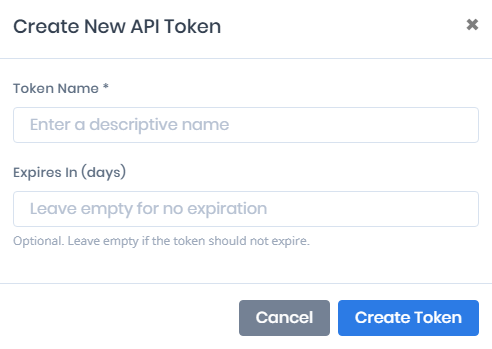
3. On the **API Tokens** page, select **Create New Token** in the **Your API Tokens** card. The **Create New API Token** dialog opens.
API Tokens Page
4. Enter a descriptive **Token Name** (required), for example `Cursor MCP`, `Claude Desktop MCP`, or `Automation Client`.
5. Optional: set **Expires In (days)**, from 1 to 365. Leave it empty if the token should not expire.
6. Select **Create Token**.
Creating an API Token
7. The dialog changes to **Token Created**. Copy the token with the copy button next to **Your API Token**, then select **Done**. You will not be able to view the full token again later.
API Token creation result
### Use the token with the REST API
Send the token in the `Authorization` header of each request:
```
Authorization: Api-Token YOUR_TOKEN_HERE
```
The **How to Use API Tokens** card on the page shows the same header. See [API Reference](/forestall/api-reference.md) for the base URL and the schema pages.
### Use the token with MCP clients
The **MCP Server Configuration** card at the bottom of the API Tokens page gives everything an MCP client needs, each with a copy button:
* **MCP Endpoint**: the Forestall MCP URL, `https://YOUR_FORESTALL_HOST:8443/api/v1/mcp` (host and API port of your deployment).
* **HTTP Config**: a ready-made `mcpServers` entry with `url` and `headers`, for HTTP-native clients such as Cursor, VS Code, Open WebUI, AnythingLLM, LangChain and n8n.
* **stdio Config (mcp-remote)**: for stdio-based clients such as Claude Desktop, Windsurf and JetBrains, with **macOS / Linux** and **Windows** tabs. It runs `npx mcp-remote`, so it needs Node.js 18 or higher.
If you create a token on the page, it is filled into these configurations automatically. Otherwise they contain the placeholder `` and the card shows "Create an API token above to auto-fill your token in the config below."
The HTTP config looks like this:
```json
{
"mcpServers": {
"forestall-ispm": {
"url": "https://YOUR_FORESTALL_HOST:8443/api/v1/mcp",
"headers": {
"Authorization": "Api-Token YOUR_TOKEN_HERE"
}
}
}
}
```
The stdio configs add `"env": { "NODE_TLS_REJECT_UNAUTHORIZED": "0" }`, which lets `mcp-remote` accept a self-signed certificate. Remove it when Forestall uses a trusted CA-signed certificate.
#### Example: VS Code
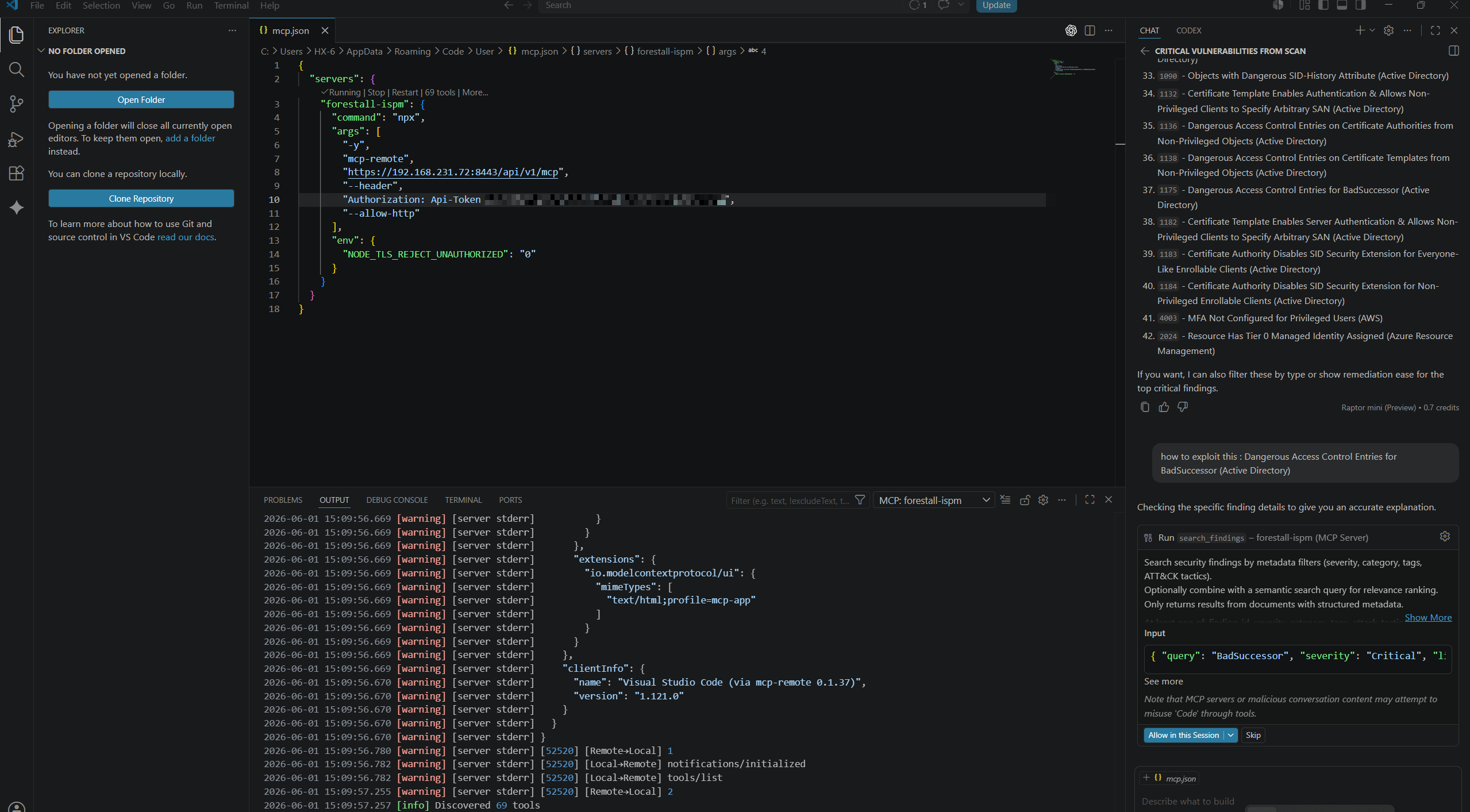
VS Code is an HTTP-native client, but its `mcp.json` file uses a top-level `servers` object instead of `mcpServers`.
1. Create a Forestall API token and copy it.
2. Open VS Code.
3. Open the Command Palette and run **MCP: Open User Configuration** or **MCP: Open Workspace Folder MCP Configuration**.
4. Add the Forestall MCP server configuration below.
5. Replace `YOUR_FORESTALL_HOST` with your Forestall host, and `YOUR_TOKEN_HERE` with the API token you copied.
```json
{
"servers": {
"forestall-ispm": {
"type": "http",
"url": "https://YOUR_FORESTALL_HOST:8443/api/v1/mcp",
"headers": {
"Authorization": "Api-Token YOUR_TOKEN_HERE"
}
}
}
}
```
If Forestall uses a self-signed certificate that the machine running VS Code does not trust, the HTTP connection fails with `TypeError: fetch failed`. In that case, use the stdio config from the page instead: copy the **macOS / Linux** or **Windows** tab and put its `forestall-ispm` entry under `servers`.
After saving the configuration, restart or reload the MCP client in VS Code. The Forestall tools then appear in the MCP tools list.
Using API Token with MCP server
### Manage existing tokens
The **Your API Tokens** table has the columns **Name**, **Prefix** (the first characters of the token), **Created**, **Expires** (`Never` if there is no expiry), **Last Used**, **Status** and **Actions**. The full token value is never shown again after creation.
**Status** is one of:
* **Active**: the token can be used.
* **Expired**: the expiry date has passed.
* **Revoked**: the token was revoked.
To disable an active token, select the trash icon in the **Actions** column and confirm with **Revoke Token** in the **Confirm Revoke Operation** dialog. Revoking cannot be undone. Revoked tokens can no longer authenticate API or MCP requests. Expired and revoked tokens have no trash icon.
Revoking an API Token
### Troubleshooting
| Problem | What to check |
| ------------------------------------------ | ----------------------------------------------------------------------------------------------------------------------------------------------------------------------------------- |
| The API Tokens page is not visible | Confirm your role includes the **ManageApiTokens** permission. |
| The MCP client returns unauthorized errors | Confirm the header is exactly `Authorization: Api-Token YOUR_TOKEN_HERE`. |
| VS Code shows `TypeError: fetch failed` | Confirm `YOUR_FORESTALL_HOST` was replaced with the real host. If curl only works with `-k`, use the stdio (`mcp-remote`) configuration or install a trusted Forestall certificate. |
| The token no longer works | Check whether the token was revoked or expired. |
| The client cannot connect over HTTPS | Confirm the Forestall URL is correct. If using a self-signed certificate with `mcp-remote`, keep `NODE_TLS_REJECT_UNAUTHORIZED=0`. |
| The full token is missing from the list | This is expected. Forestall only shows the full token once during creation. |