> For the complete documentation index, see [llms.txt](https://docs.forestall.io/forestall/llms.txt). Markdown versions of documentation pages are available by appending `.md` to page URLs; this page is available as [Markdown](https://docs.forestall.io/forestall/configuration-center/gcp-configurations.md).
# GCP Configurations
A GCP configuration connects Forestall to one Google Cloud organization and its Google Workspace / Cloud Identity directory. Forestall authenticates with a service account key and reads the directory by impersonating an admin through Domain-Wide Delegation.
Before you open the form, prepare the service account in Google Cloud. Choose one of the two paths below. Both produce the same result (8 APIs enabled, the organization-level roles granted, a JSON key):
* [Configuration With Google CLI](/forestall/configuration-center/gcp-configurations/configuration-with-google-cli.md): run the **Copy PS** script from the GCP Configuration page. It also creates the service account, downloads the key and prints the Client ID and OAuth scopes for Domain-Wide Delegation.
* [Configuration With Google Cloud Platform](/forestall/configuration-center/gcp-configurations/configuration-with-google-cloud-platform.md): do the same steps by hand in the Google Cloud Console.
Whichever path you choose, you must then set up [Domain-Wide Delegation](/forestall/configuration-center/gcp-configurations/domain-wide-delegation.md) in the Google Admin Console. Without it the Test fails.
{% content-ref url="/pages/vssxMMlRnoWFhJPcB3RP" %}
[Configuration With Google CLI](/forestall/configuration-center/gcp-configurations/configuration-with-google-cli.md)
{% endcontent-ref %}
{% content-ref url="/pages/aLzgBgmWGijjlYcp6WZ4" %}
[Configuration With Google Cloud Platform](/forestall/configuration-center/gcp-configurations/configuration-with-google-cloud-platform.md)
{% endcontent-ref %}
{% content-ref url="/pages/Pq05ANhIMvgqMsH30sI2" %}
[Domain-Wide Delegation](/forestall/configuration-center/gcp-configurations/domain-wide-delegation.md)
{% endcontent-ref %}
### GCP Configurations list
Open **Configuration Center > Google Cloud Platform > Manage**. The **GCP Configurations** page lists the saved configurations with the columns **Organization** and **Admin Email**. Click an organization name, or **Edit** in the row's **⋯** menu, to open it. **Delete** in the same menu removes it after a confirmation. Click **New Configuration** to add one.
GCP Configuration Page
### 1. Upload the Service Account Key
The most critical part of this page is the `.json` key file of the service account.
* Locate your file: the `forestall-scanner-sa-key.json` file written by the script, or the key you downloaded from the Google Cloud Console.
* Action: Drag and drop this file into the box labeled "Drag & drop or click to select your service account key file." Only `.json` files are accepted.
* Purpose: This allows the application to authenticate as the Service Account and perform the scanning tasks defined by the roles you granted.
GCP Configuration With Uploaded Service Account Key and Admin Email
### 2. Enter Admin Email
* Field: Admin Email
* Action: Enter the email address of a Super Administrator for your Google Workspace/Cloud Identity account.
* Why? The "Required Permissions" listed on the right (like `AdminDirectoryUserReadonly`) are granted through Domain-Wide Delegation. The app uses this email address to "impersonate" an admin to read your user and group directories.
### 3. Organization & Customer Details
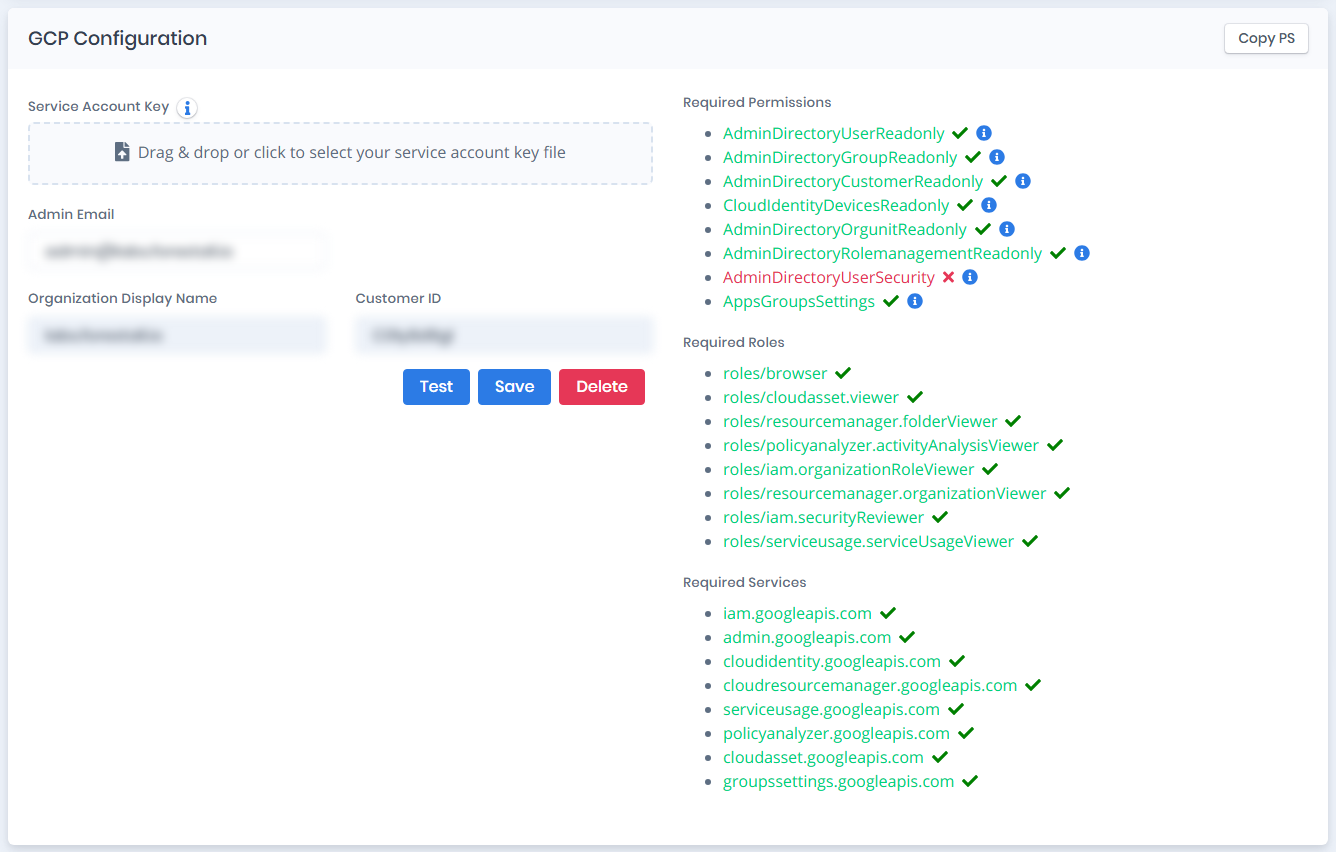
GCP Configuration After Tested
**Organization Display Name** and **Customer ID** are read-only. You do not fill them in: after a successful **Test**, Forestall reads them from Google through the service account and fills both fields.
### 4. Verify the Requirements Panel
The panel on the right lists everything the scan needs, in three groups. Before the first Test every entry is orange with a **?** icon. After a Test, each entry turns green with a ✓ when it is granted or enabled, or red with a ✗ when it is missing. Entries under Required Permissions also have an ⓘ icon. Hover over it to see what the permission is used for.
#### Required Permissions
The Admin SDK and Cloud Identity scopes the service account must be able to use through Domain-Wide Delegation:
* `AdminDirectoryUserReadonly`: To see user accounts.
* `AdminDirectoryGroupReadonly`: To see group memberships.
* `AdminDirectoryCustomerReadonly`: To see organization-level settings.
* `CloudIdentityDevicesReadonly`: To see managed devices.
* `AdminDirectoryOrgunitReadonly`: To see the organizational unit structure.
* `AdminDirectoryRolemanagementReadonly`: To see the admin roles and who holds them.
* `AdminDirectoryUserSecurity`: To see the third-party OAuth tokens users have granted.
* `AppsGroupsSettings`: To see group access settings, such as who may post to or join a group.
Authorize all eight scopes listed on the [Domain-Wide Delegation](/forestall/configuration-center/gcp-configurations/domain-wide-delegation.md) page.
#### Required Roles
The IAM roles the service account must hold at the organization level:
* `roles/browser`: To walk the resource hierarchy.
* `roles/cloudasset.viewer`: To read the asset inventory.
* `roles/resourcemanager.folderViewer`: To see folders.
* `roles/policyanalyzer.activityAnalysisViewer`: To see which permissions are actually being used.
* `roles/iam.organizationRoleViewer`: To see custom organization roles.
* `roles/resourcemanager.organizationViewer`: To view the organization itself.
* `roles/iam.securityReviewer`: To read IAM policies across the organization.
* `roles/serviceusage.serviceUsageViewer`: To see which services are enabled.
#### Required Services
The APIs that must be enabled in the project the service account belongs to:
`iam.googleapis.com`, `admin.googleapis.com`, `cloudidentity.googleapis.com`, `cloudresourcemanager.googleapis.com`, `serviceusage.googleapis.com`, `policyanalyzer.googleapis.com`, `cloudasset.googleapis.com` and `groupssettings.googleapis.com`.
> If these items have orange question marks or red icons, it means you may still need to enable the API in your Google Cloud Project, grant the role, or set up Domain-Wide Delegation in the Google Admin Console for your Service Account's Client ID.
The **Copy PS** button at the top of the form opens a PowerShell script. The script enables the required services, creates the service account, grants the organization-level roles, downloads the JSON key and prints the Client ID and OAuth scopes you need for Domain-Wide Delegation. See [Configuration With Google CLI](/forestall/configuration-center/gcp-configurations/configuration-with-google-cli.md).
***
### 5. Test and Save
1. Click "Test": Before saving, click the Test button. This triggers a dry-run connection using the key and the Admin Email you provided, fills in Organization Display Name and Customer ID, and updates the requirements panel.
2. Success Check: Look for the "GCP Config has been successfully tested." message. If it fails, check the Admin Email, the roles of the service account, the enabled services, and that no Domain-Wide Delegation scope is missing.
3. Click "Save": Once the test passes, click Save to finalize the configuration.
When you open a saved configuration, a **Delete** button is also available next to Test and Save.