> For the complete documentation index, see [llms.txt](https://docs.forestall.io/forestall/llms.txt). Markdown versions of documentation pages are available by appending `.md` to page URLs; this page is available as [Markdown](https://docs.forestall.io/forestall/configuration-center/cyberark.md).
# CyberArk
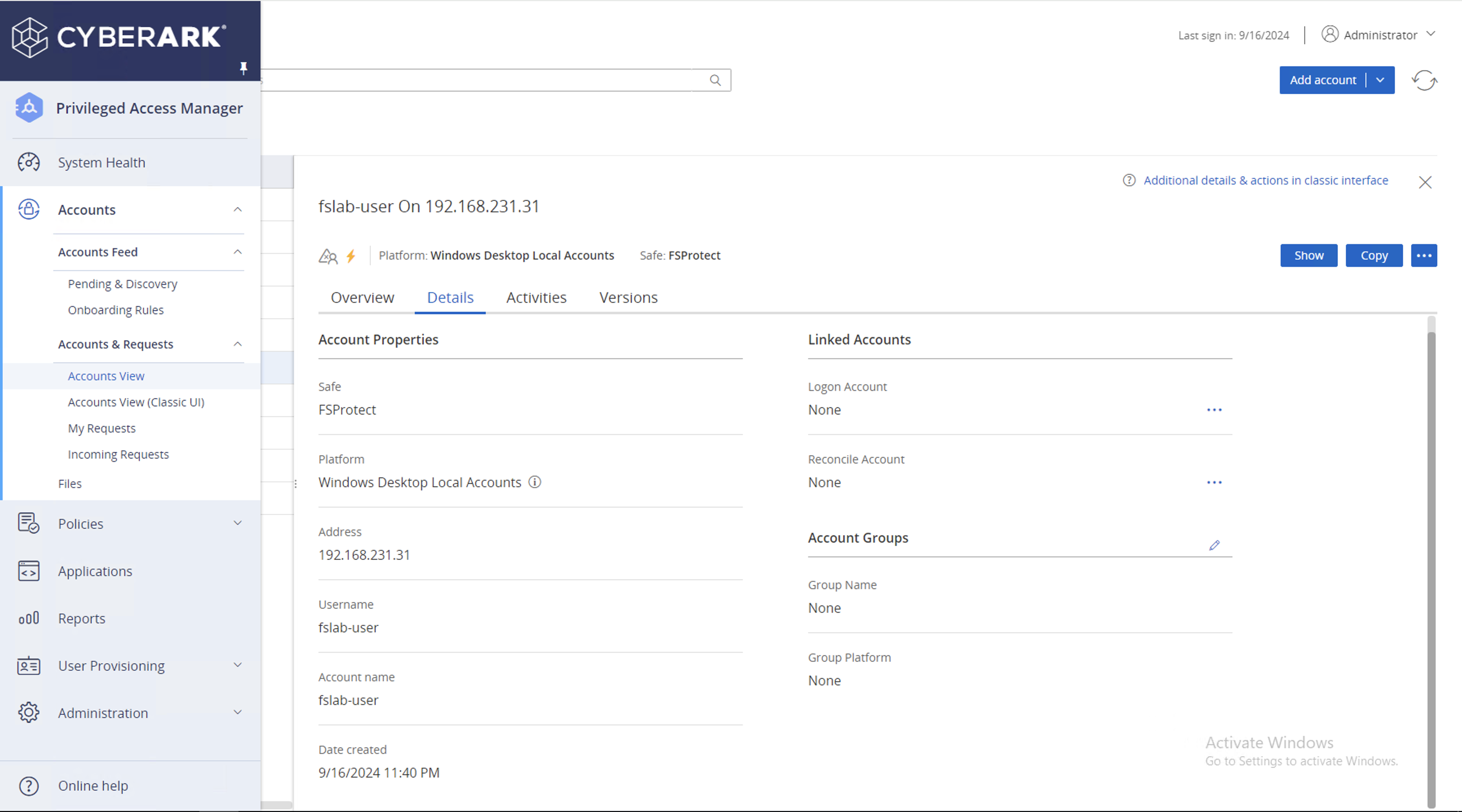
CyberArk integration lets scans get the domain controller password from CyberArk instead of storing it in Forestall. A CyberArk configuration holds the username used to log in to the domain controller (DC) and the information needed to retrieve its password from CyberArk. You then select it in an [AD Configuration](/forestall/configuration-center/ad-configurations.md), and every scan that uses that AD Configuration retrieves the credentials from CyberArk.
CyberArk Integration
### CyberArk Configurations
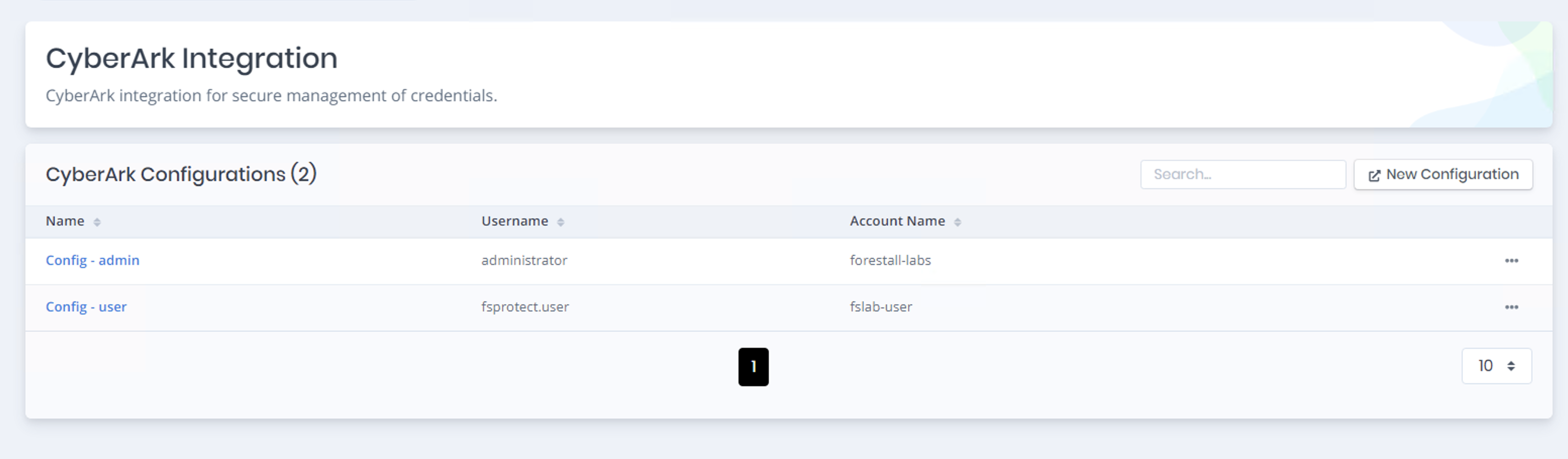
Open **Configuration Center > CyberArk > Manage**. The **CyberArk Configurations (N)** table lists the saved configurations with the **Name**, **Username** and **Account Name** columns. Click **New Configuration** to create one.
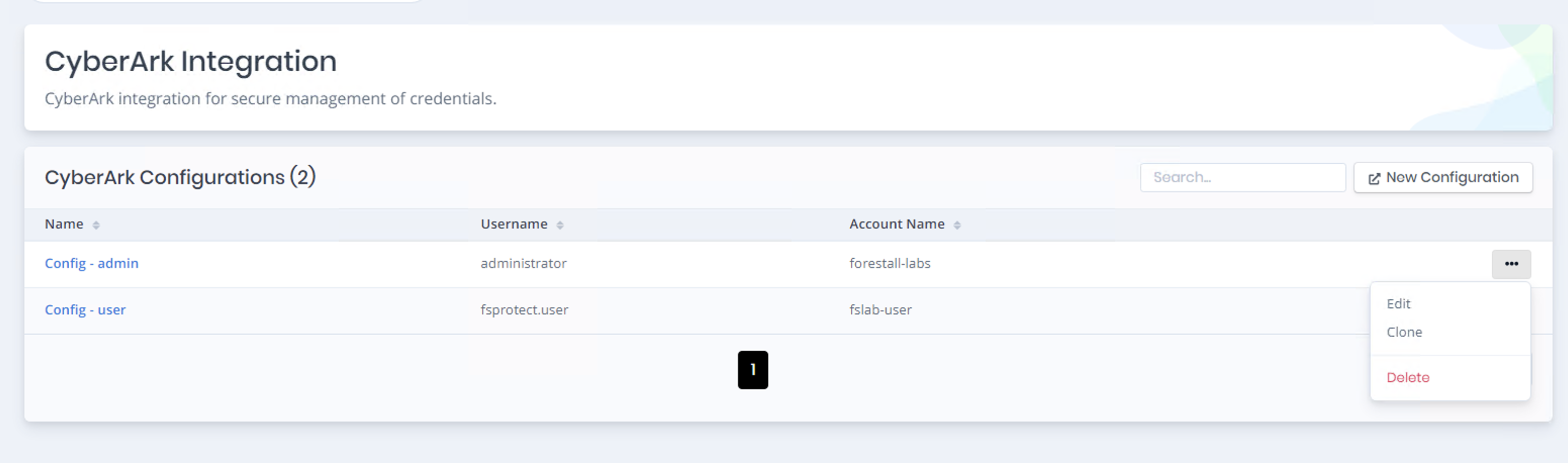
The three-dot button at the end of each row offers:
* **Edit**: opens the configuration for editing.
* **Clone**: opens a new configuration pre-filled with the values of the selected one.
* **Delete**: removes the configuration after confirmation (**Confirm Delete Operation** > **Delete Configuration**). A configuration that is used by an AD Configuration, or by a scheduled or running scan, cannot be deleted.
List of CyberArk Configurations
### Create/Edit CyberArk Configuration
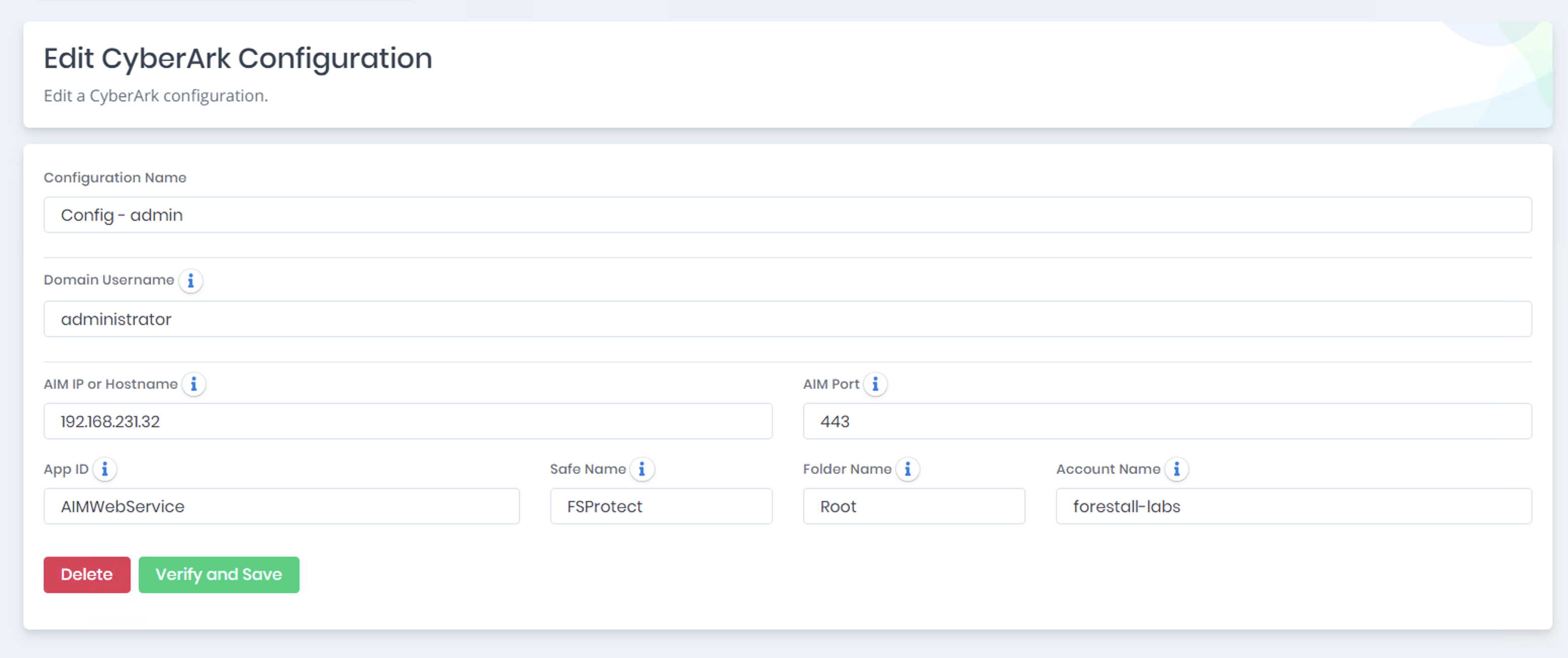
**New Configuration** and **Clone** open the **Create CyberArk Configuration** page. **Edit** opens the **Edit CyberArk Configuration** page. You can also create a configuration without leaving the AD Configuration form by clicking the **+** button next to its **CyberArk Configuration** field.
New/Edit CyberArk configuration
The definitions of the fields can be seen below;
* **Configuration Name:** The name of the configuration.
* **Domain Username:** The username of the individual performing the scan.
* **AIM IP or Hostname:** The IP address or hostname of the AIM service.
* **AIM Port:** The port on which the AIM service operates.
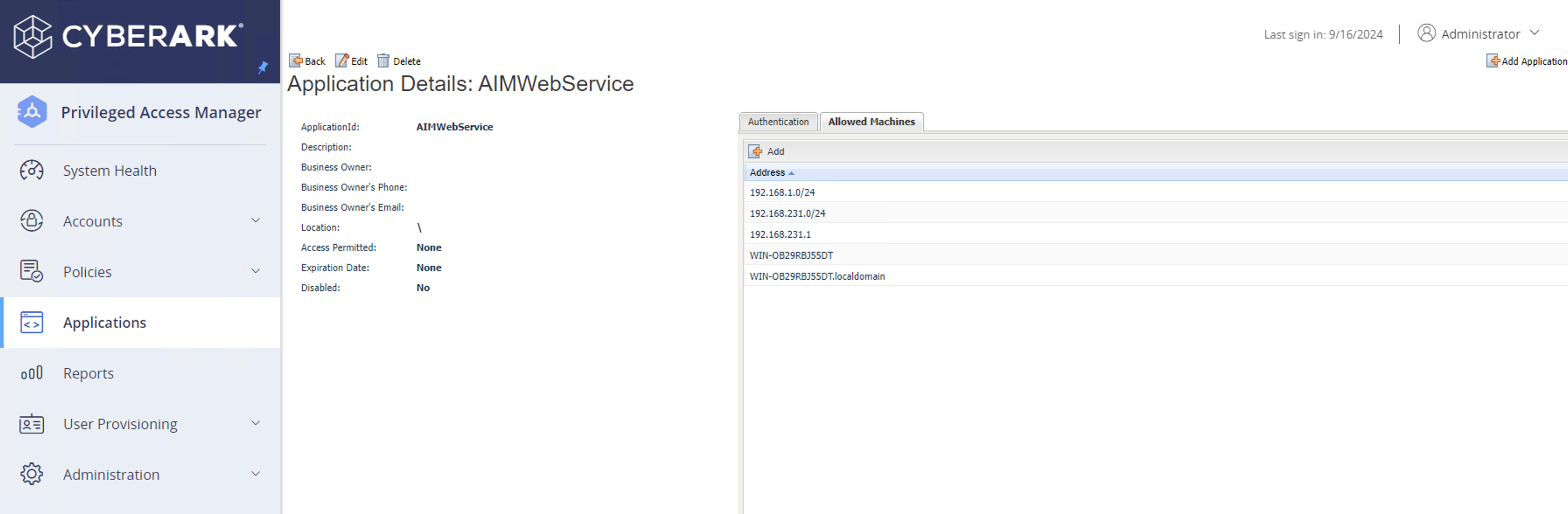
* **App ID:** The application ID created in PVWA.
* **Safe Name:** The name of the safe where the account is stored.
* **Folder Name:** The name of the folder within the safe where the account is stored (default is Root).
* **Account Name:** The name of the account.
Click **Verify and Save**. Forestall first verifies that the credentials can be retrieved from CyberArk with these values, then saves the configuration. When editing a configuration, a **Delete** button is also available.
{% hint style="info" %}
If CyberArk AIM must be reached through a proxy, that is a separate, server-side setting. See [Configuring a Proxy](/forestall/introduction/maintenance/proxy.md).
{% endhint %}
### Using the Integration in Scans
CyberArk is not selected on the new scan page directly. Instead:
1. Go to **Configuration Center > Active Directory**, create or edit an AD Configuration, set **Auth Type** to **CyberArk** and select the CyberArk configuration. See [AD Configurations](/forestall/configuration-center/ad-configurations.md#auth-type).
2. On the **New Scan** page, select that configuration in the **Active Directory Configuration** field. CyberArk-based configurations are listed with a `(CyberArk)` suffix, for example `fslab.local - 192.168.231.61 (CyberArk)`.