> For the complete documentation index, see [llms.txt](https://docs.forestall.io/forestall/llms.txt). Markdown versions of documentation pages are available by appending `.md` to page URLs; this page is available as [Markdown](https://docs.forestall.io/forestall/unified-identities.md).

# Unified Identities

Unified Identities lists every enumerated object of the selected scan and shows which provider or providers it comes from: [`Active Directory`](/forestall/unified-identities/ad-identities.md), [`Azure`](/forestall/unified-identities/azure-identities.md) (Entra ID, Azure Resource Management, Microsoft 365 Teams and Microsoft 365 SharePoint Online), [`AWS`](/forestall/unified-identities/aws-identities.md), [`GCP`](/forestall/unified-identities/gcp-identities.md) and [`GitHub`](/forestall/unified-identities/github-identities.md). Accounts that belong to the same person or workload are matched and merged into a single unified identity. Objects that match nothing stay single-provider rows.

The module has four pages in the sidebar: **Human Identities**, **Non Human Identities**, **Resources** and **Group**. The rules that are used to match and merge identities are in [Merge Rules](/forestall/settings/merge-rule-settings.md).

## List Pages

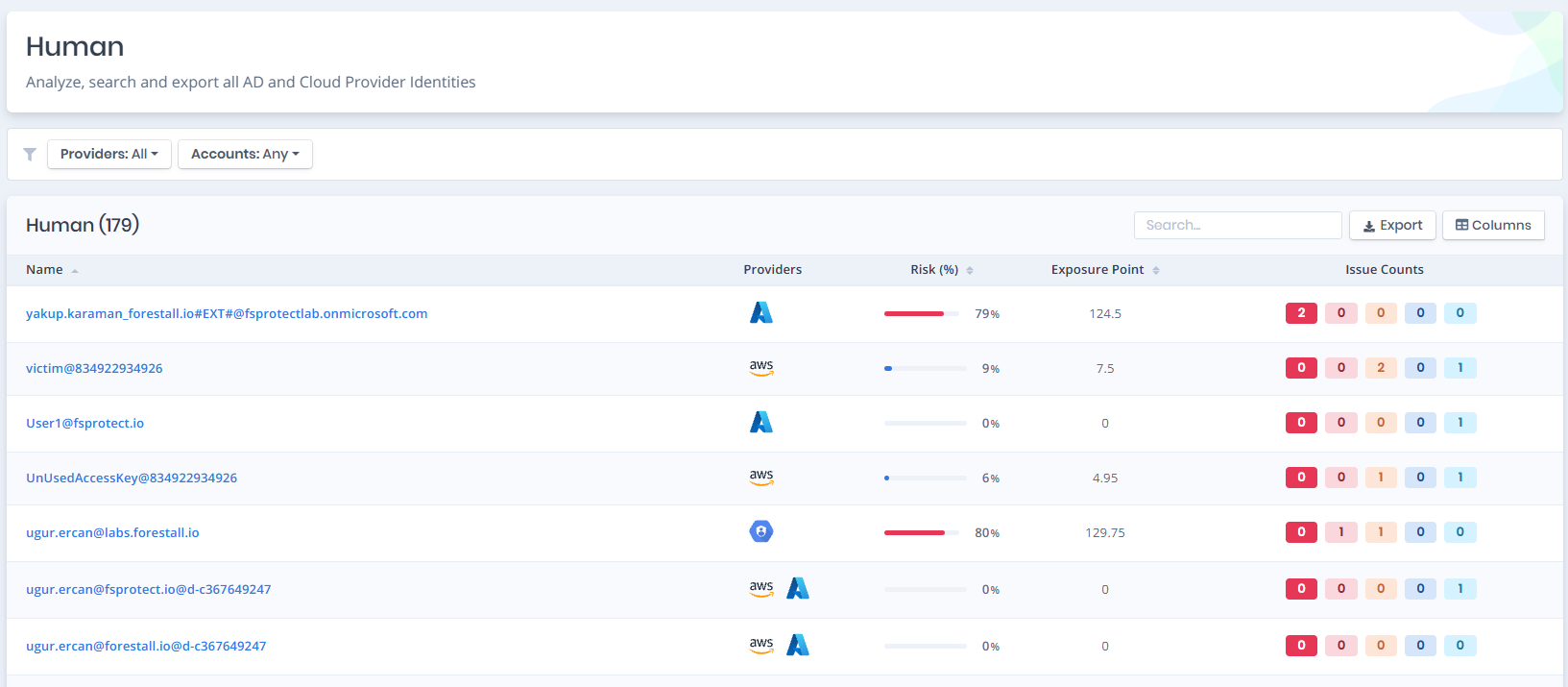
Each page lists the objects of its category. The list contains the following columns:

| Column             | Description                                                                                       |
| ------------------ | ------------------------------------------------------------------------------------------------- |
| **Name**           | Name of the identity. Selecting it opens the details page (see [Details Page](#details-page)).    |
| **Providers**      | Icon of each provider the identity has an account in. Hover an icon to see the provider and type. |
| **Risk (%)**       | Risk score of the identity.                                                                       |
| **Exposure Point** | Exposure point of the identity.                                                                   |
| **Issue Counts**   | Number of issues on the identity by severity (Critical, High, Medium, Low, Info).                 |

The table title shows the total number of rows, for example `Human (979)`. Use `Search...` to search the list, `Export` to download the list and `Columns` to show or hide columns.

The type pages in this section ([AD Identities](/forestall/unified-identities/ad-identities.md), [Azure Identities](/forestall/unified-identities/azure-identities.md), [AWS Identities](/forestall/unified-identities/aws-identities.md), [GCP Identities](/forestall/unified-identities/gcp-identities.md), [GitHub Identities](/forestall/unified-identities/github-identities.md)) document the details page of each object type. To reach an object of a given type, open its category page and filter **Providers** to that provider and type, as shown below.

### Human Identities

**Active Directory:** `User`, `Local User`

**Entra ID:** `User`

**AWS:** `IAM User`, `SSO User`

**GCP Identities:** `User`

**GitHub:** `User`

<figure><img src="https://3408039743-files.gitbook.io/~/files/v0/b/gitbook-x-prod.appspot.com/o/spaces%2FObpV44hoVkNmo5bFuVVL%2Fuploads%2Fgit-blob-8aa10e6cd3eb162c3d9bc872903a2a8b6efb32b6%2Funified-identity-human.png?alt=media" alt=""><figcaption><p>Human Identities</p></figcaption></figure>

### Non Human Identities

**Active Directory:** `Computer`, `Managed Service Account`, `Group Managed Service Account`, `Delegated Managed Service Account`

**Entra ID:** `Device`, `Application`, `Service Principal`

**Azure Resource Management:** `User Assigned Identity`

**AWS:** `IAM Role`

**GCP Identities:** `Service Account`, `Device`, `Principal`

**GitHub:** `App Installation`

<figure><img src="https://3408039743-files.gitbook.io/~/files/v0/b/gitbook-x-prod.appspot.com/o/spaces%2FObpV44hoVkNmo5bFuVVL%2Fuploads%2Fgit-blob-e1a47fad7361dbf0e7eb08b8d01e0ba826659b4e%2Funified-identities-nonhuman-1.png?alt=media" alt=""><figcaption><p>Non Human Identities</p></figcaption></figure>

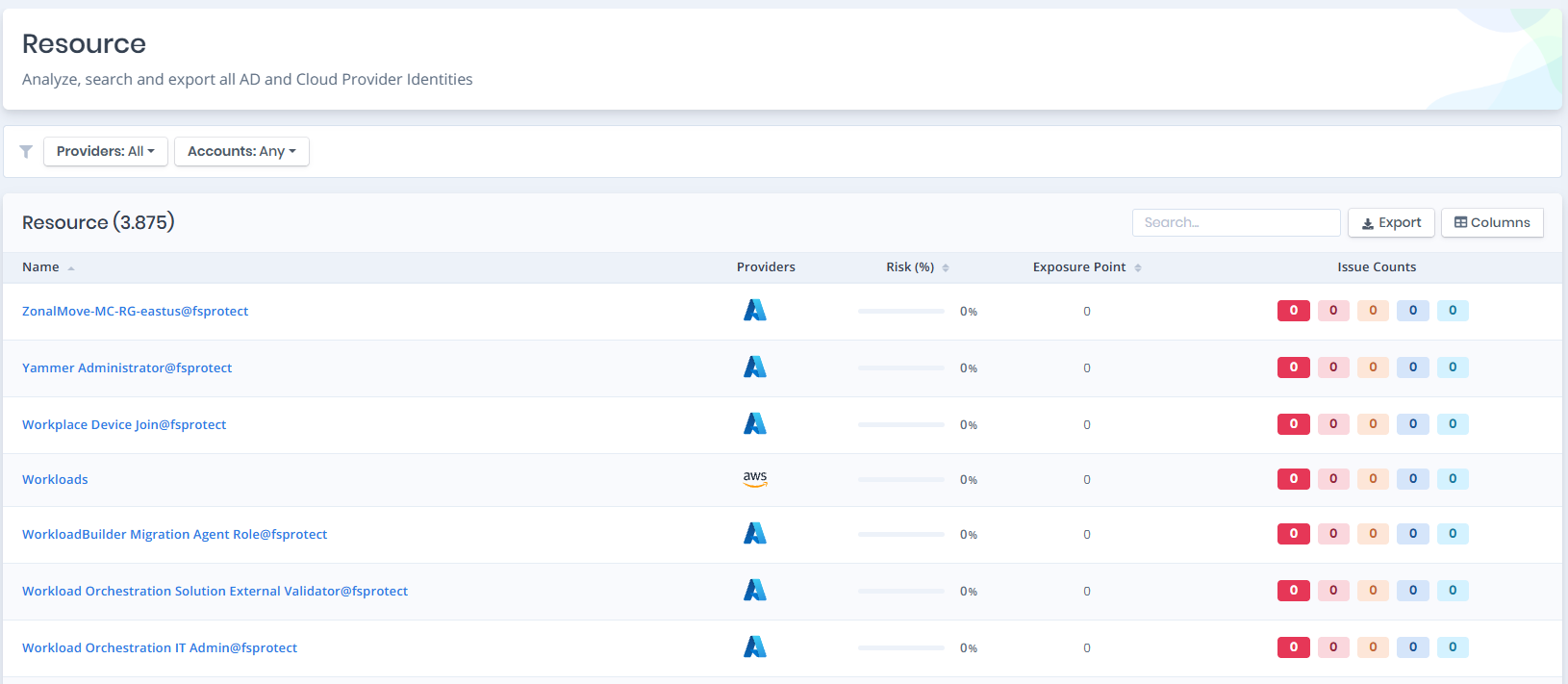
### Resources

**Active Directory:** `Domain`, `Forest`, `OU`, `Certificate Authority`, `CA Certificate`, `Certificate Template`, `GPO`

**Entra ID:** `Tenant`, `Administrative Unit`, `Role`, `Conditional Access Policy`

**Azure Resource Management:** `Virtual Machine`, `Subscription`, `Resource Group`, `Management Group`, `Key Vault`, `SQL Server`, `ARM Role`, `Managed Cluster`, `VM Scale Set`, `Web App`, `Logic App`, `Function App`, `Automation Account`, `Container Registry`, `Storage Account`

**Microsoft 365 Teams:** `Teams Settings`, `Teams External Access Settings`, `Teams Messaging Policy`, `Teams Meeting Policy`

**Microsoft 365 SharePoint Online:** `SharePoint Site`, `SharePoint Settings`

**AWS:** `Account`, `IAM Policy`, `Organization`, `Organizational Unit`, `Identity Center`, `Permission Set`

**GCP Identities:** `Organization`, `Folder`, `Project`, `Role`, `Service Account Key`, `Organizational Unit`, `Workforce Identity Pool`, `Workload Identity Pool`, `Workforce Provider`, `Workload Provider`, `Virtual Machine`, `Customer`, `KMS Key`

**GitHub:** `Organization`, `Repository`, `Organization Role`, `Enterprise`

<figure><img src="https://3408039743-files.gitbook.io/~/files/v0/b/gitbook-x-prod.appspot.com/o/spaces%2FObpV44hoVkNmo5bFuVVL%2Fuploads%2Fgit-blob-ddd3ec2494780b5cedfbe97389aec69ac33ac835%2Funified-identity-resources-1.png?alt=media" alt=""><figcaption><p>Resources</p></figcaption></figure>

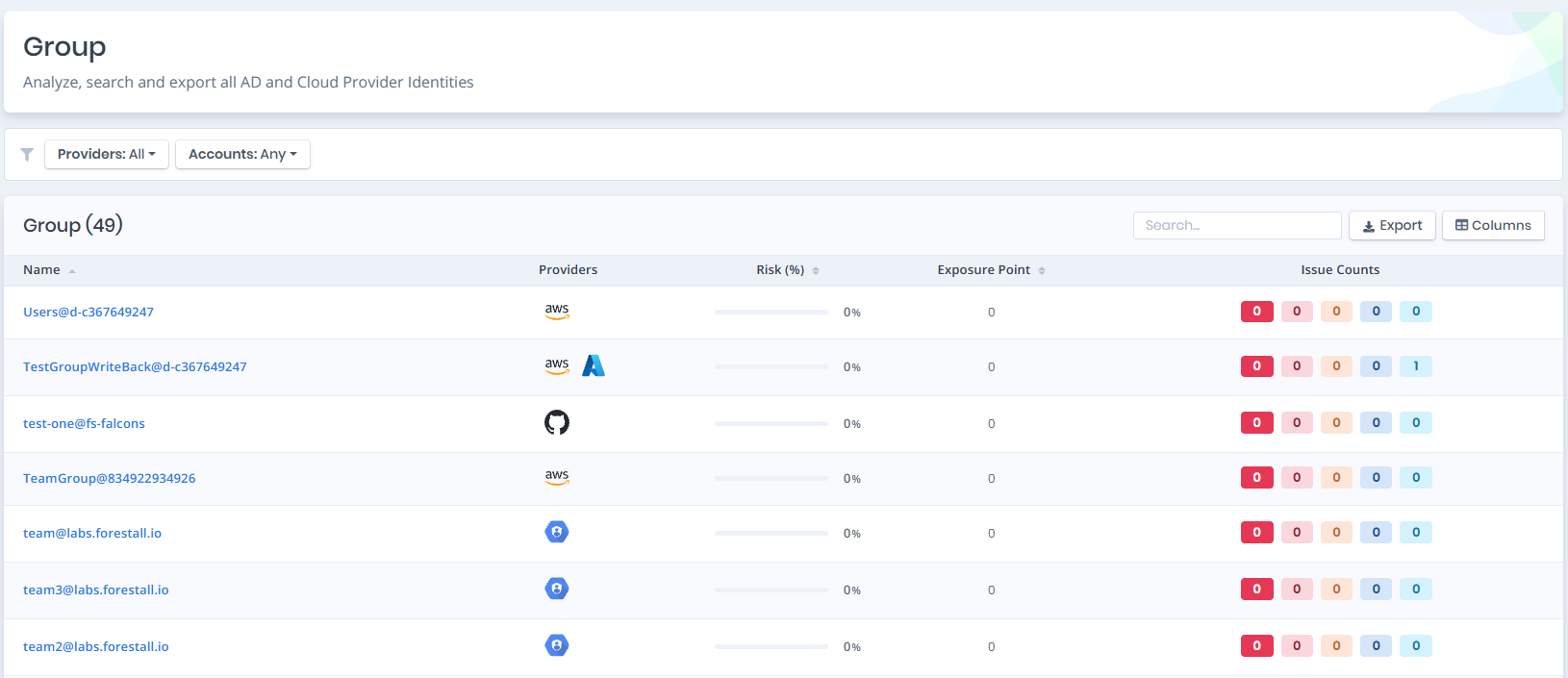
### Group

**Active Directory:** `Group`, `Local Group`

**Entra ID:** `Group`

**AWS:** `IAM Group`, `SSO Group`

**GCP Identities:** `Group`

**GitHub:** `Team`

<figure><img src="https://3408039743-files.gitbook.io/~/files/v0/b/gitbook-x-prod.appspot.com/o/spaces%2FObpV44hoVkNmo5bFuVVL%2Fuploads%2Fgit-blob-f0e14c4d225c91206f328136bb1e61270b4da926%2Funified-identity-group.png?alt=media" alt=""><figcaption><p>Group</p></figcaption></figure>

## Filters

The filters above the list are applied directly.

**Providers:** Selects the providers and entity types to be listed. The menu lists only the providers and types that have data in the selected scan.

**Accounts:** Filters by the number of linked accounts. Under `LINKED ACCOUNTS`, `Any` applies no restriction, `Multiple providers` lists identities with accounts in more than one provider, and `Single provider` lists identities with an account in exactly one provider.

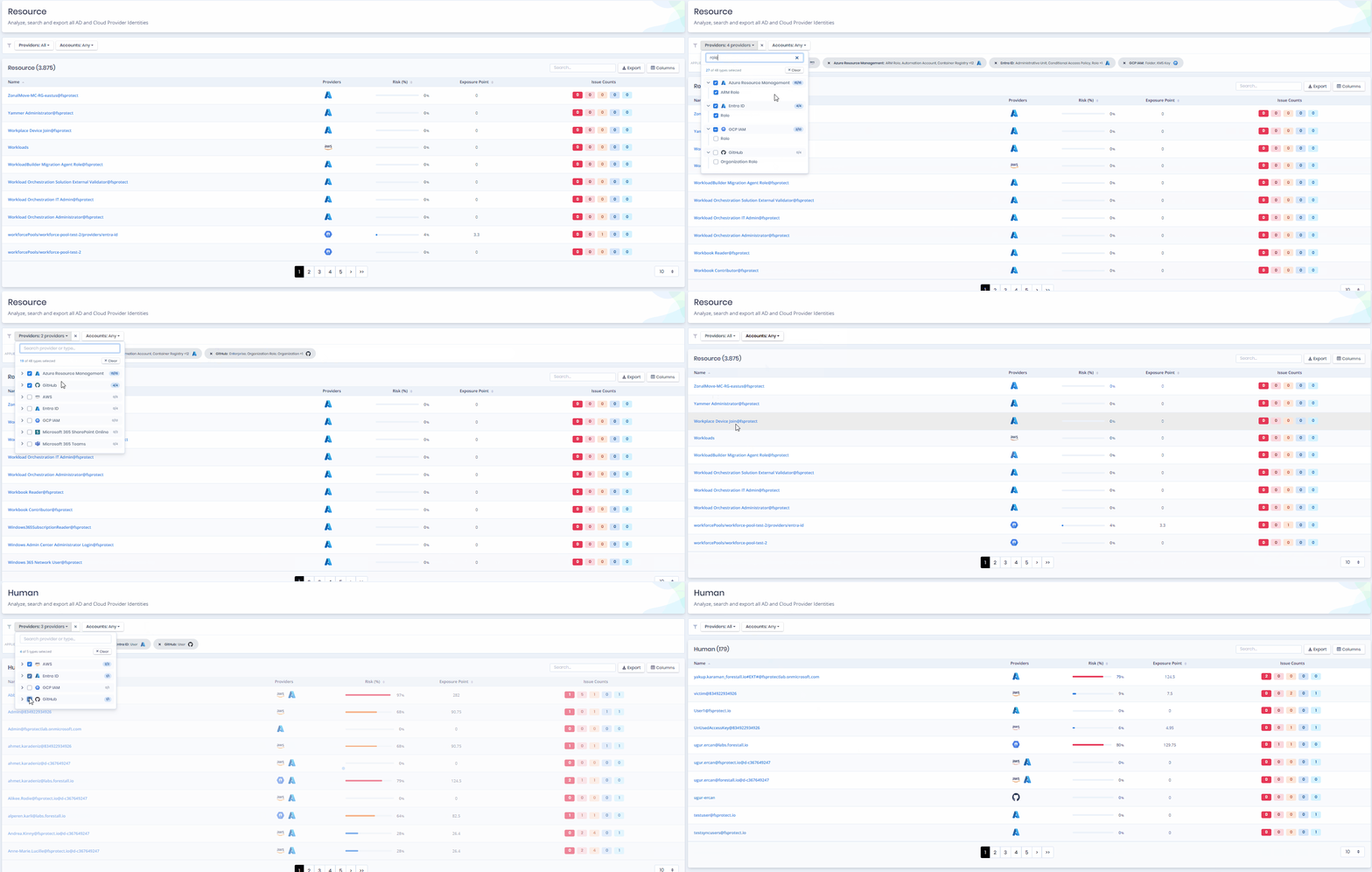
In the Providers menu, each provider row shows how many of its types are selected (for example `0/7`) and can be expanded to reveal its entity types. Use the `Search provider or type...` box to find a type. When nothing is selected, every provider and type is shown. Otherwise the menu shows how many types are selected and a button to clear them.

<figure><img src="https://3408039743-files.gitbook.io/~/files/v0/b/gitbook-x-prod.appspot.com/o/spaces%2FObpV44hoVkNmo5bFuVVL%2Fuploads%2Fgit-blob-a554e163c0ffe651456c4c43b410450ac8a42e48%2Funified-identity-filter-1.png?alt=media" alt=""><figcaption><p>Providers Filter</p></figcaption></figure>

The selected providers and types are shown as chips under `APPLIED FILTERS`. Selecting a chip opens the menu at that provider, and its cross button removes that provider from the filter.

<figure><img src="https://3408039743-files.gitbook.io/~/files/v0/b/gitbook-x-prod.appspot.com/o/spaces%2FObpV44hoVkNmo5bFuVVL%2Fuploads%2Fgit-blob-7e891589c45050d80901d461751df59431a6df67%2Funified-identity-filter-2.png?alt=media" alt=""><figcaption><p>Filtered Entity Types</p></figcaption></figure>

The cross button next to the `Providers` button clears the whole provider filter.

<figure><img src="https://3408039743-files.gitbook.io/~/files/v0/b/gitbook-x-prod.appspot.com/o/spaces%2FObpV44hoVkNmo5bFuVVL%2Fuploads%2Fgit-blob-9d5840a6a5ac270794aee8c0f392f71e38e0cc88%2Funified-identity-tooltip-filter.png?alt=media" alt=""><figcaption><p>Show all providers and types</p></figcaption></figure>

<figure><img src="https://3408039743-files.gitbook.io/~/files/v0/b/gitbook-x-prod.appspot.com/o/spaces%2FObpV44hoVkNmo5bFuVVL%2Fuploads%2Fgit-blob-f895bac1fe17d289948eb88ed2410268f495d4b3%2Funified-identity-filter-3.png?alt=media" alt=""><figcaption><p>Accounts Filter</p></figcaption></figure>

The filters, search text and sort order are kept in the page URL (`provider`, `entityType`, `providerMode`, `q`, `sortField`, `sortOrder`). You can bookmark a filtered list or share it as a link. For example, `/entities/unifiedidentities/human?provider=AWS&entityType=AWSSSOUser` opens Human Identities filtered to AWS SSO users.

A detailed usage is shown below:

<figure><img src="https://3408039743-files.gitbook.io/~/files/v0/b/gitbook-x-prod.appspot.com/o/spaces%2FObpV44hoVkNmo5bFuVVL%2Fuploads%2Fgit-blob-f4a95ecf3a07986fa222d41ac654a7c254962ddd%2FUnified-Identity.gif?alt=media" alt=""><figcaption><p>Unified Identity Page Usage</p></figcaption></figure>

## Details Page

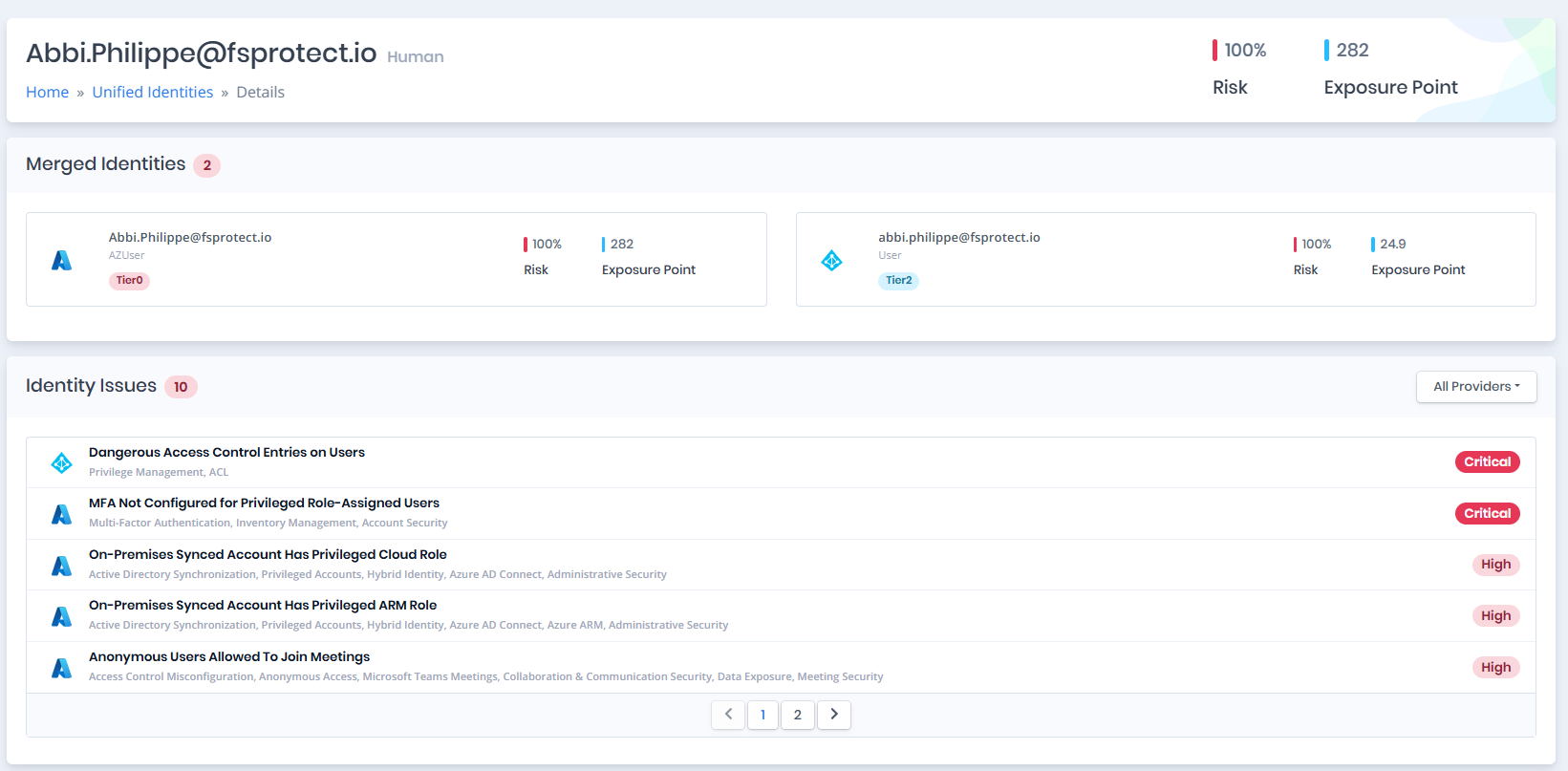
If a row holds a single identity, its name links directly to that object's own details page (see [Object Detail Pages](#object-detail-pages)). If the identity is merged from more than one account, the unified identity details page opens. It lists the merged identities, shows the exposure point and the risk score, and displays a combined list of the issues.

<figure><img src="https://3408039743-files.gitbook.io/~/files/v0/b/gitbook-x-prod.appspot.com/o/spaces%2FObpV44hoVkNmo5bFuVVL%2Fuploads%2Fgit-blob-4f96eaed4baaa59492c7c8da89b4ab1447435438%2Funified-identities-details-1.png?alt=media" alt=""><figcaption><p>Unified Identity Details Page</p></figcaption></figure>

### Merged Identities

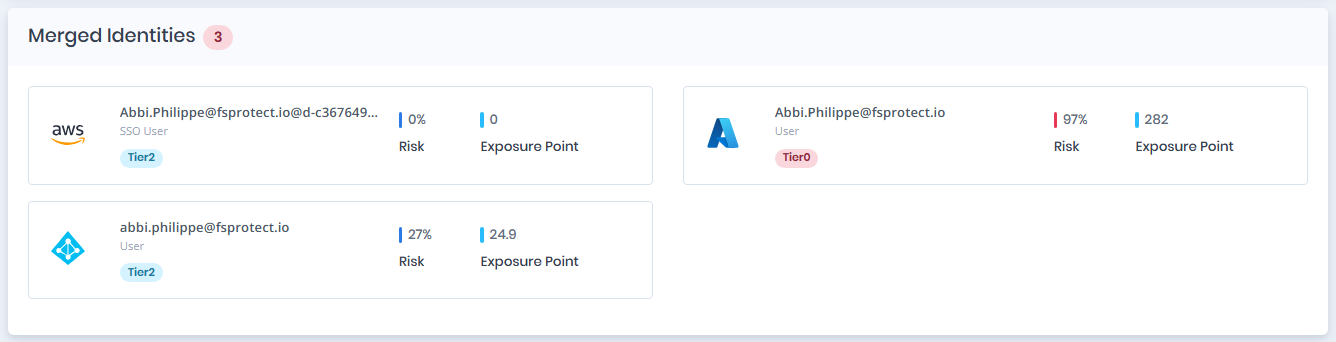
This section shows one card per merged identity, with the provider, the object type, a tier label, risk score and exposure point. Select a card to open that object's details page.

<figure><img src="https://3408039743-files.gitbook.io/~/files/v0/b/gitbook-x-prod.appspot.com/o/spaces%2FObpV44hoVkNmo5bFuVVL%2Fuploads%2Fgit-blob-379c68a23f71e80954664f12440c0cab1a18f8a3%2Funified-identities-merged-identities.png?alt=media" alt=""><figcaption><p>Merged Identities</p></figcaption></figure>

### Identity Issues

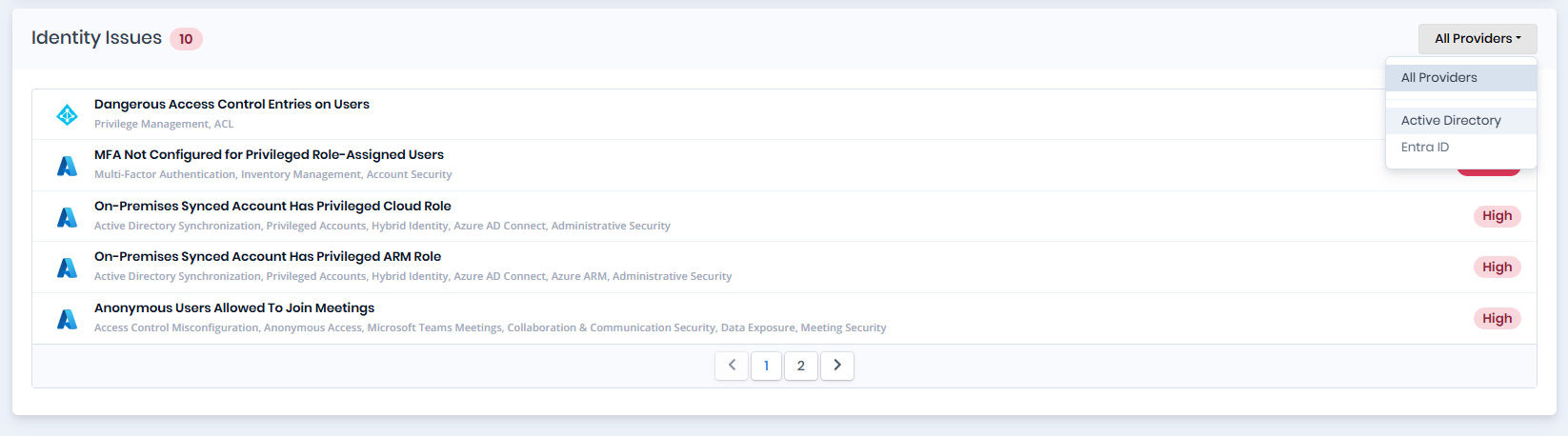
The identity issues section lists all issues associated with the merged identities. When the issues come from more than one provider, use the filter on the right to filter the table by provider.

<figure><img src="https://3408039743-files.gitbook.io/~/files/v0/b/gitbook-x-prod.appspot.com/o/spaces%2FObpV44hoVkNmo5bFuVVL%2Fuploads%2Fgit-blob-9f08ba26fdf5570cf4e637c2220b4e5771473200%2Funified-identities-issues.png?alt=media" alt=""><figcaption><p>Identity Issues List</p></figcaption></figure>

<figure><img src="https://3408039743-files.gitbook.io/~/files/v0/b/gitbook-x-prod.appspot.com/o/spaces%2FObpV44hoVkNmo5bFuVVL%2Fuploads%2Fgit-blob-304db063e37bad2fc92c2fc60be04068c44599b6%2Funified-identities-filtered-issues.png?alt=media" alt=""><figcaption><p>Filtered Identity Issues List</p></figcaption></figure>

## Object Detail Pages

Every object type has its own details page, documented in the type pages of this section. Most of them share the same layout:

* **Header:** The object name with its `Risk` and `Exposure Point`.
* **Information:** The main card. Its tabs (for example `Details`, `Groups (4)`) show the attributes and relationships of the object. Relationship tabs show the number of rows in their label. Badges on the right of the card title classify the object, for example `Privileged`, `Enabled`, `Inactive` or its tier (`Tier0`/`Tier2` for Active Directory objects, `Tier 0`/`Tier 2` for cloud objects). An object that can compromise admin objects through at least one attack path also carries a red `Shadow` badge.
* **Issues:** The issues found on the object, with severity, categories and an `Export` button. Some types have no Issues panel.

Next to the `Information` title is the **Graph »** button, which opens the object in the [Graph](/forestall/visualize/visualize.md). For a shadow admin, users with the `ReadVisualize` permission see **Admin Path »** instead. It opens the shortest path from the object to admin objects, and its dropdown offers **Open in Graph** for the ordinary graph view.

{% content-ref url="/pages/euhDlS7Orm5UHweIr782" %}
[Merge Rules](/forestall/settings/merge-rule-settings.md)
{% endcontent-ref %}