> For the complete documentation index, see [llms.txt](https://docs.forestall.io/forestall/llms.txt). Markdown versions of documentation pages are available by appending `.md` to page URLs; this page is available as [Markdown](https://docs.forestall.io/forestall/dashboard.md).

# Dashboard

Dashboard summarizes the identity security posture of the selected scan, one provider at a time.

## Scan Context

The band at the top of the page names the scan the figures belong to and describes its scope as a row of chips: the policy that produced the scan, and the forests and domains it covered. When a scan covers more scopes than fit on one line, the remainder is collapsed into a **+N More** chip.

<figure><img src="https://3408039743-files.gitbook.io/~/files/v0/b/gitbook-x-prod.appspot.com/o/spaces%2FObpV44hoVkNmo5bFuVVL%2Fuploads%2Fgit-blob-1e5c1860314f2be639e1d3e40e2db718b82027bb%2Fdashboard-readme-scan-context.png?alt=media" alt="Dashboard with the scan context band, provider selector and Compare selector"><figcaption><p>Scan Context and score cards</p></figcaption></figure>

Two selectors sit on the right of the band:

**Provider:** Chooses which provider the dashboard reports on. Below the selected provider, the selector shows how many of the five providers the scan covers, for example `1 of 5 providers in this scan`. In the list, the providers the scan covers appear under `In this scan` with their issue counts. The others appear under `Not in this scan` and cannot be selected. Type to filter the list. The cards below the band change with the selection. For example, an Active Directory dashboard shows users, computers, groups and GPOs, and an AWS dashboard shows users, policies, roles, access keys and groups.

<figure><img src="https://3408039743-files.gitbook.io/~/files/v0/b/gitbook-x-prod.appspot.com/o/spaces%2FObpV44hoVkNmo5bFuVVL%2Fuploads%2Fgit-blob-cc6416530f8829f4fb99828d30e57ef8a5f3576b%2Fdashboard-readme-provider-selector.png?alt=media" alt="Provider selector open, listing the providers in this scan and not in this scan"><figcaption><p>Provider selector</p></figcaption></figure>

**Compare:** Chooses another scan to compare the current one against. During a comparison, the score, severity and statistic cards show the change as a badge, for example `-16 %` or `▼ 8`. A MITRE ATT\&CK tactic whose grade changed shows the compared grade and the current grade, for example `F » C`. If the compared scan does not include the selected provider, a notice says it cannot be used for comparison.

The chips change with the selected provider. Active Directory shows the forests and domains covered, Azure shows the tenants, AWS shows the accounts (for example `Accounts - 834922934926 (Commercial)`), and GCP and GitHub show the organizations.

## Risk Score, Exposure Score, Tier 0 Identities, Dangerous Path, Shadow Admins, and Severities

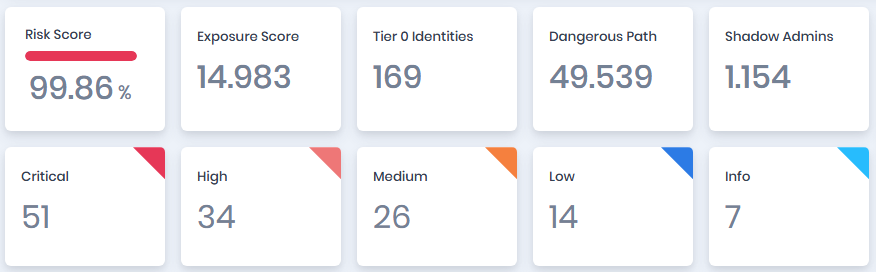
<figure><img src="https://3408039743-files.gitbook.io/~/files/v0/b/gitbook-x-prod.appspot.com/o/spaces%2FObpV44hoVkNmo5bFuVVL%2Fuploads%2Fgit-blob-179ac01ea0c9ee053f0d873f7c4fa2dd2e0dfdb8%2Fdashboard-readme-image-1.png?alt=media" alt=""><figcaption><p>Risk Score, Exposure Score, Tier 0 Identities, Dangerous Path, Shadow Admins, and Severities</p></figcaption></figure>

**Risk Score:**\
Risk score is the primary indicator of the current identity security posture of scanned environments. It is calculated based on the number and severity of detected issues. A risk score of 100 indicates the presence of at least one issue that may lead to a full identity compromise.

**Exposure Score:**\
A metric that represents the overall level of exposure based on discovered misconfigurations, excessive permissions, and risky identity relationships.

**Tier 0 Identities:**\
The number of identities classified as Tier 0 for the selected provider. Selecting the card opens the Tier 0 identities in [Search & Reports](/forestall/search-and-reports.md). The card is shown only when the scan policy enables the **Tier0 Analysis** module for the selected provider (Active Directory, Azure, AWS or GCP). It is not shown on the GitHub dashboard.

**Dangerous Path:**\
Dangerous Path indicates the number of potential attack paths that could lead to the compromise of privileged identities through misconfigurations or indirect permission relationships.

**Shadow Admins:**\
The number of identities that effectively hold administrative privileges through indirect, inherited, or hard-to-detect permission assignments. Selecting the card opens the list in Search & Reports.

**Critical**: The number of Issues with Critical severity.

**High**: The number of Issues with High severity.

**Medium**: The number of Issues with Medium severity.

**Low**: The number of Issues with Low severity.

**Info**: The number of Issues with Info severity.

## Network Scan Health

On the Active Directory dashboard, the **Network Scan Health** card next to the score cards shows how much of the computer estate the scan could reach over the network. Each value has an info icon that explains it.

<figure><img src="https://3408039743-files.gitbook.io/~/files/v0/b/gitbook-x-prod.appspot.com/o/spaces%2FObpV44hoVkNmo5bFuVVL%2Fuploads%2Fgit-blob-f31395905fe379912567fdb4b1a5398cd37a527c%2Fdashboard-readme-network-scan-health.png?alt=media" alt="Network Scan Health card with total, active, online and local enumerated computers"><figcaption><p>Network Scan Health</p></figcaption></figure>

| Statistic                      | Description                                                                                                                                     |
| ------------------------------ | ----------------------------------------------------------------------------------------------------------------------------------------------- |
| **Total Computers**            | The number of computer objects in the scanned domains.                                                                                          |
| **Active Computers**           | The number of enabled, active Windows computers with a resolved IP address, with their share of the total.                                      |
| **Online Computers**           | The number of computers reachable over SMB during the scan, with their share of the total.                                                      |
| **Local Enumerated Computers** | The number of computers whose local users and groups were collected, as a share of the SMB reachable computers that are not domain controllers. |

A low **Local Enumerated Computers** rate usually points to a network or Remote SAM restriction. The reasons are listed in [Scan Health](/forestall/scans/scan-health.md).

## Risk Breakdown by MITRE ATT\&CK Tactics

Risk scores based on MITRE ATT\&CK Tactics mapping.

<figure><img src="https://3408039743-files.gitbook.io/~/files/v0/b/gitbook-x-prod.appspot.com/o/spaces%2FObpV44hoVkNmo5bFuVVL%2Fuploads%2Fgit-blob-5e092388c2e72d8287ea67917954058255cde1d2%2Fdashboard-readme-image-2.png?alt=media" alt=""><figcaption><p>Risk Breakdown by MITRE ATT&#x26;CK Tactics</p></figcaption></figure>

The **Risk Breakdown by Tags**, **Risk Breakdown by Impacts** and **Risk Breakdown by Entity Types** charts below it are described on each provider's dashboard page.

## Risk by Scope

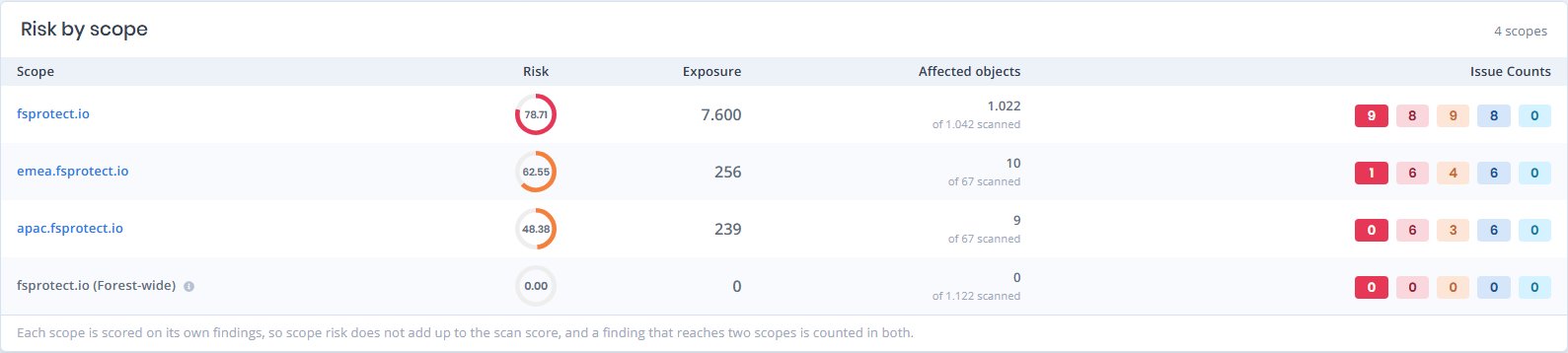
Risk by scope breaks the scan down by the scopes it covered, so a scan spanning more than one forest or domain shows where the risk actually sits. The heading carries the number of scopes. The card is shown on the Active Directory dashboard.

<figure><img src="https://3408039743-files.gitbook.io/~/files/v0/b/gitbook-x-prod.appspot.com/o/spaces%2FObpV44hoVkNmo5bFuVVL%2Fuploads%2Fgit-blob-e176c26b907265453f90af0c1e0e7e3c1975574c%2Fdashboard-readme-risk-by-scope.png?alt=media" alt=""><figcaption><p>Risk by scope</p></figcaption></figure>

**Scope:** The forest or domain the row is about, linking to its entity page. In a forest with more than one domain, a **Forest-wide** row shows the certificate templates, certificate authorities and display specifiers that belong to the forest rather than to a single domain.

**Risk:** The risk score calculated from that scope's own findings, drawn as a gauge.

**Exposure:** The exposure points accumulated within that scope.

**Affected objects:** How many objects in the scope have at least one issue, out of the number of objects scanned for it.

**Issue Counts:** The issues found in the scope, as one badge per severity.

{% hint style="info" %}
Each scope is scored on its own findings, so the scope risks do not add up to the scan score, and a finding that reaches two scopes is counted in both.
{% endhint %}

While a comparison is active, each scope shows its risk change. When there is nothing to compare, the change is replaced by a short note: `n/a` when the compared scan ran before per-scope scoring, `new` when the scope was not in the compared scan, and the two formula versions (for example `v1 → v2`) when the scans were scored with different formulas.

The same figures for a single domain are shown on that domain's [Domain scope](/forestall/unified-identities/ad-identities/domains.md) card.

## Over-privilege Audit Logging

Over-privilege audit logging reports how much of the environment the [Over-Privilege Analysis (Beta)](/forestall/scans/policies/policies.md) module was actually able to judge. A permission can only be marked **Actively in use** if the object's SACL audits it, so an object with no auditing produces no evidence either way, and an unused permission cannot be told apart from an unobserved one.

<figure><img src="https://3408039743-files.gitbook.io/~/files/v0/b/gitbook-x-prod.appspot.com/o/spaces%2FObpV44hoVkNmo5bFuVVL%2Fuploads%2Fgit-blob-6d691f7e698ab31cd8890bf5b642de7e443d7a29%2Fdashboard-readme-over-privilege-audit-logging.png?alt=media" alt=""><figcaption><p>Over-privilege audit logging</p></figcaption></figure>

The heading carries the number of objects checked. The bar splits them three ways, and each value links to the matching objects in Search & Reports:

**No logging:** Objects whose SACL audits nothing. Permissions on these objects can never be confirmed as in use.

**Partial logging:** Objects whose SACL audits some, but not all, of the access the analysis needs.

**Full logging:** Objects whose SACL audits everything the analysis needs.

Auditing needs both halves: the SACL on the object, and the audit policy on the domain controller. Below the bar:

* When controllers have their audit policies disabled by GPO, a warning says how many, and links to the list of them in [Search & Reports](/forestall/search-and-reports.md).
* When controllers have no audit policy defined by GPO, a note such as `3 domain controllers have audit policy not enforced by GPO. Verify the local setting.` links to the list of them. Check the local audit policy on these controllers.

When the Forestall user cannot read SACLs, the card shows **Object-level coverage not measured** instead of the bar, with the reason: "The scan account cannot read SACLs. Grant it 'Manage auditing and security log' on domain controllers." When only some domains are affected, the card shows how many domains were not measured. Both cases carry a **See Scan Health** link to [Scan Health](/forestall/scans/scan-health.md), which lists the reason for each domain. The required permission is described in [Requirements](/forestall/introduction/requirements.md) (Requirement 15).

{% hint style="info" %}
The card is shown on the Active Directory dashboard for scans whose policy enables the Over-Privilege Analysis (Beta) module. A Splunk integration is not required for the card. It is only required for the `Actively in use` value on an issue's affected-entity table.
{% endhint %}

## Tier Analysis Statistics

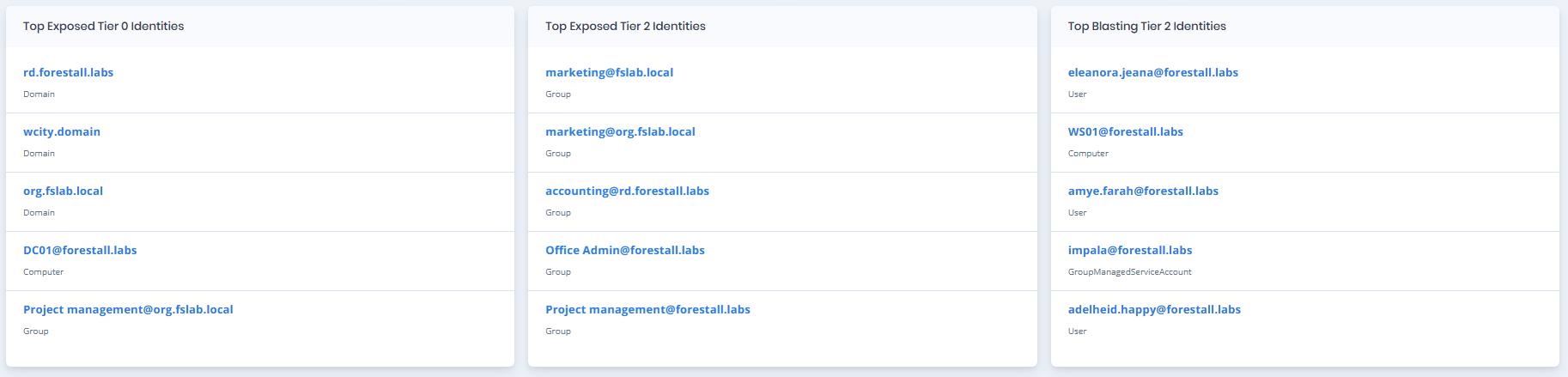
The Tier Analysis statistics show the identities and objects that matter most in attack paths toward Tier 0. They are shown for the selected provider when the scan has tier analysis results for it. Selecting an identity opens its attack-path relationships in Search & Reports.

| Statistic                          | Description                                                                                                                                                                                  |
| ---------------------------------- | -------------------------------------------------------------------------------------------------------------------------------------------------------------------------------------------- |
| **Top Exposed Tier 0 Identities**  | Shows up to five Tier 0 identities with the highest exposure to incoming attack paths. These objects act as important convergence points for paths that can reach Tier 0.                    |
| **Top Exposed Tier 2 Identities**  | Shows up to five Tier 2 identities with the highest exposure to incoming attack paths. These objects represent significant bottlenecks along paths leading toward Tier 0.                    |
| **Top Blasting Tier 2 Identities** | Shows up to five Tier 2 identities with the strongest combined incoming and outgoing attack-path connectivity. These objects can both receive access and propagate it further toward Tier 0. |

<figure><img src="https://3408039743-files.gitbook.io/~/files/v0/b/gitbook-x-prod.appspot.com/o/spaces%2FObpV44hoVkNmo5bFuVVL%2Fuploads%2Fgit-blob-277257bb0604acae761f2a7aff3c54424118e417%2Fdashboard-readme-image-3.png?alt=media" alt=""><figcaption><p>Tier Analysis Statistics</p></figcaption></figure>

## Top Choke Points

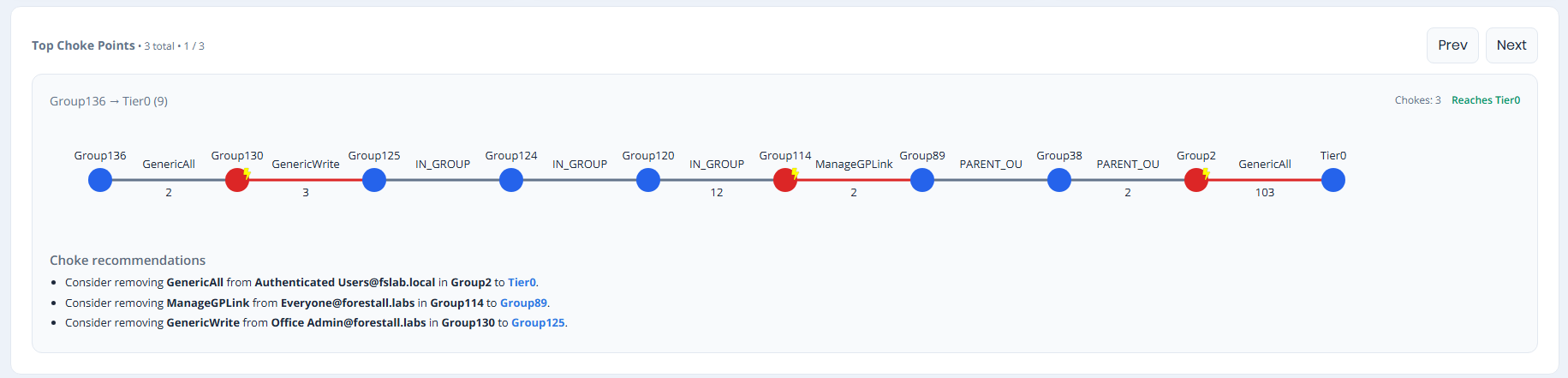
Top Choke Points highlights representative attack paths that contain important bottlenecks on the way to **Tier 0**. The heading shows the number of paths and the one being displayed, for example `3 total • 1 / 3`.

Each path shows the relationships that lead toward Tier 0 and marks the points where several attack paths meet. **Chokes** is the number of choke points on the displayed path. **Reaches Tier0** means the path reaches a Tier 0 object.

The **Choke recommendations** section lists relationships to review to break the attack path. Use **Prev** and **Next** to move between paths.

<figure><img src="https://3408039743-files.gitbook.io/~/files/v0/b/gitbook-x-prod.appspot.com/o/spaces%2FObpV44hoVkNmo5bFuVVL%2Fuploads%2Fgit-blob-f7d13d267bd20b88873f01dce3f7deb55cc50134%2Fdashboard-readme-image-4.png?alt=media" alt=""><figcaption><p>Top Choke Points</p></figcaption></figure>

{% content-ref url="/pages/g5En4Jdt1S56NE9nxFNk" %}
[Active Directory Dashboard](/forestall/dashboard/active-directory-dashboard.md)
{% endcontent-ref %}

{% content-ref url="/pages/VSw3Ka6oNdezQSPeySdP" %}
[Azure Dashboard](/forestall/dashboard/azure-entra-id-dashboard.md)
{% endcontent-ref %}

{% content-ref url="/pages/IbDdRIKT1f1TFHTgPaJa" %}
[AWS Dashboard](/forestall/dashboard/aws-dashboard.md)
{% endcontent-ref %}

{% content-ref url="/pages/JjM8GRUeU3JlDWgDHMd3" %}
[GCP Dashboard](/forestall/dashboard/gcp-dashboard.md)
{% endcontent-ref %}

{% content-ref url="/pages/38ASV47cgmdTgiNn5JNt" %}
[GitHub Dashboard](/forestall/dashboard/github-dashboard.md)
{% endcontent-ref %}