> For the complete documentation index, see [llms.txt](https://docs.forestall.io/forestall/llms.txt). Markdown versions of documentation pages are available by appending `.md` to page URLs; this page is available as [Markdown](https://docs.forestall.io/forestall/scans/new-scan.md).

# New Scan

Use this page to start a new scan. A single scan can cover Active Directory, Azure, GCP, AWS and GitHub environments together.

<figure><img src="https://3408039743-files.gitbook.io/~/files/v0/b/gitbook-x-prod.appspot.com/o/spaces%2FObpV44hoVkNmo5bFuVVL%2Fuploads%2Fgit-blob-3bca23a93b05abe00db4d6a80ba152b9754c7ec3%2Fnew-scan.png?alt=media" alt="New Scan form with the five policy selectors"><figcaption><p>New Scan</p></figcaption></figure>

## Mandatory Fields

**Scan Name**: Name of the scan.

**Start Time**: Date and time the scan starts. Set a later time to schedule the scan.

**Environments**: Add at least one environment to the scan (see [Environments](#environments)). Otherwise the scan does not start and the message `At least one environment information must be added for scanning.` is shown.

## Policy Fields

Each provider has its own policy selector. The selected policy applies to the environments of that provider in the scan. (See [Policies](/forestall/scans/policies.md))

**Policy**: Scan policy for the Active Directory environments. (See [AD Policies](/forestall/scans/policies/policies.md))

**Azure Policy**: Scan policy for the Azure environments. (See [Azure Policies](/forestall/scans/policies/azure-policies.md))

**GCP Policy**: Scan policy for the GCP environments. (See [GCP Policies](/forestall/scans/policies/gcp-policies.md))

**AWS Policy**: Scan policy for the AWS environments. (See [AWS Policies](/forestall/scans/policies/aws-policies.md))

**GitHub Policy**: Scan policy for the GitHub environments. (See [GitHub Policies](/forestall/scans/policies/github-policies.md))

A policy selector is enabled only after you add an environment of that provider to the scan. For the cloud selectors, the information icon next to the field reads `Azure Configuration is required` (or `GCP`, `AWS`, `GitHub Configuration is required`).

## Optional Fields

**Description**: Description of the scan.

**Current Scan**: Selected by default. A one-time scan started with this option becomes the selected scan of the interface.

### **Continuous Assessment**

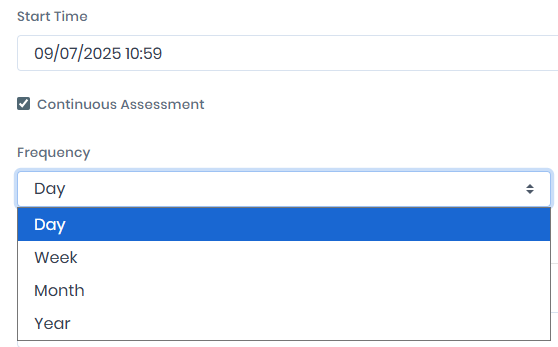
Select **Continuous Assessment** to repeat the scan daily, weekly, monthly or yearly. No scan runs before the **Start Time**. For **Day**, **Week** and **Month**, the **Every** field sets the interval (1 to 99), and the **Schedule Description** line shows the resulting schedule.

<figure><img src="https://3408039743-files.gitbook.io/~/files/v0/b/gitbook-x-prod.appspot.com/o/spaces%2FObpV44hoVkNmo5bFuVVL%2Fuploads%2Fgit-blob-bd8051272c18b41475b03f35d872e91fcd3719d4%2Fscans-new-scan-image-1.png?alt=media" alt=""><figcaption><p>Continuous Assessment</p></figcaption></figure>

#### Frequency Day

<figure><img src="https://3408039743-files.gitbook.io/~/files/v0/b/gitbook-x-prod.appspot.com/o/spaces%2FObpV44hoVkNmo5bFuVVL%2Fuploads%2Fgit-blob-a2d87bc908d5caac09e7491743c621c49b9b8b2f%2Fcron-daily%20(1)%20(1).png?alt=media" alt="Frequency set to Day, every 3 days"><figcaption><p>Frequency - Day: every 3 days</p></figcaption></figure>

With **Frequency** set to **Day**, the scan runs every given number of days at the start time.

#### Frequency Week

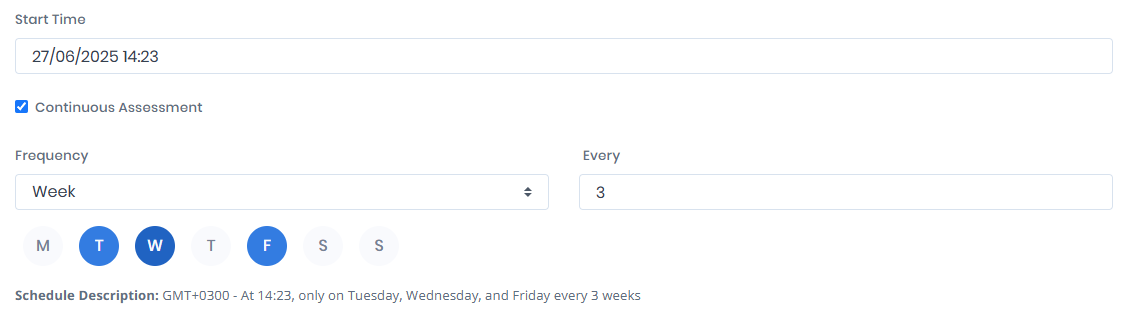
<figure><img src="https://3408039743-files.gitbook.io/~/files/v0/b/gitbook-x-prod.appspot.com/o/spaces%2FObpV44hoVkNmo5bFuVVL%2Fuploads%2Fgit-blob-c7a4a4f5d6cd93db150d7453d5c1796a19f6e4d1%2Fcron-weekly.png?alt=media" alt=""><figcaption><p>Frequency - Week: every 3 weeks</p></figcaption></figure>

With **Frequency** set to **Week**, the scan runs every given number of weeks on the selected days at the start time. At least one day stays selected.

#### Frequency Month

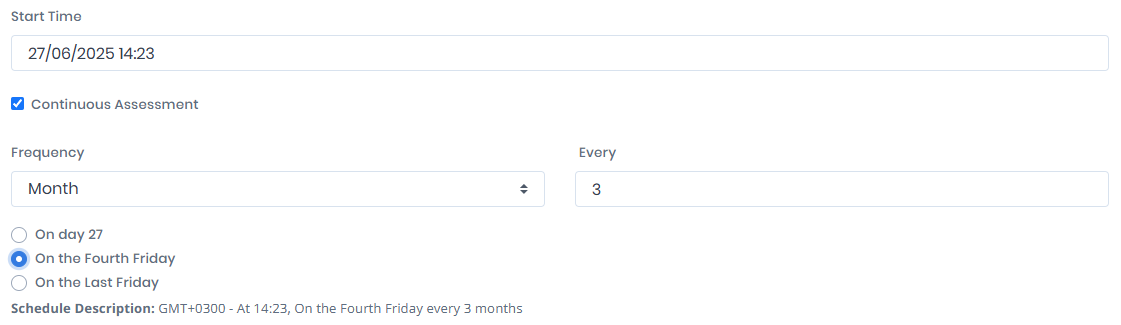
<figure><img src="https://3408039743-files.gitbook.io/~/files/v0/b/gitbook-x-prod.appspot.com/o/spaces%2FObpV44hoVkNmo5bFuVVL%2Fuploads%2Fgit-blob-1ef5170c508917b8afb42d8b4b09227b9b570d03%2Fcron-montly.png?alt=media" alt="Frequency set to Month, every 3 months"><figcaption><p>Frequency Month: every 3 months</p></figcaption></figure>

With **Frequency** set to **Month**, the scan runs every given number of months. Choose one of the options calculated from the start time:\
\- the day of the month, for example `On day 15`,\
\- the weekday and its week in the month, for example `On the Third Monday`,\
\- `On the Last <weekday>`, offered when the start time falls in the fourth or last week of the month.

#### Frequency Year

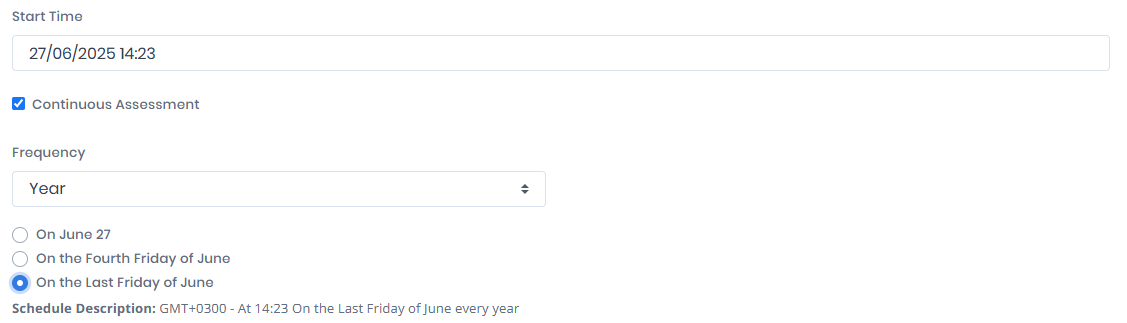
<figure><img src="https://3408039743-files.gitbook.io/~/files/v0/b/gitbook-x-prod.appspot.com/o/spaces%2FObpV44hoVkNmo5bFuVVL%2Fuploads%2Fgit-blob-f9cef1395c4f41ad268d09f761b957ed26644634%2Fcron-yearly.png?alt=media" alt=""><figcaption><p>Frequency Year</p></figcaption></figure>

With **Frequency** set to **Year**, the scan runs once a year. The options are the same as for **Month**, in the month of the start time, for example `On March 15` or `On the Third Monday of March`.

## Environments

Each environment row selects a saved configuration from the [Configuration Center](/forestall/configuration-center.md). The form starts with one **Active Directory Configuration** row.

### Adding an Environment

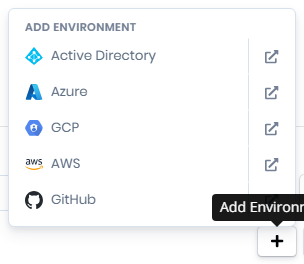
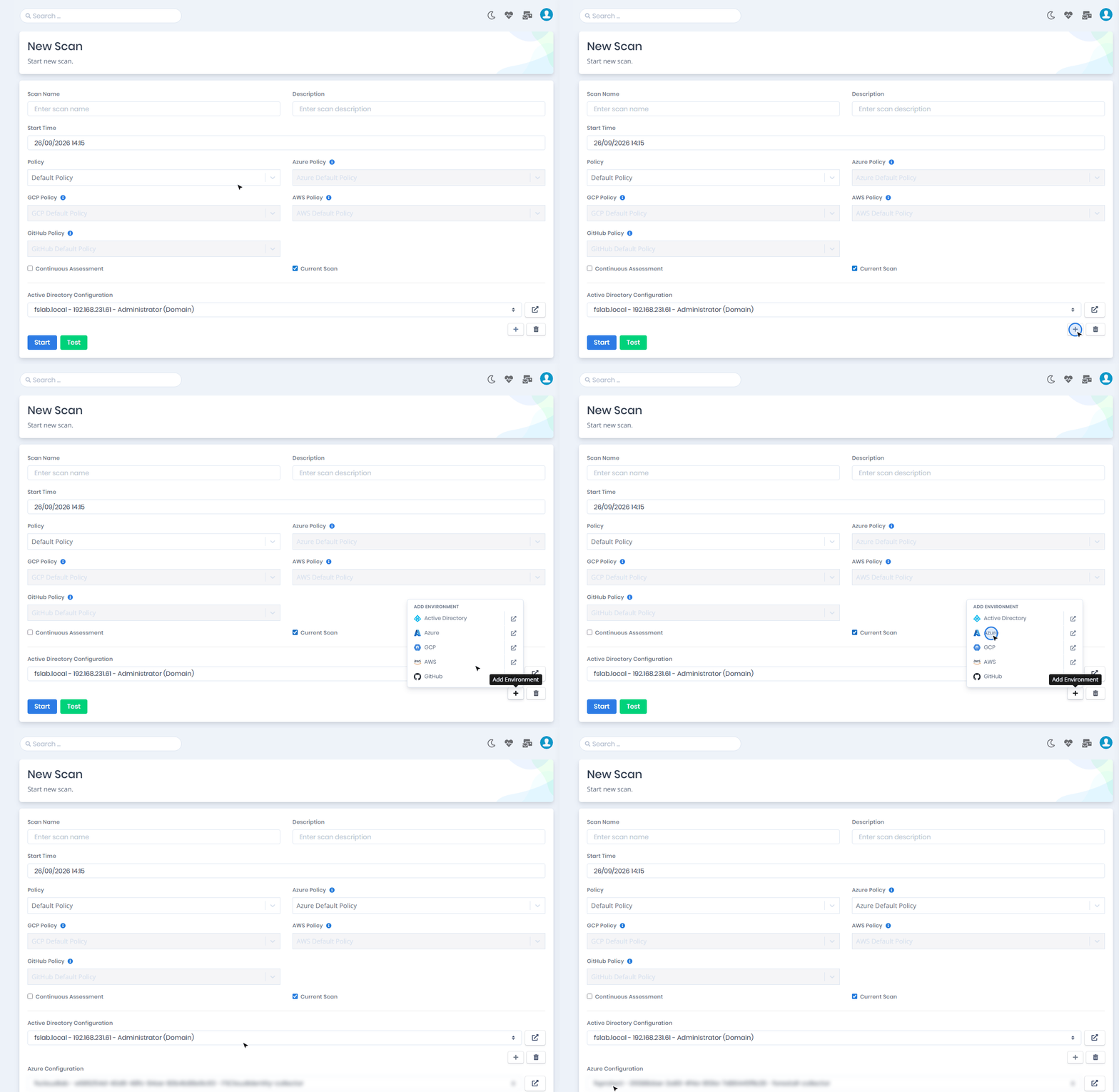
Add environments with the **+** (**Add Environment**) button. Its menu lists **Active Directory**, **Azure**, **GCP**, **AWS** and **GitHub**. A provider is marked `not configured` when it has no configuration, and `all in use` when all of its configurations are already on the form. The external-link button next to a provider opens the new configuration page of that provider in a new browser tab.

<figure><img src="https://3408039743-files.gitbook.io/~/files/v0/b/gitbook-x-prod.appspot.com/o/spaces%2FObpV44hoVkNmo5bFuVVL%2Fuploads%2Fgit-blob-e29bdfb470c56aaac90d95ceb8215c08db47b900%2Fscans-new-scan-image-2.png?alt=media" alt="Add Environment menu listing Active Directory, Azure, GCP, AWS and GitHub"><figcaption><p>Add Environment</p></figcaption></figure>

When no Active Directory configuration exists yet, the **Active Directory Configuration** row shows `No Active Directory configuration yet.` with an **Add configuration** link.

### Active Directory Configuration

The **Active Directory Configuration** list shows each configuration as `<forest> - <server> - <username> (<authentication type>)`. The authentication type comes from the [AD Configuration](/forestall/configuration-center/ad-configurations.md). It is `(Domain)` for a configuration with domain credentials and `(CyberArk)` for one whose credentials come from [CyberArk](/forestall/configuration-center/cyberark.md). To scan with CyberArk credentials, select such a configuration here.

### Azure Policy Selection

Adding an **Azure** environment with the **+** button enables the **Azure Policy** selector. The GCP, AWS and GitHub policy selectors work the same way.

<figure><img src="https://3408039743-files.gitbook.io/~/files/v0/b/gitbook-x-prod.appspot.com/o/spaces%2FObpV44hoVkNmo5bFuVVL%2Fuploads%2Fgit-blob-8f4a897442e76808c0fa854bc52314d373a0f009%2Fscans-new-scan-azure-environment.png?alt=media" alt="New Scan with the cloud policy selectors and Azure configurations"><figcaption><p>Azure environments with the Azure Policy selector enabled</p></figcaption></figure>

### **Multiple Environment**

To scan several forests or cloud environments in one scan, add more environments with the **+** (**Add Environment**) button.

Remove an environment with its trash (**Delete Environment**) button.

<figure><img src="https://3408039743-files.gitbook.io/~/files/v0/b/gitbook-x-prod.appspot.com/o/spaces%2FObpV44hoVkNmo5bFuVVL%2Fuploads%2Fgit-blob-dc87303f696983719a9ad78e3feeebbc2df001c2%2Fscans-new-scan-multiple-environments.gif?alt=media" alt="Adding a second environment (Azure) to a New Scan that already has an Active Directory environment"><figcaption><p>Adding a second environment to a scan</p></figcaption></figure>

Click the external-link button next to an environment to manage its selected configuration. The configuration page opens in a new browser tab. When you return to the **New Scan** tab, the configuration lists are refreshed and you can continue with the scan.

<figure><img src="https://3408039743-files.gitbook.io/~/files/v0/b/gitbook-x-prod.appspot.com/o/spaces%2FObpV44hoVkNmo5bFuVVL%2Fuploads%2Fgit-blob-e95db4ae9f5f3fe687cfb00cf73cff4ee0ca30a9%2Fmanage-config.png?alt=media" alt=""><figcaption></figcaption></figure>

## Buttons

**Start**: Starts the scan, or schedules it for the selected **Start Time**.

**Test**: Checks the connection to the added environments without starting a scan. The results are listed per environment in the **Connection Test Results** window.

When the license has expired, both buttons are disabled with the `License Expired` tooltip.