
Summary
| Forestall ACL Alias | AZ_ADD_SECRET |
| Entra ID (Azure AD) Alias | Add Secrets |
| Affected Object Types | App registrations & Service Principals |
| Exploitation Certainty | Certain |
| Graph Permission / Role | When a principal has been granted Cloud Application Administrator or Application Administrator against the tenant, that principal gains the ability to add new secrets to all Service Principals and App Registrations. Additionally, a principal that has been granted Cloud Application Administrator or Application Administrator against, or explicit Owner of a Service Principal or App Registration gains the ability to add secrets to that particular object. |
Description
AZ_ADD_SECRET represents the ability for a principal (user, service principal, or group) to add a new client secret / password credential to an App Registration (application) or a Service Principal.
Adding a secret gives an attacker or a controlled identity the ability to:
- Exchange the application’s client id + secret for tokens and act as that application, using any privileges granted to the app (delegated or application permissions).
- If the application has broad application permissions, an attacker can perform tenant-wide actions or escalate further.
- If the service principal represents infrastructure, cloud resources, or role-assignable services, the new secret may be used to access production systems or pivot laterally.
Because secrets are persistent credentials that can be used from anywhere, the ability to add secrets is highly sensitive.
Identification
PowerShell
# Get role members (including transitive group members) for roles that can add secrets$roles = @('Application Administrator','Cloud Application Administrator','Global Administrator')$roleMembers = foreach ($roleName in $roles) {    $role = Get-MgDirectoryRole -Filter "displayName eq '$roleName'" -ErrorAction SilentlyContinue    if ($role) {        Get-MgDirectoryRoleMemberAsUser -DirectoryRoleId $role.Id -ErrorAction SilentlyContinue | ForEach-Object {            [pscustomobject]@{ Role = $roleName; UserDisplayName = $_.DisplayName; UserPrincipalName = $_.UserPrincipalName; UserId = $_.Id }        }    }}
# Get all application owners$appOwners = Get-MgApplication -All | ForEach-Object {    $app = $_    Get-MgApplicationOwner -ApplicationId $_.Id -ErrorAction SilentlyContinue | ForEach-Object {        [pscustomobject]@{ AppDisplayName = $app.DisplayName; AppId = $app.AppId; OwnerDisplayName = $_.AdditionalProperties.displayName; OwnerId = $_.Id }    }}
"=== USERS WHO CAN ADD SECRETS (BY TENANT ROLES) ==="$roleMembers | Sort-Object Role,UserDisplayName | Format-Table -AutoSize
"=== APPLICATION OWNERS ==="$appOwners | Sort-Object AppDisplayName,OwnerDisplayName | Format-Table -AutoSize
Azure Portal
-
Application owners who can add client secrets
- Open Microsoft Entra admin center -> Applications -> App registrations.
- Select the target application (the App Registration you want to assess).
- In the left menu of the application blade, go to Owners.
- Anyone listed as Owner can go to Certificates & secrets for this app and add new client secrets.
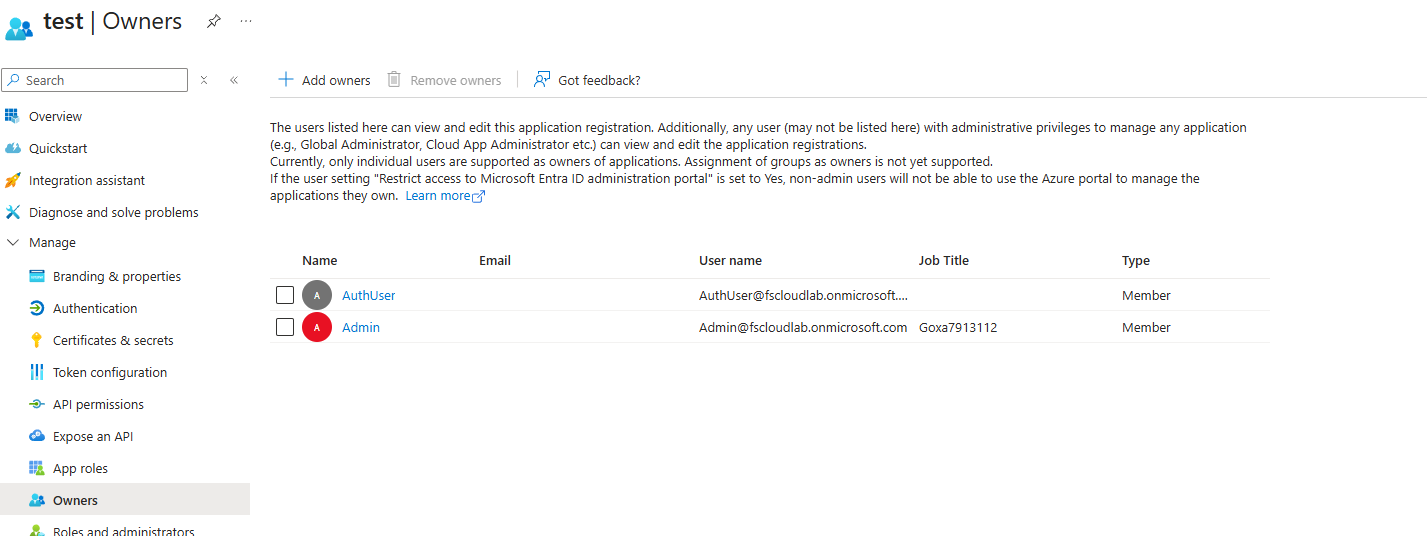
- Anyone listed as Owner can go to Certificates & secrets for this app and add new client secrets.
-
Directory roles whose members can add client secrets
- In Microsoft Entra admin center, go to Roles & administrators.
- Look for the following roles:
- Global Administrator (GA)
- Privileged Role Administrator (PRA)
- Application Administrator
- Cloud Application Administrator
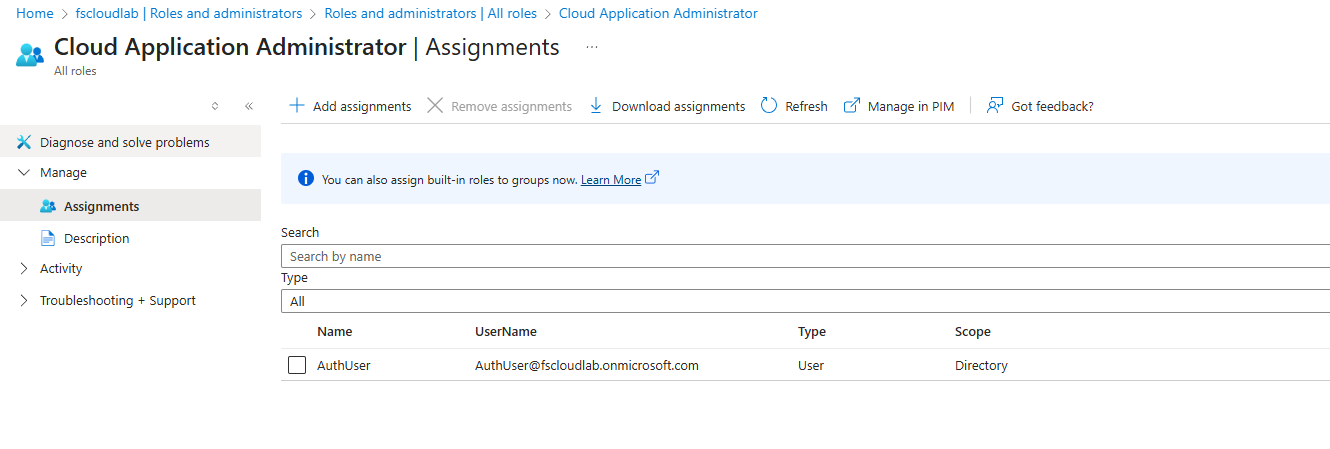
- Click each role -> open Assignments.
- Any user or service principal assigned to one of these roles can add client secrets to App Registrations (including the target app), even if they are not listed as Owners.
- If a group is assigned to one of these roles, enumerate the group’s transitive members (including nested groups) to find all effective identities that can add secrets.
Exploitation
PowerShell
#Connect-MgGraph#connect to graph first$appName     = "App Name here"$description = "Added secret"
# Get the application by display name$app = Get-MgApplication -Filter "displayName eq '$appName'"
# Create password credential parameters$passwordCredential = @{    DisplayName = $description    EndDateTime = (Get-Date).AddYears(1)}
# Add the secret to the application$cred = Add-MgApplicationPassword -ApplicationId $app.Id -PasswordCredential $passwordCredential
Write-Host ""Write-Host "New client secret value:" $cred.SecretTextWrite-Host "Description:" $descriptionWrite-Host "Expires:" $cred.EndDateTime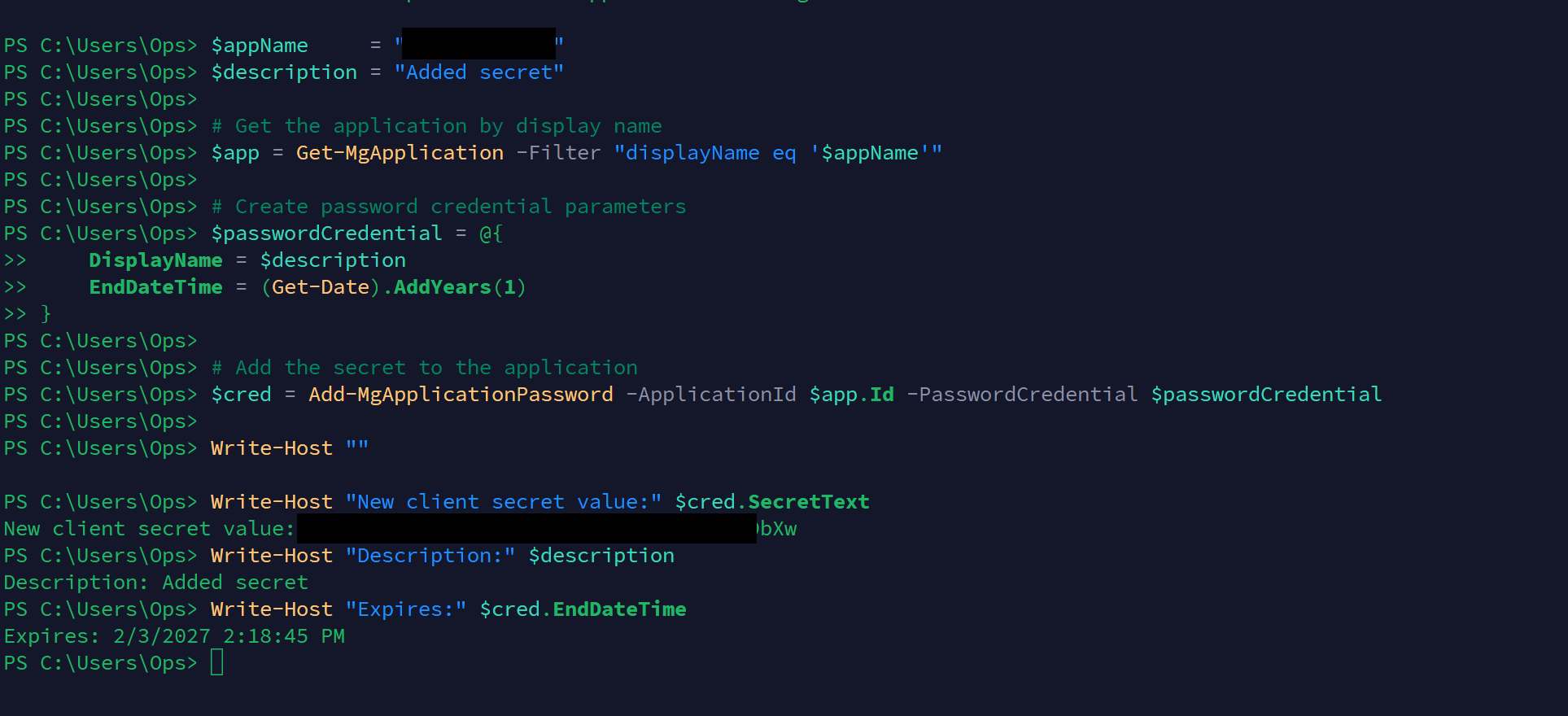
Add an application client secret with PowerShell
Azure Portal
- Open Microsoft Entra admin center -> Applications -> App registrations.
- Select the target application you want to manage.
- In the left menu of the application blade, go to Certificates & secrets.
- Under Client secrets, click + New client secret.
- Enter a Description for the secret.
- Choose the Expiration period (e.g., 3 months, 6 months, 12 months, or custom).
- Click Add.
- A new secret value will appear under Value.
- Copy the secret immediately - you will not be able to see it again after leaving the page.
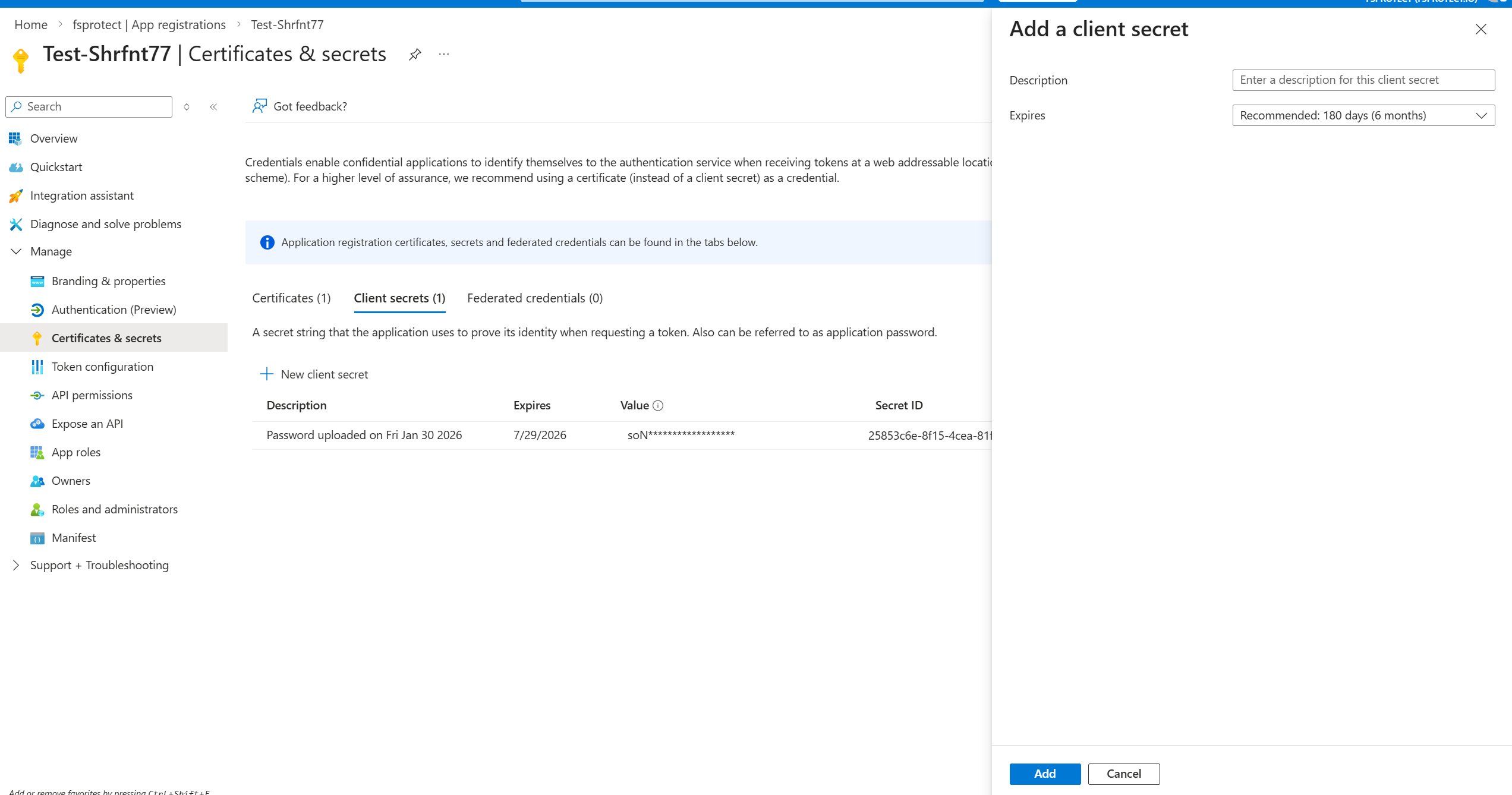
Add a client secret in the Entra admin center
Mitigation
-
Limit application owners who can add client secrets
- Open Microsoft Entra admin center -> Applications -> App registrations.
- Select the target application.
- In the left menu, go to Owners.
- Review the list of Owners:
- Remove any identity that does not need to manage secrets for this app.
- To remove: select the owner -> click Remove.
- Keep the owner list as small as possible:
- Prefer a dedicated admin group (with tight membership) instead of many individual owners.
- Avoid adding regular users or broad groups as owners.
-
Limit directory roles whose members can add client secrets
- In Microsoft Entra admin center, go to Roles & administrators.
- For each of the following roles:
- Global Administrator (GA)
- Privileged Role Administrator (PRA)
- Application Administrator
- Cloud Application Administrator
- Click the role -> open Assignments.
- Review all users, service principals, and groups assigned to the role:
- Remove any assignment that does not require the ability to manage application credentials (including secrets).
- To remove: select the assignment -> click Remove assignment.
- If a group is assigned to one of these roles:
- Ensure the group’s membership is strictly controlled (only admins who truly need app-management rights).
- Avoid large or generic groups (e.g., “All IT”, “Developers”) being assigned to these roles
Detection
Use the Microsoft Entra admin center:
- Open Microsoft Entra admin center -> Identity -> Monitoring & health -> Audit logs.
- In the Audit logs view, set:
- Date filter to the time window you want to investigate.
- Service (if available) to Application management or similar.
- Use Add filters -> filter by:
- Category / Activity: look for activities such as
- “Update application - Certificates and secrets management”
- Optionally filter by Target (the specific application) if you know the app.
- Category / Activity: look for activities such as
- Open the relevant audit event(s):
- Check the Initiated by (actor) field to see which identity added the secret (user, service principal, or group via app).
- Check the Target to confirm the App Registration / Service Principal that received a new secret.

Application certificates and secrets management audit logs
References
- https://learn.microsoft.com/en-us/entra/identity-platform/howto-create-service-principal-portal
- https://learn.microsoft.com/en-us/graph/api/application-addpassword
- https://learn.microsoft.com/en-us/graph/api/serviceprincipal-addpassword
- https://learn.microsoft.com/en-us/entra/identity/monitoring-health/reference-audit-activities