
Summary
| Forestall ACL Alias | CAN_EXEC_PWSH |
| Affected Object Types | Users, Groups |
| Exploitation Certainty | Certain |
Description
The CAN_EXEC_PWSH permission in Active Directory grants an account the ability to execute PowerShell commands and scripts on domain-joined systems. This permission is crucial for administrators who rely on PowerShell’s versatile scripting capabilities to automate tasks, manage configurations, and troubleshoot issues at scale. To assign this permission on a specific system, the user must be added to the local Remote Management Users group, enabling them to initiate and manage remote PowerShell sessions. By leveraging the CAN_EXEC_PWSH permission, IT teams can efficiently deploy software, update system settings, and gather detailed diagnostic data across multiple machines in the network.
However, if misconfigured, the CAN_EXEC_PWSH permission can create significant security vulnerabilities. An attacker with membership in the Remote Management Users group and corresponding CAN_EXEC_PWSH rights can execute arbitrary PowerShell scripts, bypass security controls, and potentially create or modify scheduled tasks—effectively establishing a persistent foothold within the environment. Exploiting this access can lead to unauthorized data exfiltration, privilege escalation, and, ultimately, compromise the security of the entire network.
Identification
Powershell
Active Directory Module
Using the ActiveDirectory PowerShell module, you can enumerate CAN_EXEC_PWSH entries.
1. Find-CanPSRemote function
function Find-CanPSRemote { [CmdletBinding()] param([string[]]$Target = $null,[string] $SearchBase = $null,[string] $OutputPath = "CanPSRemote.csv",[int] $TimeoutSec = 6) Import-Module ActiveDirectory -ErrorAction Stop Write-Host "Gathering computer objects from Active Directory..." try { $computers = @() if ($Target) { foreach ($t in $Target) { try { $comp = Get-ADComputer -Identity $t -ErrorAction Stop | Select-Object -ExpandProperty Name $computers += $comp } catch {Write-Warning "Target computer '$t' not found in AD: $($_.Exception.Message)" } } if ($computers) { Write-Host "Using explicit target computer(s): $($computers -join ', ')"} } elseif ($SearchBase) { Write-Host "Searching for computers within '$SearchBase'." $computers = Get-ADComputer -Filter * -SearchBase $SearchBase -ErrorAction Stop | Select-Object -ExpandProperty Name } else { Write-Host "Searching for all computers in the domain." $computers = Get-ADComputer -Filter * -ErrorAction Stop | Select-Object -ExpandProperty Name } } catch { Write-Error "Failed to retrieve computer objects from Active Directory: $($_.Exception.Message)" return } if (-not $computers) { Write-Output "No computer objects found to process." return } $results = New-Object System.Collections.Generic.List[object] Write-Host "Enumerating local 'Remote Management Users' on $($computers.Count) computer(s)..." foreach ($c in ($computers | Select-Object -Unique)) { try { $opt = New-CimSessionOption -Protocol Dcom $sess = New-CimSession -ComputerName $c -SessionOption $opt -OperationTimeoutSec $TimeoutSec -ErrorAction Stop try { # Note: don't filter on LocalAccount=TRUE to also catch DCs (no local SAM) $grp = Get-CimInstance -CimSession $sess -ClassName Win32_Group -Filter "Name='Remote Management Users'" -ErrorAction Stop if (-not $grp) { Write-Warning "'Remote Management Users' group not found on '$c'." continue } $members = Get-CimAssociatedInstance -CimSession $sess -InputObject $grp -Association Win32_GroupUser -ErrorAction Stop foreach ($m in $members) { $memberType = if ($m.CimClass.CimClassName -eq 'Win32_Group') { 'Group' } else { 'User' } $memberName = if ($m.Domain) { "$($m.Domain)\$($m.Name)" } else { $m.Name } $results.Add([PSCustomObject]@{ ComputerName = $c MemberName = $memberName MemberType = $memberType }) } } finally { if ($sess) { $sess | Remove-CimSession -ErrorAction SilentlyContinue } } } catch { Write-Warning "Unable to enumerate 'Remote Management Users' on '$c': $($_.Exception.Message)"} } if ($results.Count -gt 0) { try { $results | Select-Object ComputerName, MemberName, MemberType | Sort-Object ComputerName, MemberType, MemberName | Export-Csv -Path $OutputPath -NoTypeInformation -Encoding UTF8 -ErrorAction Stop Write-Output "Results exported to '$OutputPath'" } catch { Write-Error "Failed to export results to CSV: $($_.Exception.Message)" } } else { Write-Output "No 'Remote Management Users' members found across the scanned computers." }}2. Scan all Computers in the domain
Find-CanPSRemote3. Scan a specific computer object
Find-CanPSRemote -Target SDCA014. Using SearchBase to limit the Scope
Find-CanPSRemote -SearchBase "CN=Computers,DC=forestall,DC=labs".NET Directory Services
By leveraging PowerShell’s built-in .NET DirectoryServices namespace, you can enumerate CAN_EXEC_PWSH entries without relying on any external modules or dependencies.
1. Find-CanPSRemoteSimple function
function Find-CanPSRemoteSimple { [CmdletBinding()] param( [string]$Target = $null, [string]$SearchBase = $null,[string]$OutputPath = "CanPSRemote.csv", [int]$TimeoutSec = 6) $computers = @() try { if ($Target) { try { # Allow DN or a plain computer name/FQDN if ($Target -match '(^CN=|^OU=|^DC=)') { $entry = [ADSI]"LDAP://$Target" $name = $entry.Properties['dNSHostName'].Value if ([string]::IsNullOrWhiteSpace($name)) { $name = $entry.Properties['name'].Value } } else { $name = $Target } if ($name) { $computers = @($name) } else { Write-Error "Could not resolve hostname from '$Target'"; return } } catch { Write-Error "Failed to bind to '$Target': $_"; return } } else { try { $root = [ADSI]"LDAP://RootDSE" $baseDN = if ($SearchBase) { $SearchBase } else { $root.defaultNamingContext } $searchRoot = [ADSI]"LDAP://$baseDN" $ds = New-Object System.DirectoryServices.DirectorySearcher($searchRoot) $ds.Filter = "(objectCategory=computer)" $ds.PageSize = 1000 [void]$ds.PropertiesToLoad.Add("dNSHostName") [void]$ds.PropertiesToLoad.Add("name") $res = $ds.FindAll() foreach ($r in $res) { $n = $null if ($r.Properties.Contains('dnshostname') -and $r.Properties['dnshostname'].Count -gt 0) { $n = [string]$r.Properties['dnshostname'][0] } elseif ($r.Properties.Contains('name') -and $r.Properties['name'].Count -gt 0) { $n = [string]$r.Properties['name'][0] } if ($n) { $computers += $n } } $res.Dispose() } catch { Write-Error "LDAP enumeration failed: $_"; return } } } catch { Write-Error "Failed to build computer list: $_"; return } if (-not $computers) { Write-Output "No computer objects found to process."; return } $results = New-Object System.Collections.Generic.List[object] $opt = New-CimSessionOption -Protocol Dcom foreach ($c in ($computers | Sort-Object -Unique)) { try { $sess = New-CimSession -ComputerName $c -SessionOption $opt -OperationTimeoutSec $TimeoutSec -ErrorAction Stop try { $grp = Get-CimInstance -CimSession $sess -ClassName Win32_Group -Filter "LocalAccount=True AND Name='Remote Management Users'" -ErrorAction Stop if (-not $grp) { continue } $members = Get-CimAssociatedInstance -CimSession $sess -InputObject $grp -Association Win32_GroupUser -ErrorAction Stop foreach ($m in $members) { $memberType = if ($m.CimClass.CimClassName -eq 'Win32_Group') { 'Group' } else { 'User' } $memberName = if ($m.Domain) { "$($m.Domain)\$($m.Name)" } else { $m.Name } $results.Add([PSCustomObject]@{ ComputerName = $c MemberName = $memberName MemberType = $memberType }) } } finally { if ($sess) { $sess | Remove-CimSession -ErrorAction SilentlyContinue } } } catch { continue } } if ($results.Count -gt 0) { try { $results | Select-Object ComputerName, MemberName, MemberType | Sort-Object ComputerName, MemberType, MemberName | Export-Csv -Path $OutputPath -NoTypeInformation -Encoding UTF8 -ErrorAction Stop Write-Output "Results exported to '$OutputPath'" } catch { Write-Error "Failed to export results to CSV: $($_.Exception.Message)" } } else { Write-Output "No 'Remote Management Users' members found across the scanned computers." }}2. Scan all computers in the domain
Find-CanPSRemoteSimple3. Scan a specific computer
Find-CanPSRemoteSimple -Target "CN=fssql,CN=Computers,DC=Forestall,DC=Labs"4. Using SearchBase to limit the Scope
Find-CanPSRemoteSimple -SearchBase "CN=Computers,DC=forestall,DC=labs"Computer Management
Note: This edge cannot be identified with ADUC directly but can be from Computer Management.
1. Open Computer Management.
2. Select Action from the menu, then Connect to Another Computer if another computer is required.
3. Select the desired machine to manage.
4. In the Computer Management window, navigate to the Local Users and Groups section.
5. In the Local Users and Groups, double-click and open Remote Management Users.
6. In the Members list, locate users and groups.
7. Click OK to close the dialogs.
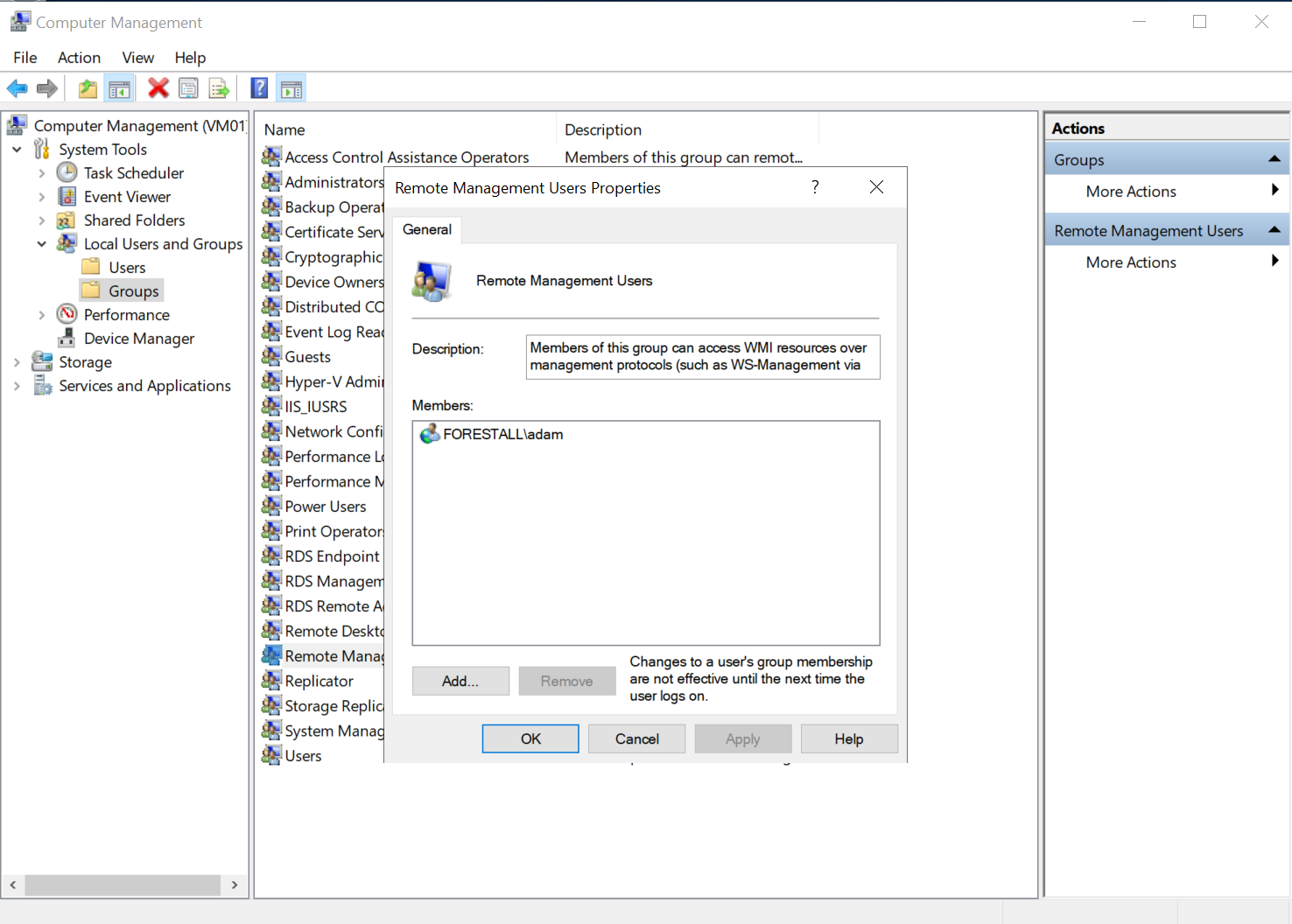
Computer Management
Exploitation
Windows
$pass = ConvertTo-SecureString -AsPlainText -Force '<pass>'$creds = New-Object System.Management.Automation.PSCredential('<domain>\<user>',$pass);Enter-PSSession -ComputerName <hostname> -Credential $credsExample:
$pass = ConvertTo-SecureString -AsPlainText -Force 'Temp123!'$creds = New-Object System.Management.Automation.PSCredential('Forestall\adam',$pass);Enter-PSSession -ComputerName vm01.forestall.labs -Credential $creds
Powershell Remote Session
Linux
By using Evil-winrm
evil-winrm -i <ip or host> -u '<user>' -p '<pass>'Example:
evil-winrm -i 192.168.121.110 -u adam -p 'Temp123!'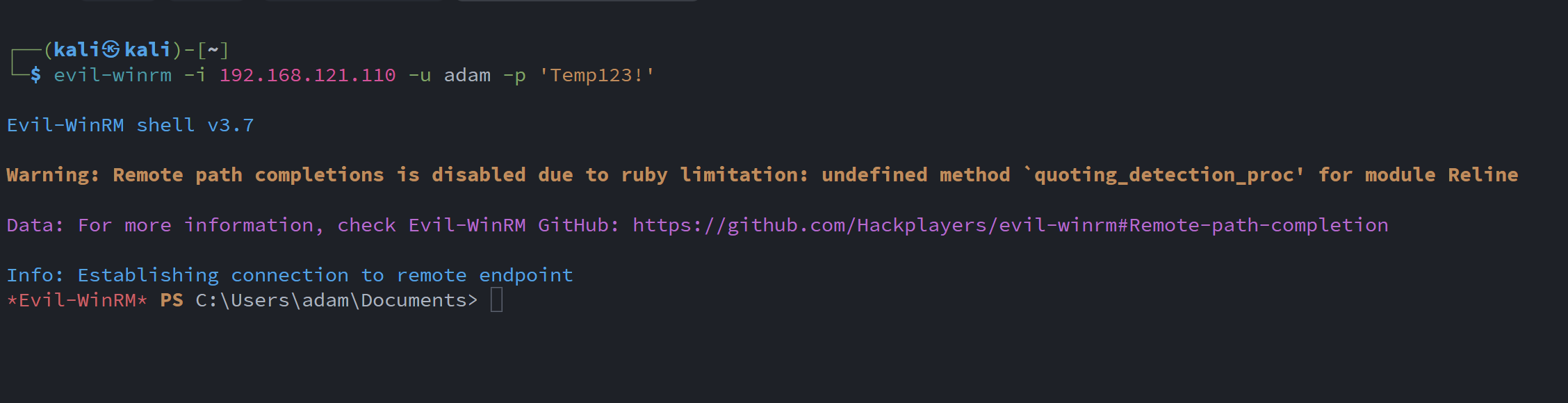
Powershell Remote Session Evil-winrm
Mitigation
You can mitigate CAN_EXEC_PWSH with the following steps:
1. Open Active Directory Users and Computers.
2. Right-click on the computer.
3. Select Manage from the context menu.
4. In the Computer Management window, navigate to the Local Users and Groups section.
5. In the Local Users and Groups, double-click and open Remote Management Users.
6. In the Members list, locate and remove the unwanted user or group by clicking the entity and then the remove button.
7. Click OK to close the dialogs.
Active Directory Users and Computers
Detection
Adding new Access Control Entries on Active Directory objects changes the ntSecurityDescriptor attribute of the objects themselves. These changes can be detected with the 5136 and 4662 Event IDs to identify dangerous modifications.
| Event ID | Description | Fields/Attributes | References |
|---|---|---|---|
| 5136 | A directory service object was modified. | ntSecurityDescriptor | https://learn.microsoft.com/en-us/windows/security/threat-protection/auditing/event-5136 |
| 4662 | An operation was performed on an object. | AccessList, AccessMask | https://learn.microsoft.com/en-us/windows/security/threat-protection/auditing/event-4662 |