> For the complete documentation index, see [llms.txt](https://docs.forestall.io/fsprotect/llms.txt). Markdown versions of documentation pages are available by appending `.md` to page URLs; this page is available as [Markdown](https://docs.forestall.io/fsprotect/settings/audit-logs.md).
# Audit Logs
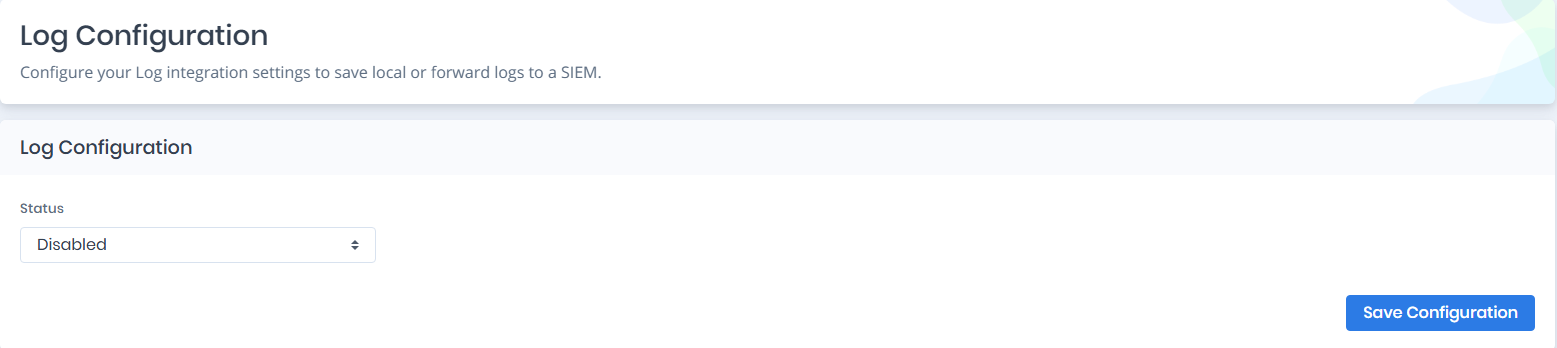
The Log Configuration page allows you to define how Forestall ISPM records, stores, and forwards log data generated by the platform.\
Depending on your setup, logs can be saved locally, sent to a Syslog server, or disabled entirely.
Log Configuration Main Screen
### Configuring Log Storage and Forwarding
You can configure how Forestall handles log output using the parameters described below.
#### **Status**
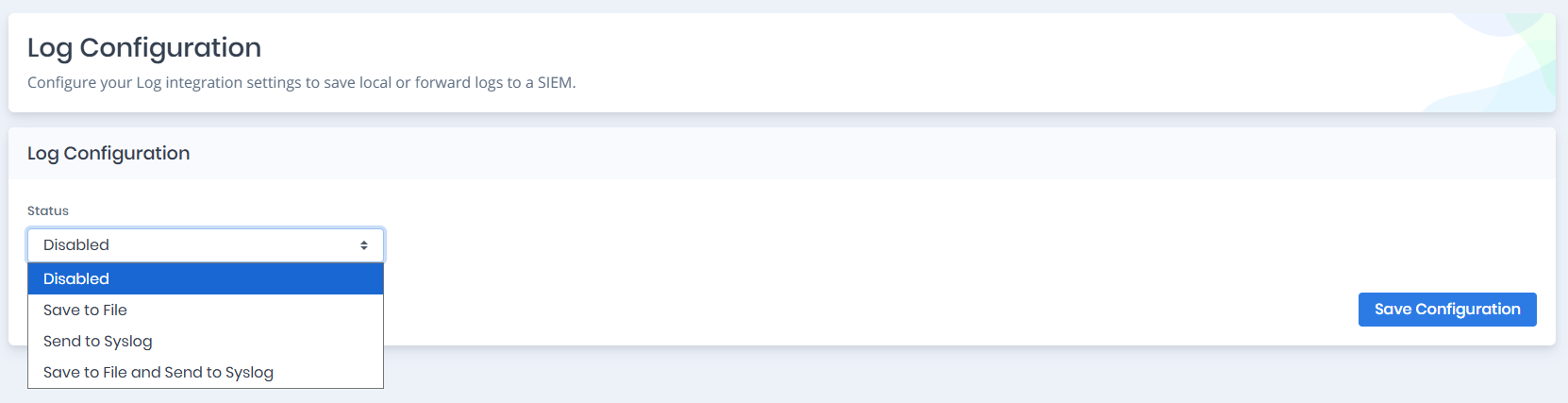
Defines the behavior of the logging system.\
Options include: **Disabled**, **Save to File**, **Send to Syslog**, and **Save to File and Send to Syslog**.
Status options
***
### Save to File Mode
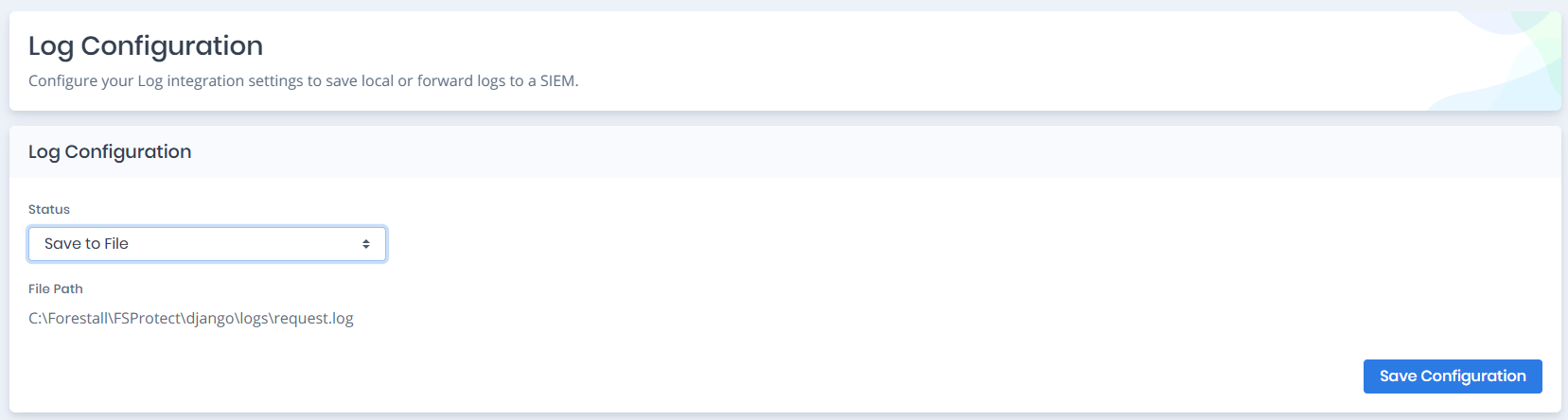
When **Save to File** is selected, Forestall writes logs to a local file on the server.
Save to File Configuration
#### **File Path**
The full path where the log file will be created
```
C:\Forestall\Forestall\django\logs\request.log
```
Forestall automatically creates the file and its directory if they do not already exist.
### Send to Syslog Mode
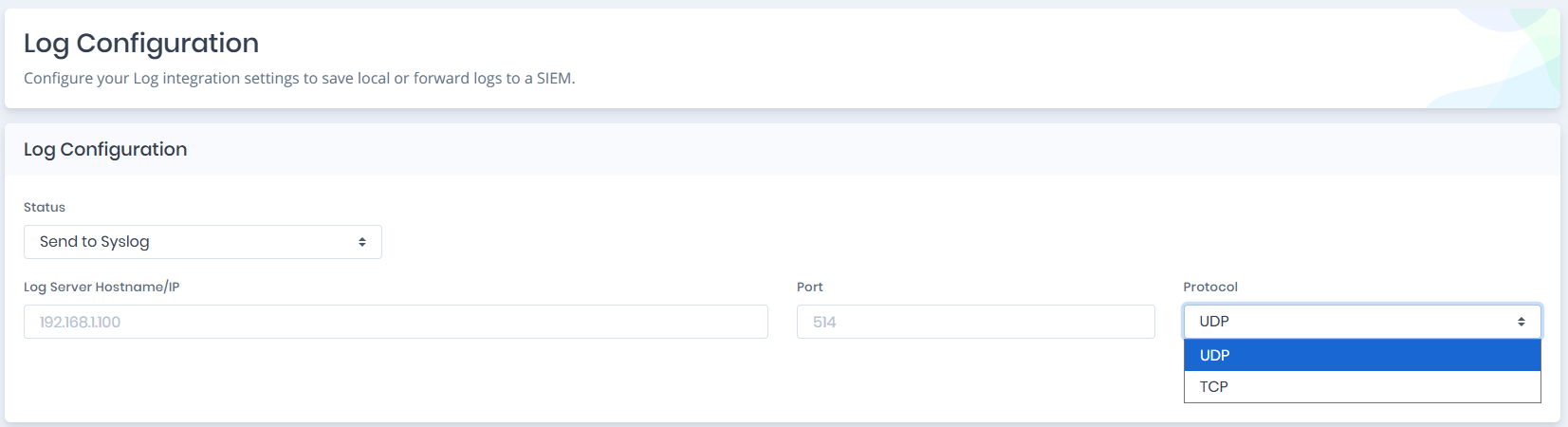
When **Send to Syslog** is selected, Forestall forwards all logs to an external Syslog/SIEM server.
Send to Syslog Configuration
#### **Log Server Hostname/IP**
The address of the Syslog server that will receive log messages.
#### **Port**
The Syslog port number. Common default: `514`.
#### **Protocol**
The communication protocol for sending logs. Options: **UDP** or **TCP**. In this mode, no logs are stored locally.
***
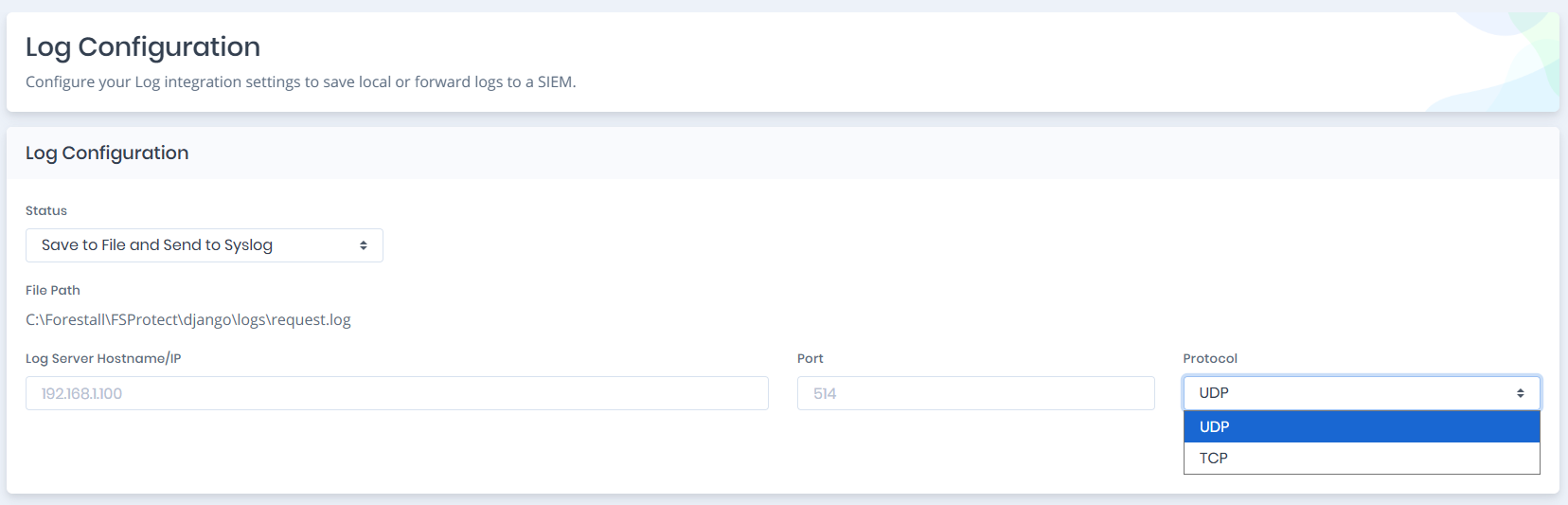
### Save to File and Send to Syslog Mode
This mode enables both local storage and external forwarding simultaneously.
Save to File and Send to Syslog Configuration
#### **Behavior**
* Forestall writes logs to the specified file path
* The same log entries are forwarded to the Syslog server
* Redundant logging ensures no data loss if the Syslog server becomes temporarily unreachable
#### **Fields**
* File Path
* Syslog Hostname/IP
* Port
* Protocol