> For the complete documentation index, see [llms.txt](https://docs.forestall.io/fsprotect/llms.txt). Markdown versions of documentation pages are available by appending `.md` to page URLs; this page is available as [Markdown](https://docs.forestall.io/fsprotect/settings/api-tokens.md).
# API Tokens
Create a Forestall ISPM API token and use it to connect MCP-compatible tools.
## API Tokens for MCP Tools
Forestall API tokens let you authenticate external tools without sharing your username and password. Use an API token when connecting MCP-compatible clients such as Cursor, VS Code, Claude Desktop, Windsurf, JetBrains, Open WebUI, AnythingLLM, LangChain, or n8n.
> **Important:** Forestall only displays the full token once, immediately after creation. Copy it before closing the dialog and store it securely.
### Create an API token
1. Sign in to Forestall.
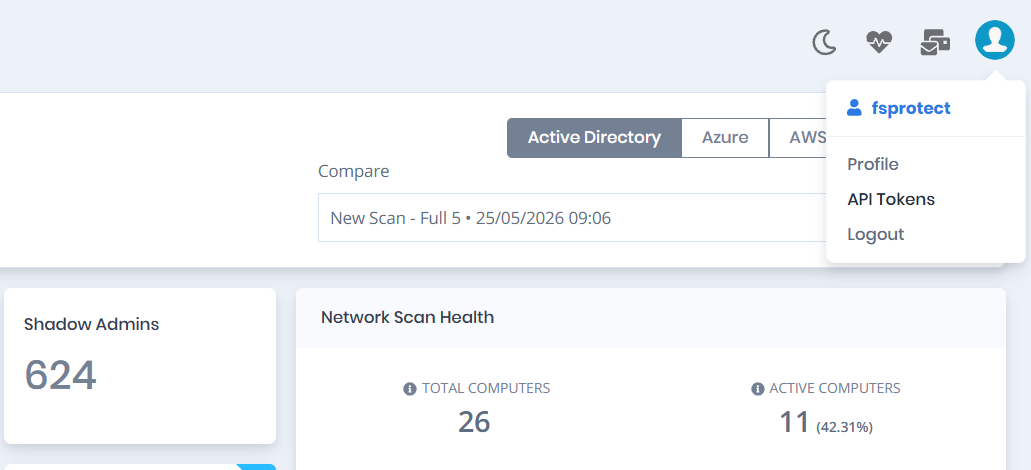
2. Open your user menu and select **API Tokens**.
User Menu
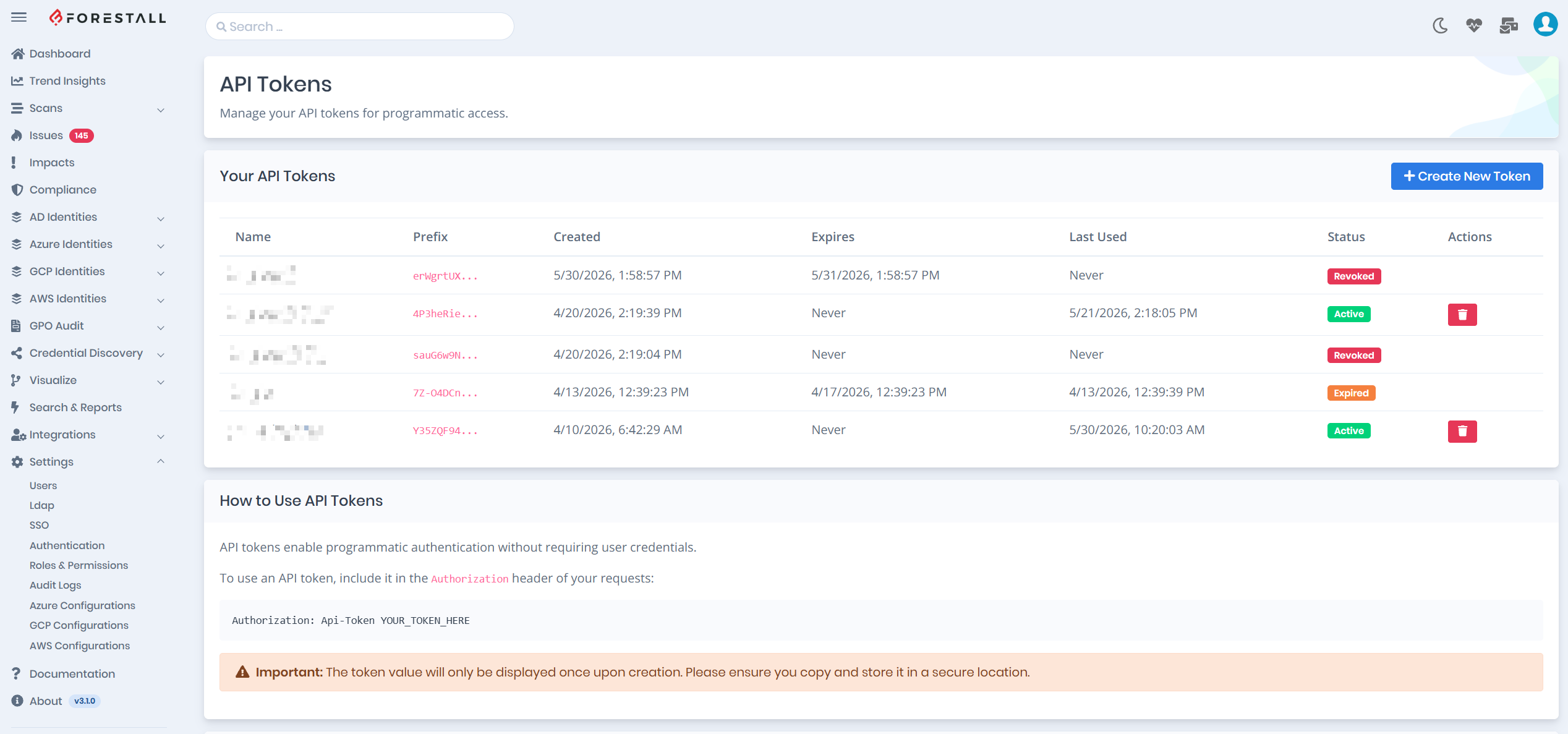
3. On the **API Tokens** page, select **Create New Token**.
API Tokens Page
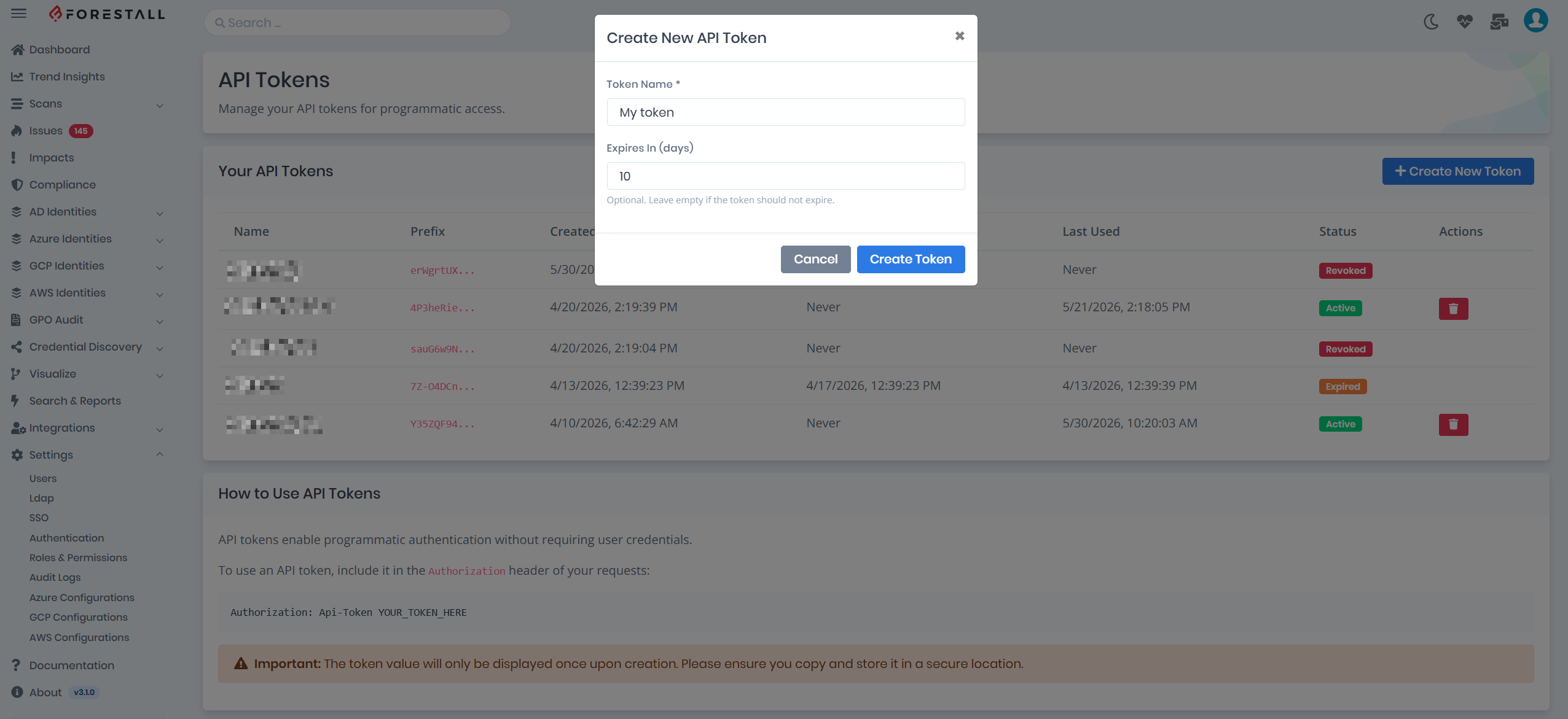
4. Enter a descriptive token name, for example `Cursor MCP`, `Claude Desktop MCP`, or `Automation Client`.
5. Optional: set **Expires In (days)**. Leave it empty if the token should not expire.
6. Select **Create Token**.
Creating an API Token
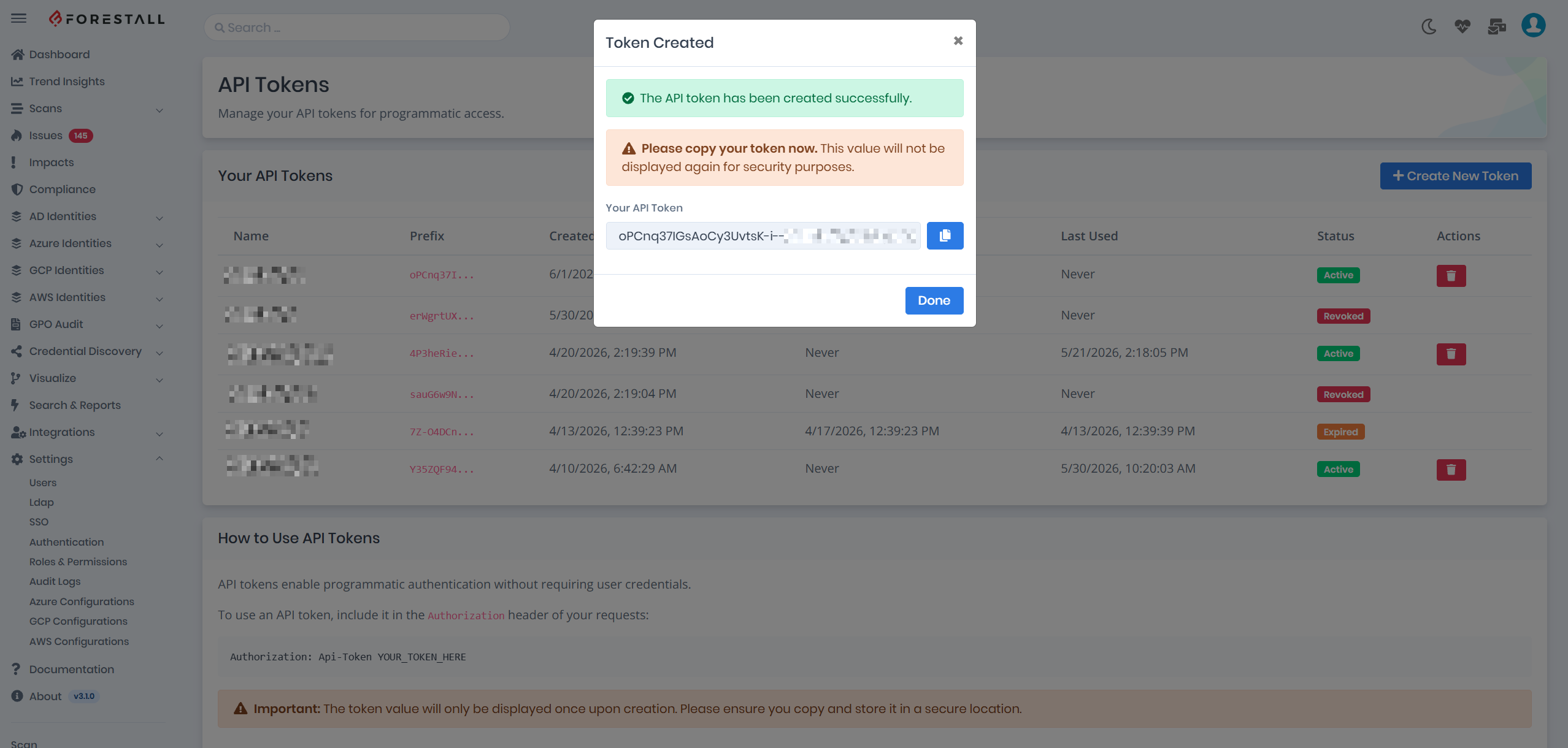
7. Copy the token from the success dialog. You will not be able to view the full token again later.
API Token creation result
### Use the token with MCP clients
The Forestall MCP endpoint is:
```
https://YOUR_FORESTALL_HOST:8443/api/v1/mcp
```
Replace `YOUR_FORESTALL_HOST` with the hostname and port used by your Forestall deployment.
#### Example: VS Code
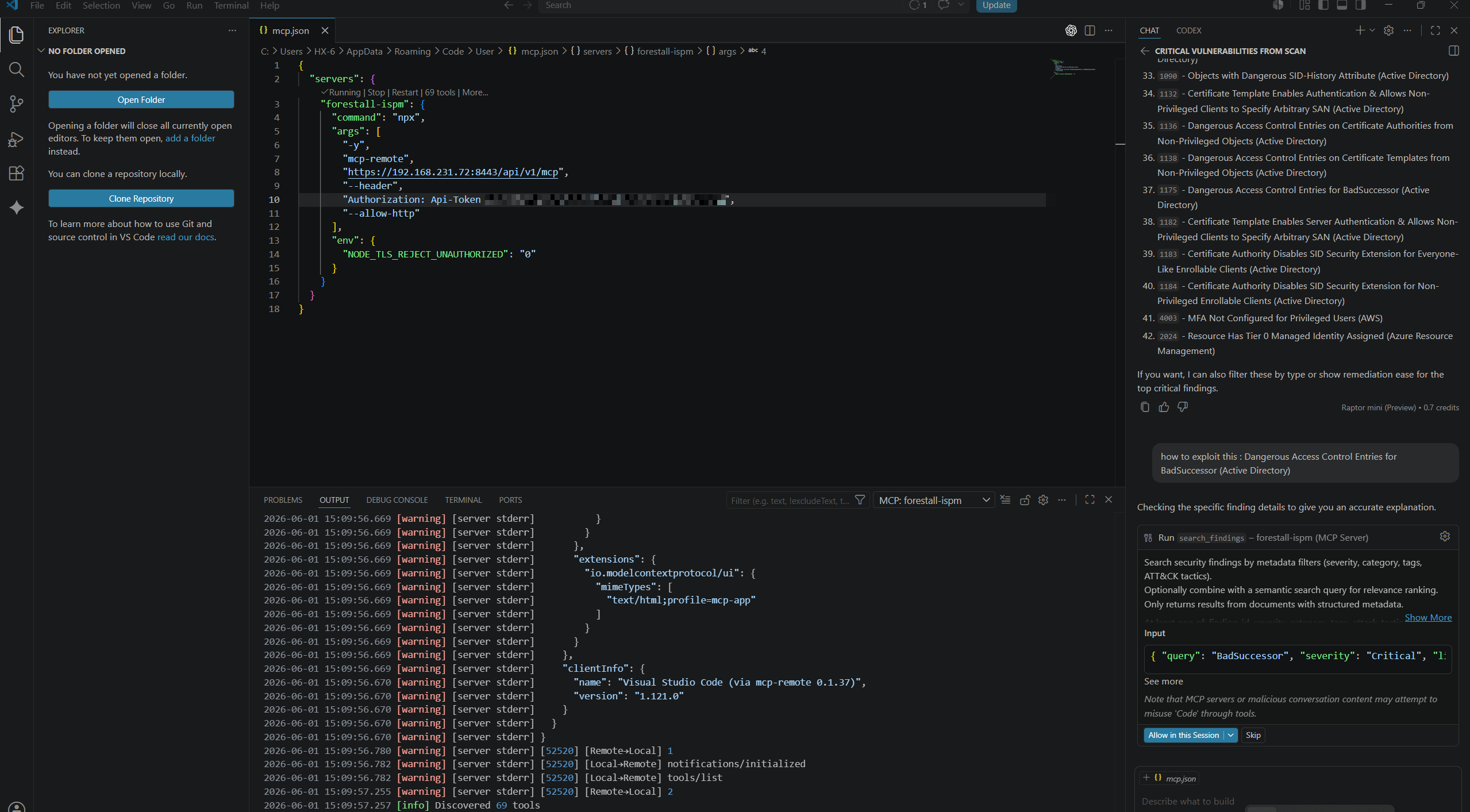
VS Code uses an `mcp.json` file with a top-level `servers` object. Use `mcp-remote` to connect VS Code to the Forestall MCP endpoint.
This configuration requires Node.js 18 or higher because it runs `npx mcp-remote`.
1. Create a Forestall API token and copy it.
2. Open VS Code.
3. Open the Command Palette and run **MCP: Open User Configuration** or **MCP: Open Workspace Folder MCP Configuration**.
4. Add the Forestall MCP server configuration.
5. Replace `YOUR_FORESTALL_HOST` with your Forestall host, for example `127.0.0.1:8443`.
6. Replace `YOUR_TOKEN_HERE` with the API token you copied from Forestall.
```json
{
"servers": {
"forestall-ispm": {
"command": "cmd",
"args": [
"/c",
"npx",
"-y",
"mcp-remote",
"https://YOUR_FORESTALL_HOST/api/v1/mcp",
"--header",
"Authorization: Api-Token YOUR_TOKEN_HERE",
"--allow-http"
],
"env": {
"NODE_TLS_REJECT_UNAUTHORIZED": "0"
}
}
}
}
```
After saving the configuration, restart or reload the MCP client in VS Code. Forestall tools should become available through the MCP tools list.
`NODE_TLS_REJECT_UNAUTHORIZED=0` allows `mcp-remote` to connect when Forestall uses a self-signed certificate. Remove this environment variable when Forestall uses a trusted CA-signed certificate.
Using API Token with MCP server
### Manage existing tokens
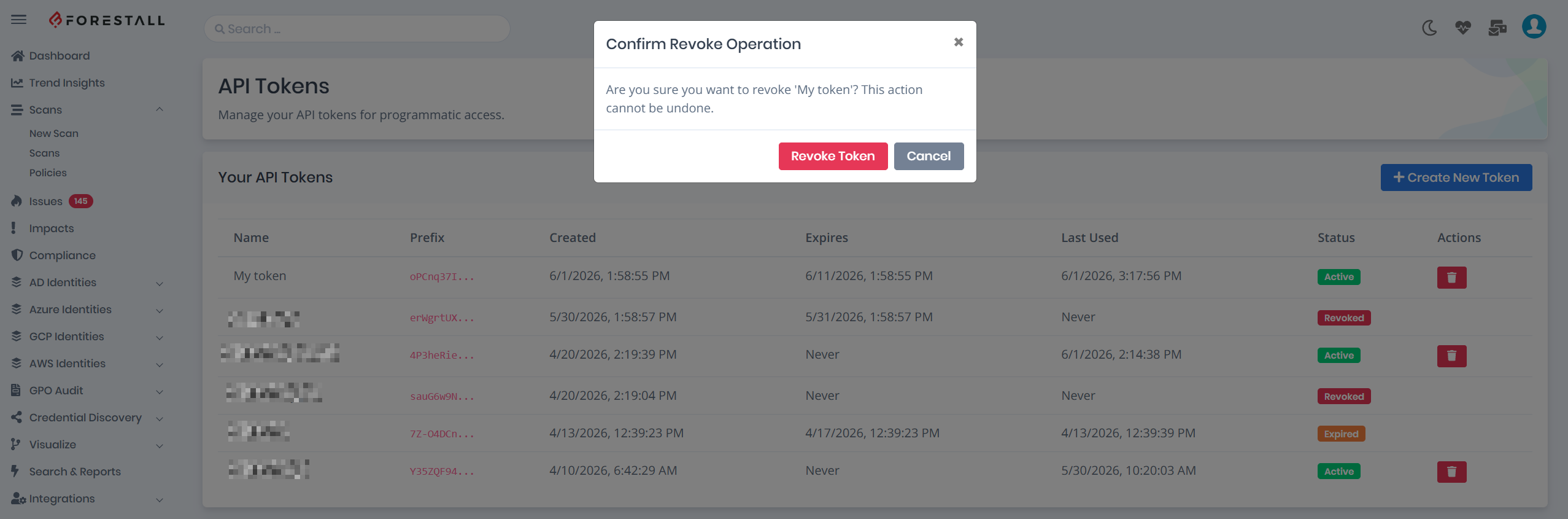
The API Tokens page shows each token's name, prefix, creation date, expiration date, last used date, and status. The full token value is never shown again after creation.
To disable a token, select the delete action in the token list and confirm the revocation. Revoked tokens can no longer authenticate API or MCP requests.
Revoking an API Token
### Troubleshooting
| Problem | What to check |
| ------------------------------------------ | ----------------------------------------------------------------------------------------------------------------------------------------------------------------------------------- |
| The API Tokens page is not visible | Confirm your role includes the **ManageApiTokens** permission. |
| The MCP client returns unauthorized errors | Confirm the header is exactly `Authorization: Api-Token YOUR_TOKEN_HERE`. |
| VS Code shows `TypeError: fetch failed` | Confirm `YOUR_FORESTALL_HOST` was replaced with the real host. If curl only works with `-k`, use the VS Code `mcp-remote` configuration or install a trusted Forestall certificate. |
| The token no longer works | Check whether the token was revoked or expired. |
| The client cannot connect over HTTPS | Confirm the Forestall URL is correct. If using a self-signed certificate with `mcp-remote`, keep `NODE_TLS_REJECT_UNAUTHORIZED=0`. |
| The full token is missing from the list | This is expected. Forestall only shows the full token once during creation. |