# Requirements

## Installation Requirements

1. It is recommended to use a server with **`Windows Server 2016 64 Bit, Windows Server 2019 64 Bit`** or **`Windows Server 2022 64 Bit`** operating system with **`English Language Pack (en-US)`** for installation.
2. The following system requirements should be determined according to the total object count (Users, Groups and Computers) in the Active Directory inventory. You can find total object count with the script below. You need to run this script for all domains in the Active Directory.

```powershell
# You need to install ActiveDirectory Powershell module or run this script on Domain Controller
Import-Module ActiveDirectory;

$domain = Get-ADDomain;
$users = Get-ADUser -Filter * | Measure-Object;
$computers = Get-ADComputer -Filter * | Measure-Object;
$groups = Get-ADGroup -Filter * | Measure-Object;

Write-Host "Users: $($users.count), Computers: $($computers.count), Groups: $($groups.count)" -ForegroundColor Green;
Write-Host "$($domain.DistinguishedName) - Total Object Count: $($users.count + $computers.count + $groups.count)" -ForegroundColor Green;
```

| Total Object Count | Minimum RAM | Minimum Free Disk Space | CPU Core Count |
| ------------------ | ----------- | ----------------------- | -------------- |
| 0-5.000            | 24 GB       | 100 GB                  | 4              |
| 5.000-25.000       | 32 GB       | 300 GB                  | 8              |
| 25.000-50.000      | 64 GB       | 500 GB                  | 12             |
| 50.000-250.000     | 128 GB      | 2 TB                    | 16             |

3. To perform all security assessments during the scans, the server which FSProtect has been deployed, needs to be able to access all computers over the network (outbound) in the Active Directory environment. With this reason, necessary configurations should be made on the firewall according to the following table.

<table><thead><tr><th>Target Computers</th><th width="130">Protocol</th><th width="122">Protocol2</th><th width="154">Port</th><th>Description</th></tr></thead><tbody><tr><td>DC or DNS Servers</td><td>TCP/UDP</td><td>DNS</td><td>53</td><td>To resolve names in AD environment with the help of DNS.</td></tr><tr><td>DC and CA Servers</td><td>TCP/UDP</td><td>HTTP</td><td>80</td><td>To perform Certificate Services related vulnerability checks.</td></tr><tr><td>DC Servers</td><td>TCP/UDP</td><td>KERBEROS</td><td>88</td><td>To authenticate in the domain with Kerberos.</td></tr><tr><td>DC or NTP Server</td><td>TCP/UDP</td><td>NTP</td><td>123</td><td>To resolve time in environment</td></tr><tr><td>DC Servers</td><td>TCP/UDP</td><td>LDAP</td><td>389</td><td>To collect the data with the help of LDAP queries.</td></tr><tr><td>DC and CA Servers</td><td>TCP/UDP</td><td>HTTPS</td><td>443</td><td>To perform Certificate Services related vulnerability checks.</td></tr><tr><td>DC Servers</td><td>TCP/UDP</td><td>LDAPS</td><td>636</td><td>To collect the data with the help of LDAP queries.</td></tr><tr><td>DC Servers</td><td>TCP/UDP</td><td>DCERPC</td><td>49667</td><td>To perform LSARPC queries</td></tr><tr><td>DC Servers</td><td>TCP/UDP</td><td>DCERPC</td><td>49670</td><td>To perform NETLOGON queries</td></tr><tr><td>DC Servers</td><td>TCP/UDP</td><td>DCERPC</td><td>All ports between 49152 – 65535</td><td>To perform Spool Service related vulnerability checks.</td></tr><tr><td>All Computers in Domain</td><td>TCP/UDP</td><td>DCERPC</td><td>135</td><td>To collect local assets (Local Users, Local Groups, etc.)</td></tr><tr><td>All Computers in Domain</td><td>TCP/UDP</td><td>NETBIOS</td><td>137</td><td>To perform NETBIOS queries</td></tr><tr><td>All Computers in Domain</td><td>TCP/UDP</td><td>SMB</td><td>445</td><td>To perform SMB related vulnerability checks.</td></tr><tr><td>All Computers in Domain</td><td>TCP/UDP</td><td>RDP</td><td>3389</td><td>To perform RDP related vulnerability checks.</td></tr><tr><td>WSUS Servers</td><td>TCP</td><td>HTTP</td><td>8530</td><td>To perform WSUS related vulnerability checks.</td></tr><tr><td>WSUS Servers</td><td>TCP</td><td>HTTPS</td><td>8531</td><td>To perform WSUS related vulnerability checks.</td></tr></tbody></table>

To perform all security assessments during the scans, the server which FSProtect has been deployed, needs to be able to access identities and resources over the network (outbound) in the Azure/Entra ID environment. With this reason, necessary configurations should be made on the firewall according to the following table.

| Target Domain                              | Protocol | Port    |                                                                                                                   |
| ------------------------------------------ | -------- | ------- | ----------------------------------------------------------------------------------------------------------------- |
| login.microsoftonline.com                  | HTTPS    | 443/TCP | Microsoft Entra ID / Azure authentication                                                                         |
| graph.microsoft.com                        | HTTPS    | 443/TCP | To collect identity data from Entra ID                                                                            |
| management.azure.com                       | HTTPS    | 443/TCP | To collect resource data from Azure Resource Manager                                                              |
| api.interfaces.records.teams.microsoft.com | HTTPS    | 443/TCP | To collect data from Microsoft 365 Teams Admin Center                                                             |
| {tenantName}-admin.sharepoint.com          | HTTPS    | 443/TCP | To collect data from Microsoft 365 Sharepoint Admin Center ({tenantName} must be changed with target tenant name) |

For integration and configuration requirements, please visit the [azure-configurations](https://docs.forestall.io/fsprotect/settings/azure-configurations "mention") section.

4. In order to access FSProtect Web Application in your environment, inbound connections over the network must be allowed in the server which FSProtect has been deployed. With this reason necessary configurations should be made on the firewall according to the following table.

<table><thead><tr><th>Target Computers</th><th width="105">Protocol</th><th width="121">Protocol2</th><th width="190">Port</th><th></th></tr></thead><tbody><tr><td>FSProtect Deployed Server</td><td>TCP</td><td>HTTPS</td><td>443 (Can be changed during installation)</td><td>Web App. UI</td></tr><tr><td>FSProtect Deployed Server</td><td>TCP</td><td>HTTPS</td><td>8443 (Can be changed during installation)</td><td>REST API Access</td></tr></tbody></table>

5. For the installation and security scans to be performed properly, the security software on the server should be removed or the necessary exclusions should be applied.
6. In order to access the web interface during installation, one of the Google Chrome, Mozilla Firefox, or Microsoft Edge browsers must be installed.
7. FSProtect should be deployed on a domain-joined server. A user with local Administrator privileges (Built-in local Administrator or Domain User with Local Admin privilege can be used) on the FSProtect deployed server is required to perform the product installation.
8. In order to perform scans, a user with read permission must be created for each Active Directory Forest. By default, unprivileged user who is member of Domain Users group is enough for this task. But if this permission is not allowed or blocked in your AD environment, such user with this right must be created. This user can be created using the following Powershell script.

```powershell
Import-Module ActiveDirectory;

$username="FSProtectUser";
New-ADUser -Name $username -AccountPassword(Read-Host -AsSecureString "$username Password:") -PasswordNeverExpires $true -Enabled $true;
```

9. With an update released by Microsoft, non-privileged users are prevented from making SAM calls on servers and clients. If it is desired to obtain local user and local group information (This is required to perform full check and it is recommended), a Group Policy object should be created by the following steps below for the domain user which will be used during the scans.
   1. Open the Group Policy Management.
   2. Choose the Forest and the Domain which FSProtect will be used.
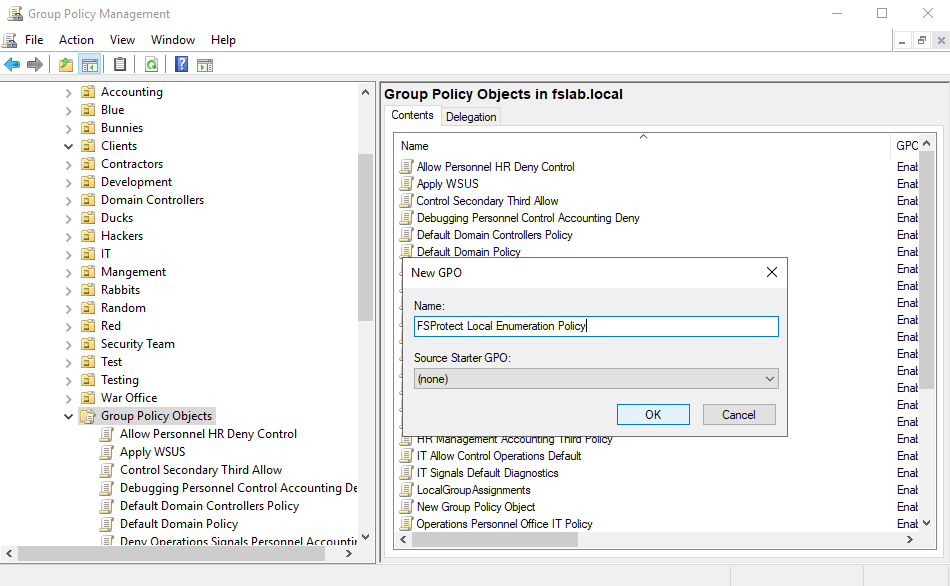
   3. Right click to Group Policy Objects and select `New`.
   4. Write down any name to the `Name` section and click to the `OK` button.
   5. Right click to the newly created Group Policy object and click to the `Edit` button.
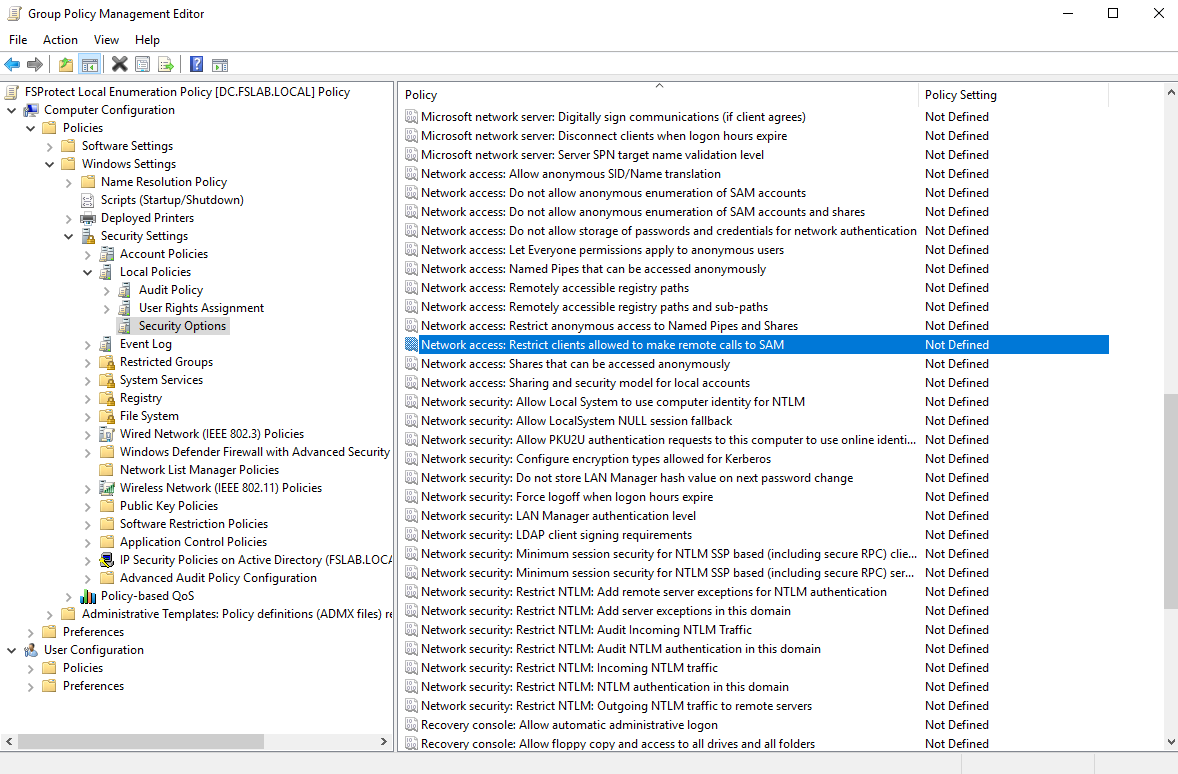
   6. In popped up page, click to these items in order.
      1. Computer Configuration
      2. Policies
      3. Windows Settings
      4. Security Settings
      5. Local Policies
      6. Security Options
      7. `Network Access: Restrict clients allowed to make remote calls to SAM`
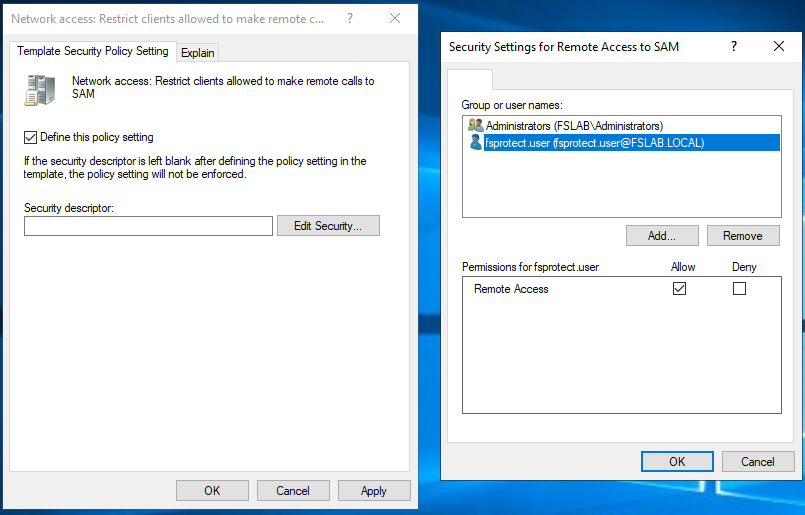
   7. In popped up page, enable the `Define this policy setting` option.
   8. By clicking on the `Edit Security button`, the user created for the FSProtect application is selected and the `Remote Access` option is marked as `Allow`. Finally, the Group Policy object is saved by clicking the `OK` button and clicking the `Apply` button.
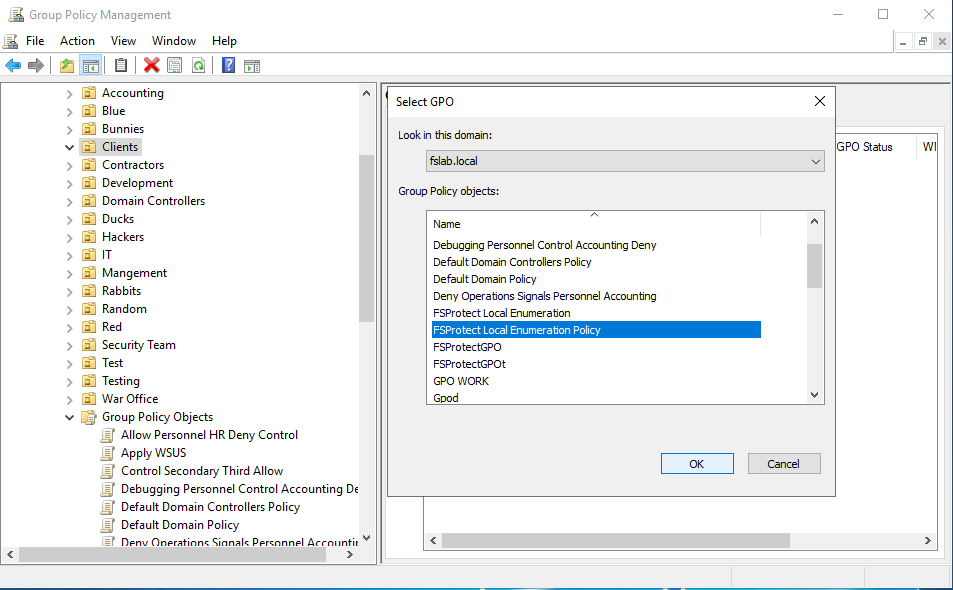
   9. The created Group Policy object needs to be linked to the Organizational Units where the computers’ local inventory information required to be collected by FSProtect. (By default, linking this GPO to the Organizational Units **except Domain Controllers** is recommended to find all attack paths.)

<figure><img src="https://3408039743-files.gitbook.io/~/files/v0/b/gitbook-x-prod.appspot.com/o/spaces%2FObpV44hoVkNmo5bFuVVL%2Fuploads%2FpxxneDyVMRr2gHpfvPKH%2Fimage.png?alt=media&#x26;token=9fdac770-e5d1-4a35-a07c-c4798c48bae2" alt=""><figcaption><p>Creating new Group Policy Object</p></figcaption></figure>

<figure><img src="https://3408039743-files.gitbook.io/~/files/v0/b/gitbook-x-prod.appspot.com/o/spaces%2FObpV44hoVkNmo5bFuVVL%2Fuploads%2FgBXbXoGzsy7nxcRfSI0T%2Fimage.png?alt=media&#x26;token=ba603896-b1a8-4022-8091-e9571ff64b39" alt=""><figcaption><p>Linking a Group Policy Object to an Organizational Unit</p></figcaption></figure>

<figure><img src="https://3408039743-files.gitbook.io/~/files/v0/b/gitbook-x-prod.appspot.com/o/spaces%2FObpV44hoVkNmo5bFuVVL%2Fuploads%2FjUgl11p34mHEDQQNRsJy%2Freq2.png?alt=media&#x26;token=2809754a-aa21-4992-b358-9ed2113ea1e0" alt=""><figcaption><p>Navigating to the related Setting</p></figcaption></figure>

<figure><img src="https://3408039743-files.gitbook.io/~/files/v0/b/gitbook-x-prod.appspot.com/o/spaces%2FObpV44hoVkNmo5bFuVVL%2Fuploads%2Fggj9tkL9Fl03k3SwqQtl%2Freq3.png?alt=media&#x26;token=532425e9-ae6a-4ed4-ac35-e32070c48f92" alt=""><figcaption><p>Granting Permission for FSProtect User</p></figcaption></figure>

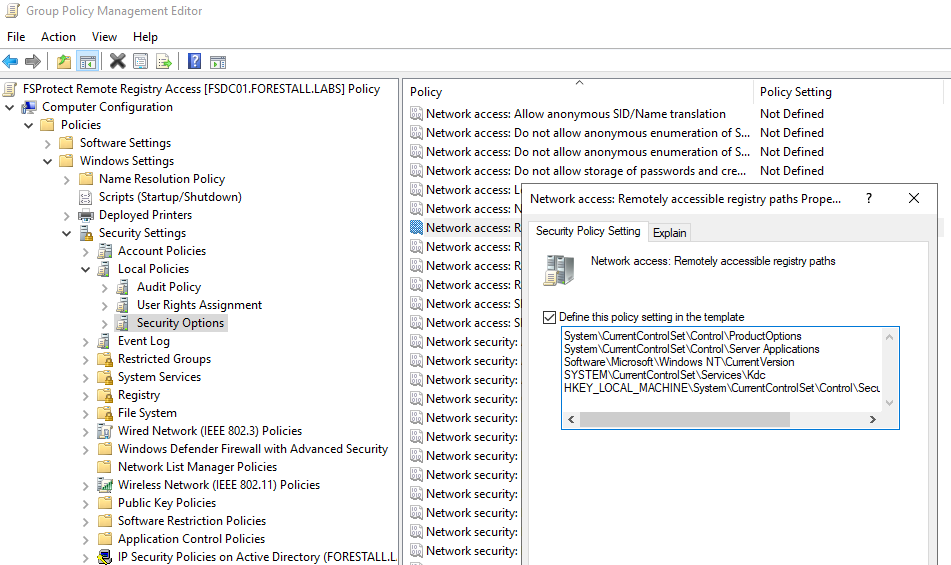
10. To allow FSProtect to access the necessary registry paths, you need to modify the `Network Access: Remotely accessible registry paths` policy setting using a Group Policy Object (GPO). This involves adding two registry paths to this GPO, either manually through the Group Policy Management Console interface.

    1. Open the `Group Policy Management Console (GPMC)`.
    2. In the left pane, expand the `Forest: <your domain name>` node and find your domain under the `Domains` section.
    3. Right-click on the `Domain Controllers` container and select `Create a GPO in this domain, and Link it here`
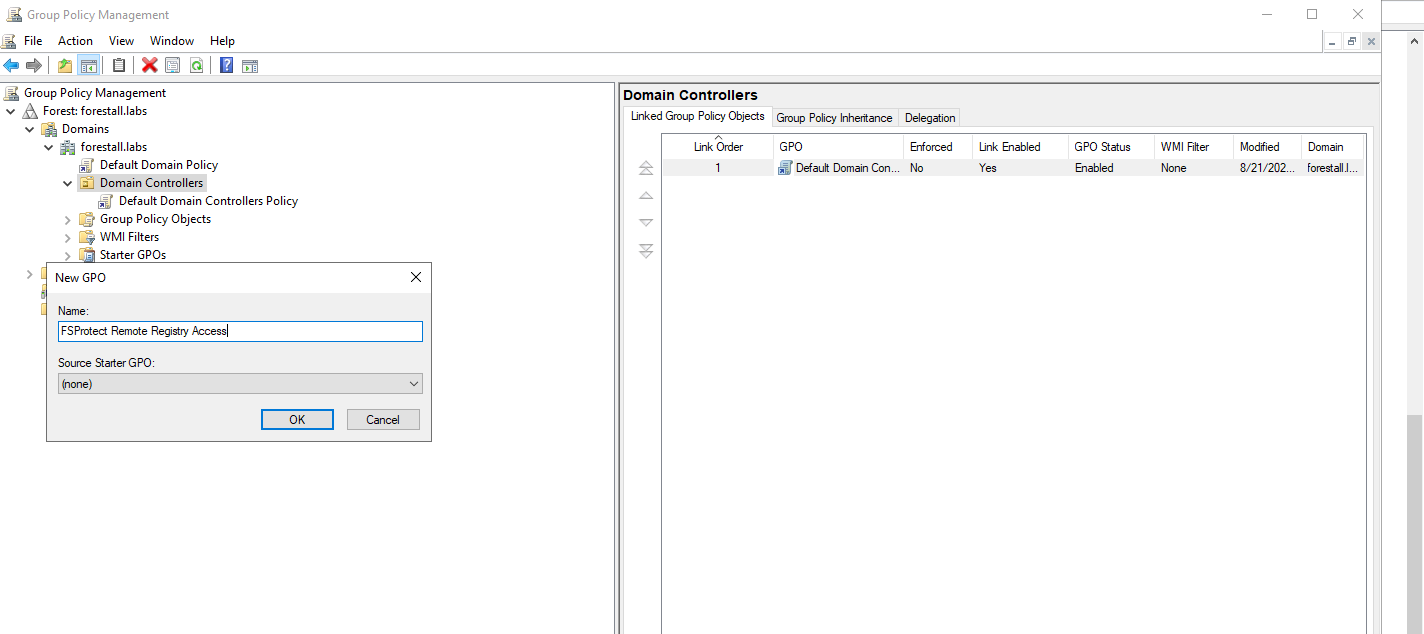
    4. Name the new GPO, for example, `FSProtect Remote Registry Access` and click **OK**.

       <figure><img src="https://3408039743-files.gitbook.io/~/files/v0/b/gitbook-x-prod.appspot.com/o/spaces%2FObpV44hoVkNmo5bFuVVL%2Fuploads%2FaKPKuq7T5jXQEOdABqc5%2Fimage.png?alt=media&#x26;token=e090d7da-387e-4fe1-b1b8-349d30463517" alt=""><figcaption><p>Creating new Group Policy Object</p></figcaption></figure>
    5. Right-click on the newly created GPO and select `Edit.`
    6. When the `Group Policy Management Editor` opens, navigate to:
       1. `Computer Configuration > Policies > Windows Settings > Security Settings > Local Policies > Security Options`.
    7. Find and double-click on `Network access: Remotely accessible registry paths`.
    8. In the dialog that opens, check the `Define this policy setting in the template` box.
    9. Click on the `Local Policy Setting` tab.
    10. Add the following registry paths to allow remote access:
        * `SYSTEM\CurrentControlSet\Services\Kdc`
        * `HKEY_LOCAL_MACHINE\System\CurrentControlSet\Control\SecurityProviders\Schannel`
    11. Click Apply and then `OK` to save the changes.

    <figure><img src="https://3408039743-files.gitbook.io/~/files/v0/b/gitbook-x-prod.appspot.com/o/spaces%2FObpV44hoVkNmo5bFuVVL%2Fuploads%2FTnNTlkNR4Z7l81YN7kYE%2Fimage.png?alt=media&#x26;token=9384fc9a-197a-438c-b198-04c69c928e4b" alt=""><figcaption><p>Granting Registry Read Permission for Domain Controllers</p></figcaption></figure>
11. In order to provide FSProtect with **read** access on all **DMSA (msDS-DelegatedManagedServiceAccount)** objects, configure an allow ACE that applies to **Descendant msDS-DelegatedManagedServiceAccount objects** in the domain. You can do this with PowerShell or manually with the GUI.
    1. Using PowerShell

       ```powershell
       $User = "fsprotectuser"

       $userSid  = (Get-ADUser -Identity $User -ErrorAction Stop).SID
       $domainDN = (Get-ADDomain).DistinguishedName
       $path     = "AD:$domainDN"

       $rights = [System.DirectoryServices.ActiveDirectoryRights]::ReadProperty `
               -bor [System.DirectoryServices.ActiveDirectoryRights]::ListChildren `
               -bor [System.DirectoryServices.ActiveDirectoryRights]::ListObject `
               -bor [System.DirectoryServices.ActiveDirectoryRights]::ReadControl
       $inherit = [System.DirectoryServices.ActiveDirectorySecurityInheritance]::Descendents

       $schemaNC = (Get-ADRootDSE).schemaNamingContext
       $dmsa     = Get-ADObject -SearchBase $schemaNC -LDAPFilter "(ldapDisplayName=msDS-DelegatedManagedServiceAccount)" -Properties schemaIDGUID
       $dmsaGuid = [Guid]$dmsa.schemaIDGUID

       $rule = New-Object System.DirectoryServices.ActiveDirectoryAccessRule($userSid,$rights,'Allow',[Guid]::Empty,$inherit,$dmsaGuid)

       $acl    = Get-Acl $path
       $exists = $acl.Access | Where-Object {
         $_.IdentityReference.Translate([System.Security.Principal.SecurityIdentifier]).Value -eq $userSid.Value -and
         $_.AccessControlType -eq 'Allow' -and
         ($_.ActiveDirectoryRights -band $rights) -eq $rights -and
         $_.ObjectType -eq [Guid]::Empty -and
         $_.InheritanceType -eq $inherit -and
         $_.InheritedObjectType -eq $dmsaGuid
       } | Select-Object -First 1

       if (-not $exists) { $null=$acl.AddAccessRule($rule); Set-Acl $path $acl; Write-Host "ACE Added" } else { Write-Host "ACE already exists" }

       ```
    2. Using the GUI
       1. Open **Active Directory Users and Computers**, enable **View → Advanced Features.**
       2. Right-click the **domain root** (e.g., `contoso.com`) → **Properties → Security → Advanced.**
       3. Click Add → Select a principal → choose the FSProtect account (e.g., fsprotectuser).
       4. **Type**: *Allow*.
       5. **Applies to**: *Descendant msDS-DelegatedManagedServiceAccount objects*.
       6. Check the read-related permissions: *Read*, *Read all properties*, *List contents/List object*, and *Read permissions*.
       7. Confirm with **OK** until all dialogs close.
12. In order to provide FSProtect with **read** access on **DNS Node** objects, configure an allow ACE on each MicrosoftDNS container so that it applies to **This object and all descendant objects**. You can do this with PowerShell or manually with the GUI.
    1. Using PowerShell

       ```powershell
       $user = "fsprotectuser"

       $domainDN     = (Get-ADDomain).DistinguishedName
       $forestRootDN = (Get-ADDomain (Get-ADForest).RootDomain).DistinguishedName
       $bases = @(
         "CN=MicrosoftDNS,DC=DomainDnsZones,$domainDN",
         "CN=MicrosoftDNS,DC=ForestDnsZones,$forestRootDN",
         "CN=MicrosoftDNS,CN=System,$domainDN"
       )

       $sid      = (Get-ADUser -Identity $user -ErrorAction Stop).SID
       $rights   = [System.DirectoryServices.ActiveDirectoryRights]::GenericRead
       $inherit  = [System.DirectoryServices.ActiveDirectorySecurityInheritance]::Descendents
       $rule     = New-Object System.DirectoryServices.ActiveDirectoryAccessRule(
                     $sid,$rights,[System.Security.AccessControl.AccessControlType]::Allow,[Guid]::Empty,$inherit,[Guid]::Empty)

       foreach ($b in $bases) {
         $acl = Get-Acl "AD:$b"
         $exists = $acl.Access | Where-Object {
           $_.IdentityReference.Translate([System.Security.Principal.SecurityIdentifier]).Value -eq $sid.Value -and
           $_.AccessControlType -eq 'Allow' -and
           ($_.ActiveDirectoryRights -band $rights) -eq $rights -and
           $_.ObjectType -eq [Guid]::Empty -and
           $_.InheritanceType -eq $inherit -and
           $_.InheritedObjectType -eq [Guid]::Empty
         } | Select-Object -First 1

         if (-not $exists) { $null = $acl.AddAccessRule($rule); Set-Acl "AD:$b" $acl; Write-Host "Added: $b" } else { Write-Host "Exists: $b" }
       }

       ```
    2. Using the GUI
       1. Open **ADSI Edit** → **Connect to…**
       2. Under **Connection Point**, choose **Select or type a Distinguished Name or Naming Context**.
       3. In the **Distinguished Name** box, paste **`DC=DomainDnsZones,<your domain DN>`** (e.g., `DC=DomainDnsZones,DC=contoso,DC=com`).
       4. Expand the new connection → expand **CN=MicrosoftDNS**.
       5. Right-click **CN=MicrosoftDNS** → **Properties → Security → Advanced**.
       6. Click **Add**.
       7. Click **Select a principal** → choose the FSProtect account.
       8. Grant **Generic Read.**
       9. Click **Apply** then OK.
       10. Repeat **Connect to…** and the same permission steps for **`DC=ForestDnsZones,<your forest root DN>`** (e.g., `DC=ForestDnsZones,DC=contoso,DC=com`).
       11. For the **System** container:
           1. **Connect to…** again and select **Default naming context**.
           2. Expand to **CN=System → CN=MicrosoftDNS**.
           3. Open **Properties → Security → Advanced**, **Add** the FSProtect account, **Applies to = This object and all descendant objects**, grant **Generic Read**, and confirm with **OK** on all dialogs.
13. The installation directory and the IIS worker process must be excluded from antivirus scans to ensure proper functionality. Otherwise, antivirus programs may block essential application operations.
    1. `C:\Forestall\FSProtect\`&#x20;
    2. <kbd>C:\Windows\System32\inetsrv\w3wp.exe</kbd>
14. To perform update operations using the "Check for Updates" on the desktop, systems with restricted internet access must allow outbound access to the `license.forestall.io` host over port 443 (HTTPS).

## Verifying the Requirements

You can use the **Powershell** script below to verify **Firewall rules** and **port statuses**.

```powershell
function Test-FSProtectPorts {
    param
    (
        [parameter(Mandatory=$true)][String]$IPAddress
    )

    $ports = @(
        @{port=389;description="LDAP"},
        @{port=445;description="SMB"},
        @{port=88;description="KERBEROS"},
        @{port=53;description="DNS"},
        @{port=135;description="DCERPC"},
        @{port=3389;description="RDP"},
        @{port=123;description="NTP"},
        @{port=137;description="NETBIOS"},
        @{port=49667;description="DCERPC/LSARPC"},
        @{port=49670;description="DCERPC/NETLOGON"}
    );

    Write-Host -ForegroundColor Cyan "Scanning $IPAddress"

    foreach ($port in $ports){
        $response = Test-NetConnection -ComputerName $IPAddress -Port $port.port -WarningAction SilentlyContinue
        if ($response.TcpTestSucceeded){
            Write-Host -ForegroundColor Green "✔️ Port $($port.port) TCP/$($port.description) is reachable"
        }else {
            Write-Host -ForegroundColor Red "❌ Port $($port.port) TCP/$($port.description) is not reachable"
        }
    }

    Write-Host -ForegroundColor Yellow "⚠️ You need to check Spool Service ports"
}

Test-FSProtectPorts -IPAddress 127.0.0.1
```

You can use the **Powershell** script below to verify **DNS configuration**, **Active Directory connection** and **user status**.

```powershell
$Forest = "fslab.local"
$UserName = "fsprotectuser"
$Password = Read-Host -Prompt "Password: " -AsSecureString

function Test-ADConnection {
    param
    (
        [parameter(Mandatory=$true)][String]$Forest,
        [parameter(Mandatory=$true)][String]$UserName,
        [parameter(Mandatory=$true)][System.Security.SecureString]$Password
    )

    $PdcOutput = nltest /dsgetdc:$Forest /PDC
    if ($PdcOutput -eq $null){
        Write-Host "!!!!!!!! --> PDC not accessible. Forest: $Forest"
        return
    }

    $PdcOutput
    Write-Host "# PDC is accessible"

    $ServerIp = ([regex]::Match($PdcOutput,'(?<=\\\\)(\b25[0-5]|\b2[0-4][0-9]|\b[01]?[0-9][0-9]?)(\.(25[0-5]|2[0-4][0-9]|[01]?[0-9][0-9]?)){3}')).value
    $Password_Plaintext = [Runtime.InteropServices.Marshal]::PtrToStringAuto([Runtime.InteropServices.Marshal]::SecureStringToBSTR($Password))

    $ContextType = [System.DirectoryServices.ActiveDirectory.DirectoryContextType]::DirectoryServer
    $ADContext = New-Object System.DirectoryServices.ActiveDirectory.DirectoryContext $ContextType, $ServerIp, "$Forest\$UserName", $Password_Plaintext
    $Domain = [System.DirectoryServices.ActiveDirectory.Domain]::GetDomain($ADContext)

    if ($Domain -eq $null){
        Write-Host "!!!!!!!! --> AD is not enumarable. Forest: $Forest - Username: $UserName"
        return
    }

    $DomainObj = $Domain.GetDirectoryEntry()
    $DomainObj

    Write-Host "----------------------------"
    Write-Host "# Enumeration Success"
    Write-Host "IP: $ServerIp"
    Write-Host "Path: $($DomainObj.Path)"
    Write-Host "----------------------------"
}

Test-ADConnection -Forest $Forest -UserName $UserName -Password $Password
```

## Installation Requirements Checklist

<table><thead><tr><th width="70.33333333333331">No</th><th width="512">Checklist Item</th><th>Status (Yes/No)</th></tr></thead><tbody><tr><td>1</td><td>Has the server been set up according to the requirements specified for the installation of the FSProtect? <strong>(Requirement 1 and Requirement 2)</strong></td><td></td></tr><tr><td>2</td><td>Have the specified firewall rules been created for the network access? <strong>(Requirement 3 and Requirement 4)</strong></td><td></td></tr><tr><td>3</td><td>Can the server resolve all FQDNs and server IP addresses in Active Directory domains to be scanned?</td><td></td></tr><tr><td>4</td><td>Are the security software on the server disabled or are necessary exclusions implemented? <strong>(Requirement 5)</strong></td><td></td></tr><tr><td>5</td><td>Is one of the Google Chrome, Mozilla Firefox or Microsoft Edge browsers installed on the server to access the FSProtect web interface? <strong>(Requirement 6)</strong></td><td></td></tr><tr><td>6</td><td>Have domain users with the specified requirements been created in all Forests to perform Active Directory scans? <strong>(Requirement 8)</strong></td><td></td></tr><tr><td>7</td><td>Has the required Group Policy object been created to perform local inventory enumeration? <strong>(Requirement 9)</strong></td><td></td></tr></tbody></table>