> For the complete documentation index, see [llms.txt](https://docs.forestall.io/fsprotect/llms.txt). Markdown versions of documentation pages are available by appending `.md` to page URLs; this page is available as [Markdown](https://docs.forestall.io/fsprotect/configuration-center/sso/monosign-configuration.md).

# MonoSign Configuration

Forestall ISPM can be integrated with the MonoSign system to make the authentication process easier. The following configurations must be completed in order to integrate.

## SAML Connection Configuration:

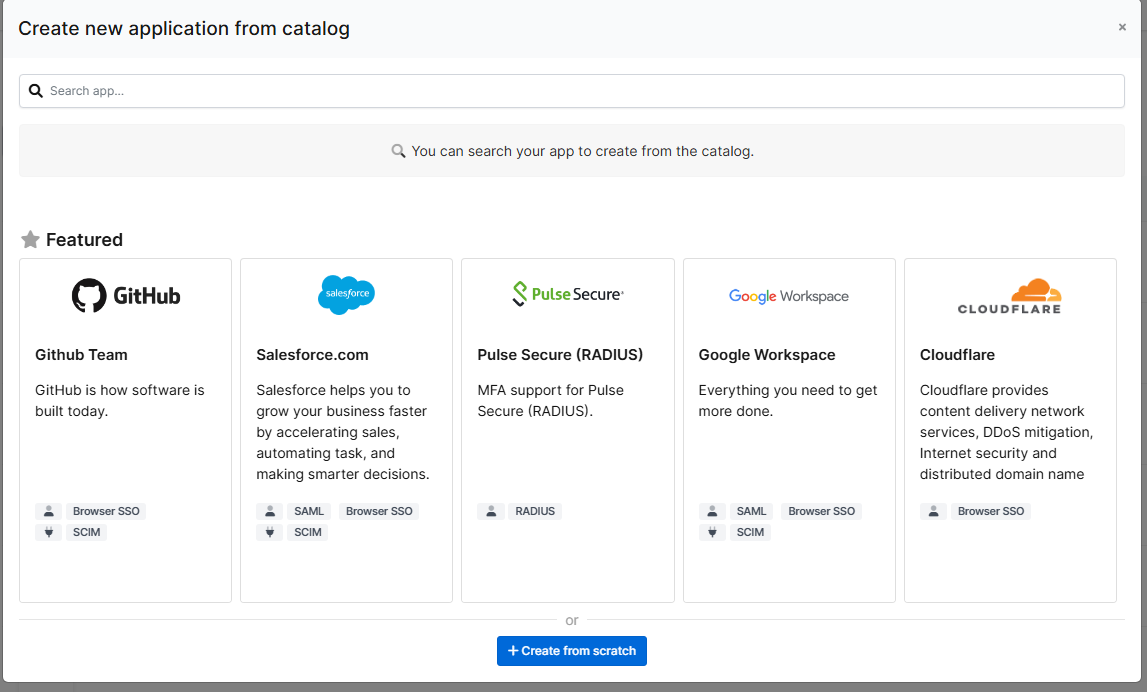
In the MonoSign administrator dashboard, navigate to **Applications** and select **Add New → Create From Scratch**.

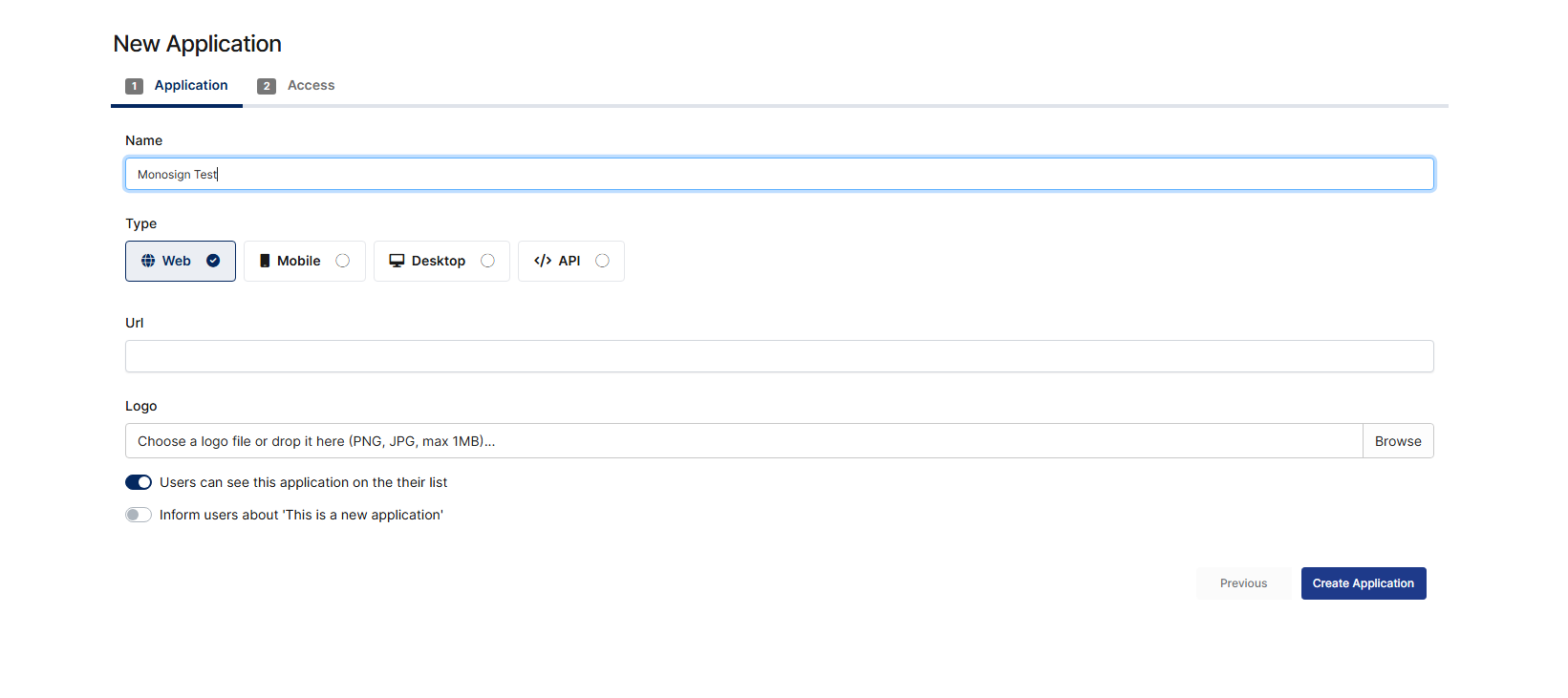
<figure><img src="https://3408039743-files.gitbook.io/~/files/v0/b/gitbook-x-prod.appspot.com/o/spaces%2FObpV44hoVkNmo5bFuVVL%2Fuploads%2Fgit-blob-df9ce5cec570a645a1fc83e1826891455cc6db8f%2Fsso-monosign-configuration-image-1.png?alt=media" alt="Create New Application Page"><figcaption><p>Create New Application Page</p></figcaption></figure>

After giving it a display name, click Create Application

<figure><img src="https://3408039743-files.gitbook.io/~/files/v0/b/gitbook-x-prod.appspot.com/o/spaces%2FObpV44hoVkNmo5bFuVVL%2Fuploads%2Fgit-blob-b56296fb145a8c34da7a0c775df832984c88e860%2Fsso-monosign-configuration-image-2.png?alt=media" alt="New Application Initial Setup"><figcaption><p>New Application Initial Setup</p></figcaption></figure>

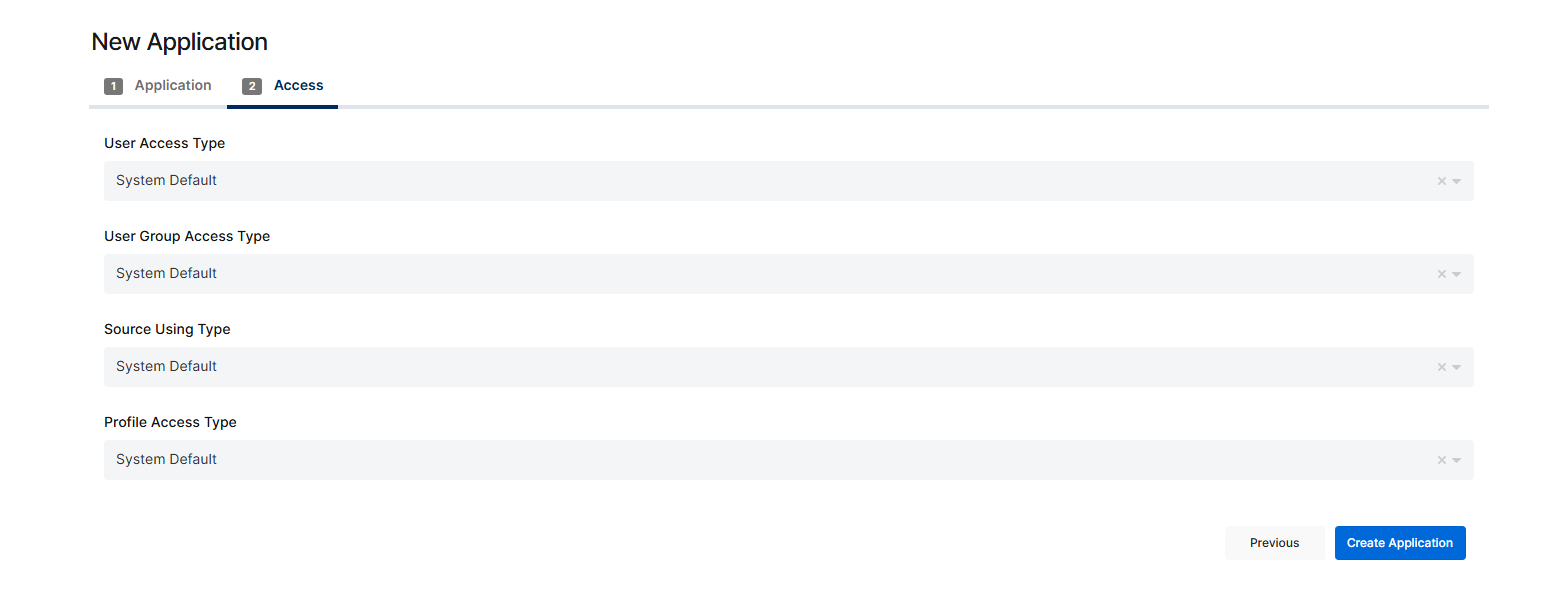
And then Acces Settings needs to be configured according to organisations needs.

<figure><img src="https://3408039743-files.gitbook.io/~/files/v0/b/gitbook-x-prod.appspot.com/o/spaces%2FObpV44hoVkNmo5bFuVVL%2Fuploads%2Fgit-blob-75e8a1930d49728e6c398d2b8d4465b122daab26%2Fsso-monosign-configuration-image-3.png?alt=media" alt="Application Access Control Setup"><figcaption><p>Application Access Control Setup</p></figcaption></figure>

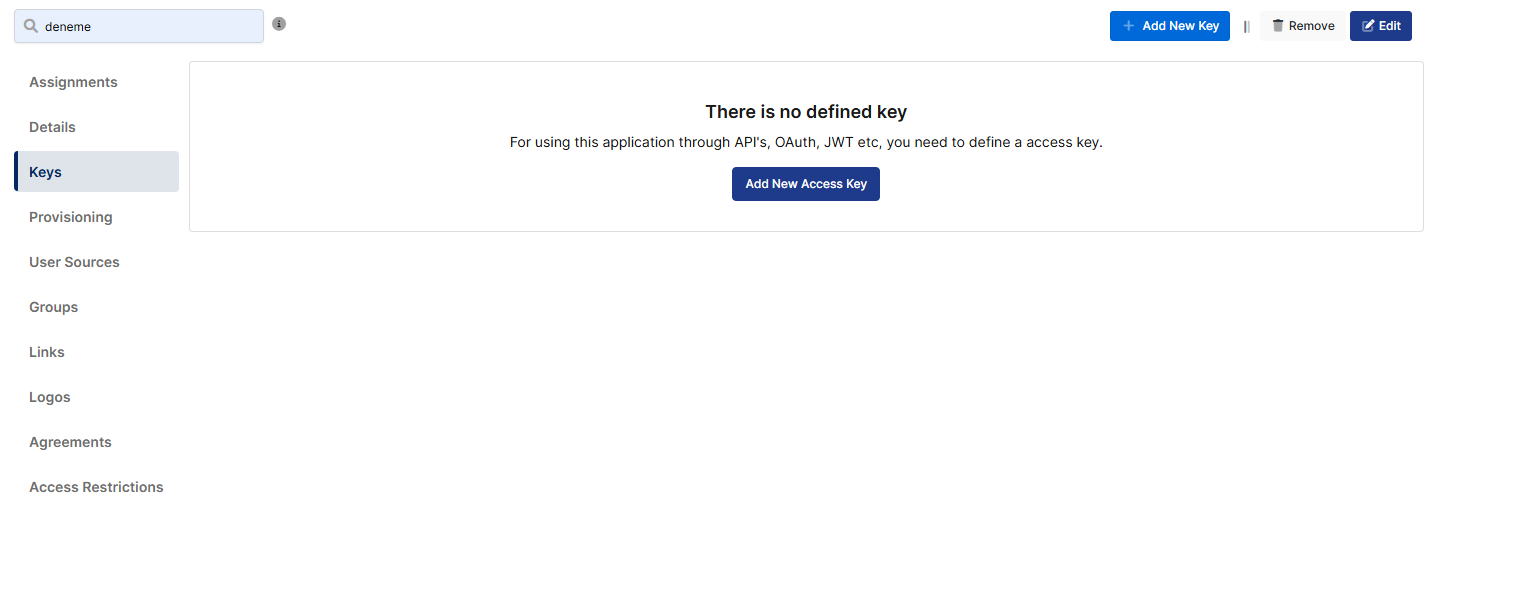
After creating the application, go to **Application Dashboard → Keys → Add New Key**.

<figure><img src="https://3408039743-files.gitbook.io/~/files/v0/b/gitbook-x-prod.appspot.com/o/spaces%2FObpV44hoVkNmo5bFuVVL%2Fuploads%2Fgit-blob-77a94b56a8822b1a957a39b407692ce5f045e026%2Fsso-monosign-configuration-image-4.png?alt=media" alt="Adding new SAML Key Page"><figcaption><p>Adding new SAML Key Page</p></figcaption></figure>

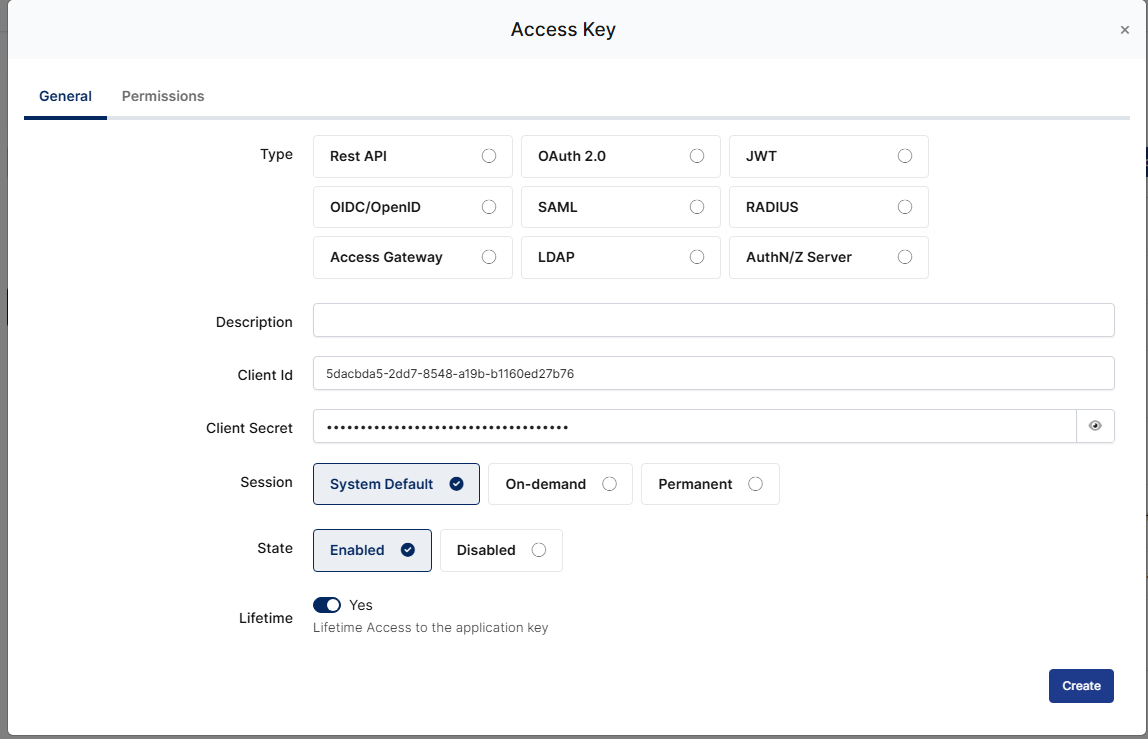
<figure><img src="https://3408039743-files.gitbook.io/~/files/v0/b/gitbook-x-prod.appspot.com/o/spaces%2FObpV44hoVkNmo5bFuVVL%2Fuploads%2Fgit-blob-90e3b0ae739af85168ae85db60c86bfedf038c0c%2Fsso-monosign-configuration-image-5.png?alt=media" alt="SAML Key Configuration"><figcaption><p>SAML Key Configuration</p></figcaption></figure>

In the key creation screen, **SAML** should be selected and the **Create** option should be applied.

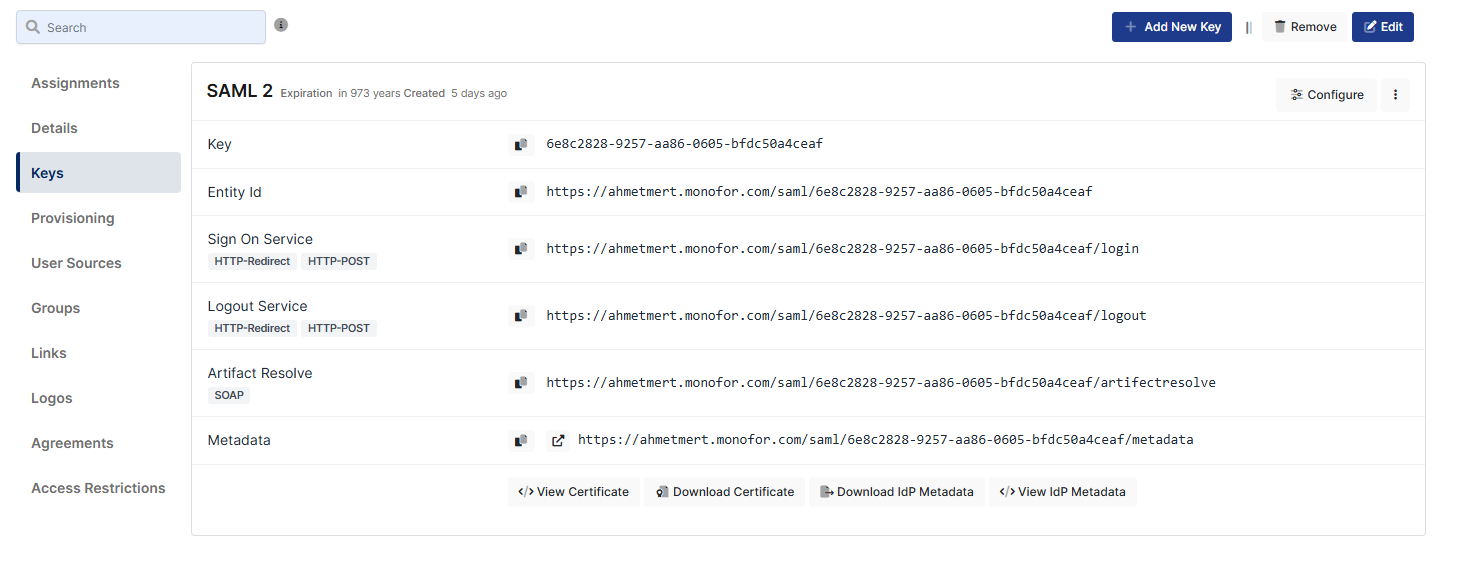
Download IdP Metadata with clicking Download IdP Metadata button.

<figure><img src="https://3408039743-files.gitbook.io/~/files/v0/b/gitbook-x-prod.appspot.com/o/spaces%2FObpV44hoVkNmo5bFuVVL%2Fuploads%2Fgit-blob-da2eb27897fc2772c696ac577ec2e960386a2209%2Fsso-monosign-configuration-image-6.png?alt=media" alt="SAML Connection Page"><figcaption><p>SAML Connection Page</p></figcaption></figure>

Save this file and upload it to Forestall. Forestall will parse it to pull in MonoSign’s endpoints and certificates.

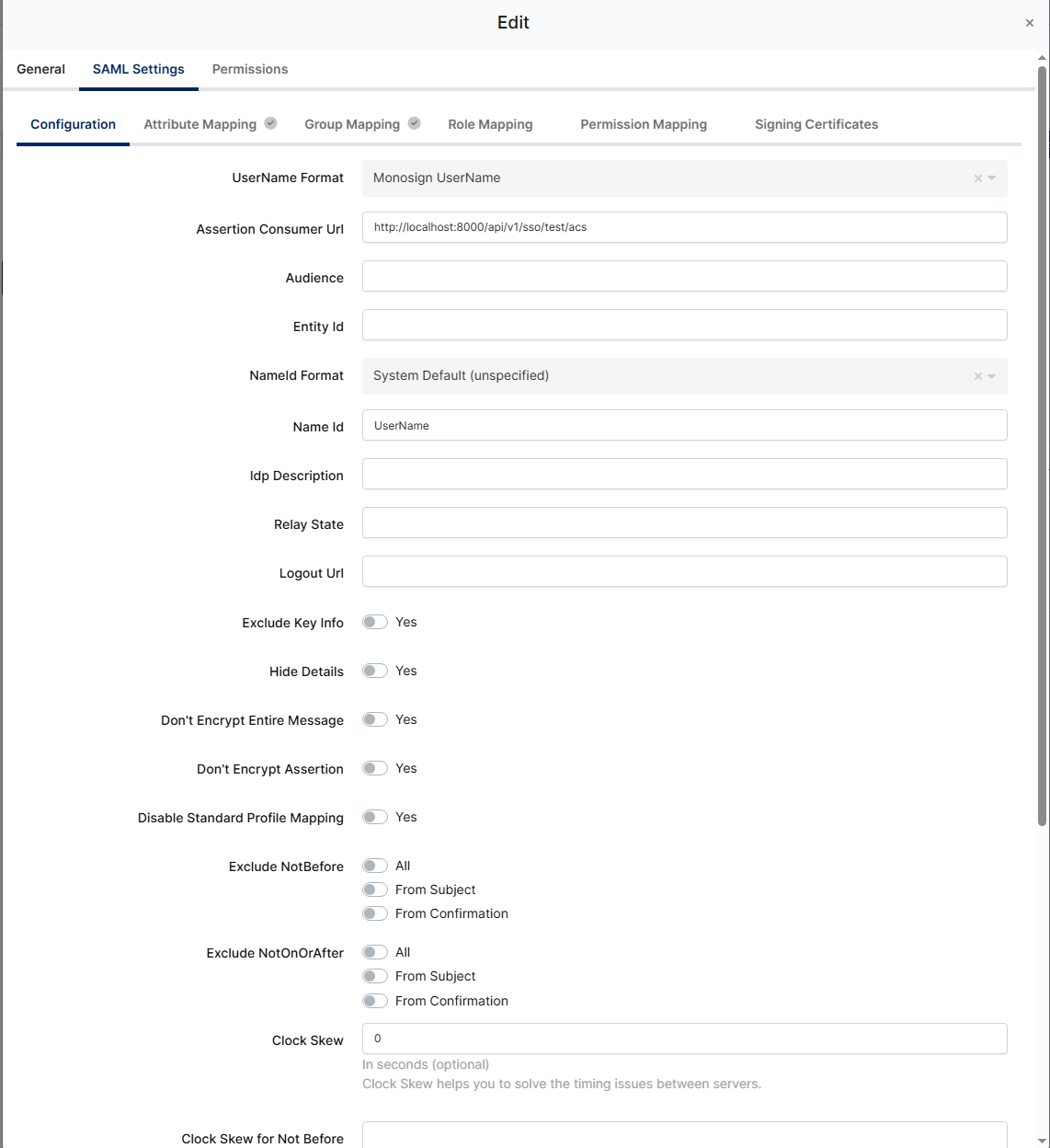
Press Configure Button and Fill with following information:

**ACS URL**: This value is copied from Forestall after the SSO settings are saved. It must exactly match Forestall’s ACS URL.

<figure><img src="https://3408039743-files.gitbook.io/~/files/v0/b/gitbook-x-prod.appspot.com/o/spaces%2FObpV44hoVkNmo5bFuVVL%2Fuploads%2Fgit-blob-e4d062dedce43d3871ff94ad5e36fda983778a62%2Fsso-monosign-configuration-image-7.png?alt=media" alt="SAML Connection Configuration"><figcaption><p>SAML Connection Configuration</p></figcaption></figure>

### Role and Username Mapping Settings

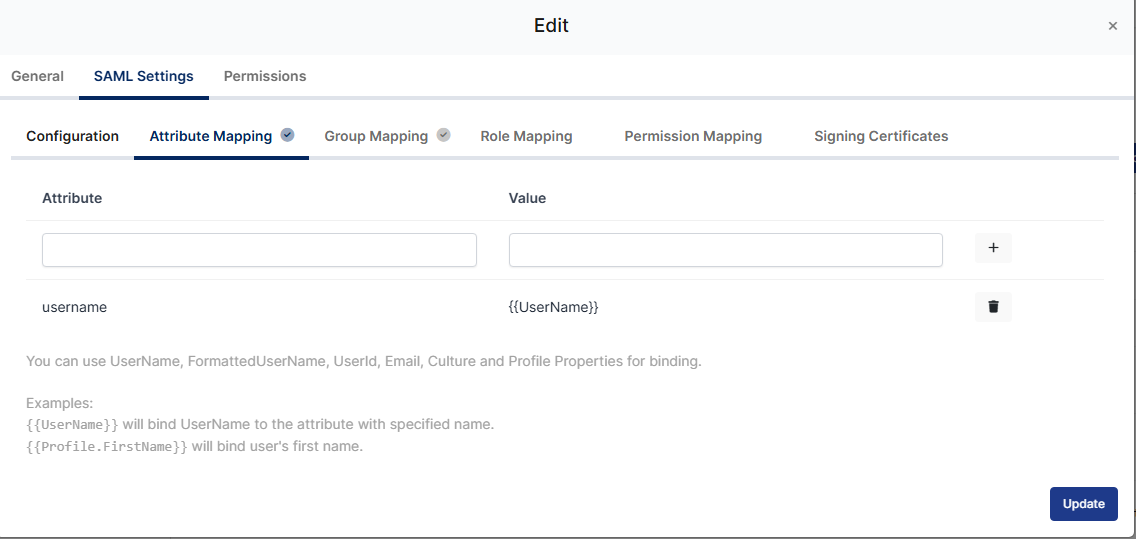
In MonoSign’s **Attributes** tab, add the following two assertion attributes so Forestall can read them:

**Username Attribute Key**

* **Attribute:** Forestall Username Attribute Key
* **Value:** `{{UserName}}`
* Press plus icon to save

<figure><img src="https://3408039743-files.gitbook.io/~/files/v0/b/gitbook-x-prod.appspot.com/o/spaces%2FObpV44hoVkNmo5bFuVVL%2Fuploads%2Fgit-blob-2dc24d6e409cc6fcacc0fe02a676dc6ae7fbd741%2Fsso-monosign-configuration-image-8.png?alt=media" alt="Username Attribute Configuration Page"><figcaption><p>Username Attribute Configuration Page</p></figcaption></figure>

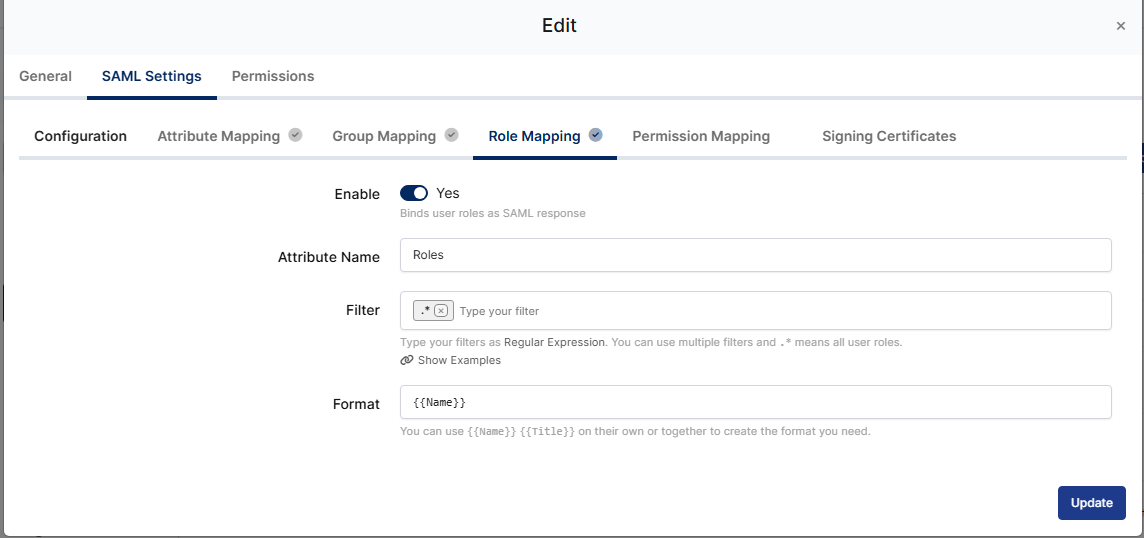
**Role Attribute Key**

* **Enabled:** True
* **Attribute Name:** Forestall Role Attribute Key
* **Format:** `{{Name}}`

<figure><img src="https://3408039743-files.gitbook.io/~/files/v0/b/gitbook-x-prod.appspot.com/o/spaces%2FObpV44hoVkNmo5bFuVVL%2Fuploads%2Fgit-blob-2e3525229d7a3f4ed1b411338cda1e8a0635255d%2Fsso-monosign-configuration-image-9.png?alt=media" alt="Role Attribute Configuration Page"><figcaption><p>Role Attribute Configuration Page</p></figcaption></figure>

Once the MonoSign app configuration has been saved:

1. The IdP Metadata XML must be downloaded from the IdP.
2. In Forestall’s **New Provider** screen, the XML must be uploaded via the **XML Upload Field**.
3. The configuration must be saved in Forestall.
4. MonoSign users or groups must then be assigned to the app.

After these steps, Forestall SSO Login will function with correct username and role mappings.