> For the complete documentation index, see [llms.txt](https://docs.forestall.io/fsprotect/llms.txt). Markdown versions of documentation pages are available by appending `.md` to page URLs; this page is available as [Markdown](https://docs.forestall.io/fsprotect/configuration-center/ad-configurations.md).
# AD Configurations
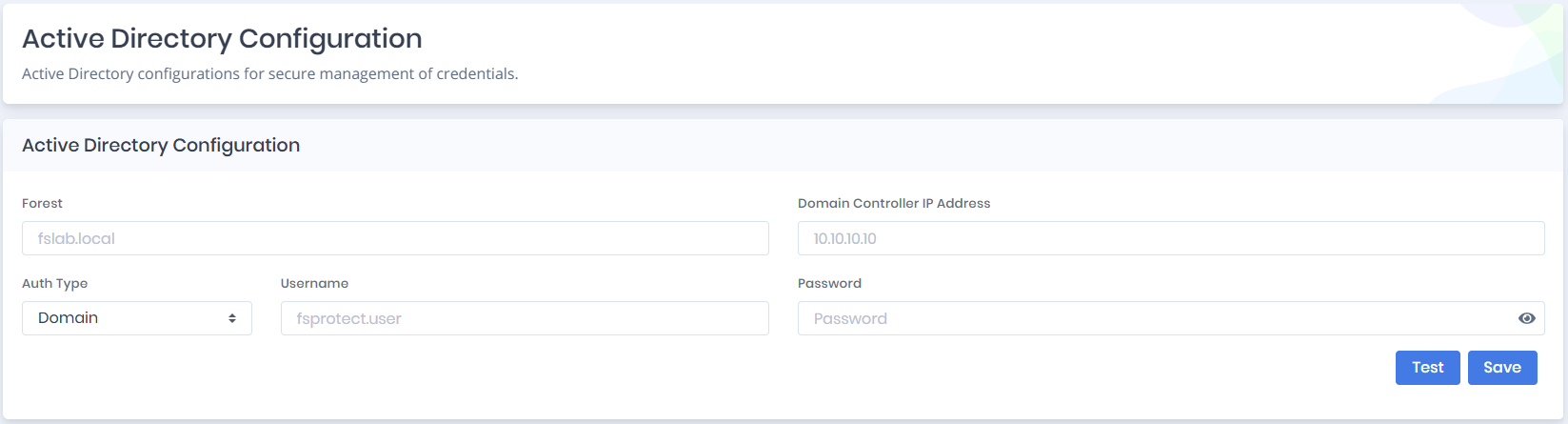
This section allows you to configure Active Directory connection and authentication settings. Use this configuration to securely connect to and scan Active Directory environments.
### Fields
**Forest**: The Fully Qualified Domain Name (FQDN) of the forest that is going to be analyzed. Forestall ISPM automatically analyzes the submitted FQDN of the forest and includes the parent and child domains/forests in the Active Directory environment to this new scan.
**Domain Controller IP Address**: IP Address of the domain controller that belongs the to submitted forest. If the related domain or forest contains more than one domain controller, any domain controller IP address which is accessible over the network from the Forestall machine is accepted.
**Username**: Name of the user account that is created for scanning the environment during the Forestall Requirements and Installation phase. As this user requires specific permissions and settings, If you are unsure about whether it satisfies these prerequisites, please check the Requirements and Installation document.
**Password**: Password that belongs the submitted username.
### Authentication Type
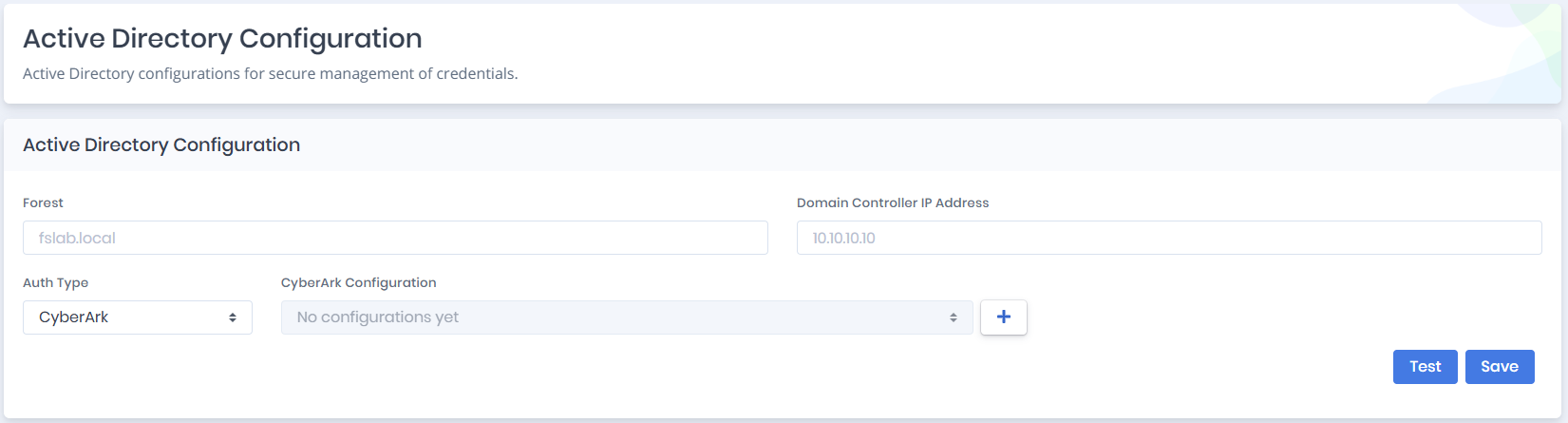
The **Authentication Type** field determines how the Active Directory credentials are provided. Two authentication methods are available.
When **CyberArk** is selected, credentials are retrieved using the selected **CyberArk Configuration**.
Select an existing **CyberArk Configuration** from the drop-down list.
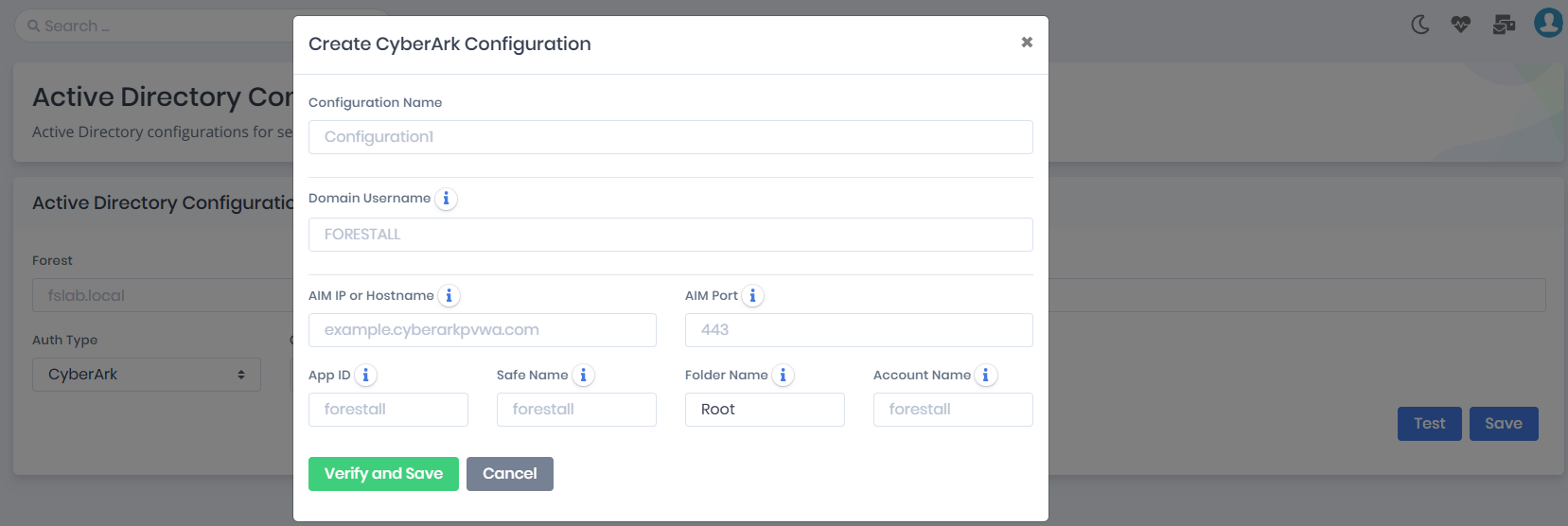
If no suitable configuration exists, click the **+** button next to the drop-down list to create a new CyberArk Configuration without leaving the page.
After the configuration is successfully verified and saved, it becomes available for selection in the **CyberArk Configuration** drop-down list.