> For the complete documentation index, see [llms.txt](https://docs.forestall.io/forestall/llms.txt). Markdown versions of documentation pages are available by appending `.md` to page URLs; this page is available as [Markdown](https://docs.forestall.io/forestall/health-check.md).
# Health Check
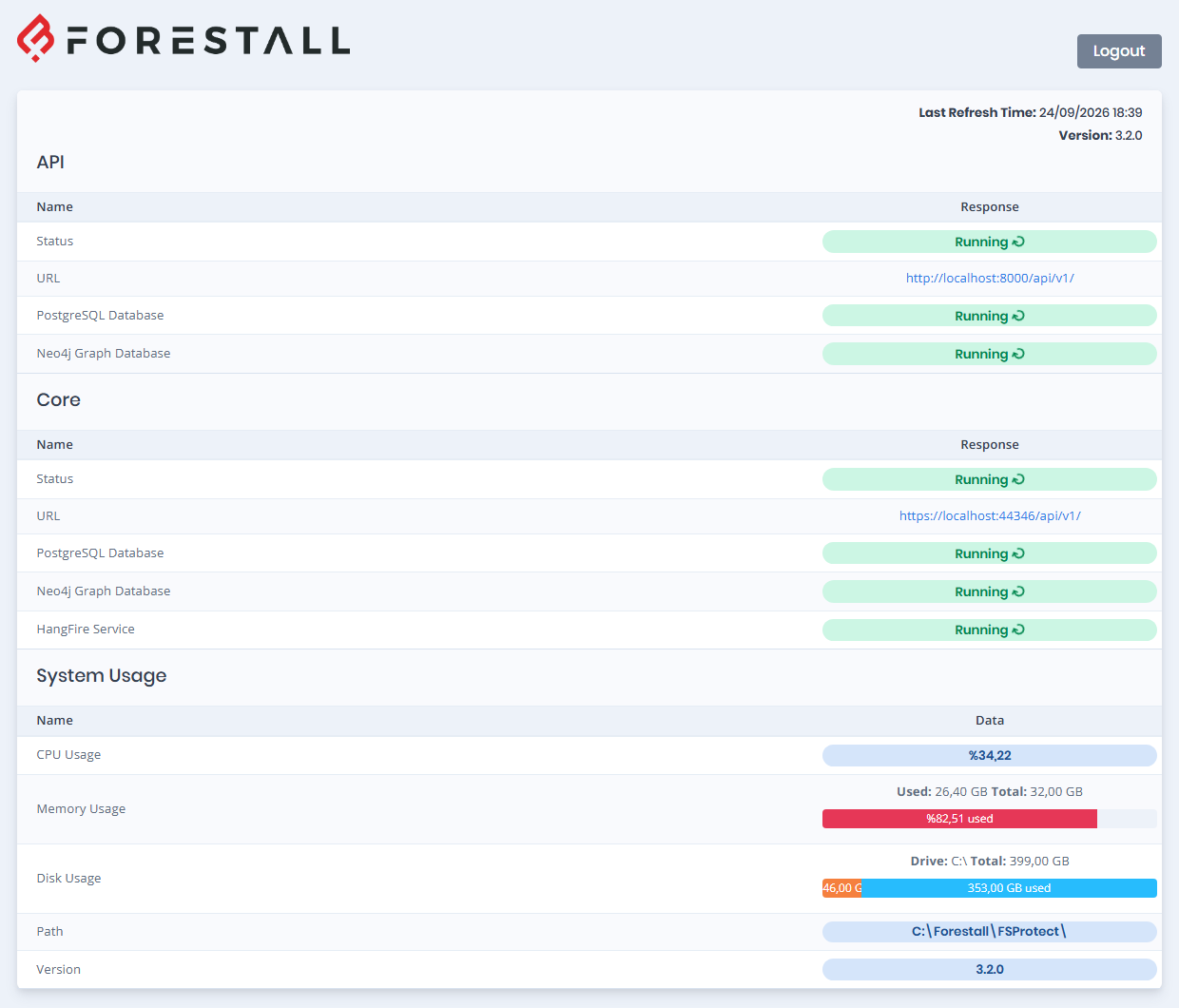
The Health Check page shows the status of the installed components and the resource usage of the server.
Open the page from the heartbeat icon (**Health Check**) in the top bar, or from the **Health Check →** link below the login form. The page opens without the application menu, so it can also be used when you cannot sign in. The button in the upper-right corner is **Login** when you are not signed in and **Logout** when you are.
The header shows the **Last Refresh Time** and, when you are signed in, the installed **Version**. The page refreshes itself every 30 seconds.
Each component is shown with a **Running** or **Failed** badge in the **Response** column. What you see depends on whether you are signed in:
* **Not signed in**: only the **Status** and **URL** rows, for both the API and the Core section.
* **Signed in**: in addition, the database checks for both sections, the **HangFire Service** row in Core, and the **System Usage** section.
## API
The **API** section provides a real-time status of the API services, showing whether they are currently running and accessible. It includes:
* **Status**: Whether the API service is running.
* **URL**: The address of the REST API.
* **PostgreSQL Database**: Indicates whether the API can query the PostgreSQL database.
* **Neo4j Graph Database**: Indicates whether the API can query the Neo4j graph database.
## Core
The Core section monitors the core application’s underlying infrastructure and services, detailing:
* **Status**: Whether the Core service is running.
* **URL**: The address of the Core service, which runs the scans and background jobs.
* **PostgreSQL Database**: Indicates whether Core can reach the PostgreSQL database.
* **Neo4j Graph Database**: Indicates whether Core can reach the Neo4j graph database.
* **HangFire Service**: Whether HangFire, which runs and schedules the background jobs, is working.
## System Usage
The System Usage section provides insights into resource consumption on the server:
* **CPU Usage**: The current CPU load.
* **Memory Usage**: The current memory usage.
* **Disk Usage**: The used and free disk space.
* **Path**: The installation directory (by default `C:\Forestall\FSProtect\`).
* **Version**: The running product version.
If Core cannot report system usage, the section shows a single **Error** row with the reason.
## When a component fails
A component that cannot be reached is shown with a red **Failed** badge (the health check API returns `Not Available` for it). Check the following on the server:
* **API or Core Status is Failed**: make sure the `FSProtect-Django` and `FSProtect-Core` sites and their application pools are started in IIS Manager.
* **PostgreSQL Database is Failed**: make sure the `postgresql-x64-15` Windows service is running.
* **Neo4j Graph Database is Failed**: make sure the `neo4j` Windows service is running.
* **HangFire Service is Failed**: restart the `FSProtect-Core` site. Scheduled and running scans depend on it.
If a component stays failed after the service is running again, check that the installation directory is excluded from antivirus scans (see [Requirements](/forestall/introduction/requirements.md)) and contact Forestall support.